> ## Documentation Index
> Fetch the complete documentation index at: https://docs.altoura.com/llms.txt
> Use this file to discover all available pages before exploring further.
# Conditions
> A **condition** is a logical rule that must be true for a transition to fire. Conditions let you create branching flows — different paths based on learner choices, scores, or any other data you're tracking with variables.
## When to Use Conditions
Use conditions when your training should respond differently to the same event depending on circumstances.
**Examples:**
* **Score-based branching**: If learner scores >= 80%, show "Congratulations!". Otherwise, show "Try Again".
* **Choice-based branching**: If learner selects "Door A", go to "Safe Path". If they select "Door B", go to "Trap".
* **Attempt limiting**: If attempts \< 3, let them retry. If attempts >= 3, show failure screen.
* **State tracking**: If a tracking variable like `safetyTrainingComplete` is true, show advanced content. Otherwise, show basics.
## Building a Condition
Conditions use **variables** and **operators** to create logical expressions. You write conditions directly in the Conditions field of a transition using AXL syntax.
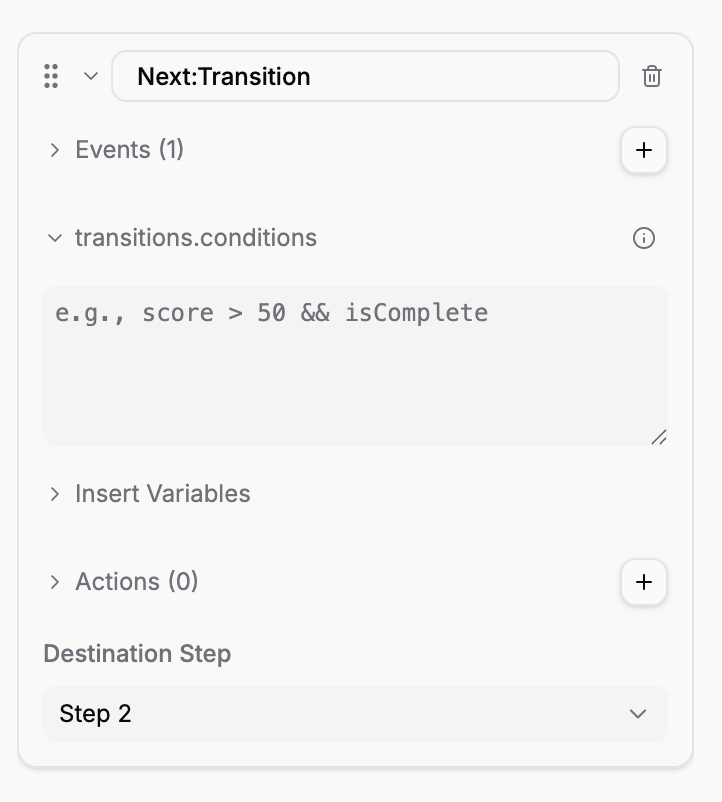 Click on a transition to expand it. You'll see Events, Conditions, and Actions sections.
Click the Conditions dropdown to reveal the expression field.
Enter an AXL expression (e.g., `Score > 60`). Use the Insert Variables section to reference available variables.
Choose where the learner goes when this condition is true.
## Operators
Your condition can use these operators:
| Operator | Meaning | Example |
| ------------------- | --------------------------- | ------------------------------- |
| `==` | Equals | `score == 100` |
| `===` | Strict equals (recommended) | `score === 100` |
| `!=` | Not equals | `name != "admin"` |
| `!==` | Strict not equals | `name !== "admin"` |
| `<` | Less than | `attempts < 3` |
| `>` | Greater than | `score > 80` |
| `<=` | Less than or equal | `remainingTime <= 0` |
| `>=` | Greater than or equal | `finalScore >= 70` |
| `+` `-` `*` `/` `%` | Arithmetic | `score + bonus`, `attempts % 2` |
## Logical Operators: `&&`, `||`, `!`
Combine multiple conditions for complex logic. AXL uses symbol operators only — there are no `AND`, `OR`, or `NOT` keywords.
* **`&&`** (AND): Both conditions must be true
* **`||`** (OR): Either condition can be true
* **`!`** (NOT): Inverts a condition
### Examples
```
score >= 80 && attempts < 3
// Both must be true: scored well and didn't use too many attempts
selectedOption == "correct" || selectedOption == "acceptableAlternative"
// Either answer is acceptable
!isTrainingComplete
// True if training is not complete
```
### Grouping with Parentheses
For complex logic, use parentheses to control the order:
```
(score >= 80 && attempts <= 2) || (isAdminUser == true)
// Either (high score + few attempts) or admin user
!(currentState == "locked" || currentState == "disabled")
// Not locked and not disabled
```
## Altoura Expression Language (AXL)
Conditions use **Altoura Expression Language (AXL)** — a simple expression syntax for building rules. AXL is read-only: you cannot assign values inside an expression. To update a variable, use the **Set Variable** action and put the AXL expression in its value field.
### Arithmetic in Expressions
Arithmetic appears inside a condition or as the value of a Set Variable action:
```
score + bonus > 100
(correctAnswers / totalQuestions) * 100 >= 80
```
In a Set Variable action, the new value is itself an AXL expression — for example, set `score` to `score + 10`.
### Comparisons
```
score >= 80
finalAnswer == "valve_opened"
attempts < maxAttempts
```
### Logical Operations
```
isComplete && attempts < 3
selectedLevel == "advanced" || userRole == "trainer"
!isLocked
```
### Ternary Operator (if-then-else)
```
score >= 80 ? "pass" : "fail"
// If score >= 80, return "pass"; otherwise return "fail"
attempts < 3 ? remainingAttempts : 0
// If attempts < 3, show remaining; otherwise 0
```
### Built-in Functions
AXL provides useful functions:
| Function | Purpose | Example |
| -------------------- | --------------------------------------------- | ------------------------------------------ |
| `In(stateId)` | True when the given state is currently active | `In("step-2") ? "in step 2" : "elsewhere"` |
| `len(value)` | Length of a string or array | `len(selectedAnswers) == 4` |
| `clamp(v, min, max)` | Constrain a number between min and max | `clamp(score, 0, 100)` |
| `now()` | Current timestamp in milliseconds | `now() - startTime > 60000` |
### Example Expressions
```
// Check if a state is currently active
In("SafetyWarning")
// Count items in an array
len(completedSteps) >= 5
// Calculate time elapsed (in seconds)
(now() - trainingStartTime) / 1000 > 120
```
To clamp a value, use `clamp(...)` inside a Set Variable action — for example, set `finalScore` to `clamp(rawScore, 0, 100)`.
## Event Data in Transition Conditions
Inside a transition's condition, you can reference data that came in with the event using `event.data.*` and `event.target.*`:
```
event.data.assetInstanceId == "valve_main"
event.target.name == "Button1"
```
These references are only valid in transition conditions where an event triggered the evaluation.
## System Variables (Read-Only)
Your training has access to system variables provided automatically by Altoura. These are **read-only** — you cannot change them, but you can read and use them in conditions.
| Variable | What It Is | Example |
| --------------------- | ----------------------------------------------------- | ---------------------------------------- |
| `_altoura.sessionId` | Unique ID for this training session | `_altoura.sessionId == "session_abc123"` |
| `_altoura.userId` | ID of the learner (from your LMS or auth system) | `_altoura.userId == "user_42"` |
| `_altoura.deviceType` | The device type (e.g., "mobile", "tablet", "desktop") | `_altoura.deviceType == "mobile"` |
| `_altoura.locale` | Language/locale (e.g., "en", "es", "fr") | `_altoura.locale == "es"` |
**Example uses:**
```
// Show mobile-specific instructions
_altoura.deviceType == "mobile" ? "Tap the button" : "Click the button"
// Show content in the learner's language
_altoura.locale == "es" ? "Bienvenido" : "Welcome"
// Restrict content to a specific user
_altoura.userId == "trainer_admin" ? true : false
```
## Transition Priority and Multiple Conditions
When multiple transitions exist for the same event, the Creator App checks them **in order** (top to bottom, or as defined in your UI). The **first transition whose condition is true** fires.
**Example: Multiple choice paths**
From state "Quiz Question", you have three transitions on a Choice event:
1. If `selectedAnswer == "optionA"`, go to "Correct"
2. If `selectedAnswer == "optionB"`, go to "Incorrect"
3. No condition (default fallback), go to "Unexpected Answer"
When the learner chooses an option:
* If they picked option A, condition 1 is true → transition to "Correct" fires
* If they picked option B, condition 1 is false, condition 2 is true → transition to "Incorrect" fires
* Any other choice → condition 1 and 2 are false → fallback transition fires
## Unconditional Fallback Transitions
A transition with **no condition** always fires. Use this as a default or "else" path.
**Best practice:** Place your most specific conditions first, then add an unconditional fallback at the end to catch anything unexpected.
```
Transition 1: score >= 90 → "Excellent"
Transition 2: score >= 70 → "Good"
Transition 3: (no condition) → "Needs Improvement"
```
## Testing Your Conditions
Before launching your training:
Use the Preview feature in the Creator App to test your branches. Set variable values manually and verify that the right transitions fire.
Make sure every condition-based path leads somewhere and works as expected.
Test boundary values (e.g., exactly 80 when the condition is >= 80).
Make sure unconditional transitions work if learners do something unexpected.
If you use `&&`/`||` logic, test all combinations.
## Next Steps
Learn how to:
* **[Create and Use Variables](/creator-studio/creator-app/variables/creating-variables)** — Store the data your conditions need
* **[Variable Types](/creator-studio/creator-app/variables/variable-types)** — Understand which type to use (string, number, boolean, etc.)
* **[Conditional Transitions](/creator-studio/creator-app/transitions/conditional)** — Combine events, conditions, and actions into complete flows
Click on a transition to expand it. You'll see Events, Conditions, and Actions sections.
Click the Conditions dropdown to reveal the expression field.
Enter an AXL expression (e.g., `Score > 60`). Use the Insert Variables section to reference available variables.
Choose where the learner goes when this condition is true.
## Operators
Your condition can use these operators:
| Operator | Meaning | Example |
| ------------------- | --------------------------- | ------------------------------- |
| `==` | Equals | `score == 100` |
| `===` | Strict equals (recommended) | `score === 100` |
| `!=` | Not equals | `name != "admin"` |
| `!==` | Strict not equals | `name !== "admin"` |
| `<` | Less than | `attempts < 3` |
| `>` | Greater than | `score > 80` |
| `<=` | Less than or equal | `remainingTime <= 0` |
| `>=` | Greater than or equal | `finalScore >= 70` |
| `+` `-` `*` `/` `%` | Arithmetic | `score + bonus`, `attempts % 2` |
## Logical Operators: `&&`, `||`, `!`
Combine multiple conditions for complex logic. AXL uses symbol operators only — there are no `AND`, `OR`, or `NOT` keywords.
* **`&&`** (AND): Both conditions must be true
* **`||`** (OR): Either condition can be true
* **`!`** (NOT): Inverts a condition
### Examples
```
score >= 80 && attempts < 3
// Both must be true: scored well and didn't use too many attempts
selectedOption == "correct" || selectedOption == "acceptableAlternative"
// Either answer is acceptable
!isTrainingComplete
// True if training is not complete
```
### Grouping with Parentheses
For complex logic, use parentheses to control the order:
```
(score >= 80 && attempts <= 2) || (isAdminUser == true)
// Either (high score + few attempts) or admin user
!(currentState == "locked" || currentState == "disabled")
// Not locked and not disabled
```
## Altoura Expression Language (AXL)
Conditions use **Altoura Expression Language (AXL)** — a simple expression syntax for building rules. AXL is read-only: you cannot assign values inside an expression. To update a variable, use the **Set Variable** action and put the AXL expression in its value field.
### Arithmetic in Expressions
Arithmetic appears inside a condition or as the value of a Set Variable action:
```
score + bonus > 100
(correctAnswers / totalQuestions) * 100 >= 80
```
In a Set Variable action, the new value is itself an AXL expression — for example, set `score` to `score + 10`.
### Comparisons
```
score >= 80
finalAnswer == "valve_opened"
attempts < maxAttempts
```
### Logical Operations
```
isComplete && attempts < 3
selectedLevel == "advanced" || userRole == "trainer"
!isLocked
```
### Ternary Operator (if-then-else)
```
score >= 80 ? "pass" : "fail"
// If score >= 80, return "pass"; otherwise return "fail"
attempts < 3 ? remainingAttempts : 0
// If attempts < 3, show remaining; otherwise 0
```
### Built-in Functions
AXL provides useful functions:
| Function | Purpose | Example |
| -------------------- | --------------------------------------------- | ------------------------------------------ |
| `In(stateId)` | True when the given state is currently active | `In("step-2") ? "in step 2" : "elsewhere"` |
| `len(value)` | Length of a string or array | `len(selectedAnswers) == 4` |
| `clamp(v, min, max)` | Constrain a number between min and max | `clamp(score, 0, 100)` |
| `now()` | Current timestamp in milliseconds | `now() - startTime > 60000` |
### Example Expressions
```
// Check if a state is currently active
In("SafetyWarning")
// Count items in an array
len(completedSteps) >= 5
// Calculate time elapsed (in seconds)
(now() - trainingStartTime) / 1000 > 120
```
To clamp a value, use `clamp(...)` inside a Set Variable action — for example, set `finalScore` to `clamp(rawScore, 0, 100)`.
## Event Data in Transition Conditions
Inside a transition's condition, you can reference data that came in with the event using `event.data.*` and `event.target.*`:
```
event.data.assetInstanceId == "valve_main"
event.target.name == "Button1"
```
These references are only valid in transition conditions where an event triggered the evaluation.
## System Variables (Read-Only)
Your training has access to system variables provided automatically by Altoura. These are **read-only** — you cannot change them, but you can read and use them in conditions.
| Variable | What It Is | Example |
| --------------------- | ----------------------------------------------------- | ---------------------------------------- |
| `_altoura.sessionId` | Unique ID for this training session | `_altoura.sessionId == "session_abc123"` |
| `_altoura.userId` | ID of the learner (from your LMS or auth system) | `_altoura.userId == "user_42"` |
| `_altoura.deviceType` | The device type (e.g., "mobile", "tablet", "desktop") | `_altoura.deviceType == "mobile"` |
| `_altoura.locale` | Language/locale (e.g., "en", "es", "fr") | `_altoura.locale == "es"` |
**Example uses:**
```
// Show mobile-specific instructions
_altoura.deviceType == "mobile" ? "Tap the button" : "Click the button"
// Show content in the learner's language
_altoura.locale == "es" ? "Bienvenido" : "Welcome"
// Restrict content to a specific user
_altoura.userId == "trainer_admin" ? true : false
```
## Transition Priority and Multiple Conditions
When multiple transitions exist for the same event, the Creator App checks them **in order** (top to bottom, or as defined in your UI). The **first transition whose condition is true** fires.
**Example: Multiple choice paths**
From state "Quiz Question", you have three transitions on a Choice event:
1. If `selectedAnswer == "optionA"`, go to "Correct"
2. If `selectedAnswer == "optionB"`, go to "Incorrect"
3. No condition (default fallback), go to "Unexpected Answer"
When the learner chooses an option:
* If they picked option A, condition 1 is true → transition to "Correct" fires
* If they picked option B, condition 1 is false, condition 2 is true → transition to "Incorrect" fires
* Any other choice → condition 1 and 2 are false → fallback transition fires
## Unconditional Fallback Transitions
A transition with **no condition** always fires. Use this as a default or "else" path.
**Best practice:** Place your most specific conditions first, then add an unconditional fallback at the end to catch anything unexpected.
```
Transition 1: score >= 90 → "Excellent"
Transition 2: score >= 70 → "Good"
Transition 3: (no condition) → "Needs Improvement"
```
## Testing Your Conditions
Before launching your training:
Use the Preview feature in the Creator App to test your branches. Set variable values manually and verify that the right transitions fire.
Make sure every condition-based path leads somewhere and works as expected.
Test boundary values (e.g., exactly 80 when the condition is >= 80).
Make sure unconditional transitions work if learners do something unexpected.
If you use `&&`/`||` logic, test all combinations.
## Next Steps
Learn how to:
* **[Create and Use Variables](/creator-studio/creator-app/variables/creating-variables)** — Store the data your conditions need
* **[Variable Types](/creator-studio/creator-app/variables/variable-types)** — Understand which type to use (string, number, boolean, etc.)
* **[Conditional Transitions](/creator-studio/creator-app/transitions/conditional)** — Combine events, conditions, and actions into complete flows