> ## Documentation Index
> Fetch the complete documentation index at: https://docs.altoura.com/llms.txt
> Use this file to discover all available pages before exploring further.
# Creator App Overview
> The **Creator App** is the training logic editor for Altoura Creator Studio. It's where you build interactive, scenario-based training by connecting **States** with **Transitions** — creating a visual flowchart that guides learners through your training.
Think of it like designing a choose-your-own-adventure story, but for professional training. Instead of pages, you have interactive moments (States), and instead of reader choices, you have events like taps, movements, or decisions that move the training forward.
## The Visual Canvas
At the heart of the Creator App is the **visual canvas** — a workspace where you design your training flow.
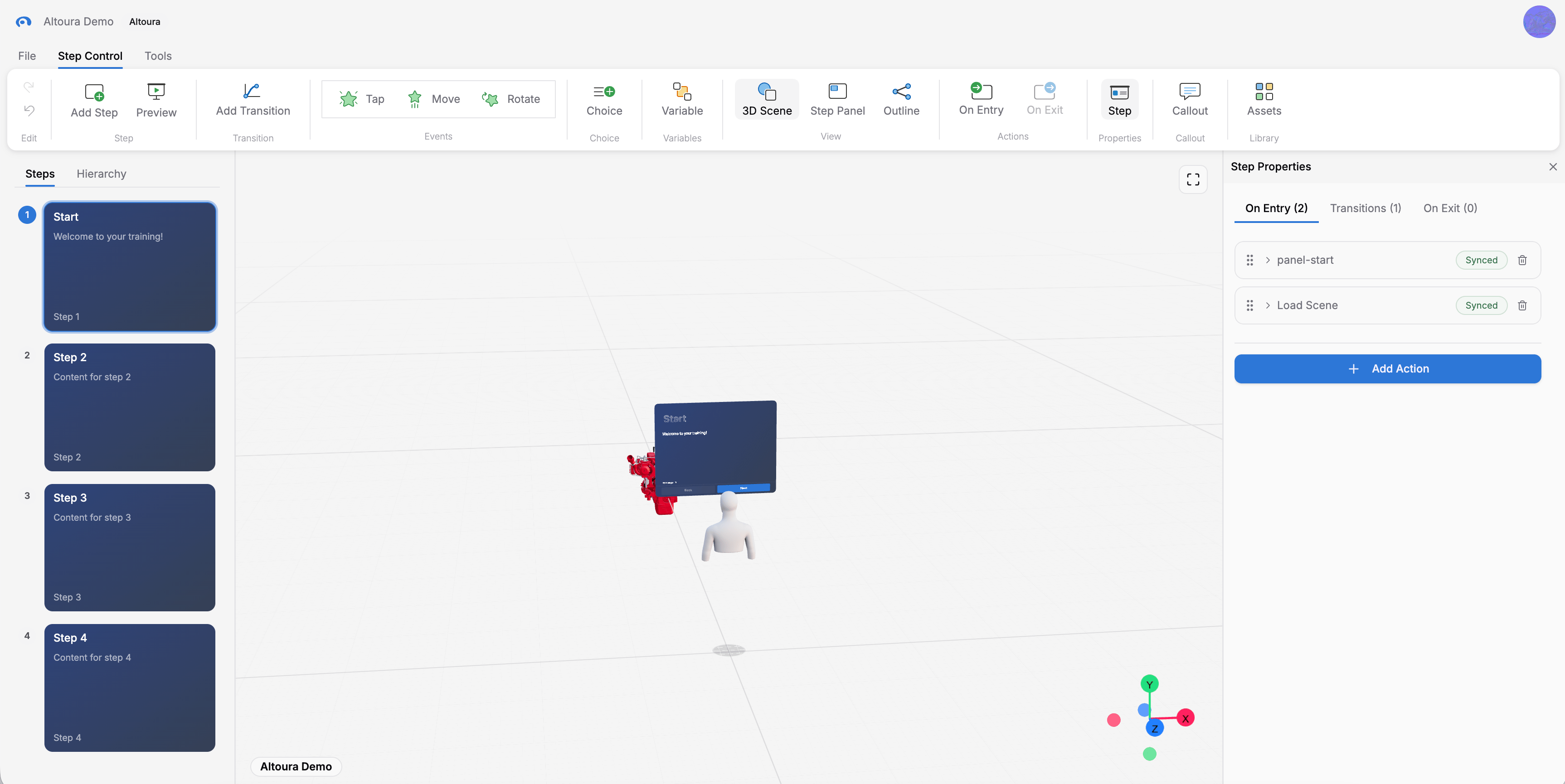 Appear as boxes on the canvas. Each state represents a moment or scene in your training.
Lines connecting states. Show how the training moves from one moment to the next when events occur.
When you open the Creator App, you'll see:
* **Canvas**: The center workspace with your steps and transitions
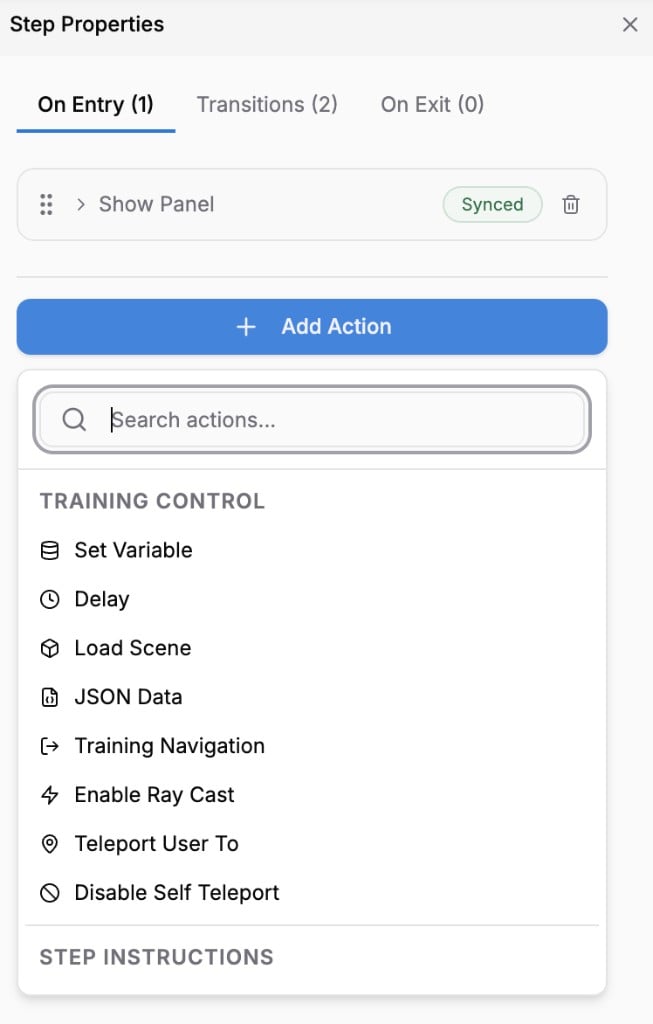
* **Properties Panel**: Opens with **Step Properties** on the ribbon. Holds **On Entry**, **Transitions**, and **On Exit** tabs for the selected step.
* **Add Action picker**: Opens inside the Properties panel tabs when you add an action. Search or browse actions by category.
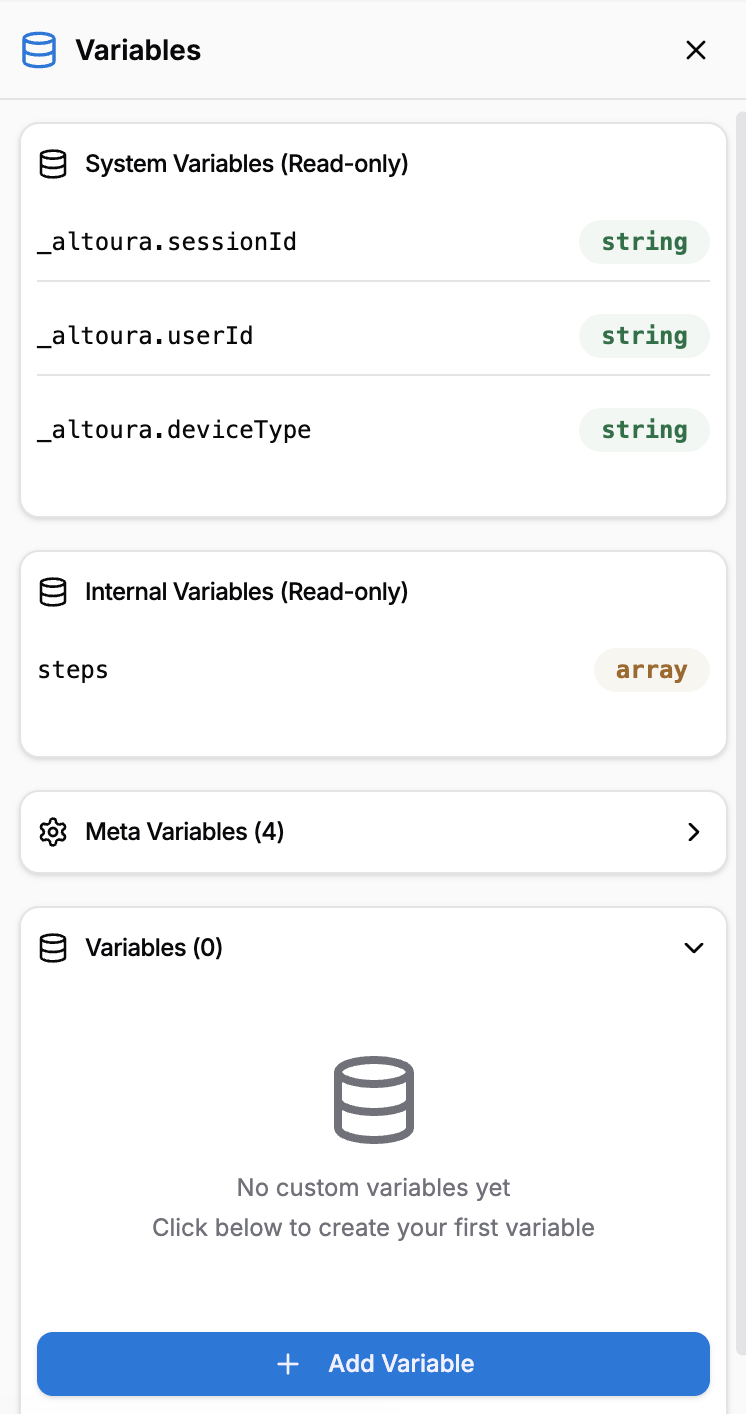
* **Variable Inspector**: Manage all the data (variables) your training uses.
Appear as boxes on the canvas. Each state represents a moment or scene in your training.
Lines connecting states. Show how the training moves from one moment to the next when events occur.
When you open the Creator App, you'll see:
* **Canvas**: The center workspace with your steps and transitions
* **Properties Panel**: Opens with **Step Properties** on the ribbon. Holds **On Entry**, **Transitions**, and **On Exit** tabs for the selected step.
* **Add Action picker**: Opens inside the Properties panel tabs when you add an action. Search or browse actions by category.
* **Variable Inspector**: Manage all the data (variables) your training uses.
 ## How Training Flows Through States
Training progresses in a clear sequence:
1. **Start state** fires (automatically, when the training begins)
2. Learner sees the state's scene in the 3D viewer
3. An **event** occurs (learner taps, moves, makes a choice, etc.)
4. An optional **condition** checks if the transition should fire
5. **Actions** run during the transition
6. Training moves to the **next state**
7. The next state's entry actions run, and the cycle repeats
This repeats until the training reaches a **Final state** — the end.
## Key Concepts at a Glance
Discrete moments in the training. Each state has a 3D scene and can trigger actions on entry and exit.
Things that happen: learner taps an object, moves it, makes a choice, or clicks Next/Back.
Connections between states. Can have conditions and actions that run during the move.
Logical rules (e.g., "score >= 80") that determine whether a transition fires.
Named data storage (strings, numbers, true/false, objects, arrays) that persists across states.
Things your training does: load a scene, play audio, show text, set a variable, send an event.
## Next Steps
Ready to dive deeper? Here's what you'll learn:
Create and configure discrete moments in your training.
Understand what triggers transitions: taps, moves, choices, and more.
Build branching logic so your training responds to learner behavior.
Learn what runs automatically when states start and stop.
Store and use data throughout your training.
Combine events, conditions, and actions into powerful branching flows.
## How Training Flows Through States
Training progresses in a clear sequence:
1. **Start state** fires (automatically, when the training begins)
2. Learner sees the state's scene in the 3D viewer
3. An **event** occurs (learner taps, moves, makes a choice, etc.)
4. An optional **condition** checks if the transition should fire
5. **Actions** run during the transition
6. Training moves to the **next state**
7. The next state's entry actions run, and the cycle repeats
This repeats until the training reaches a **Final state** — the end.
## Key Concepts at a Glance
Discrete moments in the training. Each state has a 3D scene and can trigger actions on entry and exit.
Things that happen: learner taps an object, moves it, makes a choice, or clicks Next/Back.
Connections between states. Can have conditions and actions that run during the move.
Logical rules (e.g., "score >= 80") that determine whether a transition fires.
Named data storage (strings, numbers, true/false, objects, arrays) that persists across states.
Things your training does: load a scene, play audio, show text, set a variable, send an event.
## Next Steps
Ready to dive deeper? Here's what you'll learn:
Create and configure discrete moments in your training.
Understand what triggers transitions: taps, moves, choices, and more.
Build branching logic so your training responds to learner behavior.
Learn what runs automatically when states start and stop.
Store and use data throughout your training.
Combine events, conditions, and actions into powerful branching flows.