> ## Documentation Index
> Fetch the complete documentation index at: https://docs.altoura.com/llms.txt
> Use this file to discover all available pages before exploring further.
# Conditional Transitions
> A **conditional transition** is a connection between states that only fires if a specific condition is true. It's the foundation of branching training flows — different paths based on learner choices, scores, or tracked data.
## How Conditional Transitions Work
Here's the sequence:
1. **Event occurs** (learner taps, moves, chooses, etc.)
2. **Condition is evaluated** (e.g., "score >= 80", "selectedOption == 'correct'")
3. **If condition is TRUE**: Transition fires, moving to the next state
4. **If condition is FALSE**: Transition is skipped; the system checks the next transition
5. **Actions run** during the transition and in onEntry/onExit of states
## Setting Up a Conditional Transition
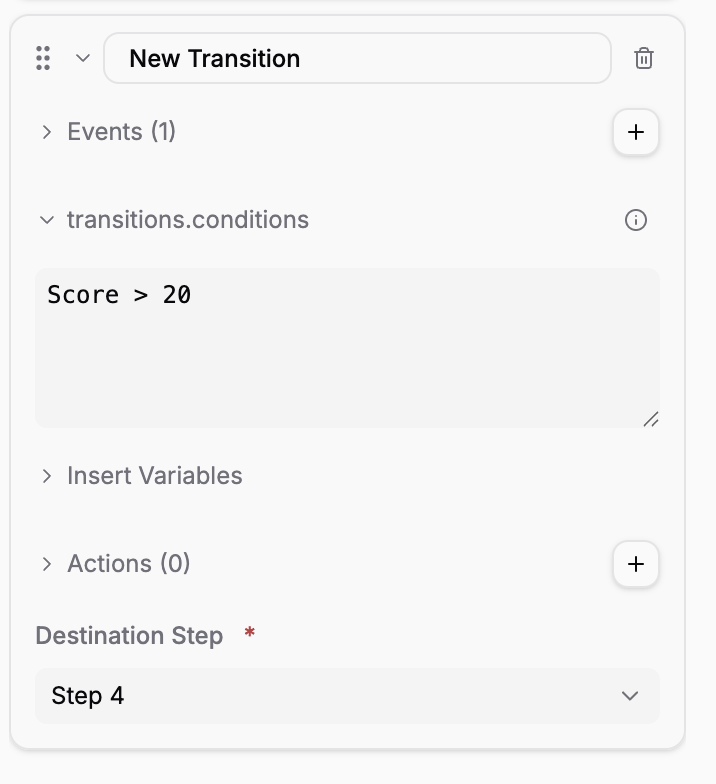 Click a state, then open the Transitions tab in the Properties panel.
Click Add Transition or expand an existing one. Each transition shows Events, Conditions, Actions, and Destination Step.
Click the + button next to Events to choose what triggers this transition (Tap, Move, Rotate, etc.).
Enter an AXL expression like `Score > 60`. Use Insert Variables to reference available variables.
Choose the target state from the dropdown.
Expand the Actions section and click + to add actions that run during the transition (between onExit and onEntry).
## Transition Priority: Multiple Conditions
When multiple transitions exist from the same state for the same event, they are checked **in order** (from top to bottom, or as defined in your UI). The **first transition whose condition evaluates to TRUE** fires.
**Important:** All other transitions are skipped once one fires.
### Example: Multiple Choice Paths
**State: "Safety Quiz" → Event: Choice**
```
Transition 1: selectedAnswer == "A" → "Correct Answer State"
Condition: TRUE → This fires
Transition 2: selectedAnswer == "B" → "Incorrect Answer State"
Condition: FALSE (skipped, already fired)
Transition 3: selectedAnswer == "C" → "Incorrect Answer State"
Condition: not checked (already fired)
```
If the learner picks option A:
* Transition 1's condition is true → fire to "Correct Answer State"
* Transitions 2 and 3 are never checked
If the learner picks option B:
* Transition 1's condition is false → skip
* Transition 2's condition is true → fire to "Incorrect Answer State"
* Transition 3 is never checked
## Unconditional Fallback Transitions
A transition with **no condition** (or an empty condition field) **always fires**. Use this as a default path.
**Best practice:** Place specific conditions first, then add an unconditional fallback at the end.
### Example: Fallback for Unexpected Input
```
Transition 1: selectedAnswer == "optionA" → "Path A" (condition: TRUE)
Transition 2: selectedAnswer == "optionB" → "Path B" (condition: TRUE)
Transition 3: (no condition) → "Unexpected Answer" (always fires if 1 and 2 don't)
```
The third transition acts like an "else" clause. If the learner picks something unexpected, this transition fires.
## Transition Actions
In addition to onEntry and onExit actions, **transitions themselves can have actions** — things that run during the move from one state to another.
**Execution order:**
```
1. onExit actions of current state
2. Transition actions
3. onEntry actions of next state
```
### Common Transition Actions
| Action | Purpose | Example |
| ------------------------------ | ----------------------------------------------------- | -------------------------------------------------------------------------- |
| **Set Variable** | Save or update a value before entering the next state | Set `completedQuiz` to `true`, or set `score` to `score + 10` to increment |
| **Play Audio** | Play a sound during the transition | Play "correct answer" ding |
| **Show Text** / **Show Panel** | Display feedback before the next state begins | Show Panel with body "Nice work!" |
### Example: Transition Actions
**Scenario:** Learner taps the correct object. Before moving to "Success" state, increment the score.
```
Event: Tap correct valve
Transition to: "Success State"
Condition: None (always fires for this event)
Transition Actions:
1. Set Variable `correctTaps` to `correctTaps + 1`
2. Set Variable `score` to `score + 10`
onEntry of "Success State":
1. Play Audio: "Excellent work!"
```
When the learner taps the correct valve:
* onExit of current state runs (if any)
* Transition actions run (score increases)
* onEntry of "Success State" runs (plays congratulatory audio)
## Branching Example: Score-Based Paths
Here's a realistic multi-state branching flow:
**State 1: "Safety Quiz"**
```
onEntry:
- Show Panel with 3 choices
onExit:
- (none)
Event: Choice event (created from the Show Panel choices)
- When learner selects an answer:
```
**Transition 1 → State 2: "Correct Answer"**
```
Condition: selectedAnswer == "correct"
Transition Actions:
- Set Variable `score` to `score + 10`
- Set Variable `questionsCorrect` to `questionsCorrect + 1`
```
**Transition 2 → State 3: "Incorrect Answer"**
```
Condition: selectedAnswer != "correct"
Transition Actions:
- Set Variable `attempts` to `attempts + 1`
```
**State 2: "Correct Answer"**
```
onEntry:
- Play Audio: "That's right!"
- Show Panel: body "{{userName}}, you're doing great!"
Event: Next (created when Show Panel has Next enabled)
Transition → State 4: "Summary"
```
**State 3: "Incorrect Answer"**
```
onEntry:
- Play Audio: "Not quite. Try again."
Event: Next
Transition A → State 1: "Safety Quiz" (back to retry)
Condition: attempts < 3
Transition B → State 5: "Max Attempts Reached"
Condition: attempts >= 3
```
**State 4 & 5: Final states**
This flow creates a branching experience where:
* Correct answers give points and move forward
* Incorrect answers allow retries (up to 3 attempts)
* After 3 incorrect attempts, show a different ending
## Complex Conditions in Transitions
Use the Altoura Expression Language (AXL) to build sophisticated conditions:
### Example: Time-Based Branching
```
Condition: (now() - trainingStartTime) / 1000 < 60
// If less than 60 seconds elapsed, go to "Fast Completion"
// Otherwise, go to "Slow Completion"
```
### Example: Multi-Variable Conditions
```
Condition: (score >= 80 && attempts <= 2) || (isAdminUser == true)
// Either (high score + few attempts) OR admin user → go to "Advanced Content"
// Otherwise → go to "Standard Content"
```
### Example: State Tracking
```
Condition: In("SafetyIntro") && In("ToolTraining")
// Both intro and tool training visited → show advanced scenario
// Otherwise → show basics
```
## Testing Conditional Transitions
Before launching, test all your branches:
Use the Preview feature. Manually set variable values and verify that each transition fires correctly based on its condition.
Make sure every conditional transition works. Try different values for each condition.
If a condition is `score >= 80`, test with score = 79 and score = 80 to verify the boundary.
Verify that unconditional (fallback) transitions fire when expected.
Make sure transition actions (like setting variables) actually happen. Check values in the Variable Inspector after transitions.
If you use `&&` / `||`, test all combinations. For example, if the condition is `(A && B) || C`, test when only A is true, only B is true, only C is true, etc.
## Best Practices for Conditional Transitions
Put your most specific conditions first, then broader ones, then a fallback. This prevents unintended paths.
Add an unconditional transition at the end to catch unexpected cases. Prevents learners from getting stuck.
Avoid overly complex AXL expressions. If a condition is hard to understand, break it into smaller pieces using variables.
Instead of `v1` or `temp`, use `score`, `correctAnswers`, `isComplete`. Makes conditions self-documenting.
Add state descriptions or comments explaining why transitions exist and what conditions control them.
## Common Mistakes to Avoid
**Forgetting the fallback:** If all conditions are false and there's no unconditional transition, learners get stuck. Always add a fallback.
**Overlapping conditions:** If two transitions both evaluate to TRUE for the same event, only the first fires. Make sure your conditions don't overlap unintentionally.
**Not testing edge cases:** A condition like `score > 80` works differently than `score >= 80`. Test both sides of boundaries.
## Next Steps
Learn how to:
* **[Use Conditions](/creator-studio/creator-app/conditions)** — Build the logical expressions your transitions need
* **[Create Variables](/creator-studio/creator-app/variables/creating-variables)** — Store the data your conditions check
* **[Entry & Exit Actions](/creator-studio/creator-app/transitions/onentry)** — Coordinate what happens before and after transitions
Click a state, then open the Transitions tab in the Properties panel.
Click Add Transition or expand an existing one. Each transition shows Events, Conditions, Actions, and Destination Step.
Click the + button next to Events to choose what triggers this transition (Tap, Move, Rotate, etc.).
Enter an AXL expression like `Score > 60`. Use Insert Variables to reference available variables.
Choose the target state from the dropdown.
Expand the Actions section and click + to add actions that run during the transition (between onExit and onEntry).
## Transition Priority: Multiple Conditions
When multiple transitions exist from the same state for the same event, they are checked **in order** (from top to bottom, or as defined in your UI). The **first transition whose condition evaluates to TRUE** fires.
**Important:** All other transitions are skipped once one fires.
### Example: Multiple Choice Paths
**State: "Safety Quiz" → Event: Choice**
```
Transition 1: selectedAnswer == "A" → "Correct Answer State"
Condition: TRUE → This fires
Transition 2: selectedAnswer == "B" → "Incorrect Answer State"
Condition: FALSE (skipped, already fired)
Transition 3: selectedAnswer == "C" → "Incorrect Answer State"
Condition: not checked (already fired)
```
If the learner picks option A:
* Transition 1's condition is true → fire to "Correct Answer State"
* Transitions 2 and 3 are never checked
If the learner picks option B:
* Transition 1's condition is false → skip
* Transition 2's condition is true → fire to "Incorrect Answer State"
* Transition 3 is never checked
## Unconditional Fallback Transitions
A transition with **no condition** (or an empty condition field) **always fires**. Use this as a default path.
**Best practice:** Place specific conditions first, then add an unconditional fallback at the end.
### Example: Fallback for Unexpected Input
```
Transition 1: selectedAnswer == "optionA" → "Path A" (condition: TRUE)
Transition 2: selectedAnswer == "optionB" → "Path B" (condition: TRUE)
Transition 3: (no condition) → "Unexpected Answer" (always fires if 1 and 2 don't)
```
The third transition acts like an "else" clause. If the learner picks something unexpected, this transition fires.
## Transition Actions
In addition to onEntry and onExit actions, **transitions themselves can have actions** — things that run during the move from one state to another.
**Execution order:**
```
1. onExit actions of current state
2. Transition actions
3. onEntry actions of next state
```
### Common Transition Actions
| Action | Purpose | Example |
| ------------------------------ | ----------------------------------------------------- | -------------------------------------------------------------------------- |
| **Set Variable** | Save or update a value before entering the next state | Set `completedQuiz` to `true`, or set `score` to `score + 10` to increment |
| **Play Audio** | Play a sound during the transition | Play "correct answer" ding |
| **Show Text** / **Show Panel** | Display feedback before the next state begins | Show Panel with body "Nice work!" |
### Example: Transition Actions
**Scenario:** Learner taps the correct object. Before moving to "Success" state, increment the score.
```
Event: Tap correct valve
Transition to: "Success State"
Condition: None (always fires for this event)
Transition Actions:
1. Set Variable `correctTaps` to `correctTaps + 1`
2. Set Variable `score` to `score + 10`
onEntry of "Success State":
1. Play Audio: "Excellent work!"
```
When the learner taps the correct valve:
* onExit of current state runs (if any)
* Transition actions run (score increases)
* onEntry of "Success State" runs (plays congratulatory audio)
## Branching Example: Score-Based Paths
Here's a realistic multi-state branching flow:
**State 1: "Safety Quiz"**
```
onEntry:
- Show Panel with 3 choices
onExit:
- (none)
Event: Choice event (created from the Show Panel choices)
- When learner selects an answer:
```
**Transition 1 → State 2: "Correct Answer"**
```
Condition: selectedAnswer == "correct"
Transition Actions:
- Set Variable `score` to `score + 10`
- Set Variable `questionsCorrect` to `questionsCorrect + 1`
```
**Transition 2 → State 3: "Incorrect Answer"**
```
Condition: selectedAnswer != "correct"
Transition Actions:
- Set Variable `attempts` to `attempts + 1`
```
**State 2: "Correct Answer"**
```
onEntry:
- Play Audio: "That's right!"
- Show Panel: body "{{userName}}, you're doing great!"
Event: Next (created when Show Panel has Next enabled)
Transition → State 4: "Summary"
```
**State 3: "Incorrect Answer"**
```
onEntry:
- Play Audio: "Not quite. Try again."
Event: Next
Transition A → State 1: "Safety Quiz" (back to retry)
Condition: attempts < 3
Transition B → State 5: "Max Attempts Reached"
Condition: attempts >= 3
```
**State 4 & 5: Final states**
This flow creates a branching experience where:
* Correct answers give points and move forward
* Incorrect answers allow retries (up to 3 attempts)
* After 3 incorrect attempts, show a different ending
## Complex Conditions in Transitions
Use the Altoura Expression Language (AXL) to build sophisticated conditions:
### Example: Time-Based Branching
```
Condition: (now() - trainingStartTime) / 1000 < 60
// If less than 60 seconds elapsed, go to "Fast Completion"
// Otherwise, go to "Slow Completion"
```
### Example: Multi-Variable Conditions
```
Condition: (score >= 80 && attempts <= 2) || (isAdminUser == true)
// Either (high score + few attempts) OR admin user → go to "Advanced Content"
// Otherwise → go to "Standard Content"
```
### Example: State Tracking
```
Condition: In("SafetyIntro") && In("ToolTraining")
// Both intro and tool training visited → show advanced scenario
// Otherwise → show basics
```
## Testing Conditional Transitions
Before launching, test all your branches:
Use the Preview feature. Manually set variable values and verify that each transition fires correctly based on its condition.
Make sure every conditional transition works. Try different values for each condition.
If a condition is `score >= 80`, test with score = 79 and score = 80 to verify the boundary.
Verify that unconditional (fallback) transitions fire when expected.
Make sure transition actions (like setting variables) actually happen. Check values in the Variable Inspector after transitions.
If you use `&&` / `||`, test all combinations. For example, if the condition is `(A && B) || C`, test when only A is true, only B is true, only C is true, etc.
## Best Practices for Conditional Transitions
Put your most specific conditions first, then broader ones, then a fallback. This prevents unintended paths.
Add an unconditional transition at the end to catch unexpected cases. Prevents learners from getting stuck.
Avoid overly complex AXL expressions. If a condition is hard to understand, break it into smaller pieces using variables.
Instead of `v1` or `temp`, use `score`, `correctAnswers`, `isComplete`. Makes conditions self-documenting.
Add state descriptions or comments explaining why transitions exist and what conditions control them.
## Common Mistakes to Avoid
**Forgetting the fallback:** If all conditions are false and there's no unconditional transition, learners get stuck. Always add a fallback.
**Overlapping conditions:** If two transitions both evaluate to TRUE for the same event, only the first fires. Make sure your conditions don't overlap unintentionally.
**Not testing edge cases:** A condition like `score > 80` works differently than `score >= 80`. Test both sides of boundaries.
## Next Steps
Learn how to:
* **[Use Conditions](/creator-studio/creator-app/conditions)** — Build the logical expressions your transitions need
* **[Create Variables](/creator-studio/creator-app/variables/creating-variables)** — Store the data your conditions check
* **[Entry & Exit Actions](/creator-studio/creator-app/transitions/onentry)** — Coordinate what happens before and after transitions