> ## Documentation Index
> Fetch the complete documentation index at: https://docs.altoura.com/llms.txt
> Use this file to discover all available pages before exploring further.
# Exit Actions (onExit)
> **onExit actions** are things your training automatically does when a learner is leaving a state — after an event triggers a transition but before the next state begins. Think of them as cleanup and handoff instructions.
## When onExit Runs
Here's the sequence:
1. Event occurs (learner taps, moves, makes a choice, etc.)
2. Condition is checked (if any). If true, transition is allowed.
3. **onExit actions run** (in the order you defined them)
4. Transition actions run (actions on the transition itself, if any)
5. **onEntry actions of the next state run**
6. Next state is fully set up and waiting for interaction
This is important to remember: **onExit runs before the next state's onEntry**.
## Common onExit Actions
| Action | What It Does | Example |
| ------------------------------- | ------------------------------------------------------------------------- | ---------------------------------------------------------------------------------------- |
| **Stop Audio** | Stop playing narration or background music | Stop any playing audio |
| **Hide Panel** | Remove a panel from the screen | Hide the instructions panel |
| **Hide Text** | Remove a text overlay from the scene | Hide the "Locate the valve" text |
| **Remove Highlight on Object** | Remove visual highlighting from an object | Stop the red glow on the valve |
| **Reset Object Transformation** | Reset an object's position, rotation, and scale to its starting transform | Reset the pump to starting position |
| **Set Variable** | Save progress or results to a variable using an AXL expression | Set `problemIdentified` to `true`, or set `attempts` to `attempts + 1` to count attempts |
## Adding onExit Actions
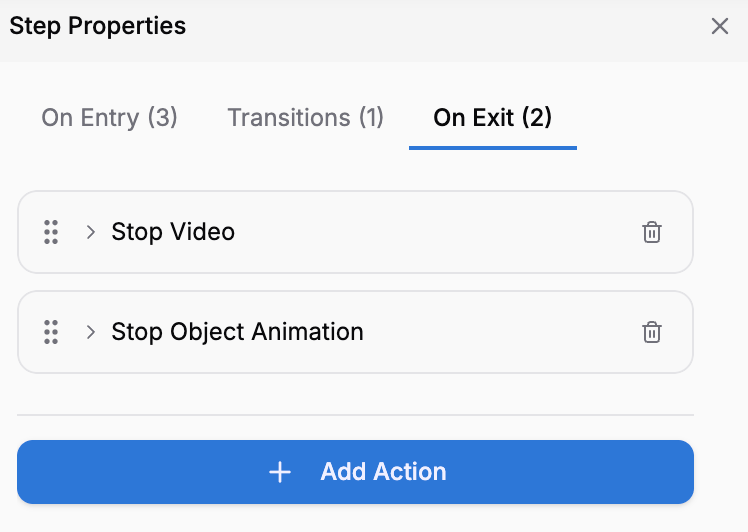 Click the state node in the steps list or on the canvas.
You'll see a list of actions already in this state's onExit (if any) and an Add Action button.
The same action picker used for On Entry appears — search or browse by category.
Common onExit actions include Stop Audio, Hide Panel, Reset Object, Set Variable.
Expand the action to set its parameters.
## Pairing onEntry and onExit: Setup and Cleanup
A best practice is to **pair onEntry actions with corresponding onExit actions**. If you set something up in onEntry, clean it up in onExit.
### Example: Audio Setup and Cleanup
**State 1: "Listen to Instructions"**
```
onEntry:
1. Play Audio: "Follow these steps carefully..."
onExit:
1. Stop Audio
```
When exiting this state, the audio stops before the next state begins. If you didn't stop it, the audio might continue playing while the next state's narration tries to play — confusing for the learner.
### Example: Visual Guidance
**State 2: "Identify the Problem"**
```
onEntry:
1. Highlight Object: "Gauge A" (red, pulsing)
2. Highlight Object: "Gauge B" (blue, pulsing)
onExit:
1. Remove Highlight on Object: "Gauge A"
2. Remove Highlight on Object: "Gauge B"
```
Highlights are removed as the learner moves to the next state. The next state gets a fresh visual canvas.
### Example: Object Position Reset
**State 3: "Move the Pump"**
```
onEntry:
1. Show Panel: body "Move the pump to the right position"
onExit:
1. Reset Object Transformation: "Pump" (back to starting location)
```
If the learner then goes back (using a Back event) to re-read instructions, the pump is reset. Alternatively, if they move to a new scenario, the pump is in the correct starting position.
## Saving Progress with onExit
Use onExit to save important data before moving to the next state:
**Example: Tracking Correct Answers**
**State 4: "Quiz Question 1"**
```
onEntry:
1. Show Panel: title "Procedure Quiz", body "Which is the correct procedure?"
onExit:
1. If `selectedAnswer == "correct"`, Set Variable `correctCount` to `correctCount + 1`
```
Before leaving this state, increment the score if the learner was right. This data persists to the next state and beyond.
**Example: Attempt Tracking**
**State 5: "Try Again"**
```
onExit:
1. Set Variable `attempts` to `attempts + 1`
```
Every time the learner leaves this state, increment the attempt counter. Use this later in a condition to limit retries.
There is no separate "Increment Counter" action — incrementing is done with **Set Variable** and an AXL expression like `attempts + 1`.
## The Complete Execution Sequence
Here's a detailed example to show how onExit, transitions, and onEntry work together:
**Scenario:** Learner is in "Move the Pump" state. They successfully move the pump, triggering a transition to "Confirm Position" state.
```
[Currently in "Move the Pump" state]
↓
[Event: Pump moved to correct position]
↓
[Check transition condition: isInPosition == true → TRUE]
↓
[Run onExit actions of "Move the Pump":
- Stop any playing audio
- Hide the instruction panel]
↓
[Run transition actions (if any):
- Set Variable `pumpMoved` to `true`]
↓
[Run onEntry actions of "Confirm Position":
- Load Scene: "Pump Status Display"
- Play Audio: "Good! The pump is in position."]
↓
[Now in "Confirm Position" state, waiting for next event]
```
## onExit Best Practices
If you play audio in onEntry, stop it in onExit. Prevents audio overlap.
If you show a text panel in onEntry, hide it in onExit (or let the next state's onEntry show something new).
If the learner interacts with 3D objects (move, rotate), consider resetting them in onExit so the next state starts fresh.
Save learner choices, scores, and attempt counts before leaving a state.
Avoid long delays. If onExit takes too long, there's a gap between states. Learners expect smooth transitions.
Preview your training and verify that when you leave a state, audio stops, panels close, and the next state loads cleanly.
## Common Mistakes to Avoid
**Don't forget to stop audio:** If you play audio in onEntry but don't stop it in onExit, the audio continues into the next state, creating a confusing experience.
**Don't reset data you need later:** If you set a variable in onEntry to track something important, don't clear it in onExit. Decide: does this variable need to persist across states?
**Don't overload onExit with too many actions:** If you have 5+ onExit actions, consider whether some of that logic belongs in the next state's onEntry instead.
## Next Steps
Learn about:
* **[Entry Actions (onEntry)](/creator-studio/creator-app/transitions/onentry)** — Set up states with onEntry
* **[Conditional Transitions](/creator-studio/creator-app/transitions/conditional)** — Combine events, conditions, and transition actions
* **[Variables](/creator-studio/creator-app/variables/creating-variables)** — Track data you save in onExit
Click the state node in the steps list or on the canvas.
You'll see a list of actions already in this state's onExit (if any) and an Add Action button.
The same action picker used for On Entry appears — search or browse by category.
Common onExit actions include Stop Audio, Hide Panel, Reset Object, Set Variable.
Expand the action to set its parameters.
## Pairing onEntry and onExit: Setup and Cleanup
A best practice is to **pair onEntry actions with corresponding onExit actions**. If you set something up in onEntry, clean it up in onExit.
### Example: Audio Setup and Cleanup
**State 1: "Listen to Instructions"**
```
onEntry:
1. Play Audio: "Follow these steps carefully..."
onExit:
1. Stop Audio
```
When exiting this state, the audio stops before the next state begins. If you didn't stop it, the audio might continue playing while the next state's narration tries to play — confusing for the learner.
### Example: Visual Guidance
**State 2: "Identify the Problem"**
```
onEntry:
1. Highlight Object: "Gauge A" (red, pulsing)
2. Highlight Object: "Gauge B" (blue, pulsing)
onExit:
1. Remove Highlight on Object: "Gauge A"
2. Remove Highlight on Object: "Gauge B"
```
Highlights are removed as the learner moves to the next state. The next state gets a fresh visual canvas.
### Example: Object Position Reset
**State 3: "Move the Pump"**
```
onEntry:
1. Show Panel: body "Move the pump to the right position"
onExit:
1. Reset Object Transformation: "Pump" (back to starting location)
```
If the learner then goes back (using a Back event) to re-read instructions, the pump is reset. Alternatively, if they move to a new scenario, the pump is in the correct starting position.
## Saving Progress with onExit
Use onExit to save important data before moving to the next state:
**Example: Tracking Correct Answers**
**State 4: "Quiz Question 1"**
```
onEntry:
1. Show Panel: title "Procedure Quiz", body "Which is the correct procedure?"
onExit:
1. If `selectedAnswer == "correct"`, Set Variable `correctCount` to `correctCount + 1`
```
Before leaving this state, increment the score if the learner was right. This data persists to the next state and beyond.
**Example: Attempt Tracking**
**State 5: "Try Again"**
```
onExit:
1. Set Variable `attempts` to `attempts + 1`
```
Every time the learner leaves this state, increment the attempt counter. Use this later in a condition to limit retries.
There is no separate "Increment Counter" action — incrementing is done with **Set Variable** and an AXL expression like `attempts + 1`.
## The Complete Execution Sequence
Here's a detailed example to show how onExit, transitions, and onEntry work together:
**Scenario:** Learner is in "Move the Pump" state. They successfully move the pump, triggering a transition to "Confirm Position" state.
```
[Currently in "Move the Pump" state]
↓
[Event: Pump moved to correct position]
↓
[Check transition condition: isInPosition == true → TRUE]
↓
[Run onExit actions of "Move the Pump":
- Stop any playing audio
- Hide the instruction panel]
↓
[Run transition actions (if any):
- Set Variable `pumpMoved` to `true`]
↓
[Run onEntry actions of "Confirm Position":
- Load Scene: "Pump Status Display"
- Play Audio: "Good! The pump is in position."]
↓
[Now in "Confirm Position" state, waiting for next event]
```
## onExit Best Practices
If you play audio in onEntry, stop it in onExit. Prevents audio overlap.
If you show a text panel in onEntry, hide it in onExit (or let the next state's onEntry show something new).
If the learner interacts with 3D objects (move, rotate), consider resetting them in onExit so the next state starts fresh.
Save learner choices, scores, and attempt counts before leaving a state.
Avoid long delays. If onExit takes too long, there's a gap between states. Learners expect smooth transitions.
Preview your training and verify that when you leave a state, audio stops, panels close, and the next state loads cleanly.
## Common Mistakes to Avoid
**Don't forget to stop audio:** If you play audio in onEntry but don't stop it in onExit, the audio continues into the next state, creating a confusing experience.
**Don't reset data you need later:** If you set a variable in onEntry to track something important, don't clear it in onExit. Decide: does this variable need to persist across states?
**Don't overload onExit with too many actions:** If you have 5+ onExit actions, consider whether some of that logic belongs in the next state's onEntry instead.
## Next Steps
Learn about:
* **[Entry Actions (onEntry)](/creator-studio/creator-app/transitions/onentry)** — Set up states with onEntry
* **[Conditional Transitions](/creator-studio/creator-app/transitions/conditional)** — Combine events, conditions, and transition actions
* **[Variables](/creator-studio/creator-app/variables/creating-variables)** — Track data you save in onExit