> ## Documentation Index
> Fetch the complete documentation index at: https://docs.altoura.com/llms.txt
> Use this file to discover all available pages before exploring further.
# Creating Variables
> A **variable** is named storage for data that persists throughout your training. Variables let you track learner choices, scores, attempt counts, and anything else you need to remember as the training progresses.
Think of a variable as a container with a label. You create the container, give it a name, decide what type of data it holds, and set a starting value.
## Why Use Variables?
Variables enable powerful training logic:
* **Track scores:** Keep a running total of correct answers
* **Count attempts:** Limit how many times a learner can retry
* **Remember choices:** Store what the learner selected in a quiz
* **Branching decisions:** Use variable values in conditions to create different paths
* **Personalization:** Store the learner's name and use it in messages
**Example:** As the learner completes tasks, increment a `correctAnswers` variable. Later, in a condition, check `correctAnswers >= 8 ? "Passed" : "Failed"` to decide the ending.
## Opening the Variables Pane
The **Variables** pane is where you create and manage all variables in your training. Open it from the ribbon: in the **Variables** group, click the **Set Variable** button (the database icon). The pane slides in on the right. Click the same button again to close it.
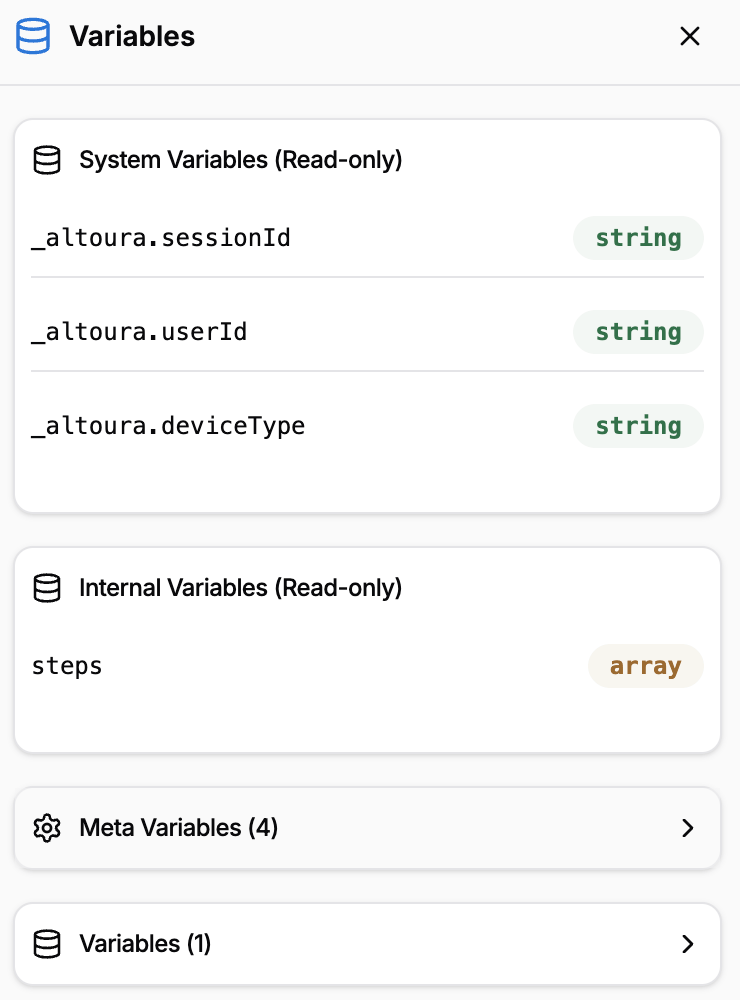 The pane is organized into four sections:
* **System Variables (Read-only)** — provided by Altoura (e.g., `_altoura.sessionId`, `_altoura.userId`).
* **Internal Variables (Read-only)** — system-managed values like the steps list. Only shown when present.
* **Meta Variables** — system-defined configuration variables. Read-only fields, collapsible.
* **Variables** — your custom variables. This is the section you edit.
## Creating a Variable
The pane is organized into four sections:
* **System Variables (Read-only)** — provided by Altoura (e.g., `_altoura.sessionId`, `_altoura.userId`).
* **Internal Variables (Read-only)** — system-managed values like the steps list. Only shown when present.
* **Meta Variables** — system-defined configuration variables. Read-only fields, collapsible.
* **Variables** — your custom variables. This is the section you edit.
## Creating a Variable
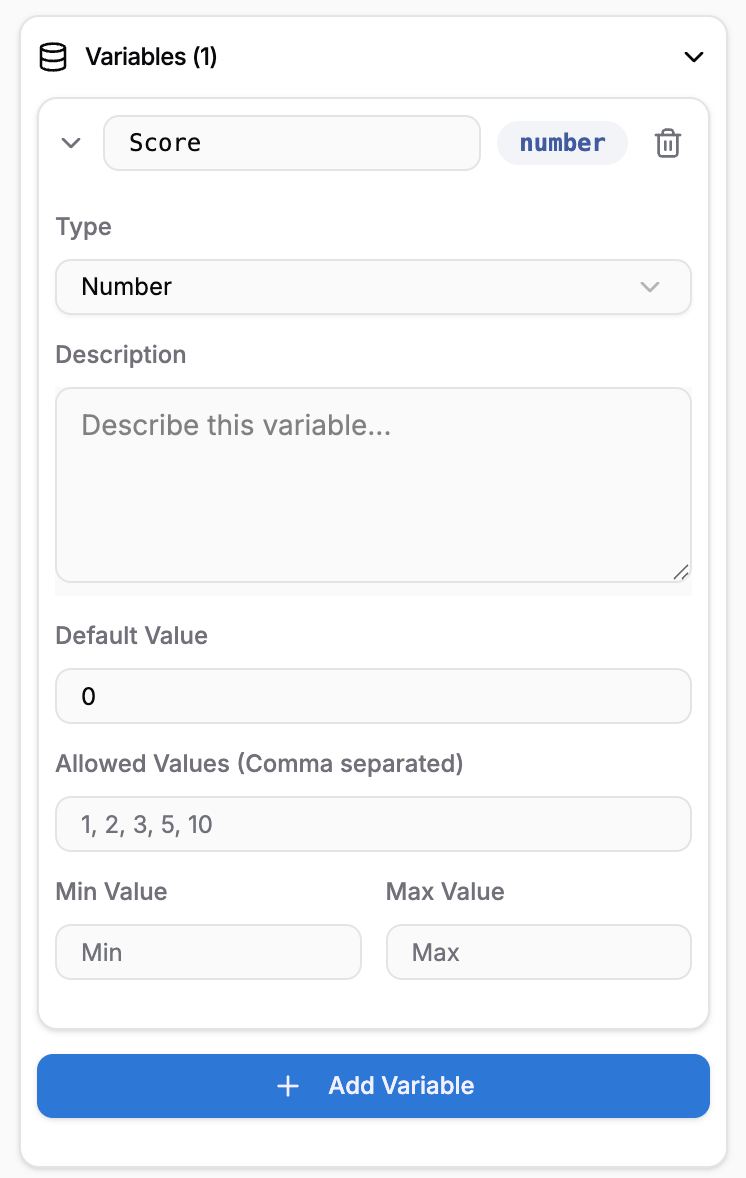 Click **Set Variable** in the **Variables** group on the ribbon.
The button is at the bottom of the **Variables** section. A new variable card is added (default name `variable1`, type `string`) and is automatically expanded for editing.
Edit the name field in the card header. Names are saved as you type — there is no separate Save button.
Choose from **String**, **Number**, **Boolean**, or **Array**. Changing the type also resets the Default Value to a sensible value for that type. (See [Variable Types](/creator-studio/creator-app/variables/variable-types) for details.)
The available fields change based on the type:
* **All types**: Description, Default Value
* **String**: also Allowed Values (comma-separated), Pattern (Regex)
* **Number**: also Allowed Values (comma-separated), Min Value, Max Value
* **Boolean**: Default Value is a True/False dropdown (no Allowed Values, no Min/Max)
* **Array**: Default Value is a JSON array (e.g., `["a", "b"]` or `[1, 2, 3]`)
All fields save automatically as you edit. Click the chevron in the card header to collapse the card when done.
## Variable Naming Conventions
Choose clear, meaningful names for your variables. Good naming makes your training logic easier to understand and debug.
**Recommendations:**
* **Use camelCase**: `correctAnswers`, `userScore`, `isComplete` (start lowercase, capitalize new words)
* **Be descriptive**: `score` is better than `s` or `temp`
* **No spaces**: Use `attemptCount` not `attempt count`
* **Avoid special characters**: Stick to letters, numbers, and underscores
**Good examples:**
* `userName` (string)
* `score` (number)
* `isComplete` (boolean)
* `correctAnswers` (number)
* `selectedOption` (string)
* `completedSteps` (array)
**Avoid:**
* `var1`, `temp`, `x` (not descriptive)
* `Correct Answers` (spaces)
* `correct-answers` (hyphens)
* `_internal` (too cryptic)
## Viewing All Variables
In the **Variables** section of the pane, each custom variable is shown as a collapsible card. The card header shows:
* The variable's **name** (editable inline)
* A colored **type badge** (string, number, boolean, or array)
* A **trash icon** for deleting the variable
Click anywhere on the header (other than the name input or the trash icon) to expand the card and see all of its fields. Click again to collapse it. The header also shows the count next to the section title — for example, **Variables (3)** — so you can tell at a glance how many you've defined.
## System Variables (Read-Only)
Your training has access to system variables that are provided automatically by Altoura. You **cannot create or modify** these — they're read-only. But you can read their values and use them in conditions and text.
| Variable | What It Stores | Example Value |
| --------------------- | ------------------------------------------- | ----------------------------------------------------------------------- |
| `_altoura.sessionId` | Unique ID for this training session | "session\_abc123xyz" |
| `_altoura.userId` | The learner's ID (from your LMS or auth) | "user\_42" or "[john.smith@company.com](mailto:john.smith@company.com)" |
| `_altoura.deviceType` | Type of device (mobile, tablet, or desktop) | "mobile" |
| `_altoura.locale` | Language/locale code | "en", "es", "fr", "de" |
**Use system variables in conditions:**
```
_altoura.deviceType == "mobile" ? "mobile instructions" : "desktop instructions"
_altoura.locale == "es" ? "Bienvenido" : "Welcome"
```
See [Conditions](/creator-studio/creator-app/conditions) for more on using variables in logic.
## Editing a Variable
All edits are inline — there is no separate Edit or Save button. Changes are applied as you type or pick a value.
Click **Set Variable** on the ribbon.
Click the chevron on the variable's header (or anywhere on the header other than the name input or the trash icon).
Update the **Name** in the header, or the **Type**, **Description**, **Default Value**, **Allowed Values**, **Min/Max Value**, or **Pattern (Regex)** in the body. Each change is saved immediately.
Changing a variable's **Type** resets the **Default Value** to the new type's default (`""` for string, `0` for number, `true` for boolean, `[]` for array). It can also break references in conditions or actions that assumed the old type, so review uses of the variable after a type change.
## Deleting a Variable
Click **Set Variable** on the ribbon.
The variable is removed immediately. There is no separate confirmation dialog.
Before deleting, make sure the variable isn't used in:
* Conditions on transitions (e.g., `score >= 80`)
* Set Variable actions (e.g., setting `score` to `score + 10`)
* Text interpolation (e.g., "Your score is {{score}}")
If you delete a variable that's still in use, those references will silently break. Search your transitions and actions before deleting.
## Variable Initialization (Default Values)
Every variable must have a default value — the value it starts with when the training begins.
**Examples:**
| Variable | Type | Default Value | Why |
| ----------------- | ------- | ------------- | -------------------------------------------------------- |
| `score` | number | 0 | Start at zero and increment as learner answers correctly |
| `userName` | string | "" | Empty string initially; maybe set by a form action later |
| `isComplete` | boolean | false | Training isn't complete yet |
| `attempts` | number | 0 | Haven't tried yet |
| `selectedAnswers` | array | \[] | No answers selected initially |
The default value is important for conditions. If a variable is uninitialized, some conditions might fail. Always set sensible defaults.
## Example: Creating Variables for a Quiz
Here's a realistic set of variables for a 10-question quiz:
**Variables to create:**
1. **`score`** (number, default: 0) — Running total of points earned
2. **`question`** (number, default: 1) — Current question number (1–10)
3. **`attempts`** (number, default: 0) — How many times the learner has attempted the quiz
4. **`isQuizComplete`** (boolean, default: false) — Whether all 10 questions are done
5. **`selectedAnswers`** (array, default: \[]) — Array of the learner's choices for each question
6. **`passingScore`** (number, default: 70) — Minimum score needed to pass
These variables would support:
* Tracking progress (question 1 of 10)
* Tracking performance (score, attempts)
* Branching logic (`score >= passingScore ? "Pass" : "Fail"`)
* Limiting retries (`attempts < 3 ? retry : quit`)
## Testing Variables in Preview
When you preview your training, you can:
Set variable values manually to test different scenarios. For example, set `score = 100` to test the "high score" path, then set `score = 50` to test the "low score" path.
## Best Practices
Pick a convention (like camelCase) and stick with it throughout your training.
Don't start building conditions and actions that reference variables you haven't created yet. Plan your variables first.
Think about what each variable should start at. Defaults matter for first-state logic.
In your training's notes or in variable descriptions, write down what each variable does and why it exists.
Strings and numbers are simpler. Use arrays/objects only when you really need collections or complex data.
## Next Steps
Learn about:
* **[Variable Types](/creator-studio/creator-app/variables/variable-types)** — Understand string, number, boolean, and array types
* **[Variable Interpolation](/creator-studio/creator-app/variables/variable-interpolation)** — Use variables in text with {{variableName}} syntax
* **[Conditions](/creator-studio/creator-app/conditions)** — Use variables in conditions to control training flow
Click **Set Variable** in the **Variables** group on the ribbon.
The button is at the bottom of the **Variables** section. A new variable card is added (default name `variable1`, type `string`) and is automatically expanded for editing.
Edit the name field in the card header. Names are saved as you type — there is no separate Save button.
Choose from **String**, **Number**, **Boolean**, or **Array**. Changing the type also resets the Default Value to a sensible value for that type. (See [Variable Types](/creator-studio/creator-app/variables/variable-types) for details.)
The available fields change based on the type:
* **All types**: Description, Default Value
* **String**: also Allowed Values (comma-separated), Pattern (Regex)
* **Number**: also Allowed Values (comma-separated), Min Value, Max Value
* **Boolean**: Default Value is a True/False dropdown (no Allowed Values, no Min/Max)
* **Array**: Default Value is a JSON array (e.g., `["a", "b"]` or `[1, 2, 3]`)
All fields save automatically as you edit. Click the chevron in the card header to collapse the card when done.
## Variable Naming Conventions
Choose clear, meaningful names for your variables. Good naming makes your training logic easier to understand and debug.
**Recommendations:**
* **Use camelCase**: `correctAnswers`, `userScore`, `isComplete` (start lowercase, capitalize new words)
* **Be descriptive**: `score` is better than `s` or `temp`
* **No spaces**: Use `attemptCount` not `attempt count`
* **Avoid special characters**: Stick to letters, numbers, and underscores
**Good examples:**
* `userName` (string)
* `score` (number)
* `isComplete` (boolean)
* `correctAnswers` (number)
* `selectedOption` (string)
* `completedSteps` (array)
**Avoid:**
* `var1`, `temp`, `x` (not descriptive)
* `Correct Answers` (spaces)
* `correct-answers` (hyphens)
* `_internal` (too cryptic)
## Viewing All Variables
In the **Variables** section of the pane, each custom variable is shown as a collapsible card. The card header shows:
* The variable's **name** (editable inline)
* A colored **type badge** (string, number, boolean, or array)
* A **trash icon** for deleting the variable
Click anywhere on the header (other than the name input or the trash icon) to expand the card and see all of its fields. Click again to collapse it. The header also shows the count next to the section title — for example, **Variables (3)** — so you can tell at a glance how many you've defined.
## System Variables (Read-Only)
Your training has access to system variables that are provided automatically by Altoura. You **cannot create or modify** these — they're read-only. But you can read their values and use them in conditions and text.
| Variable | What It Stores | Example Value |
| --------------------- | ------------------------------------------- | ----------------------------------------------------------------------- |
| `_altoura.sessionId` | Unique ID for this training session | "session\_abc123xyz" |
| `_altoura.userId` | The learner's ID (from your LMS or auth) | "user\_42" or "[john.smith@company.com](mailto:john.smith@company.com)" |
| `_altoura.deviceType` | Type of device (mobile, tablet, or desktop) | "mobile" |
| `_altoura.locale` | Language/locale code | "en", "es", "fr", "de" |
**Use system variables in conditions:**
```
_altoura.deviceType == "mobile" ? "mobile instructions" : "desktop instructions"
_altoura.locale == "es" ? "Bienvenido" : "Welcome"
```
See [Conditions](/creator-studio/creator-app/conditions) for more on using variables in logic.
## Editing a Variable
All edits are inline — there is no separate Edit or Save button. Changes are applied as you type or pick a value.
Click **Set Variable** on the ribbon.
Click the chevron on the variable's header (or anywhere on the header other than the name input or the trash icon).
Update the **Name** in the header, or the **Type**, **Description**, **Default Value**, **Allowed Values**, **Min/Max Value**, or **Pattern (Regex)** in the body. Each change is saved immediately.
Changing a variable's **Type** resets the **Default Value** to the new type's default (`""` for string, `0` for number, `true` for boolean, `[]` for array). It can also break references in conditions or actions that assumed the old type, so review uses of the variable after a type change.
## Deleting a Variable
Click **Set Variable** on the ribbon.
The variable is removed immediately. There is no separate confirmation dialog.
Before deleting, make sure the variable isn't used in:
* Conditions on transitions (e.g., `score >= 80`)
* Set Variable actions (e.g., setting `score` to `score + 10`)
* Text interpolation (e.g., "Your score is {{score}}")
If you delete a variable that's still in use, those references will silently break. Search your transitions and actions before deleting.
## Variable Initialization (Default Values)
Every variable must have a default value — the value it starts with when the training begins.
**Examples:**
| Variable | Type | Default Value | Why |
| ----------------- | ------- | ------------- | -------------------------------------------------------- |
| `score` | number | 0 | Start at zero and increment as learner answers correctly |
| `userName` | string | "" | Empty string initially; maybe set by a form action later |
| `isComplete` | boolean | false | Training isn't complete yet |
| `attempts` | number | 0 | Haven't tried yet |
| `selectedAnswers` | array | \[] | No answers selected initially |
The default value is important for conditions. If a variable is uninitialized, some conditions might fail. Always set sensible defaults.
## Example: Creating Variables for a Quiz
Here's a realistic set of variables for a 10-question quiz:
**Variables to create:**
1. **`score`** (number, default: 0) — Running total of points earned
2. **`question`** (number, default: 1) — Current question number (1–10)
3. **`attempts`** (number, default: 0) — How many times the learner has attempted the quiz
4. **`isQuizComplete`** (boolean, default: false) — Whether all 10 questions are done
5. **`selectedAnswers`** (array, default: \[]) — Array of the learner's choices for each question
6. **`passingScore`** (number, default: 70) — Minimum score needed to pass
These variables would support:
* Tracking progress (question 1 of 10)
* Tracking performance (score, attempts)
* Branching logic (`score >= passingScore ? "Pass" : "Fail"`)
* Limiting retries (`attempts < 3 ? retry : quit`)
## Testing Variables in Preview
When you preview your training, you can:
Set variable values manually to test different scenarios. For example, set `score = 100` to test the "high score" path, then set `score = 50` to test the "low score" path.
## Best Practices
Pick a convention (like camelCase) and stick with it throughout your training.
Don't start building conditions and actions that reference variables you haven't created yet. Plan your variables first.
Think about what each variable should start at. Defaults matter for first-state logic.
In your training's notes or in variable descriptions, write down what each variable does and why it exists.
Strings and numbers are simpler. Use arrays/objects only when you really need collections or complex data.
## Next Steps
Learn about:
* **[Variable Types](/creator-studio/creator-app/variables/variable-types)** — Understand string, number, boolean, and array types
* **[Variable Interpolation](/creator-studio/creator-app/variables/variable-interpolation)** — Use variables in text with {{variableName}} syntax
* **[Conditions](/creator-studio/creator-app/conditions)** — Use variables in conditions to control training flow