> ## Documentation Index
> Fetch the complete documentation index at: https://docs.altoura.com/llms.txt
> Use this file to discover all available pages before exploring further.
# Variable Types
> Variables can store different kinds of data. Altoura supports **4 variable types**, each designed for a specific purpose.
## The 4 Variable Types
Text values (words, sentences, single letters)
Numeric values (integers and decimals)
True or false only
A list of values (ordered collection)
 ## String
**What it is:** Text values — words, sentences, single characters, or any string of characters.
**Default value:** Usually `""` (empty string)
**Examples:**
* `"correct"` (single word)
* `"John Smith"` (multiple words)
* `"Safety-Procedure-001"` (identifier with special characters)
* `"The valve is open."` (sentence)
* `""` (empty)
**When to use:**
* Store the learner's name, username, or email
* Store selected answers ("Option A", "Door B")
* Store status values ("open", "closed", "waiting")
* Store IDs or codes
**Example variable:**
```
Variable Name: selectedAnswer
Type: string
Default Value: ""
// Stores the choice the learner made in a quiz
Later in actions:
- If learner picks "Option A", Set Variable: selectedAnswer = "Option A"
- In condition: selectedAnswer == "Option A" ? go to "Correct Path" : "Incorrect Path"
```
**Using strings in conditions:**
```
selectedAnswer == "correct"
userName === "admin"
feedbackText !== ""
```
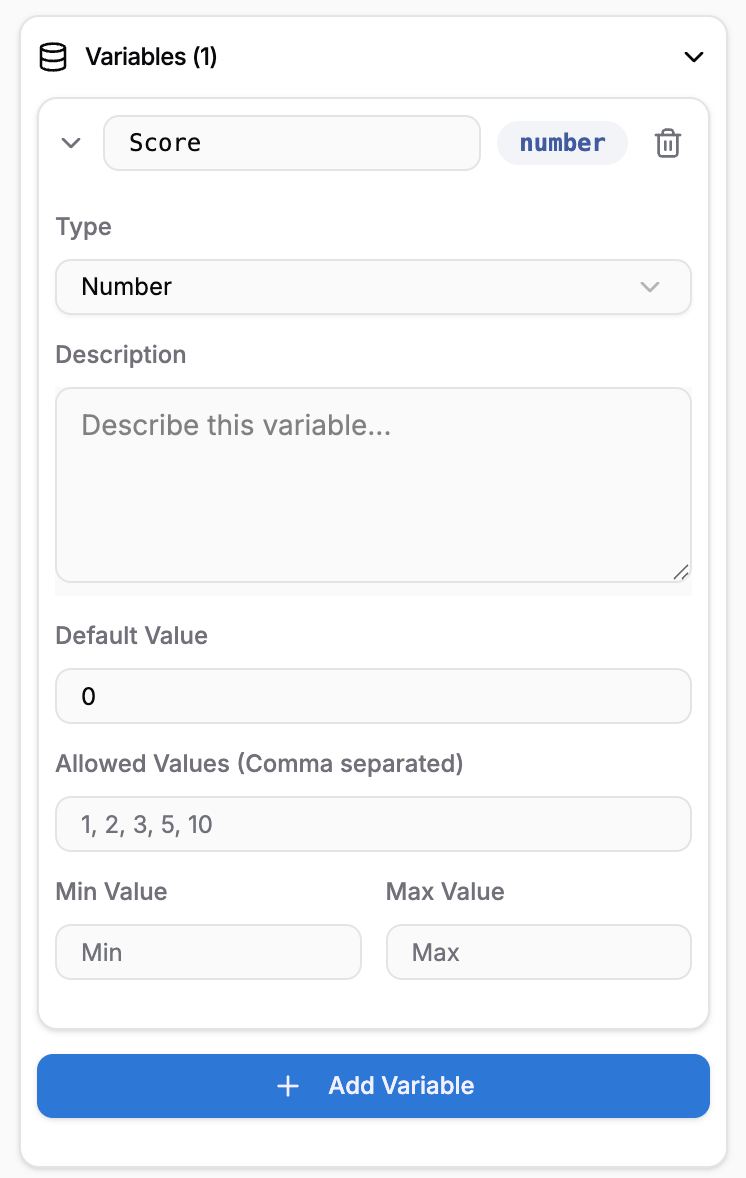
## Number
**What it is:** Numeric values — integers (whole numbers) or decimals (numbers with a point).
**Default value:** Usually `0`
**Examples:**
* `0`, `1`, `100` (integers)
* `3.14`, `0.5`, `99.99` (decimals)
* `-10` (negative)
**When to use:**
* Store scores or points
* Store attempt counts
* Store time values (in seconds or milliseconds)
* Store percentages or ratings
* Store object positions or angles
**Example variables:**
```
Variable Name: score
Type: number
Default Value: 0
// Running total of points
Variable Name: attempts
Type: number
Default Value: 0
// How many times learner has tried
Variable Name: elapsedSeconds
Type: number
Default Value: 0
// Time spent in training
Later in actions:
- Set Variable: score = score + 10 (add points)
- Set Variable: attempts = attempts + 1 (increment)
- Set Variable: elapsedSeconds = (now() - startTime) / 1000 (calculate)
```
**Using numbers in conditions:**
```
score >= 80
attempts < 3
elapsedSeconds > 120
```
## Boolean
**What it is:** A value that is either `true` or `false` — nothing else.
**Default value:** Usually `false` or `true`
**Examples:**
* `true` (yes, complete, open, on)
* `false` (no, incomplete, closed, off)
**When to use:**
* Track yes/no states (is something complete? is it open?)
* Track toggles (is audio enabled? is advanced mode on?)
* Gate features (has learner watched the intro?)
* Status flags (is this section unlocked?)
**Example variables:**
```
Variable Name: isQuizComplete
Type: boolean
Default Value: false
// Quiz not started yet
Variable Name: hasWatchedIntro
Type: boolean
Default Value: false
// Intro not watched yet
Variable Name: audioEnabled
Type: boolean
Default Value: true
// Audio on by default
Later in actions:
- Set Variable: isQuizComplete = true (when quiz finishes)
- Set Variable: hasWatchedIntro = true (after intro plays)
```
**Using booleans in conditions:**
```
isQuizComplete == true
hasWatchedIntro == false
audioEnabled ? "Play sound" : "Silent"
```
Booleans are simple and fast. Use them for simple on/off states instead of strings like "complete"/"incomplete".
## Array
**What it is:** An ordered list of values. Each item in the list is accessed by its position (1st item, 2nd item, etc.).
**Default value:** Usually `[]` (empty array) or an initial list like `["step1", "step2"]`
**Examples:**
```
// List of completed steps
["Read instructions", "Identify valve", "Turn valve"]
// List of answers
["Option A", "Option B", "Option A"]
// List of numbers (scores from multiple attempts)
[85, 92, 78]
// Empty array
[]
```
**When to use:**
* Store a list of items (completed steps, selected choices)
* Store a history (previous scores, timestamps)
* Track multiple related values in order
**Example variable:**
```
Variable Name: completedSteps
Type: array
Default Value: []
Later in actions:
- Append to array: completedSteps = ["Read intro", "Start task", "Review results"]
In conditions: len(completedSteps) >= 3 ? "All steps done" : "In progress"
In text: "You've completed {{len(completedSteps)}} of 5 steps."
```
**Using arrays in conditions:**
```
len(completedSteps) >= 3 // At least 3 items
len(selectedAnswers) == 10 // Exactly 10 answers
len(completedSteps) > 0 // Array is not empty
```
## Choosing the Right Type: Quick Reference
Use this table to decide which type to use:
| Data | Type | Why |
| ------------------------------------- | ------- | ----------------------- |
| A learner's name, username | string | Text value |
| Score, points, count | number | Numeric value |
| Answer to a multiple-choice question | string | Text value ("Option A") |
| Is something complete? Open? | boolean | Yes/no only |
| Number of attempts | number | Numeric value |
| Elapsed time (seconds) | number | Numeric value |
| List of visited states | array | Ordered list of items |
| Quiz answers for 5 questions | array | List of answers |
| Multiple scores from retries | array | List of numbers |
| A flag (audio enabled, intro watched) | boolean | Yes/no only |
## Type Compatibility and Conversion
Be careful when mixing types:
```
// ✓ OK: Compare same types
score == 80 // number == number
selectedAnswer == "A" // string == string
isComplete == true // boolean == boolean
// ⚠ Risky: Different types may behave unexpectedly
score == "80" // Might work, but not recommended
"80" + 20 = ? // String concatenation or math? Unclear
// ✓ OK: Use functions to convert
len(arrayVariable) // Works on arrays and strings
clamp(score, 0, 100) // Works on numbers
```
When building conditions, make sure you're comparing the right types. A string "80" is different from a number 80. If you're comparing numbers, make sure both are numbers.
## Default Values Matter
Every variable must have a default value. Choose defaults carefully:
| Variable | Type | Default | Why |
| ---------------- | ------- | ------- | ------------------ |
| `score` | number | 0 | No points yet |
| `selectedAnswer` | string | "" | No answer selected |
| `isComplete` | boolean | false | Not done |
| `completedSteps` | array | \[] | No steps completed |
Defaults are important because your conditions rely on them. If a variable starts `undefined` or `null`, some conditions might fail.
## Best Practices
Changing types later can break conditions and actions. Plan ahead.
Strings, numbers, and booleans are easier to work with than arrays. Use them unless you really need a list.
Instead of `answer1`, `answer2`, `answer3`, use one `selectedAnswers` array.
Empty strings, zero, false, \[] — use sensible defaults so conditions work correctly.
## Next Steps
Learn about:
* **[Creating Variables](/creator-studio/creator-app/variables/creating-variables)** — Create variables in your training
* **[Variable Interpolation](/creator-studio/creator-app/variables/variable-interpolation)** — Use variables in text
* **[Conditions](/creator-studio/creator-app/conditions)** — Use variables to control training flow
## String
**What it is:** Text values — words, sentences, single characters, or any string of characters.
**Default value:** Usually `""` (empty string)
**Examples:**
* `"correct"` (single word)
* `"John Smith"` (multiple words)
* `"Safety-Procedure-001"` (identifier with special characters)
* `"The valve is open."` (sentence)
* `""` (empty)
**When to use:**
* Store the learner's name, username, or email
* Store selected answers ("Option A", "Door B")
* Store status values ("open", "closed", "waiting")
* Store IDs or codes
**Example variable:**
```
Variable Name: selectedAnswer
Type: string
Default Value: ""
// Stores the choice the learner made in a quiz
Later in actions:
- If learner picks "Option A", Set Variable: selectedAnswer = "Option A"
- In condition: selectedAnswer == "Option A" ? go to "Correct Path" : "Incorrect Path"
```
**Using strings in conditions:**
```
selectedAnswer == "correct"
userName === "admin"
feedbackText !== ""
```
## Number
**What it is:** Numeric values — integers (whole numbers) or decimals (numbers with a point).
**Default value:** Usually `0`
**Examples:**
* `0`, `1`, `100` (integers)
* `3.14`, `0.5`, `99.99` (decimals)
* `-10` (negative)
**When to use:**
* Store scores or points
* Store attempt counts
* Store time values (in seconds or milliseconds)
* Store percentages or ratings
* Store object positions or angles
**Example variables:**
```
Variable Name: score
Type: number
Default Value: 0
// Running total of points
Variable Name: attempts
Type: number
Default Value: 0
// How many times learner has tried
Variable Name: elapsedSeconds
Type: number
Default Value: 0
// Time spent in training
Later in actions:
- Set Variable: score = score + 10 (add points)
- Set Variable: attempts = attempts + 1 (increment)
- Set Variable: elapsedSeconds = (now() - startTime) / 1000 (calculate)
```
**Using numbers in conditions:**
```
score >= 80
attempts < 3
elapsedSeconds > 120
```
## Boolean
**What it is:** A value that is either `true` or `false` — nothing else.
**Default value:** Usually `false` or `true`
**Examples:**
* `true` (yes, complete, open, on)
* `false` (no, incomplete, closed, off)
**When to use:**
* Track yes/no states (is something complete? is it open?)
* Track toggles (is audio enabled? is advanced mode on?)
* Gate features (has learner watched the intro?)
* Status flags (is this section unlocked?)
**Example variables:**
```
Variable Name: isQuizComplete
Type: boolean
Default Value: false
// Quiz not started yet
Variable Name: hasWatchedIntro
Type: boolean
Default Value: false
// Intro not watched yet
Variable Name: audioEnabled
Type: boolean
Default Value: true
// Audio on by default
Later in actions:
- Set Variable: isQuizComplete = true (when quiz finishes)
- Set Variable: hasWatchedIntro = true (after intro plays)
```
**Using booleans in conditions:**
```
isQuizComplete == true
hasWatchedIntro == false
audioEnabled ? "Play sound" : "Silent"
```
Booleans are simple and fast. Use them for simple on/off states instead of strings like "complete"/"incomplete".
## Array
**What it is:** An ordered list of values. Each item in the list is accessed by its position (1st item, 2nd item, etc.).
**Default value:** Usually `[]` (empty array) or an initial list like `["step1", "step2"]`
**Examples:**
```
// List of completed steps
["Read instructions", "Identify valve", "Turn valve"]
// List of answers
["Option A", "Option B", "Option A"]
// List of numbers (scores from multiple attempts)
[85, 92, 78]
// Empty array
[]
```
**When to use:**
* Store a list of items (completed steps, selected choices)
* Store a history (previous scores, timestamps)
* Track multiple related values in order
**Example variable:**
```
Variable Name: completedSteps
Type: array
Default Value: []
Later in actions:
- Append to array: completedSteps = ["Read intro", "Start task", "Review results"]
In conditions: len(completedSteps) >= 3 ? "All steps done" : "In progress"
In text: "You've completed {{len(completedSteps)}} of 5 steps."
```
**Using arrays in conditions:**
```
len(completedSteps) >= 3 // At least 3 items
len(selectedAnswers) == 10 // Exactly 10 answers
len(completedSteps) > 0 // Array is not empty
```
## Choosing the Right Type: Quick Reference
Use this table to decide which type to use:
| Data | Type | Why |
| ------------------------------------- | ------- | ----------------------- |
| A learner's name, username | string | Text value |
| Score, points, count | number | Numeric value |
| Answer to a multiple-choice question | string | Text value ("Option A") |
| Is something complete? Open? | boolean | Yes/no only |
| Number of attempts | number | Numeric value |
| Elapsed time (seconds) | number | Numeric value |
| List of visited states | array | Ordered list of items |
| Quiz answers for 5 questions | array | List of answers |
| Multiple scores from retries | array | List of numbers |
| A flag (audio enabled, intro watched) | boolean | Yes/no only |
## Type Compatibility and Conversion
Be careful when mixing types:
```
// ✓ OK: Compare same types
score == 80 // number == number
selectedAnswer == "A" // string == string
isComplete == true // boolean == boolean
// ⚠ Risky: Different types may behave unexpectedly
score == "80" // Might work, but not recommended
"80" + 20 = ? // String concatenation or math? Unclear
// ✓ OK: Use functions to convert
len(arrayVariable) // Works on arrays and strings
clamp(score, 0, 100) // Works on numbers
```
When building conditions, make sure you're comparing the right types. A string "80" is different from a number 80. If you're comparing numbers, make sure both are numbers.
## Default Values Matter
Every variable must have a default value. Choose defaults carefully:
| Variable | Type | Default | Why |
| ---------------- | ------- | ------- | ------------------ |
| `score` | number | 0 | No points yet |
| `selectedAnswer` | string | "" | No answer selected |
| `isComplete` | boolean | false | Not done |
| `completedSteps` | array | \[] | No steps completed |
Defaults are important because your conditions rely on them. If a variable starts `undefined` or `null`, some conditions might fail.
## Best Practices
Changing types later can break conditions and actions. Plan ahead.
Strings, numbers, and booleans are easier to work with than arrays. Use them unless you really need a list.
Instead of `answer1`, `answer2`, `answer3`, use one `selectedAnswers` array.
Empty strings, zero, false, \[] — use sensible defaults so conditions work correctly.
## Next Steps
Learn about:
* **[Creating Variables](/creator-studio/creator-app/variables/creating-variables)** — Create variables in your training
* **[Variable Interpolation](/creator-studio/creator-app/variables/variable-interpolation)** — Use variables in text
* **[Conditions](/creator-studio/creator-app/conditions)** — Use variables to control training flow