> ## Documentation Index
> Fetch the complete documentation index at: https://docs.altoura.com/llms.txt
> Use this file to discover all available pages before exploring further.
# Content Import / Export
> Round-trip training text, labels, and messages through an Excel spreadsheet for translation, editing, and bulk updates
## Overview
**Content Import / Export** lets you pull all of a training's authored text into an Excel spreadsheet, edit it outside of Creator App, and push the changes back. It is ideal for:
* **Translation and localisation** — Hand the spreadsheet to translators; import the translated file when done.
* **Bulk copy edits** — Edit hundreds of panel titles, instructions, or choice labels without clicking through every step.
* **Review cycles** — Share the spreadsheet with subject-matter experts for proofreading, then apply their edits in one go.
Content import / export works on the **training content only** (titles, body text, choice labels, instructions, and similar). It does not change the training structure, logic, variables, or 3D scene.
## Where to Find It
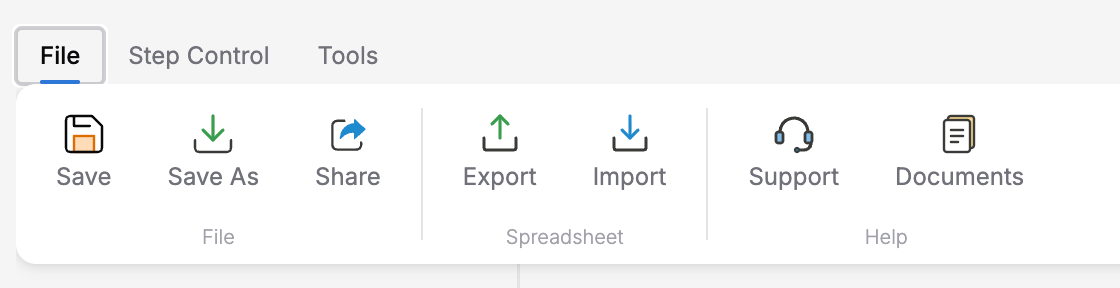
Both actions live on the **File** tab of the ribbon, in the **Content** group:
| Button | Icon | Action |
| ---------------------- | --------------- | ---------------------------------------------------------- |
| **Export Spreadsheet** | FileSpreadsheet | Download the current training's content as an `.xlsx` file |
| **Import Spreadsheet** | FileUp | Upload a previously exported (and edited) spreadsheet |
 ## Exporting Content
Click the **File** tab on the ribbon.
In the **Content** group, click **Export Spreadsheet**. A progress dialog appears with the title **Exporting Content...** and shows each phase (preparing training data, extracting content, resolving assets, building spreadsheet, preparing download).
Your browser downloads the spreadsheet automatically. The file is named using this pattern:
`{TrainingName}-content-{YYYY-MM-DD}.xlsx`
### What's in the Spreadsheet
The workbook contains a single sheet named **Training Content**. Each row represents one piece of editable text (a panel title, a body paragraph, a choice label, and so on) together with an identifier that lets Creator App find the exact action when you import.
The workbook also contains an **integrity block** that locks the export to your specific training version. Do not delete or modify this metadata — the import will reject a file whose integrity does not match.
## Editing the Spreadsheet
Open the file in Excel, Google Sheets, LibreOffice Calc, or any tool that can read and save `.xlsx`. Edit the text columns (and leave the identifier and integrity columns alone).
Tips for editors:
* **Preserve variable placeholders** — `{{variableName}}` must be copied exactly if you want variable substitution to keep working.
* **Keep new lines where they matter** — If a cell uses line breaks, preserve them.
* **Do not add or remove rows** — The importer matches rows to actions by id. Adding a row does not create a new action; removing a row does not delete one.
* **Save as `.xlsx`** — The importer expects Excel Open XML (not CSV, not XLS).
## Importing Content
Click **File** on the ribbon.
In the **Content** group, click **Import Spreadsheet**. Your browser shows a file picker filtered to `.xlsx`.
Select the edited spreadsheet and confirm. The progress dialog shows **Importing Content...**
A **Content Changes Preview** dialog appears listing every row that changed — the old text and the new text side by side.
Click **Apply N Change(s)** to commit the edits. Creator App merges the changes into the training and saves automatically. Click **Cancel** to back out without changing anything.
## Validation Rules
Imports are strictly validated before any change is applied. A file is rejected if:
* It is not an `.xlsx` file.
* It exceeds **10 MB** in size.
* It has more than **5000** data rows.
* The sheet is not named **Training Content**.
* The integrity block is missing or malformed.
* The **trainingId** or **versionId** in the integrity block does not match the currently open training version.
* The action-id hash stored in the workbook does not match the current training's action ids (someone added, removed, or renamed actions between export and import).
The integrity check means a spreadsheet is **round-trip to the same training version only**. If you save a new version after exporting, the importer will refuse the old spreadsheet. Always export fresh, edit, and re-import without saving intermediate versions.
## Example Workflow: Localisation
Finish authoring the training and save the version. Do not save a new version until localisation is complete.
File → Export Spreadsheet. Share the downloaded file with your translation team.
Translators edit the text columns, preserving `{{variable}}` placeholders and line breaks.
Back in Creator App, open the same training version, and import the translated file.
Walk through the **Content Changes Preview** to spot any suspicious edits, then Apply.
Creator App saves the training with the translated content applied.
## Best Practices
Adding, deleting, or renaming states or actions between export and import will invalidate the spreadsheet.
Before handing the file to a translator or reviewer, save a copy so you can diff against it later.
Always read the **Content Changes Preview** before clicking Apply — it is the last chance to catch mistakes.
`{{learnerName}}` must stay `{{learnerName}}`. Translators who switch this to a localised word will break runtime interpolation.
Export and translate one training at a time rather than trying to unify multiple trainings in one sheet.
## What Is NOT Included
Content import / export handles authored text only. It does **not** modify:
* Training structure (states, events, transitions, conditions)
* Actions themselves (only their text parameters)
* Variables, variable types, or default values
* 3D scene contents or object placements
* Assets (images, videos, audio, 3D models)
* Lighting, theme, or scene configuration
If you need to change any of those, use the normal Creator App editing tools.
## Related
* **Save / Save As** — The export is locked to a specific version. Save before exporting so the spreadsheet has a stable target to import back into.
* **Variables** — `{{variableName}}` placeholders appear in exported text; they must be preserved during editing.
* **Sharing** — Hand off the spreadsheet file directly to translators or reviewers; Creator App's Share feature is for sharing the whole training in the app.
## Exporting Content
Click the **File** tab on the ribbon.
In the **Content** group, click **Export Spreadsheet**. A progress dialog appears with the title **Exporting Content...** and shows each phase (preparing training data, extracting content, resolving assets, building spreadsheet, preparing download).
Your browser downloads the spreadsheet automatically. The file is named using this pattern:
`{TrainingName}-content-{YYYY-MM-DD}.xlsx`
### What's in the Spreadsheet
The workbook contains a single sheet named **Training Content**. Each row represents one piece of editable text (a panel title, a body paragraph, a choice label, and so on) together with an identifier that lets Creator App find the exact action when you import.
The workbook also contains an **integrity block** that locks the export to your specific training version. Do not delete or modify this metadata — the import will reject a file whose integrity does not match.
## Editing the Spreadsheet
Open the file in Excel, Google Sheets, LibreOffice Calc, or any tool that can read and save `.xlsx`. Edit the text columns (and leave the identifier and integrity columns alone).
Tips for editors:
* **Preserve variable placeholders** — `{{variableName}}` must be copied exactly if you want variable substitution to keep working.
* **Keep new lines where they matter** — If a cell uses line breaks, preserve them.
* **Do not add or remove rows** — The importer matches rows to actions by id. Adding a row does not create a new action; removing a row does not delete one.
* **Save as `.xlsx`** — The importer expects Excel Open XML (not CSV, not XLS).
## Importing Content
Click **File** on the ribbon.
In the **Content** group, click **Import Spreadsheet**. Your browser shows a file picker filtered to `.xlsx`.
Select the edited spreadsheet and confirm. The progress dialog shows **Importing Content...**
A **Content Changes Preview** dialog appears listing every row that changed — the old text and the new text side by side.
Click **Apply N Change(s)** to commit the edits. Creator App merges the changes into the training and saves automatically. Click **Cancel** to back out without changing anything.
## Validation Rules
Imports are strictly validated before any change is applied. A file is rejected if:
* It is not an `.xlsx` file.
* It exceeds **10 MB** in size.
* It has more than **5000** data rows.
* The sheet is not named **Training Content**.
* The integrity block is missing or malformed.
* The **trainingId** or **versionId** in the integrity block does not match the currently open training version.
* The action-id hash stored in the workbook does not match the current training's action ids (someone added, removed, or renamed actions between export and import).
The integrity check means a spreadsheet is **round-trip to the same training version only**. If you save a new version after exporting, the importer will refuse the old spreadsheet. Always export fresh, edit, and re-import without saving intermediate versions.
## Example Workflow: Localisation
Finish authoring the training and save the version. Do not save a new version until localisation is complete.
File → Export Spreadsheet. Share the downloaded file with your translation team.
Translators edit the text columns, preserving `{{variable}}` placeholders and line breaks.
Back in Creator App, open the same training version, and import the translated file.
Walk through the **Content Changes Preview** to spot any suspicious edits, then Apply.
Creator App saves the training with the translated content applied.
## Best Practices
Adding, deleting, or renaming states or actions between export and import will invalidate the spreadsheet.
Before handing the file to a translator or reviewer, save a copy so you can diff against it later.
Always read the **Content Changes Preview** before clicking Apply — it is the last chance to catch mistakes.
`{{learnerName}}` must stay `{{learnerName}}`. Translators who switch this to a localised word will break runtime interpolation.
Export and translate one training at a time rather than trying to unify multiple trainings in one sheet.
## What Is NOT Included
Content import / export handles authored text only. It does **not** modify:
* Training structure (states, events, transitions, conditions)
* Actions themselves (only their text parameters)
* Variables, variable types, or default values
* 3D scene contents or object placements
* Assets (images, videos, audio, 3D models)
* Lighting, theme, or scene configuration
If you need to change any of those, use the normal Creator App editing tools.
## Related
* **Save / Save As** — The export is locked to a specific version. Save before exporting so the spreadsheet has a stable target to import back into.
* **Variables** — `{{variableName}}` placeholders appear in exported text; they must be preserved during editing.
* **Sharing** — Hand off the spreadsheet file directly to translators or reviewers; Creator App's Share feature is for sharing the whole training in the app.