> ## Documentation Index
> Fetch the complete documentation index at: https://docs.altoura.com/llms.txt
> Use this file to discover all available pages before exploring further.
# Sharing a Training
> Once your training is ready, you can share it with team members by inviting them via email. The Creator App sends invitations directly from the Share dialog.
## How to Share
Click the **File** tab to see **Save**, **Save As**, and **Share** buttons.
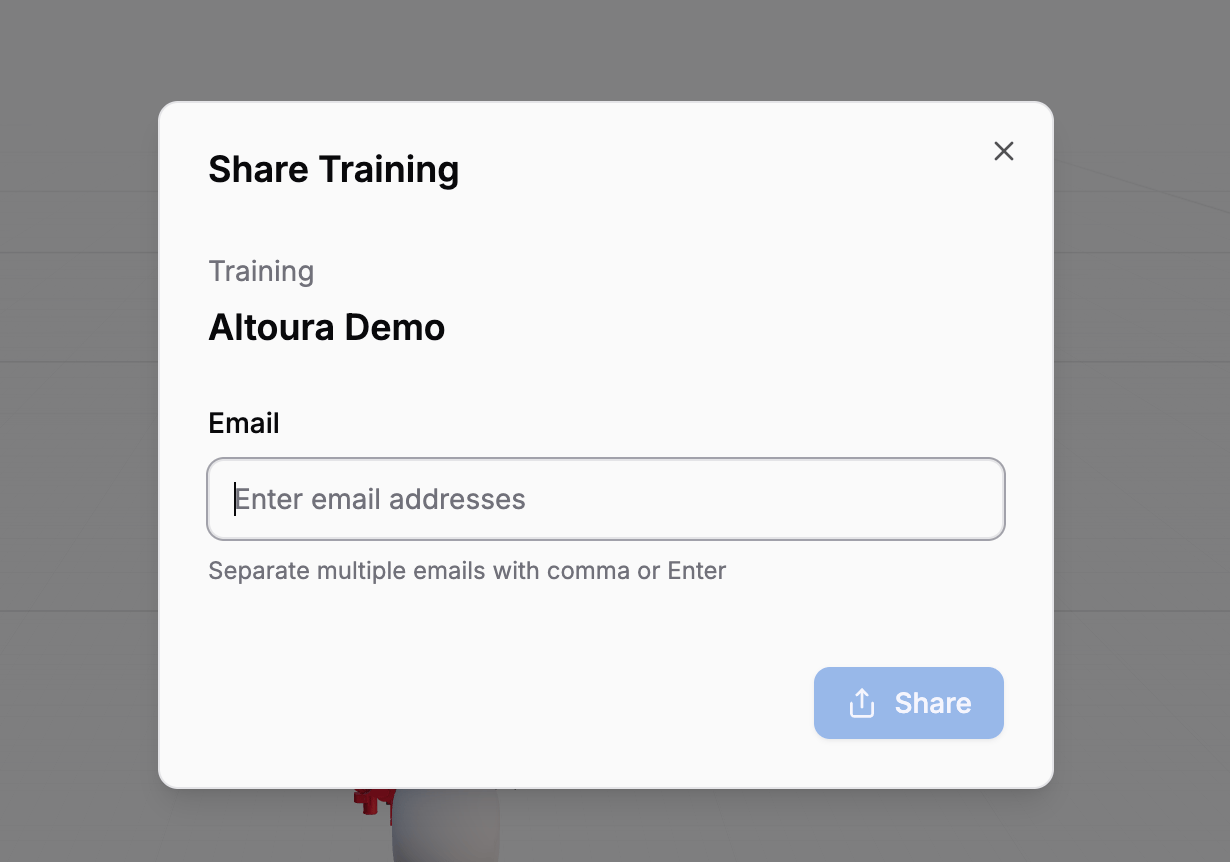
The **Share Training** dialog opens. The training name is shown as a heading under a small **Training** label.
Type one or more email addresses in the **Email** field (placeholder: `Enter email addresses`). You can add multiple recipients by:
* Pressing **Enter** after each email
* Separating emails with a **comma** or **space**
* **Pasting** a list of emails (comma, semicolon, or whitespace-separated)
Each valid email appears as a chip inside the input area, with an **×** to remove it.
The Creator App sends invitations to all listed email addresses. The button label changes to **Sharing...** while the request is in flight.
 ## Share Dialog Details
The Share Training dialog provides a focused email-invite experience:
| Element | Description |
| ---------------- | --------------------------------------------------------------------------------------------- |
| **Training** | A small label above the training name (read-only display of what you're sharing) |
| **Email** | Text input for adding email addresses, with placeholder `Enter email addresses` |
| **Email chips** | Each added email appears as a removable chip inside the input area, each with an **×** button |
| **Helper text** | `Separate multiple emails with comma or Enter` (shown under the input when there is no error) |
| **Share button** | Sends invitations to all listed emails. Disabled until at least one valid email is entered |
### Managing Email Recipients
* **Add**: Type an email and press **Enter**, **comma**, or **space**
* **Remove**: Click the **×** on any email chip, or press **Backspace** when the input is empty to remove the last chip
* **Paste multiple**: Paste a list and emails are automatically split (by comma, semicolon, or whitespace) and added as individual chips
* Duplicate emails and anything that doesn't look like an email are filtered out automatically
## After Sharing
When sharing succeeds, the dialog content is replaced with a green checkmark and the message **Sharing is Successful.**
If sharing fails, an error message appears in red below the email field explaining what went wrong, and the dialog stays open so you can adjust and retry.
Sharing sends email invitations through the Altoura platform. Recipients will receive an email with instructions to access the training. They do not need to have the Creator App — they access the training through the Trainee App.
## Prerequisites for Sharing
Before you can share:
* The training must be **saved** — unsaved changes are not included in what recipients see
* You must have a **training ID** (the training must exist on the server, not just locally)
* You cannot open the Share dialog while an in-scene edit is active (for example, while editing a panel or another interactive object). If you click **Share** during one of these edits, a toast titled **Edit in Progress** appears with the message: *"Please finish or cancel the current edit before performing this action."*
Always save your training before sharing. The shared training reflects the last saved state, not your current unsaved edits.
## Best Practices
Preview your training thoroughly and save before inviting others. Recipients should see a polished, working experience.
Before a wide rollout, share with a few team members for feedback. Fix any issues they find, then share more broadly.
Make sure recipients have active email accounts associated with your organization's Altoura platform.
## Next Steps
* **[Saving & Save As](/creator-studio/creator-app/workflow/saving)** — Make sure your training is saved before sharing
## Share Dialog Details
The Share Training dialog provides a focused email-invite experience:
| Element | Description |
| ---------------- | --------------------------------------------------------------------------------------------- |
| **Training** | A small label above the training name (read-only display of what you're sharing) |
| **Email** | Text input for adding email addresses, with placeholder `Enter email addresses` |
| **Email chips** | Each added email appears as a removable chip inside the input area, each with an **×** button |
| **Helper text** | `Separate multiple emails with comma or Enter` (shown under the input when there is no error) |
| **Share button** | Sends invitations to all listed emails. Disabled until at least one valid email is entered |
### Managing Email Recipients
* **Add**: Type an email and press **Enter**, **comma**, or **space**
* **Remove**: Click the **×** on any email chip, or press **Backspace** when the input is empty to remove the last chip
* **Paste multiple**: Paste a list and emails are automatically split (by comma, semicolon, or whitespace) and added as individual chips
* Duplicate emails and anything that doesn't look like an email are filtered out automatically
## After Sharing
When sharing succeeds, the dialog content is replaced with a green checkmark and the message **Sharing is Successful.**
If sharing fails, an error message appears in red below the email field explaining what went wrong, and the dialog stays open so you can adjust and retry.
Sharing sends email invitations through the Altoura platform. Recipients will receive an email with instructions to access the training. They do not need to have the Creator App — they access the training through the Trainee App.
## Prerequisites for Sharing
Before you can share:
* The training must be **saved** — unsaved changes are not included in what recipients see
* You must have a **training ID** (the training must exist on the server, not just locally)
* You cannot open the Share dialog while an in-scene edit is active (for example, while editing a panel or another interactive object). If you click **Share** during one of these edits, a toast titled **Edit in Progress** appears with the message: *"Please finish or cancel the current edit before performing this action."*
Always save your training before sharing. The shared training reflects the last saved state, not your current unsaved edits.
## Best Practices
Preview your training thoroughly and save before inviting others. Recipients should see a polished, working experience.
Before a wide rollout, share with a few team members for feedback. Fix any issues they find, then share more broadly.
Make sure recipients have active email accounts associated with your organization's Altoura platform.
## Next Steps
* **[Saving & Save As](/creator-studio/creator-app/workflow/saving)** — Make sure your training is saved before sharing