> ## Documentation Index
> Fetch the complete documentation index at: https://docs.altoura.com/llms.txt
> Use this file to discover all available pages before exploring further.
# Text-to-Speech
> Generate narration audio from the text in a Show Panel action, without recording or uploading a file
## Overview
**Text-to-Speech (TTS)** generates spoken narration directly from the text you write in a **Show Panel** action. One click produces an audio file that plays alongside the panel when the learner reaches that step — no recording studio, no file uploads, no separate voiceover workflow.
TTS is the fastest way to add narration to a training. It is also useful for iterating on scripts: change the text, regenerate, and the narration is updated immediately.
## Where to Find It
TTS is available in two places, both tied to the **Show Panel** action:
| Location | Button |
| ---------------------------------------------------------------- | ---------------------------- |
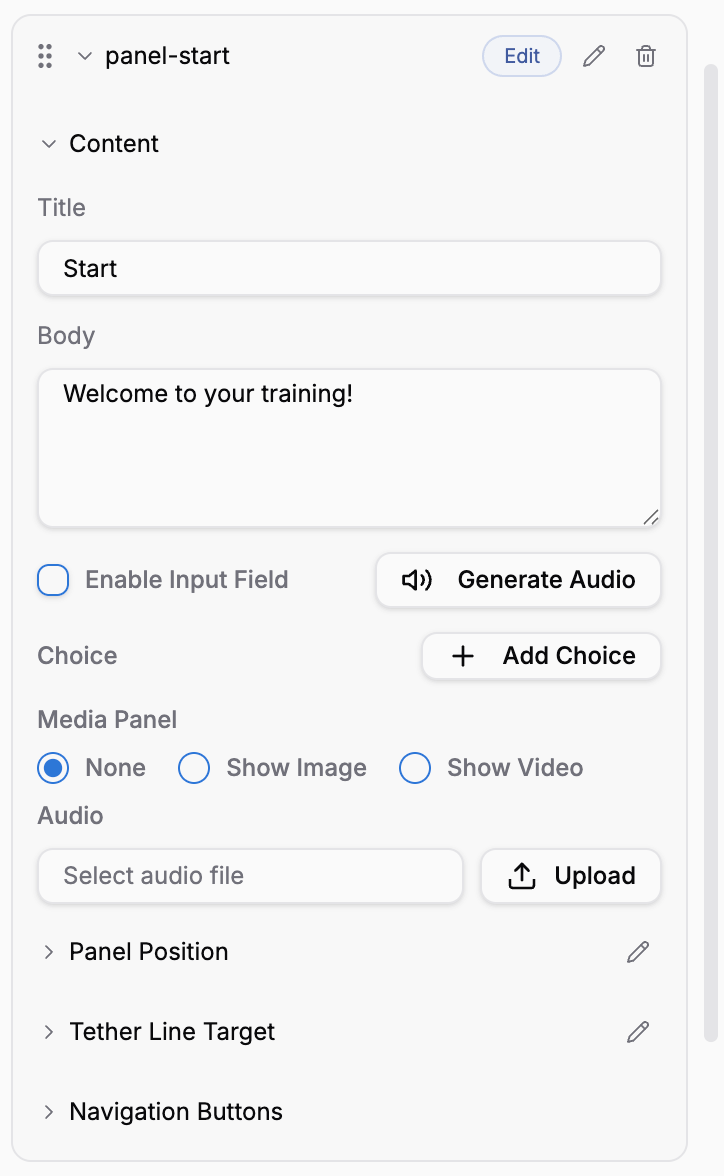
| **Show Panel** action parameters → **Content** section | **Generate Audio** |
| Editable panel preview in the 3D scene → **Generate Audio Card** | **Generate audio from text** |
Both paths produce the same result — an audio file attached to the panel.
## Generating Narration
In the state's **onEntry** (or wherever appropriate), add **Show Panel**. Fill in the **Title** and **Body** text.
In the **Content** section of the panel action, click **Generate Audio**. The button briefly shows **Generating...** and then **Generated** when the file is ready.
Use the audio player in the panel action to preview the narration. If the audio sounds right, you are done.
If you change the **Body** text or **Choices**, click **Generate Audio** again to refresh the narration.
 ## What Gets Spoken
The narration includes:
* The **Body** text of the panel
* The **text** of each **Choice** (if the panel has multiple-choice options)
The panel **Title** is **not** included in the narration. Keep titles short and put the spoken content in the body.
If the **Body** is empty, **Generate Audio** returns an error:
> *Please enter body text first*
TTS needs at least some body text to produce narration.
## Voice and Language
* **Voice** is driven by the training's data model (the `voiceType` setting). The same voice is used for every Show Panel in the training, which keeps the narration consistent.
* **Language** is returned by the backend based on the selected voice — there is no separate language picker in the panel.
If you need to change the voice for a whole training, update the `voiceType` in the training's data model. Individual panels cannot override the voice.
## How the Audio Is Stored
When **Generate Audio** succeeds, the panel action is updated with an audio source that points to the generated file on the server. The audio plays automatically when the Show Panel action runs at runtime.
Because the audio is referenced by URL (not by asset id), TTS audio behaves slightly differently from audio that was uploaded to the asset library:
| Aspect | TTS Audio | Uploaded Library Audio |
| ------------------- | ---------------------------------------- | ----------------------------------- |
| Source | Generated file URL | Asset library |
| Reuse across panels | Not shared — each panel has its own file | Same asset can be reused everywhere |
| Swap in an editor | Replaced by regenerating | Picked from the asset browser |
| Shown as | *Generated Audio* in the panel action | The asset name |
TTS is ideal for narration that is panel-specific. For shared audio (jingles, alarms, reusable cues), upload the file to the asset library and use **Play Audio** or the panel's **Media** field.
## Example: Narrated Instruction
```
Action: Show Panel
Title: "Step 3"
Body: "Pick up the torque wrench from the workbench and set it to 8 Newton-metres."
Generate Audio → Generated
Billboard: true
```
The learner sees the panel and hears the narration at the same time. No separate audio action is needed.
## Example: Narrated Question
```
Action: Show Panel
Title: "Quick Check"
Body: "Which tool is the correct one for this fastener?"
Choices:
- "Flat screwdriver"
- "Phillips screwdriver"
- "Hex key"
Generate Audio → Generated
Billboard: true
```
The narration reads the question and the three choices, one per line. The learner hears the options and can still see and click them on the panel.
## Replacing or Removing TTS Audio
* **Regenerate** — Edit **Body** or **Choices**, then click **Generate Audio** again. The old audio is replaced.
* **Switch to library audio** — Use the panel's **Audio** section to select a library audio file instead. This replaces the TTS source.
* **Remove** — Click **Remove** on the audio preview in the panel action. The audio source is cleared and the panel will have no narration.
## Best Practices
Use short sentences. Avoid tables, code blocks, and long bullet lists in **Body** — they sound awkward when read aloud.
Titles are not spoken. If a piece of information is important, put it in **Body** so the learner hears it.
Pick one `voiceType` in the data model and keep it. Switching voices mid-training is distracting.
The audio is a snapshot of the text at the time you clicked **Generate Audio**. If you later edit the panel text without regenerating, the narration will be out of sync with what is on screen.
Play the generated audio inside Creator App to catch mispronunciations or awkward phrasing. Adjust the text and regenerate if needed.
For legally significant or safety-critical narration, consider uploading a human-recorded file instead of relying on TTS.
## Limitations
* **Only in Show Panel** — TTS is part of the Show Panel action. To narrate other actions, use **Play Audio** with a pre-uploaded audio asset.
* **No per-panel voice override** — Voice is fixed per training via `voiceType`.
* **Title not spoken** — Only **Body** and **Choices** are included in the audio.
* **Regeneration required after text edits** — Editing the text does not automatically update the audio.
## Related
* **Show Panel** — The action that exposes the Generate Audio button
* **Play Audio** — Play a pre-uploaded audio asset (used for shared narration, sound effects, and alarms)
* **Variables** — Values interpolated with `{{variableName}}` in **Body** will be read out literally at the time of generation; regenerate if the variable values change
## What Gets Spoken
The narration includes:
* The **Body** text of the panel
* The **text** of each **Choice** (if the panel has multiple-choice options)
The panel **Title** is **not** included in the narration. Keep titles short and put the spoken content in the body.
If the **Body** is empty, **Generate Audio** returns an error:
> *Please enter body text first*
TTS needs at least some body text to produce narration.
## Voice and Language
* **Voice** is driven by the training's data model (the `voiceType` setting). The same voice is used for every Show Panel in the training, which keeps the narration consistent.
* **Language** is returned by the backend based on the selected voice — there is no separate language picker in the panel.
If you need to change the voice for a whole training, update the `voiceType` in the training's data model. Individual panels cannot override the voice.
## How the Audio Is Stored
When **Generate Audio** succeeds, the panel action is updated with an audio source that points to the generated file on the server. The audio plays automatically when the Show Panel action runs at runtime.
Because the audio is referenced by URL (not by asset id), TTS audio behaves slightly differently from audio that was uploaded to the asset library:
| Aspect | TTS Audio | Uploaded Library Audio |
| ------------------- | ---------------------------------------- | ----------------------------------- |
| Source | Generated file URL | Asset library |
| Reuse across panels | Not shared — each panel has its own file | Same asset can be reused everywhere |
| Swap in an editor | Replaced by regenerating | Picked from the asset browser |
| Shown as | *Generated Audio* in the panel action | The asset name |
TTS is ideal for narration that is panel-specific. For shared audio (jingles, alarms, reusable cues), upload the file to the asset library and use **Play Audio** or the panel's **Media** field.
## Example: Narrated Instruction
```
Action: Show Panel
Title: "Step 3"
Body: "Pick up the torque wrench from the workbench and set it to 8 Newton-metres."
Generate Audio → Generated
Billboard: true
```
The learner sees the panel and hears the narration at the same time. No separate audio action is needed.
## Example: Narrated Question
```
Action: Show Panel
Title: "Quick Check"
Body: "Which tool is the correct one for this fastener?"
Choices:
- "Flat screwdriver"
- "Phillips screwdriver"
- "Hex key"
Generate Audio → Generated
Billboard: true
```
The narration reads the question and the three choices, one per line. The learner hears the options and can still see and click them on the panel.
## Replacing or Removing TTS Audio
* **Regenerate** — Edit **Body** or **Choices**, then click **Generate Audio** again. The old audio is replaced.
* **Switch to library audio** — Use the panel's **Audio** section to select a library audio file instead. This replaces the TTS source.
* **Remove** — Click **Remove** on the audio preview in the panel action. The audio source is cleared and the panel will have no narration.
## Best Practices
Use short sentences. Avoid tables, code blocks, and long bullet lists in **Body** — they sound awkward when read aloud.
Titles are not spoken. If a piece of information is important, put it in **Body** so the learner hears it.
Pick one `voiceType` in the data model and keep it. Switching voices mid-training is distracting.
The audio is a snapshot of the text at the time you clicked **Generate Audio**. If you later edit the panel text without regenerating, the narration will be out of sync with what is on screen.
Play the generated audio inside Creator App to catch mispronunciations or awkward phrasing. Adjust the text and regenerate if needed.
For legally significant or safety-critical narration, consider uploading a human-recorded file instead of relying on TTS.
## Limitations
* **Only in Show Panel** — TTS is part of the Show Panel action. To narrate other actions, use **Play Audio** with a pre-uploaded audio asset.
* **No per-panel voice override** — Voice is fixed per training via `voiceType`.
* **Title not spoken** — Only **Body** and **Choices** are included in the audio.
* **Regeneration required after text edits** — Editing the text does not automatically update the audio.
## Related
* **Show Panel** — The action that exposes the Generate Audio button
* **Play Audio** — Play a pre-uploaded audio asset (used for shared narration, sound effects, and alarms)
* **Variables** — Values interpolated with `{{variableName}}` in **Body** will be read out literally at the time of generation; regenerate if the variable values change