> ## Documentation Index
> Fetch the complete documentation index at: https://docs.altoura.com/llms.txt
> Use this file to discover all available pages before exploring further.
# Objects and Hierarchy
> Add objects, search the scene tree, and organize content in the hierarchy.
## Adding Objects
Objects can be added in several ways:
* Ribbon `3D Objects`
* Viewport context menu `Add Object`
* Hierarchy context menu `Add Object`
* Dragging a valid GLB file onto the viewport
Depending on where the action starts, the new object can be placed:
* On the scene floor
* At a right-clicked location
* As a child of the selected object
## Creating Empty Objects
From the hierarchy context menu, users can create an empty object. This is useful for grouping or parent structure.
## Object Library
The object library is a dialog used to insert models from the asset library.
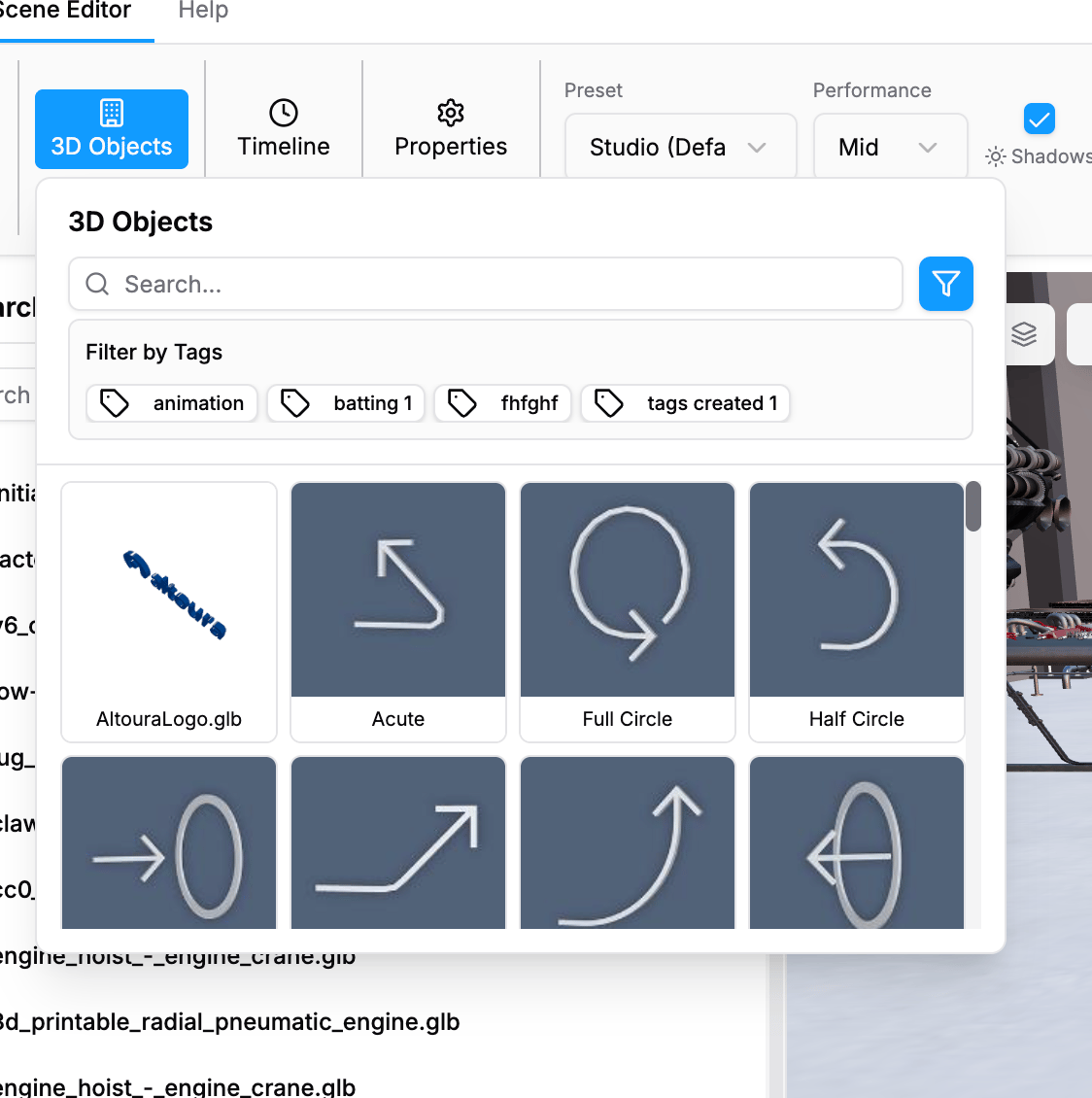 *Object library dialog for searching and selecting 3D assets.*
### Available Features
* Search field: `Search 3D objects...`
* Tag filter button
* Tag count badge when filters are active
* `Clear` action for selected tags
* Thumbnail grid
* Loading skeletons
* Tag-based filtering
### Empty and Error States
* `No tags available`
* `No asset tags available for the current library contents.`
* `No objects found`
* `Try adjusting your search terms or filters to find the objects you're looking for.`
### Selection Behavior
Selecting an asset briefly highlights the card, then starts loading and placement. The dialog closes when insert succeeds.
## Hierarchy Panel
The hierarchy panel shows the scene tree and supports object-focused navigation.
*Object library dialog for searching and selecting 3D assets.*
### Available Features
* Search field: `Search 3D objects...`
* Tag filter button
* Tag count badge when filters are active
* `Clear` action for selected tags
* Thumbnail grid
* Loading skeletons
* Tag-based filtering
### Empty and Error States
* `No tags available`
* `No asset tags available for the current library contents.`
* `No objects found`
* `Try adjusting your search terms or filters to find the objects you're looking for.`
### Selection Behavior
Selecting an asset briefly highlights the card, then starts loading and placement. The dialog closes when insert succeeds.
## Hierarchy Panel
The hierarchy panel shows the scene tree and supports object-focused navigation.
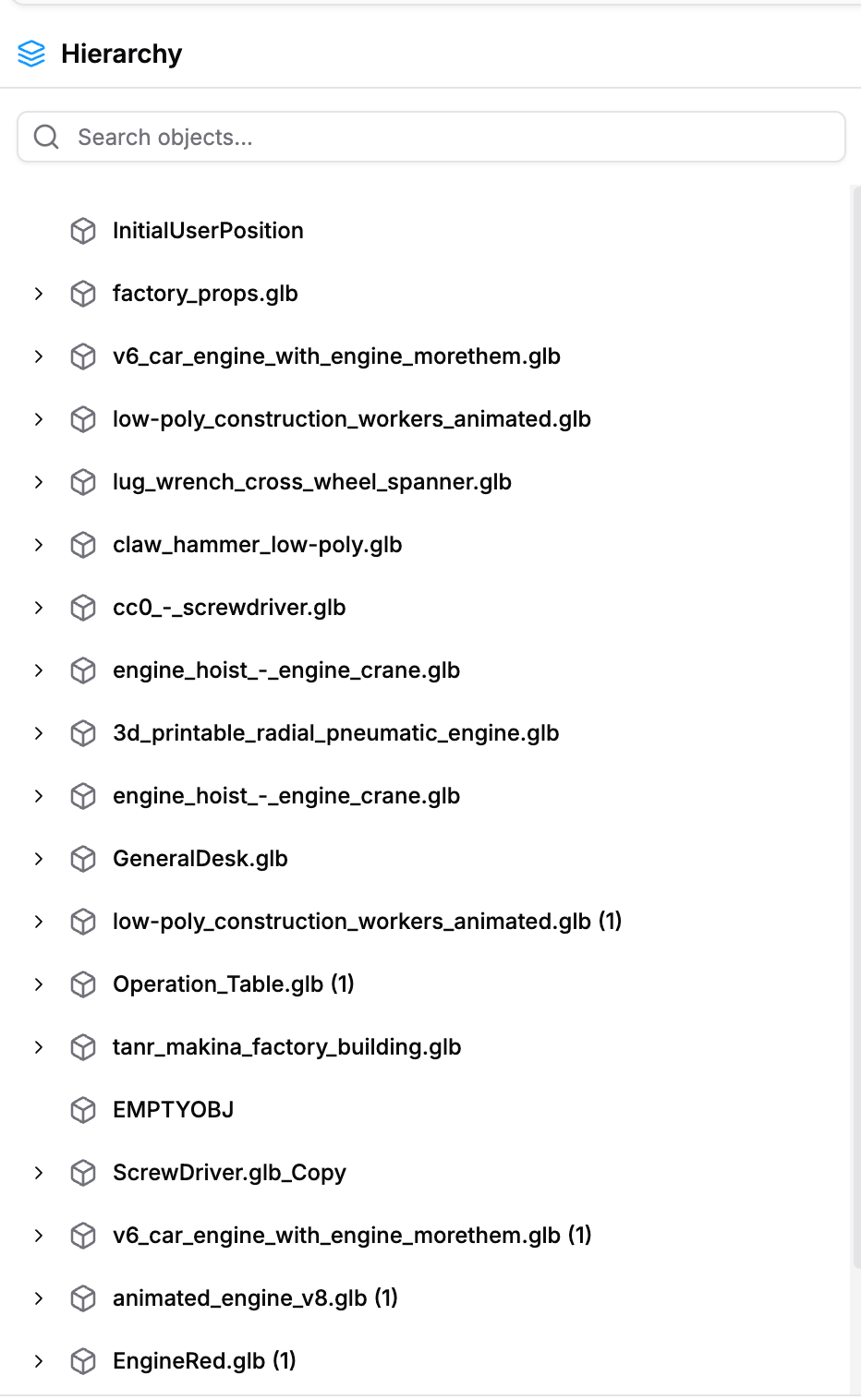 *Hierarchy panel for browsing, selecting, and organizing scene objects.*
### Key Capabilities
* Search objects by name
* Expand and collapse nested objects
* Select an object
* Rename an object by double-clicking it
* Toggle object visibility
* Open the object context menu
* Resize the panel width
The hierarchy panel width is persisted locally, so the editor reuses your last chosen width in later sessions on the same browser.
### Search Behavior
* Search placeholder: `Search objects...`
* Shows match counts such as `1 match` or `3 matches`
* `Esc` clears the search and removes focus
* Arrow keys move through matches
* `Enter` selects the active match
### Empty States
* `No Objects Added`
* `Add objects to see them here`
* `No matching objects`
* `Try a different search term`
### Hierarchy Context Menu
The hierarchy supports:
* `Cut`
* `Copy`
* `Paste`
* `Paste as Child`
* `Duplicate`
* `Delete`
* `Add Object`
* `Create Empty`
For child objects that are still part of their original imported hierarchy and have not been manually reparented, `Cut`, `Copy`, `Duplicate`, and `Delete` are disabled. Additional restrictions also apply to `Initial User Position`.
## Selecting and Organizing Objects
Users can select objects from either the viewport or the hierarchy. The hierarchy is the main interface for:
* Expanding nested assets
* Renaming objects
* Checking visibility
* Working with parent-child structure
The app restricts destructive actions for `Initial User Position` and for child objects that still belong to an imported model's original hierarchy, such as nested meshes or groups from a GLB that have not been manually reparented.
*Hierarchy panel for browsing, selecting, and organizing scene objects.*
### Key Capabilities
* Search objects by name
* Expand and collapse nested objects
* Select an object
* Rename an object by double-clicking it
* Toggle object visibility
* Open the object context menu
* Resize the panel width
The hierarchy panel width is persisted locally, so the editor reuses your last chosen width in later sessions on the same browser.
### Search Behavior
* Search placeholder: `Search objects...`
* Shows match counts such as `1 match` or `3 matches`
* `Esc` clears the search and removes focus
* Arrow keys move through matches
* `Enter` selects the active match
### Empty States
* `No Objects Added`
* `Add objects to see them here`
* `No matching objects`
* `Try a different search term`
### Hierarchy Context Menu
The hierarchy supports:
* `Cut`
* `Copy`
* `Paste`
* `Paste as Child`
* `Duplicate`
* `Delete`
* `Add Object`
* `Create Empty`
For child objects that are still part of their original imported hierarchy and have not been manually reparented, `Cut`, `Copy`, `Duplicate`, and `Delete` are disabled. Additional restrictions also apply to `Initial User Position`.
## Selecting and Organizing Objects
Users can select objects from either the viewport or the hierarchy. The hierarchy is the main interface for:
* Expanding nested assets
* Renaming objects
* Checking visibility
* Working with parent-child structure
The app restricts destructive actions for `Initial User Position` and for child objects that still belong to an imported model's original hierarchy, such as nested meshes or groups from a GLB that have not been manually reparented.