> ## Documentation Index
> Fetch the complete documentation index at: https://docs.altoura.com/llms.txt
> Use this file to discover all available pages before exploring further.
# Workspace Tour
> Get familiar with the main Scene Manager workspace and navigation.
Scene Manager is a single-workspace application. Navigation happens through panels, tabs, modals, menus, and toolbars rather than through multiple internal pages.
## Main Layout
The standard editor includes:
* A top header and ribbon
* A left hierarchy panel
* A central 3D viewport
* An optional right-side object properties pane
* An optional bottom timeline panel
* A footer with theme and save status
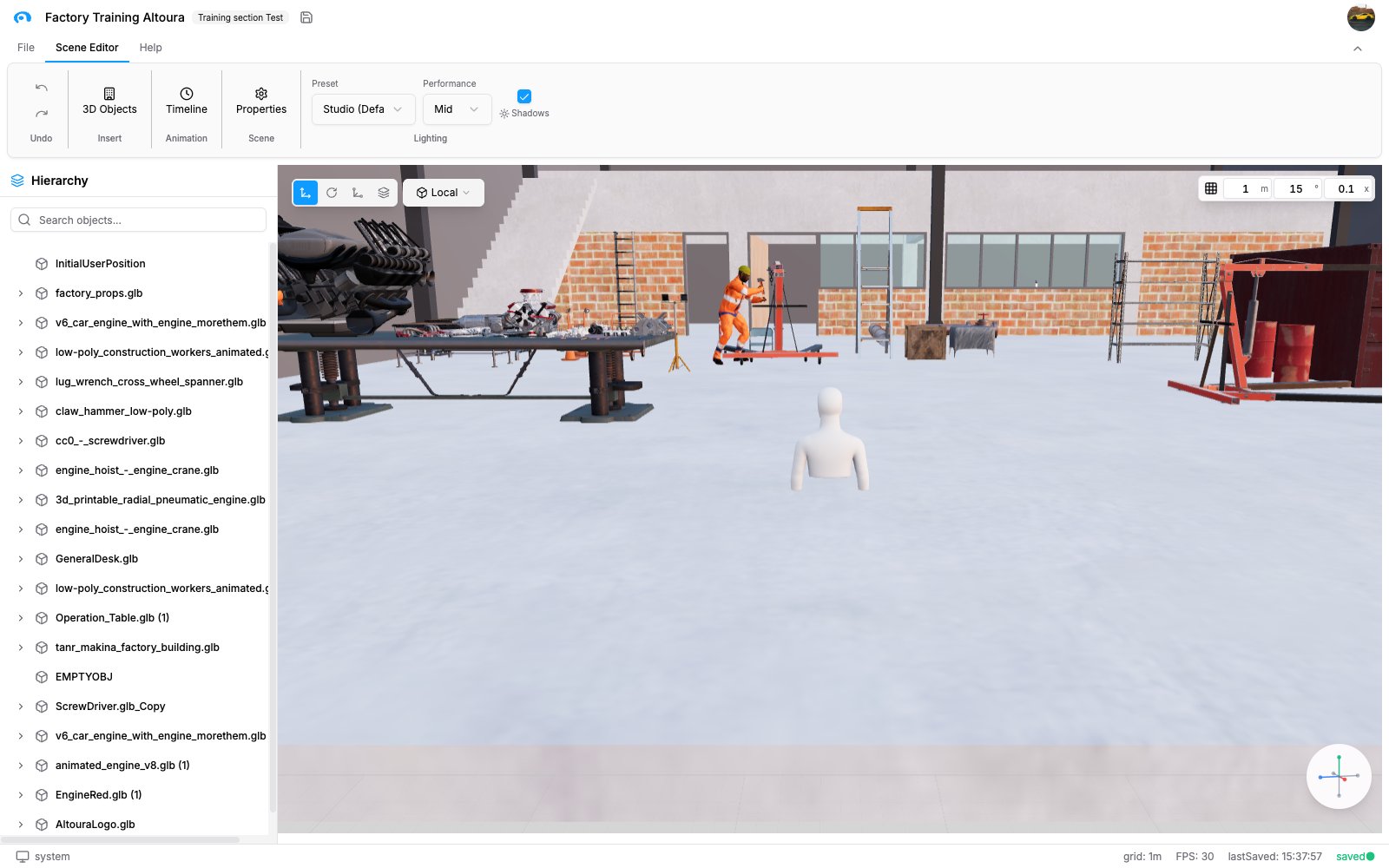 *Main editor workspace with the core editing panels visible.*
## Header
The header includes:
*Main editor workspace with the core editing panels visible.*
## Header
The header includes:
 *Header row showing the scene title, organization badge, save action, and profile avatar.*
* The Altoura logo
* The current scene name
* The organization badge
* A save icon
* The profile avatar and menu
### Scene Name
* Displays the current scene or training name
* Can be renamed inline by clicking the title when a name exists
* Commits on blur or `Enter`
### Organization Badge
The organization badge shows the active organization name for the scene. It is informational in the standard app flow.
### Save Icon
The save icon performs a normal save of the current scene. It uses the same save path as `Ctrl+S` or `Cmd+S`.
## Ribbon Tabs
### File
The `File` tab contains the scene creation and duplication actions:
* `New`
* `Save As`
### Scene Editor
The `Scene Editor` tab is the default working tab for general scene authoring. It contains:
*Header row showing the scene title, organization badge, save action, and profile avatar.*
* The Altoura logo
* The current scene name
* The organization badge
* A save icon
* The profile avatar and menu
### Scene Name
* Displays the current scene or training name
* Can be renamed inline by clicking the title when a name exists
* Commits on blur or `Enter`
### Organization Badge
The organization badge shows the active organization name for the scene. It is informational in the standard app flow.
### Save Icon
The save icon performs a normal save of the current scene. It uses the same save path as `Ctrl+S` or `Cmd+S`.
## Ribbon Tabs
### File
The `File` tab contains the scene creation and duplication actions:
* `New`
* `Save As`
### Scene Editor
The `Scene Editor` tab is the default working tab for general scene authoring. It contains:
 *Scene Editor tab with the main scene authoring controls.*
* Undo and redo controls
* `3D Objects` insertion
* `Timeline` toggle
* `Properties` button for scene-level settings
* Lighting controls
### Help
The `Help` tab includes:
* `Documentation`
* `Support`
In standard builds, `Documentation` opens the external Altoura documentation site in a new browser tab.
The `Support` button is visible in the current build, but no action is wired from the reviewed Scene Manager code.
### Object
The `Object` tab appears only when an object is selected. Its label changes to the selected object's name.
The object tab gives quick access to:
* Position
* Rotation
* Scale
* Material
* Animation takes
* Collider
* Object-specific settings
* Delete and visibility actions
* Timeline button
* Properties-pane toggle
Some controls are intentionally restricted for special objects such as `Initial User Position`.
## Responsive Behavior
On narrower layouts:
* The hierarchy can collapse behind a vertical side tab
* Some object-editing ribbon controls become compact popovers instead of always-visible inputs
* The hierarchy panel width is remembered in your browser after you resize it
## Footer
The footer provides always-visible status information:
*Scene Editor tab with the main scene authoring controls.*
* Undo and redo controls
* `3D Objects` insertion
* `Timeline` toggle
* `Properties` button for scene-level settings
* Lighting controls
### Help
The `Help` tab includes:
* `Documentation`
* `Support`
In standard builds, `Documentation` opens the external Altoura documentation site in a new browser tab.
The `Support` button is visible in the current build, but no action is wired from the reviewed Scene Manager code.
### Object
The `Object` tab appears only when an object is selected. Its label changes to the selected object's name.
The object tab gives quick access to:
* Position
* Rotation
* Scale
* Material
* Animation takes
* Collider
* Object-specific settings
* Delete and visibility actions
* Timeline button
* Properties-pane toggle
Some controls are intentionally restricted for special objects such as `Initial User Position`.
## Responsive Behavior
On narrower layouts:
* The hierarchy can collapse behind a vertical side tab
* Some object-editing ribbon controls become compact popovers instead of always-visible inputs
* The hierarchy panel width is remembered in your browser after you resize it
## Footer
The footer provides always-visible status information:
 *Footer with theme, grid, FPS, and save status information.*
* Current theme with toggle button
* Grid spacing
* Timeline FPS
* Last saved time
* Save state indicator
The save state indicator shows either:
* `saved` with a green dot
* `unsaved` with a red dot
*Footer with theme, grid, FPS, and save status information.*
* Current theme with toggle button
* Grid spacing
* Timeline FPS
* Last saved time
* Save state indicator
The save state indicator shows either:
* `saved` with a green dot
* `unsaved` with a red dot