> ## Documentation Index
> Fetch the complete documentation index at: https://docs.altoura.com/llms.txt
> Use this file to discover all available pages before exploring further.
# Assessment Mode
> Learn what changes when visual guides are removed to test your knowledge
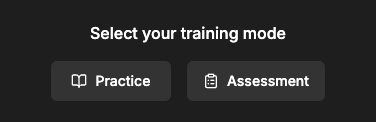
Assessment mode is a stricter version of training where you perform tasks without any visual guidance. It's designed to test whether you've truly learned the material.
 ## What is Assessment Mode?
**Assessment mode** = Guided training with all the helpful visual hints removed.
Think of it like the difference between:
* **Guided training:** Someone shows you exactly where and how to do something
* **Assessment mode:** Someone watches you do it without guidance to see if you remember
## What's Different in Assessment Mode
Assessment mode generates an assessment based on the steps in your training. For steps that require interaction (tap, move, or rotate), the following are hidden:
* The **Title text** on the step panel (replaced by the step number)
* The **Display Text** on the step panel
* The **direction indicator arrow**
* Any uploaded **Audio**
* Any uploaded **Images or Videos**
* The **Instruction Animation** (ghost hands)
* The **Back button** (the Next button is hidden unless the step includes a text input field)
Steps that do not require an interaction (informational-only steps) still display their title, text, media, and navigation buttons normally, even in assessment mode.
### You Must Remember What You Learned
For interactive steps, you need to remember:
* **Which object to interact with** — no glowing highlights tell you
* **Where objects are located** — no hand pointing them out
* **How to move or rotate them** — no animation showing the correct technique
* **In what order** — no step text or navigation arrows to guide you
## What Happens When You Tap the Wrong Object
**You get feedback:** A **red vignette** flashes around the edges of your screen.
**What it means:** You tapped an object, but it's not the correct one for this step.
**What to do:**
* Think about which object should be interacted with
* Try tapping a different object
* No penalty — wrong taps are just feedback
## Why Assessment Mode Exists
**Tests Real Understanding**
* Guided trainings teach you with visual help
* Assessment mode proves you can do it without that help
* It's closer to real-world performance where there won't be animated hands
**Verifies Independence**
* Trainers want to know you understand the "why," not just the "where"
* Assessment shows you've learned the concepts, not just memorized hand positions
**Professional Requirement**
* Some roles require you to pass an assessment to prove competency
* Assessment scores may be recorded for compliance or certification
## Tips for Succeeding in Assessment Mode
### Before Assessment: Complete Guided Training
1. **Do the guided training first** — don't skip directly to assessment
2. **Pay close attention to:**
* What each object looks like
* Where objects are positioned in the scene
* The exact steps in order
* How objects are manipulated (move, rotate, tap)
### During Assessment: Strategies
**Remember Object Appearance**
* Think about what you saw during guided training
* Objects look the same, just without the glow
* Recall their colors, shapes, and sizes
**Remember Object Locations**
* In guided mode, ghost hands pointed to locations
* In assessment mode, recall where those objects were positioned
* Rotate your view to search if needed
**Take Your Time**
* There's usually no time limit
* It's okay to take 30 seconds to find and click the right object
* Wrong clicks are not penalized
**Use Your Controls**
* Rotate the scene to see all angles
* Zoom in to find small objects or details
* Adjust camera height to see high or low objects
* These tools are available even without visual guides
## Completion
Once you complete the assessment, your completion is recorded. You can retake the assessment by using **Reset Training** from the floating controls.
## Real-World Comparison
Think of it this way:
**Guided Training** = Learning with an instructor showing you everything
* Instructor points: "Click this button"
* Instructor demonstrates: "Drag it like this"
* You practice with constant feedback
**Assessment Mode** = Performing the task independently
* Boss or evaluator watches silently
* You remember what to do from training
* You perform without live guidance
* You prove you know the material
**Assessment mode is good practice:** Real work won't have animated hands! Assessment mode prepares you for actual tasks where you'll use your knowledge independently.
## Troubleshooting
There's usually no limit on wrong taps. Keep trying and thinking through the logic. If you need the guided training again, reset and go back to the non-assessment version.
It depends on your training's scoring rules. Some trainings just care if you get it right eventually. Some score based on wrong attempts. Check your training's instructions or ask your trainer.
Only if your training makes it optional. Most required assessments must be completed. Ask your trainer if you can opt out.
No time limits. Take as long as you need. Assessment is about knowledge, not speed.
Usually yes! Reset and go back to the guided version to review. There's no penalty for reviewing.
## What is Assessment Mode?
**Assessment mode** = Guided training with all the helpful visual hints removed.
Think of it like the difference between:
* **Guided training:** Someone shows you exactly where and how to do something
* **Assessment mode:** Someone watches you do it without guidance to see if you remember
## What's Different in Assessment Mode
Assessment mode generates an assessment based on the steps in your training. For steps that require interaction (tap, move, or rotate), the following are hidden:
* The **Title text** on the step panel (replaced by the step number)
* The **Display Text** on the step panel
* The **direction indicator arrow**
* Any uploaded **Audio**
* Any uploaded **Images or Videos**
* The **Instruction Animation** (ghost hands)
* The **Back button** (the Next button is hidden unless the step includes a text input field)
Steps that do not require an interaction (informational-only steps) still display their title, text, media, and navigation buttons normally, even in assessment mode.
### You Must Remember What You Learned
For interactive steps, you need to remember:
* **Which object to interact with** — no glowing highlights tell you
* **Where objects are located** — no hand pointing them out
* **How to move or rotate them** — no animation showing the correct technique
* **In what order** — no step text or navigation arrows to guide you
## What Happens When You Tap the Wrong Object
**You get feedback:** A **red vignette** flashes around the edges of your screen.
**What it means:** You tapped an object, but it's not the correct one for this step.
**What to do:**
* Think about which object should be interacted with
* Try tapping a different object
* No penalty — wrong taps are just feedback
## Why Assessment Mode Exists
**Tests Real Understanding**
* Guided trainings teach you with visual help
* Assessment mode proves you can do it without that help
* It's closer to real-world performance where there won't be animated hands
**Verifies Independence**
* Trainers want to know you understand the "why," not just the "where"
* Assessment shows you've learned the concepts, not just memorized hand positions
**Professional Requirement**
* Some roles require you to pass an assessment to prove competency
* Assessment scores may be recorded for compliance or certification
## Tips for Succeeding in Assessment Mode
### Before Assessment: Complete Guided Training
1. **Do the guided training first** — don't skip directly to assessment
2. **Pay close attention to:**
* What each object looks like
* Where objects are positioned in the scene
* The exact steps in order
* How objects are manipulated (move, rotate, tap)
### During Assessment: Strategies
**Remember Object Appearance**
* Think about what you saw during guided training
* Objects look the same, just without the glow
* Recall their colors, shapes, and sizes
**Remember Object Locations**
* In guided mode, ghost hands pointed to locations
* In assessment mode, recall where those objects were positioned
* Rotate your view to search if needed
**Take Your Time**
* There's usually no time limit
* It's okay to take 30 seconds to find and click the right object
* Wrong clicks are not penalized
**Use Your Controls**
* Rotate the scene to see all angles
* Zoom in to find small objects or details
* Adjust camera height to see high or low objects
* These tools are available even without visual guides
## Completion
Once you complete the assessment, your completion is recorded. You can retake the assessment by using **Reset Training** from the floating controls.
## Real-World Comparison
Think of it this way:
**Guided Training** = Learning with an instructor showing you everything
* Instructor points: "Click this button"
* Instructor demonstrates: "Drag it like this"
* You practice with constant feedback
**Assessment Mode** = Performing the task independently
* Boss or evaluator watches silently
* You remember what to do from training
* You perform without live guidance
* You prove you know the material
**Assessment mode is good practice:** Real work won't have animated hands! Assessment mode prepares you for actual tasks where you'll use your knowledge independently.
## Troubleshooting
There's usually no limit on wrong taps. Keep trying and thinking through the logic. If you need the guided training again, reset and go back to the non-assessment version.
It depends on your training's scoring rules. Some trainings just care if you get it right eventually. Some score based on wrong attempts. Check your training's instructions or ask your trainer.
Only if your training makes it optional. Most required assessments must be completed. Ask your trainer if you can opt out.
No time limits. Take as long as you need. Assessment is about knowledge, not speed.
Usually yes! Reset and go back to the guided version to review. There's no penalty for reviewing.