> ## Documentation Index
> Fetch the complete documentation index at: https://docs.altoura.com/llms.txt
> Use this file to discover all available pages before exploring further.
# Interacting with Objects
> Learn how to interact with objects and read the visual guides in your training
Most of your training involves interacting with 3D objects. There are three main interaction types, and the app provides visual guides to show you exactly what to do.
## Three Types of Interactions
### 1. Tap (Click)
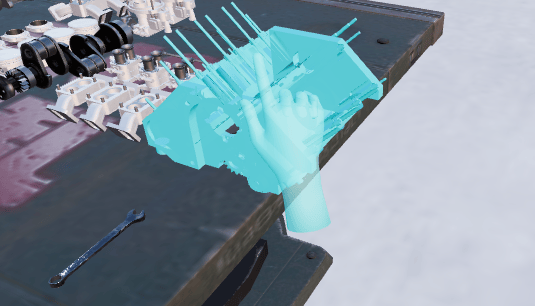 **What it is:** Click or tap on an object to trigger an action.
**How to do it:**
* Look for a **glowing or highlighted object**
* Click it with your mouse, or tap it with your finger
* The action completes instantly
**Ghost hand guide:** A ghost hand appears near the object, moves toward it, and taps it. Watch which object it targets, then tap that same object.
**Examples:** Clicking a button to turn something on, tapping a screen to select an option, activating a lever.
### 2. Move
**What it is:** Click or tap on an object to trigger an action.
**How to do it:**
* Look for a **glowing or highlighted object**
* Click it with your mouse, or tap it with your finger
* The action completes instantly
**Ghost hand guide:** A ghost hand appears near the object, moves toward it, and taps it. Watch which object it targets, then tap that same object.
**Examples:** Clicking a button to turn something on, tapping a screen to select an option, activating a lever.
### 2. Move
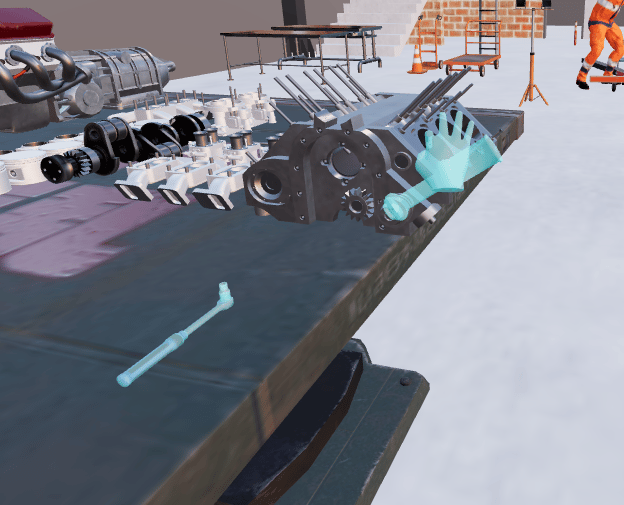 **What it is:** Tap an object and it automatically moves to its target destination.
**How to do it:**
* Look for a **highlighted object** with a movement prompt
* **Tap** the object once
* Watch it animate to the correct position
**Ghost hand guide:** A ghost hand grasps the object and drags it along a path to the target location, showing the trajectory and final position.
**Examples:** Moving a tool to a workbench, placing a component into a slot, sliding something into position.
### 3. Rotate
**What it is:** Tap an object and it automatically moves to its target destination.
**How to do it:**
* Look for a **highlighted object** with a movement prompt
* **Tap** the object once
* Watch it animate to the correct position
**Ghost hand guide:** A ghost hand grasps the object and drags it along a path to the target location, showing the trajectory and final position.
**Examples:** Moving a tool to a workbench, placing a component into a slot, sliding something into position.
### 3. Rotate
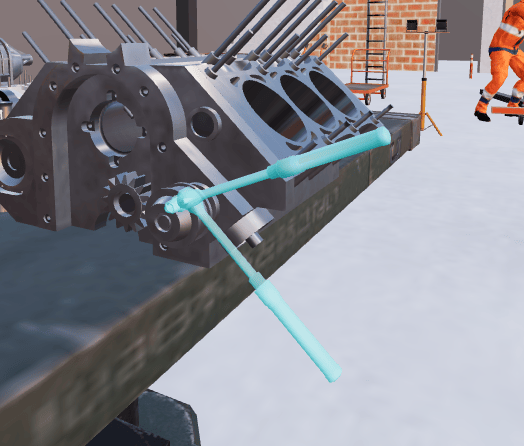 **What it is:** Tap an object and it automatically rotates to the correct orientation.
**How to do it:**
* Look for a **highlighted object** with a rotation prompt
* **Tap** the object once
* Watch it animate to the correct angle
**Ghost hand guide:** A ghost hand rotates or twists the object, showing the direction and how far to turn.
**Examples:** Turning a dial to the right setting, aligning a component, orienting equipment.
These ghost hand animations appear automatically when you start an interaction step. They repeat if you wait before interacting, giving you another look.
## Visual Guides
### Highlighted Objects
Objects that need interaction may **glow or blink** to draw your attention. Whether an object highlights depends on how the training was authored — not all interactive objects glow. If you're not sure what to interact with, look for the **direction indicator**.
### Direction Indicator
**What it is:** Tap an object and it automatically rotates to the correct orientation.
**How to do it:**
* Look for a **highlighted object** with a rotation prompt
* **Tap** the object once
* Watch it animate to the correct angle
**Ghost hand guide:** A ghost hand rotates or twists the object, showing the direction and how far to turn.
**Examples:** Turning a dial to the right setting, aligning a component, orienting equipment.
These ghost hand animations appear automatically when you start an interaction step. They repeat if you wait before interacting, giving you another look.
## Visual Guides
### Highlighted Objects
Objects that need interaction may **glow or blink** to draw your attention. Whether an object highlights depends on how the training was authored — not all interactive objects glow. If you're not sure what to interact with, look for the **direction indicator**.
### Direction Indicator
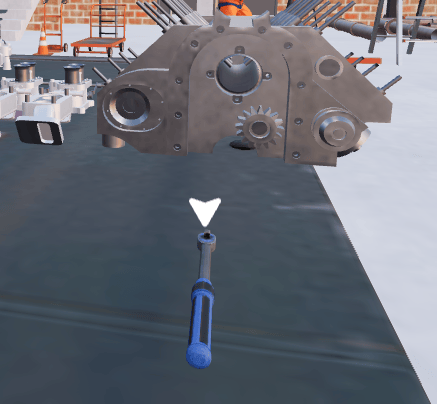 An on-screen arrow that points toward the target object for the current step. Especially helpful in large or complex scenes where the target object may not be immediately visible.
## Colors & Visual Variations
The default color for the ghost hand and animation is **cyan (light blue)**. Training creators can customize these colors, so the exact appearance may vary depending on your training.
## In Assessment Mode
In assessment mode, visual guides like ghost hands, direction indicators, and step panel text are hidden — you must complete interactions on your own from memory.
For full details on what changes in assessment mode, see [Assessment Mode](/creator-studio/trainee-app/assessment-mode).
## Tips
**Take Your Time** — There's usually no time limit. Look around, find the right object, and interact carefully.
**Read the Instructions** — Step panels often describe what to do and may name the object or location.
**Use Your Controls** — Rotate your view, walk closer, and adjust camera height to get a better look. There's no wrong angle.
**Reset If Stuck** — Use **Reset Step** from the floating controls to start the current step over.
## Troubleshooting
Make sure your browser window is large enough — the animation might be off-screen. Try maximizing the window. If you're in assessment mode, animations are intentionally hidden.
Wait for the animation to repeat automatically, or use **Reset Step** to restart the step and replay the animation. Watch it multiple times.
Make sure you're clicking the correct object for the current step. Look for the highlighted glow and direction indicator arrow. If the object isn't the right one, you'll see a red vignette flash.
Look for the direction indicator arrow and the ghost hand animation — they point to the specific target. Zoom in or walk closer to better distinguish between nearby objects.
An on-screen arrow that points toward the target object for the current step. Especially helpful in large or complex scenes where the target object may not be immediately visible.
## Colors & Visual Variations
The default color for the ghost hand and animation is **cyan (light blue)**. Training creators can customize these colors, so the exact appearance may vary depending on your training.
## In Assessment Mode
In assessment mode, visual guides like ghost hands, direction indicators, and step panel text are hidden — you must complete interactions on your own from memory.
For full details on what changes in assessment mode, see [Assessment Mode](/creator-studio/trainee-app/assessment-mode).
## Tips
**Take Your Time** — There's usually no time limit. Look around, find the right object, and interact carefully.
**Read the Instructions** — Step panels often describe what to do and may name the object or location.
**Use Your Controls** — Rotate your view, walk closer, and adjust camera height to get a better look. There's no wrong angle.
**Reset If Stuck** — Use **Reset Step** from the floating controls to start the current step over.
## Troubleshooting
Make sure your browser window is large enough — the animation might be off-screen. Try maximizing the window. If you're in assessment mode, animations are intentionally hidden.
Wait for the animation to repeat automatically, or use **Reset Step** to restart the step and replay the animation. Watch it multiple times.
Make sure you're clicking the correct object for the current step. Look for the highlighted glow and direction indicator arrow. If the object isn't the right one, you'll see a red vignette flash.
Look for the direction indicator arrow and the ghost hand animation — they point to the specific target. Zoom in or walk closer to better distinguish between nearby objects.