> ## Documentation Index
> Fetch the complete documentation index at: https://docs.altoura.com/llms.txt
> Use this file to discover all available pages before exploring further.
# Progress & Completion
> Understand how your progress is tracked and what happens when you complete a training
Your training progress is tracked automatically as you work through steps. Understanding how completion works helps you plan your training sessions effectively.
## How Progress is Tracked
As you complete each step in a training, your progress is automatically recorded:
**Progress Updates When:**
* You successfully complete an interaction in a step
* You move to the next step
* You finish the final step
**What's Tracked:**
* Current step number (e.g., "Step 3 of 10")
* Steps you've completed
* Time spent in the training via your analytics session
* Assessment results (if applicable)
* Your completion date when finished
**No Manual Save Needed:**
* You don't have to click a "Save" button
* Progress saves automatically
* You don't need to submit your progress
## Resumable vs. Non-Resumable Trainings
### Resumable Trainings
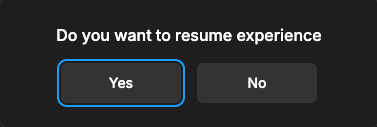 **What this means:**
* Your progress is saved automatically
* You can close the browser and come back later
* You'll resume right where you left off
* You can take the training over multiple sessions
**When resumable:**
* The training author has set it to be resumable
* You'll see a message indicating this
* Usually for longer trainings or courses
**How to resume:**
Sign into the Trainee App
Look for the training in your list
Click the training name
The training loads at your last completed step
### Non-Resumable Trainings
**What this means:**
* Your progress is NOT saved between sessions
* You must complete the training in one sitting
* If you close and come back, you start over from Step 1
* No mid-session resumption
**When non-resumable:**
* The training author made it a single-session training
* Usually for shorter trainings or assessments
* Indicated in the training description
**Implications:**
* Plan enough time to finish in one session
* Don't close the browser until complete
* If you must leave, you'll restart from the beginning
**How to know:**
* Check the training description for "Resumable" or "Non-resumable"
* Ask your training administrator if unsure
* You can check whether a training is resumable or not in the Dashboard
## Auto-Save During Training
**Between Steps:**
* Your progress auto-saves as you complete each step
* No action required from you
* The system automatically records step completion
**When Closing Browser:**
* If your training is resumable, your progress is saved up to your last completed step
* If non-resumable, progress is not saved between sessions. You will start from the beginning next time.
**When Connection is Lost:**
* Your last completed step is saved
* Any pending analytics events are queued locally and sync automatically when you reconnect
* When you reconnect, you resume from your last completed step
* You may need to redo the step you were in the middle of when the connection dropped
**Internet Disconnection Note:**
* Ensure you have a stable internet connection during training
* If you lose connection, try to reconnect quickly
* Reconnect before closing the browser to ensure queued progress data is synced
## Offline & Caching
The Trainee App caches training assets locally after your first visit to improve load times on subsequent visits.
**How Caching Works:**
* When you open a training for the first time, 3D models, textures, audio, and other assets are downloaded and cached locally in your browser
* On your next visit, the training loads faster because assets are served from the local cache instead of being re-downloaded
* The cache is stored in your browser's local storage (IndexedDB) and persists until you clear your browser data
**Offline Behavior:**
* If you go offline after having previously opened a training, cached assets may still be available so the training can load
* If a training has not been cached yet and you are offline, you will see an "Offline Training Unavailable" dialog. Connect to the internet and open the training once to cache the required data.
* Analytics events (such as step completions) are queued locally while offline and automatically sync to the server when your connection is restored
Offline support depends on the training having been fully cached during a previous online session. Not all training content may be available offline if the training was only partially loaded before.
**What this means:**
* Your progress is saved automatically
* You can close the browser and come back later
* You'll resume right where you left off
* You can take the training over multiple sessions
**When resumable:**
* The training author has set it to be resumable
* You'll see a message indicating this
* Usually for longer trainings or courses
**How to resume:**
Sign into the Trainee App
Look for the training in your list
Click the training name
The training loads at your last completed step
### Non-Resumable Trainings
**What this means:**
* Your progress is NOT saved between sessions
* You must complete the training in one sitting
* If you close and come back, you start over from Step 1
* No mid-session resumption
**When non-resumable:**
* The training author made it a single-session training
* Usually for shorter trainings or assessments
* Indicated in the training description
**Implications:**
* Plan enough time to finish in one session
* Don't close the browser until complete
* If you must leave, you'll restart from the beginning
**How to know:**
* Check the training description for "Resumable" or "Non-resumable"
* Ask your training administrator if unsure
* You can check whether a training is resumable or not in the Dashboard
## Auto-Save During Training
**Between Steps:**
* Your progress auto-saves as you complete each step
* No action required from you
* The system automatically records step completion
**When Closing Browser:**
* If your training is resumable, your progress is saved up to your last completed step
* If non-resumable, progress is not saved between sessions. You will start from the beginning next time.
**When Connection is Lost:**
* Your last completed step is saved
* Any pending analytics events are queued locally and sync automatically when you reconnect
* When you reconnect, you resume from your last completed step
* You may need to redo the step you were in the middle of when the connection dropped
**Internet Disconnection Note:**
* Ensure you have a stable internet connection during training
* If you lose connection, try to reconnect quickly
* Reconnect before closing the browser to ensure queued progress data is synced
## Offline & Caching
The Trainee App caches training assets locally after your first visit to improve load times on subsequent visits.
**How Caching Works:**
* When you open a training for the first time, 3D models, textures, audio, and other assets are downloaded and cached locally in your browser
* On your next visit, the training loads faster because assets are served from the local cache instead of being re-downloaded
* The cache is stored in your browser's local storage (IndexedDB) and persists until you clear your browser data
**Offline Behavior:**
* If you go offline after having previously opened a training, cached assets may still be available so the training can load
* If a training has not been cached yet and you are offline, you will see an "Offline Training Unavailable" dialog. Connect to the internet and open the training once to cache the required data.
* Analytics events (such as step completions) are queued locally while offline and automatically sync to the server when your connection is restored
Offline support depends on the training having been fully cached during a previous online session. Not all training content may be available offline if the training was only partially loaded before.