> ## Documentation Index
> Fetch the complete documentation index at: https://docs.altoura.com/llms.txt
> Use this file to discover all available pages before exploring further.
# Settings
> Customize your training experience with controls, audio, and preferences
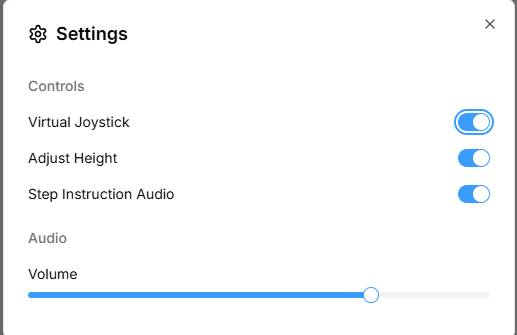
The Settings menu lets you customize your training experience by toggling features on and off and adjusting audio levels. Access it anytime during training.
 ## Opening Settings
Click the circular avatar icon in the top-right corner of the screen
In the dropdown menu, click the **Settings** (gear icon) option. A settings modal will open.
Toggle switches and adjust sliders as needed
Click outside the modal or press Escape to close
## Controls Section
The Controls section has toggles to enable or disable on-screen features:
### Virtual Joystick Toggle
**What it does:**
* Turns the on-screen movement controller on or off
* When **ON:** Two game-controller-style pads appear at the bottom of your screen — left pad for movement, right pad for looking around
* When **OFF:** No joystick visible — use keyboard (WASD) and mouse instead
**When to enable:**
* You're on a touchscreen device
* You prefer game-controller-style movement
* You want an alternative to keyboard controls
**When to disable:**
* You prefer keyboard and mouse controls
* The joystick is in your way
* You're on a desktop and don't need it
### Adjust Height Toggle
**What it does:**
* Turns the camera height +/− buttons on or off
* When **ON:** Buttons appear on the left side of the screen (below the share button) to raise/lower your viewpoint
* When **OFF:** No height buttons — your camera stays at the default level
**When to enable:**
* You need to see objects at different heights (above and below eye level)
* You want full control over your viewpoint
* The training allows height adjustment
**When to disable:**
* You prefer a fixed viewpoint
* The training author has locked the height to ensure consistency
* You don't need to adjust your view
### Step Instruction Audio Toggle
**What it does:**
* Turns narration (spoken instructions) on or off
* When **ON:** You hear audio narration of step instructions
* When **OFF:** No audio — only read text instructions on panels
**When to enable:**
* You prefer listening to audio instructions
* You're in an environment where reading isn't practical
* The training includes narration for accessibility
**When to disable:**
* You're in a noisy environment and can't hear well
* You prefer reading over listening
* You're in a situation where audio would be distracting
## Audio Section
### Volume Slider
**What it does:**
* Controls the overall volume of all training audio
* Ranges from **0** (mute) to **100** (full volume)
* Affects narration, sound effects, videos, and any audio in the 3D scene
**How to use it:**
* Drag the slider left to decrease volume
* Drag the slider right to increase volume
* Test it with a small movement first
* Find a comfortable level that you can hear but isn't overwhelming
**Quick Mute:**
* If you need instant silence, move the slider all the way to **0**
* Move it back up when you're ready to hear audio again
## Quick Settings Reference
**Virtual Joystick** — Off by default. Enable on touchscreen devices or if you prefer gamepad-style controls.
**Adjust Height** — On by default. Enable when you need to see objects at different heights.
**Step Instruction Audio** — On by default. Enable when you want to hear narration of step instructions.
**Volume** — Set to 75 by default. Adjust based on your environment.
## Troubleshooting
Click your profile avatar in the top-right corner of the screen. Settings is available in the profile dropdown menu. If it's not showing, try refreshing the page.
Try closing and reopening Settings. The change should take effect immediately. If it doesn't, try refreshing the page.
Close Settings and wait a moment. The joystick should disappear. If it's still there, try refreshing the page.
## Tips
* **Visit Settings early:** Before you get deep into training, set up your preferences for comfort
* **Experiment:** Try different settings to see what works best for you
* **Adjust as needed:** Your preferences may change as you work through training — it's okay to toggle settings during training
## Opening Settings
Click the circular avatar icon in the top-right corner of the screen
In the dropdown menu, click the **Settings** (gear icon) option. A settings modal will open.
Toggle switches and adjust sliders as needed
Click outside the modal or press Escape to close
## Controls Section
The Controls section has toggles to enable or disable on-screen features:
### Virtual Joystick Toggle
**What it does:**
* Turns the on-screen movement controller on or off
* When **ON:** Two game-controller-style pads appear at the bottom of your screen — left pad for movement, right pad for looking around
* When **OFF:** No joystick visible — use keyboard (WASD) and mouse instead
**When to enable:**
* You're on a touchscreen device
* You prefer game-controller-style movement
* You want an alternative to keyboard controls
**When to disable:**
* You prefer keyboard and mouse controls
* The joystick is in your way
* You're on a desktop and don't need it
### Adjust Height Toggle
**What it does:**
* Turns the camera height +/− buttons on or off
* When **ON:** Buttons appear on the left side of the screen (below the share button) to raise/lower your viewpoint
* When **OFF:** No height buttons — your camera stays at the default level
**When to enable:**
* You need to see objects at different heights (above and below eye level)
* You want full control over your viewpoint
* The training allows height adjustment
**When to disable:**
* You prefer a fixed viewpoint
* The training author has locked the height to ensure consistency
* You don't need to adjust your view
### Step Instruction Audio Toggle
**What it does:**
* Turns narration (spoken instructions) on or off
* When **ON:** You hear audio narration of step instructions
* When **OFF:** No audio — only read text instructions on panels
**When to enable:**
* You prefer listening to audio instructions
* You're in an environment where reading isn't practical
* The training includes narration for accessibility
**When to disable:**
* You're in a noisy environment and can't hear well
* You prefer reading over listening
* You're in a situation where audio would be distracting
## Audio Section
### Volume Slider
**What it does:**
* Controls the overall volume of all training audio
* Ranges from **0** (mute) to **100** (full volume)
* Affects narration, sound effects, videos, and any audio in the 3D scene
**How to use it:**
* Drag the slider left to decrease volume
* Drag the slider right to increase volume
* Test it with a small movement first
* Find a comfortable level that you can hear but isn't overwhelming
**Quick Mute:**
* If you need instant silence, move the slider all the way to **0**
* Move it back up when you're ready to hear audio again
## Quick Settings Reference
**Virtual Joystick** — Off by default. Enable on touchscreen devices or if you prefer gamepad-style controls.
**Adjust Height** — On by default. Enable when you need to see objects at different heights.
**Step Instruction Audio** — On by default. Enable when you want to hear narration of step instructions.
**Volume** — Set to 75 by default. Adjust based on your environment.
## Troubleshooting
Click your profile avatar in the top-right corner of the screen. Settings is available in the profile dropdown menu. If it's not showing, try refreshing the page.
Try closing and reopening Settings. The change should take effect immediately. If it doesn't, try refreshing the page.
Close Settings and wait a moment. The joystick should disappear. If it's still there, try refreshing the page.
## Tips
* **Visit Settings early:** Before you get deep into training, set up your preferences for comfort
* **Experiment:** Try different settings to see what works best for you
* **Adjust as needed:** Your preferences may change as you work through training — it's okay to toggle settings during training