> ## Documentation Index
> Fetch the complete documentation index at: https://docs.altoura.com/llms.txt
> Use this file to discover all available pages before exploring further.
# Adjust Anchor
> Reposition or reset the training scene's anchor to align virtual content with your physical space.
When a training loads, its 3D content is anchored to a fixed position in your physical space. If the content is not aligned correctly — for example, a machine appears inside a wall or the scene is rotated the wrong way — you can adjust or reset the anchor from the Toolbelt menu.
## Opening the Anchor Options
On Meta Quest, touch the tips of both index fingers together to form an **"A"** and hold briefly, or press and hold the **left** controller's menu button for 2 seconds. On HTC Vive, press and hold the **menu button** on either controller for 2 seconds.
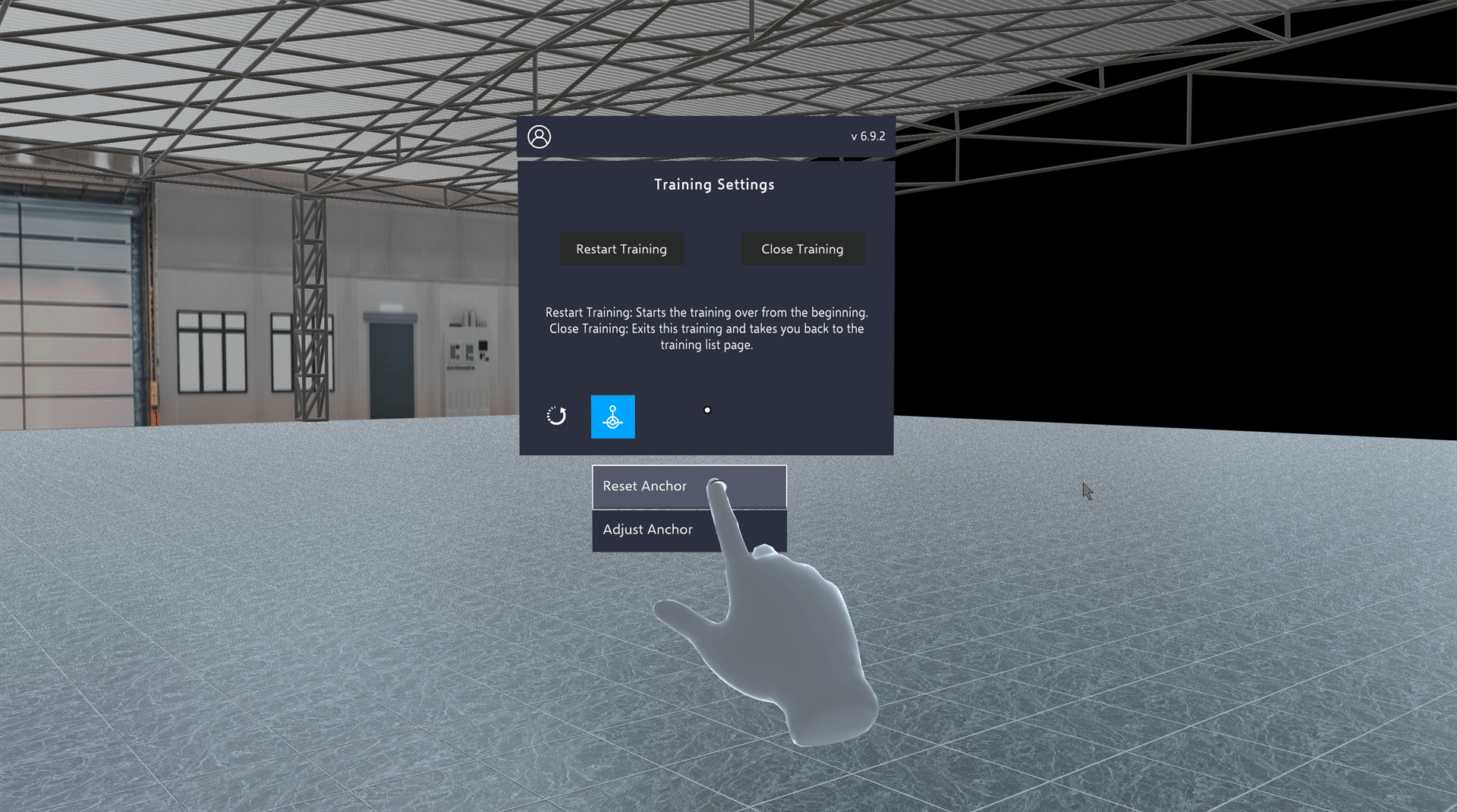
Inside a Training, the Toolbelt shows the **Training Settings** panel.
Tap the **anchor icon** at the bottom of the Training Settings panel, next to the Reset Step icon. The **Reset Anchor** and **Adjust Anchor** options appear.
Tap **Reset Anchor** or **Adjust Anchor** depending on what you need.
***
## Reset Anchor
Tap **Reset Anchor** to put the training scene back where it started. Use it after an adjustment that went wrong, or when you've lost track of where you are.
When you tap it:
* The scene is put back into its original alignment.
* You're moved back to the training's start position.
* Any height adjustment is undone.
* The Toolbelt reappears beside you.
## Adjust Anchor
Tap **Adjust Anchor** to enter adjustment mode, where you can slide and rotate the training content without leaving the training.
When adjustment mode is active:
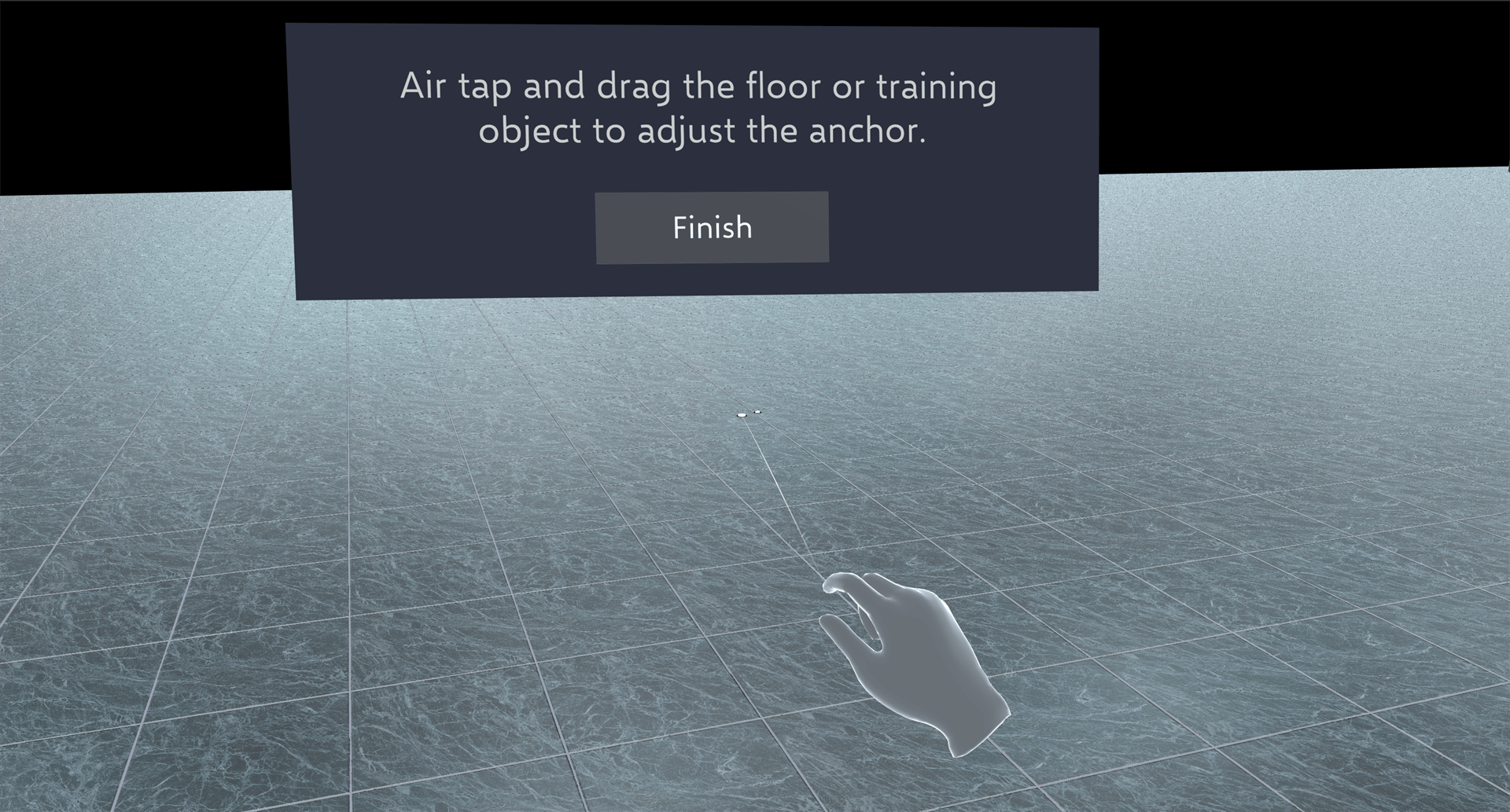
* A panel appears with the instruction **"Air tap and drag the floor or training object to adjust the anchor."** and a **Finish** button
* The training pauses, and the step panel and callouts are hidden
* The Toolbelt hides
* Self teleport is turned off
* The **floor** and **training objects** in the current step become draggable
* Grab and drag the floor or a training object to slide the entire scene horizontally
* Movement is locked to the horizontal plane — the scene cannot be moved up or down
* To rotate the scene, grab the **floor** and twist. Training objects can only be dragged, not rotated
* On Meta Quest, Passthrough turns on as a partly see-through overlay so you can line the scene up with your room, whatever your Passthrough setting
When you are satisfied with the position, tap **Finish**. The training carries on, and Self Teleport and Passthrough go back to how they were.
If the training is paused, for example by a time limit or a pause collider alert, **Adjust Anchor** plays an error sound and does nothing.
## Related
* [Toolbelt](/creator-studio/trainee-client/toolbelt) — other Toolbelt menu options
* [Height Adjustment](/creator-studio/trainee-client/height-adjustment) — adjust camera height with the controller
This documentation is built and hosted on [Mintlify](https://mintlify.com), a developer documentation platform.
 ***
## Reset Anchor
Tap **Reset Anchor** to put the training scene back where it started. Use it after an adjustment that went wrong, or when you've lost track of where you are.
When you tap it:
* The scene is put back into its original alignment.
* You're moved back to the training's start position.
* Any height adjustment is undone.
* The Toolbelt reappears beside you.
## Adjust Anchor
Tap **Adjust Anchor** to enter adjustment mode, where you can slide and rotate the training content without leaving the training.
When adjustment mode is active:
* A panel appears with the instruction **"Air tap and drag the floor or training object to adjust the anchor."** and a **Finish** button
* The training pauses, and the step panel and callouts are hidden
* The Toolbelt hides
* Self teleport is turned off
* The **floor** and **training objects** in the current step become draggable
* Grab and drag the floor or a training object to slide the entire scene horizontally
* Movement is locked to the horizontal plane — the scene cannot be moved up or down
* To rotate the scene, grab the **floor** and twist. Training objects can only be dragged, not rotated
* On Meta Quest, Passthrough turns on as a partly see-through overlay so you can line the scene up with your room, whatever your Passthrough setting
***
## Reset Anchor
Tap **Reset Anchor** to put the training scene back where it started. Use it after an adjustment that went wrong, or when you've lost track of where you are.
When you tap it:
* The scene is put back into its original alignment.
* You're moved back to the training's start position.
* Any height adjustment is undone.
* The Toolbelt reappears beside you.
## Adjust Anchor
Tap **Adjust Anchor** to enter adjustment mode, where you can slide and rotate the training content without leaving the training.
When adjustment mode is active:
* A panel appears with the instruction **"Air tap and drag the floor or training object to adjust the anchor."** and a **Finish** button
* The training pauses, and the step panel and callouts are hidden
* The Toolbelt hides
* Self teleport is turned off
* The **floor** and **training objects** in the current step become draggable
* Grab and drag the floor or a training object to slide the entire scene horizontally
* Movement is locked to the horizontal plane — the scene cannot be moved up or down
* To rotate the scene, grab the **floor** and twist. Training objects can only be dragged, not rotated
* On Meta Quest, Passthrough turns on as a partly see-through overlay so you can line the scene up with your room, whatever your Passthrough setting
 When you are satisfied with the position, tap **Finish**. The training carries on, and Self Teleport and Passthrough go back to how they were.