> ## Documentation Index
> Fetch the complete documentation index at: https://docs.altoura.com/llms.txt
> Use this file to discover all available pages before exploring further.
# App Updates
> What happens when a new version of the Altoura app is available on Meta Quest or HTC Vive.
Each time you start the Altoura app, it checks whether a newer version is available. If there is one, a prompt appears before you reach the login screen or your Trainings list.
There are two kinds of update prompt.
## Update Available
A newer version is available, but your current version still works.
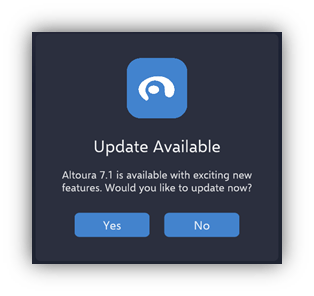 * Tap **Yes** to update. The app opens the download page for your headset and then closes. Install the new version and start the app again.
* Tap **No** to keep using your current version. The app continues to start as normal.
Once you've seen the prompt, it appears again the next time you start the app after 7 days. If you're not logged in when you start the app, the prompt appears on every start until you update. Logging out resets the 7 days, so you see the prompt again on the next start.
## Update Required
The new version includes changes that older versions can't work with. You must update before you can continue.
* Tap **Yes** to update. The app opens the download page for your headset and then closes. Install the new version and start the app again.
* Tap **No** to keep using your current version. The app continues to start as normal.
Once you've seen the prompt, it appears again the next time you start the app after 7 days. If you're not logged in when you start the app, the prompt appears on every start until you update. Logging out resets the 7 days, so you see the prompt again on the next start.
## Update Required
The new version includes changes that older versions can't work with. You must update before you can continue.
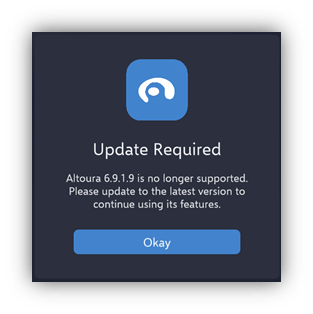 Tap **Okay**. The app opens the download page for your headset and then closes. Install the new version and start the app again. Until you update, this prompt appears every time you start the app.
## Where the Update Comes From
The link opens the Altoura app page on the Meta Horizon Store. If you installed the app with SideQuest, download the new APK and install it the same way. See [Installation](/creator-studio/trainee-client/quest/installation).
The link opens the Altoura download page in your PC's web browser. Take off the headset, download the new installer on the PC, and install it. See [Installation](/creator-studio/trainee-client/vive/installation).
The app only checks for updates when it starts. If an update is released while the app is open, you'll see the prompt the next time you start it. If the app can't check (for example, because you're offline), it starts as normal.
This documentation is built and hosted on [Mintlify](https://mintlify.com), a developer documentation platform.
Tap **Okay**. The app opens the download page for your headset and then closes. Install the new version and start the app again. Until you update, this prompt appears every time you start the app.
## Where the Update Comes From
The link opens the Altoura app page on the Meta Horizon Store. If you installed the app with SideQuest, download the new APK and install it the same way. See [Installation](/creator-studio/trainee-client/quest/installation).
The link opens the Altoura download page in your PC's web browser. Take off the headset, download the new installer on the PC, and install it. See [Installation](/creator-studio/trainee-client/vive/installation).
The app only checks for updates when it starts. If an update is released while the app is open, you'll see the prompt the next time you start it. If the app can't check (for example, because you're offline), it starts as normal.
This documentation is built and hosted on [Mintlify](https://mintlify.com), a developer documentation platform.