> ## Documentation Index
> Fetch the complete documentation index at: https://docs.altoura.com/llms.txt
> Use this file to discover all available pages before exploring further.
# Disabling the Ray
> Why the pointer ray sometimes disappears, and how to interact with objects when it does.
Normally a ray comes out of your hand or controller, so you can point at and interact with objects from a distance. Some steps turn the ray off for training objects, so you have to walk up to the object and touch it, like you would in real life.
## When the Ray Is Off
* When you point at a **training object**, the ray and its cursor disappear. You can't tap it or grab it from a distance. The same happens when you point at a pause collider or, in Assessment mode, at a wrong object.
* **Walk up to the object** and touch it with your hand or controller to tap it, or grab it to move it.
* The ray still works for **panels, menus and buttons**, so you can still press **Next**, **Back** and the Toolbelt buttons.
* On **rotate** steps the ray stays on, and you can still rotate the object from a distance.
* [Interactable objects](/creator-studio/trainee-client/interactable-objects) aren't affected. You can still point at them and pick them up from a distance.
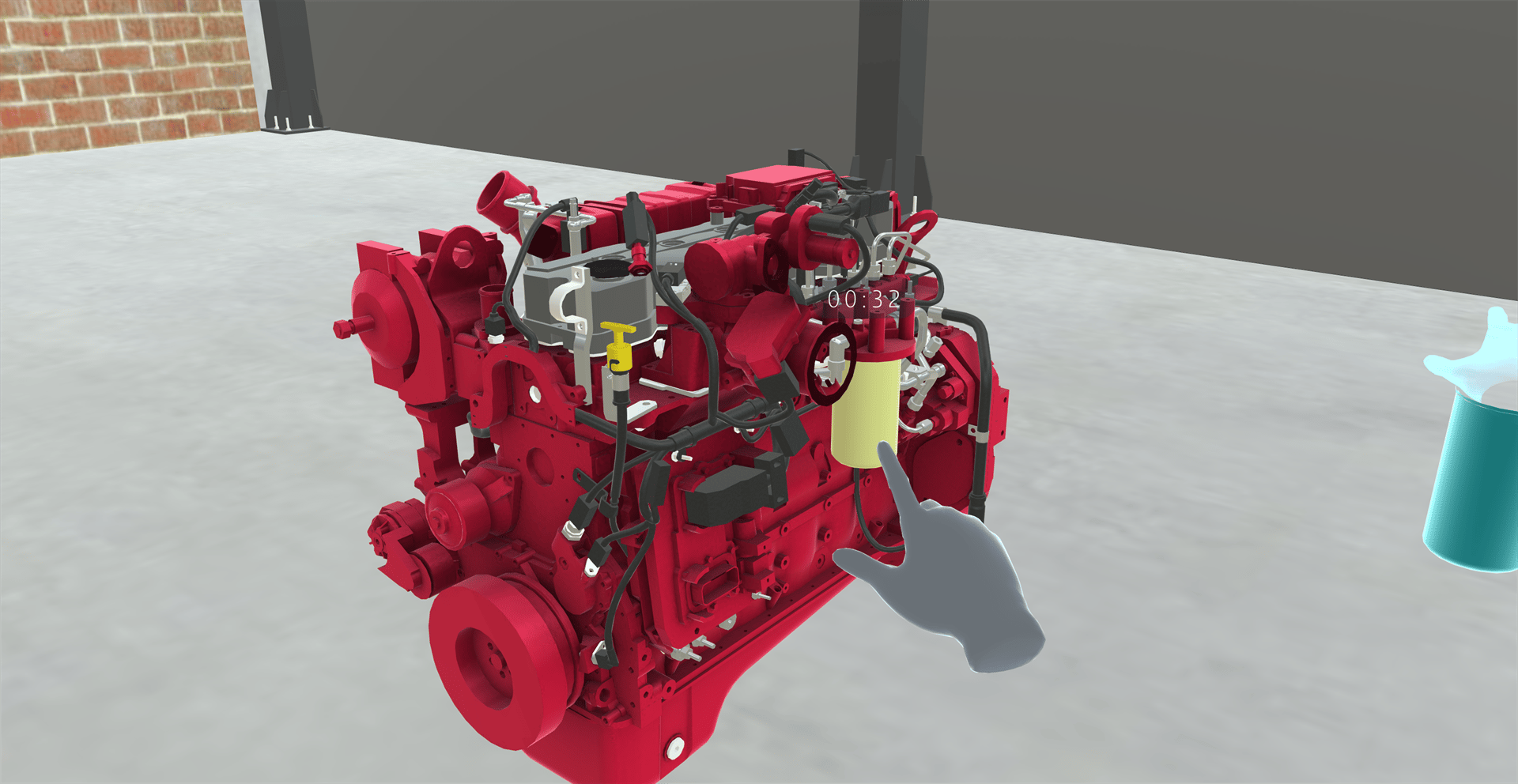 The ray stays off until the Training turns it back on. Going **Back** to a step before the ray was turned off also turns it back on.
**Restart Training**, [Reset Step](/creator-studio/trainee-client/reset-step) and closing the Training don't turn the ray back on. If the ray is still off for training objects after you restart the Training or open another Training, quit and start the app again.
***
## For Creators
To turn the ray off or on in a Training, see [Enable Ray Cast](/creator-studio/creator-app/actions/enable-raycast).
## Related
* [Interactable Objects](/creator-studio/trainee-client/interactable-objects): objects you can pick up freely
* [Tools](/creator-studio/trainee-client/tools): when you interact using a tool
This documentation is built and hosted on [Mintlify](https://mintlify.com), a developer documentation platform.
The ray stays off until the Training turns it back on. Going **Back** to a step before the ray was turned off also turns it back on.
**Restart Training**, [Reset Step](/creator-studio/trainee-client/reset-step) and closing the Training don't turn the ray back on. If the ray is still off for training objects after you restart the Training or open another Training, quit and start the app again.
***
## For Creators
To turn the ray off or on in a Training, see [Enable Ray Cast](/creator-studio/creator-app/actions/enable-raycast).
## Related
* [Interactable Objects](/creator-studio/trainee-client/interactable-objects): objects you can pick up freely
* [Tools](/creator-studio/trainee-client/tools): when you interact using a tool
This documentation is built and hosted on [Mintlify](https://mintlify.com), a developer documentation platform.