> ## Documentation Index
> Fetch the complete documentation index at: https://docs.altoura.com/llms.txt
> Use this file to discover all available pages before exploring further.
# Interactable Objects
> Pick up, move and rotate objects freely when a Training allows it.
Usually you can only interact with the object the current step asks for. Some Trainings also make other objects **interactable**. You can pick these up, move them and look at them from any angle, for example to inspect a part before you install it.
## Picking Up an Interactable Object
* **Hands:** reach out and pinch or grab the object.
* **Controllers:** put the controller on the object and hold the **trigger**.
* **From a distance:** point the ray at the object and pinch (hands) or hold the trigger (controllers).
* **Up close:** put the controller on the object and hold the **trigger**.
* **From a distance:** point the ray at the object and hold the **trigger**.
While you're holding the object:
* Move your hand to move it, and turn your hand to rotate it.
* You can also hold any interactable object with **both hands**. Move your hands together to move and turn it, or move them apart or closer together to make it bigger or smaller.
Let go to release it. The object stays exactly where you released it; it doesn't fall.
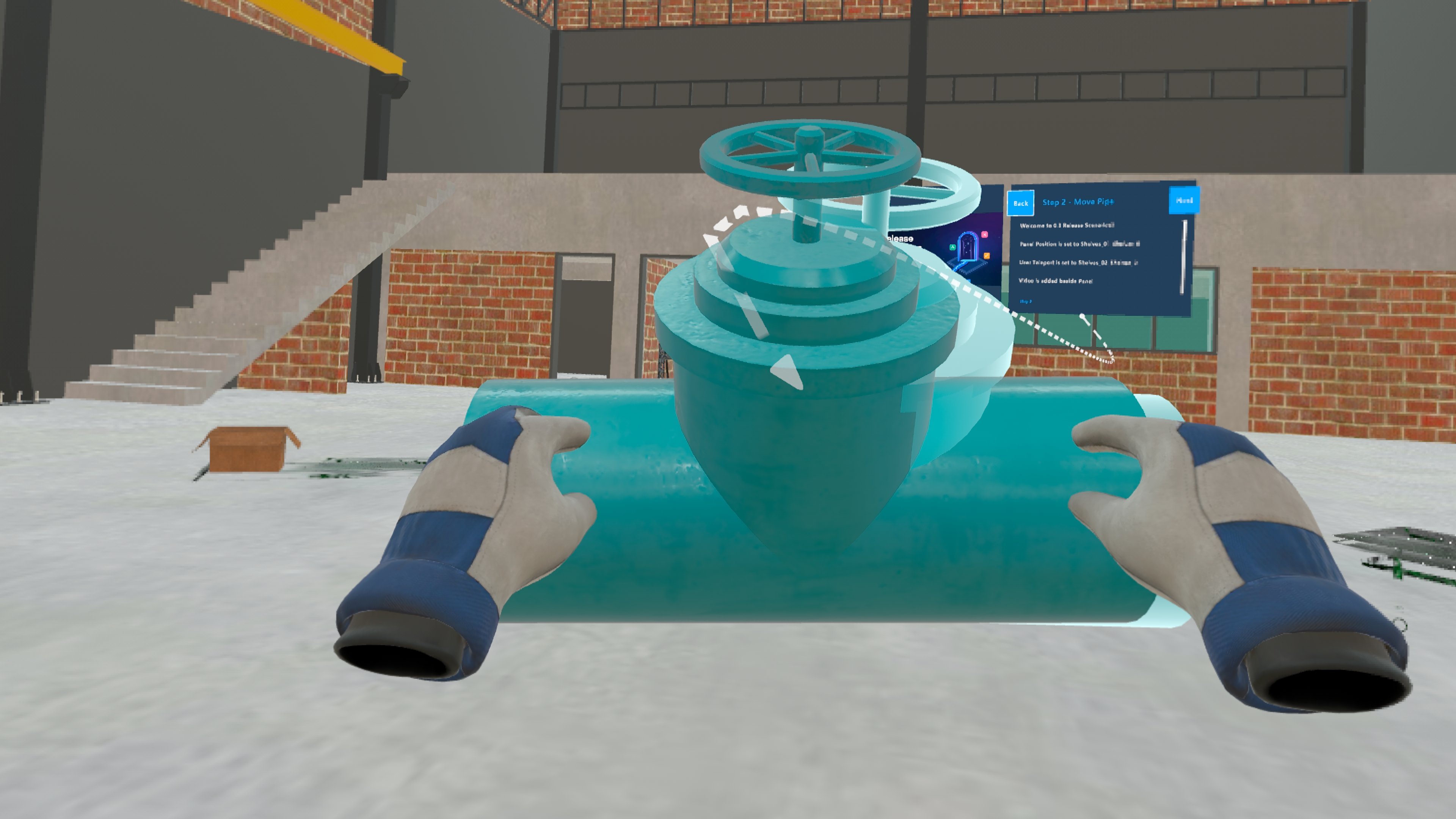 Interactable objects don't glow or show any other sign that you can pick them up. The step instructions usually tell you when you can.
## Putting Objects Back
Objects you moved return to where they were before the Training made them interactable, at their original size, when you use [Reset Step](/creator-studio/trainee-client/reset-step), go **Back** a step, or **Restart Training**.
## Good to Know
* Interactable objects can still be picked up from a distance with the ray, even on steps where the ray is turned off for training objects. See [Disabling the Ray](/creator-studio/trainee-client/disabling-ray).
* You can pick them up with your hand even while you're holding a [tool](/creator-studio/trainee-client/tools).
* Carrying an interactable object into a [pause collider](/creator-studio/trainee-client/pause-colliders) doesn't pause the Training.
* After **Restart Training**, objects that the Training made interactable in later steps can still be picked up from the first step onwards. Going **Back** doesn't do this.
***
## For Creators
To make objects interactable in a Training, see [Set Interactable Objects](/creator-studio/creator-app/actions/set-interactable-objects).
## Related
* [Highlighting](/creator-studio/trainee-client/highlighting): how the step's target object is shown
* [Disabling the Ray](/creator-studio/trainee-client/disabling-ray): when you must touch objects directly
This documentation is built and hosted on [Mintlify](https://mintlify.com), a developer documentation platform.
Interactable objects don't glow or show any other sign that you can pick them up. The step instructions usually tell you when you can.
## Putting Objects Back
Objects you moved return to where they were before the Training made them interactable, at their original size, when you use [Reset Step](/creator-studio/trainee-client/reset-step), go **Back** a step, or **Restart Training**.
## Good to Know
* Interactable objects can still be picked up from a distance with the ray, even on steps where the ray is turned off for training objects. See [Disabling the Ray](/creator-studio/trainee-client/disabling-ray).
* You can pick them up with your hand even while you're holding a [tool](/creator-studio/trainee-client/tools).
* Carrying an interactable object into a [pause collider](/creator-studio/trainee-client/pause-colliders) doesn't pause the Training.
* After **Restart Training**, objects that the Training made interactable in later steps can still be picked up from the first step onwards. Going **Back** doesn't do this.
***
## For Creators
To make objects interactable in a Training, see [Set Interactable Objects](/creator-studio/creator-app/actions/set-interactable-objects).
## Related
* [Highlighting](/creator-studio/trainee-client/highlighting): how the step's target object is shown
* [Disabling the Ray](/creator-studio/trainee-client/disabling-ray): when you must touch objects directly
This documentation is built and hosted on [Mintlify](https://mintlify.com), a developer documentation platform.