> ## Documentation Index
> Fetch the complete documentation index at: https://docs.altoura.com/llms.txt
> Use this file to discover all available pages before exploring further.
# Interacting with Objects
> Tap, move and rotate objects in the headset, and read the guides that show you what to do.
Most steps ask you to do something with an object: tap it, move it or rotate it. You use your hands (Meta Quest hand tracking) or your controllers, either up close or from a distance with the ray.
Usually only the object the current step asks for reacts. Some Trainings also let you pick up other objects freely. See [Interactable Objects](/creator-studio/trainee-client/interactable-objects).
## Up Close or from a Distance
* **Up close, with hands:** touch the object with your finger, or pinch or grab it.
* **Up close, with controllers:** touch the object with the controller, or put the controller on it and hold the **trigger**.
* **From a distance:** point the ray from your hand or controller at the object, then pinch (hands) or pull the trigger (controllers).
* **Up close:** touch the object with the controller, or put the controller on it and hold the **trigger**.
* **From a distance:** point the ray from the controller at the object, then pull the **trigger**.
Some steps turn the ray off, so you have to walk up to the object. See [Disabling the Ray](/creator-studio/trainee-client/disabling-ray). Some steps give you a tool to use instead of your hand. See [Tools](/creator-studio/trainee-client/tools).
## The Three Kinds of Interaction
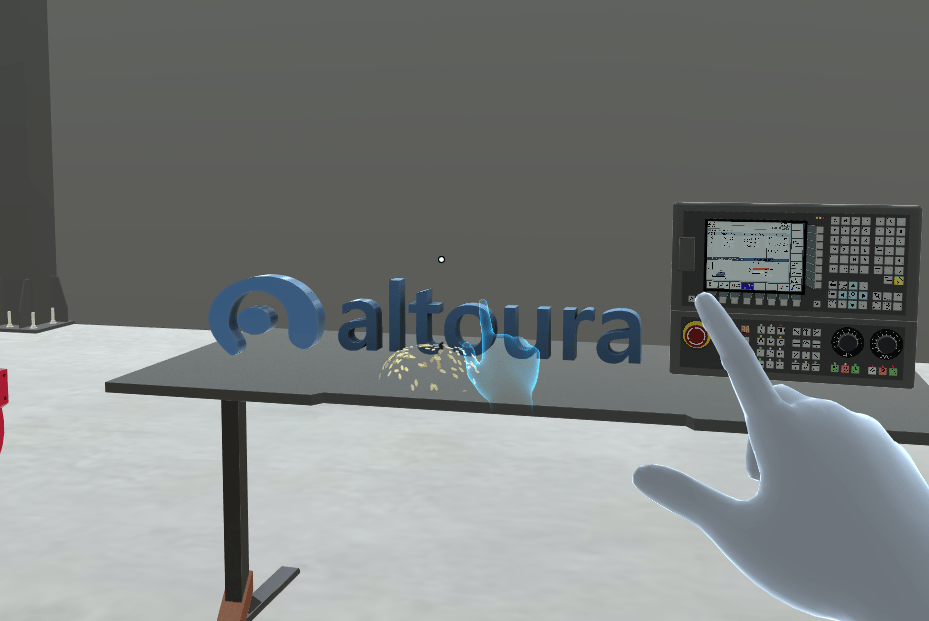
### Tap
Touch the object, or point at it and pinch or pull the trigger. The step completes straight away.
 ### Move
1. Grab the object, up close or with the ray, and hold on.
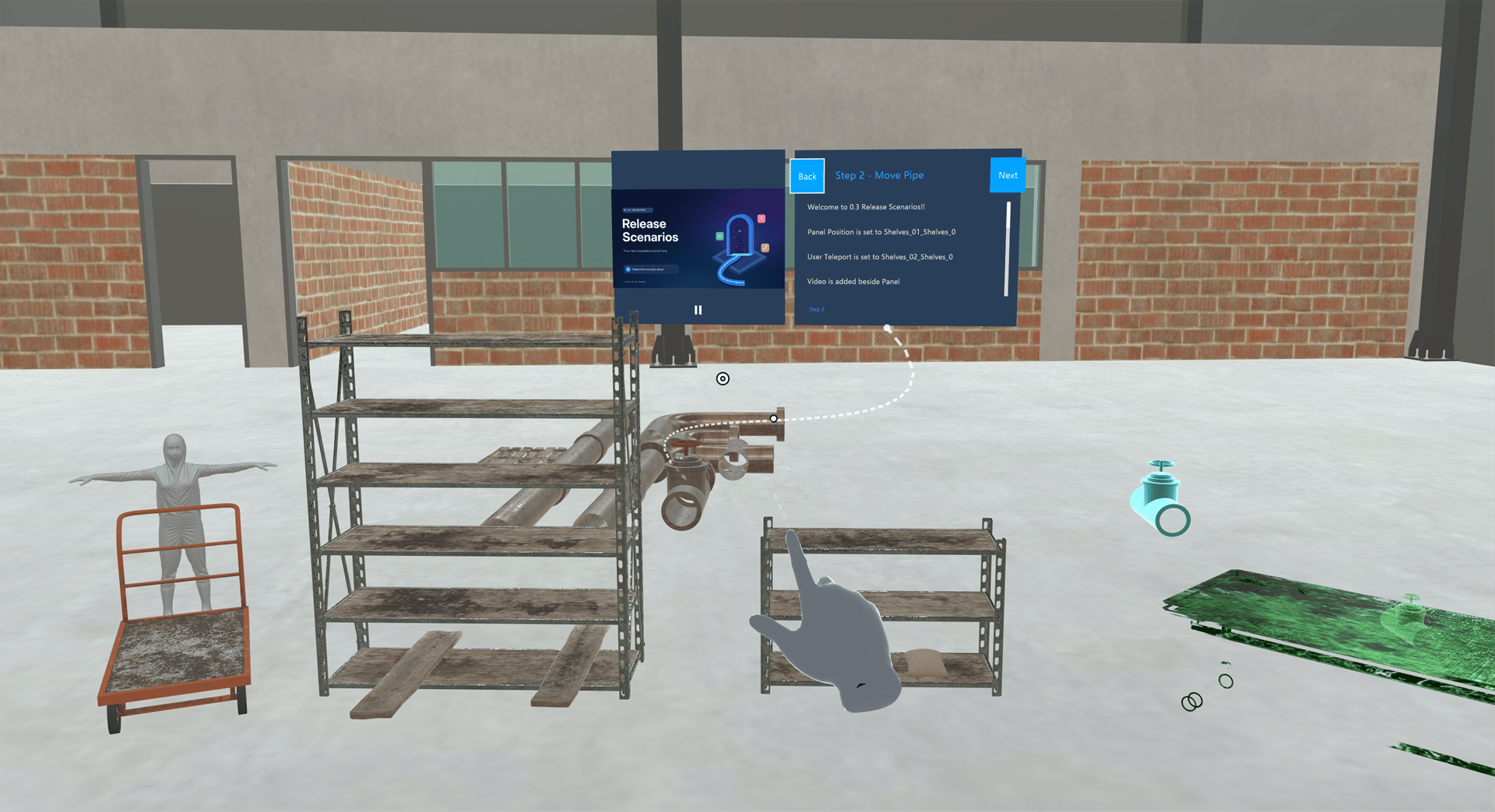
2. Carry it to the place where it should go. That place glows **green**.
3. Let go near it. The object snaps into place and the step completes.
### Move
1. Grab the object, up close or with the ray, and hold on.
2. Carry it to the place where it should go. That place glows **green**.
3. Let go near it. The object snaps into place and the step completes.
 ### Rotate
Grab the object and twist your hand or controller to turn it the way the step shows. On rotate steps the ray always works, so you can also rotate the object from a distance.
## Guides That Show You What to Do
In Practice mode, a step can use several guides:
| Guide | What it shows | More |
| - | - | - |
| **Highlight** | The object to use pulses **cyan**; in a move step, the target place glows **green** | [Highlighting](/creator-studio/trainee-client/highlighting) |
| **Guide hands** | A hand taps the object, or one or two hands move it (not on rotate steps) | [Hand Animation Color](/creator-studio/trainee-client/hand-animation-color) |
| **Ghost** | A copy of the object shows where to move it or which way to turn it | [Instruction Animation Color](/creator-studio/trainee-client/instruction-animation-color) |
| **Tether line** | A moving line from the step panel to the object | [Tether Line Color](/creator-studio/trainee-client/tether-line-color) |
Not every step uses every guide. In [Assessment mode](/creator-studio/trainee-client/assessment-mode) they're hidden, and touching the wrong object shows **"You selected the wrong object, please try again."**
If you've lost track of a step, use [Reset Step](/creator-studio/trainee-client/reset-step) to put the objects back. In Practice mode, the step's guides appear again. Guidance hidden in Assessment mode stays hidden.
***
## For Creators
To set up tap, move and rotate steps, see [Events](/creator-studio/creator-app/events).
## Related
* [Controls](/creator-studio/trainee-client/controls)
* [Training Interface](/creator-studio/trainee-client/training-interface)
* [Interactable Objects](/creator-studio/trainee-client/interactable-objects)
This documentation is built and hosted on [Mintlify](https://mintlify.com), a developer documentation platform.
### Rotate
Grab the object and twist your hand or controller to turn it the way the step shows. On rotate steps the ray always works, so you can also rotate the object from a distance.
## Guides That Show You What to Do
In Practice mode, a step can use several guides:
| Guide | What it shows | More |
| - | - | - |
| **Highlight** | The object to use pulses **cyan**; in a move step, the target place glows **green** | [Highlighting](/creator-studio/trainee-client/highlighting) |
| **Guide hands** | A hand taps the object, or one or two hands move it (not on rotate steps) | [Hand Animation Color](/creator-studio/trainee-client/hand-animation-color) |
| **Ghost** | A copy of the object shows where to move it or which way to turn it | [Instruction Animation Color](/creator-studio/trainee-client/instruction-animation-color) |
| **Tether line** | A moving line from the step panel to the object | [Tether Line Color](/creator-studio/trainee-client/tether-line-color) |
Not every step uses every guide. In [Assessment mode](/creator-studio/trainee-client/assessment-mode) they're hidden, and touching the wrong object shows **"You selected the wrong object, please try again."**
If you've lost track of a step, use [Reset Step](/creator-studio/trainee-client/reset-step) to put the objects back. In Practice mode, the step's guides appear again. Guidance hidden in Assessment mode stays hidden.
***
## For Creators
To set up tap, move and rotate steps, see [Events](/creator-studio/creator-app/events).
## Related
* [Controls](/creator-studio/trainee-client/controls)
* [Training Interface](/creator-studio/trainee-client/training-interface)
* [Interactable Objects](/creator-studio/trainee-client/interactable-objects)
This documentation is built and hosted on [Mintlify](https://mintlify.com), a developer documentation platform.