> ## Documentation Index
> Fetch the complete documentation index at: https://docs.altoura.com/llms.txt
> Use this file to discover all available pages before exploring further.
# Login
> Sign in to the Trainee Client on Meta Quest or HTC Vive with your email, SSO, or a Pair Device PIN, and log out.
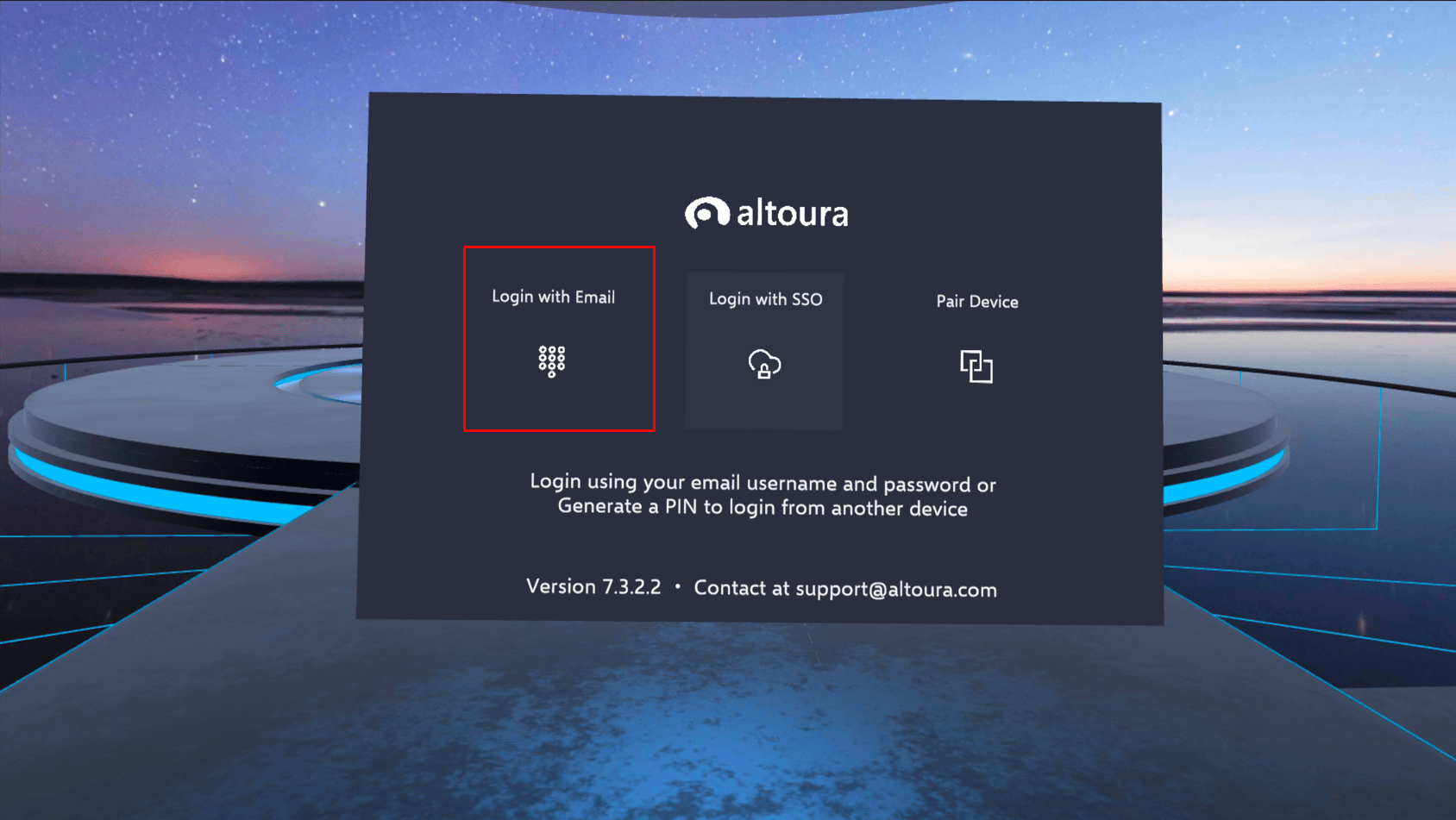
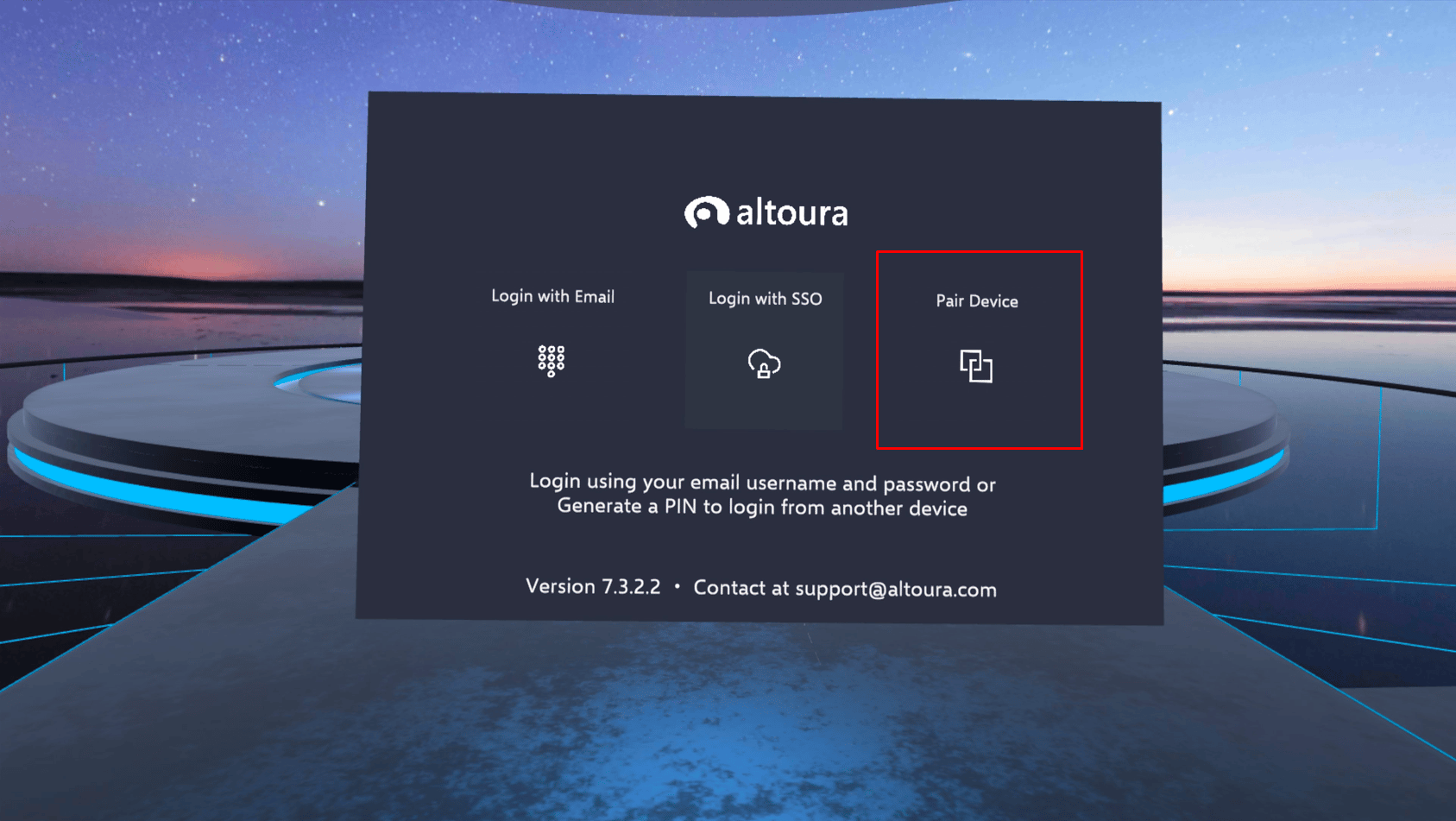
The login screen reads **"Login using your email username and password or Generate a PIN to login"** and has three options: **Login with Email**, **Pair Device** and **Login with SSO**. The login screens also show the app version and the support address, **[support@altoura.com](mailto:support@altoura.com)**.
The app normally keeps you signed in between uses. If you use SSO, connect to the internet when you start the app so it can open your organization's sign-in page. Starting the app offline with an SSO account takes you to the login screen; reconnect to sign in again.
## Logging in using Email
Tap on Login with Email.
 Enter your Email address and tap **Next**.
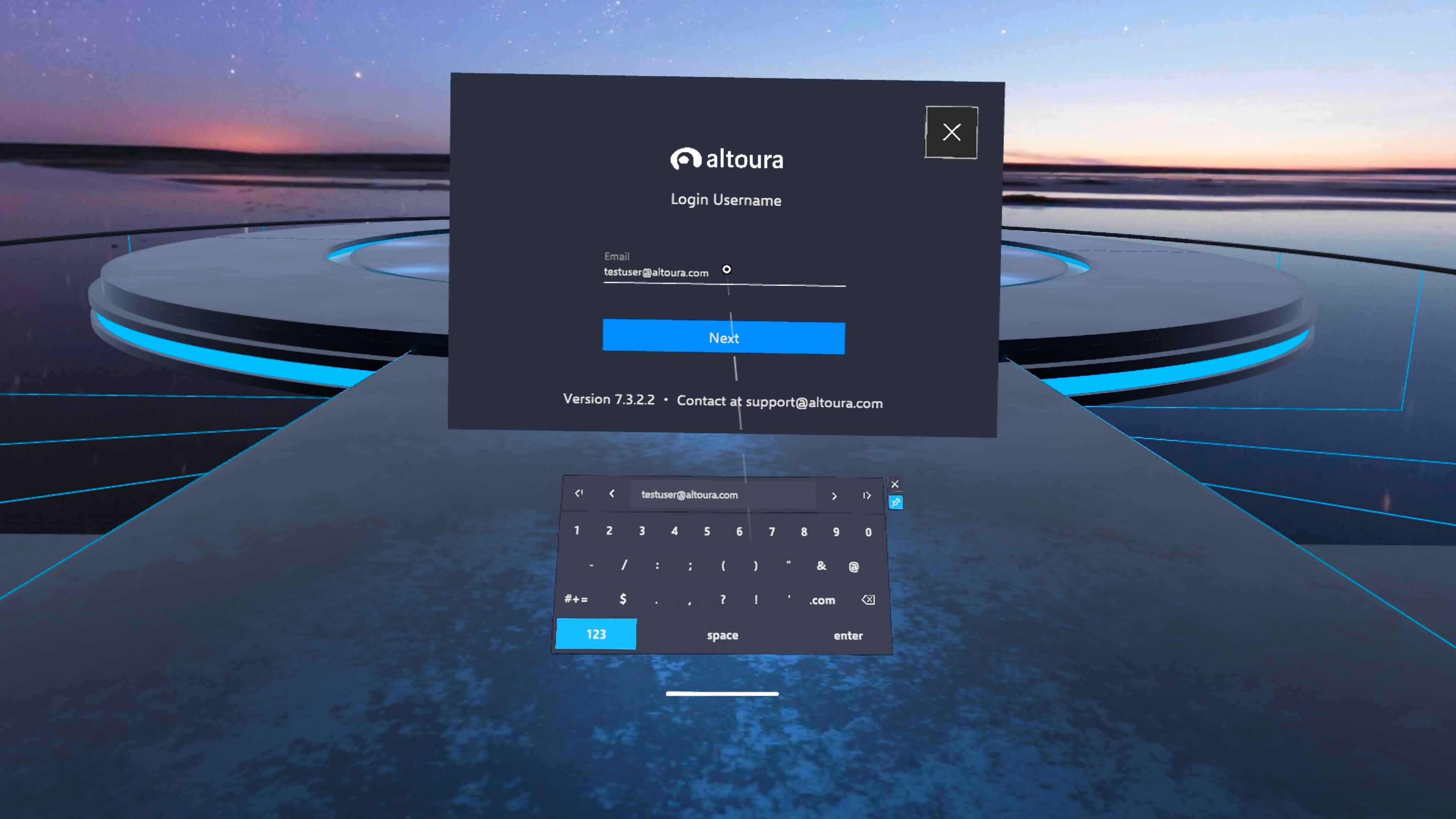 What happens next depends on your account:
* **Password account:** the **Login Password** screen opens. Enter your password and tap **Login**. The app shows **Login successful!** and logs you in.
* **SSO account:** your organization's sign-in page opens inside the headset. Sign in there, the same way you do on the web.
## Logging in using SSO
If your organization uses single sign-on, you can also sign in with your organization's domain.
* Tap on **Login with SSO**.
* On the **Login with domain** screen, enter your organization's domain (for example, `mycompany.com`) and tap **Next**.
* Your organization's sign-in page opens inside the headset. Sign in there.
## Logging in using a logged in device (pair device)
You can log in to the headset by pairing it with a browser session where you're already logged in to Altoura.
### Pair from the Dashboard
* Open [https://app.altoura.com](https://app.altoura.com) in your browser and log in using your Altoura credentials.
* Click on the user profile button in the top right corner.
What happens next depends on your account:
* **Password account:** the **Login Password** screen opens. Enter your password and tap **Login**. The app shows **Login successful!** and logs you in.
* **SSO account:** your organization's sign-in page opens inside the headset. Sign in there, the same way you do on the web.
## Logging in using SSO
If your organization uses single sign-on, you can also sign in with your organization's domain.
* Tap on **Login with SSO**.
* On the **Login with domain** screen, enter your organization's domain (for example, `mycompany.com`) and tap **Next**.
* Your organization's sign-in page opens inside the headset. Sign in there.
## Logging in using a logged in device (pair device)
You can log in to the headset by pairing it with a browser session where you're already logged in to Altoura.
### Pair from the Dashboard
* Open [https://app.altoura.com](https://app.altoura.com) in your browser and log in using your Altoura credentials.
* Click on the user profile button in the top right corner.
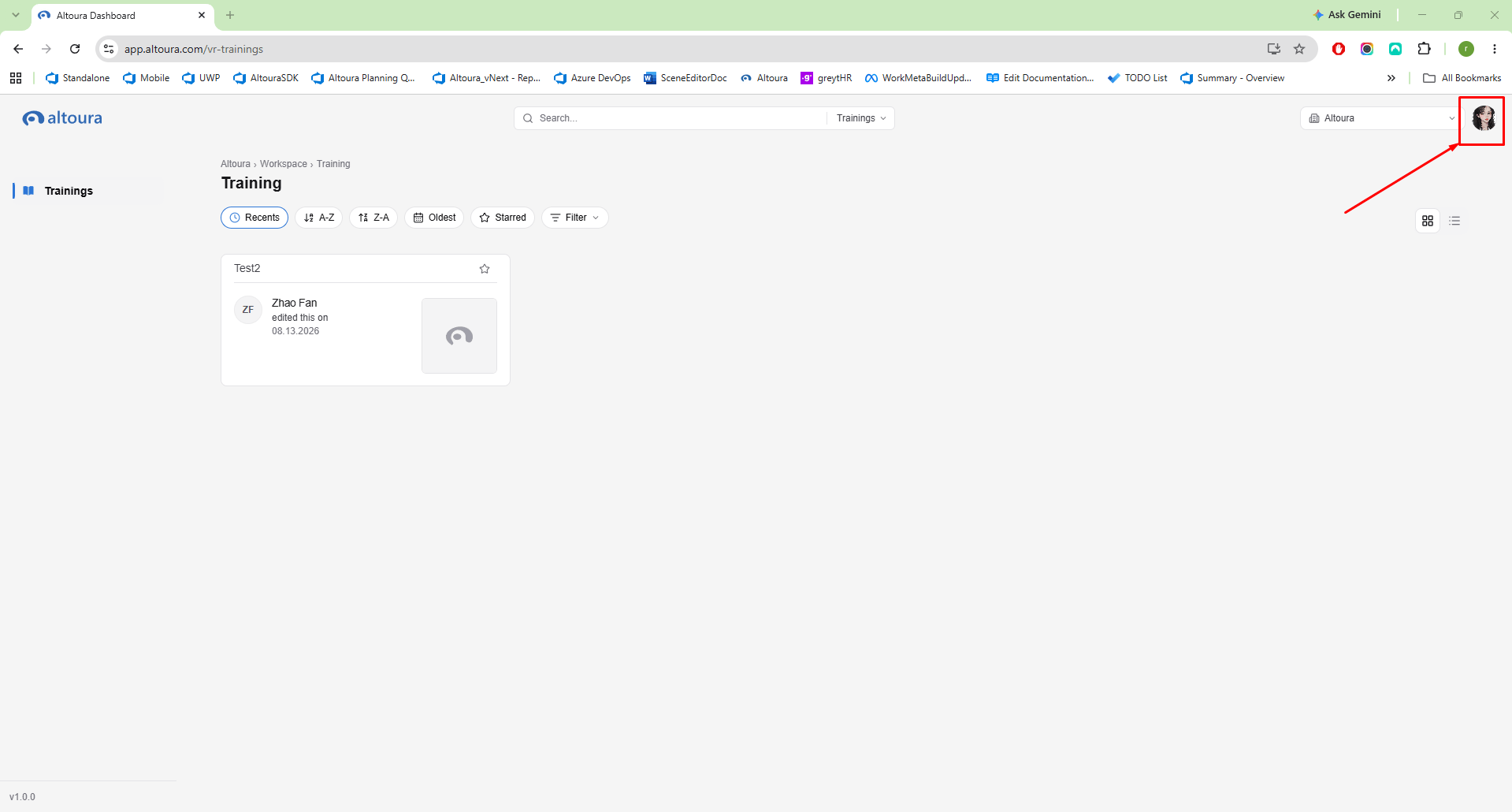 * Click on **Pair Device**.
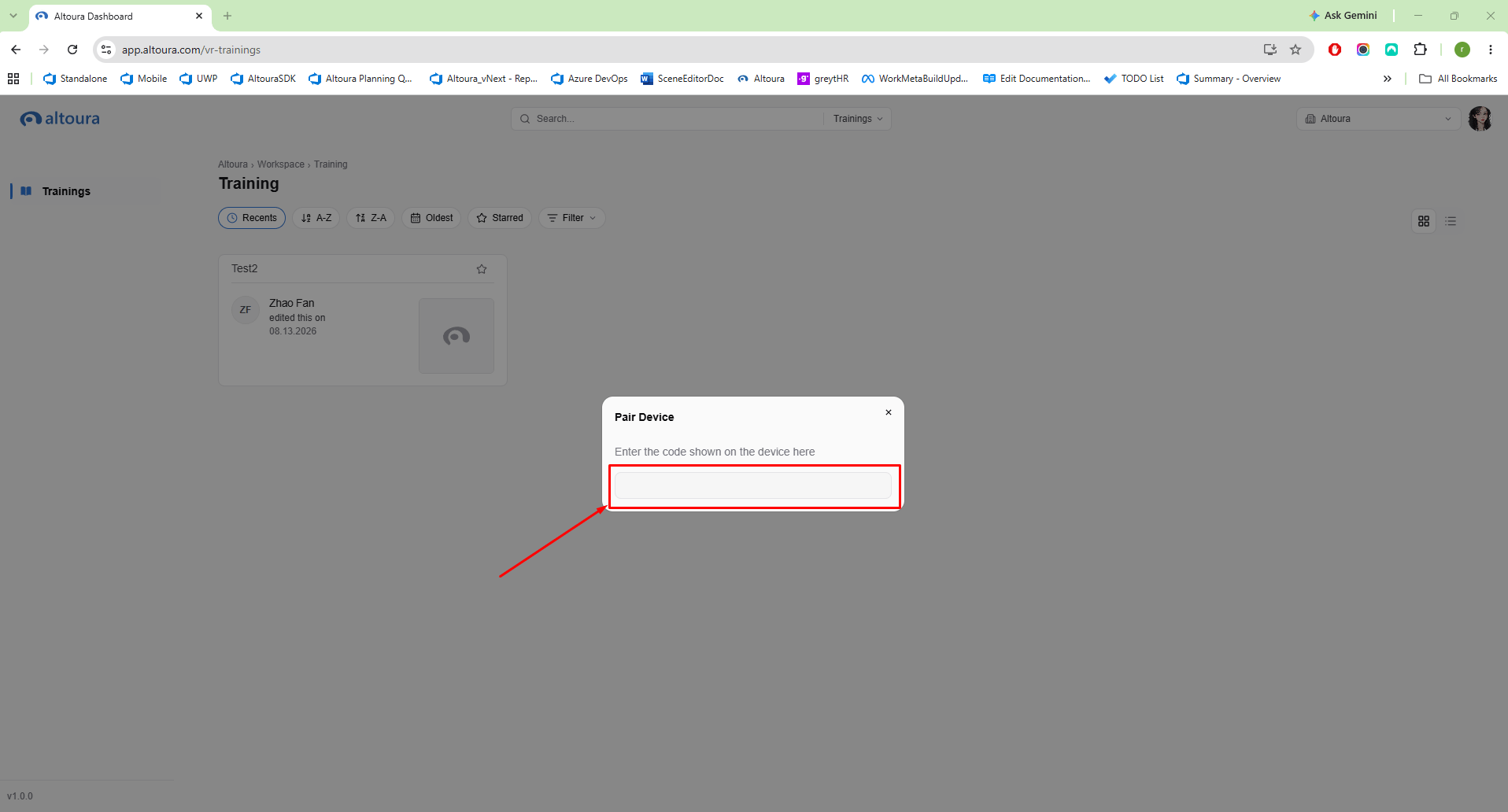
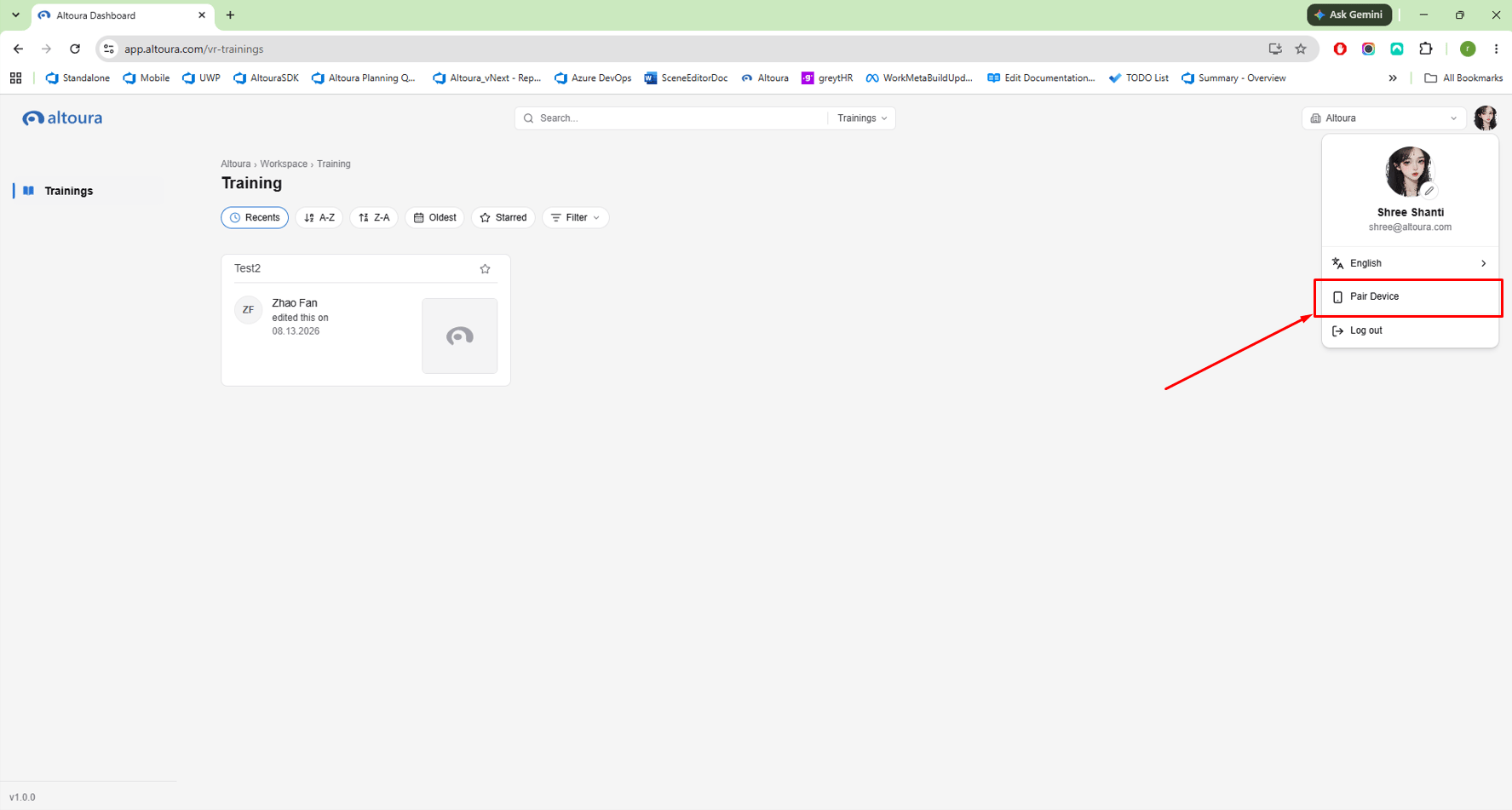 * A Pair Device window opens, asking for the code shown on the device.
 * Meanwhile, on the headset, tap on **Pair Device**.
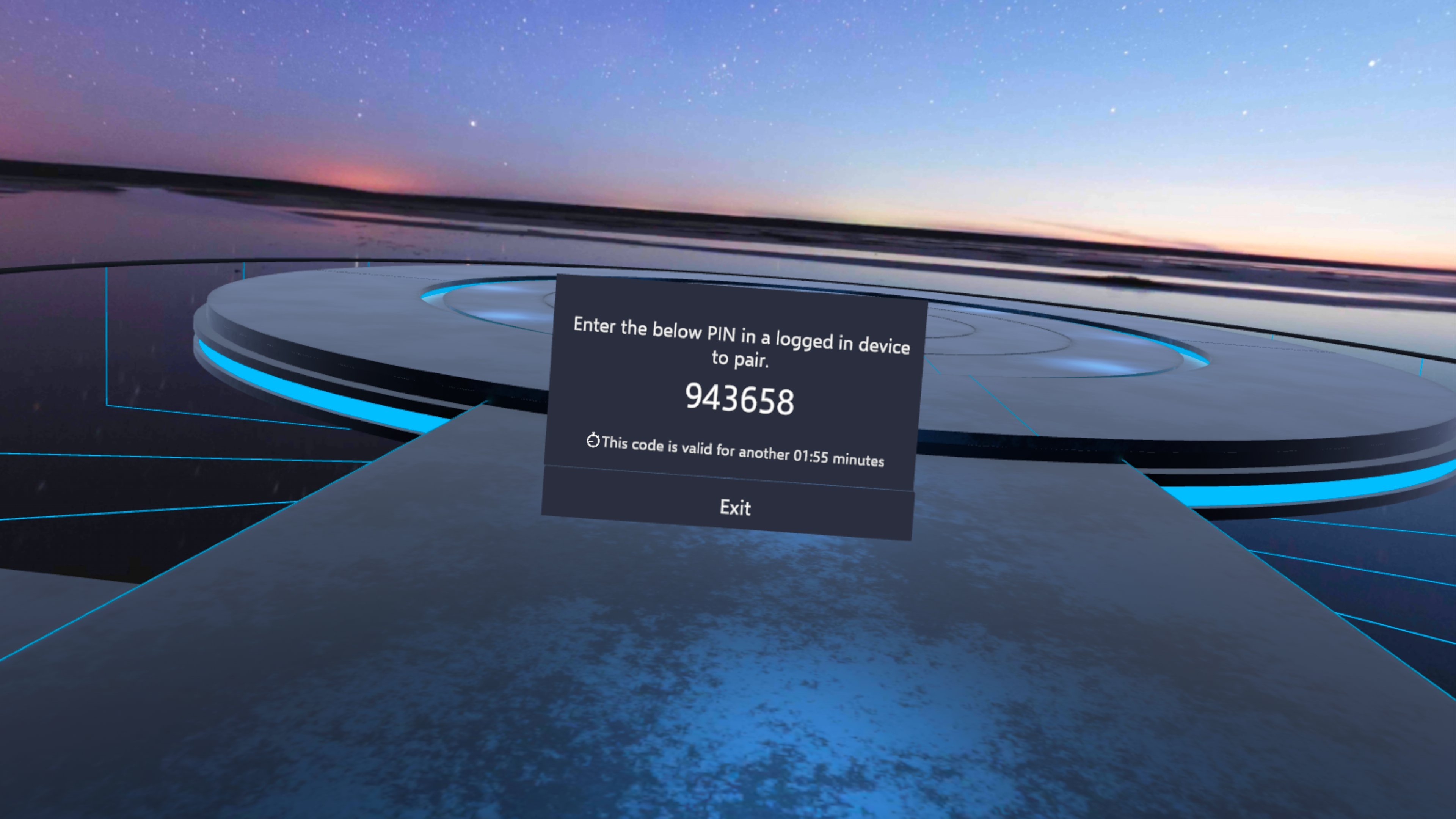
 * The headset shows a six-digit PIN with the message **"Enter the below PIN in a logged in device to pair."** A countdown shows how long the PIN is valid ("This code is valid for another MM:SS minutes"). Enter the PIN before the countdown ends.
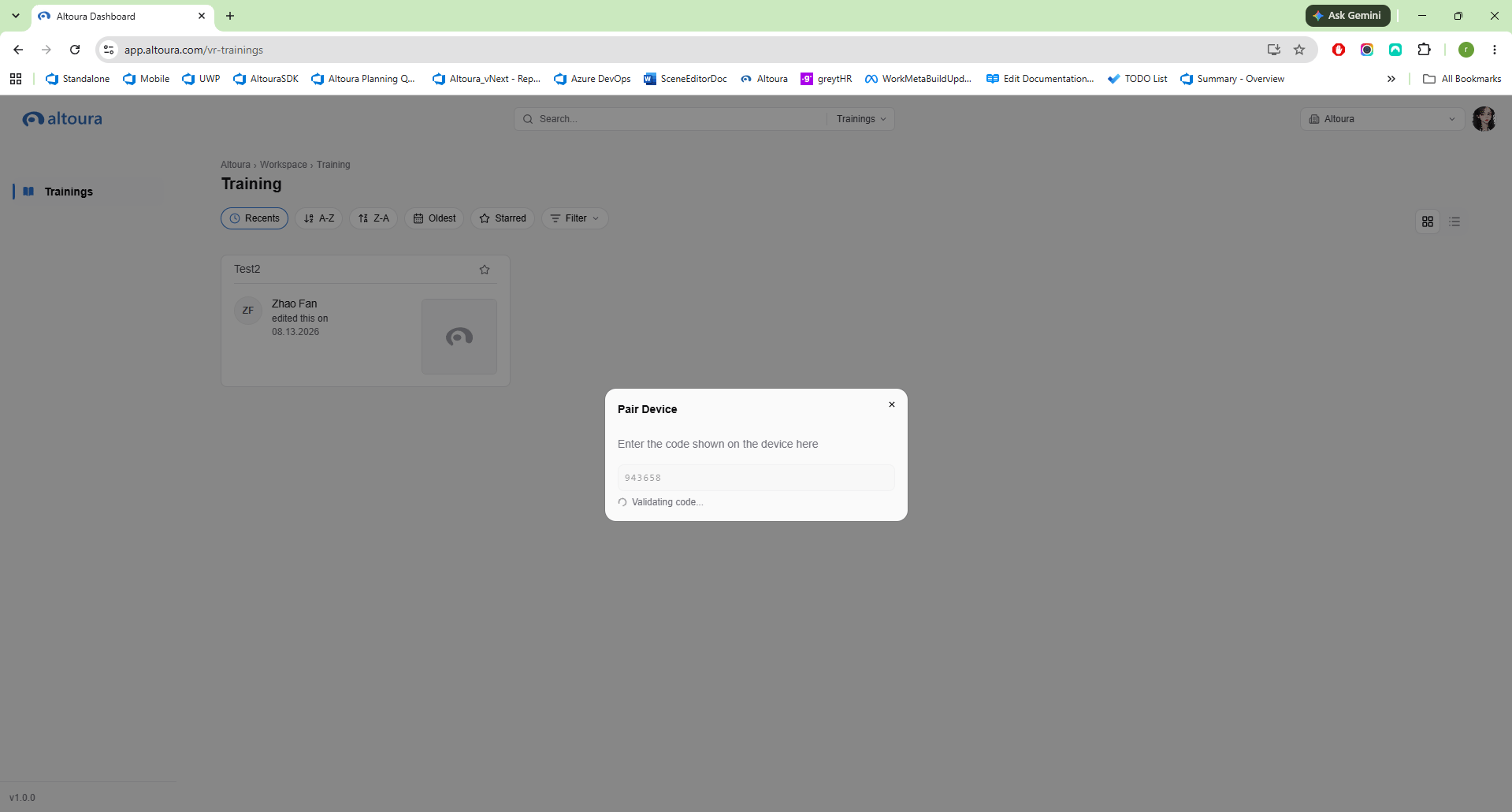
 * Enter the PIN from the headset in the Pair Device window. The code is submitted as soon as you type the sixth digit, and the dashboard shows **Validating code...**. If the code is mistyped or has expired, you see **Invalid code**.
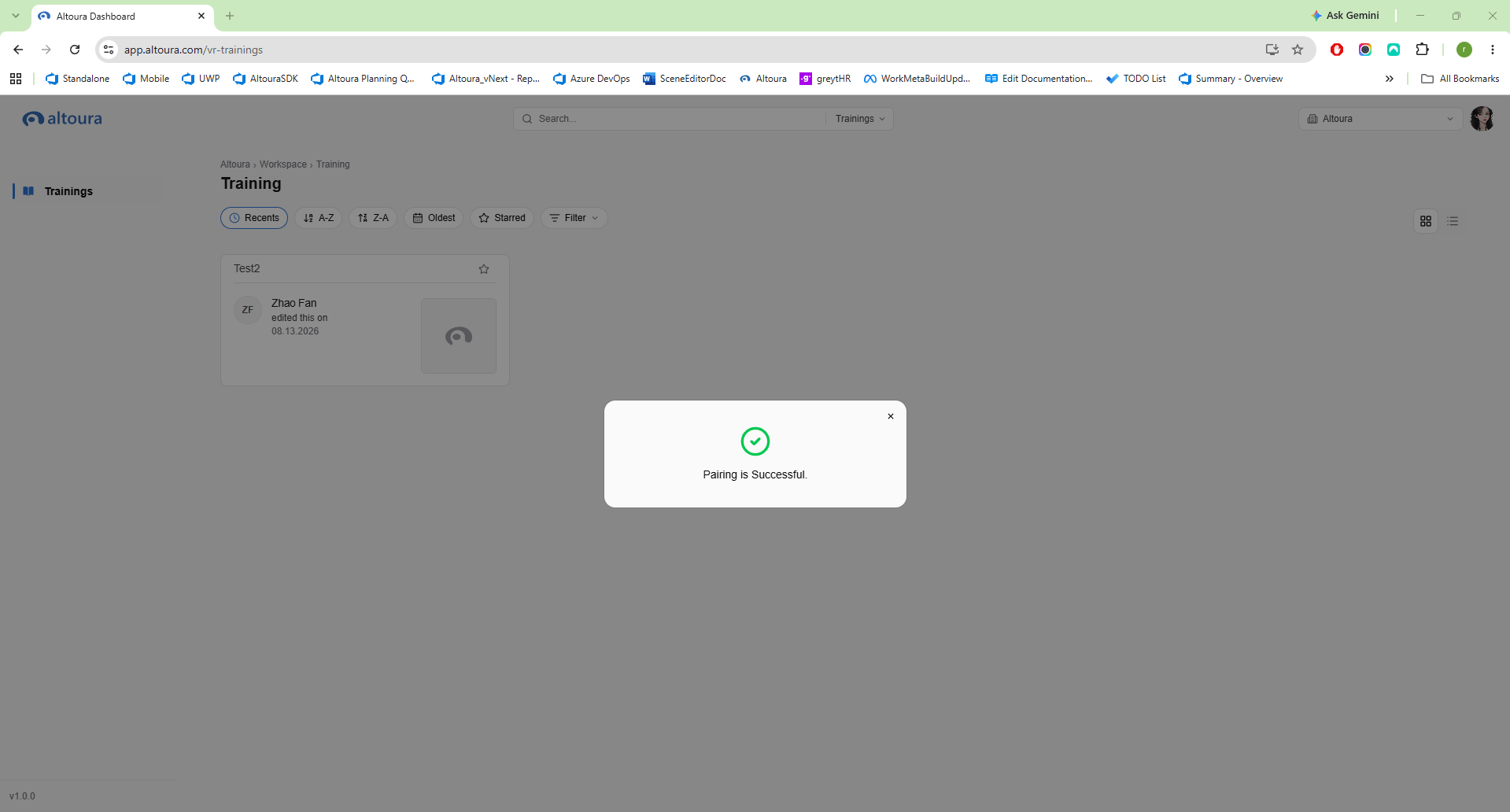
 * Once the validation is successful, the dashboard shows **Pairing is Successful.** and the headset shows **Device Paired Successfully!** and logs in.
 Pairing from the Dashboard only logs you in. To open a particular Training straight away, pair from that Training instead (see below).
### If the PIN times out
If you don't enter the PIN before the countdown ends, the headset shows **"The generated PIN timed out."** Tap **Regenerate PIN** to get a new PIN, and enter the new one.
### Pair from an open Training
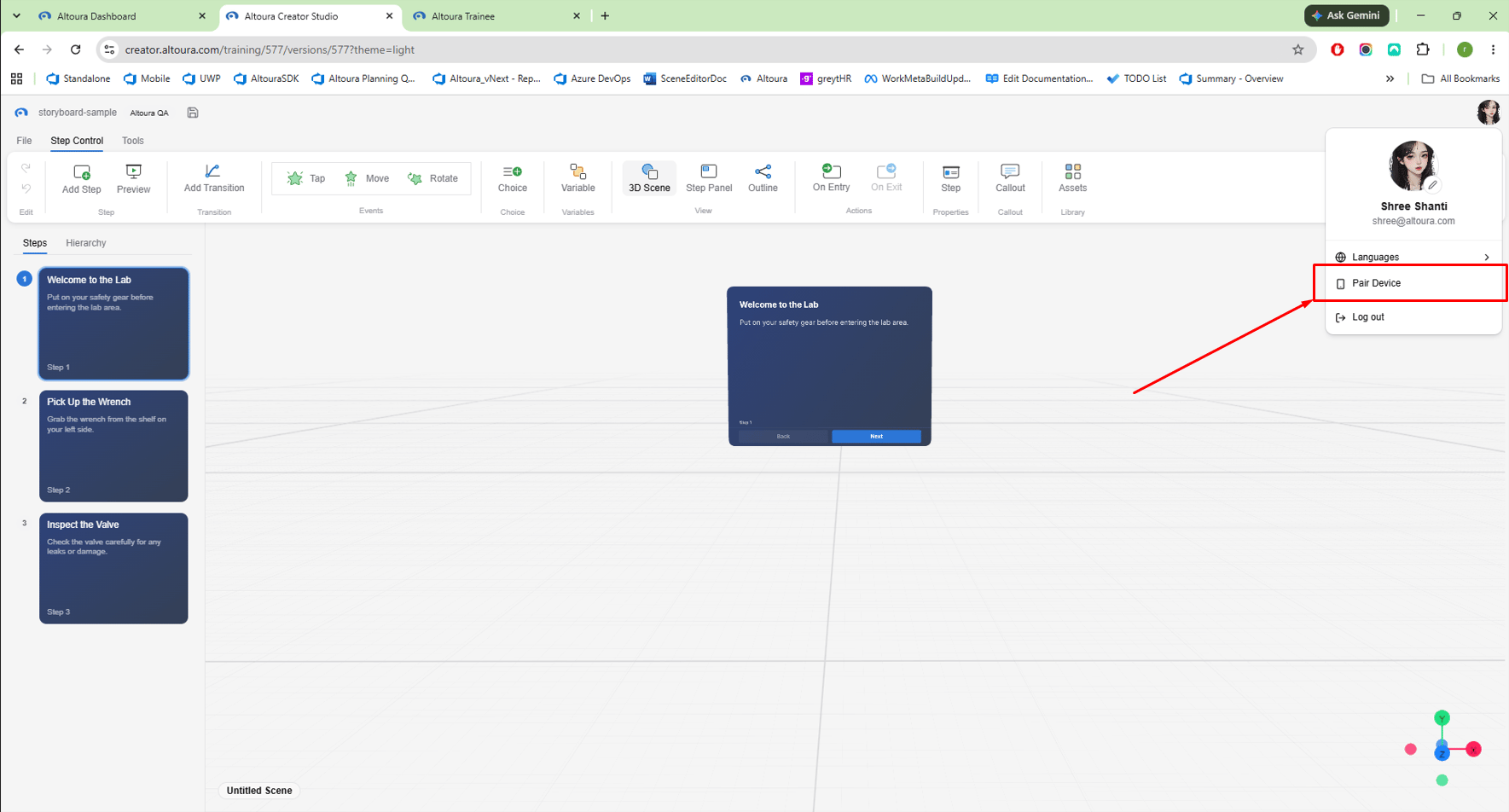
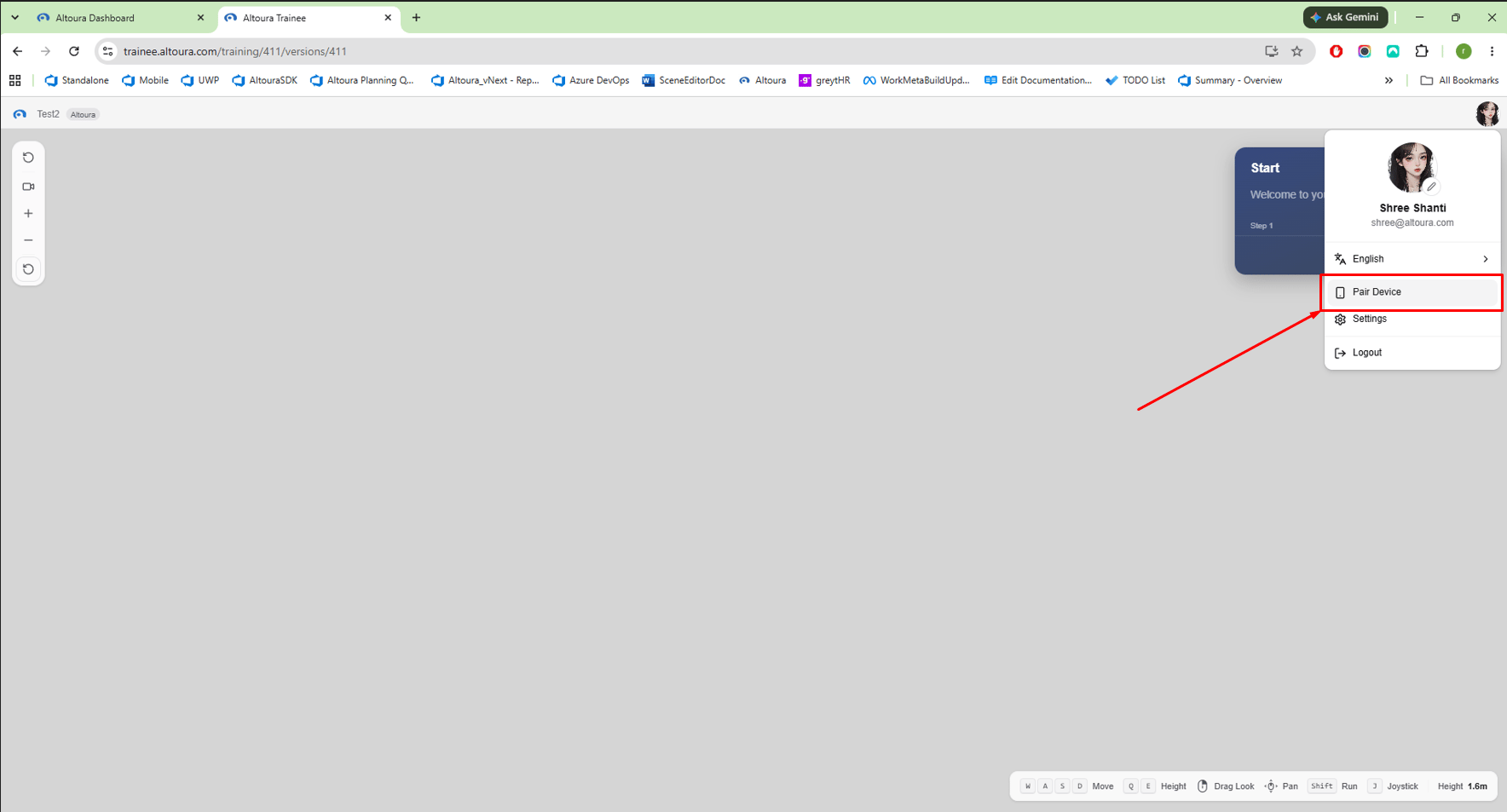
You can also pair from a Training that is open in Creator Studio or in the Trainee App. The **Pair Device** option is in the user profile menu in both, and the pairing flow is the same.
* Open the Training in Creator Studio or in the Trainee App.
* Click on the user profile button in the top right corner and click on **Pair Device**.
Creator Studio:
Pairing from the Dashboard only logs you in. To open a particular Training straight away, pair from that Training instead (see below).
### If the PIN times out
If you don't enter the PIN before the countdown ends, the headset shows **"The generated PIN timed out."** Tap **Regenerate PIN** to get a new PIN, and enter the new one.
### Pair from an open Training
You can also pair from a Training that is open in Creator Studio or in the Trainee App. The **Pair Device** option is in the user profile menu in both, and the pairing flow is the same.
* Open the Training in Creator Studio or in the Trainee App.
* Click on the user profile button in the top right corner and click on **Pair Device**.
Creator Studio:
 Trainee App:
 * Tap on **Pair Device** on the headset, then enter the PIN shown in the headset, the same way as pairing from the Dashboard.
* Once the pairing is successful, the app on the headset is logged in and the Training you had open is loaded automatically. If your account can't see that Training in the headset's Training list, the headset logs in but the Training doesn't open.
## Login messages
| Message | What it means |
| - | - |
| Email ID is mandatory. | The email field is empty. |
| The email address is invalid. | The email is mistyped, or no Altoura account uses it. |
| Password is mandatory. | The password field is empty. |
| Unable to login, please check your credentials. | The password is wrong. |
| Not connected to internet | The headset has no internet connection. |
| Domain is mandatory. | The domain field on the SSO screen is empty. |
| The domain does not exist | No organization uses the domain you entered. |
| You do not have access to Altoura. Please contact your administrator. | Your SSO account has no Altoura access. |
| Unable to login, please contact your Administrator. | SSO sign-in failed for another reason. |
## Logout
Before logging out, reconnect to the internet and leave the app open so it can send your saved progress. Progress that hasn't been sent may be lost when you log out. See [Progress & Completion](/creator-studio/trainee-client/progress-completion#how-progress-is-saved).
To log out, open the User Profile screen from the [Toolbelt menu](/creator-studio/trainee-client/toolbelt#user-profile) and tap on **Logout**. The app asks **"Are you sure you want to logout from this session?"** Tap **Yes** to log out, or **No** to stay logged in.
If you signed in with SSO and you're online, your organization's sign-out page opens first.
Logging out also turns Passthrough off and clears the settings the app remembers on the headset, such as the mode (Practice or Assessment) you chose for each Training.
This documentation is built and hosted on [Mintlify](https://mintlify.com), a developer documentation platform.
* Tap on **Pair Device** on the headset, then enter the PIN shown in the headset, the same way as pairing from the Dashboard.
* Once the pairing is successful, the app on the headset is logged in and the Training you had open is loaded automatically. If your account can't see that Training in the headset's Training list, the headset logs in but the Training doesn't open.
## Login messages
| Message | What it means |
| - | - |
| Email ID is mandatory. | The email field is empty. |
| The email address is invalid. | The email is mistyped, or no Altoura account uses it. |
| Password is mandatory. | The password field is empty. |
| Unable to login, please check your credentials. | The password is wrong. |
| Not connected to internet | The headset has no internet connection. |
| Domain is mandatory. | The domain field on the SSO screen is empty. |
| The domain does not exist | No organization uses the domain you entered. |
| You do not have access to Altoura. Please contact your administrator. | Your SSO account has no Altoura access. |
| Unable to login, please contact your Administrator. | SSO sign-in failed for another reason. |
## Logout
Before logging out, reconnect to the internet and leave the app open so it can send your saved progress. Progress that hasn't been sent may be lost when you log out. See [Progress & Completion](/creator-studio/trainee-client/progress-completion#how-progress-is-saved).
To log out, open the User Profile screen from the [Toolbelt menu](/creator-studio/trainee-client/toolbelt#user-profile) and tap on **Logout**. The app asks **"Are you sure you want to logout from this session?"** Tap **Yes** to log out, or **No** to stay logged in.
If you signed in with SSO and you're online, your organization's sign-out page opens first.
Logging out also turns Passthrough off and clears the settings the app remembers on the headset, such as the mode (Practice or Assessment) you chose for each Training.
This documentation is built and hosted on [Mintlify](https://mintlify.com), a developer documentation platform.