> ## Documentation Index
> Fetch the complete documentation index at: https://docs.altoura.com/llms.txt
> Use this file to discover all available pages before exploring further.
# Installation
> Install the Trainee Client on Meta Quest from the Meta Horizon Store or by sideloading it with SideQuest.
The Trainee Client runs on **Meta Quest 2**, **Meta Quest 3**, **Meta Quest 3S** and **Meta Quest Pro**.
## Installation from Store
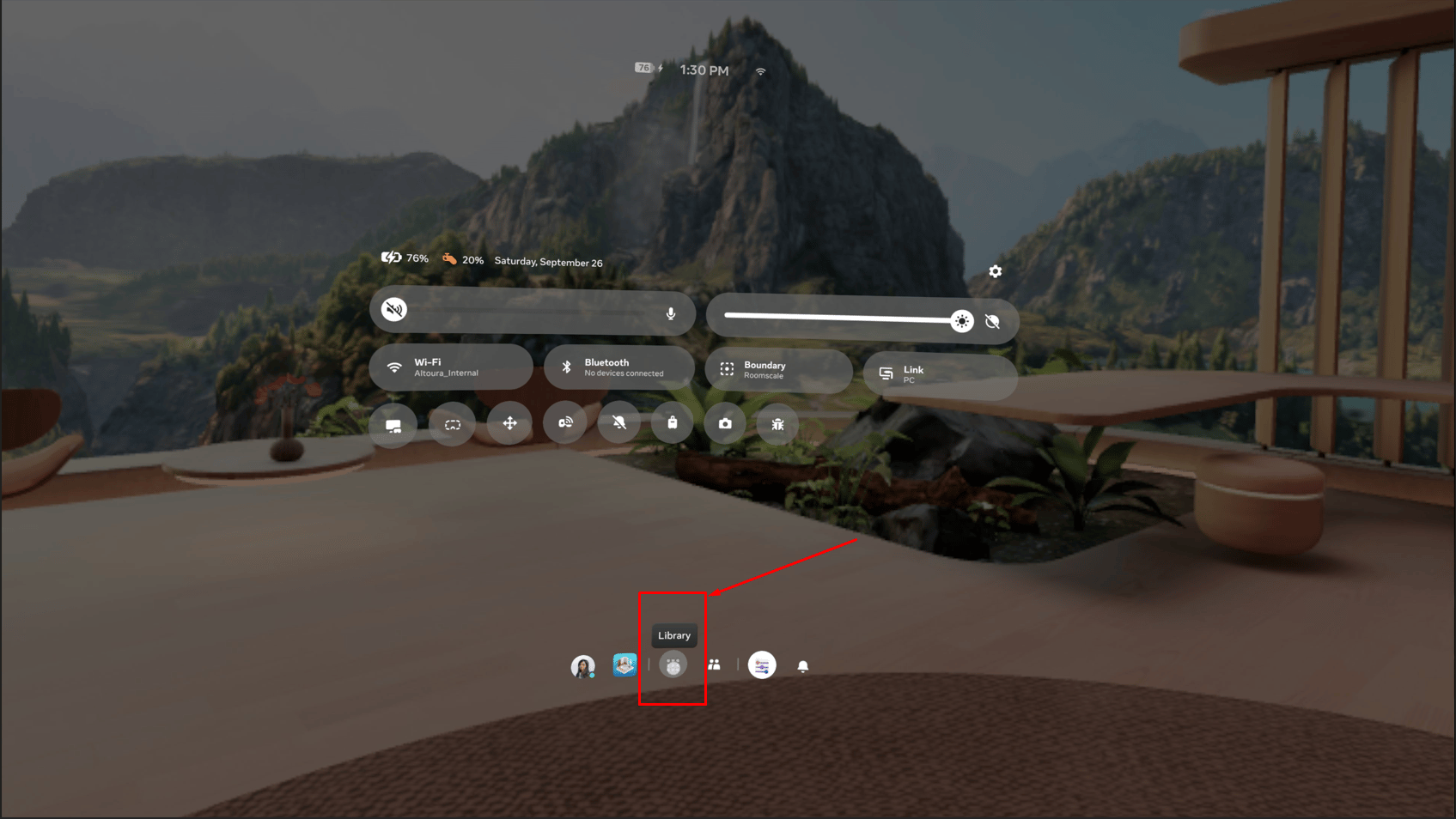
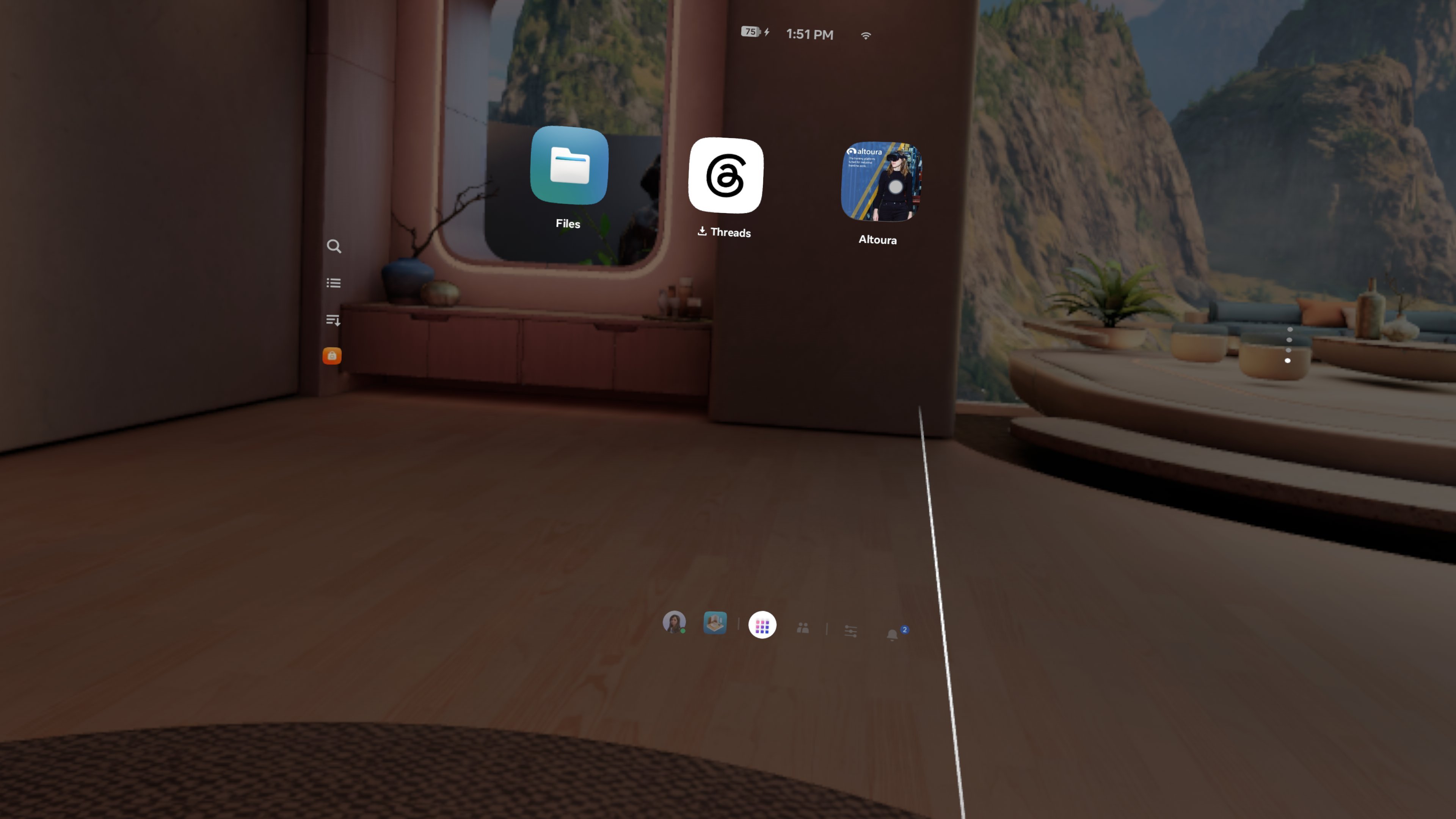
* In the Quest universal menu, click on Library
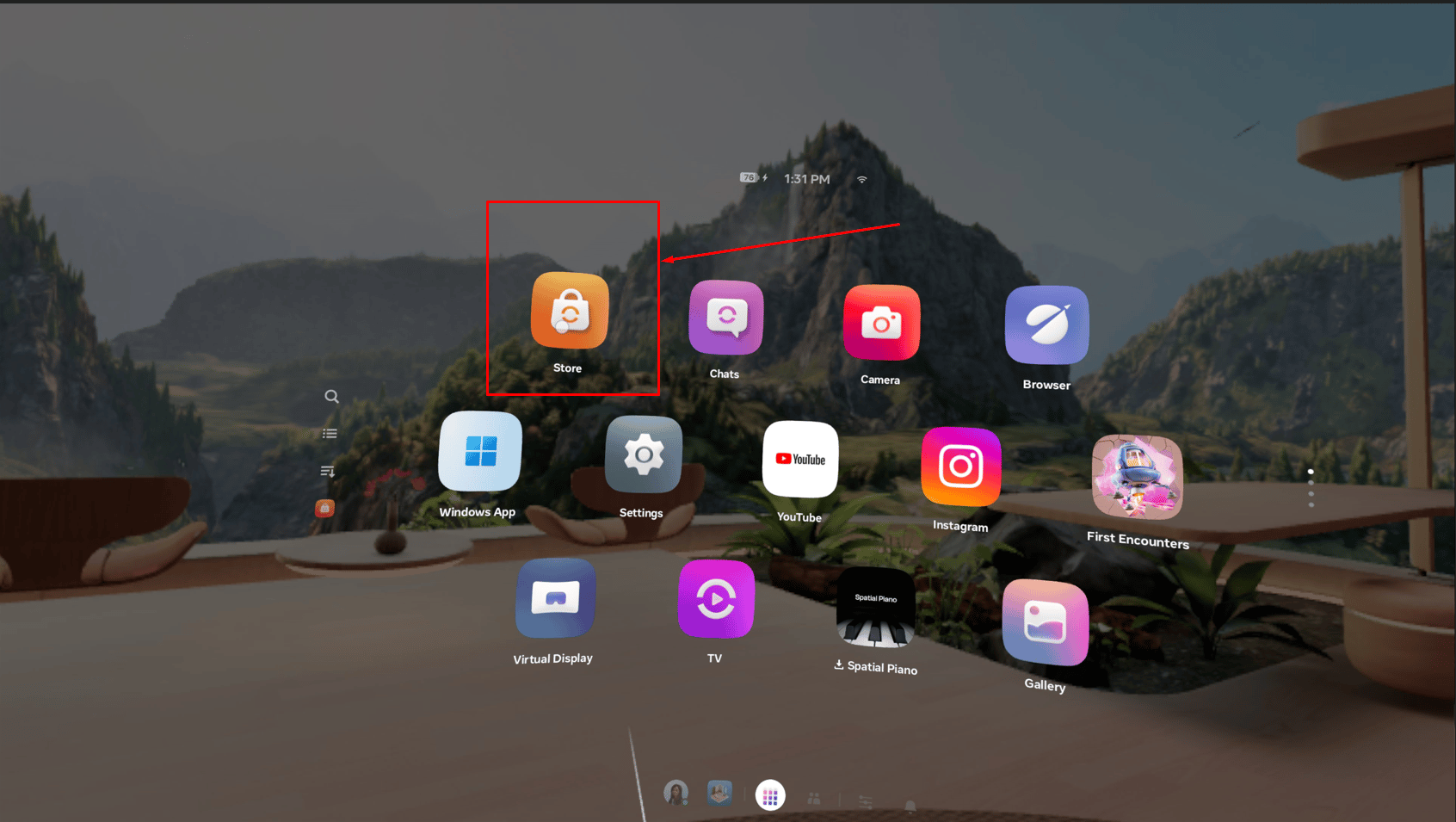
 * Select Meta Horizon Store
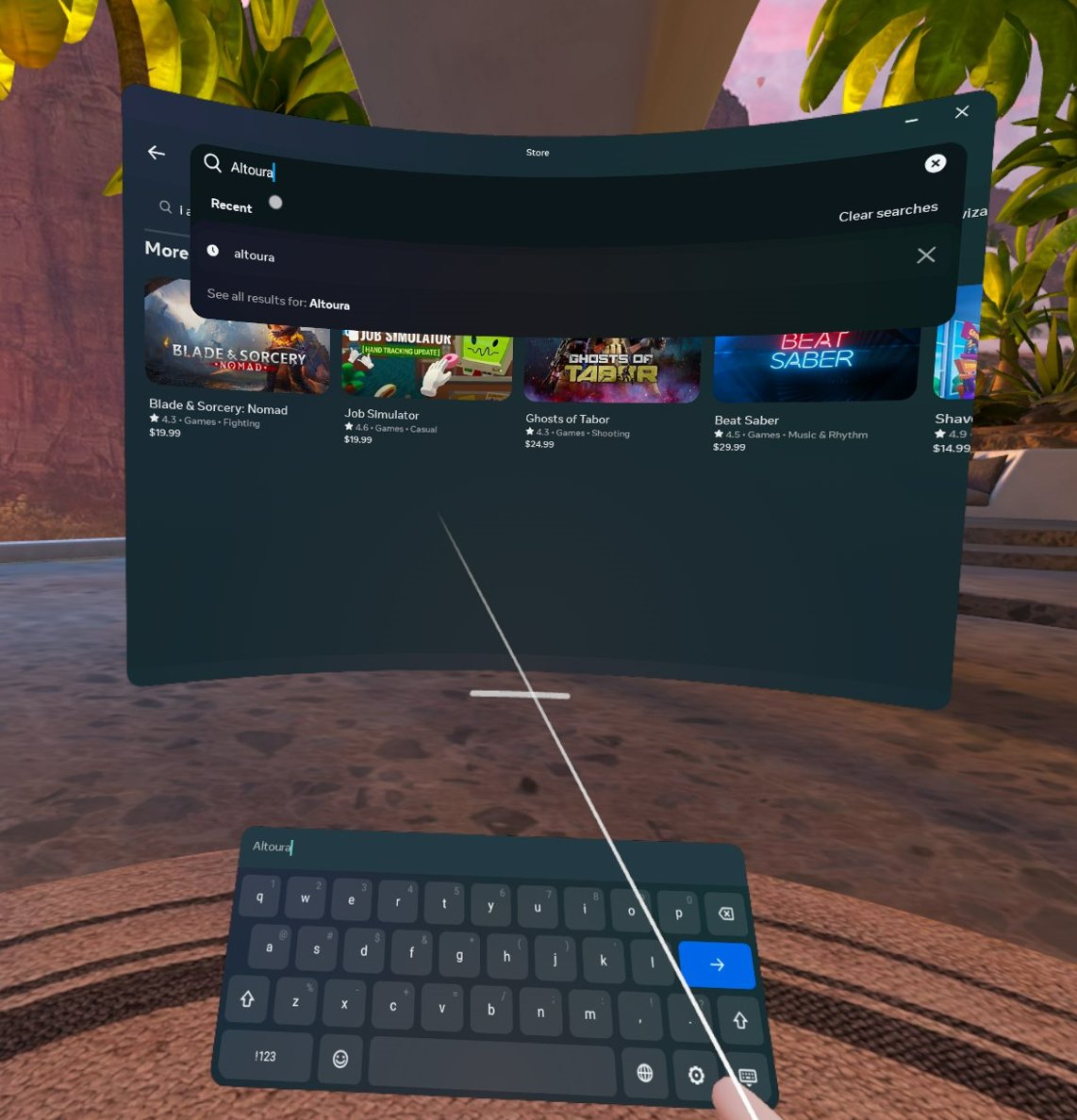
 * Search for Altoura and download
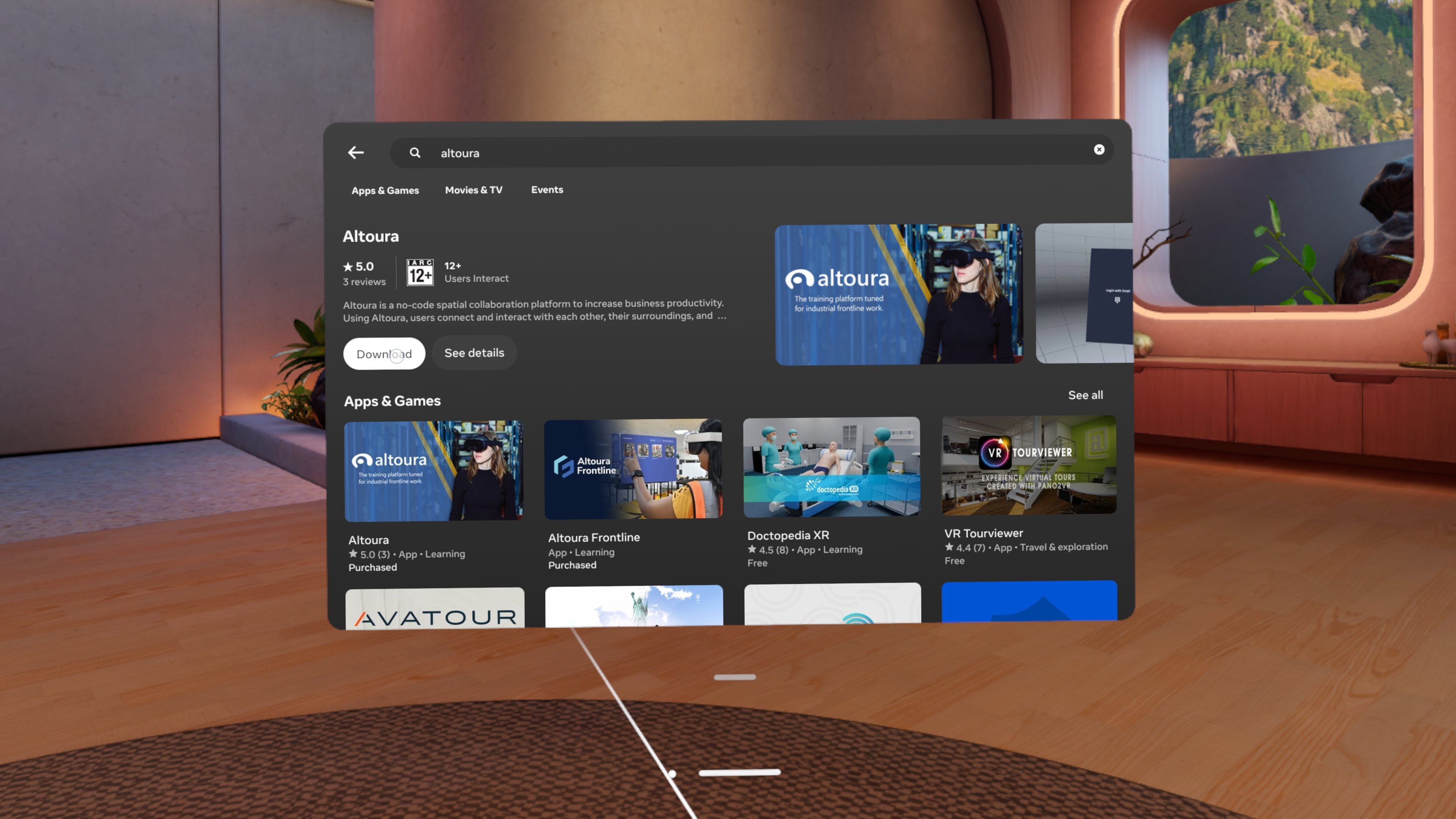 * Launch Altoura once downloaded. Altoura app will be visible in the library after the download.
 ## SideLoading app from SideQuest
### Prerequisites
* Meta Quest 2, Meta Quest 3, Meta Quest 3S or Meta Quest Pro.
* USB-C cable to connect your Meta Quest to your computer.
* A PC or Mac with an internet connection.
* SideQuest installed on your computer.
* Meta developer account – Required to enable developer mode.
**Step 1: Set Up Developer Mode on Meta Quest**
1. **Create a Developer Account:**
* Go to the [Meta developer dashboard](https://developer.oculus.com/) and sign in with your Meta account.
* Navigate to Manage Organizations and click Create New Organization.
* Enter an organization name and accept the Developer Agreement to create a developer account.
2. **Enable Developer Mode:**
* Download the Meta Horizon app on your smartphone and open it.
* Ensure your Meta Quest is connected to the app. (Step-by-step instructions are shown in the headset when you set up the Quest for the first time.)
* In the app, go to Devices.
## SideLoading app from SideQuest
### Prerequisites
* Meta Quest 2, Meta Quest 3, Meta Quest 3S or Meta Quest Pro.
* USB-C cable to connect your Meta Quest to your computer.
* A PC or Mac with an internet connection.
* SideQuest installed on your computer.
* Meta developer account – Required to enable developer mode.
**Step 1: Set Up Developer Mode on Meta Quest**
1. **Create a Developer Account:**
* Go to the [Meta developer dashboard](https://developer.oculus.com/) and sign in with your Meta account.
* Navigate to Manage Organizations and click Create New Organization.
* Enter an organization name and accept the Developer Agreement to create a developer account.
2. **Enable Developer Mode:**
* Download the Meta Horizon app on your smartphone and open it.
* Ensure your Meta Quest is connected to the app. (Step-by-step instructions are shown in the headset when you set up the Quest for the first time.)
* In the app, go to Devices.
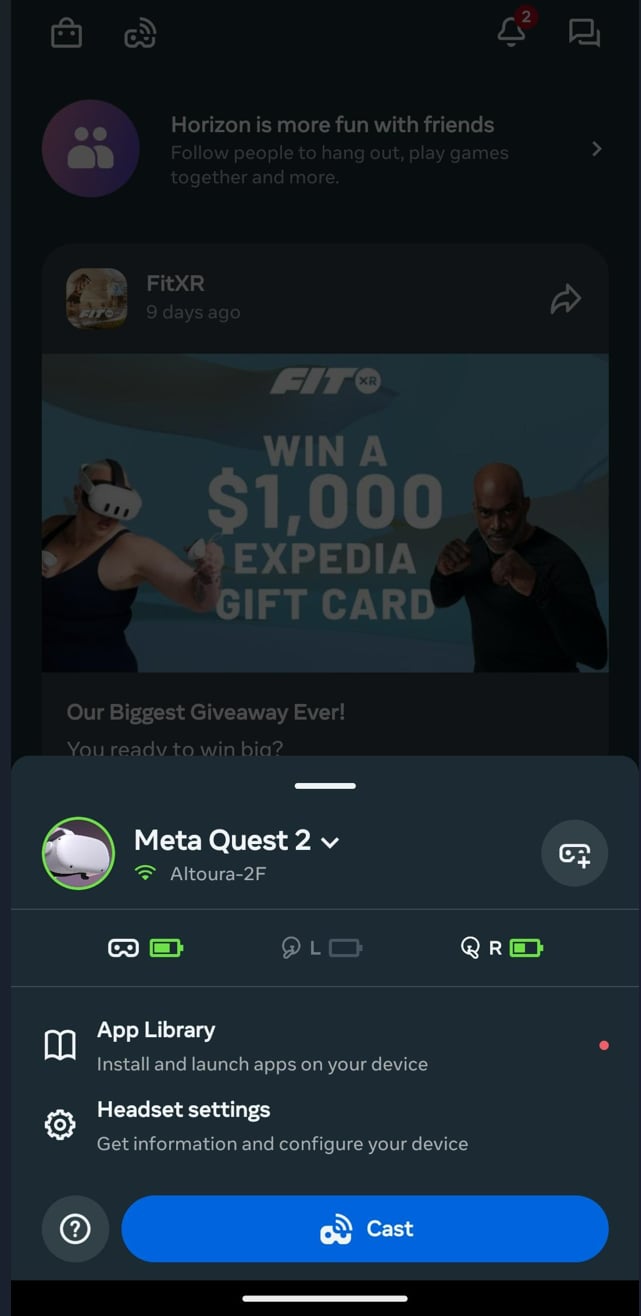
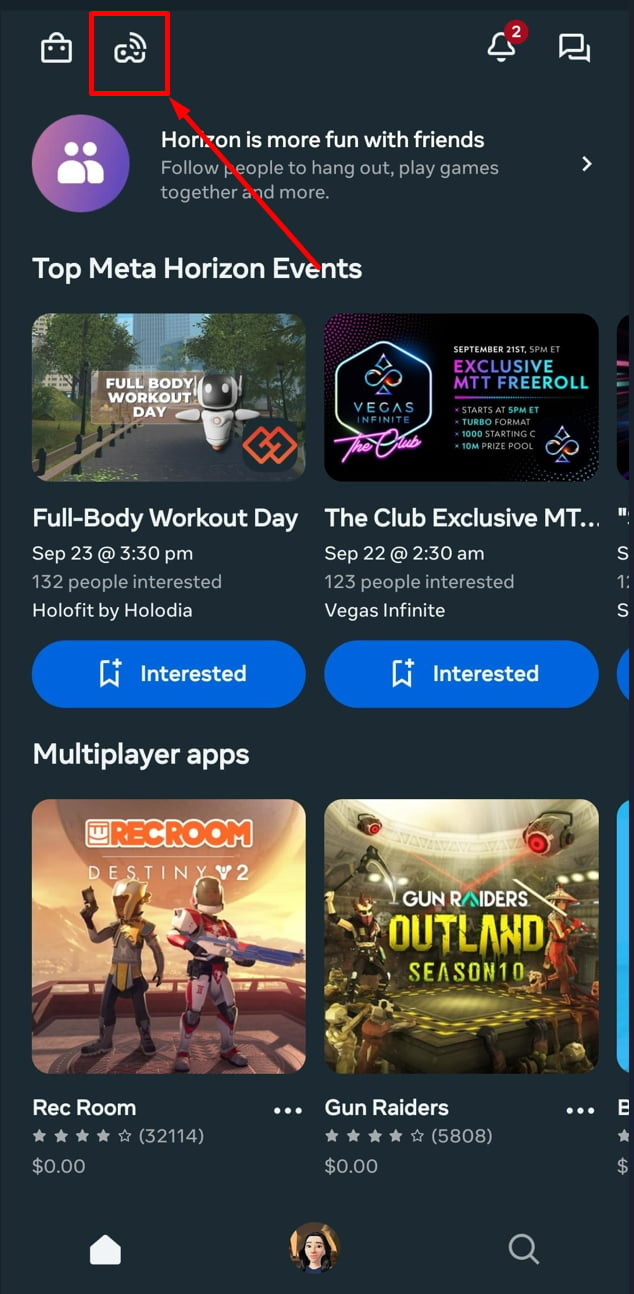 * Select your connected Meta Quest.
* Scroll down to the Developer Mode option and tap on it.
* Select your connected Meta Quest.
* Scroll down to the Developer Mode option and tap on it.
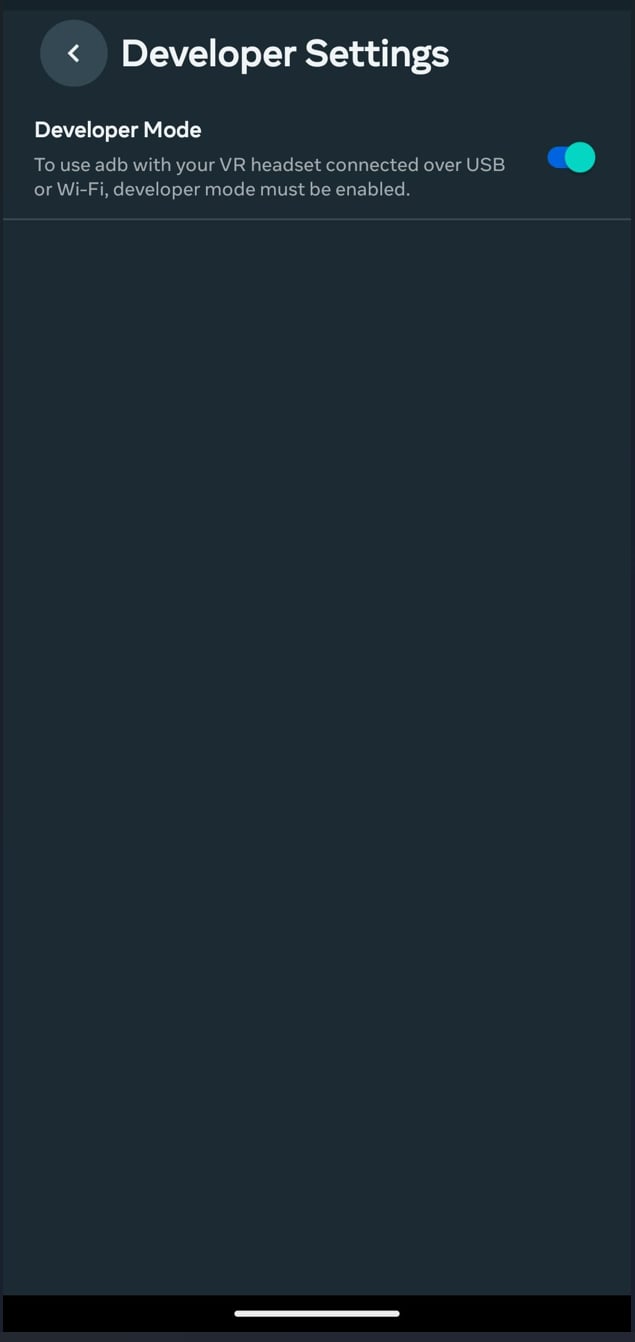
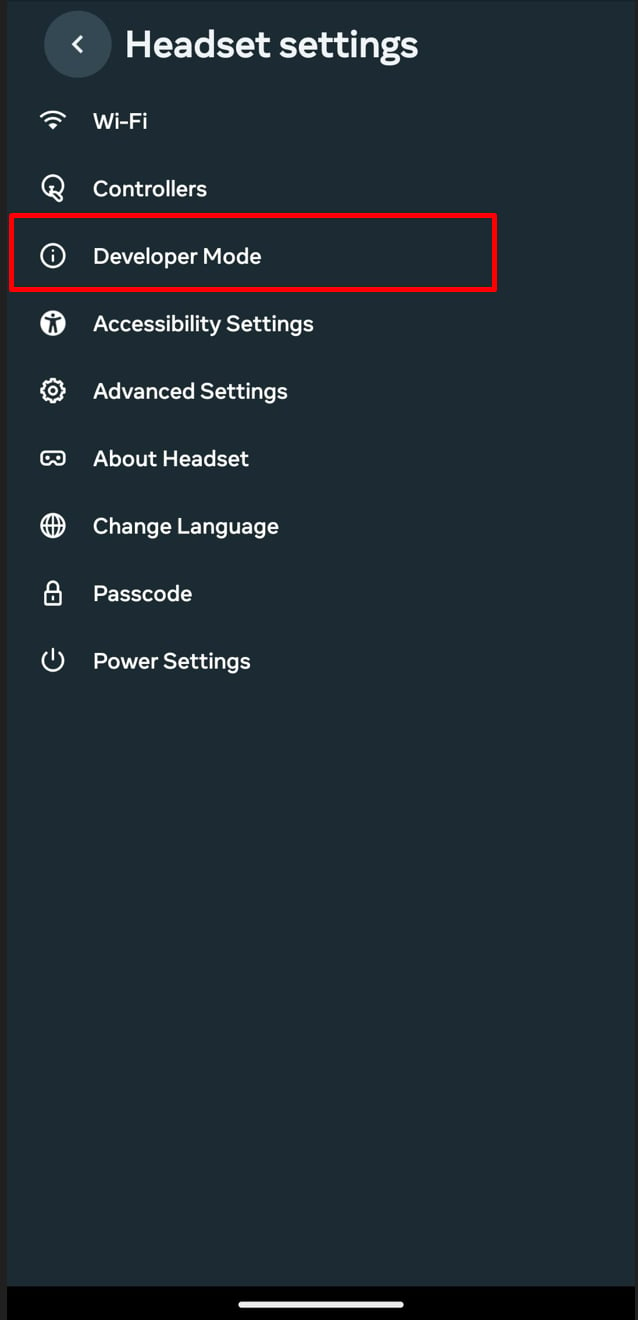 * Toggle Developer Mode to ON.
* Restart your Meta Quest by holding down the power button and selecting Restart.
**Step 2: Install SideQuest**
1. Go here to download SideQuest: [https://sidequestvr.com/setup-howto](https://sidequestvr.com/setup-howto)
2. Install SideQuest by following the installation steps for your OS.
3. Once installed, launch SideQuest.
**Step 3: Connect Your Meta Quest to SideQuest**
1. Connect your Meta Quest to your computer using the USB-C cable.
* You may use the USB-C to USB-C or USB-C to USB-A cable, depending on your computer's port.
2. Put on your Meta Quest headset. You will see a prompt asking you to Allow USB Debugging. Select Always allow from this computer and then tap OK.
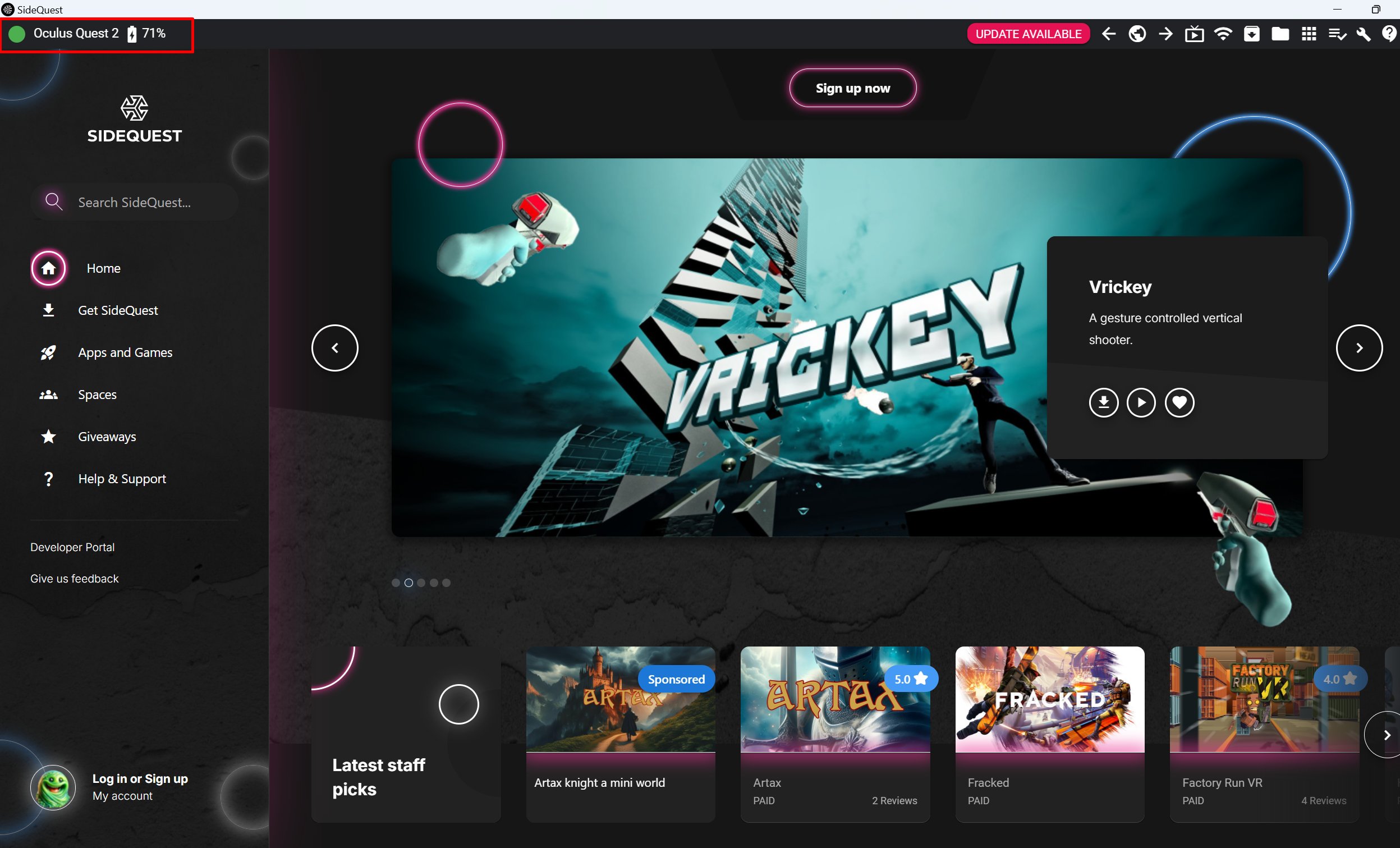
3. Once connected, SideQuest will automatically detect your device. You should see a green dot in the top-left corner of the SideQuest app, indicating that your Meta Quest is connected and ready.
* Toggle Developer Mode to ON.
* Restart your Meta Quest by holding down the power button and selecting Restart.
**Step 2: Install SideQuest**
1. Go here to download SideQuest: [https://sidequestvr.com/setup-howto](https://sidequestvr.com/setup-howto)
2. Install SideQuest by following the installation steps for your OS.
3. Once installed, launch SideQuest.
**Step 3: Connect Your Meta Quest to SideQuest**
1. Connect your Meta Quest to your computer using the USB-C cable.
* You may use the USB-C to USB-C or USB-C to USB-A cable, depending on your computer's port.
2. Put on your Meta Quest headset. You will see a prompt asking you to Allow USB Debugging. Select Always allow from this computer and then tap OK.
3. Once connected, SideQuest will automatically detect your device. You should see a green dot in the top-left corner of the SideQuest app, indicating that your Meta Quest is connected and ready.
 **Step 4: Sideload Apps via SideQuest**
1. With SideQuest open and your Meta Quest connected, you can now sideload apps.
* Sideload an APK from Your Computer:
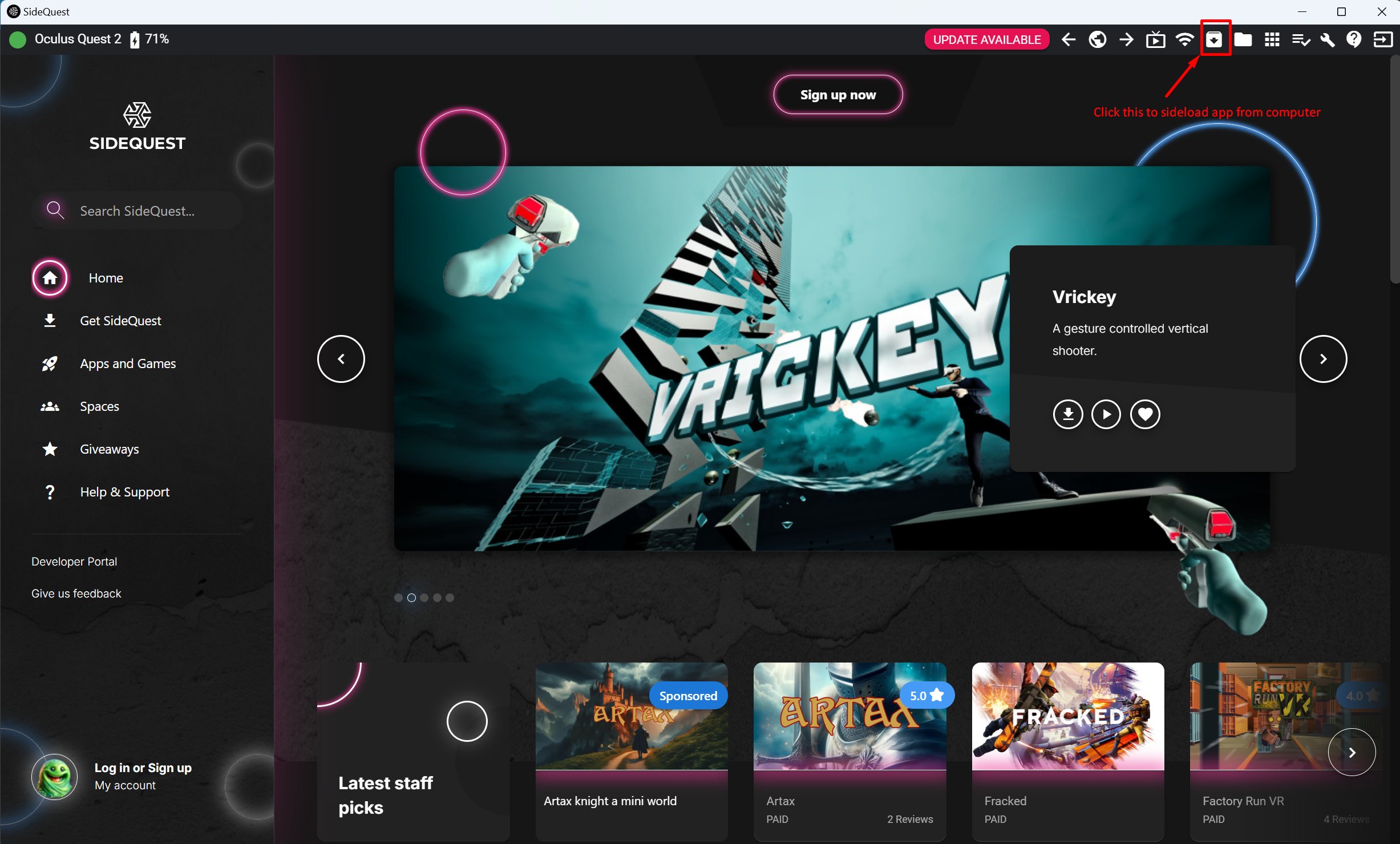
* If you have an APK file of an app you want to install, drag and drop the APK into SideQuest, or use the Install APK file from folder button in the top-right corner.
* If you don't have the APK, download it from here: [https://portal.altoura.com/download/quest](https://portal.altoura.com/download/quest)
**Step 4: Sideload Apps via SideQuest**
1. With SideQuest open and your Meta Quest connected, you can now sideload apps.
* Sideload an APK from Your Computer:
* If you have an APK file of an app you want to install, drag and drop the APK into SideQuest, or use the Install APK file from folder button in the top-right corner.
* If you don't have the APK, download it from here: [https://portal.altoura.com/download/quest](https://portal.altoura.com/download/quest)
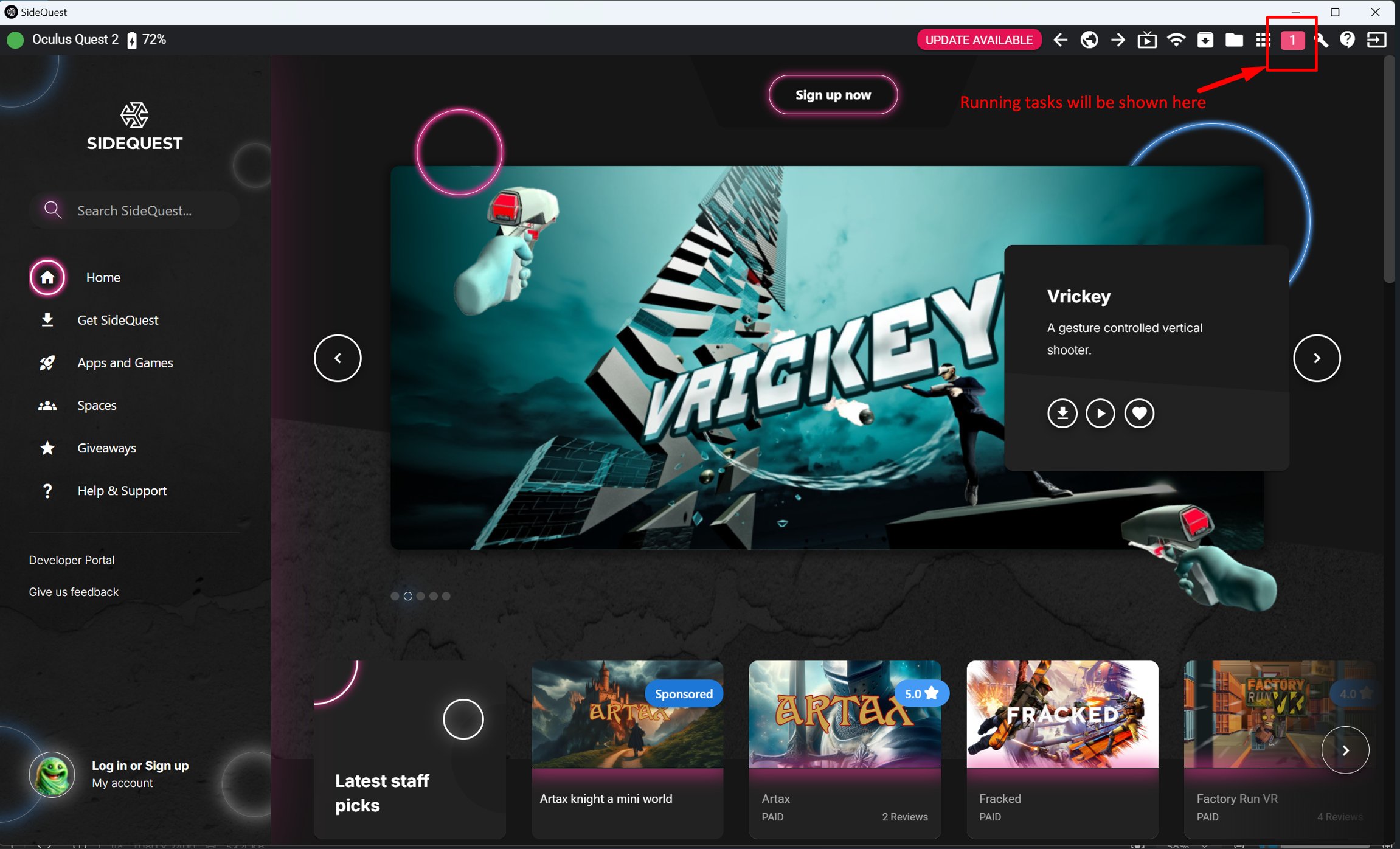
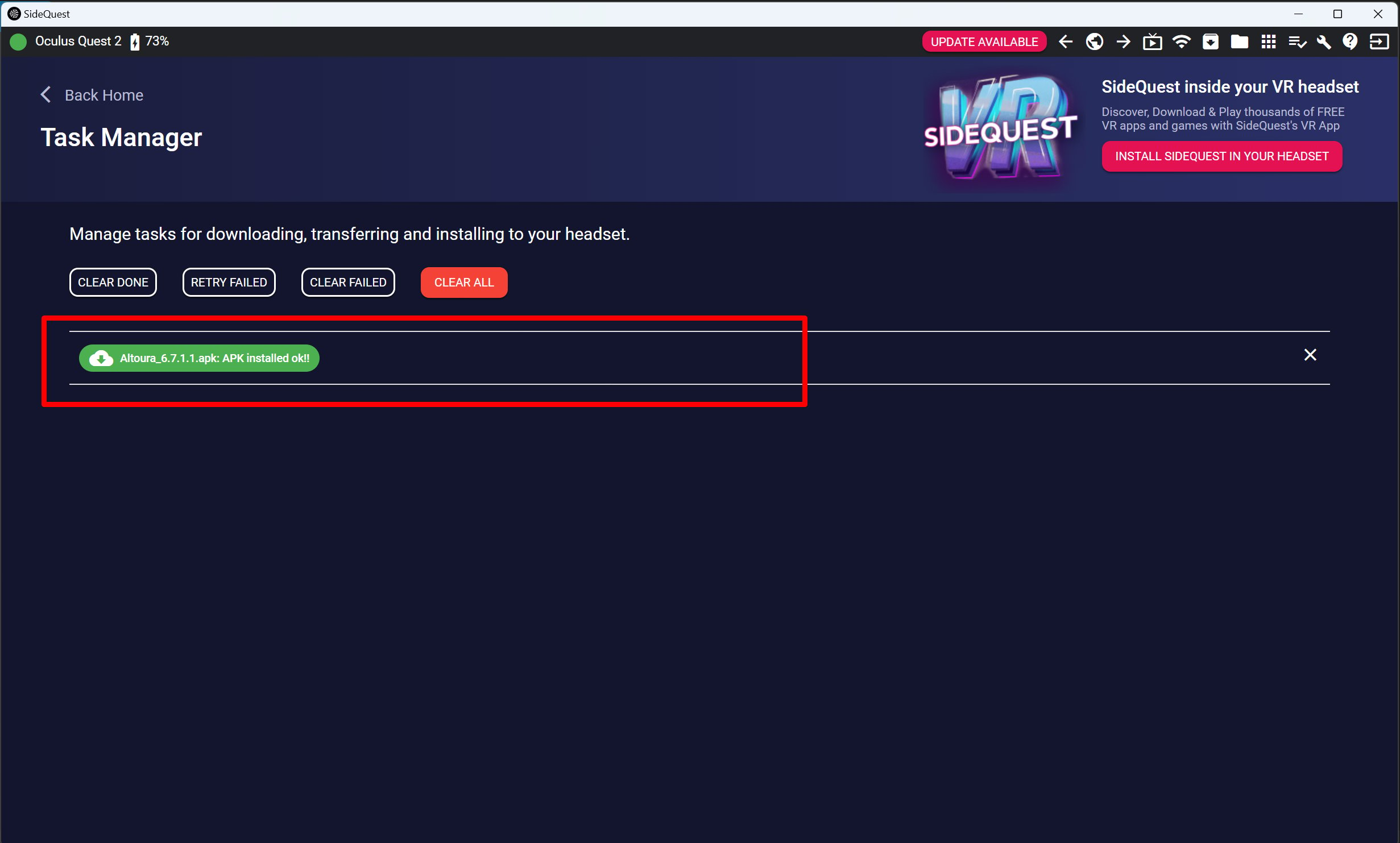
 * Once the file is installed, you will see a confirmation message.
 **Step 5: Access Sideloaded Apps on Meta Quest**
1. Once the sideloading process is complete, put on your Meta Quest.
2. Open the Apps section (Library) from your Quest’s home menu.
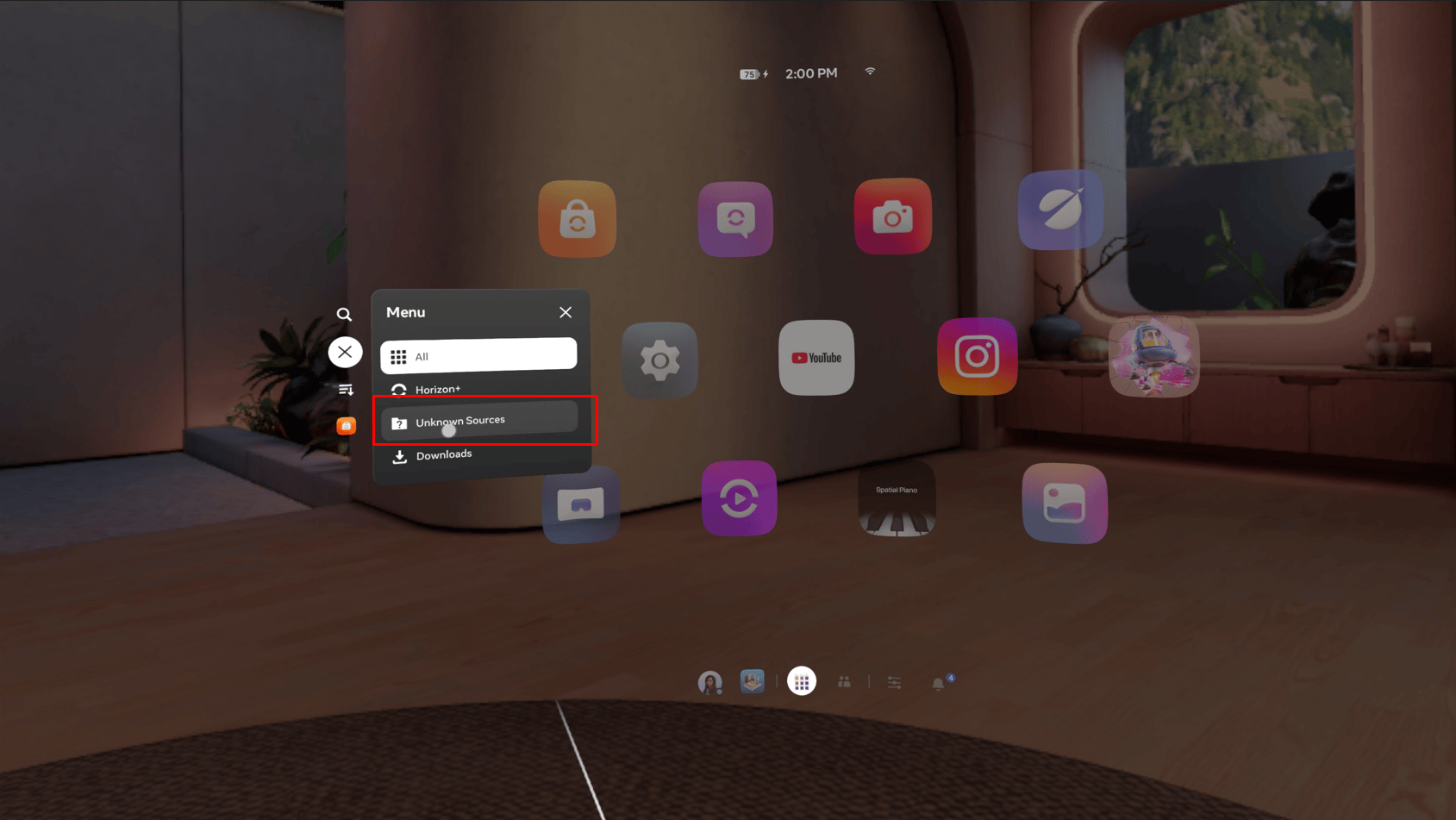
3. At the top-right corner, change the filter from All to Unknown Sources.
**Step 5: Access Sideloaded Apps on Meta Quest**
1. Once the sideloading process is complete, put on your Meta Quest.
2. Open the Apps section (Library) from your Quest’s home menu.
3. At the top-right corner, change the filter from All to Unknown Sources.
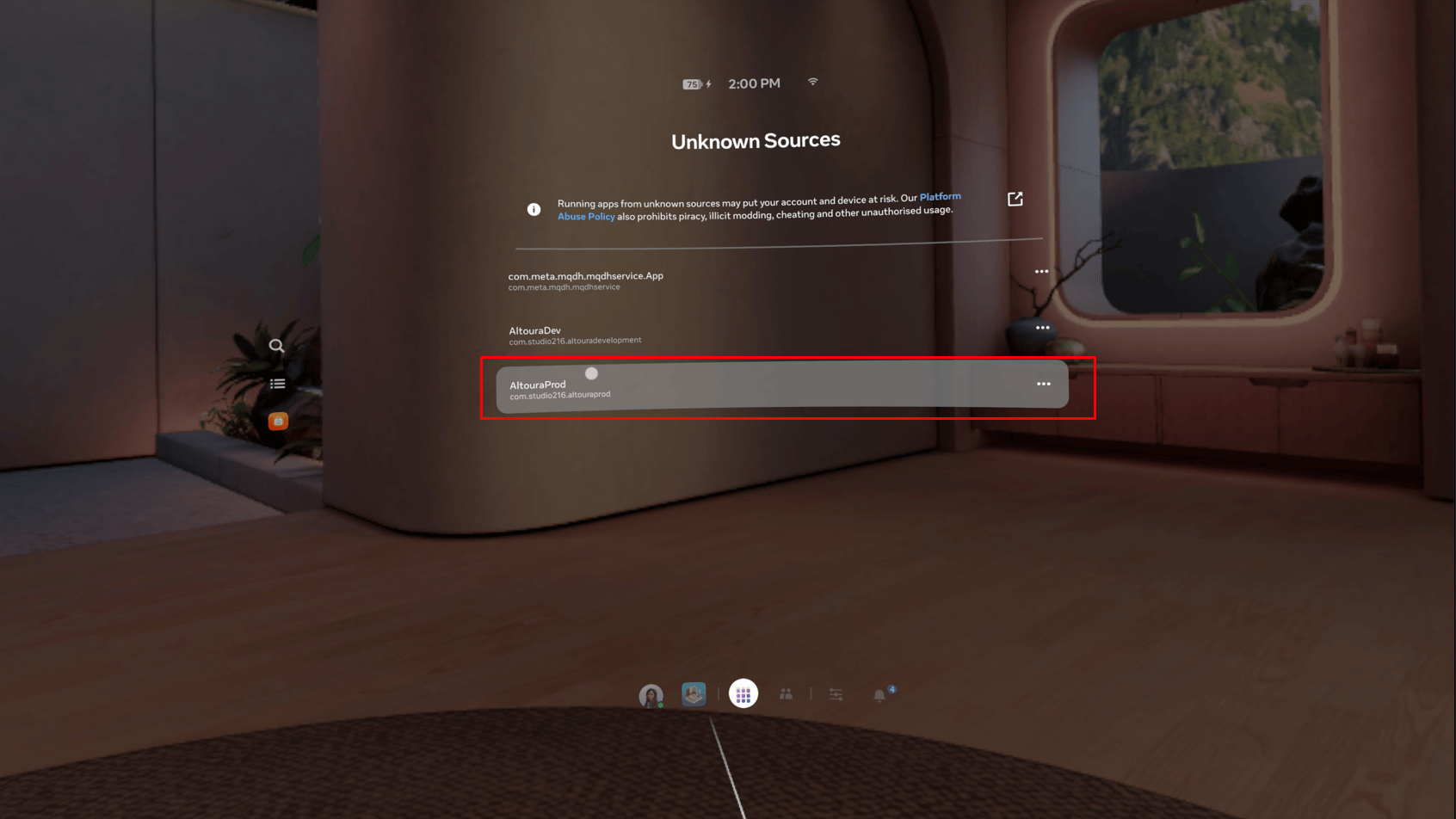
 4. Here, you’ll find all the apps you’ve sideloaded via SideQuest.
 **Step 6: Managing and Uninstalling Sideloaded Apps**
To uninstall sideloaded apps:
1. Open the Meta Horizon app on your smartphone.
2. Go to Menu > Devices > Manage Storage.
3. Select the app you wish to remove and click Uninstall.
This documentation is built and hosted on [Mintlify](https://mintlify.com), a developer documentation platform.
**Step 6: Managing and Uninstalling Sideloaded Apps**
To uninstall sideloaded apps:
1. Open the Meta Horizon app on your smartphone.
2. Go to Menu > Devices > Manage Storage.
3. Select the app you wish to remove and click Uninstall.
This documentation is built and hosted on [Mintlify](https://mintlify.com), a developer documentation platform.