> ## Documentation Index
> Fetch the complete documentation index at: https://docs.altoura.com/llms.txt
> Use this file to discover all available pages before exploring further.
# Passthrough
> See your real-world surroundings while interacting with training content on Meta Quest.
Passthrough lets you see your physical environment through the headset while a training is running. Instead of a fully virtual scene, the 3D training objects appear in your real space. This is useful for trainings that are meant to be performed alongside real-world equipment.
Passthrough is available on **Meta Quest only**. The checkbox does not appear on other devices.
## How Passthrough Works
Inside a training, Passthrough requires two things to be true at the same time:
1. **The scene must allow it** — the creator sets the scene's **Display Mode** to **Passthrough** when building the training.
2. **You must enable it** — check the **Passthrough** box in the App Information panel inside the Toolbelt menu.
If either condition is not met, you see the standard virtual environment.
Outside a training (for example, on the Training list), the checkbox alone turns Passthrough on or off.
In the current version of the Trainee Client, objects marked as **Environment object** in Scene Manager are **not** hidden when Passthrough is on. Any walls, floors or other scenery in the scene stay visible and block your view of the room behind them.
## For Trainees — Toggling Passthrough
Touch the tips of both index fingers together to form an **"A"** and hold briefly, or press and hold the **left** controller's menu button for 2 seconds.
Select the **user profile button** at the top-left of the Toolbelt to open the **App Information** panel.
Check or uncheck the **Passthrough** box to turn it on or off.
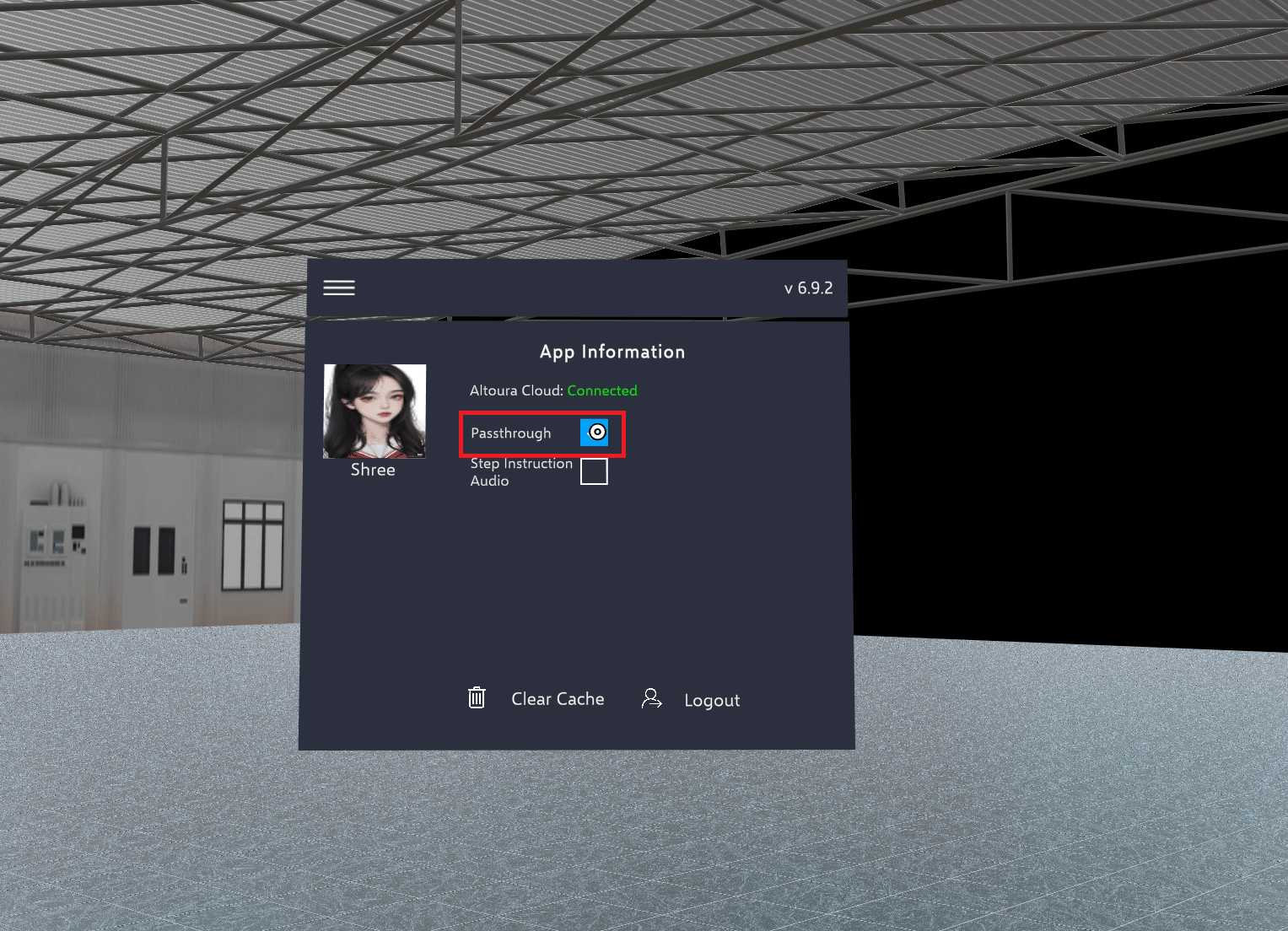 Your preference is saved locally on the device — the headset remembers your choice the next time you open the app. Logging out turns Passthrough off.
If the Passthrough checkbox has no effect inside a training, the current scene's Display Mode is not set to **Passthrough**. Ask your training creator to update the scene.
While you [adjust the anchor](/creator-studio/trainee-client/adjust-anchor), Passthrough turns on as a partly see-through overlay, whatever your setting, so you can line the scene up with your room. It goes back to your setting when you tap **Finish**.
***
## For Creators — Enabling Passthrough on a Scene
### Set the Display Mode in the Load Scene Action
In the **Creator App**, open your training and select the state that loads the scene. In its **On Entry** actions, open (or add) the **Load Scene** action. Set the **Display Mode** parameter to **Passthrough**.
Your preference is saved locally on the device — the headset remembers your choice the next time you open the app. Logging out turns Passthrough off.
If the Passthrough checkbox has no effect inside a training, the current scene's Display Mode is not set to **Passthrough**. Ask your training creator to update the scene.
While you [adjust the anchor](/creator-studio/trainee-client/adjust-anchor), Passthrough turns on as a partly see-through overlay, whatever your setting, so you can line the scene up with your room. It goes back to your setting when you tap **Finish**.
***
## For Creators — Enabling Passthrough on a Scene
### Set the Display Mode in the Load Scene Action
In the **Creator App**, open your training and select the state that loads the scene. In its **On Entry** actions, open (or add) the **Load Scene** action. Set the **Display Mode** parameter to **Passthrough**.
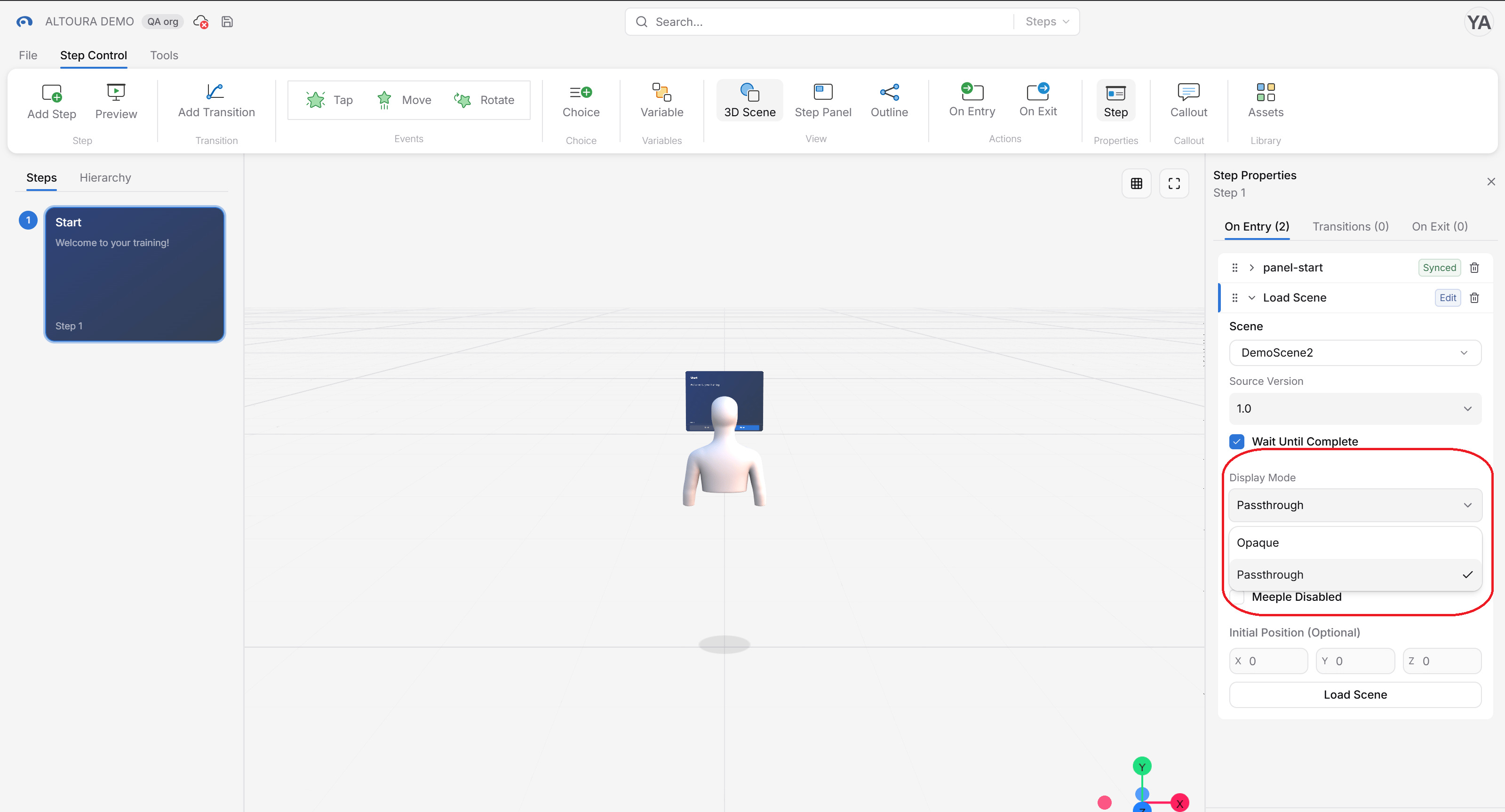 When a trainee reaches this state, the app reads the Display Mode from the action and enables passthrough if the trainee also has the checkbox turned on.
### Environment Objects
The Scene Manager has an **Environment object** checkbox in the **Settings** section of the ribbon bar.
When a trainee reaches this state, the app reads the Display Mode from the action and enables passthrough if the trainee also has the checkbox turned on.
### Environment Objects
The Scene Manager has an **Environment object** checkbox in the **Settings** section of the ribbon bar.
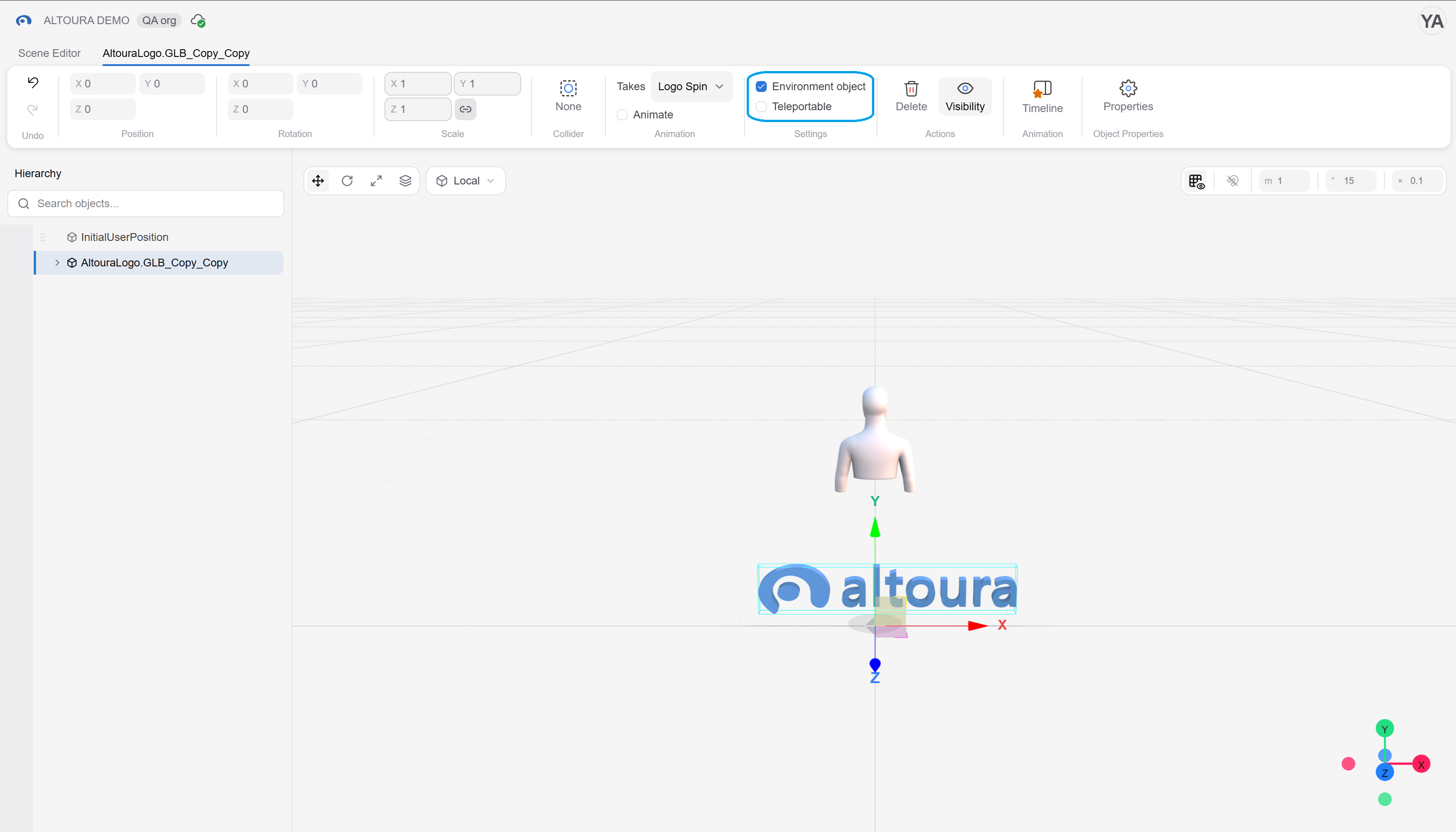 The Trainee Client does not hide Environment objects in Passthrough yet. If a scene is meant for Passthrough, leave out room geometry such as walls, ceilings and skyboxes that would block the trainee's view of the real room.
## Related
* [Load Scene Action](/creator-studio/creator-app/actions/load-scene) — the action where Display Mode is configured
* [Object Properties](/creator-studio/scene-manager/object-properties) — Scene Manager reference for the Environment object toggle
* [Toolbelt](/creator-studio/trainee-client/toolbelt) — other Toolbelt menu options
This documentation is built and hosted on [Mintlify](https://mintlify.com), a developer documentation platform.
The Trainee Client does not hide Environment objects in Passthrough yet. If a scene is meant for Passthrough, leave out room geometry such as walls, ceilings and skyboxes that would block the trainee's view of the real room.
## Related
* [Load Scene Action](/creator-studio/creator-app/actions/load-scene) — the action where Display Mode is configured
* [Object Properties](/creator-studio/scene-manager/object-properties) — Scene Manager reference for the Environment object toggle
* [Toolbelt](/creator-studio/trainee-client/toolbelt) — other Toolbelt menu options
This documentation is built and hosted on [Mintlify](https://mintlify.com), a developer documentation platform.