> ## Documentation Index
> Fetch the complete documentation index at: https://docs.altoura.com/llms.txt
> Use this file to discover all available pages before exploring further.
# Self Teleport
> Move around the training scene with a hand gesture or your controllers on Meta Quest and HTC Vive.
Self Teleport lets you move to a different spot in the training scene without physically walking there. By default you can teleport to the floor. If the training creator has marked certain objects as **Teleportable**, you can also teleport on top of those objects. The spot you land on must be roughly flat.
Some trainings may disable self-teleport on specific steps. If the teleport arc does not appear, the creator has turned it off for that step. See [Disable Self Teleport](/creator-studio/trainee-client/disable-self-teleport).
## Teleporting
**With hand tracking** (either hand):
1. Hold your palm facing up, with the thumb and index finger sticking outwards and the other fingers curled.
2. While holding the gesture, an arc appears leading to the landing spot — shown as a circle on the surface.
3. Curl back your index finger to complete the teleport. Open your hand instead to cancel.
The gesture doesn't work while your hand is close to an object you can interact with.
**With controllers** (either controller):
1. Push the **joystick forward**.
2. Aim the arc at the location you want to move to — a circle on the surface shows the landing spot.
3. Release the joystick to complete the teleport.
**With controllers** (either controller):
1. Push forward on the **trackpad**.
2. Aim the arc at the location you want to move to — a circle on the surface shows the landing spot.
3. Release the trackpad to complete the teleport.
## Turning and Stepping Back
With controllers, the same joystick (Meta Quest) or trackpad (HTC Vive) also lets you:
* **Turn:** push left or right to turn 90° in that direction.
* **Step back:** pull back to step a short distance backwards.
## Height After Teleporting
When you teleport, your view is set to the height of the surface you land on. Any height you set with [Height Adjustment](/creator-studio/trainee-client/height-adjustment) is reset.
## When the Training Moves You
A Training can also move you itself, for example to put you in front of the equipment for the next step. This happens instantly, with no fade. You can also start a Training, or a new scene, at a spot the creator has chosen.
***
## For Creators — Making Objects Teleportable
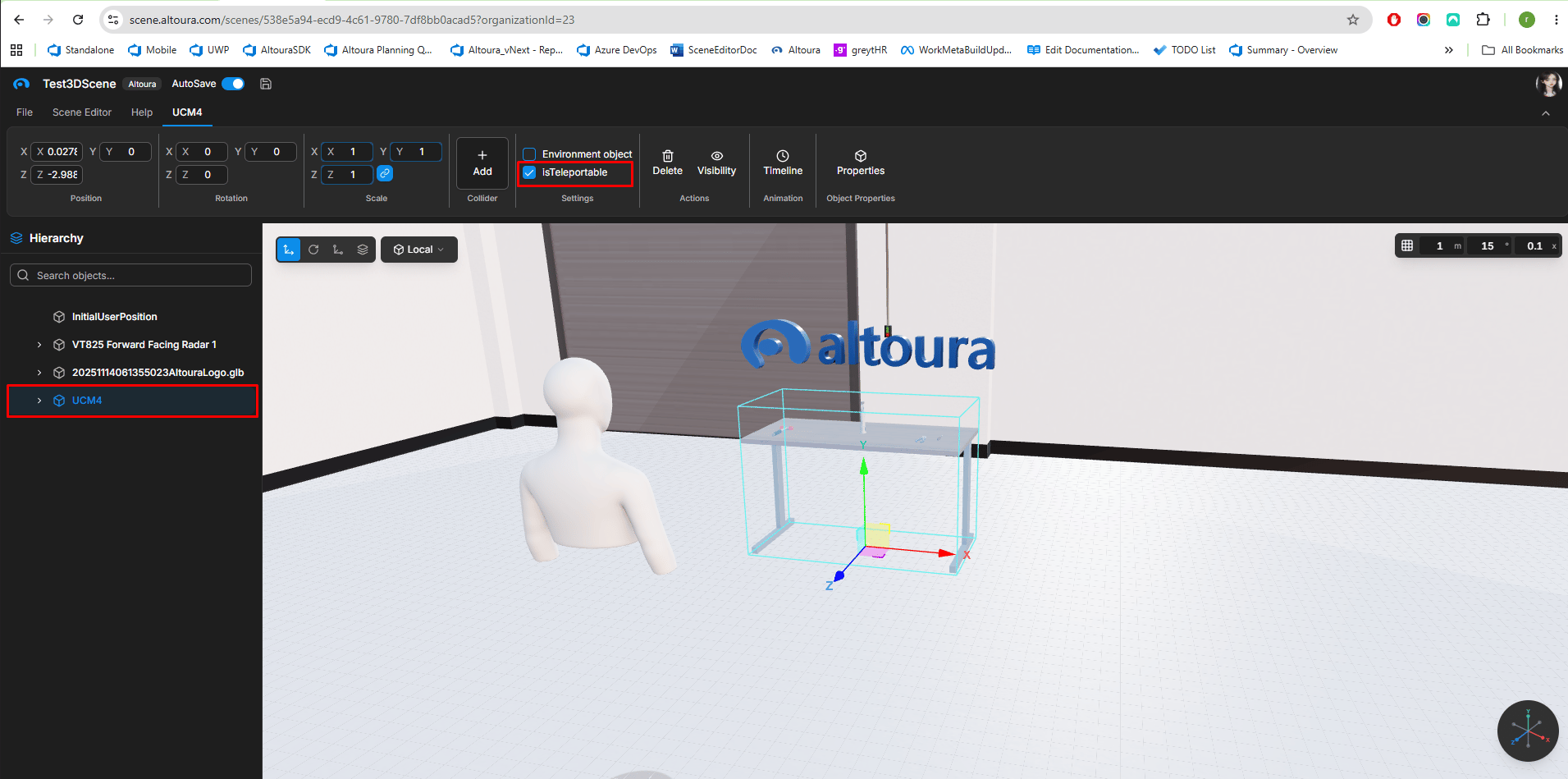
By default, trainees can only teleport to the floor. To let them teleport on top of an object (such as a platform, walkway, or elevated surface), mark it as **Teleportable** in Scene Manager.
In the **Scene Manager**, select the object in the **Hierarchy** panel and enable the **Teleportable** checkbox (shown as **IsTeleportable** in some versions) in the **Settings** section of the ribbon bar.
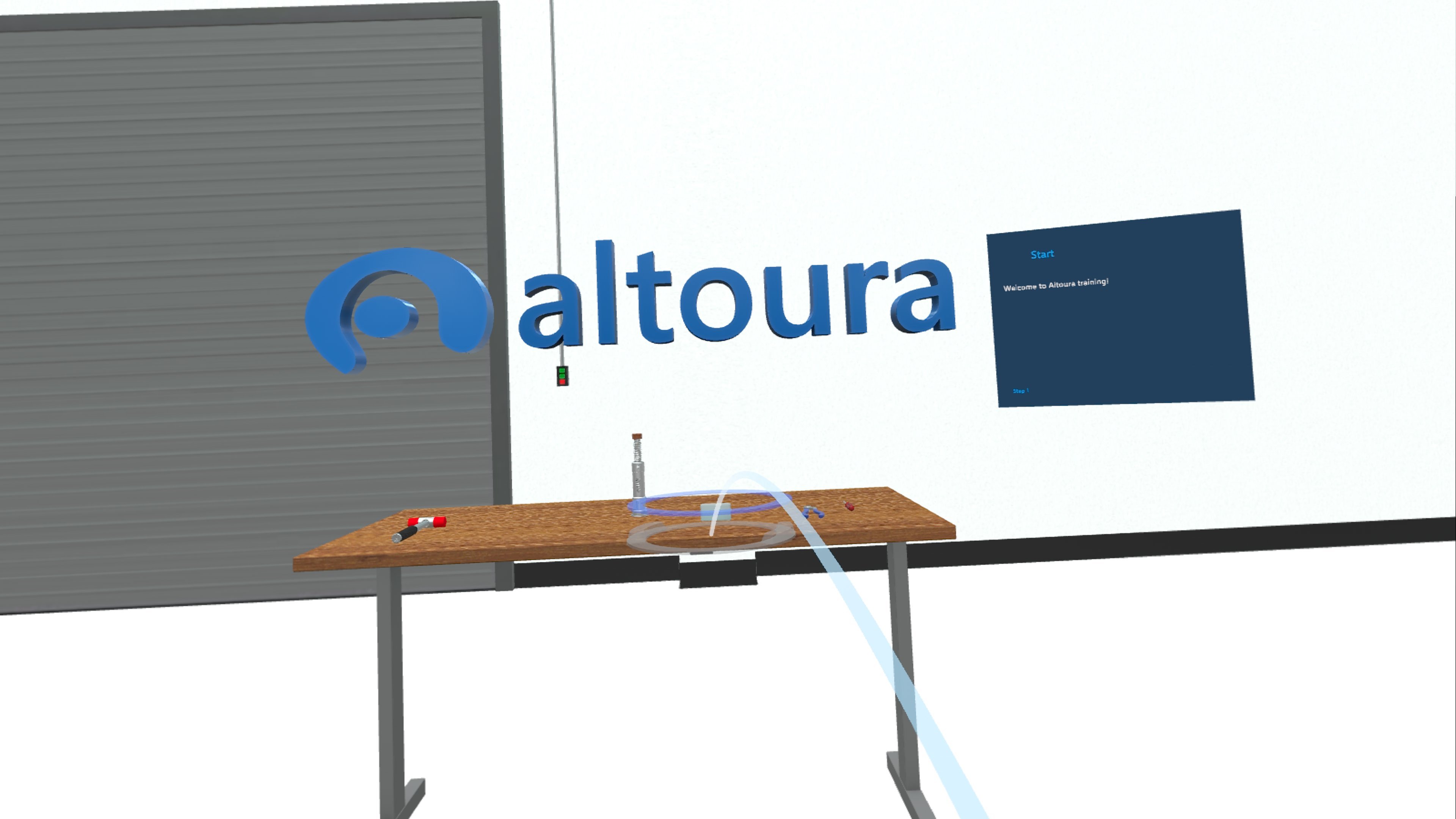
When a trainee aims the teleport arc at a Teleportable object, the landing circle appears on its surface and they can teleport onto it.
To move the trainee yourself, see [Teleport User To](/creator-studio/creator-app/actions/teleport-user). To choose where the trainee starts in a scene, set **Initial Position** in the [Load Scene](/creator-studio/creator-app/actions/load-scene) action.
## Related
* [Object Properties](/creator-studio/scene-manager/object-properties) — Scene Manager reference for the Teleportable toggle
* [Disable Self Teleport](/creator-studio/trainee-client/disable-self-teleport) — when a Training turns Self Teleport off
* [Height Adjustment](/creator-studio/trainee-client/height-adjustment)
* [Controls](/creator-studio/trainee-client/controls) — all buttons and gestures
This documentation is built and hosted on [Mintlify](https://mintlify.com), a developer documentation platform.
 When a trainee aims the teleport arc at a Teleportable object, the landing circle appears on its surface and they can teleport onto it.
 To move the trainee yourself, see [Teleport User To](/creator-studio/creator-app/actions/teleport-user). To choose where the trainee starts in a scene, set **Initial Position** in the [Load Scene](/creator-studio/creator-app/actions/load-scene) action.
## Related
* [Object Properties](/creator-studio/scene-manager/object-properties) — Scene Manager reference for the Teleportable toggle
* [Disable Self Teleport](/creator-studio/trainee-client/disable-self-teleport) — when a Training turns Self Teleport off
* [Height Adjustment](/creator-studio/trainee-client/height-adjustment)
* [Controls](/creator-studio/trainee-client/controls) — all buttons and gestures
This documentation is built and hosted on [Mintlify](https://mintlify.com), a developer documentation platform.
To move the trainee yourself, see [Teleport User To](/creator-studio/creator-app/actions/teleport-user). To choose where the trainee starts in a scene, set **Initial Position** in the [Load Scene](/creator-studio/creator-app/actions/load-scene) action.
## Related
* [Object Properties](/creator-studio/scene-manager/object-properties) — Scene Manager reference for the Teleportable toggle
* [Disable Self Teleport](/creator-studio/trainee-client/disable-self-teleport) — when a Training turns Self Teleport off
* [Height Adjustment](/creator-studio/trainee-client/height-adjustment)
* [Controls](/creator-studio/trainee-client/controls) — all buttons and gestures
This documentation is built and hosted on [Mintlify](https://mintlify.com), a developer documentation platform.