> ## Documentation Index
> Fetch the complete documentation index at: https://docs.altoura.com/llms.txt
> Use this file to discover all available pages before exploring further.
# Tether Line Color
> The color of the line that leads from the step panel to the object the step is about.
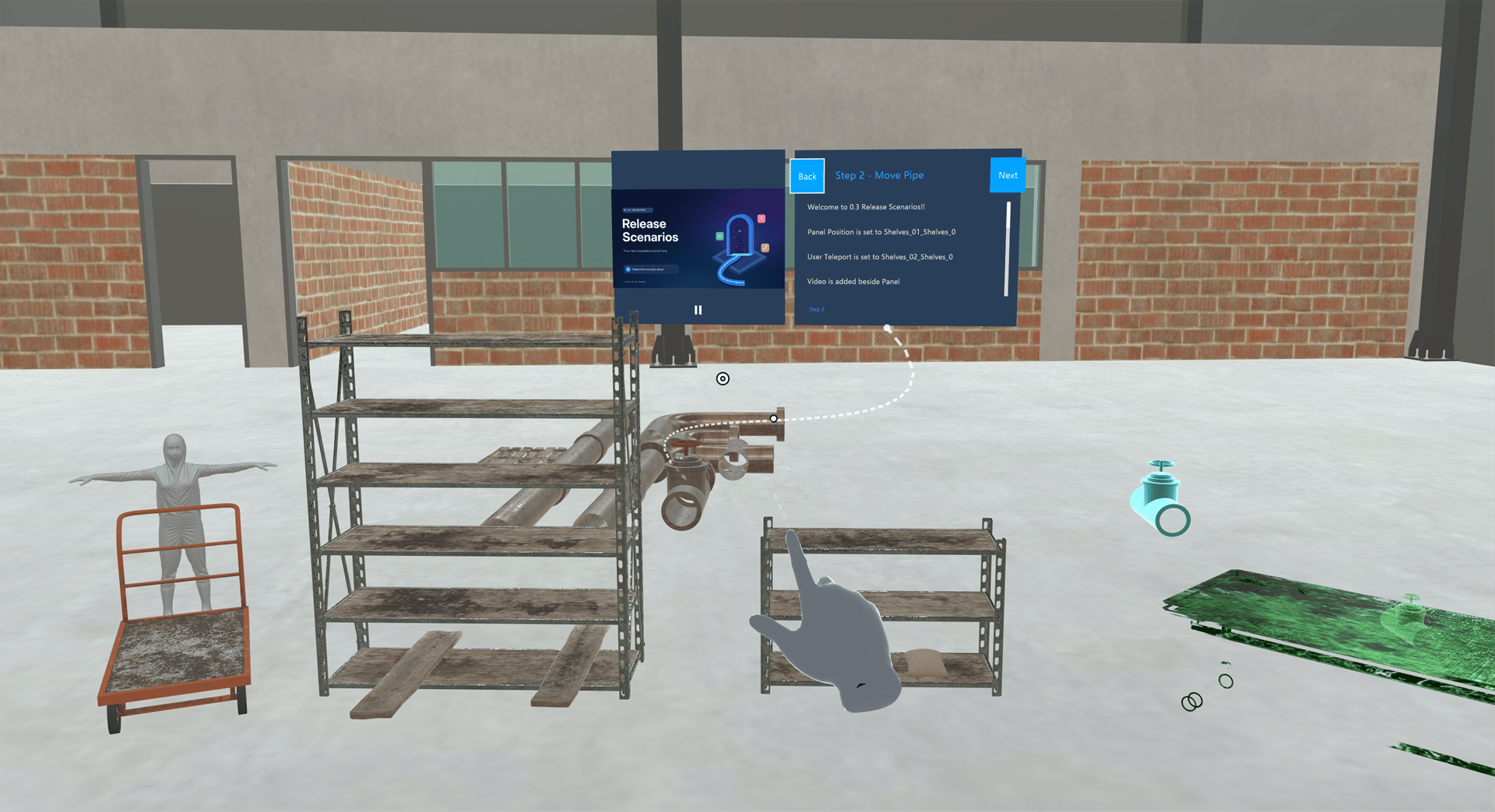
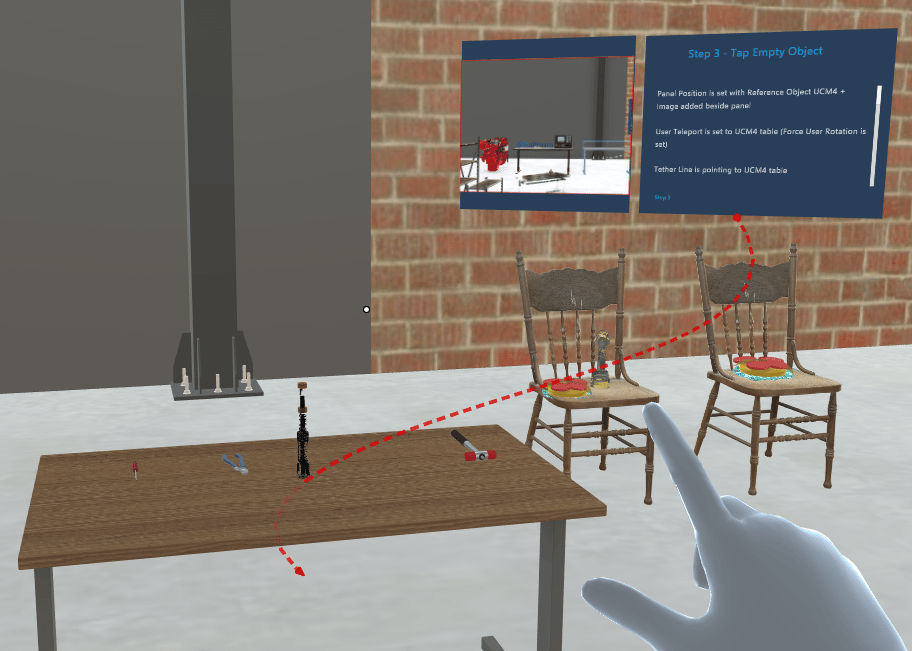
When a step is about a particular object, a moving dashed **tether line** with an arrow leads from the bottom of the step panel (or multiple-choice panel) to that object, so you can find it. A Training can change the color of the tether line, for example so it stands out against the scene.
The tether line is **white** by default. It's always slightly see-through, and any part of the line behind another object appears fainter.
 ## When You See the Tether Line
* The tether line appears only when the step panel points to an object. It can appear on any kind of step.
* It disappears when the step panel is hidden.
* It's never shown in [Assessment mode](/creator-studio/trainee-client/assessment-mode).
## How Long the Color Lasts
Once the Training changes the color, the tether line keeps it on every later step, until the Training sets it back to white.
* If you go **Back**, use [Reset Step](/creator-studio/trainee-client/reset-step), use **Restart Training** or resume the Training, the tether line uses the color the Training has set at that point.
* When you close the Training, the color goes back to white.
***
## For Creators
To change the tether line color in a Training, see [Set Tether Line Color & Reset Tether Line Color](/creator-studio/creator-app/actions/tether-line-color).
## Related
* [Hand Animation Color](/creator-studio/trainee-client/hand-animation-color): the guide hands that show a tap or grab
* [Instruction Animation Color](/creator-studio/trainee-client/instruction-animation-color): the ghost that shows a move or rotation
This documentation is built and hosted on [Mintlify](https://mintlify.com), a developer documentation platform.
## When You See the Tether Line
* The tether line appears only when the step panel points to an object. It can appear on any kind of step.
* It disappears when the step panel is hidden.
* It's never shown in [Assessment mode](/creator-studio/trainee-client/assessment-mode).
## How Long the Color Lasts
Once the Training changes the color, the tether line keeps it on every later step, until the Training sets it back to white.
* If you go **Back**, use [Reset Step](/creator-studio/trainee-client/reset-step), use **Restart Training** or resume the Training, the tether line uses the color the Training has set at that point.
* When you close the Training, the color goes back to white.
***
## For Creators
To change the tether line color in a Training, see [Set Tether Line Color & Reset Tether Line Color](/creator-studio/creator-app/actions/tether-line-color).
## Related
* [Hand Animation Color](/creator-studio/trainee-client/hand-animation-color): the guide hands that show a tap or grab
* [Instruction Animation Color](/creator-studio/trainee-client/instruction-animation-color): the ghost that shows a move or rotation
This documentation is built and hosted on [Mintlify](https://mintlify.com), a developer documentation platform.