> ## Documentation Index
> Fetch the complete documentation index at: https://docs.altoura.com/llms.txt
> Use this file to discover all available pages before exploring further.
# Time Limit
> Complete steps before a countdown timer runs out.
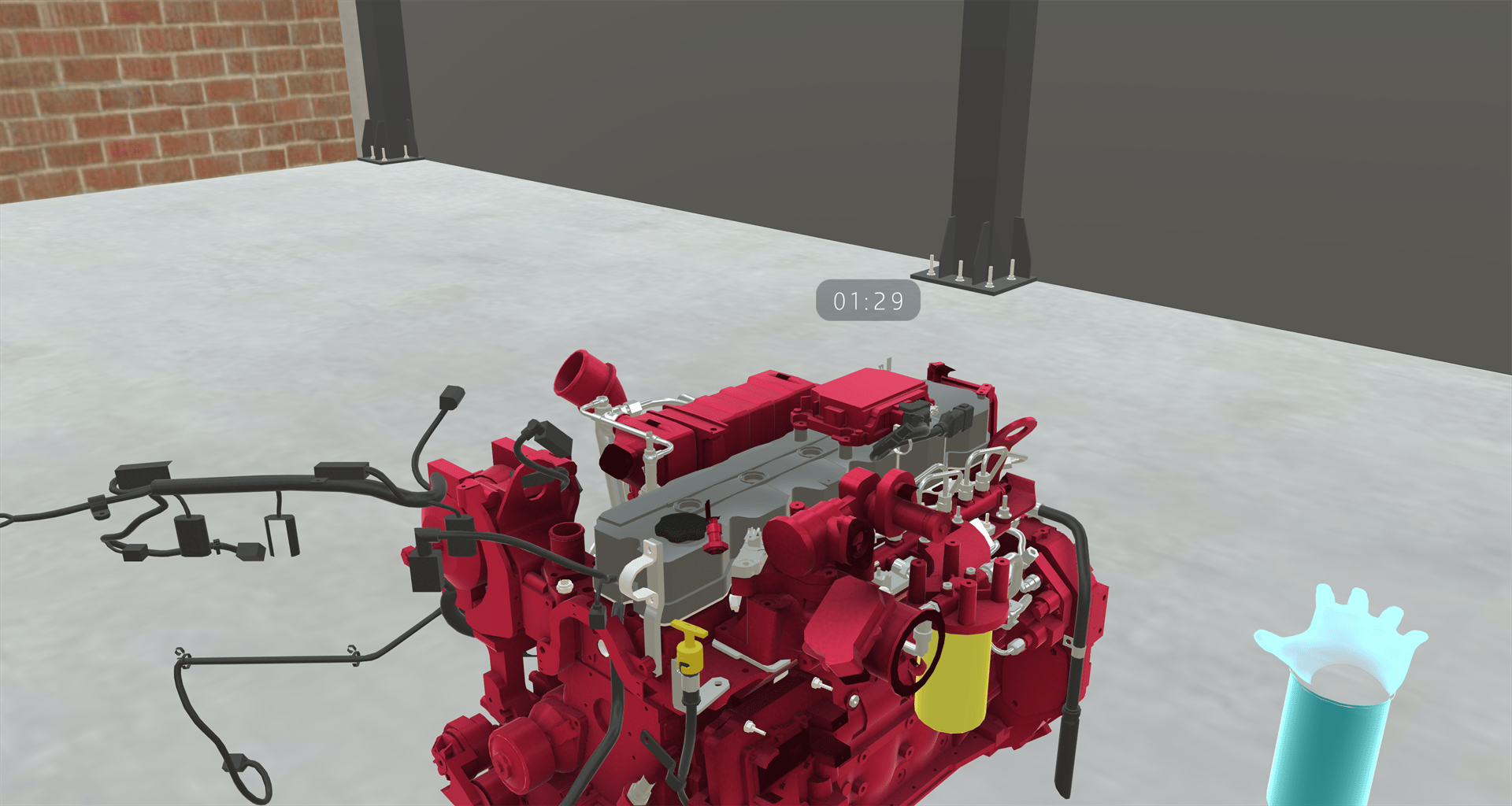
Some Trainings give you a set amount of time to complete one or more steps. When a time limit starts, a countdown timer appears in your view.
## The Timer
The timer shows the time left in minutes and seconds (for example, **00:45**) and counts down to **00:00**. It floats just above and to the right of the center of your view, and follows your head so it's always visible.
 The timer pauses whenever the Training is paused, for example while an alert is open. It keeps counting down while the Training loads a new scene.
## When Time Runs Out
When the timer reaches **00:00**:
* The Training pauses.
* A red tint appears around the edges of your view, and an error sound plays.
* An alert shows a message from the Training, with an **Okay** button.
* **Next** is hidden and **Back** can't be pressed. You can't interact with training objects, and any step video pauses.
The timer pauses whenever the Training is paused, for example while an alert is open. It keeps counting down while the Training loads a new scene.
## When Time Runs Out
When the timer reaches **00:00**:
* The Training pauses.
* A red tint appears around the edges of your view, and an error sound plays.
* An alert shows a message from the Training, with an **Okay** button.
* **Next** is hidden and **Back** can't be pressed. You can't interact with training objects, and any step video pauses.
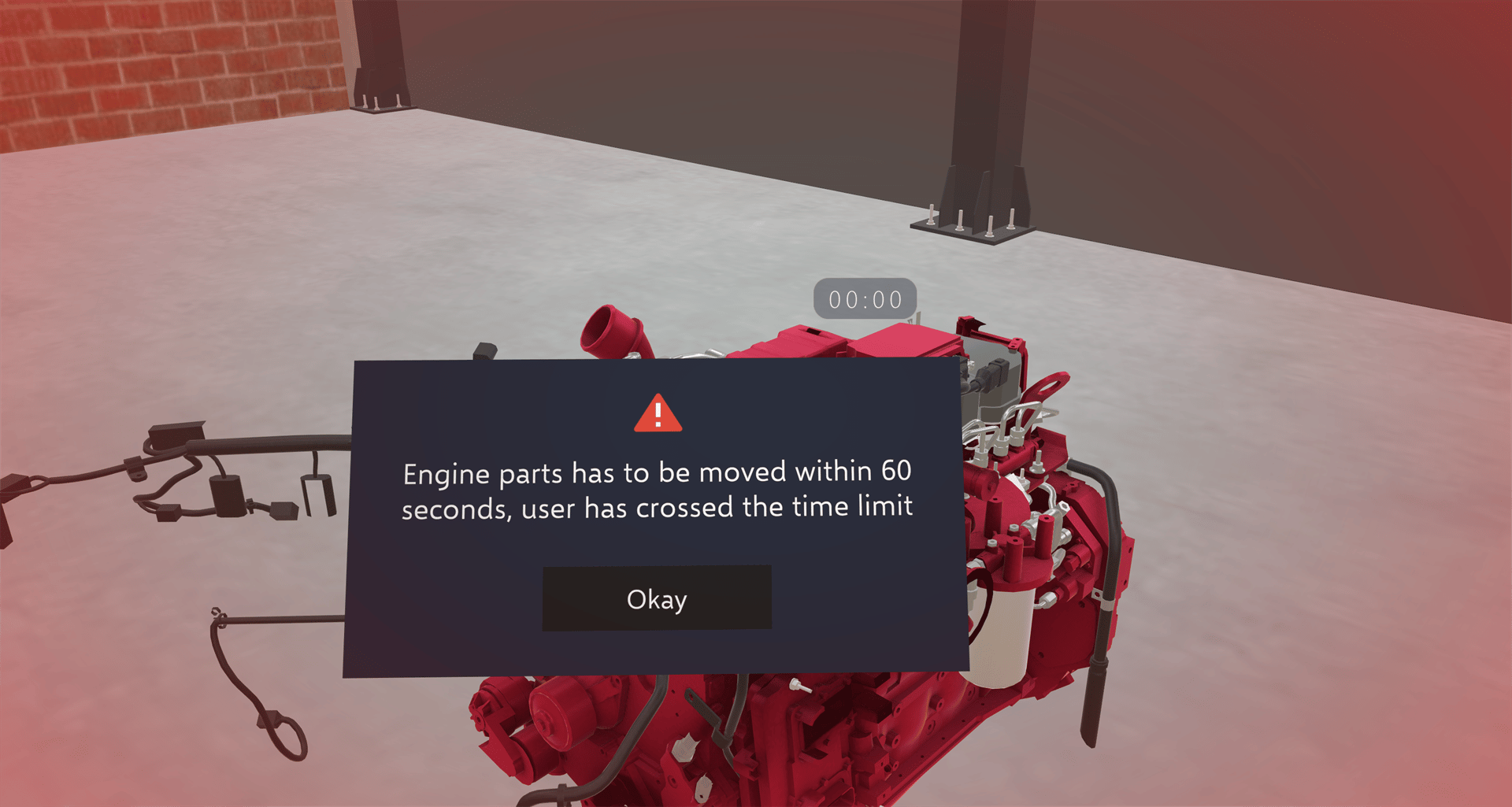 Tap **Okay**. What happens next depends on how the Training is set up:
| Setting | What happens |
| - | - |
| **Let user continue** | The Training carries on from where you are. The timer stays at 00:00. |
| **Restart step** | The Training goes back to the step where the timer started, and the timer starts again from the full time. |
| **Restart training** | The Training starts again from the beginning. |
## Resetting and Going Back
* [Reset Step](/creator-studio/trainee-client/reset-step) keeps the time left when the step uses the same timer. It does not give you more time on that timer.
* Going **Back** a step also keeps the time left on the same timer. Going back before that timer started removes it until you reach its starting step again.
* **Restart Training** starts the Training over. Each timer starts at its full time when you reach the step that starts it.
* Resuming a saved Training restores the timer's saved remaining time.
The **Restart step** response to a time-up alert is different from Reset Step: it returns you to the step where the timer started and gives you the full time again.
***
## For Creators
To add a time limit to a Training, see [Set Time Limit & Remove Time Limit](/creator-studio/creator-app/actions/set-remove-time-limit).
## Related
* [Speed Tracking](/creator-studio/trainee-client/speed-tracking): uses the same alert and outcomes
This documentation is built and hosted on [Mintlify](https://mintlify.com), a developer documentation platform.
Tap **Okay**. What happens next depends on how the Training is set up:
| Setting | What happens |
| - | - |
| **Let user continue** | The Training carries on from where you are. The timer stays at 00:00. |
| **Restart step** | The Training goes back to the step where the timer started, and the timer starts again from the full time. |
| **Restart training** | The Training starts again from the beginning. |
## Resetting and Going Back
* [Reset Step](/creator-studio/trainee-client/reset-step) keeps the time left when the step uses the same timer. It does not give you more time on that timer.
* Going **Back** a step also keeps the time left on the same timer. Going back before that timer started removes it until you reach its starting step again.
* **Restart Training** starts the Training over. Each timer starts at its full time when you reach the step that starts it.
* Resuming a saved Training restores the timer's saved remaining time.
The **Restart step** response to a time-up alert is different from Reset Step: it returns you to the step where the timer started and gives you the full time again.
***
## For Creators
To add a time limit to a Training, see [Set Time Limit & Remove Time Limit](/creator-studio/creator-app/actions/set-remove-time-limit).
## Related
* [Speed Tracking](/creator-studio/trainee-client/speed-tracking): uses the same alert and outcomes
This documentation is built and hosted on [Mintlify](https://mintlify.com), a developer documentation platform.