> ## Documentation Index
> Fetch the complete documentation index at: https://docs.altoura.com/llms.txt
> Use this file to discover all available pages before exploring further.
# Toolbelt Menu
> Browse Trainings, restart or close a Training, and manage your profile and app settings from the Toolbelt menu on Meta Quest and HTC Vive.
The Toolbelt menu is where you pick a Training, restart or close the Training you're in, and manage your user profile and app settings.
## Show/Hide the Toolbelt menu
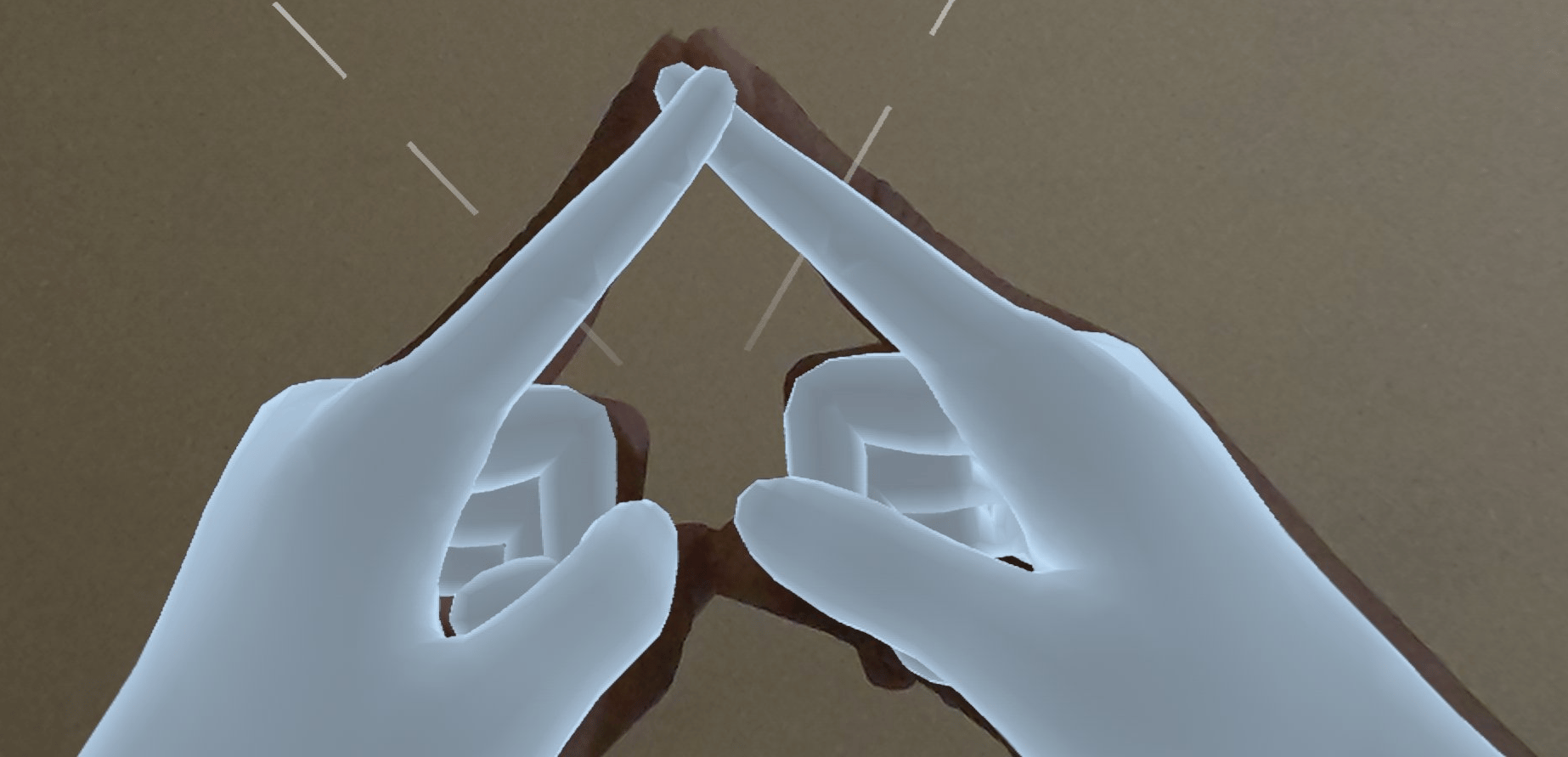
**Hands:** use the 'A' hand gesture. Touch the tips of both index fingers together to form an "A" and hold briefly. It can take a second or two for the menu to respond.
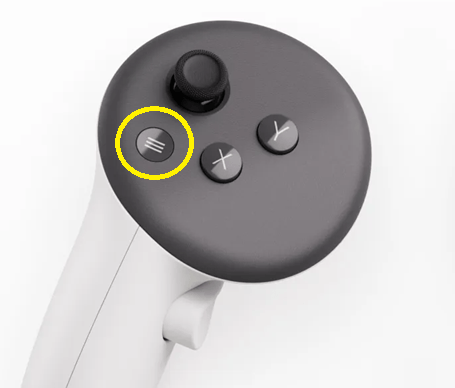
 **Controllers:** press and hold the **menu button** on the **left** controller for 2 seconds. The right controller doesn't open the menu.
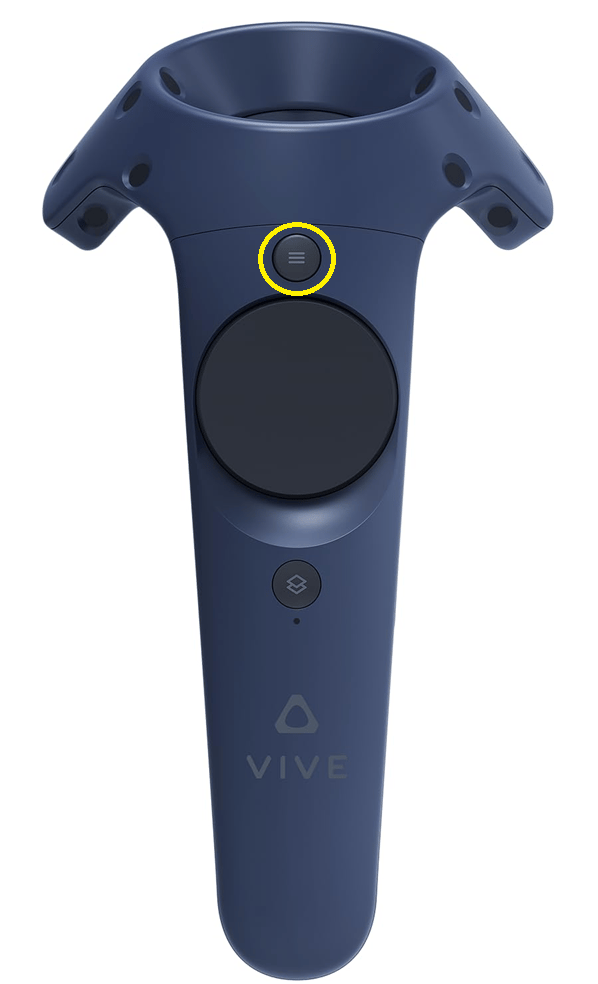
 Press and hold the **menu button** (above the trackpad) on either controller for 2 seconds.
 On both headsets:
1. If the menu is hidden, it appears in front of you.
2. If the menu is already visible and within your field of view (FOV), it hides.
3. If the menu is visible but outside your FOV, the first gesture or button hold moves it in front of you. Do it again to hide it.
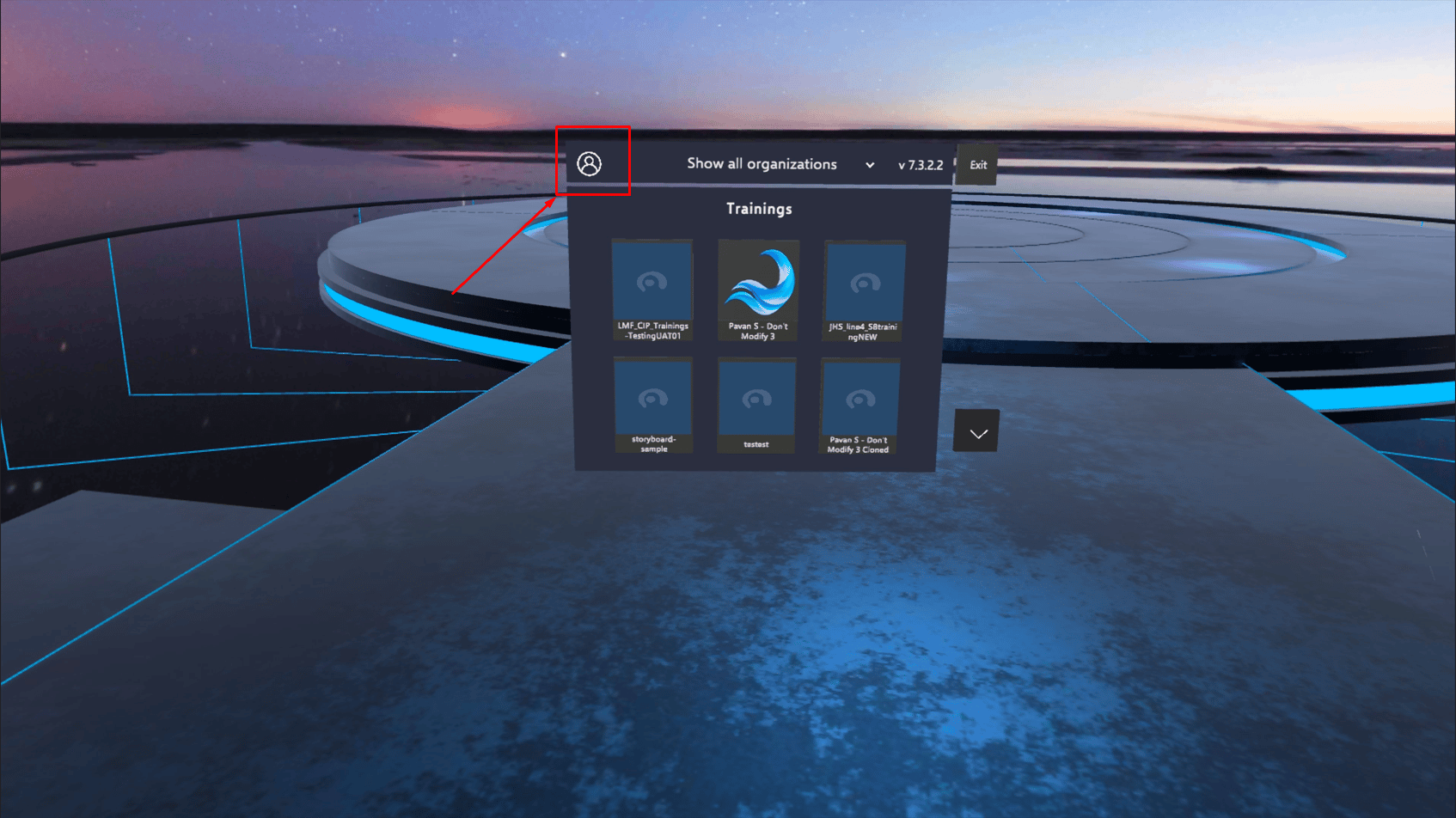
The top bar of the Toolbelt menu always shows the app version (for example, **v 7.3.2.2**).
## Training list
Outside a Training, the Toolbelt menu shows the Training list, six Trainings at a time. Use the up and down arrows to see more, and the **Show all organizations** dropdown to filter by organization. If you have access to both **Altoura Trainings** and **Altoura Classic** (Projects), the **Exit** button (top right) takes you back to the Module Selection screen.
Tap on a Training to load it. See [Getting Started](/creator-studio/trainee-client/getting-started) for details.
On both headsets:
1. If the menu is hidden, it appears in front of you.
2. If the menu is already visible and within your field of view (FOV), it hides.
3. If the menu is visible but outside your FOV, the first gesture or button hold moves it in front of you. Do it again to hide it.
The top bar of the Toolbelt menu always shows the app version (for example, **v 7.3.2.2**).
## Training list
Outside a Training, the Toolbelt menu shows the Training list, six Trainings at a time. Use the up and down arrows to see more, and the **Show all organizations** dropdown to filter by organization. If you have access to both **Altoura Trainings** and **Altoura Classic** (Projects), the **Exit** button (top right) takes you back to the Module Selection screen.
Tap on a Training to load it. See [Getting Started](/creator-studio/trainee-client/getting-started) for details.
 ## Training Settings
Inside a Training, the Toolbelt menu shows the **Training Settings** panel instead of the Training list. It appears in front of you, then moves to your right side after a moment.
## Training Settings
Inside a Training, the Toolbelt menu shows the **Training Settings** panel instead of the Training list. It appears in front of you, then moves to your right side after a moment.
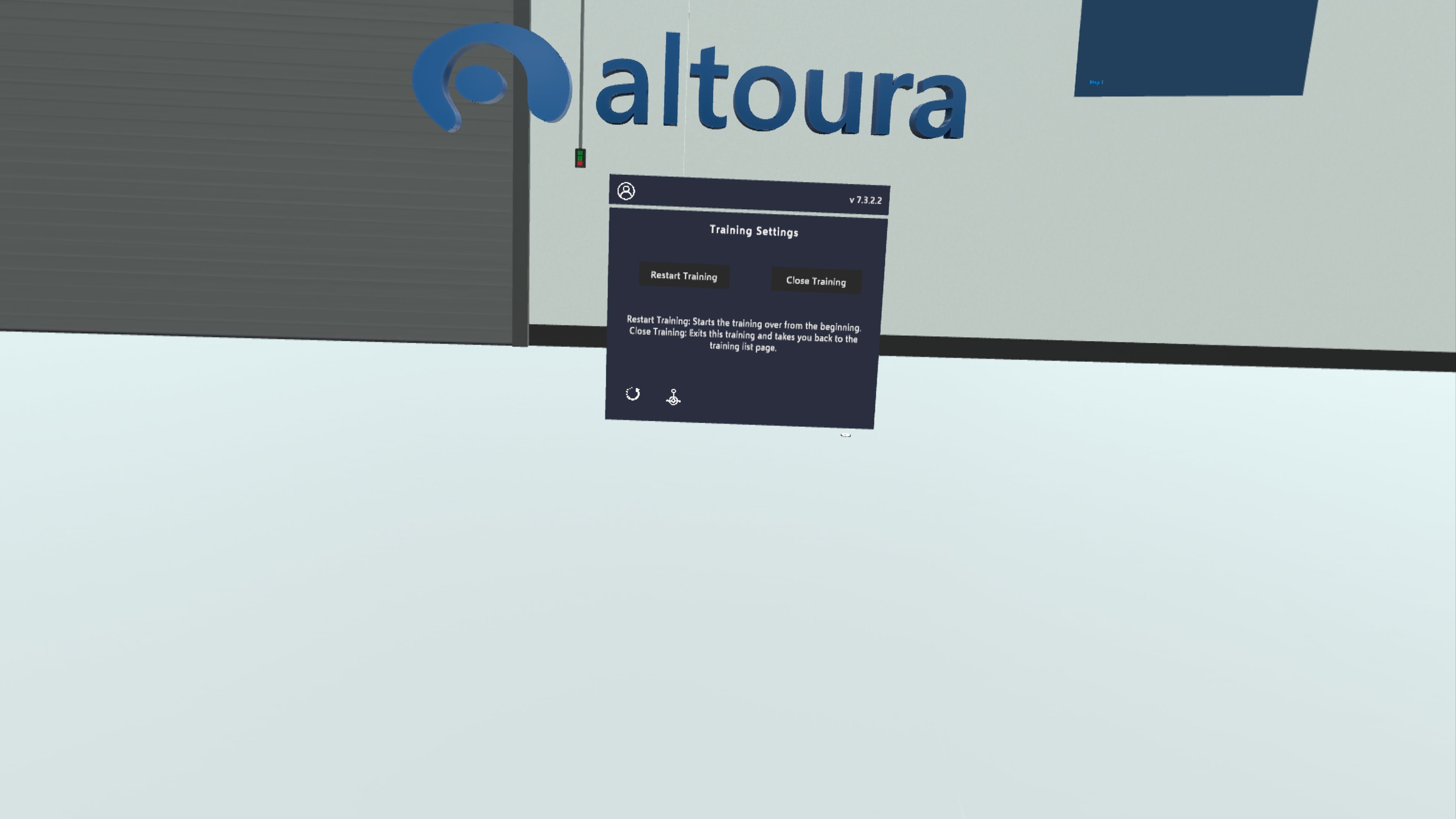 * **Restart Training:** Restarts the entire Training from the first state. There's no confirmation. The Training restarts in the same mode (Practice or Assessment) you chose.
* **Close Training:** Exits the Training and takes you back to the Training list. The app first asks **"Are you sure you want to close this experience?"** Tap **Yes** to close the Training, or **No** to stay in it.
The bottom of the panel has two icons:
* **Reset Step** (bottom left): puts the current step back to how it was when you reached it. See [Reset Step](/creator-studio/trainee-client/reset-step).
* **Anchor** (next to it): opens the **Reset Anchor** and **Adjust Anchor** options. See [Adjust Anchor](/creator-studio/trainee-client/adjust-anchor).
## User Profile
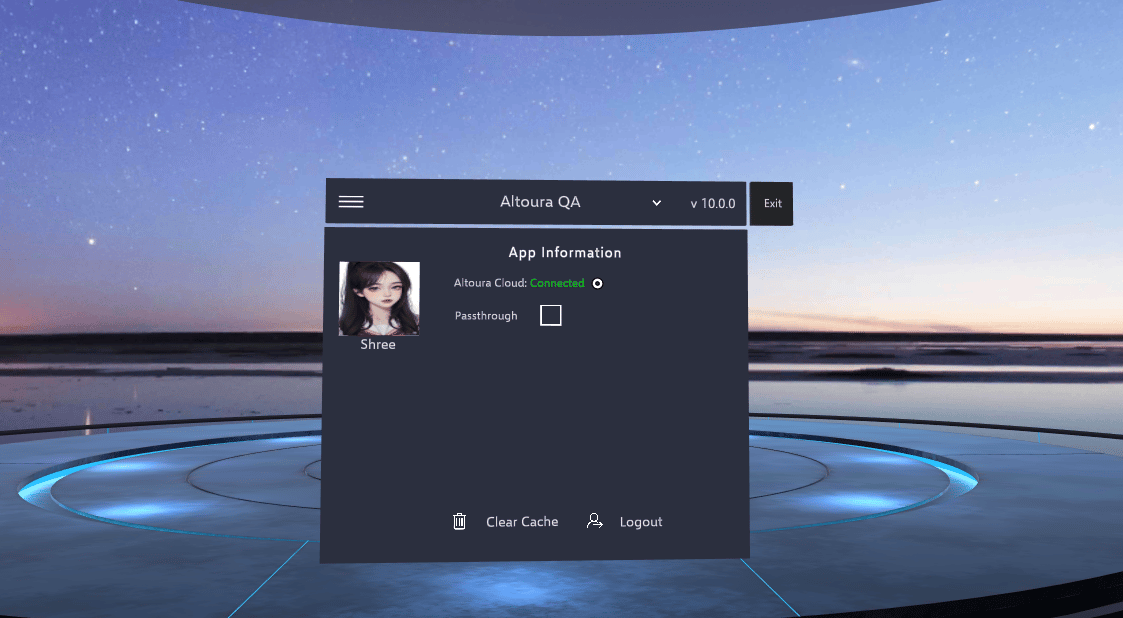
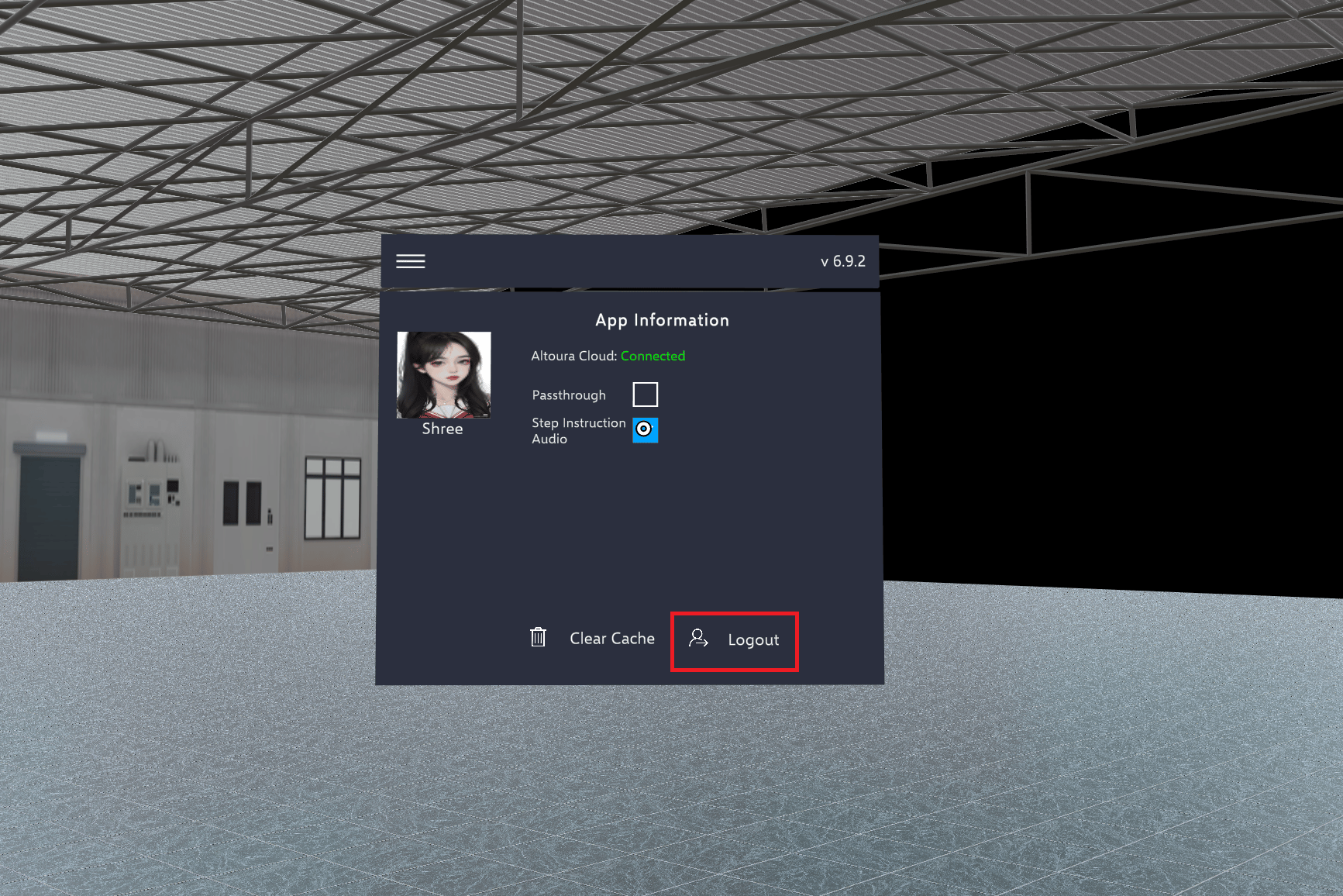
Tap on the user profile button in the top left corner of the Toolbelt menu to open the User Profile screen (App Information panel). It shows your profile picture and name along with the options below.
* **Restart Training:** Restarts the entire Training from the first state. There's no confirmation. The Training restarts in the same mode (Practice or Assessment) you chose.
* **Close Training:** Exits the Training and takes you back to the Training list. The app first asks **"Are you sure you want to close this experience?"** Tap **Yes** to close the Training, or **No** to stay in it.
The bottom of the panel has two icons:
* **Reset Step** (bottom left): puts the current step back to how it was when you reached it. See [Reset Step](/creator-studio/trainee-client/reset-step).
* **Anchor** (next to it): opens the **Reset Anchor** and **Adjust Anchor** options. See [Adjust Anchor](/creator-studio/trainee-client/adjust-anchor).
## User Profile
Tap on the user profile button in the top left corner of the Toolbelt menu to open the User Profile screen (App Information panel). It shows your profile picture and name along with the options below.
 ### Altoura Cloud
Shows whether the app can reach Altoura Cloud. The app checks every few seconds:
* **Checking...**: the first check hasn't finished yet.
* **Connected** (in green): the headset can reach Altoura and load your Trainings.
* **Not Connected** (in red): Altoura didn't answer in time. This can mean there's no internet connection, or that the connection is slow.
### Passthrough
Passthrough is available on Meta Quest only. The checkbox doesn't appear on HTC Vive.
Check the **Passthrough** box to see your real-world surroundings while a Training is running. Inside a Training, Passthrough only takes effect in scenes that allow it. Outside a Training, the checkbox alone turns Passthrough on or off. The headset remembers your choice, but logging out turns it off. See [Passthrough](/creator-studio/trainee-client/quest/passthrough) for details.
### Step Instruction Audio
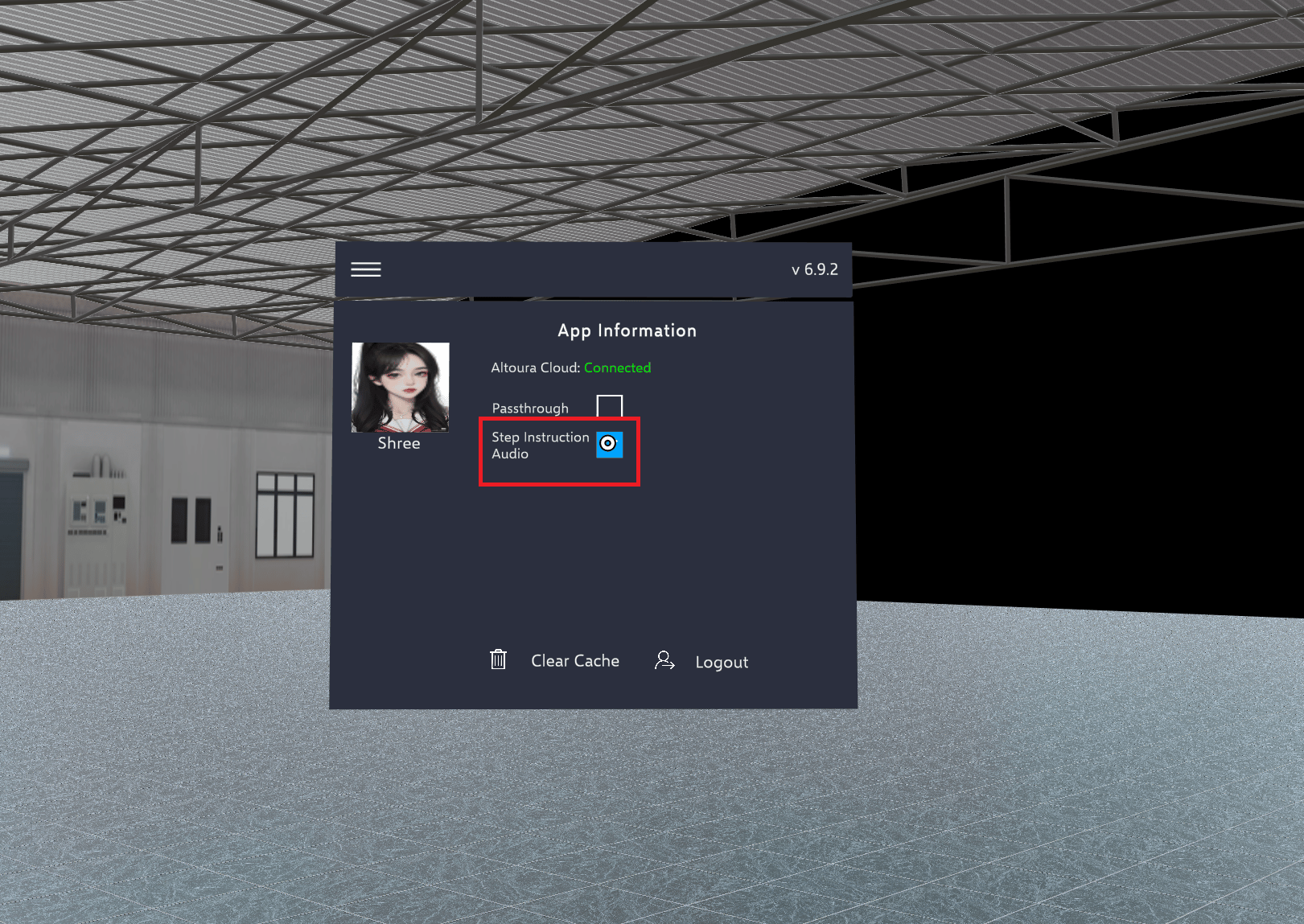
The **Step Instruction Audio** checkbox appears only when a Training is open, and only if your role in the Training's organization is **Altoura Admin**, **Org Admin** or **Portal Access**. It's hidden for **App Access** and **Project Access** users.
When checked (the default), the audio narration plays for each step, and the **Next** button appears only after the audio finishes.
Uncheck **Step Instruction Audio** to turn off the step audio. The **Next** button is then visible immediately, so creators can move through the states of a Training quickly while reviewing it. The change applies from the next step; audio that is already playing isn't stopped.
The setting goes back to checked when you close the Training or log out. Restarting the Training doesn't change it.
### Altoura Cloud
Shows whether the app can reach Altoura Cloud. The app checks every few seconds:
* **Checking...**: the first check hasn't finished yet.
* **Connected** (in green): the headset can reach Altoura and load your Trainings.
* **Not Connected** (in red): Altoura didn't answer in time. This can mean there's no internet connection, or that the connection is slow.
### Passthrough
Passthrough is available on Meta Quest only. The checkbox doesn't appear on HTC Vive.
Check the **Passthrough** box to see your real-world surroundings while a Training is running. Inside a Training, Passthrough only takes effect in scenes that allow it. Outside a Training, the checkbox alone turns Passthrough on or off. The headset remembers your choice, but logging out turns it off. See [Passthrough](/creator-studio/trainee-client/quest/passthrough) for details.
### Step Instruction Audio
The **Step Instruction Audio** checkbox appears only when a Training is open, and only if your role in the Training's organization is **Altoura Admin**, **Org Admin** or **Portal Access**. It's hidden for **App Access** and **Project Access** users.
When checked (the default), the audio narration plays for each step, and the **Next** button appears only after the audio finishes.
Uncheck **Step Instruction Audio** to turn off the step audio. The **Next** button is then visible immediately, so creators can move through the states of a Training quickly while reviewing it. The change applies from the next step; audio that is already playing isn't stopped.
The setting goes back to checked when you close the Training or log out. Restarting the Training doesn't change it.
 ### Clear Cache
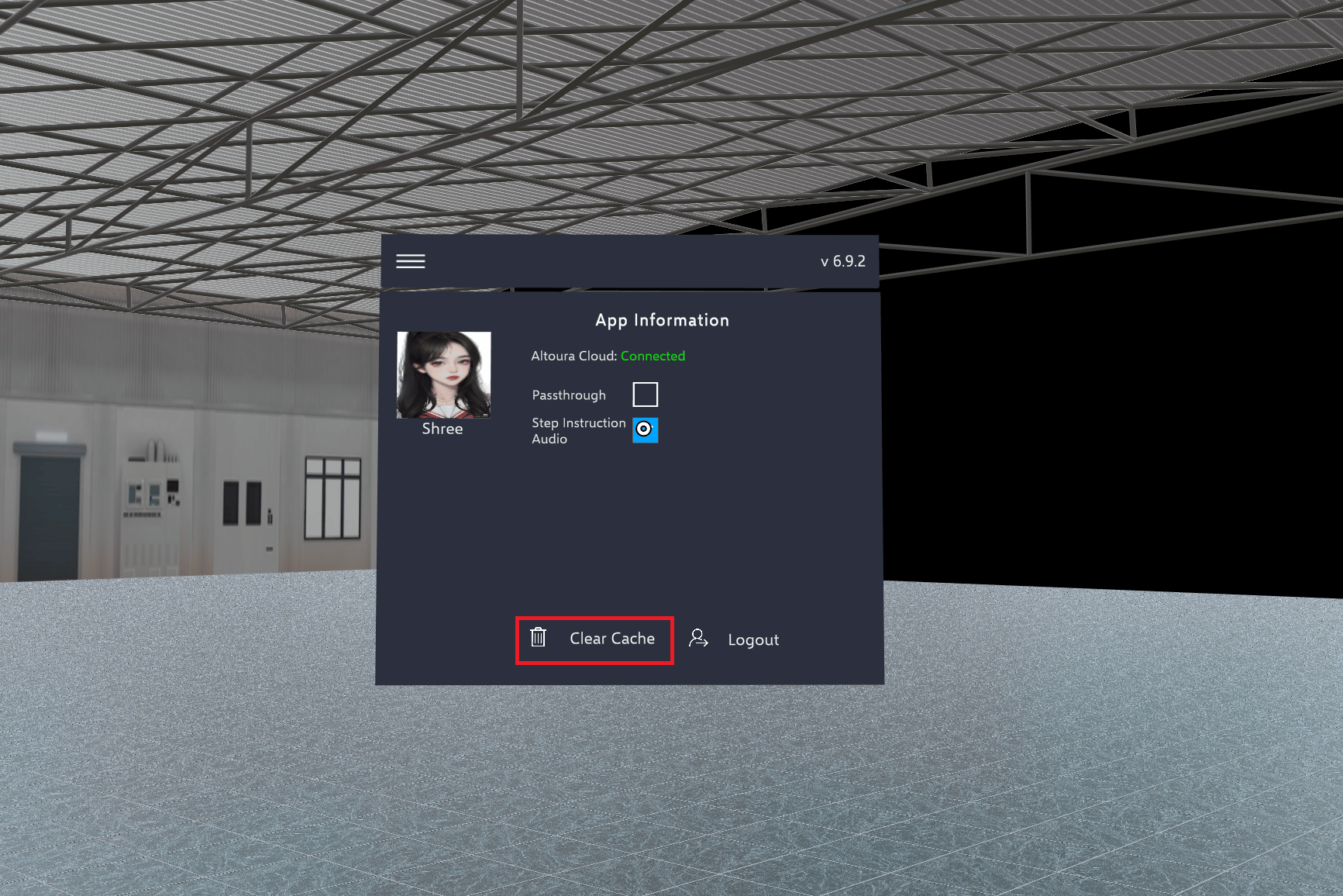
Clearing the cache removes the Training content downloaded to the headset, along with the saved Training list. The next time you open a Training, it is downloaded again. You can't open Trainings offline until you've opened them online again.
Tap on **Clear Cache**. The cache is cleared straight away, with no confirmation.
### Clear Cache
Clearing the cache removes the Training content downloaded to the headset, along with the saved Training list. The next time you open a Training, it is downloaded again. You can't open Trainings offline until you've opened them online again.
Tap on **Clear Cache**. The cache is cleared straight away, with no confirmation.
 ### Logout
Tap on **Logout** to log out of the app. The app asks **"Are you sure you want to logout from this session?"** Tap **Yes** to log out, or **No** to stay logged in. To log in again, see [Login](/creator-studio/trainee-client/login).
### Logout
Tap on **Logout** to log out of the app. The app asks **"Are you sure you want to logout from this session?"** Tap **Yes** to log out, or **No** to stay logged in. To log in again, see [Login](/creator-studio/trainee-client/login).
 ### Closing the User Profile screen
Tap on the hamburger menu in the top left corner to close the User Profile screen.
### Closing the User Profile screen
Tap on the hamburger menu in the top left corner to close the User Profile screen.
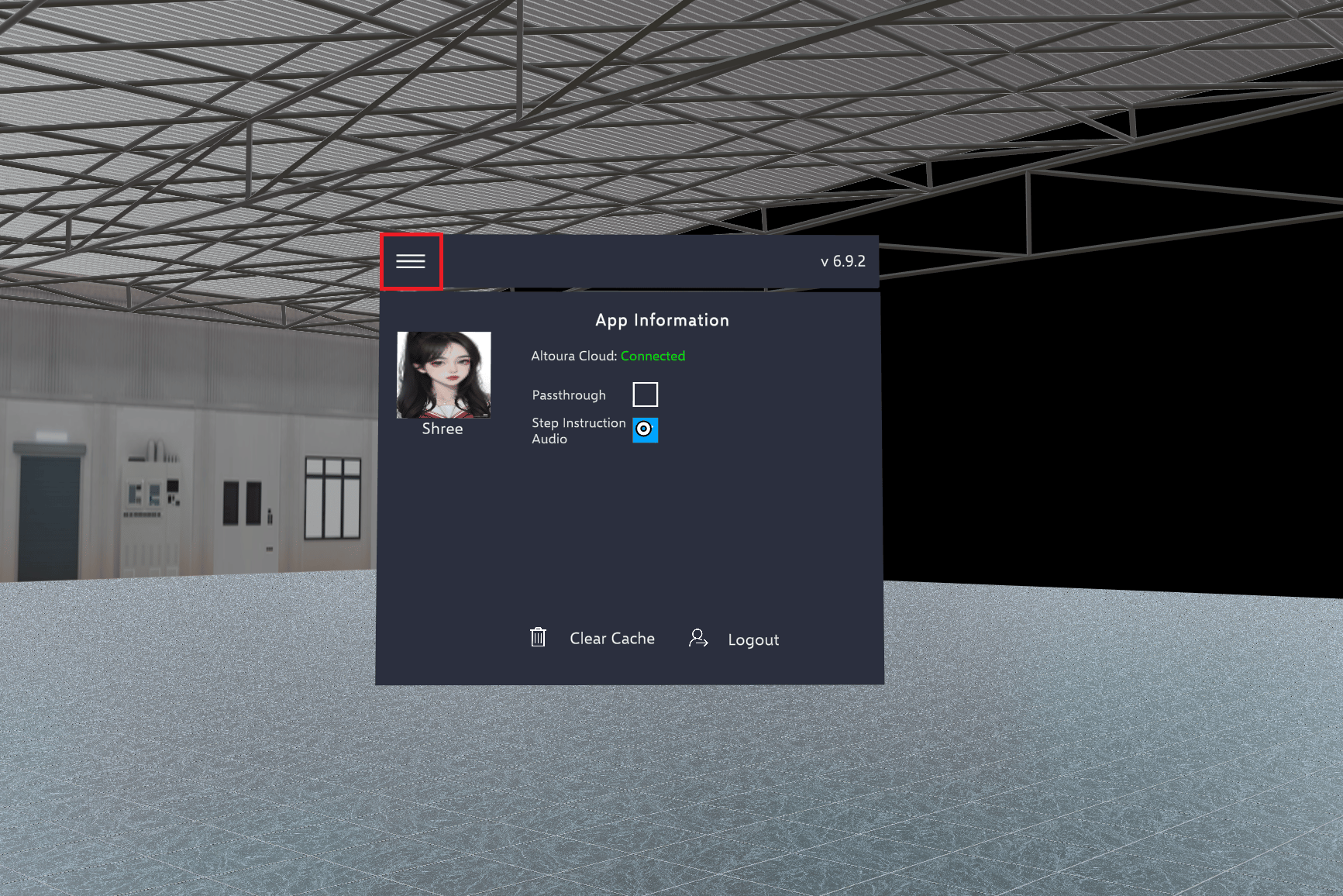 * **Outside a Training**, you go back to the Training list.
* **Inside a Training**, you go back to the Training Settings panel.
## Voice Commands (HTC Vive)
On HTC Vive, you can also say:
* **"Next Step"** to go to the next step
* **"Go Back"** to go back a step
* **"Reset Step"** to reset the current step, while you're looking or pointing at the Toolbelt menu
Voice commands aren't available on Meta Quest.
This documentation is built and hosted on [Mintlify](https://mintlify.com), a developer documentation platform.
* **Outside a Training**, you go back to the Training list.
* **Inside a Training**, you go back to the Training Settings panel.
## Voice Commands (HTC Vive)
On HTC Vive, you can also say:
* **"Next Step"** to go to the next step
* **"Go Back"** to go back a step
* **"Reset Step"** to reset the current step, while you're looking or pointing at the Toolbelt menu
Voice commands aren't available on Meta Quest.
This documentation is built and hosted on [Mintlify](https://mintlify.com), a developer documentation platform.