> ## Documentation Index
> Fetch the complete documentation index at: https://docs.altoura.com/llms.txt
> Use this file to discover all available pages before exploring further.

# Login

## Different Ways to Login

There are two ways to login into Altoura Standalone App

1. Using email and password
2. Using SSO
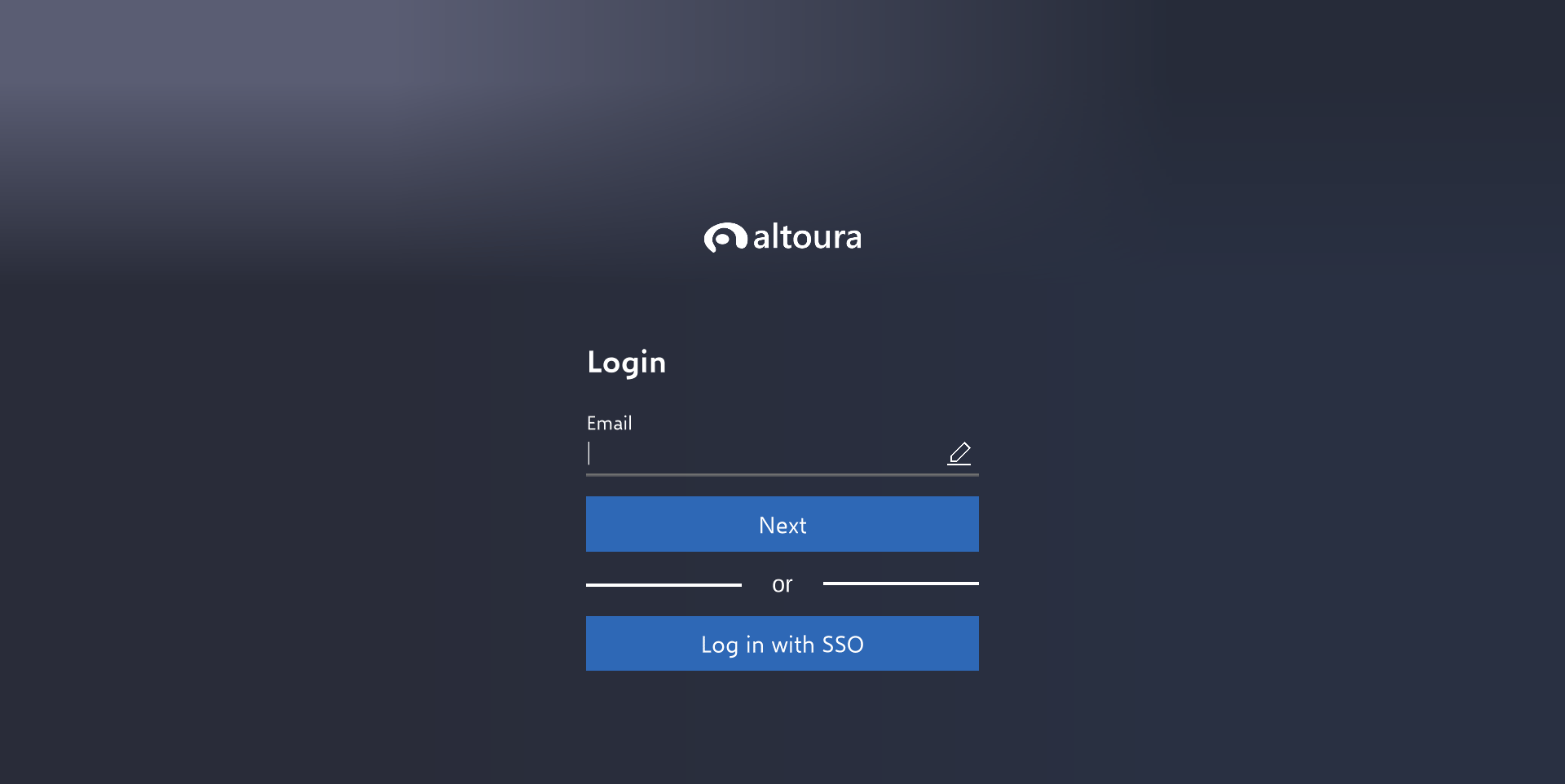
<Frame caption="Login Screen">
  <img src="https://mintcdn.com/altoura-785c3552/niZvlZtOVSBbiV3u/images/docs/8226474-2_SAloginPanel_2.png?fit=max&auto=format&n=niZvlZtOVSBbiV3u&q=85&s=91f87667ff9e87565094989dc85717f8" alt="" width="1920" height="962" data-path="images/docs/8226474-2_SAloginPanel_2.png" />
</Frame>

## 𝟏. 𝐋𝐨𝐠𝐢𝐧 𝐭𝐡𝐫𝐨𝐮𝐠𝐡 𝐄𝐦𝐚𝐢𝐥

Enter your Email. You can use your company email.
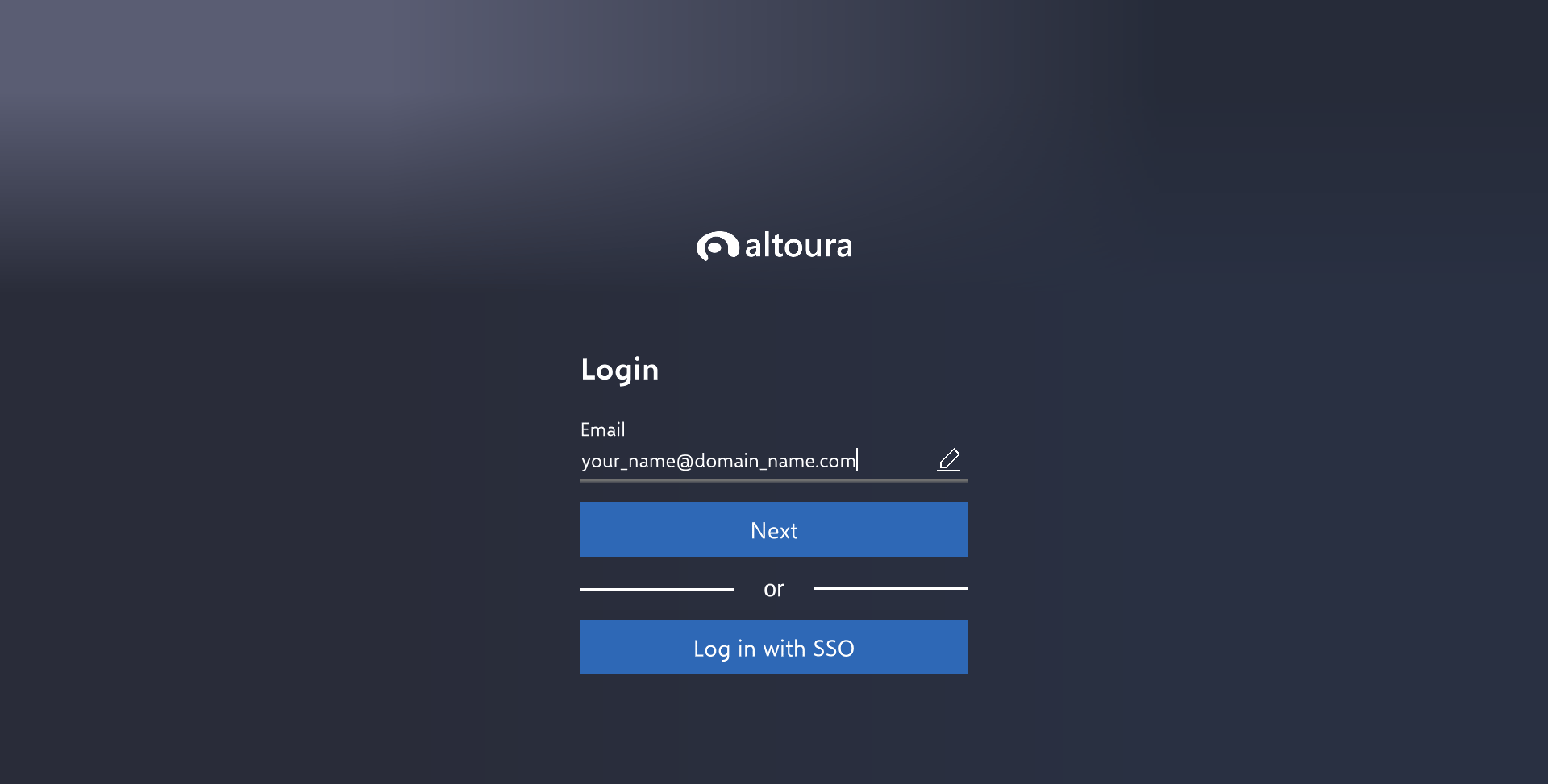
<Frame caption="Enter Email">
  <img src="https://mintcdn.com/altoura-785c3552/pvN_b_9fLlPnvtUQ/images/docs/1f4eec3-2A_SAemailLogin_2.png?fit=max&auto=format&n=pvN_b_9fLlPnvtUQ&q=85&s=ac853cf5e00579a185374d212edee2c9" alt="" width="1920" height="973" data-path="images/docs/1f4eec3-2A_SAemailLogin_2.png" />
</Frame>

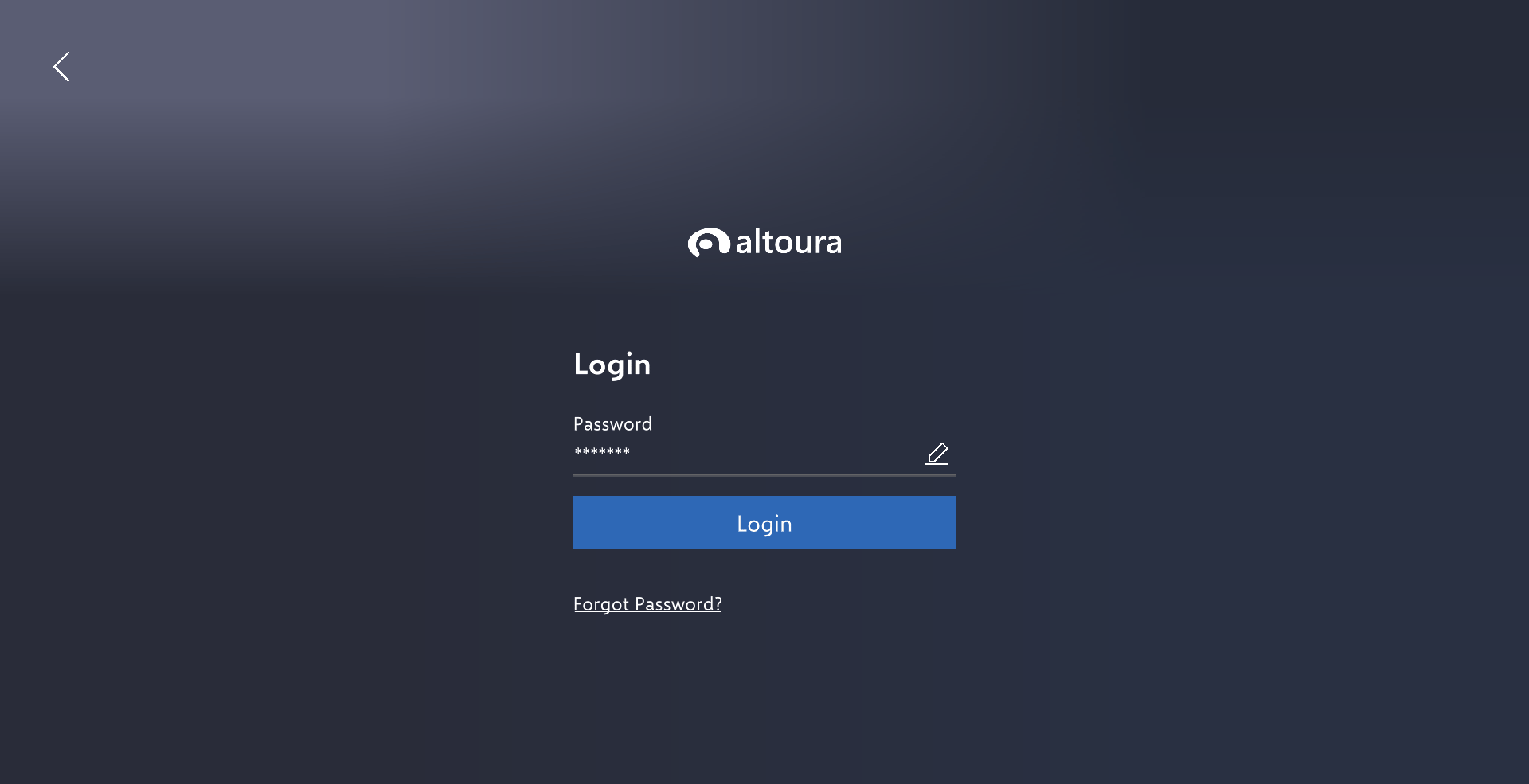
Enter Password.

<Frame caption="Enter password">
  <img src="https://mintcdn.com/altoura-785c3552/rSHiWKFaLfV4dcN7/images/docs/698b40f-2A2_SApassword_2.png?fit=max&auto=format&n=rSHiWKFaLfV4dcN7&q=85&s=1d82b0ebdacfa484787df6dcfacefc6f" alt="" width="1920" height="985" data-path="images/docs/698b40f-2A2_SApassword_2.png" />
</Frame>

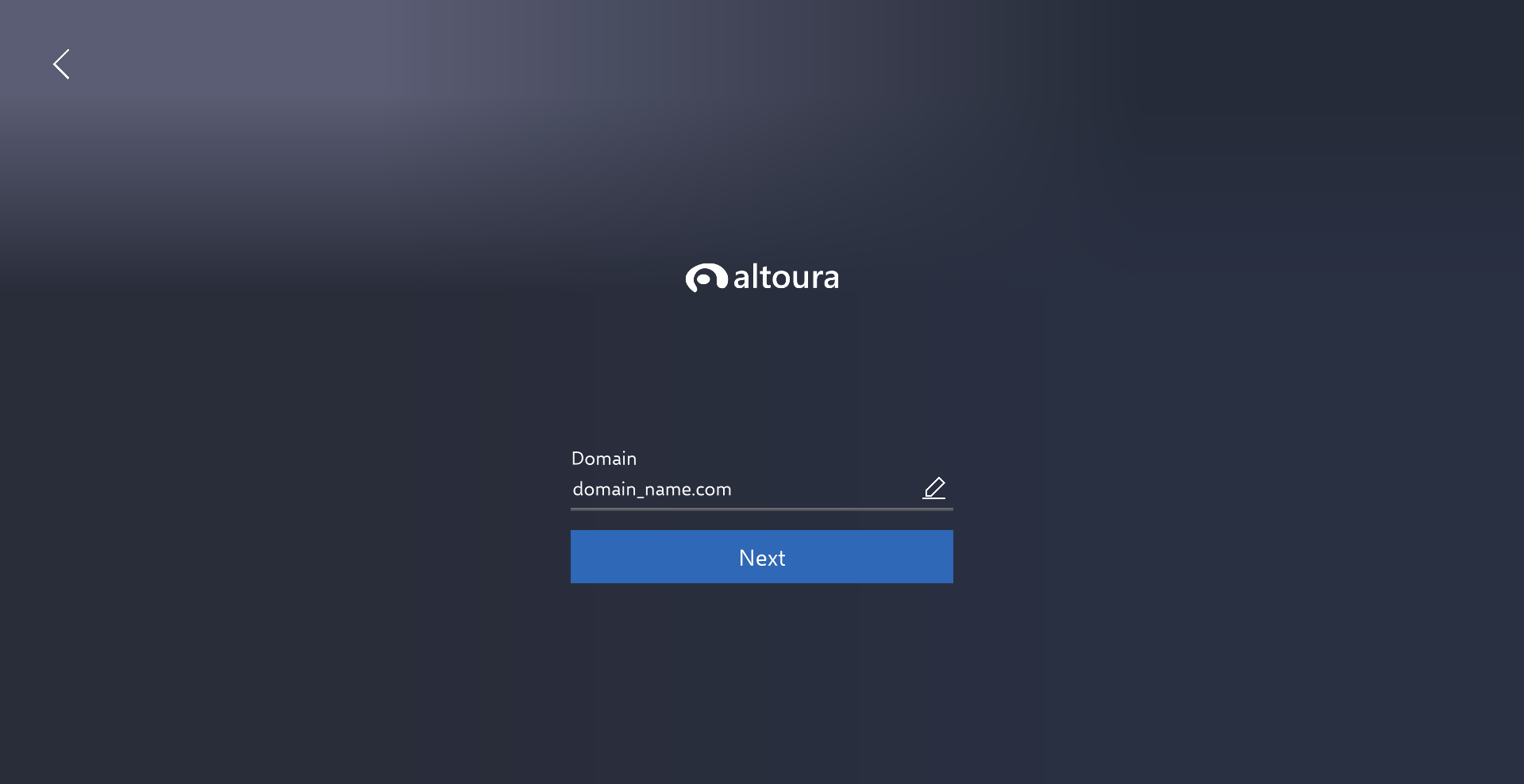
## 𝟐. 𝐋𝐨𝐠𝐢𝐧 𝐭𝐡𝐫𝐨𝐮𝐠𝐡 𝐒𝐒𝐎

<img src="https://mintcdn.com/altoura-785c3552/_Fb1P96m80-mEejg/images/docs/4f1e881-2B_SAdomainLogin_2.png?fit=max&auto=format&n=_Fb1P96m80-mEejg&q=85&s=b9f52929490c320508891e4ca4fdcef1" alt="1920" width="1920" height="988" data-path="images/docs/4f1e881-2B_SAdomainLogin_2.png" />

<Info>
  ### Configured SSO Portal Login

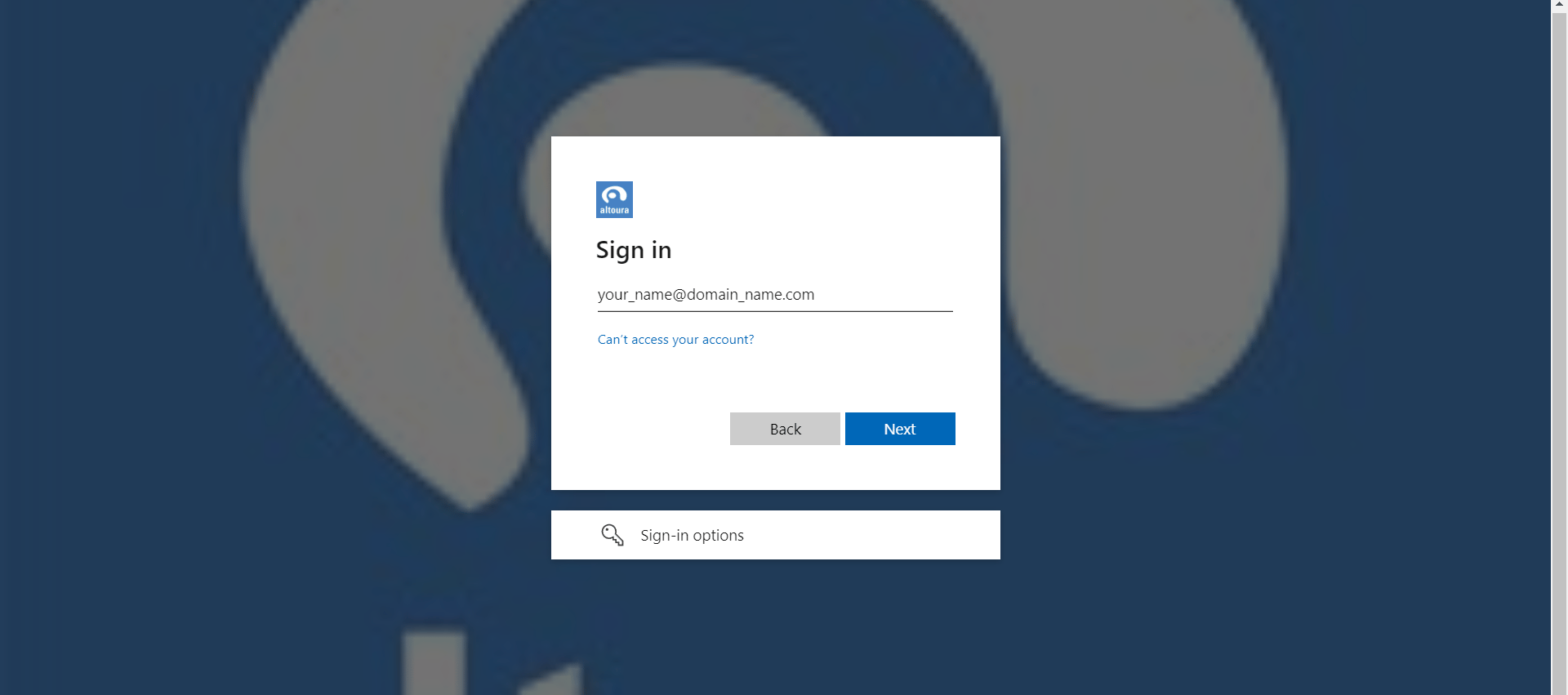
  After entering registered domain, altoura redirects to your configured SSO portal login through an external browser.
</Info>

Enter Email

<img src="https://mintcdn.com/altoura-785c3552/rSHiWKFaLfV4dcN7/images/docs/65b3a8f-2B2_SAemailRequirement_2.png?fit=max&auto=format&n=rSHiWKFaLfV4dcN7&q=85&s=5efdc29e608af7186d171614d7a6d2cf" alt="1920" width="1920" height="851" data-path="images/docs/65b3a8f-2B2_SAemailRequirement_2.png" />

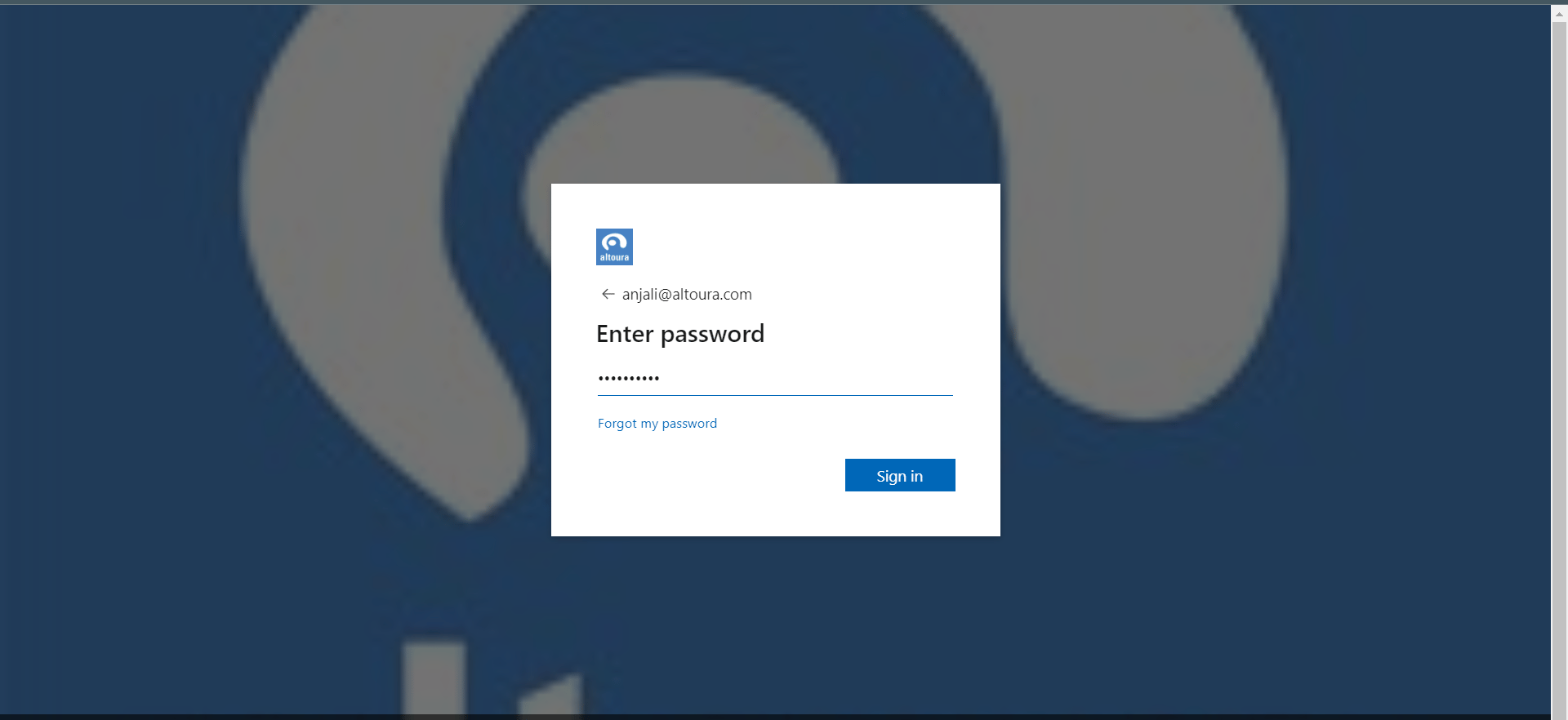
Enter Password

<img src="https://mintcdn.com/altoura-785c3552/z2_JFZPNE9ekTL9F/images/docs/97a61c8-2B3_SApassword_2.png?fit=max&auto=format&n=z2_JFZPNE9ekTL9F&q=85&s=248d8c85b3dc6c6dcfdd0c0ef2ec7d66" alt="1920" width="1920" height="882" data-path="images/docs/97a61c8-2B3_SApassword_2.png" />

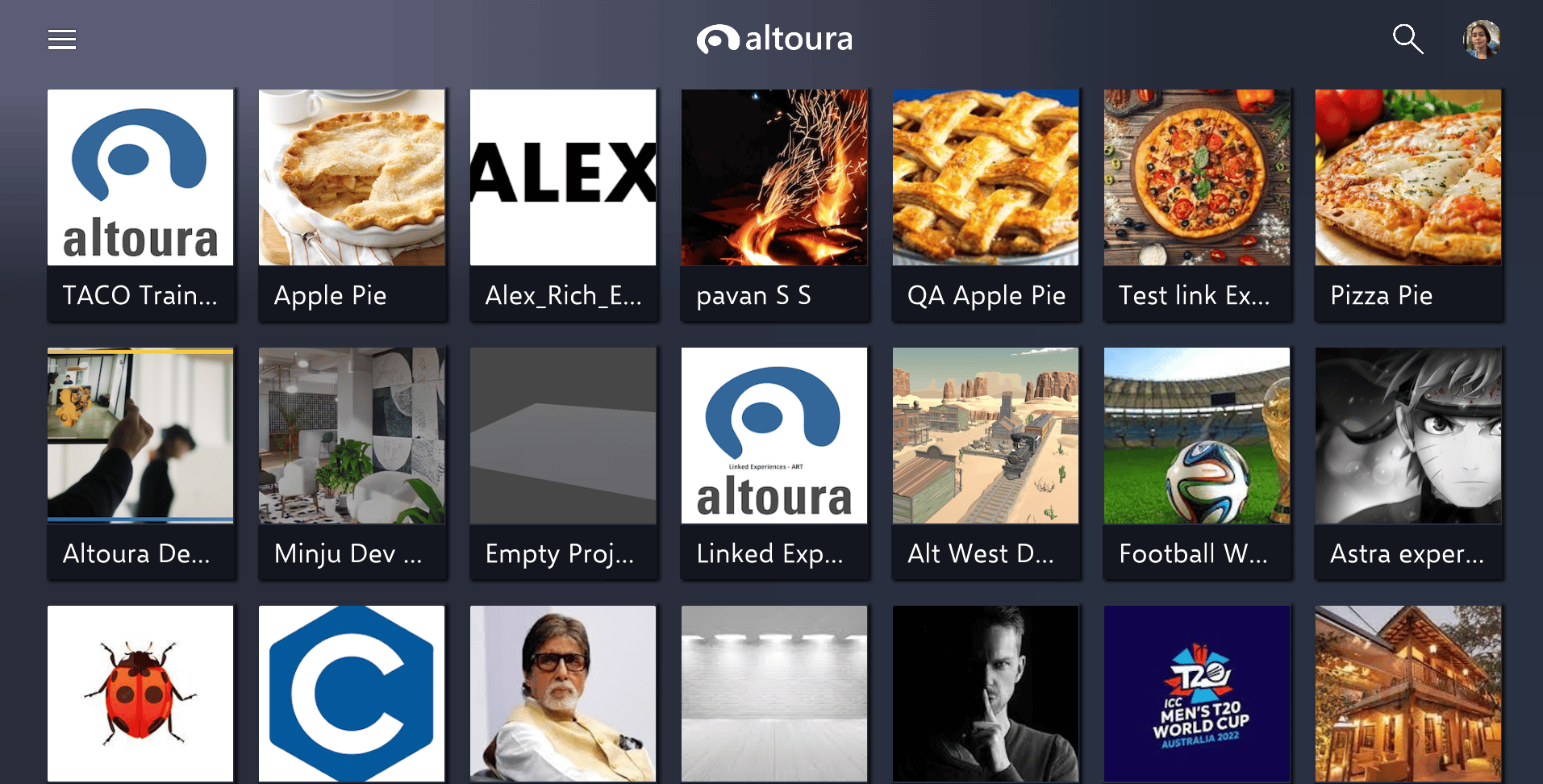
## Post Login

After successful login , user will see home screen of the Altoura app. Home Screen shows all user's projects and projects that have been shared to the user.
<img src="https://mintcdn.com/altoura-785c3552/ZuSJMQqW-zq_BCI_/images/docs/bf8a690-2A3_SAprojects_2.png?fit=max&auto=format&n=ZuSJMQqW-zq_BCI_&q=85&s=22d1583d430404c849943a4f1d31c3d7" alt="1913" width="1913" height="972" data-path="images/docs/bf8a690-2A3_SAprojects_2.png" />