> ## Documentation Index
> Fetch the complete documentation index at: https://docs.altoura.com/llms.txt
> Use this file to discover all available pages before exploring further.
# Meetings
### The Meetings Tab
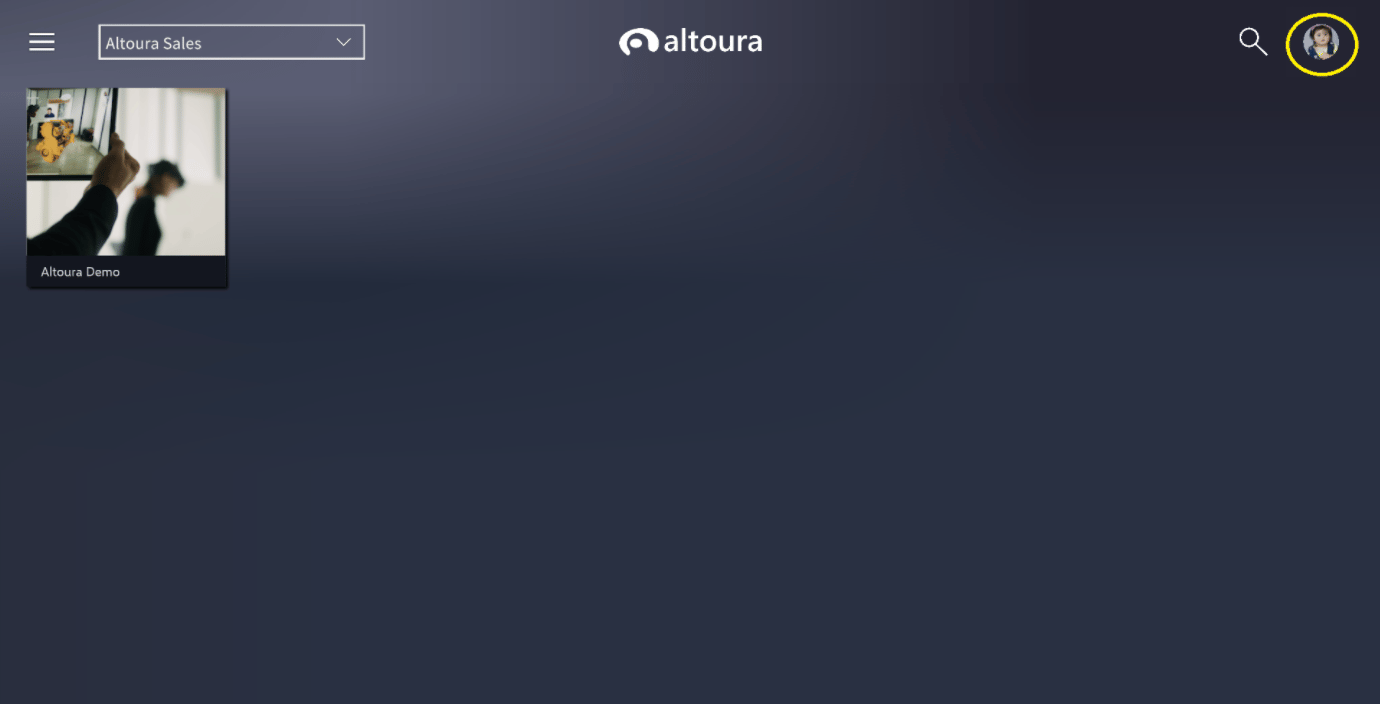
To access the Meetings tab, go to the user menu in the top right corner of your screen.
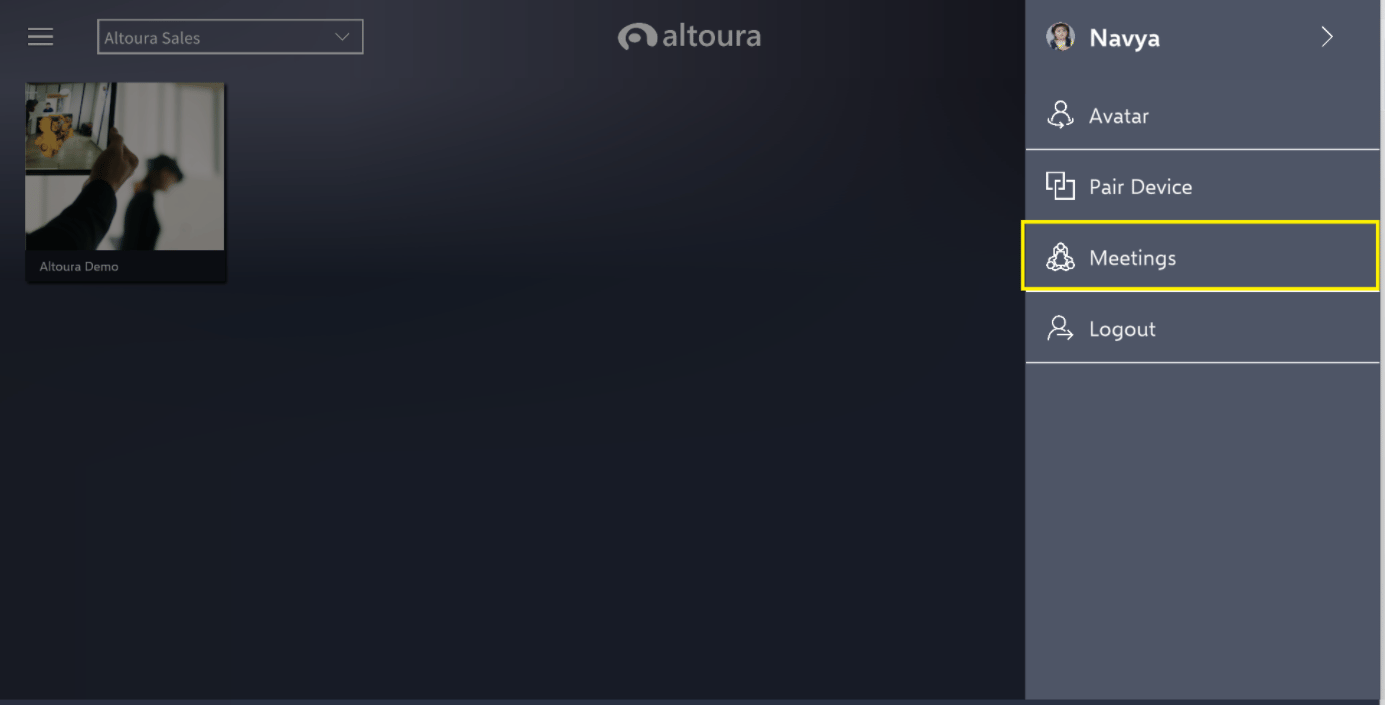
Here you will see an option to go to the Meetings menu.
### Create Meeting
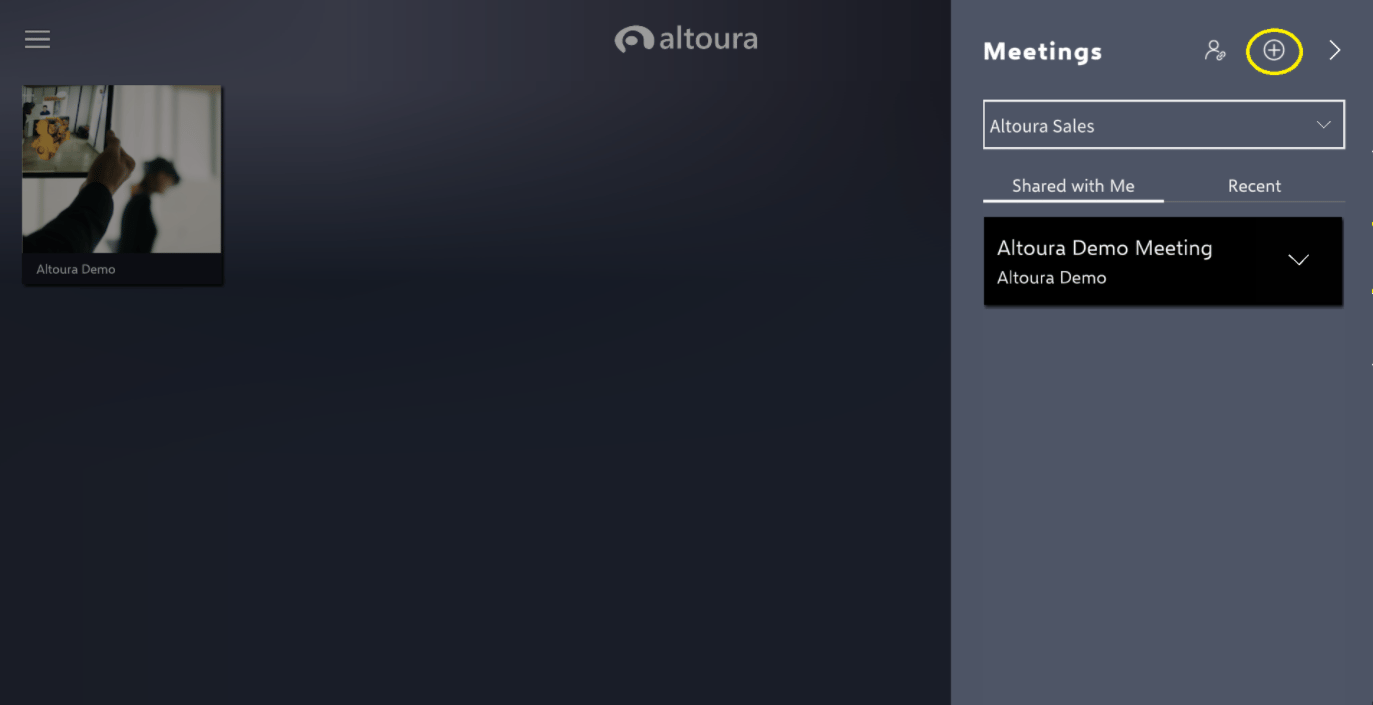
To create a Meeting, click the plus icon in the top right corner of the Meetings menu.
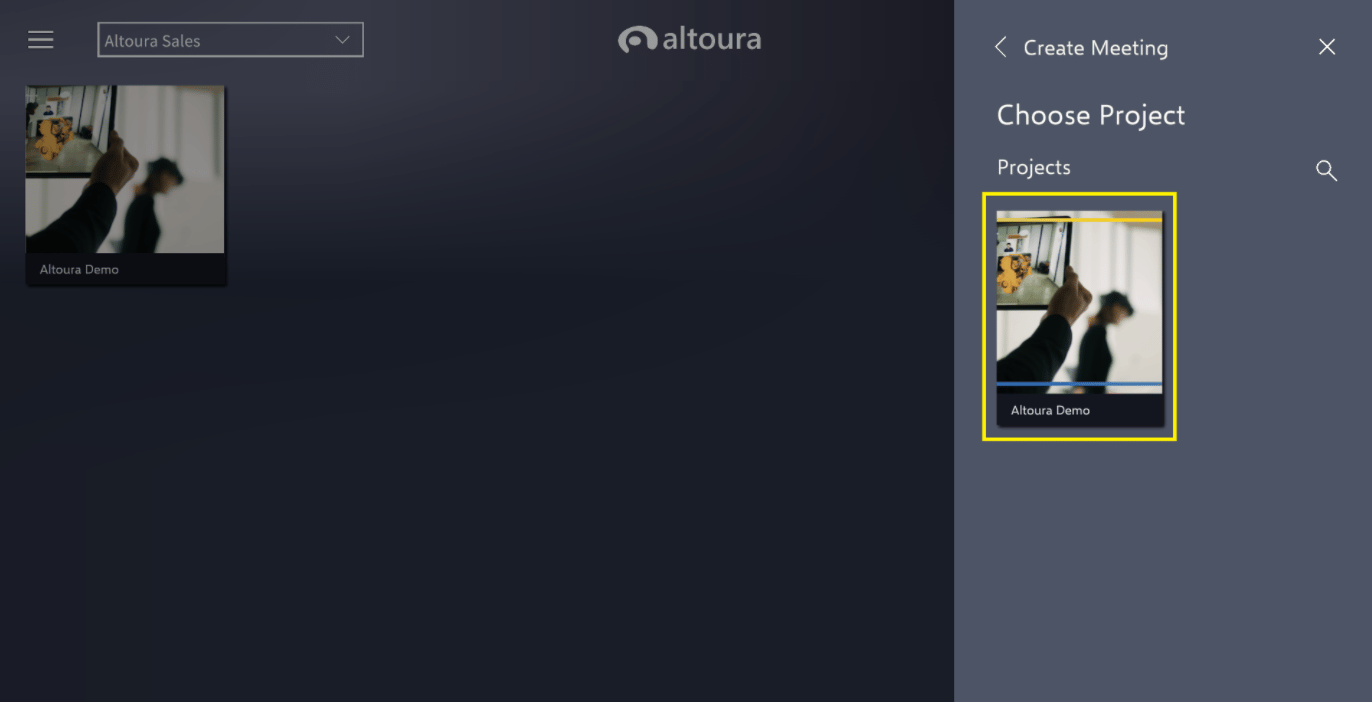
This will bring you to a page with the option to add a Meeting Name and to choose the Project you want to create the Meeting for. Double click on the Project to choose.
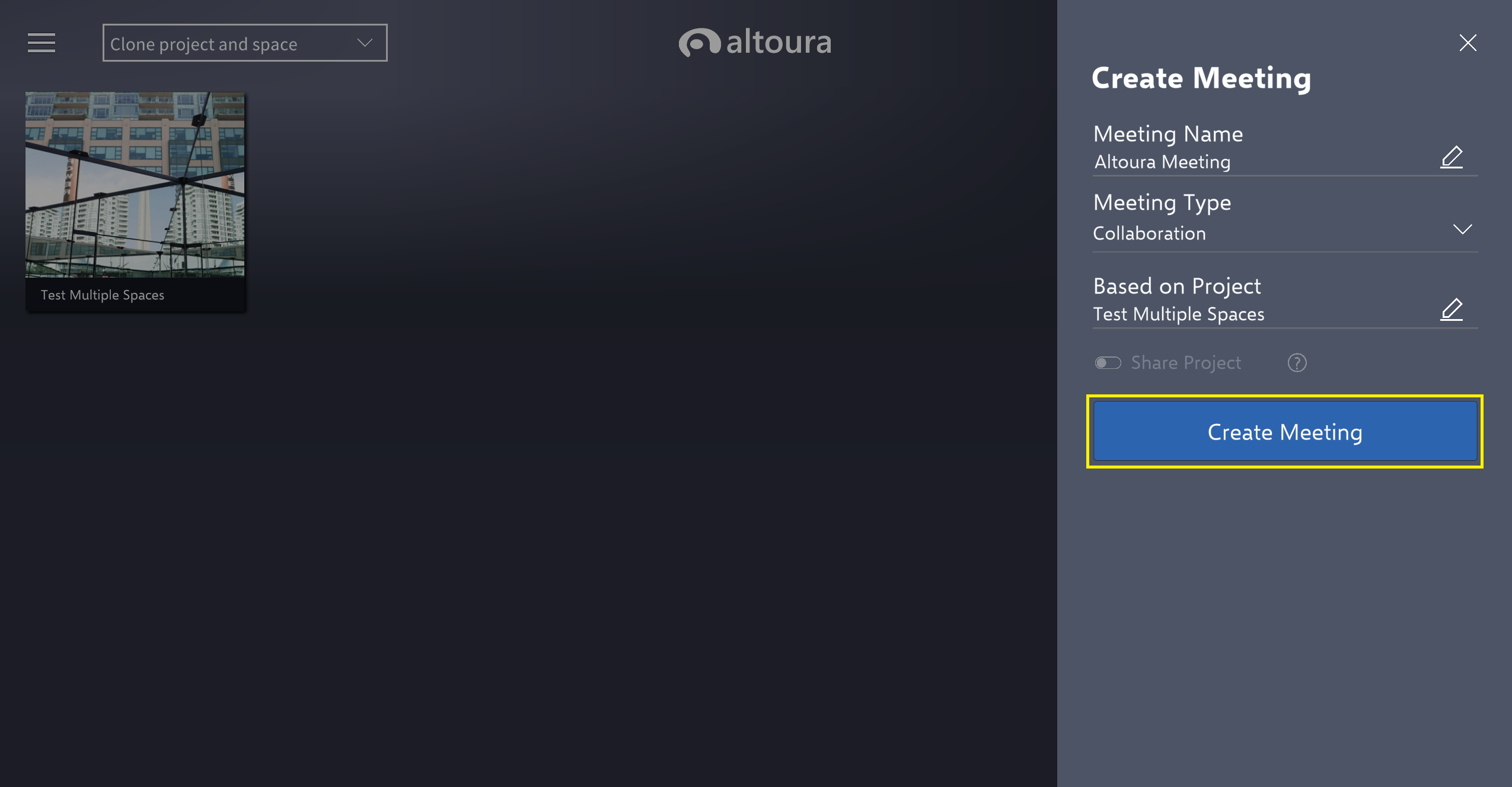
Once you chosen a name and project, choose **Create Meeting**.
Additionally, Meeting Type can be selected as either Collaboration or Classroom.
**Collaboration vs Classroom Meeting Type**
* Below table highlights the difference between Collaboration and Classroom type of Meeting:
* The above option are the default selection based on the Type of Meeting created. The User will still have the option to change these default setting from the 'Join Meeting' menu if required.
### Share Project Toggle
The Share Project toggle will share the Project that your Meeting is Based on with the users that you invite to the Meeting. If the share toggle isn't enabled, please reach out to Altoura support team for assistance. You will only have access to this toggle if you are an App Access Altoura User.
### Inviting Users to a Meeting
There are a few ways to invite users to a Meeting- while [editing a Meeting](/docs/app-user/desktop/meetings/create#editing-a-meeting), sending a user the Meeting Link, or inviting them after the Create Meeting prompts.
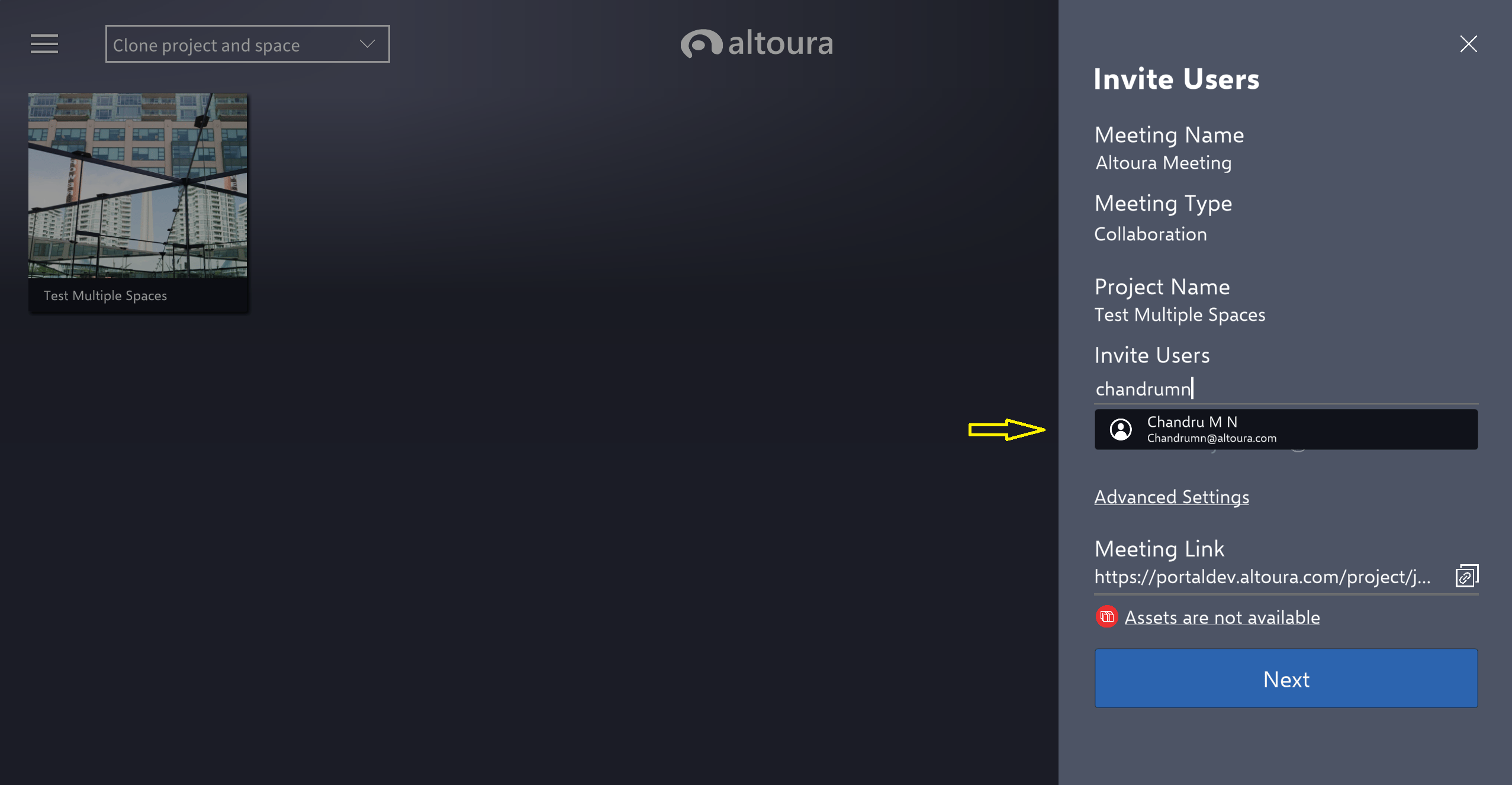
If following the prompts after initially creating the Meeting, you can immediately invite users. Enter a name or an email into the Invite Users field.
When typing in the Invite Users field options of the users in your organization will show up, but you can also enter emails outside of your organization.
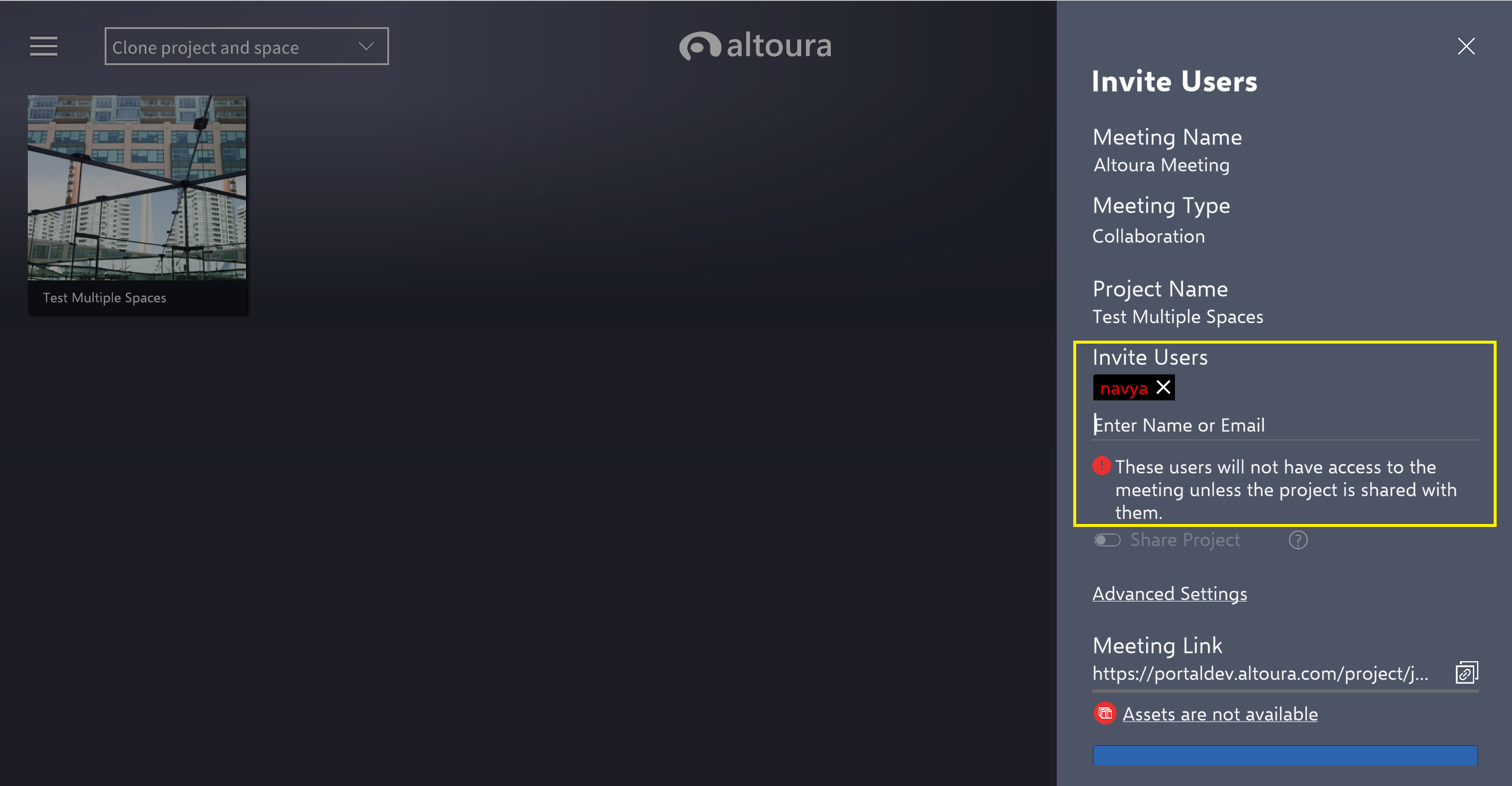
Invited user name will be seen in red color and a warning is thrown if user who doesn't have access to project. Until user gets access to project user will not be able to join meeting.
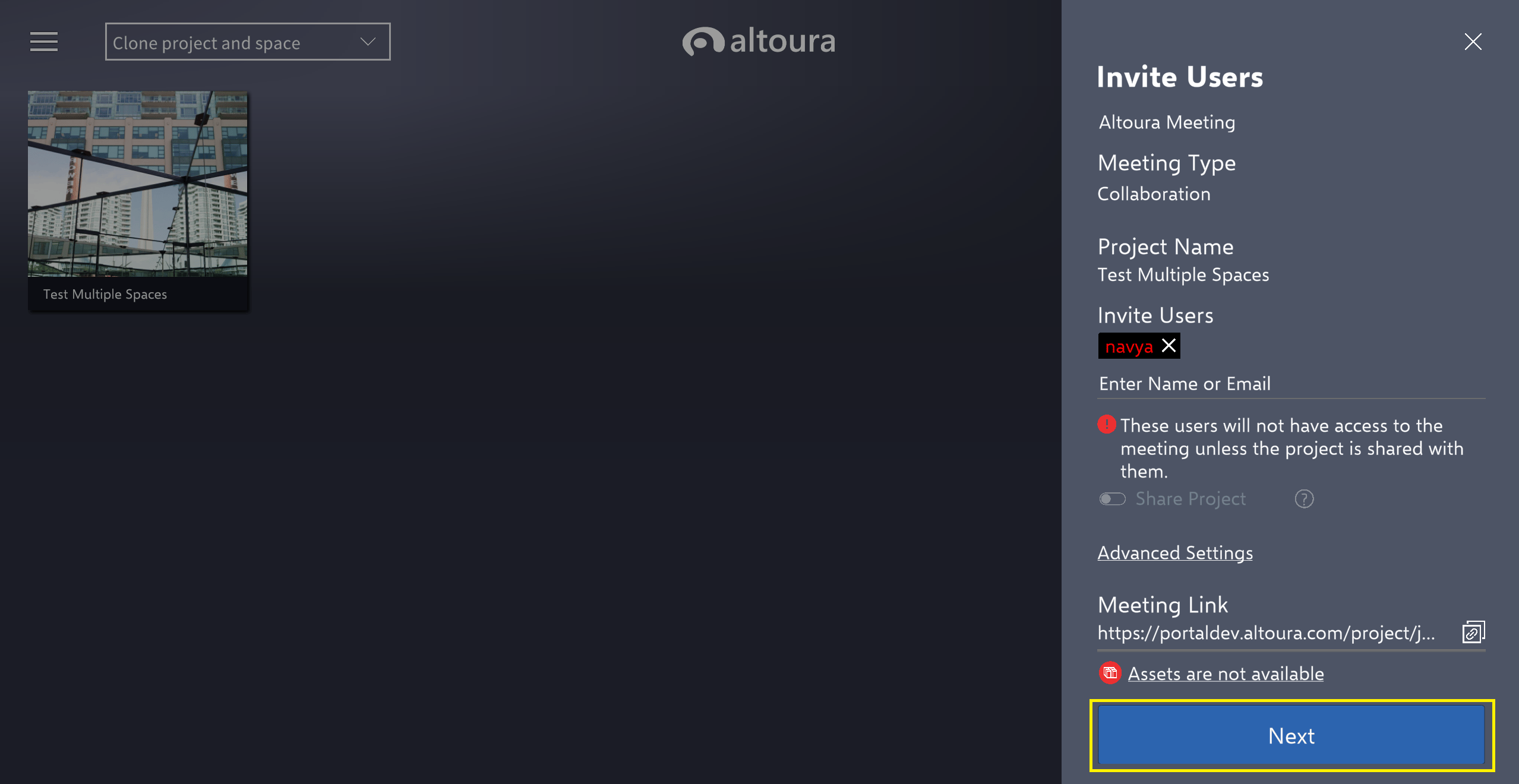
Pressing the **Next** button will invite your entered users to your meeting.
If user doesn't have access to project /if user doesn't share the project user will get notified with the below popup, after selecting Next button.
Click on 'OK' button and to continue select 'Next' button
### Assets are not available flag
If you see this flag this means that there may not be assets for all the device types that a user might join that Meeting from. This could prevent an invited user from joining the meeting and it is recommended to update the assets across devices.
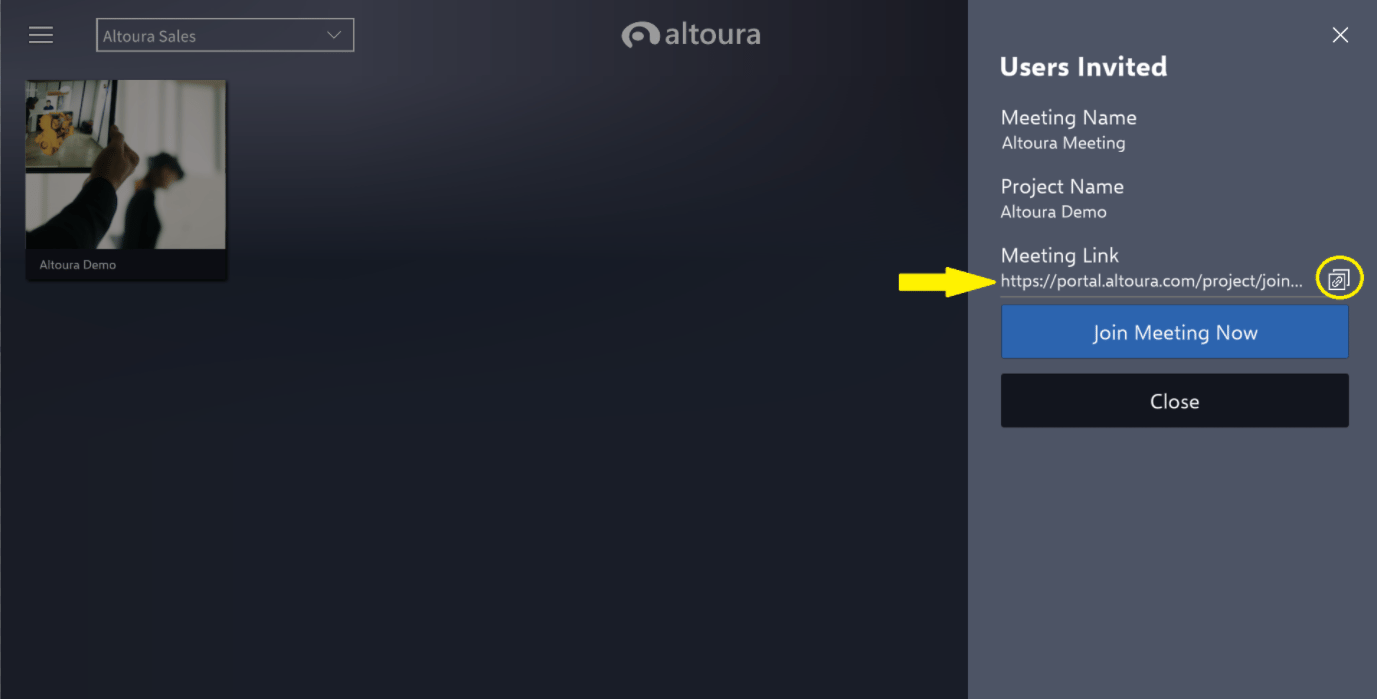
Finally, you can join your Meeting, copy the meeting link to send to other users you did not invite, or close to complete other tasks in Altoura.
Copying the meeting link can be done by selecting the link button or copying the link text
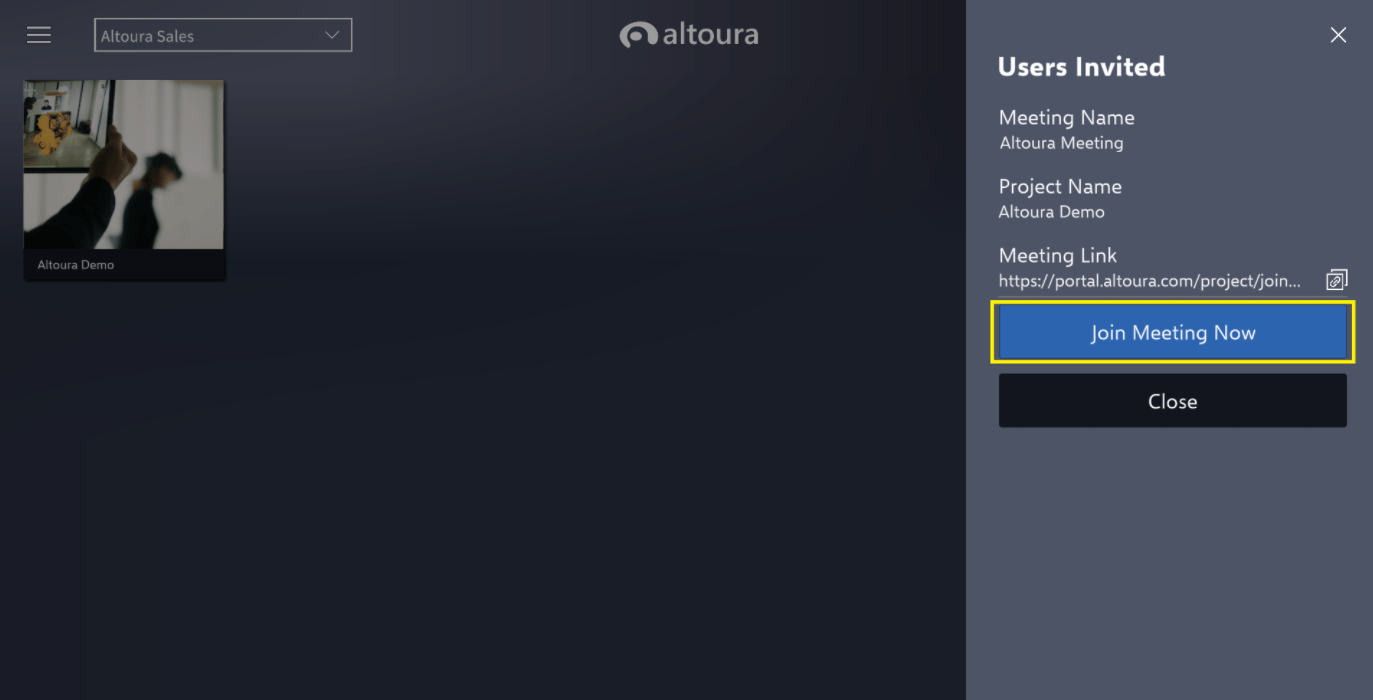
Select 'Join Meeting Now' button to join meeting.
### Joining a Meeting
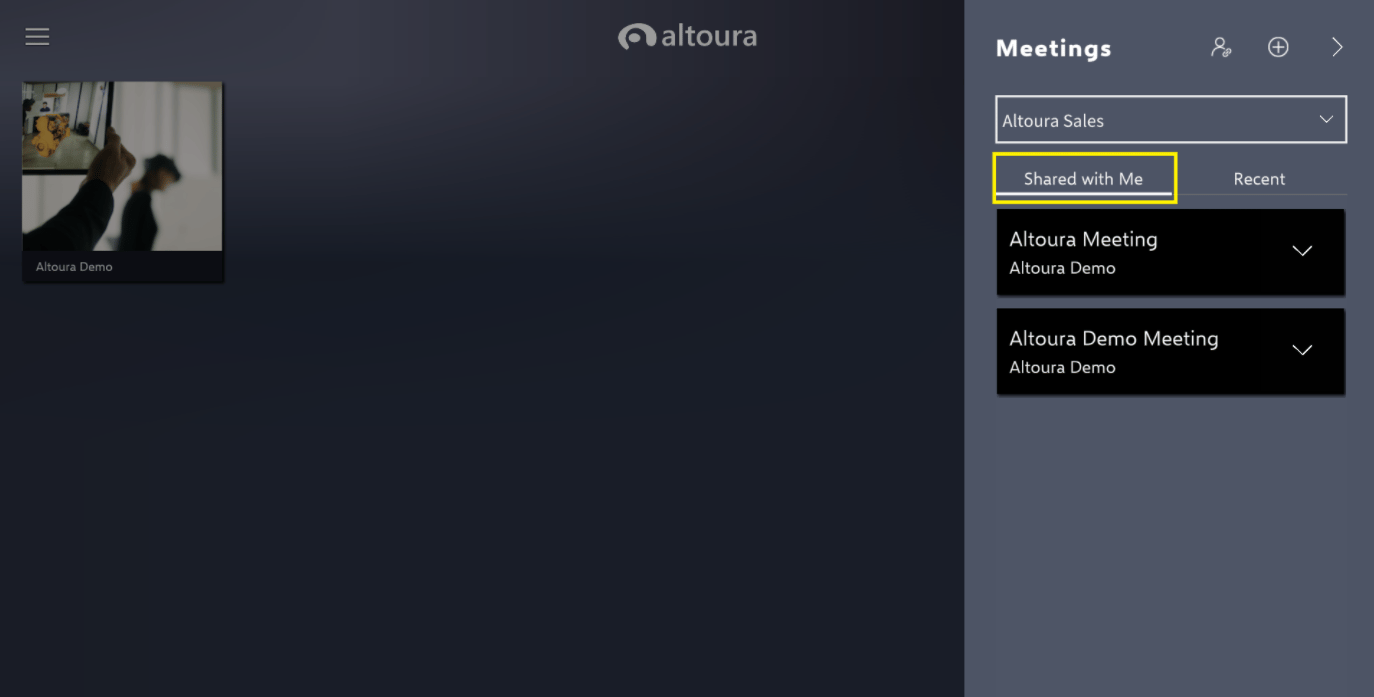
Your existing Meetings are organized by **Shared with Me** and **Recent**.
The **Shared with Me** tab will be all of the Meetings that other users have invited you to.
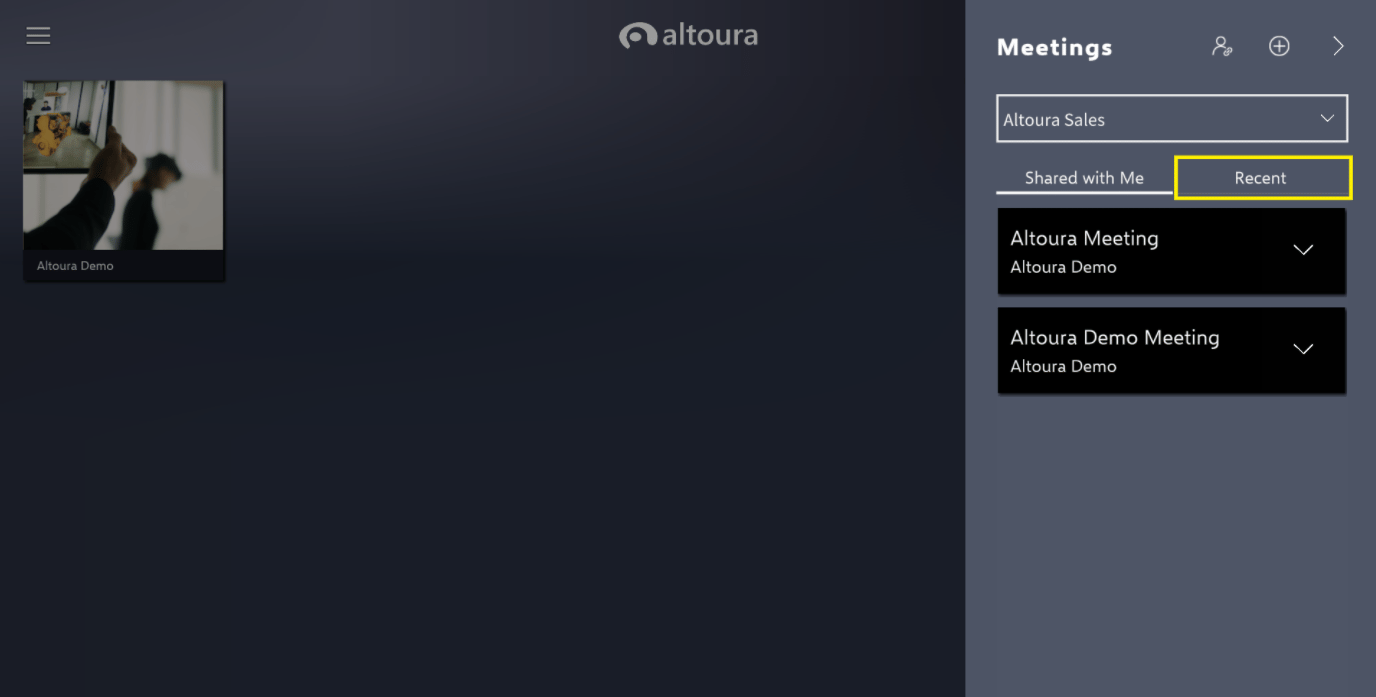
The **Recent** tab will be ordered by the last Meetings you've entered.
To join the Meeting, press anywhere on the black Meeting rectangle.
If you were sent a meeting link instead of an internal invite, user can select join meeting button.
Paste the invite link inside the box provided and choose **Join**.
After you've done this one, this will automatically show up on your Meetings menu next time you open the menu.
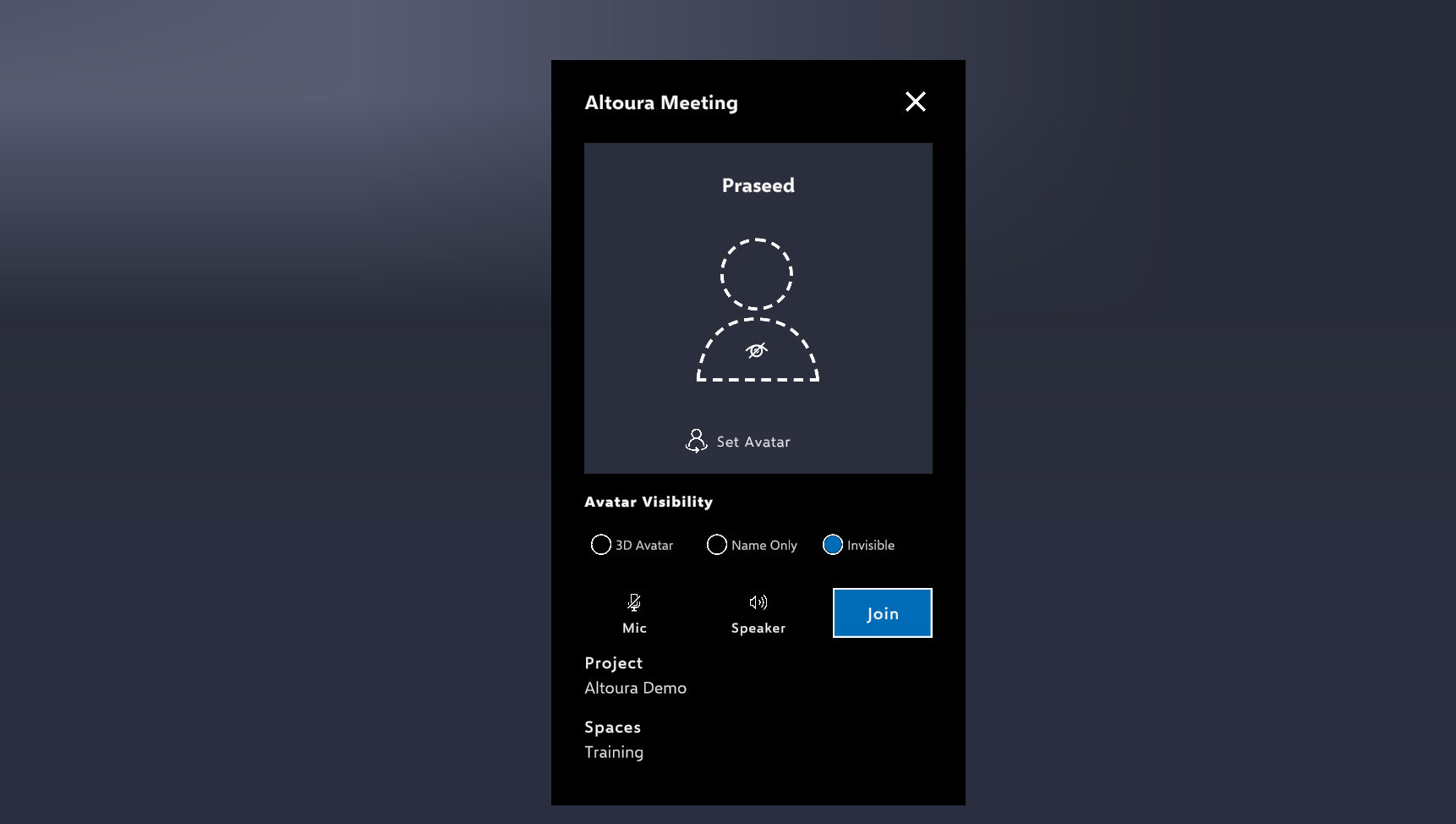
The following Meeting Option screen will be shown to User before they are connected to the meeting. Setting will be defaulted based on the 'Type' of the Meeting created. User will have the option to change 'Avatar Visibility', 'Mic' and 'Speaker' settings before joining the meeting, if required.
### Editing a Meeting
To edit an existing Meeting, choose the caret on the far right of the black Meeting rectangle.
This will bring up an option menu to copy the link to send to other users, remove the meeting from your list, or edit the Meeting.
### Remove button
The remove button only removes the Meeting off of your Meetings list in the app, it does not delete the Meeting for other users.
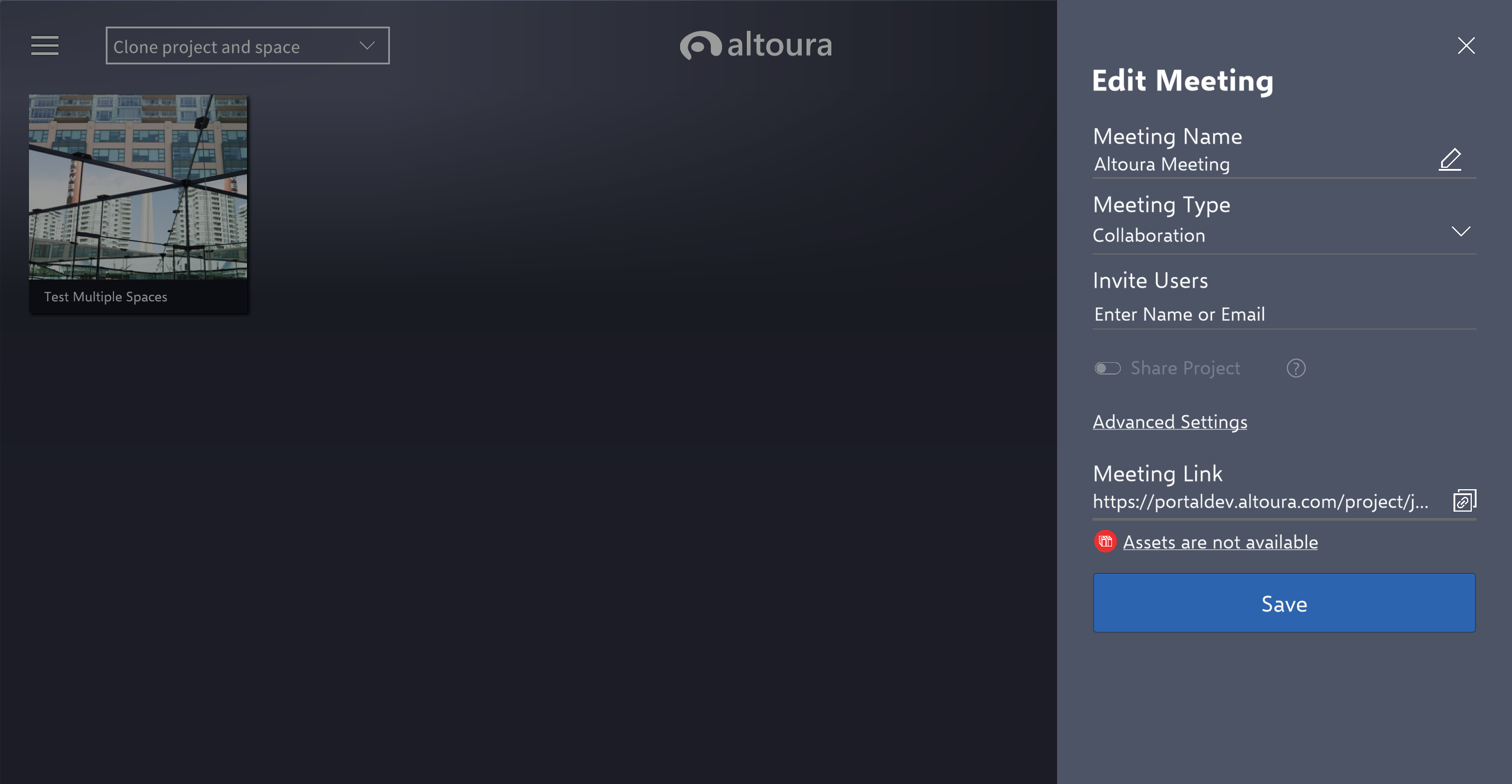
Here you can change the Meeting name, invite more users, share the Project with the invited users, and change the Meeting server location.
Remember to press **Save** if you've made any changes.
### During a Meeting
To see all the users during a meeting, drop down the **User List** caret. You will be notified as people enter and leave the session.
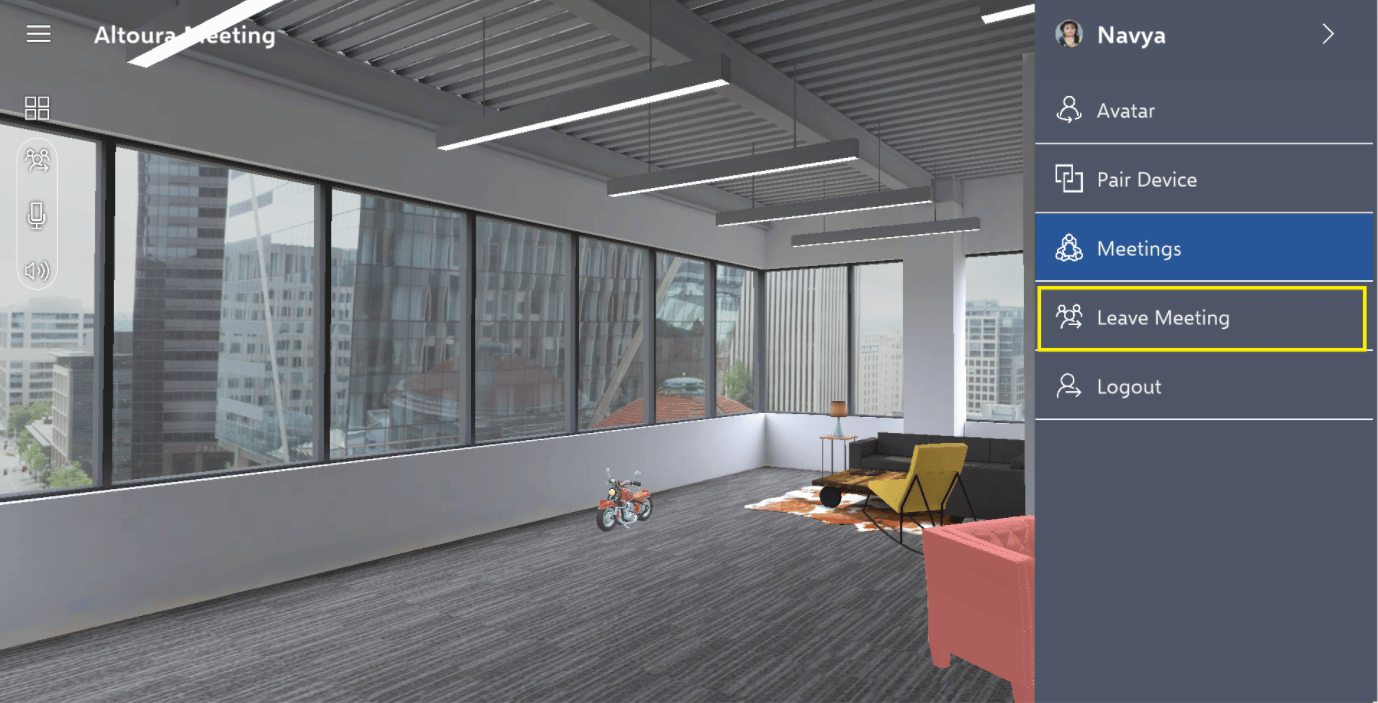
To leave the Meeting, open the user menu and choose **Leave Meeting**. This will bring you back to the project menu.
 Here you will see an option to go to the Meetings menu.
 ### Create Meeting
To create a Meeting, click the plus icon in the top right corner of the Meetings menu.
### Create Meeting
To create a Meeting, click the plus icon in the top right corner of the Meetings menu.
 This will bring you to a page with the option to add a Meeting Name and to choose the Project you want to create the Meeting for. Double click on the Project to choose.
 Once you chosen a name and project, choose **Create Meeting**.
Additionally, Meeting Type can be selected as either Collaboration or Classroom.
**Collaboration vs Classroom Meeting Type**
* Below table highlights the difference between Collaboration and Classroom type of Meeting:
Once you chosen a name and project, choose **Create Meeting**.
Additionally, Meeting Type can be selected as either Collaboration or Classroom.
**Collaboration vs Classroom Meeting Type**
* Below table highlights the difference between Collaboration and Classroom type of Meeting:
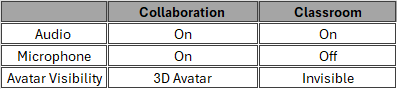 * The above option are the default selection based on the Type of Meeting created. The User will still have the option to change these default setting from the 'Join Meeting' menu if required.
 ### Inviting Users to a Meeting
There are a few ways to invite users to a Meeting- while [editing a Meeting](/docs/app-user/desktop/meetings/create#editing-a-meeting), sending a user the Meeting Link, or inviting them after the Create Meeting prompts.
If following the prompts after initially creating the Meeting, you can immediately invite users. Enter a name or an email into the Invite Users field.
### Inviting Users to a Meeting
There are a few ways to invite users to a Meeting- while [editing a Meeting](/docs/app-user/desktop/meetings/create#editing-a-meeting), sending a user the Meeting Link, or inviting them after the Create Meeting prompts.
If following the prompts after initially creating the Meeting, you can immediately invite users. Enter a name or an email into the Invite Users field.
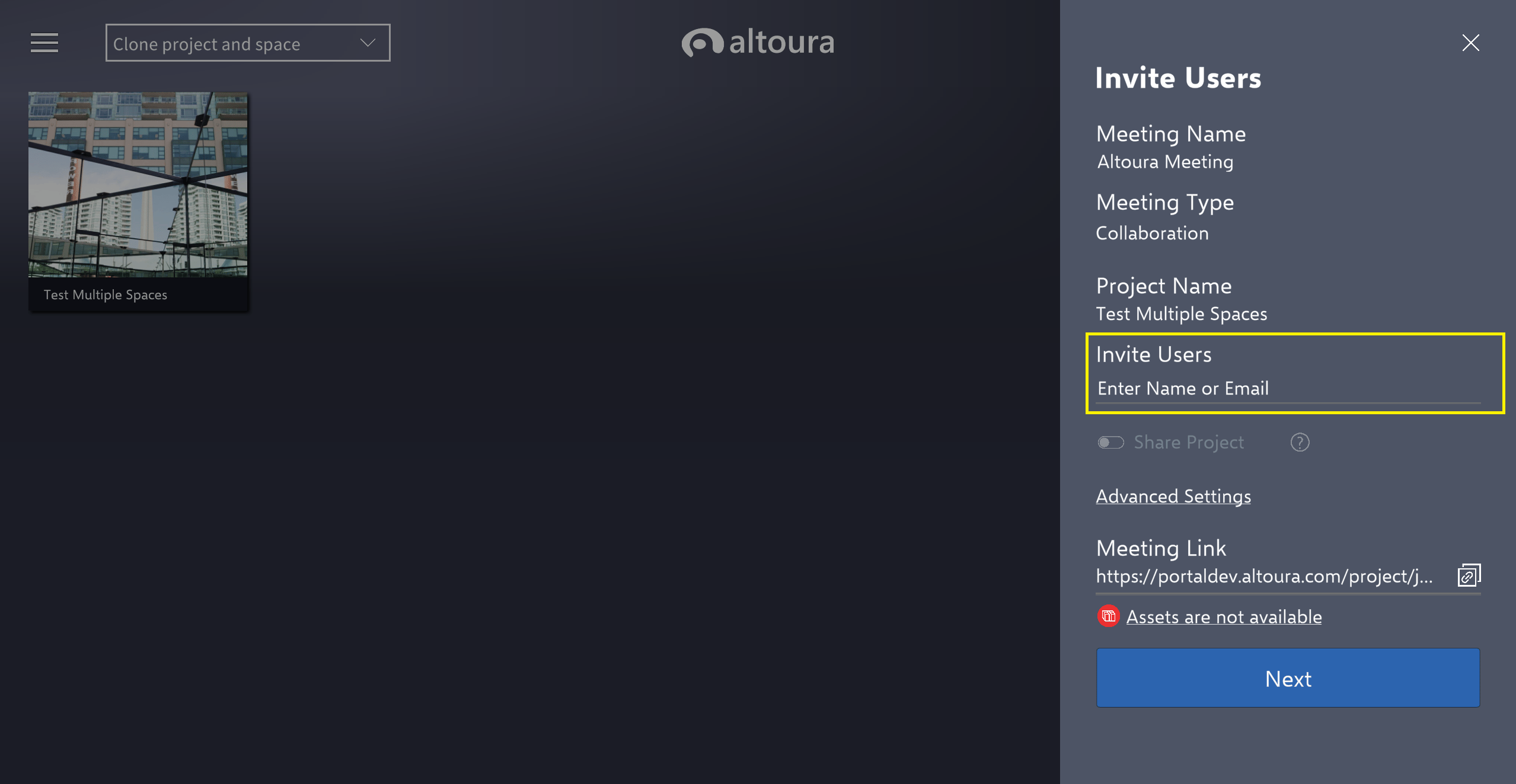 When typing in the Invite Users field options of the users in your organization will show up, but you can also enter emails outside of your organization.
 Invited user name will be seen in red color and a warning is thrown if user who doesn't have access to project. Until user gets access to project user will not be able to join meeting.
 Pressing the **Next** button will invite your entered users to your meeting.
 If user doesn't have access to project /if user doesn't share the project user will get notified with the below popup, after selecting Next button.
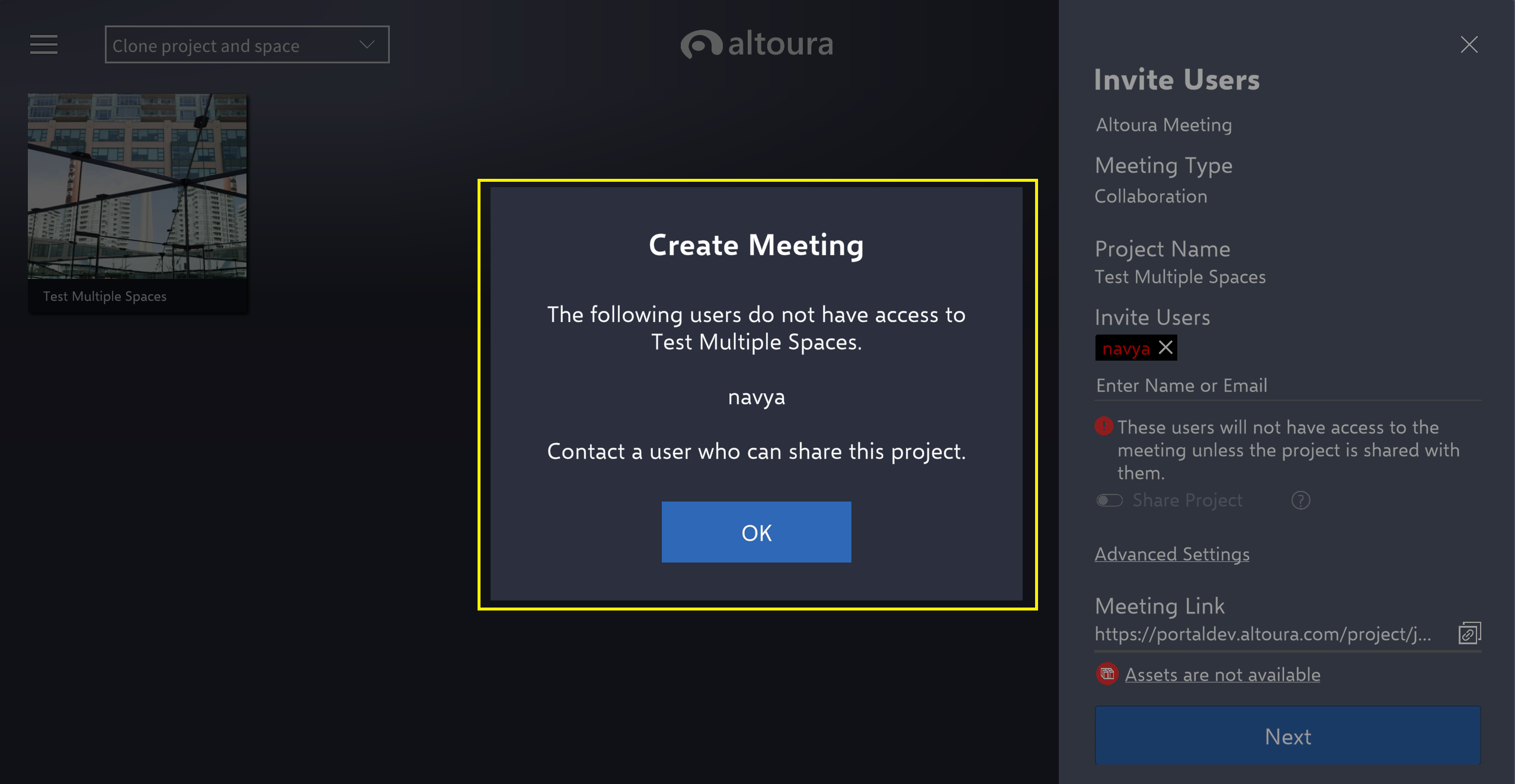 Click on 'OK' button and to continue select 'Next' button
 Select 'Join Meeting Now' button to join meeting.
 ### Joining a Meeting
Your existing Meetings are organized by **Shared with Me** and **Recent**.
The **Shared with Me** tab will be all of the Meetings that other users have invited you to.
### Joining a Meeting
Your existing Meetings are organized by **Shared with Me** and **Recent**.
The **Shared with Me** tab will be all of the Meetings that other users have invited you to.
 The **Recent** tab will be ordered by the last Meetings you've entered.
 To join the Meeting, press anywhere on the black Meeting rectangle.
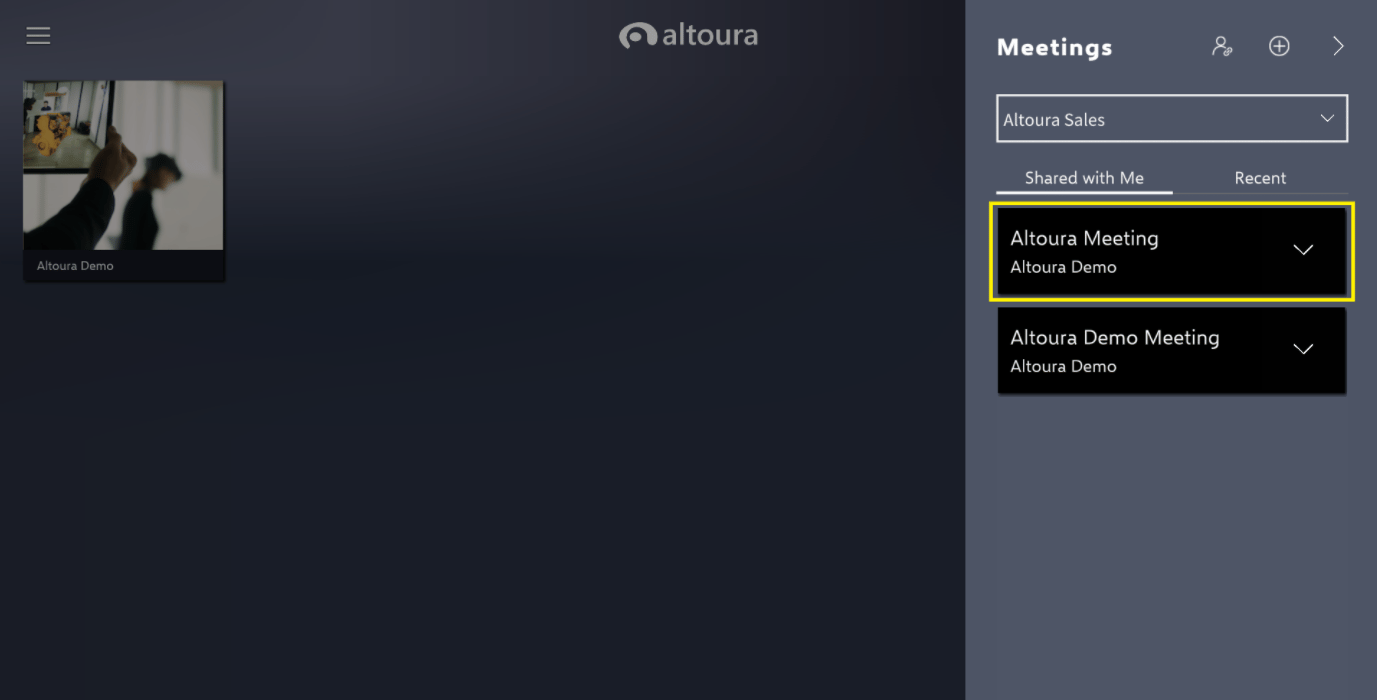 If you were sent a meeting link instead of an internal invite, user can select join meeting button.
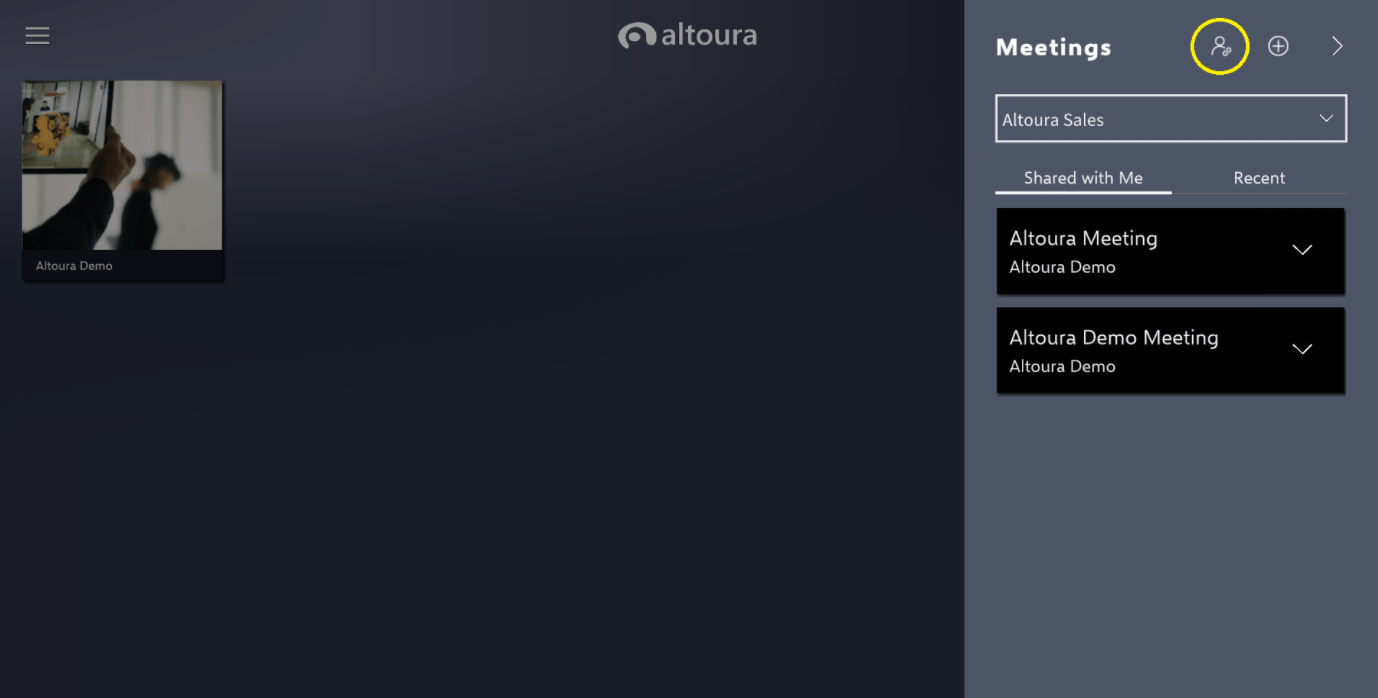 Paste the invite link inside the box provided and choose **Join**.
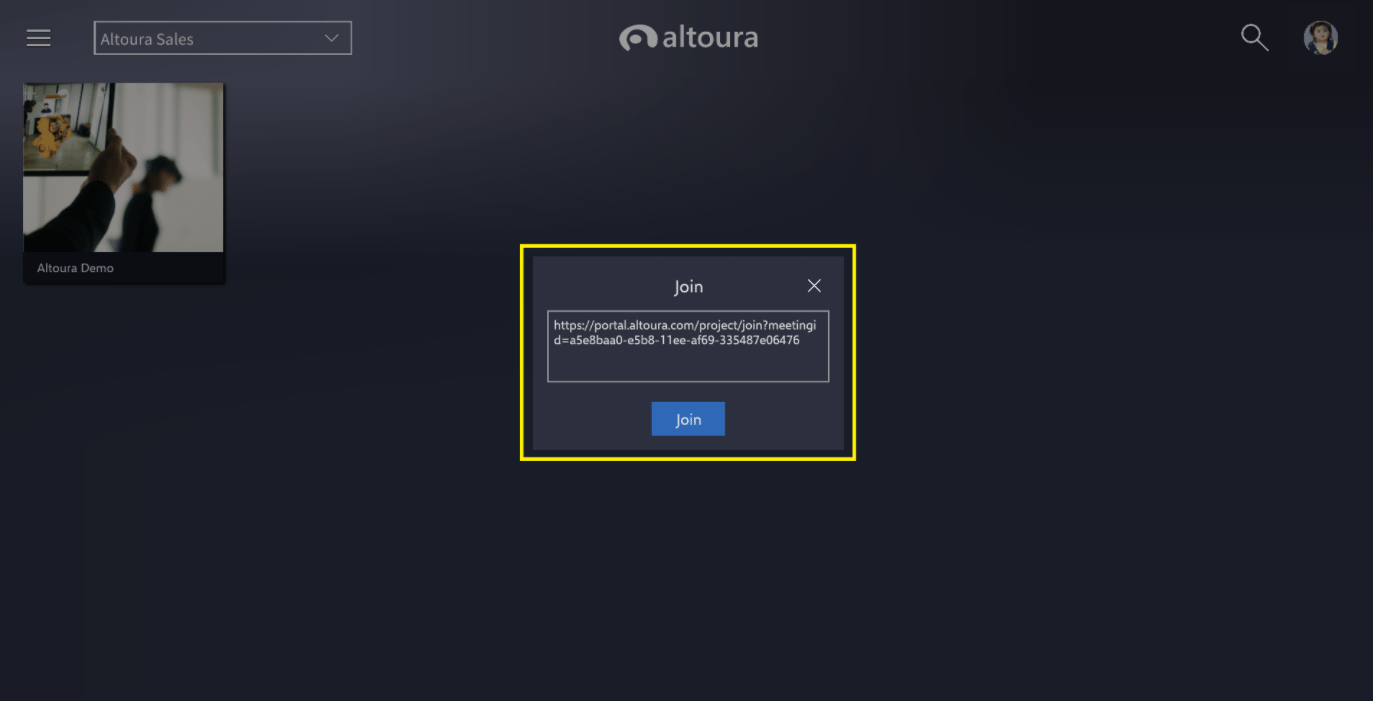 After you've done this one, this will automatically show up on your Meetings menu next time you open the menu.
The following Meeting Option screen will be shown to User before they are connected to the meeting. Setting will be defaulted based on the 'Type' of the Meeting created. User will have the option to change 'Avatar Visibility', 'Mic' and 'Speaker' settings before joining the meeting, if required.
After you've done this one, this will automatically show up on your Meetings menu next time you open the menu.
The following Meeting Option screen will be shown to User before they are connected to the meeting. Setting will be defaulted based on the 'Type' of the Meeting created. User will have the option to change 'Avatar Visibility', 'Mic' and 'Speaker' settings before joining the meeting, if required.
 ### Editing a Meeting
To edit an existing Meeting, choose the caret on the far right of the black Meeting rectangle.
### Editing a Meeting
To edit an existing Meeting, choose the caret on the far right of the black Meeting rectangle.
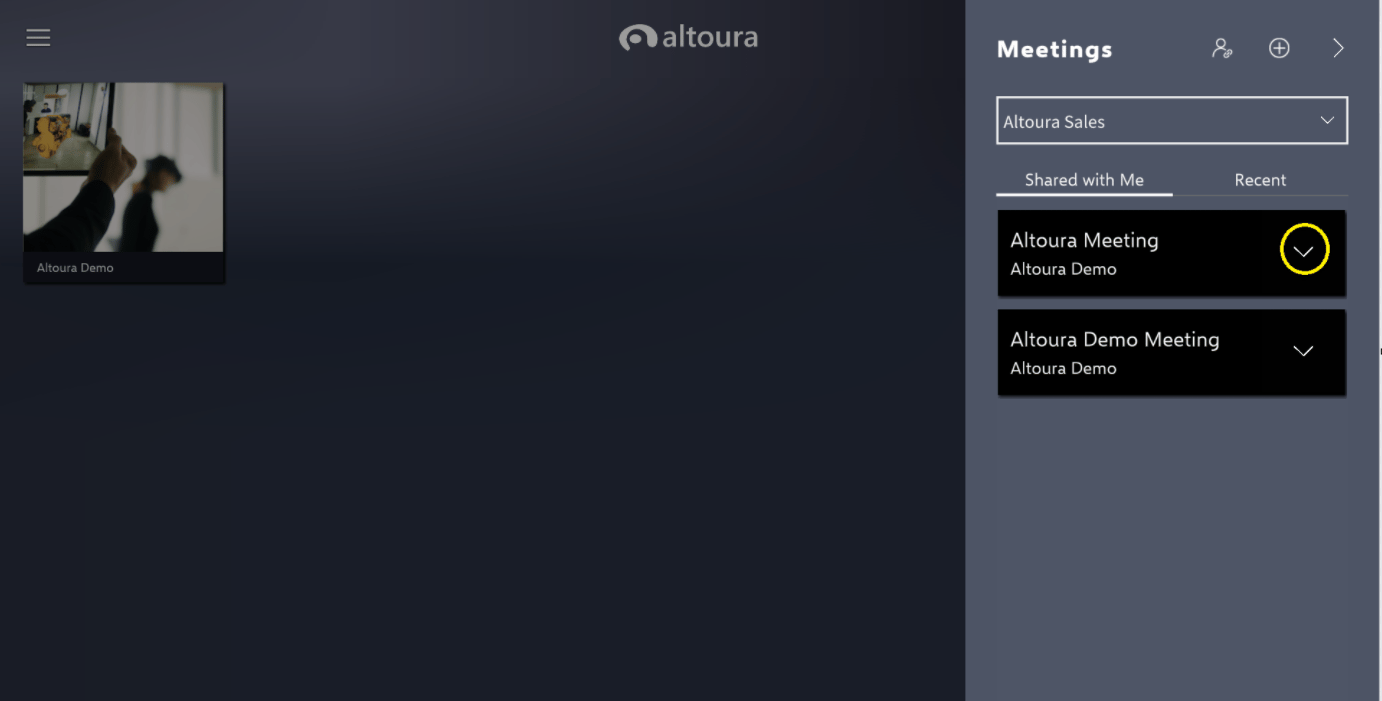 This will bring up an option menu to copy the link to send to other users, remove the meeting from your list, or edit the Meeting.
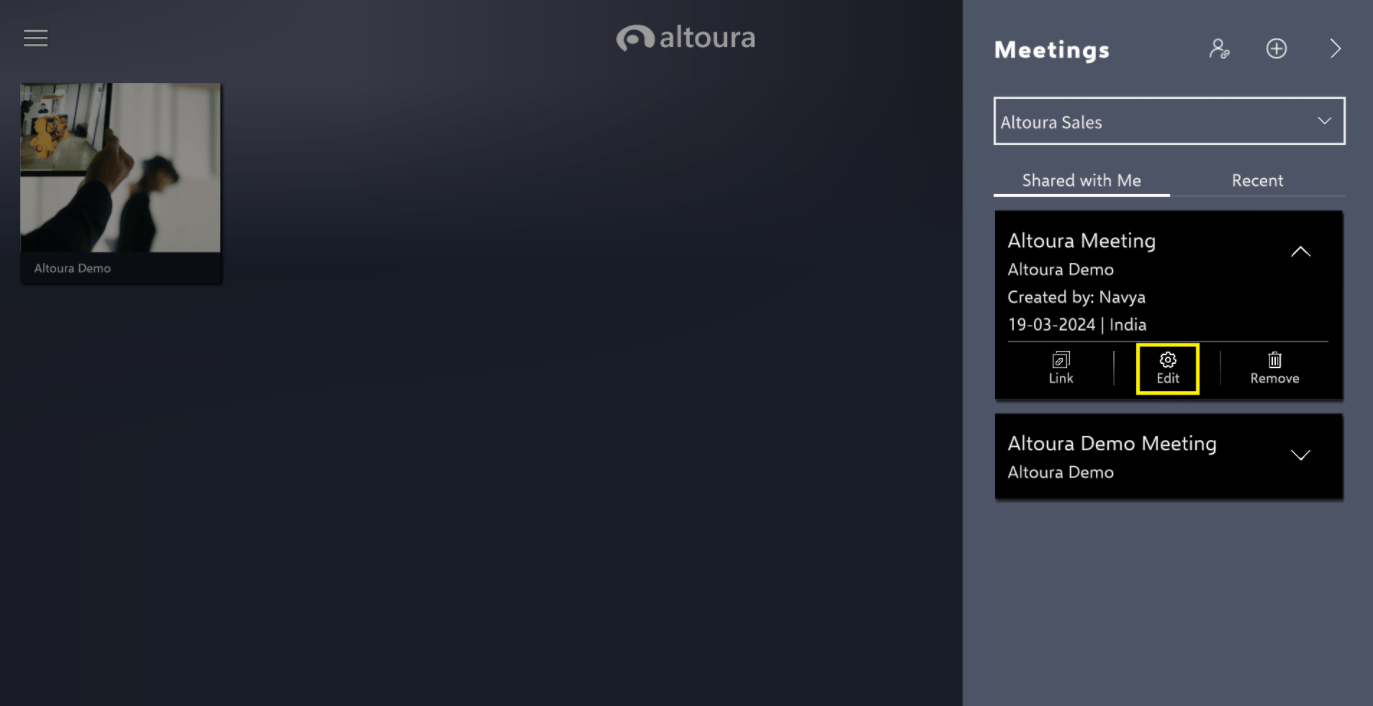 Here you can change the Meeting name, invite more users, share the Project with the invited users, and change the Meeting server location.
Remember to press **Save** if you've made any changes.
Here you can change the Meeting name, invite more users, share the Project with the invited users, and change the Meeting server location.
Remember to press **Save** if you've made any changes.
 ### During a Meeting
To see all the users during a meeting, drop down the **User List** caret. You will be notified as people enter and leave the session.
### During a Meeting
To see all the users during a meeting, drop down the **User List** caret. You will be notified as people enter and leave the session.
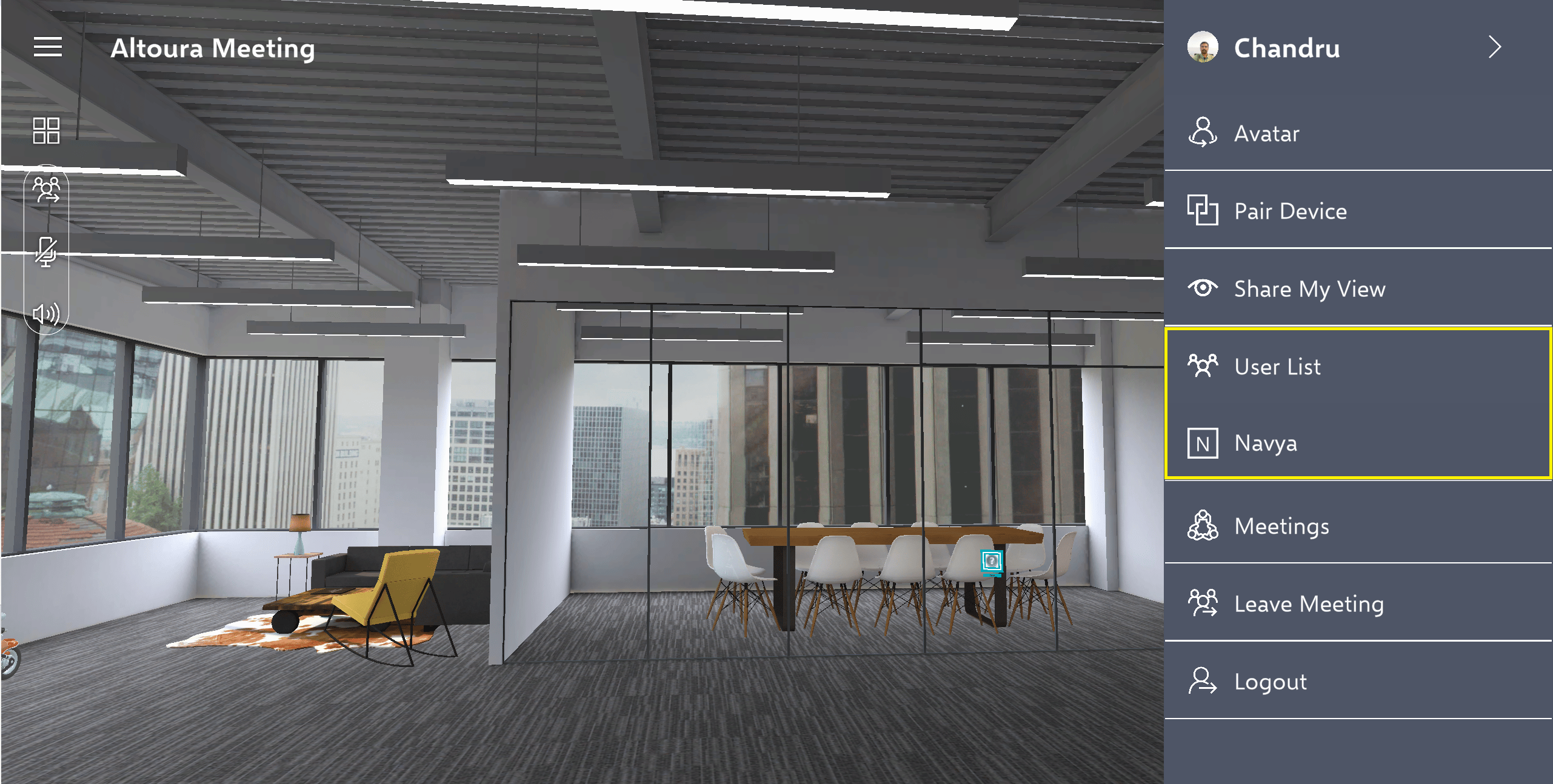 To leave the Meeting, open the user menu and choose **Leave Meeting**. This will bring you back to the project menu.