> ## Documentation Index
> Fetch the complete documentation index at: https://docs.altoura.com/llms.txt
> Use this file to discover all available pages before exploring further.
# Settings
# Joystick Navigation
## Virtual Joystick
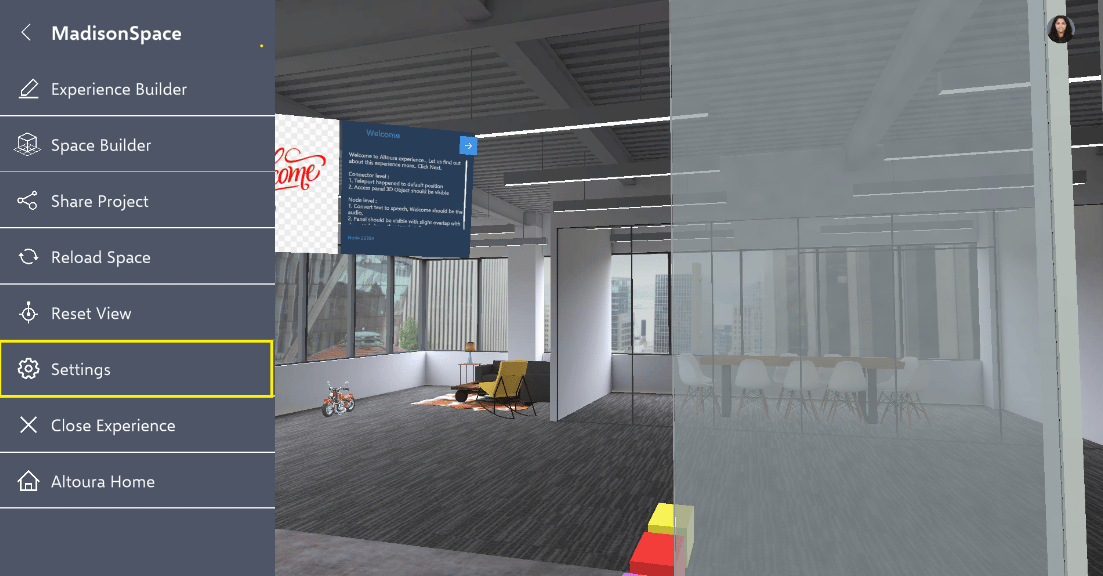
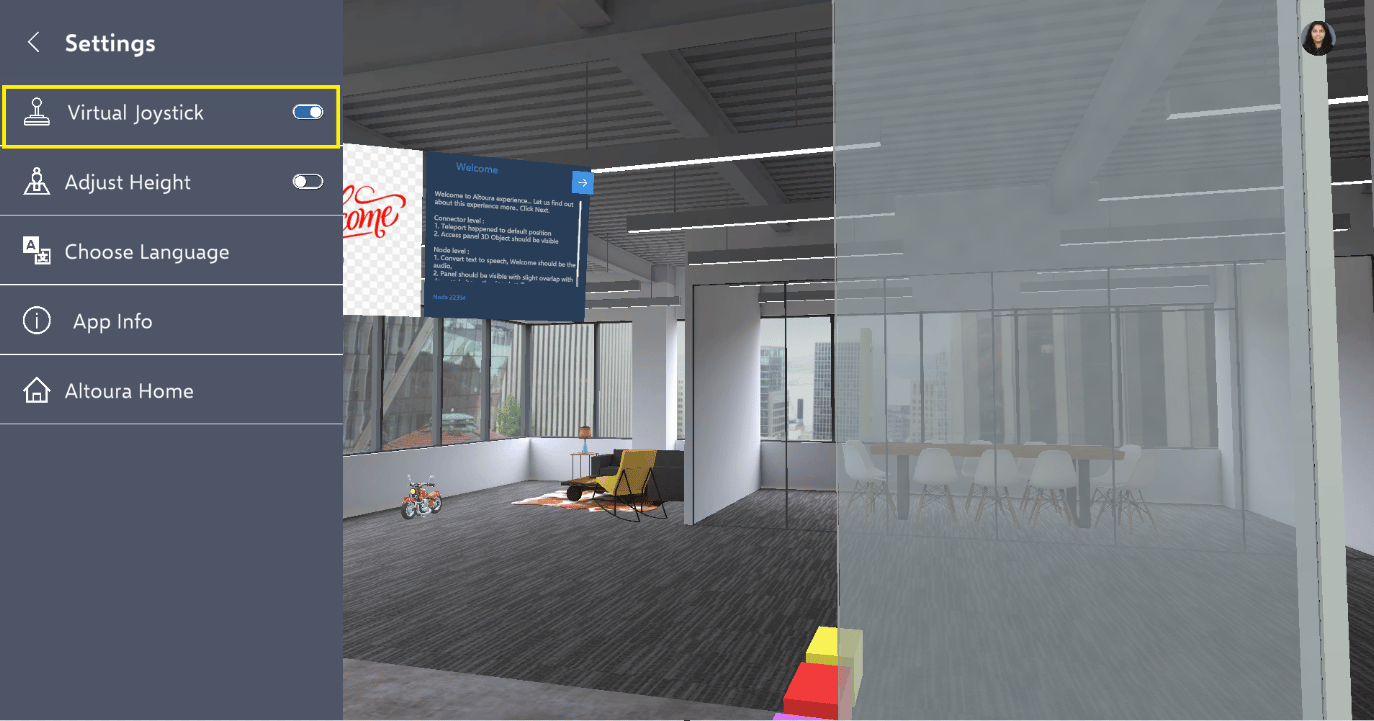
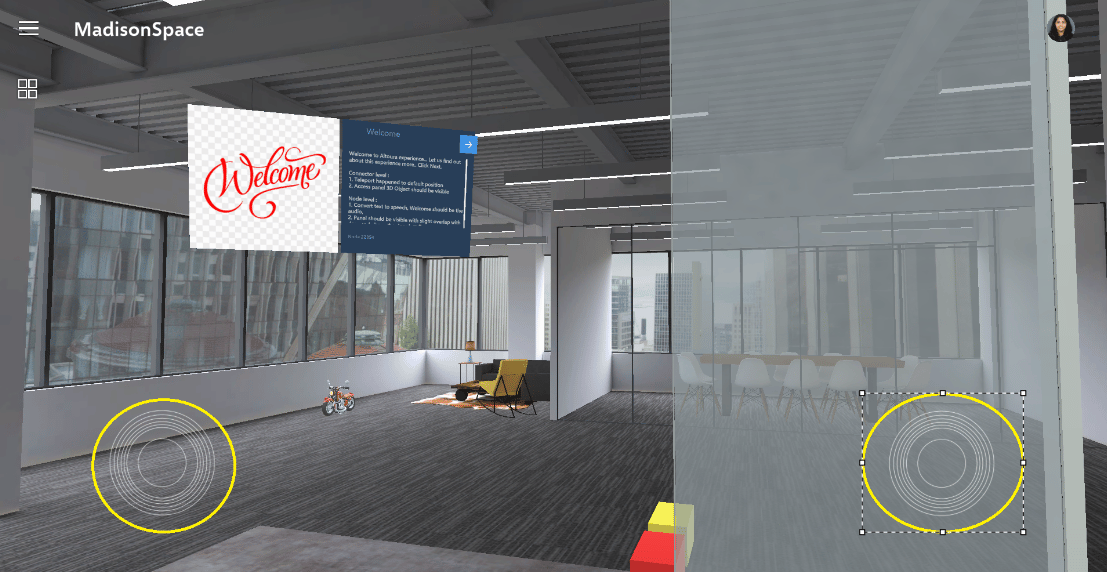
In addition to keyboard, mouse, and swipe gestures, it is also possible to use a virtual joystick on touch-compatible PCs to navigate a Space.
Go to Hemberger menu on left top corner and select settings and toggle **"Virtual Joystick".**
## Virtual Joystick Controls.
# Choose Language
Altoura now offers to change language in app. User can follow these steps to change language of the app.
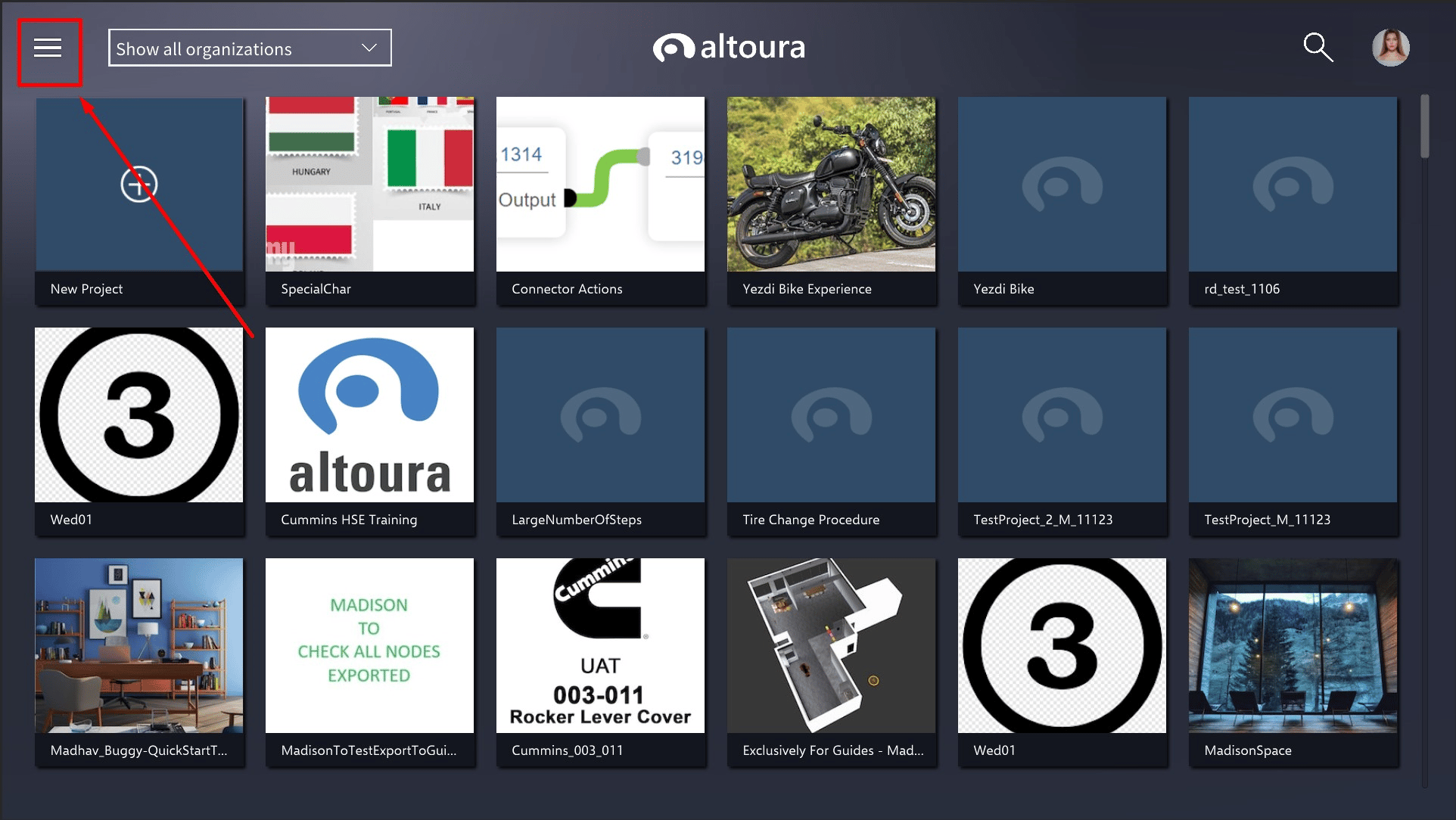
1.**On home screen, Click on the Hamburger icon present on top left of the screen**
2.**Click on "Settings" option.**
3.**Click on "Choose Language" option.**
4.**User can see the selected language and all other language options available.**
5.**User can click and select other language.**
6.**All the text menus will be changed to the selected language.**
## Languages supported in the Experience Builder
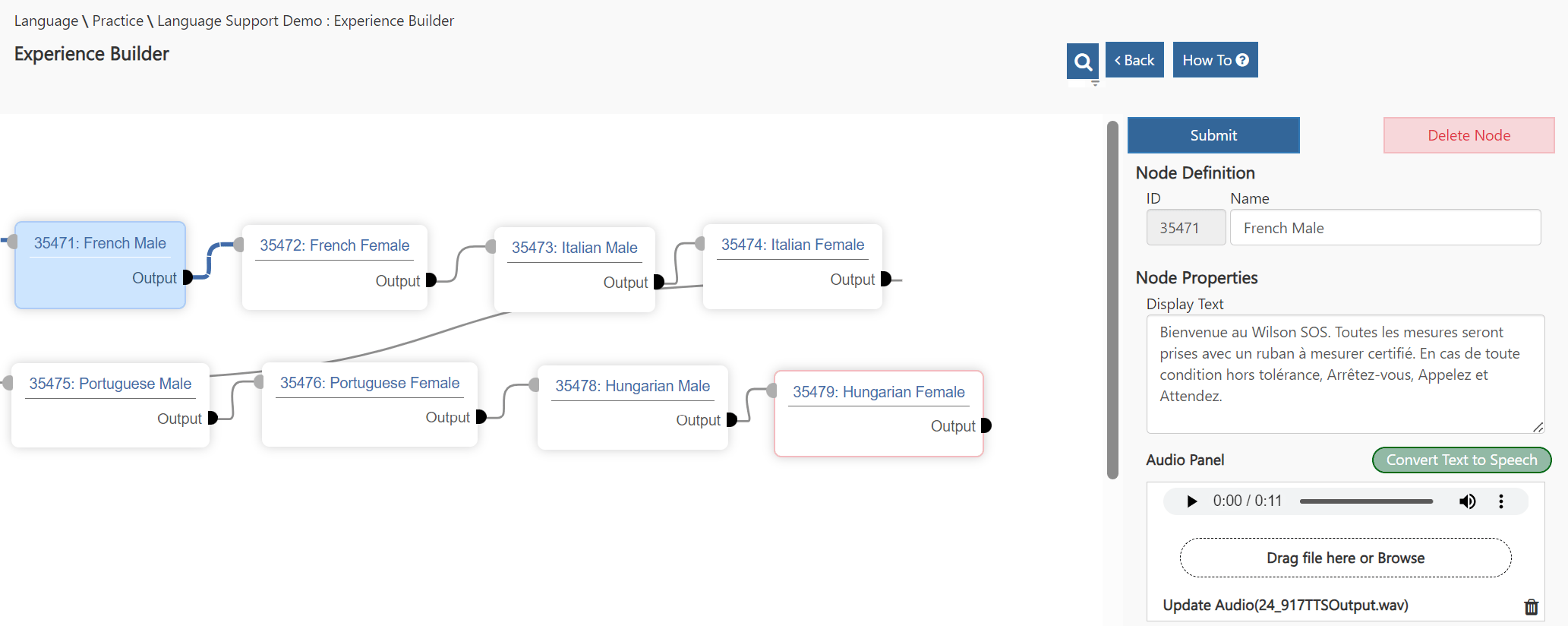
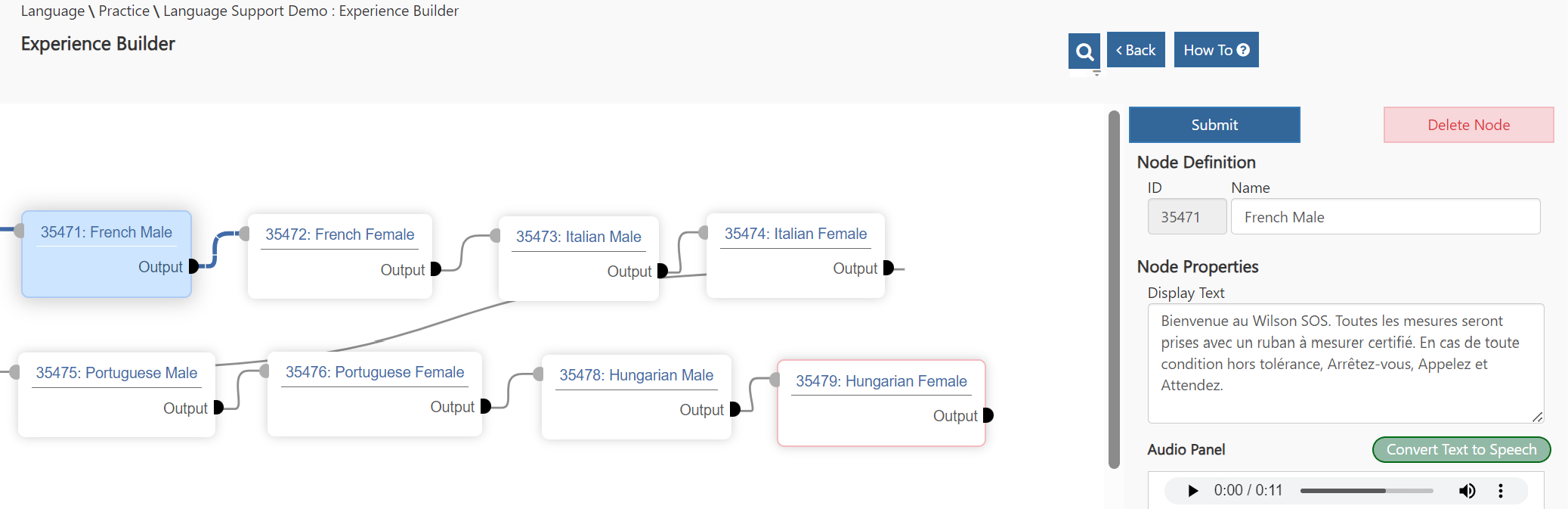
In the Experience Builder, the following languages are supported:
1. Spanish
2. French
3. Italian
4. Portuguese
5. Hungarian
6. Romanian
7. Japanese
Users can enter text in any of the above languages in the Altoura Portal.
## Audio Support
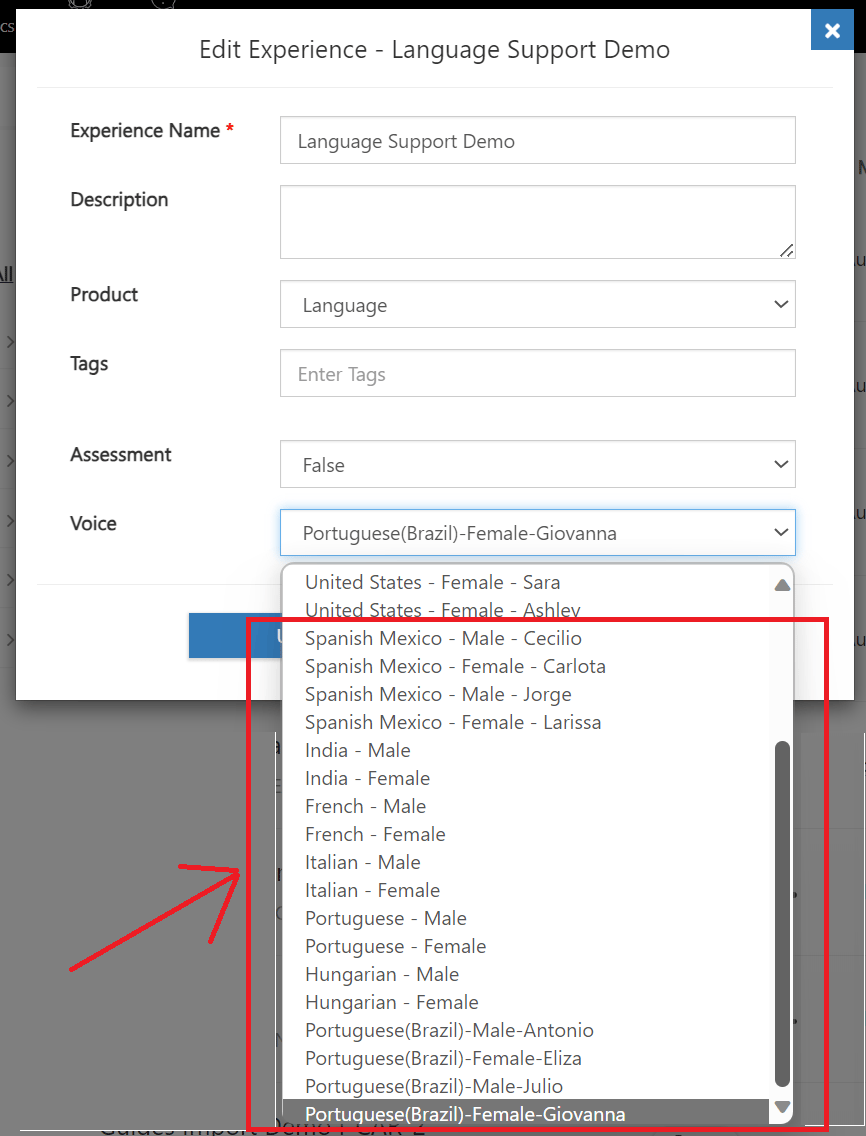
In the Experience Builder, users can generate audio files for the Display Text entered in the node by clicking on the 'Convert Text to Speech' button.
Many voice options are available as listed below:
# Audio Control
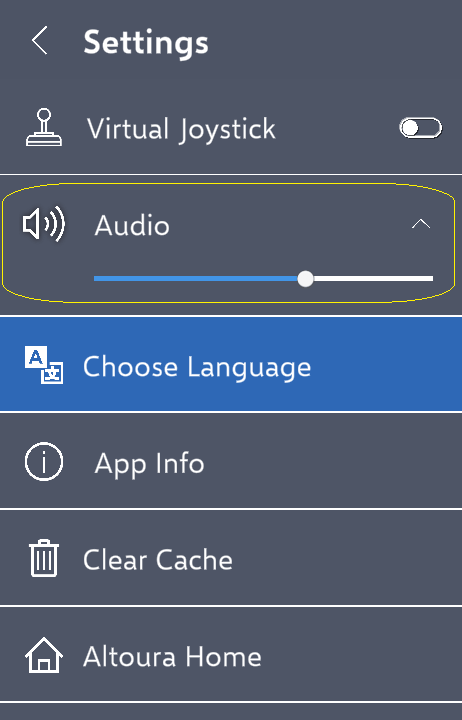
Users can adjust the audio volume and mute sound in the Standalone app via the Settings menu, accessible through the hamburger menu.
 ## Virtual Joystick Controls.
 # Choose Language
Altoura now offers to change language in app. User can follow these steps to change language of the app.
1.**On home screen, Click on the Hamburger icon present on top left of the screen**
# Choose Language
Altoura now offers to change language in app. User can follow these steps to change language of the app.
1.**On home screen, Click on the Hamburger icon present on top left of the screen**
 2.**Click on "Settings" option.**
  3.**Click on "Choose Language" option.**
  4.**User can see the selected language and all other language options available.**
  5.**User can click and select other language.**
  6.**All the text menus will be changed to the selected language.**
  ## Languages supported in the Experience Builder
In the Experience Builder, the following languages are supported:
1. Spanish
2. French
3. Italian
4. Portuguese
5. Hungarian
6. Romanian
7. Japanese
Users can enter text in any of the above languages in the Altoura Portal.
## Languages supported in the Experience Builder
In the Experience Builder, the following languages are supported:
1. Spanish
2. French
3. Italian
4. Portuguese
5. Hungarian
6. Romanian
7. Japanese
Users can enter text in any of the above languages in the Altoura Portal.
 ## Audio Support
In the Experience Builder, users can generate audio files for the Display Text entered in the node by clicking on the 'Convert Text to Speech' button.
Many voice options are available as listed below:
## Audio Support
In the Experience Builder, users can generate audio files for the Display Text entered in the node by clicking on the 'Convert Text to Speech' button.
Many voice options are available as listed below:
 # Audio Control
Users can adjust the audio volume and mute sound in the Standalone app via the Settings menu, accessible through the hamburger menu.
# Audio Control
Users can adjust the audio volume and mute sound in the Standalone app via the Settings menu, accessible through the hamburger menu.