> ## Documentation Index
> Fetch the complete documentation index at: https://docs.altoura.com/llms.txt
> Use this file to discover all available pages before exploring further.

# App Store Installation

## Installation

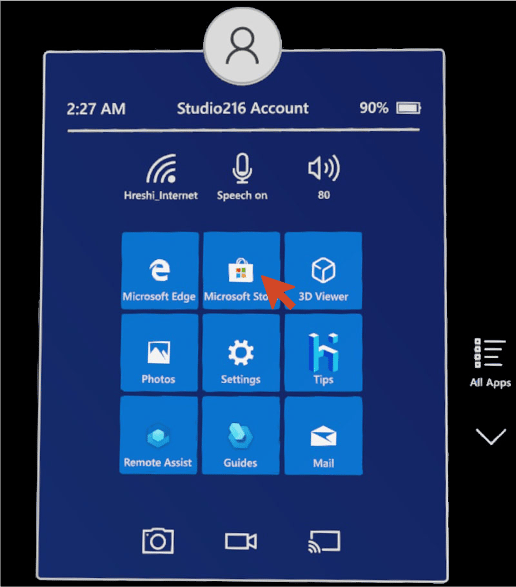
Go to Microsoft Store in the HoloLens menu.
<img src="https://mintcdn.com/altoura-785c3552/FoIV9SzgFfYMUXXv/images/docs/2adcfe0-1.png?fit=max&auto=format&n=FoIV9SzgFfYMUXXv&q=85&s=b71a2264787017e3fab124e27eeb99ea" alt="" width="516" height="587" data-path="images/docs/2adcfe0-1.png" />

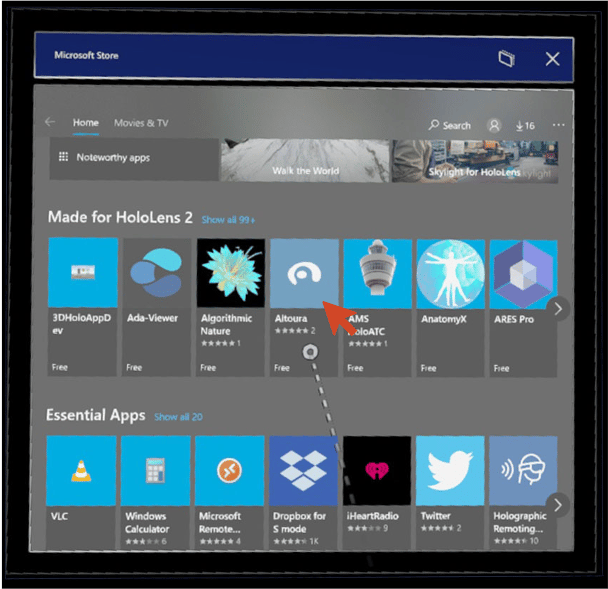
Search for and select the "Altoura" inside of the Microsoft Store for HoloLens.
<img src="https://mintcdn.com/altoura-785c3552/uN9er-P_53ywyRvz/images/docs/e5d43d7-2.png?fit=max&auto=format&n=uN9er-P_53ywyRvz&q=85&s=0f727779539db17a03e89de402c0cde8" alt="" width="608" height="589" data-path="images/docs/e5d43d7-2.png" />

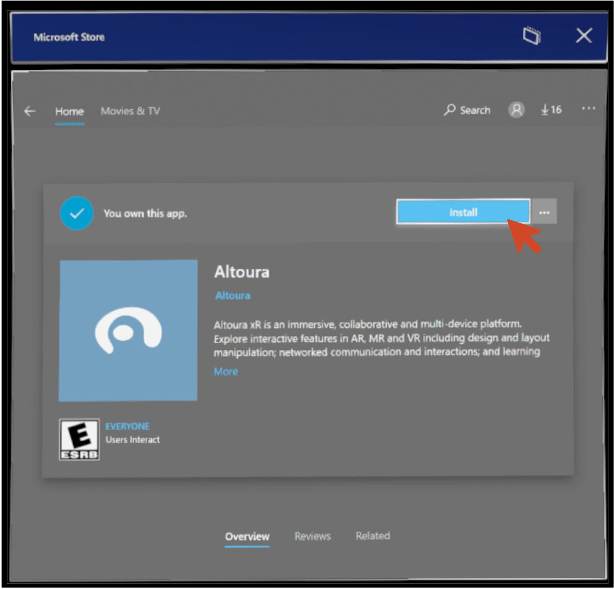
 Press on the "Install" button.

<img src="https://mintcdn.com/altoura-785c3552/FoIV9SzgFfYMUXXv/images/docs/2ee3535-3.png?fit=max&auto=format&n=FoIV9SzgFfYMUXXv&q=85&s=b095317fb3016011654556c5674d38bd" alt="" width="614" height="589" data-path="images/docs/2ee3535-3.png" />

## Getting started

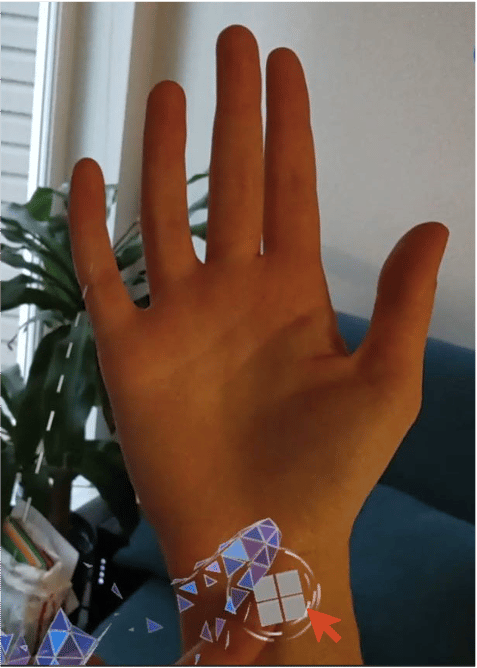
Once the installation is done go to the wrist menu  and click on the windows icon.
<img src="https://mintcdn.com/altoura-785c3552/RIgkSrBJFuycivOX/images/docs/fc38a83-4.png?fit=max&auto=format&n=RIgkSrBJFuycivOX&q=85&s=15d454a5eeae196e3e88fe041fb498da" alt="" width="477" height="668" data-path="images/docs/fc38a83-4.png" />

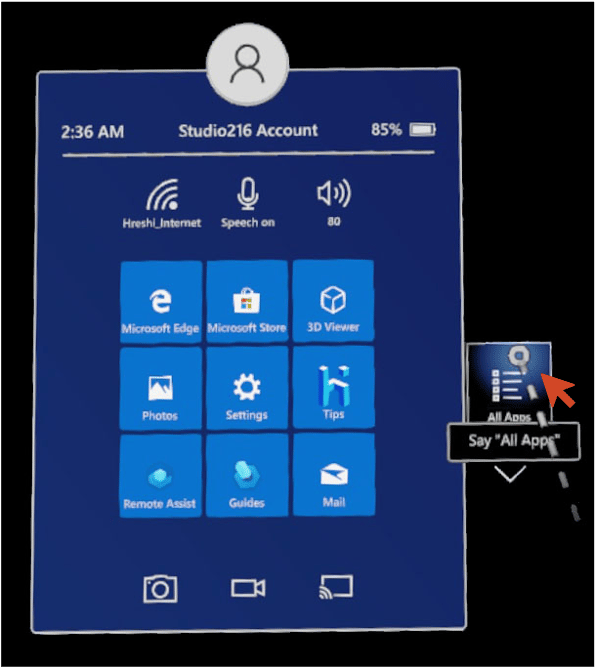
Click on the all-apps button.

<img src="https://mintcdn.com/altoura-785c3552/ZuSJMQqW-zq_BCI_/images/docs/b97200c-5.png?fit=max&auto=format&n=ZuSJMQqW-zq_BCI_&q=85&s=d59f7ec39eb71c1750eab780edc4bb51" alt="" width="595" height="668" data-path="images/docs/b97200c-5.png" />

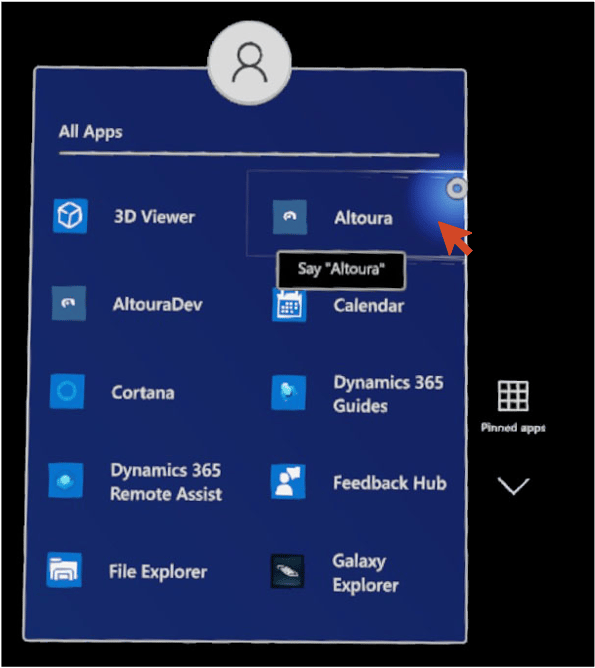
Click on the Altoura to launch.

<img src="https://mintcdn.com/altoura-785c3552/z2_JFZPNE9ekTL9F/images/docs/965cf5b-6.png?fit=max&auto=format&n=z2_JFZPNE9ekTL9F&q=85&s=4125d07292bcc15038fc179f85127753" alt="" width="595" height="668" data-path="images/docs/965cf5b-6.png" />

## Logging in using Email

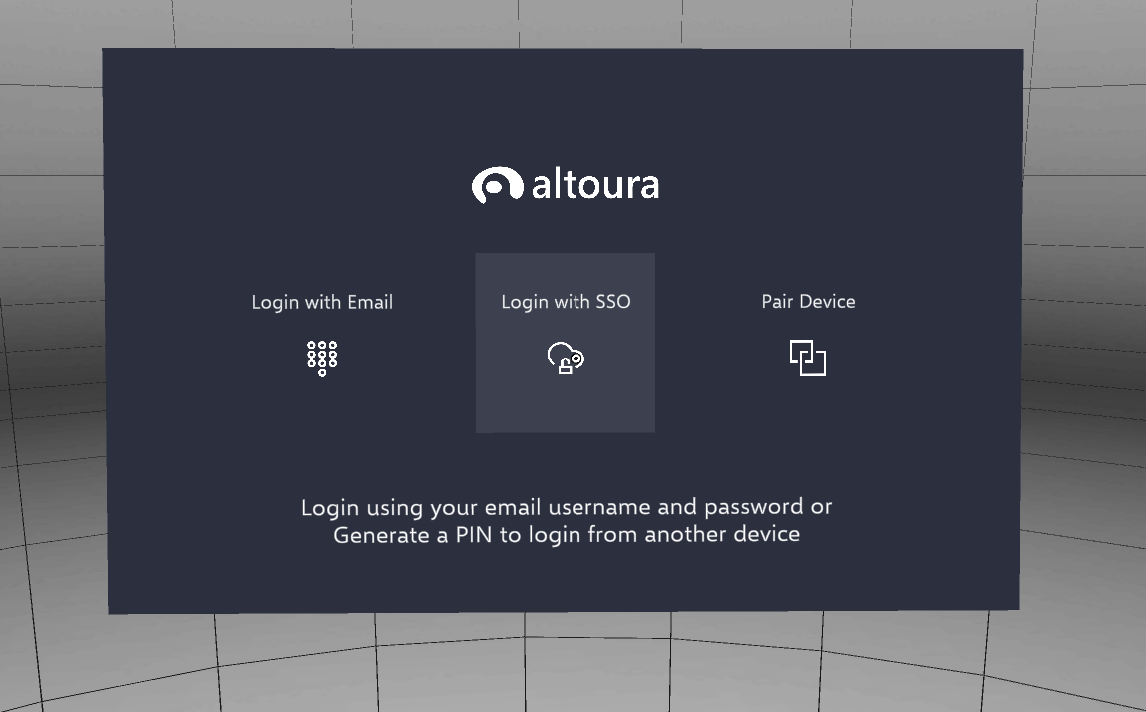
Tap on Login with Email.
<img src="https://mintcdn.com/altoura-785c3552/_Fb1P96m80-mEejg/images/docs/441008a-image.png?fit=max&auto=format&n=_Fb1P96m80-mEejg&q=85&s=76422013ba56389fb4c1ee0cb55be264" alt="" width="1146" height="712" data-path="images/docs/441008a-image.png" />

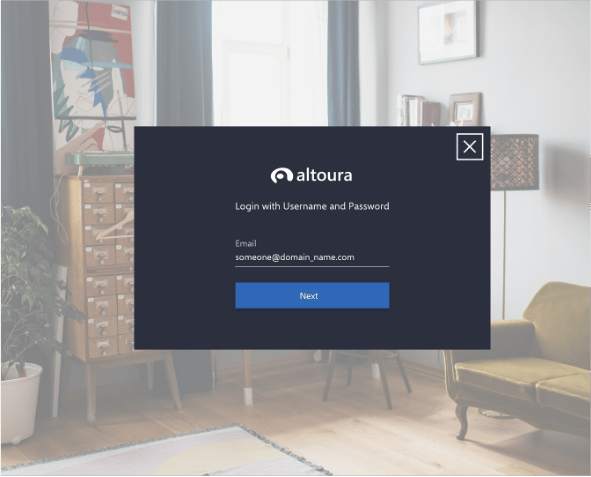
Enter your Email address.

<img src="https://mintcdn.com/altoura-785c3552/z2_JFZPNE9ekTL9F/images/docs/99f07f9-8.png?fit=max&auto=format&n=z2_JFZPNE9ekTL9F&q=85&s=27096a284bec8905c4a0931d5d1ccf69" alt="" width="591" height="477" data-path="images/docs/99f07f9-8.png" />

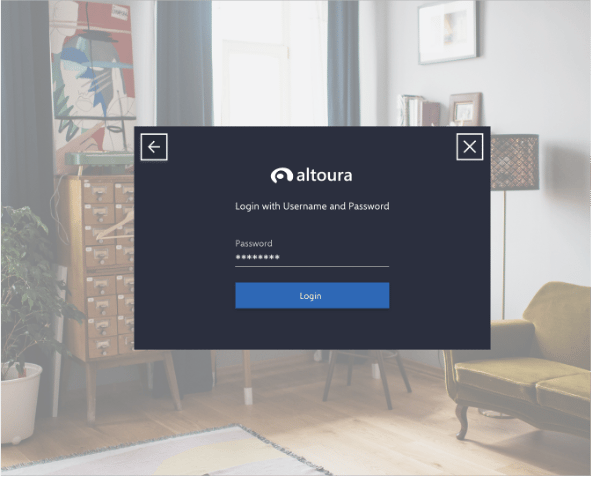
Enter Password.

<img src="https://mintcdn.com/altoura-785c3552/niZvlZtOVSBbiV3u/images/docs/88d46b2-9.png?fit=max&auto=format&n=niZvlZtOVSBbiV3u&q=85&s=aac93b9a8b7017aac74b012805f6f36d" alt="" width="591" height="477" data-path="images/docs/88d46b2-9.png" />

## Logging in using a logged in device00

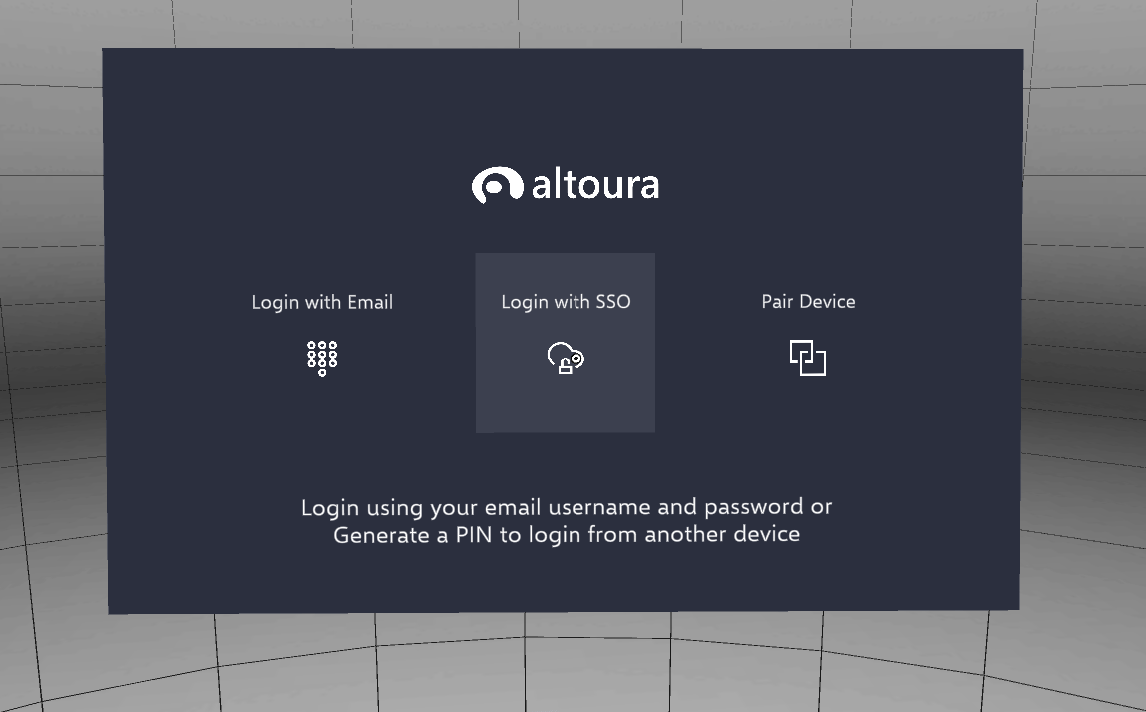
Tap on Pair Device.
<img src="https://mintcdn.com/altoura-785c3552/rSHiWKFaLfV4dcN7/images/docs/59a0ab8-image.png?fit=max&auto=format&n=rSHiWKFaLfV4dcN7&q=85&s=0812c78f98319807aa8d15399d7c1845" alt="" width="1146" height="712" data-path="images/docs/59a0ab8-image.png" />

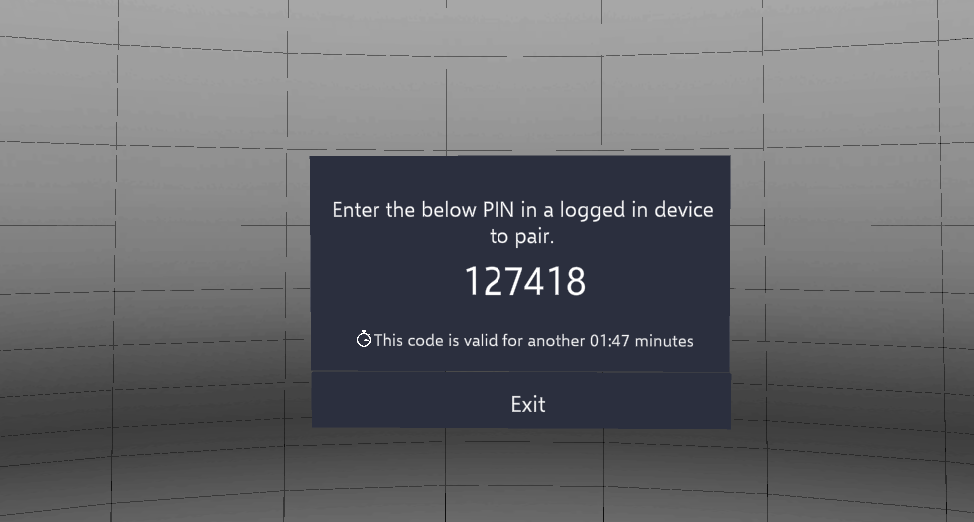
The system generates a six-digit PIN.

<img src="https://mintcdn.com/altoura-785c3552/rSHiWKFaLfV4dcN7/images/docs/673a568-image.png?fit=max&auto=format&n=rSHiWKFaLfV4dcN7&q=85&s=e89ae27261c582be892ff2b923f73737" alt="" width="974" height="522" data-path="images/docs/673a568-image.png" />

The PIN expires in 2 minutes.

<img src="https://mintcdn.com/altoura-785c3552/uN9er-P_53ywyRvz/images/docs/d3e3858-image.png?fit=max&auto=format&n=uN9er-P_53ywyRvz&q=85&s=e6b9ea8f9483664b510d3d0420b0f519" alt="" width="755" height="507" data-path="images/docs/d3e3858-image.png" />

## Open a logged in Smartphone

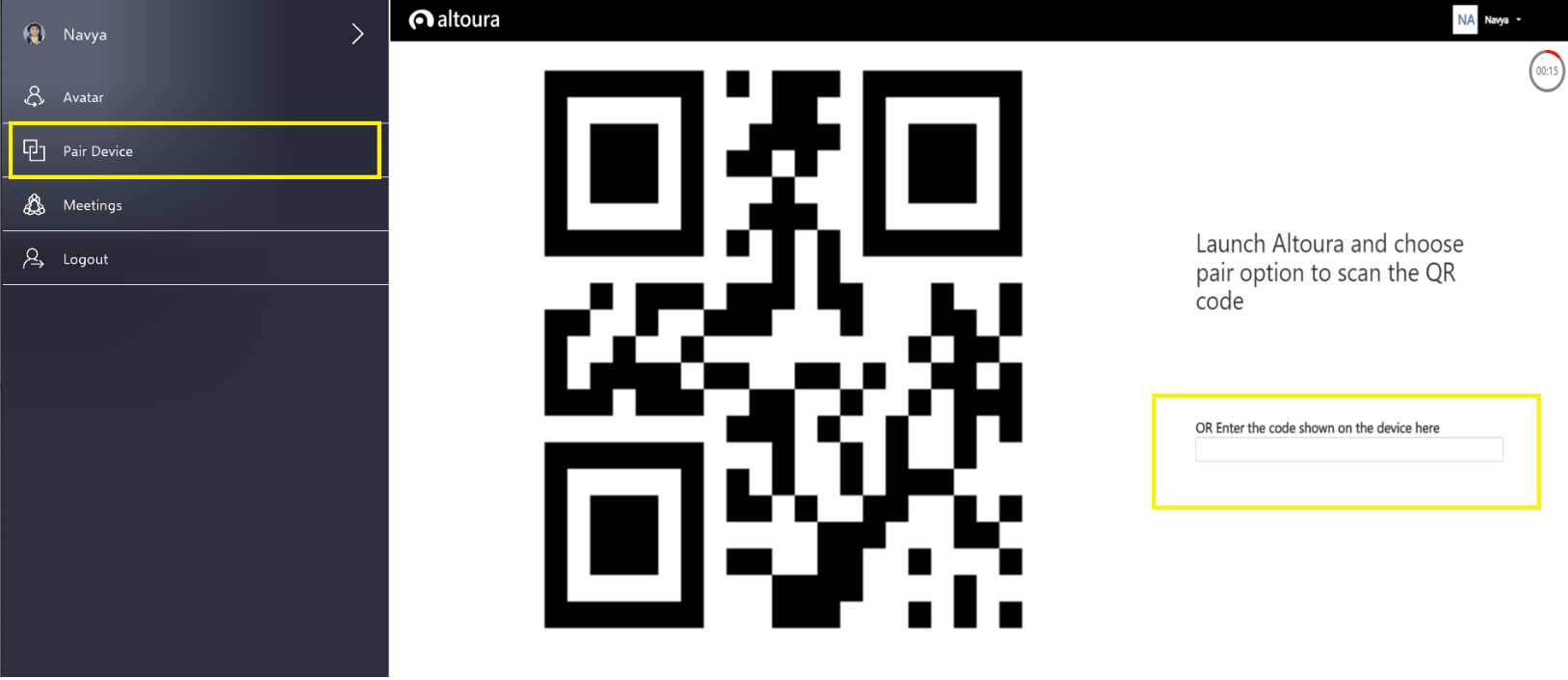
1. Select the Pair Device option from the User Menu.
2. Enter the PIN from your Head Mounted Device.
<img src="https://mintcdn.com/altoura-785c3552/uN9er-P_53ywyRvz/images/docs/dd50392-image.png?fit=max&auto=format&n=uN9er-P_53ywyRvz&q=85&s=c4857a0bf855ce608cbad89145e2be24" alt="" width="1628" height="706" data-path="images/docs/dd50392-image.png" />

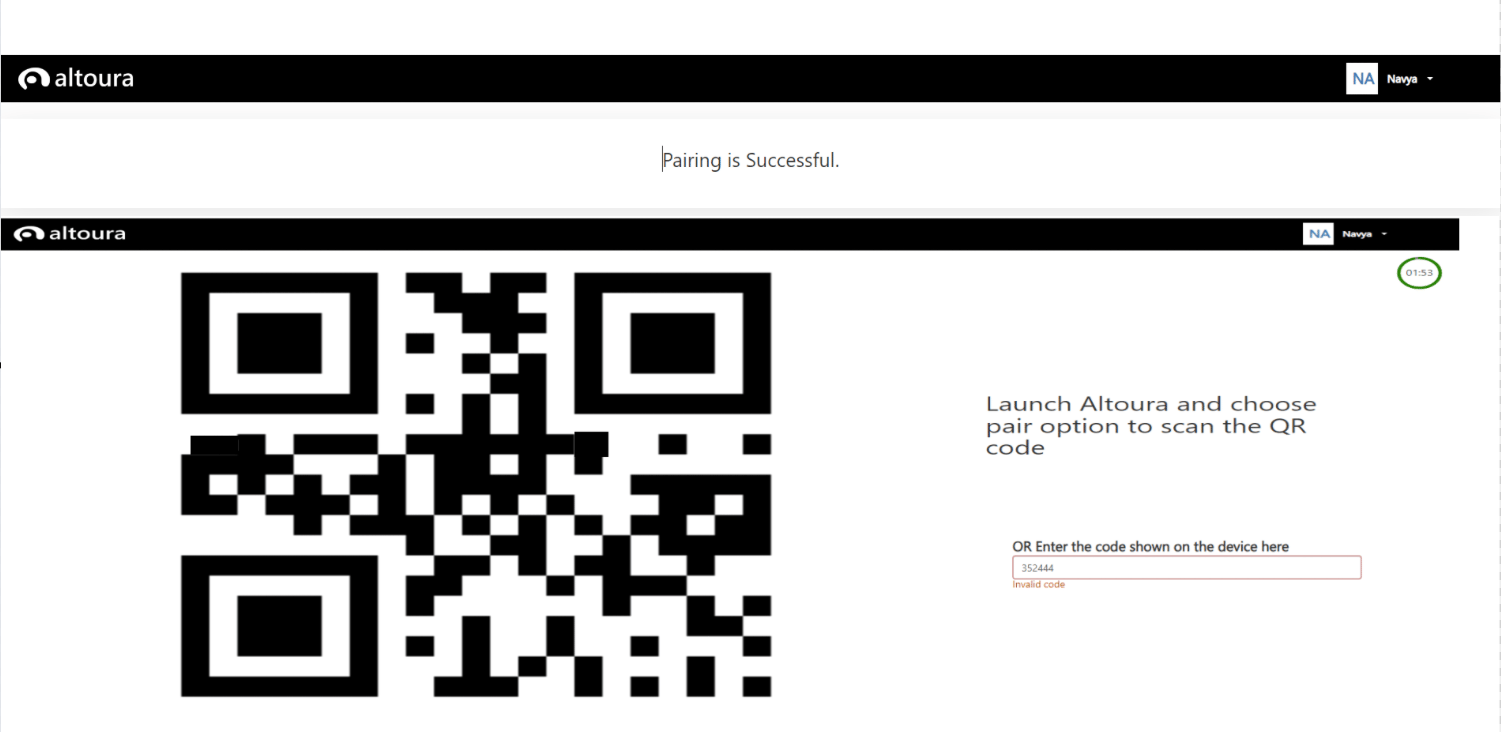
3. Your device is paired successfully.
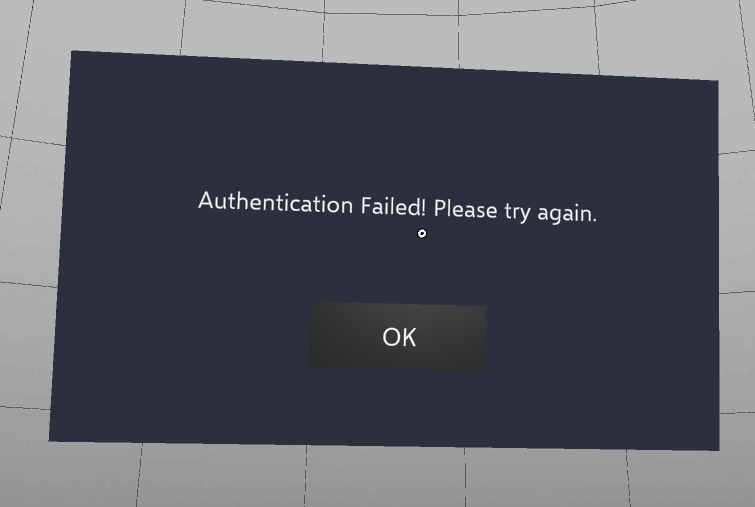
4. Tap retry to enter the correct PIN.
<img src="https://mintcdn.com/altoura-785c3552/RIgkSrBJFuycivOX/images/docs/f8e59f9-image.png?fit=max&auto=format&n=RIgkSrBJFuycivOX&q=85&s=2653775cea2eba242a39c1bf5bb8c478" alt="" width="1501" height="732" data-path="images/docs/f8e59f9-image.png" />