> ## Documentation Index
> Fetch the complete documentation index at: https://docs.altoura.com/llms.txt
> Use this file to discover all available pages before exploring further.
# Getting Started
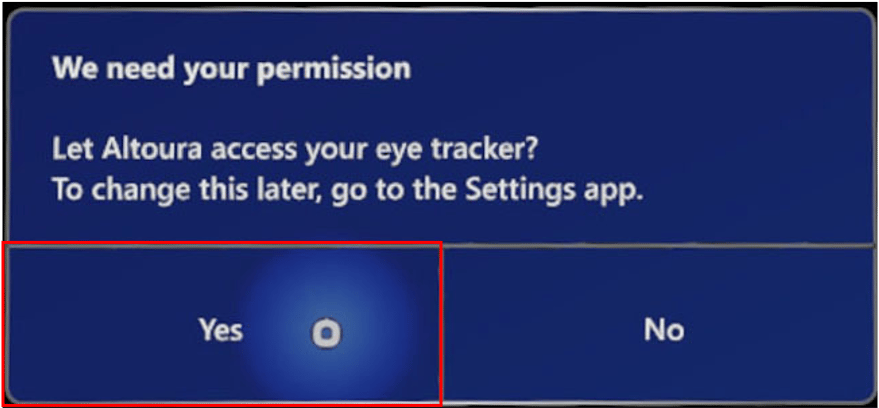
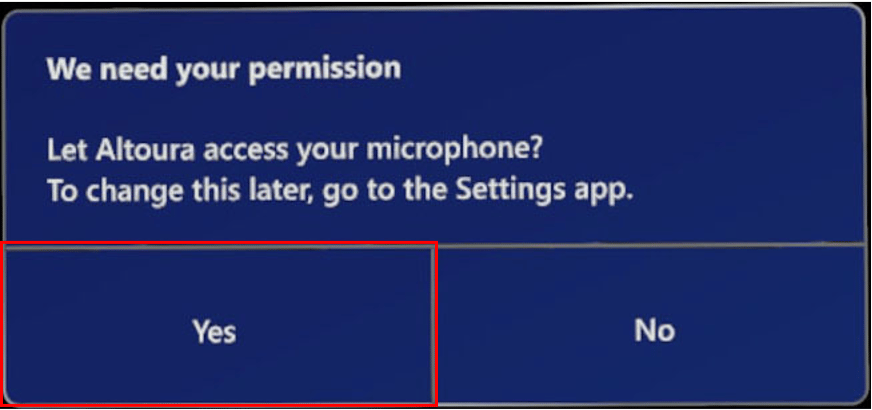
## Granting Permission
## Logging In
There are three ways you can login to Altoura on the HL device.
1. Login with Email This method uses your Altoura or company email and password for verification.
2. [Pair](/docs/app-user/mobile/pairing-hmd) Device This method uses the Altoura app on your mobile or Desktop device to log you in.
3. Device Login This method uses the credentials you've logged in to your HoloLens device with. Make sure you have logged into your device through SSO at least once to see this option show up on the login menu.
## Altoura Toolbox
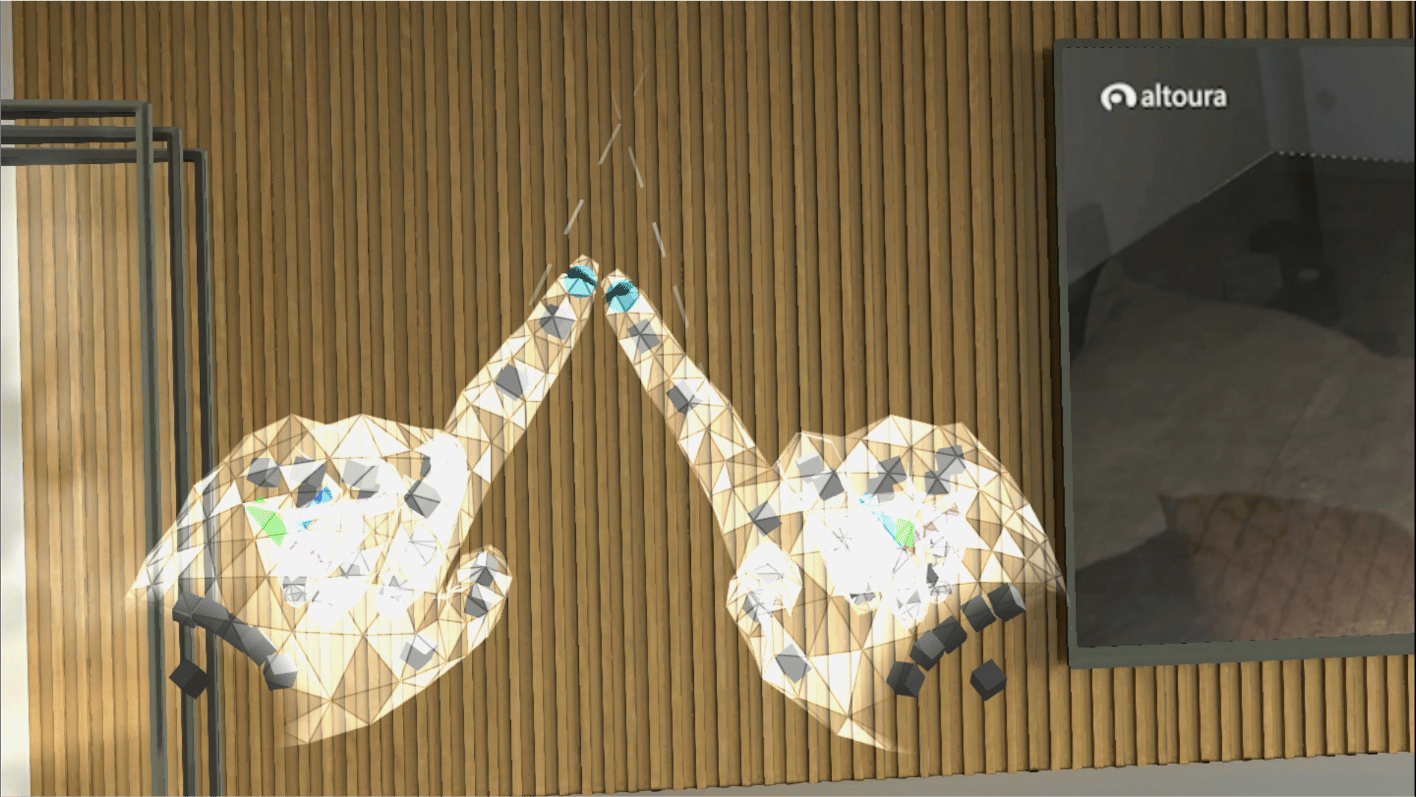
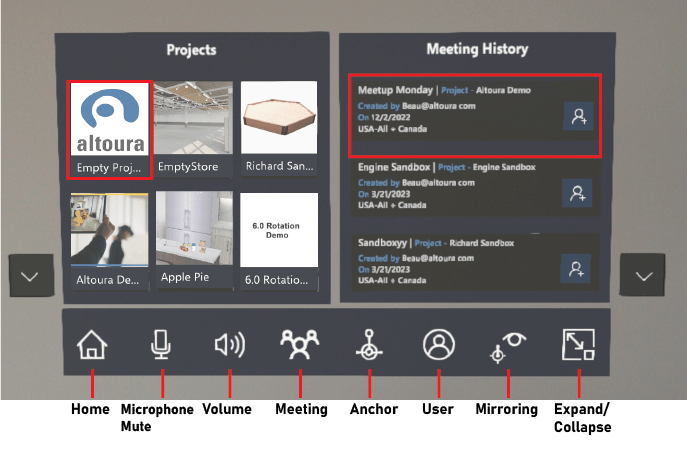
Make an A with your fingers to bring up the Altoura Menu.
Tapping on the Project will load the Project. You can join a Meeting by tapping the Meeting Name.
## Closing Altoura
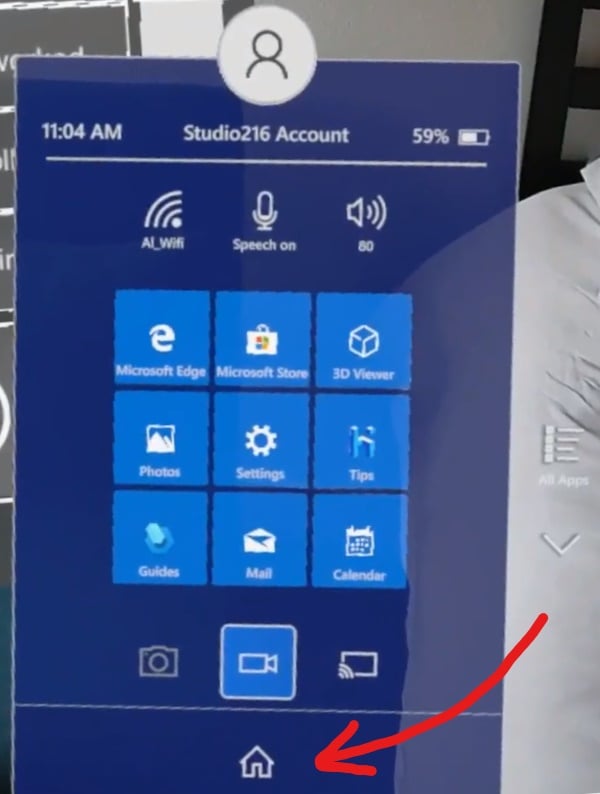
When you're done using the Altoura on the HoloLens, make sure you close out the app. To do this, bring up the HoloLens shell button by tapping your wrist and press the home icon at the bottom. This will take you out of the Altoura app and back to the HoloLens home environment.
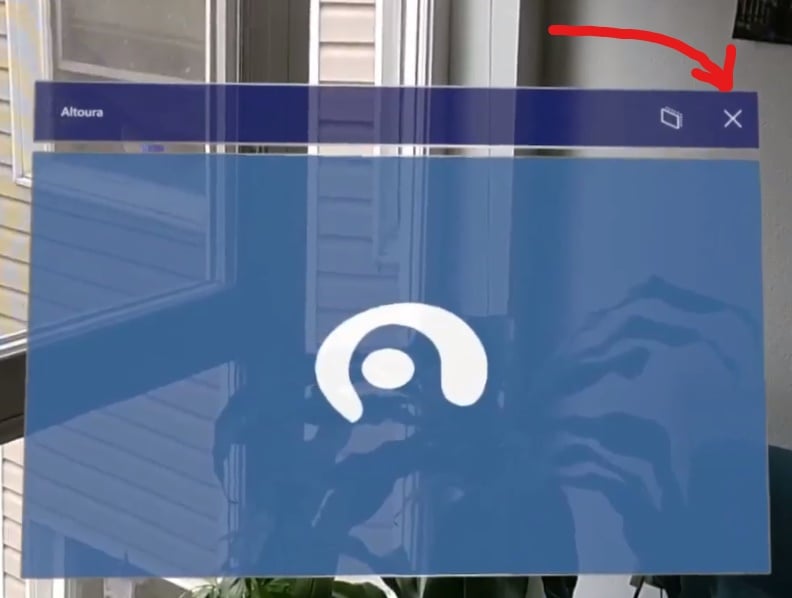
Next, close the Altoura tile to close the instance of Altoura. This will ensure that the next time you open Altoura it will run as expected.
### Finding the Altoura Tile
The Altoura tile should be wherever you originally opened the app. You may have to look around your physical space to find it. To close out any instances of Altoura that you may not see in the HL, go to **Settings > System > Holograms > Remove All Holograms**
 ## Logging In
There are three ways you can login to Altoura on the HL device.
1. Login with Email This method uses your Altoura or company email and password for verification.
2. [Pair](/docs/app-user/mobile/pairing-hmd) Device This method uses the Altoura app on your mobile or Desktop device to log you in.
3. Device Login This method uses the credentials you've logged in to your HoloLens device with. Make sure you have logged into your device through SSO at least once to see this option show up on the login menu.
## Altoura Toolbox
Make an A with your fingers to bring up the Altoura Menu.
## Logging In
There are three ways you can login to Altoura on the HL device.
1. Login with Email This method uses your Altoura or company email and password for verification.
2. [Pair](/docs/app-user/mobile/pairing-hmd) Device This method uses the Altoura app on your mobile or Desktop device to log you in.
3. Device Login This method uses the credentials you've logged in to your HoloLens device with. Make sure you have logged into your device through SSO at least once to see this option show up on the login menu.
## Altoura Toolbox
Make an A with your fingers to bring up the Altoura Menu.
 Tapping on the Project will load the Project. You can join a Meeting by tapping the Meeting Name.
 ## Closing Altoura
When you're done using the Altoura on the HoloLens, make sure you close out the app. To do this, bring up the HoloLens shell button by tapping your wrist and press the home icon at the bottom. This will take you out of the Altoura app and back to the HoloLens home environment.
## Closing Altoura
When you're done using the Altoura on the HoloLens, make sure you close out the app. To do this, bring up the HoloLens shell button by tapping your wrist and press the home icon at the bottom. This will take you out of the Altoura app and back to the HoloLens home environment.
 Next, close the Altoura tile to close the instance of Altoura. This will ensure that the next time you open Altoura it will run as expected.