> ## Documentation Index
> Fetch the complete documentation index at: https://docs.altoura.com/llms.txt
> Use this file to discover all available pages before exploring further.
# Login and Launch
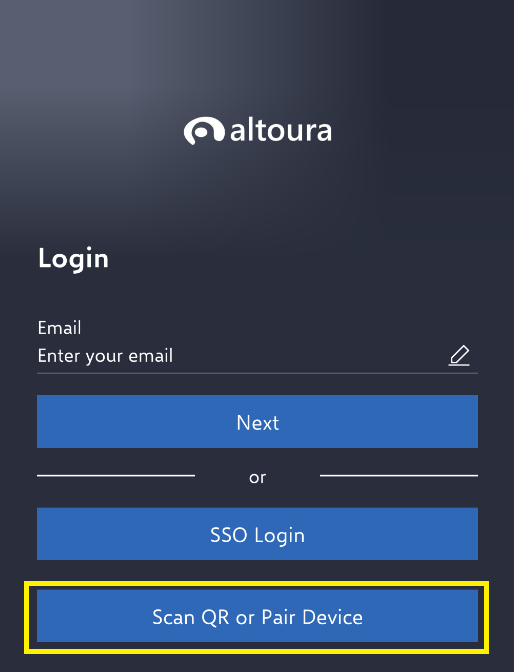
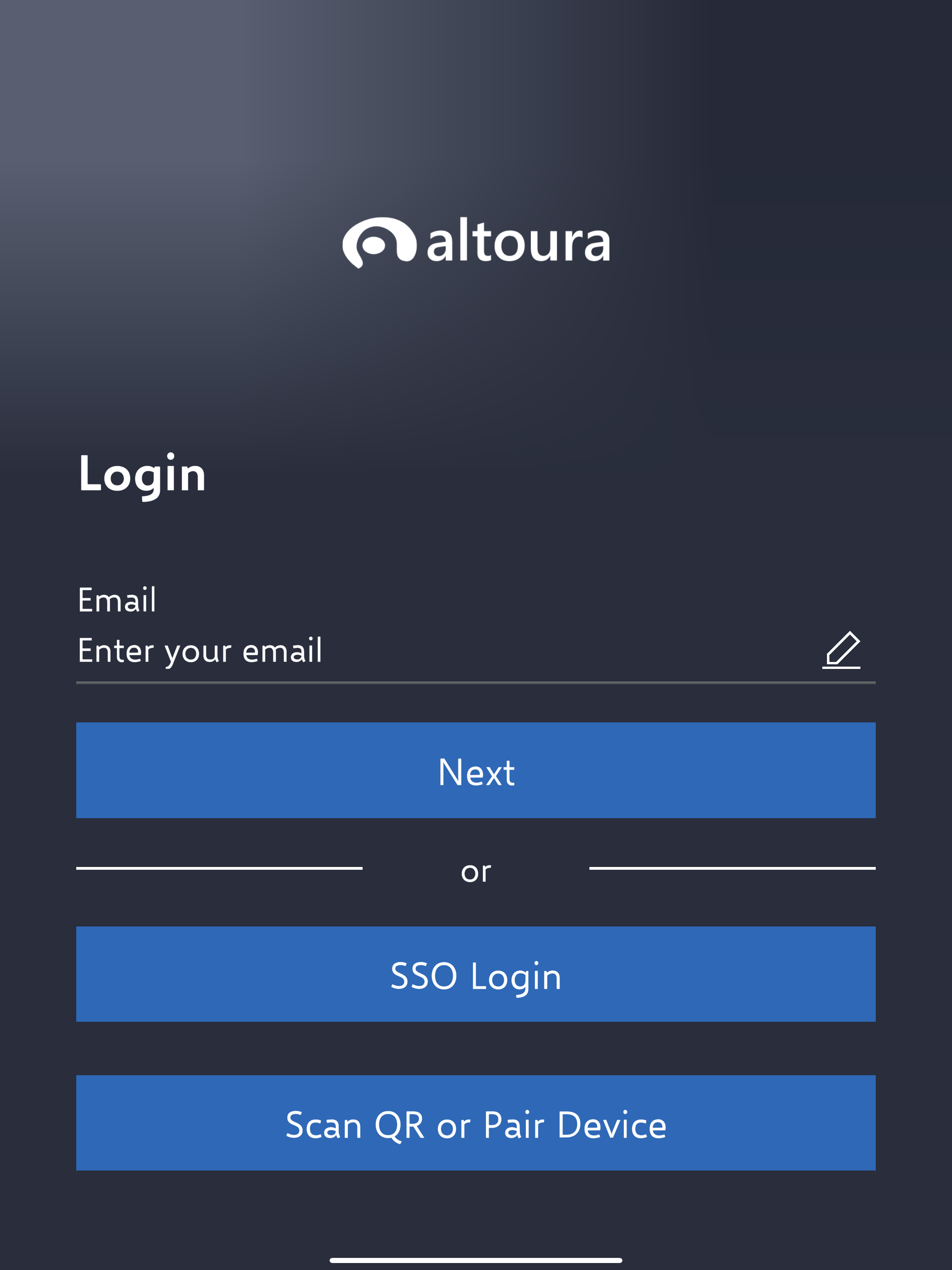
> First, launch Altoura on your phone or tablet. After startup, the login screen will show. This will give you three options to log in-via email, SSO or QR/Pairing.
 # Email Login
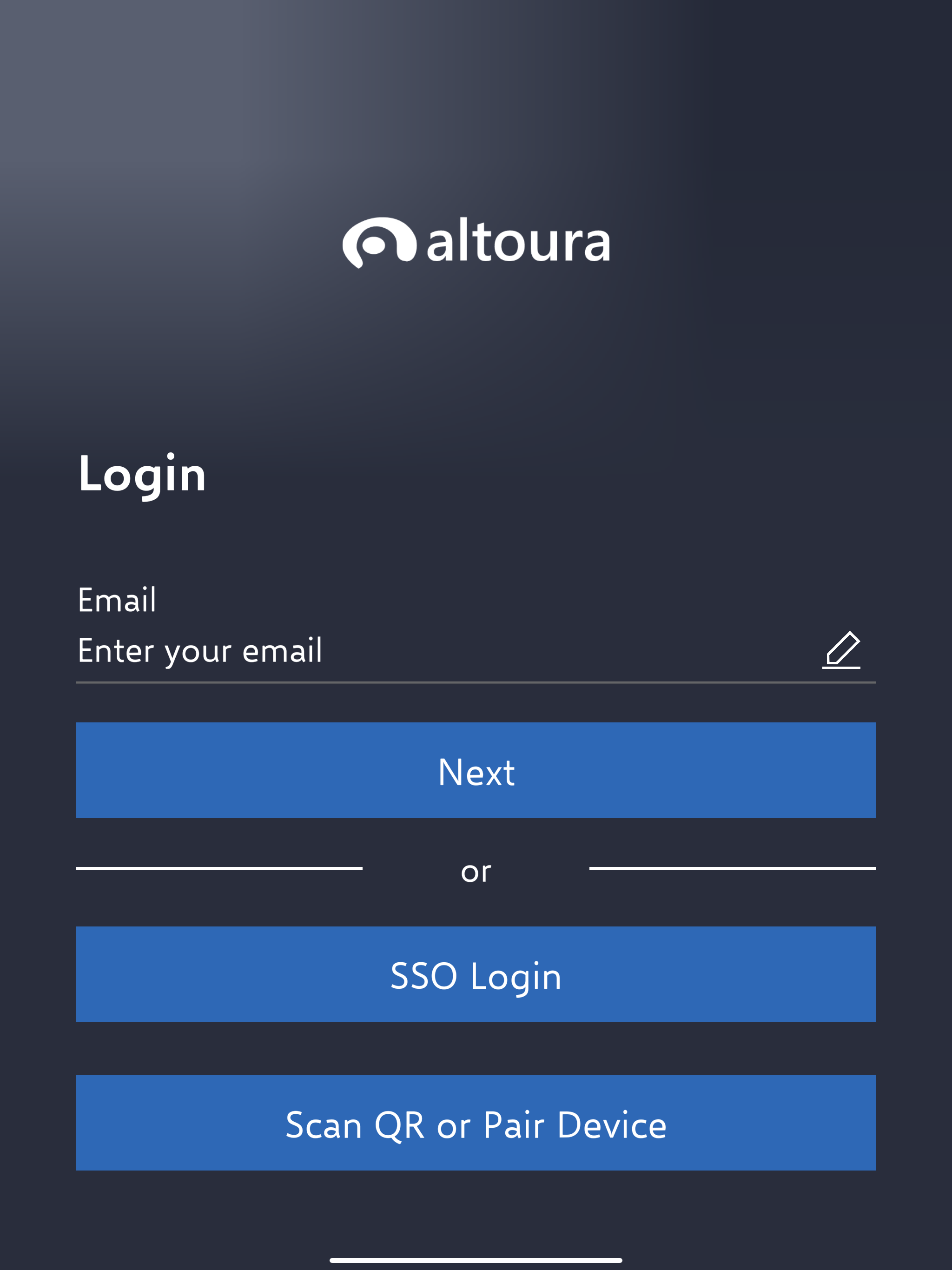
For Email Login, start by entering your email address in the email field.
# Email Login
For Email Login, start by entering your email address in the email field.
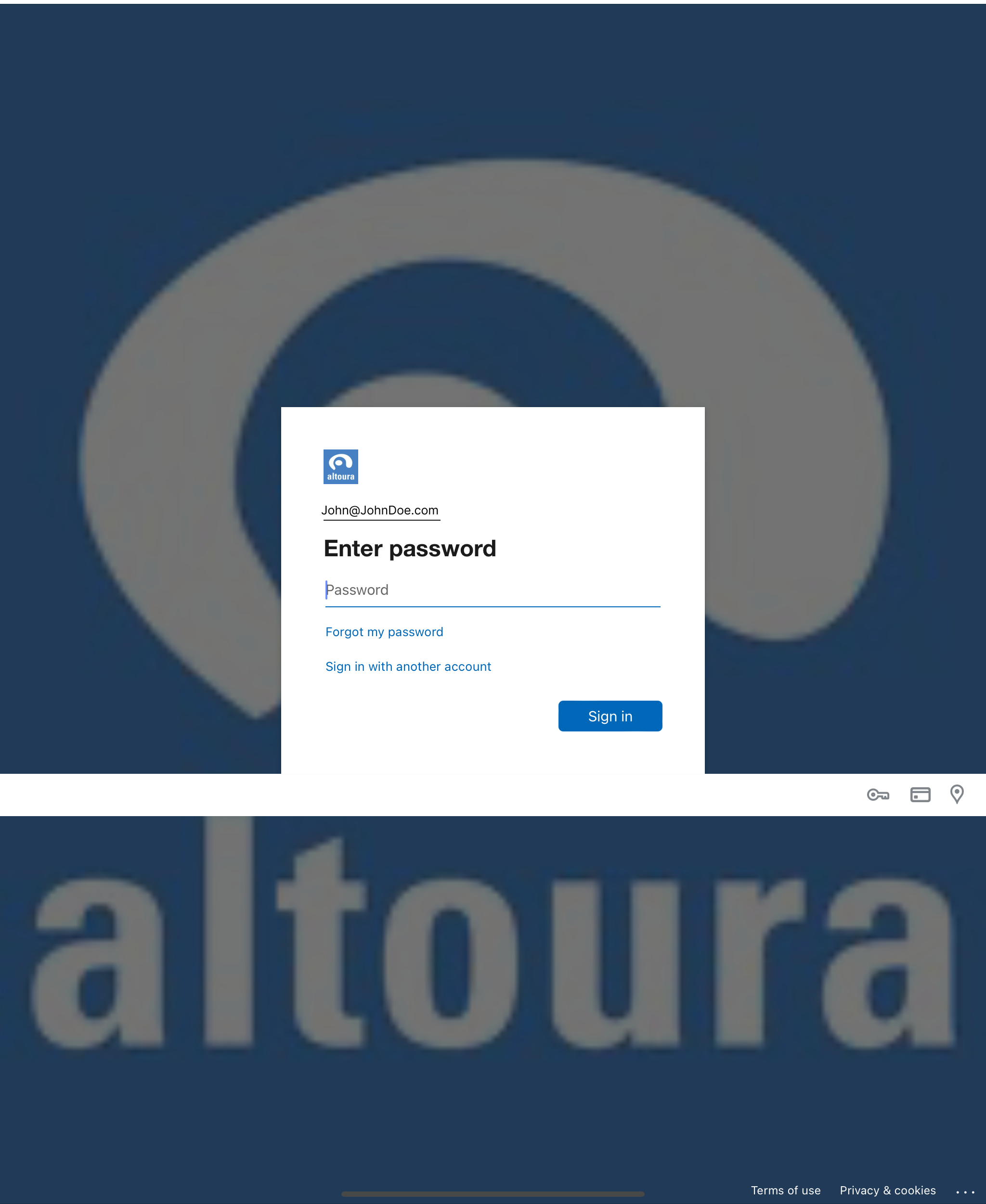
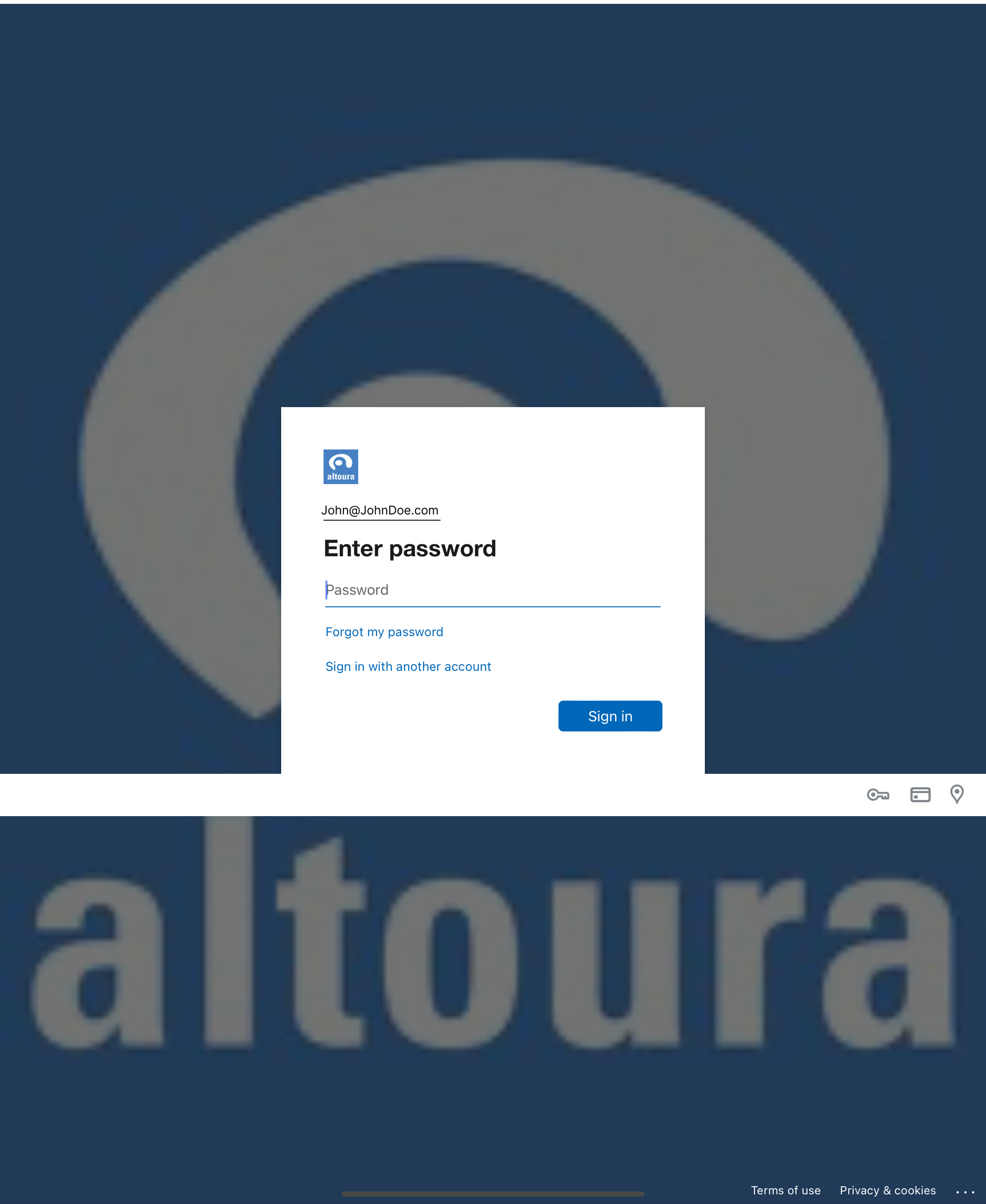
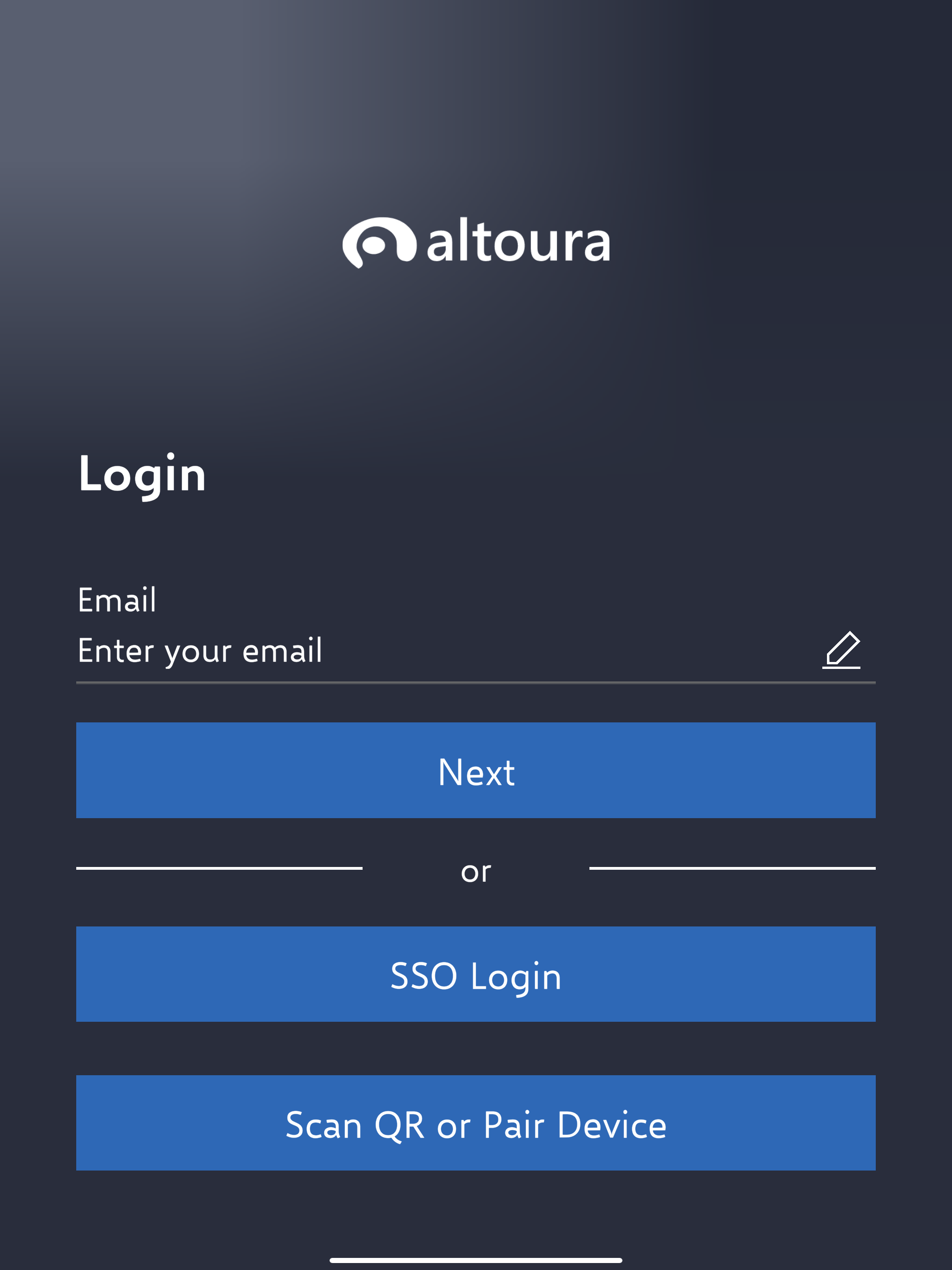 A browser window will show up where you then enter your password.
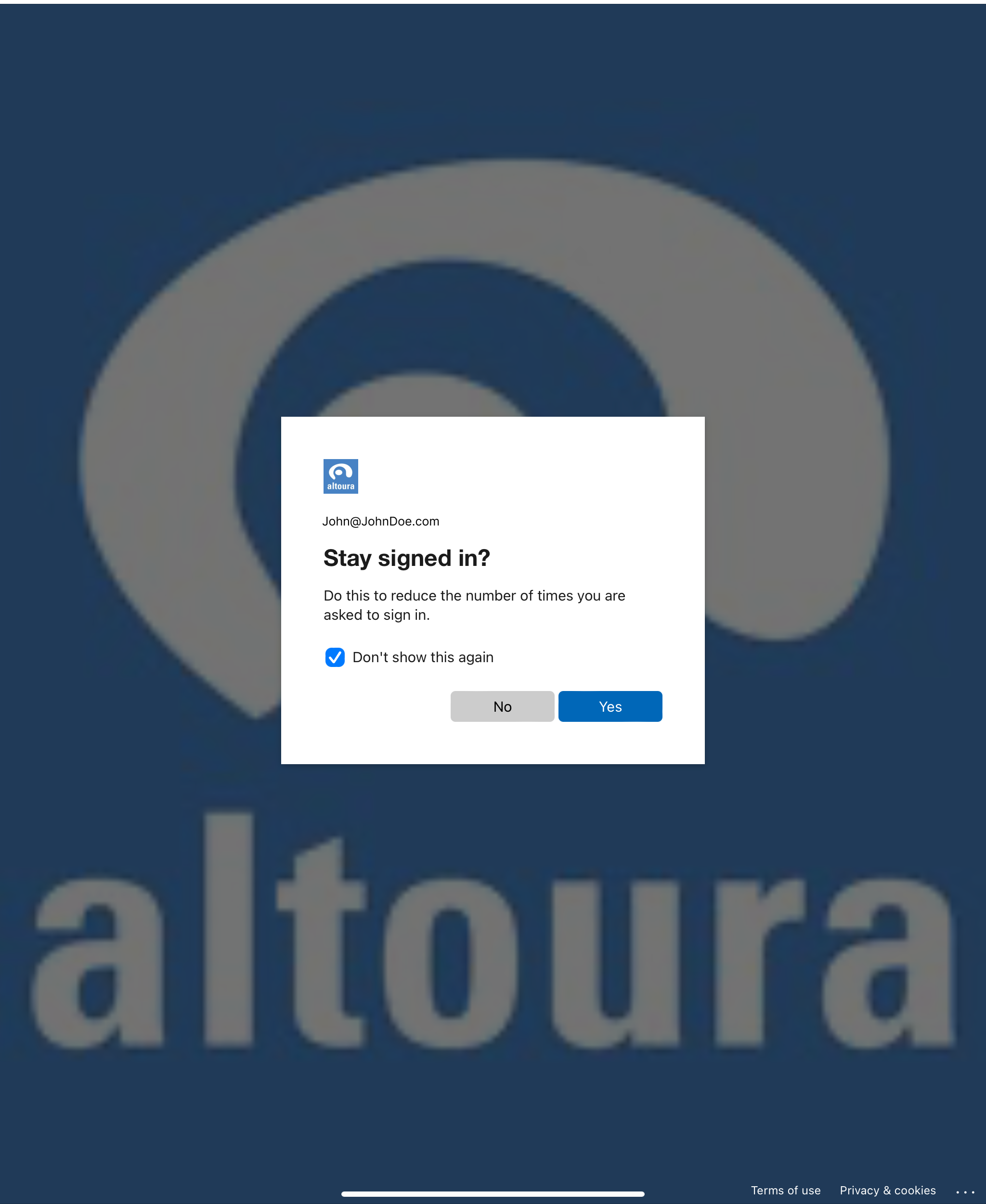
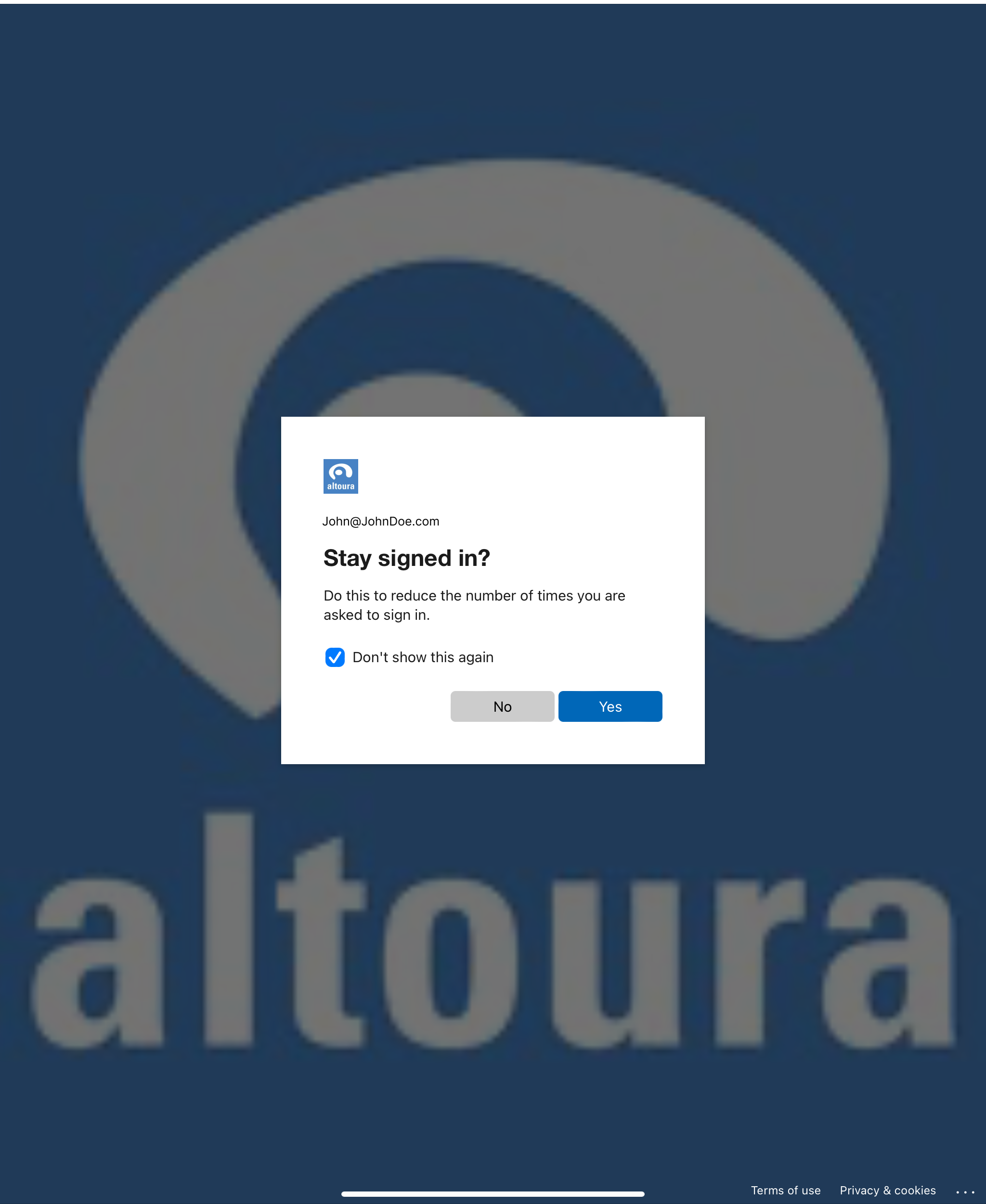
 Next, you'll be brought to a browser window that asks if you'd like to stay logged in. Once you've made that choice you'll be brought to the [Altoura Home Screen.](/docs/app-user/mobile/home-screen)
 # SSO Login
After launching the app, the first login screen will show up. Tap on the "SSO Login" button.
# SSO Login
After launching the app, the first login screen will show up. Tap on the "SSO Login" button.
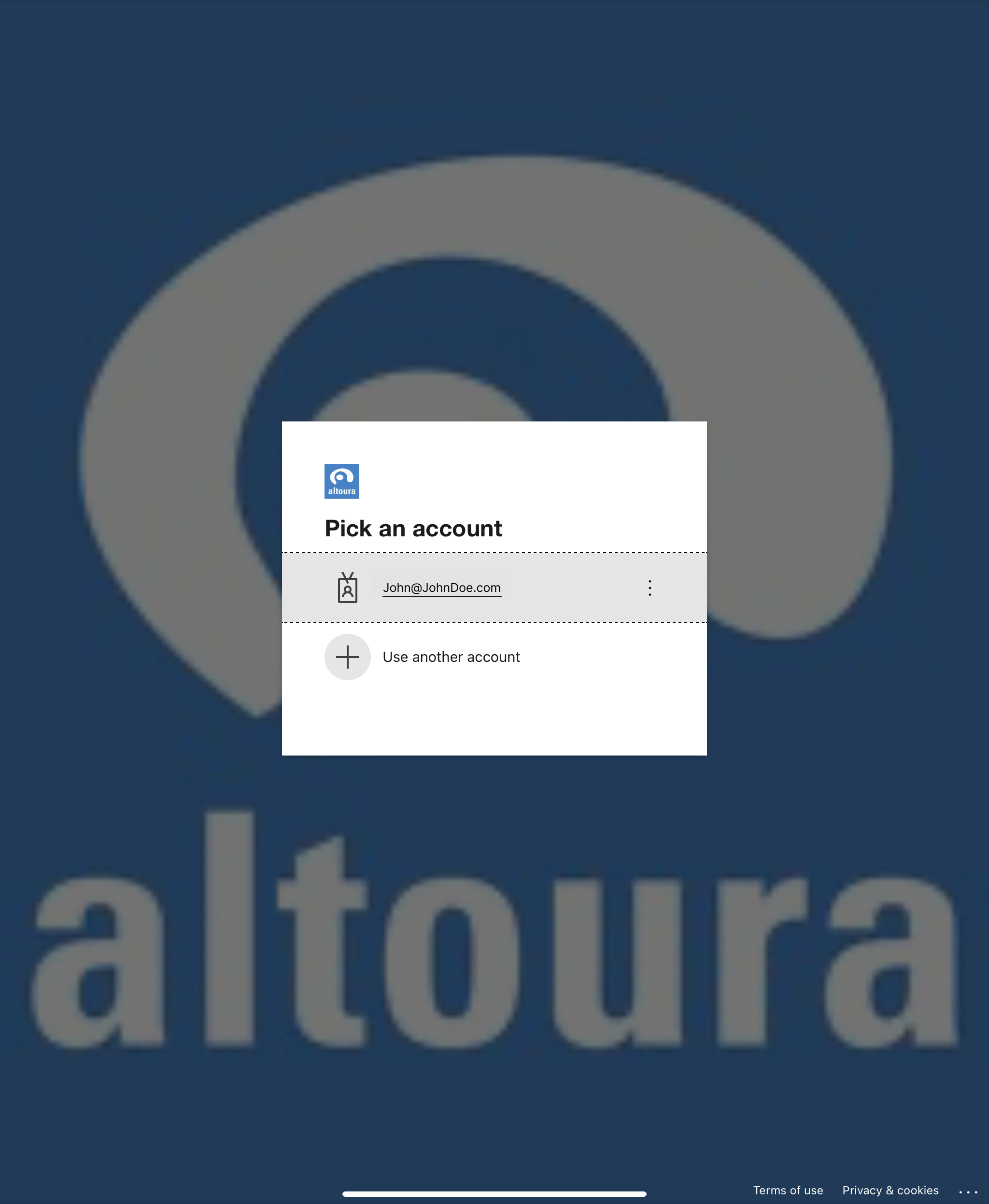
 A browser window will pop up, asking you to choose your account. Click on the account from which you'd like to sign in.
 Next, you'll be asked to enter your password.
 Next, you'll be brought to a browser window that asks if you'd like to stay logged in. Once you've made that choice you'll be brought to the [Altoura Home Screen.](/docs/app-user/mobile/home-screen)
 ## QR Login
Select QR login button and scan the QR / Pair device using code.
## QR Login
Select QR login button and scan the QR / Pair device using code.