> ## Documentation Index
> Fetch the complete documentation index at: https://docs.altoura.com/llms.txt
> Use this file to discover all available pages before exploring further.
# Passthrough
> Users can enable Passthrough mode via the User Settings in the Toolbelt menu. However, for Passthrough mode to function, the Space’s metadata must have the DisplayMode set to Passthrough. By default, this value is set to Opaque.
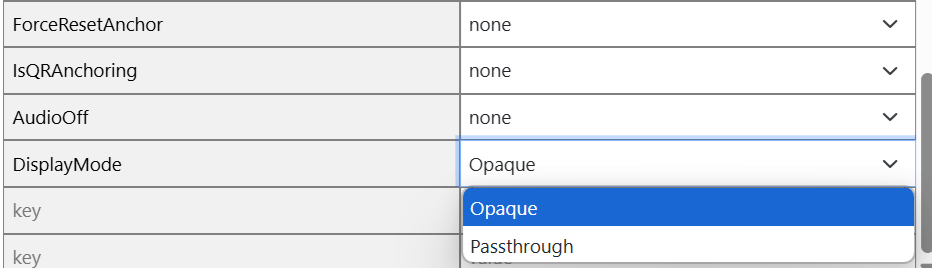 Even in Spaces where DisplayMode is set to Passthrough, users still have the flexibility to disable Passthrough mode at any time using the User Settings.
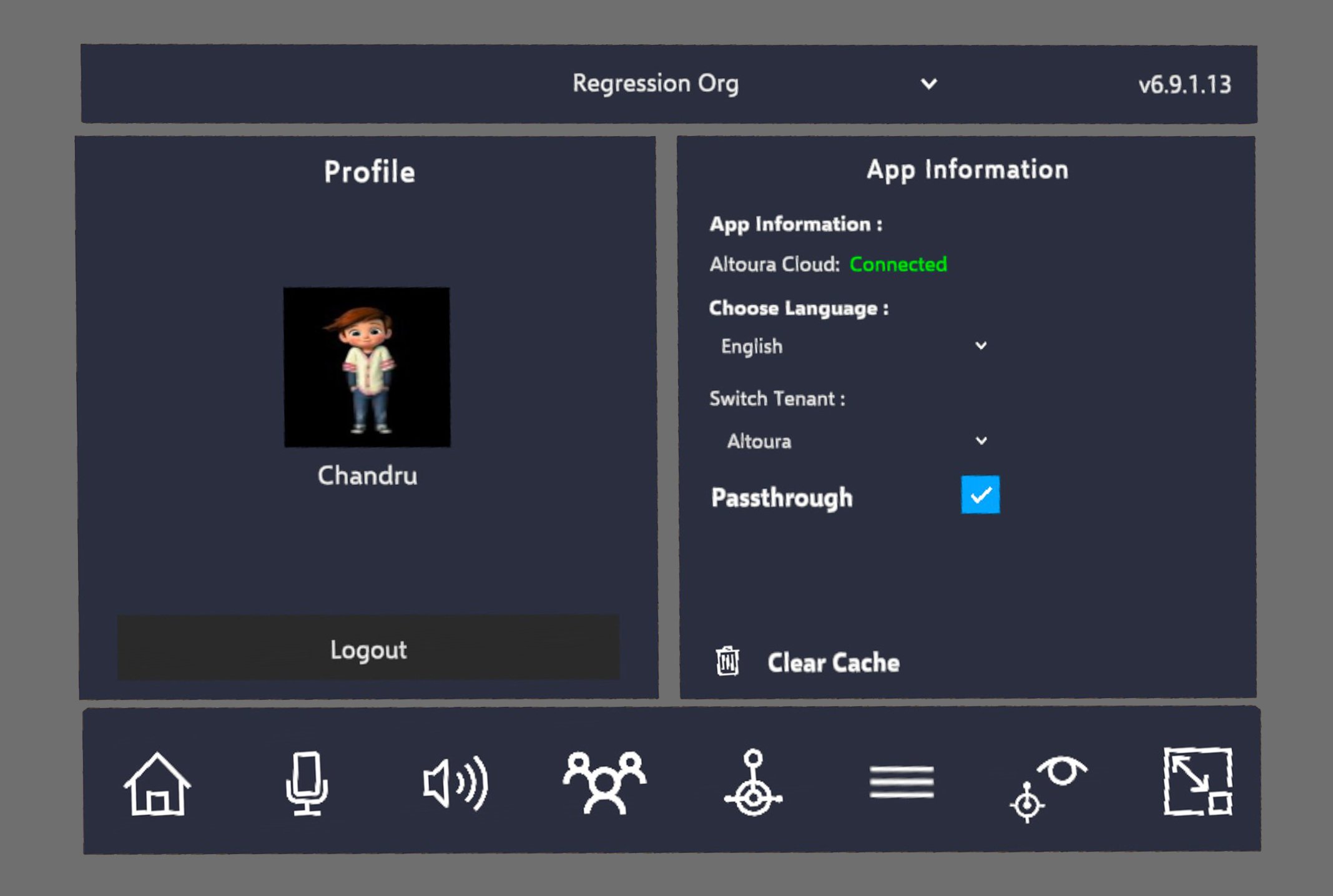 When Passthrough mode is active, all Environment Objects in the scene will be hidden.
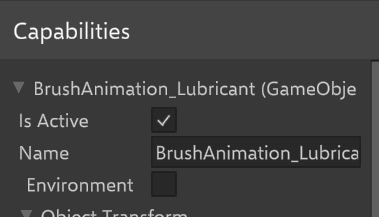
Objects in the Space Builder can be designated as Environment Objects by enabling the Environment property within the Capabilities section of the object.
When Passthrough mode is active, all Environment Objects in the scene will be hidden.
Objects in the Space Builder can be designated as Environment Objects by enabling the Environment property within the Capabilities section of the object.
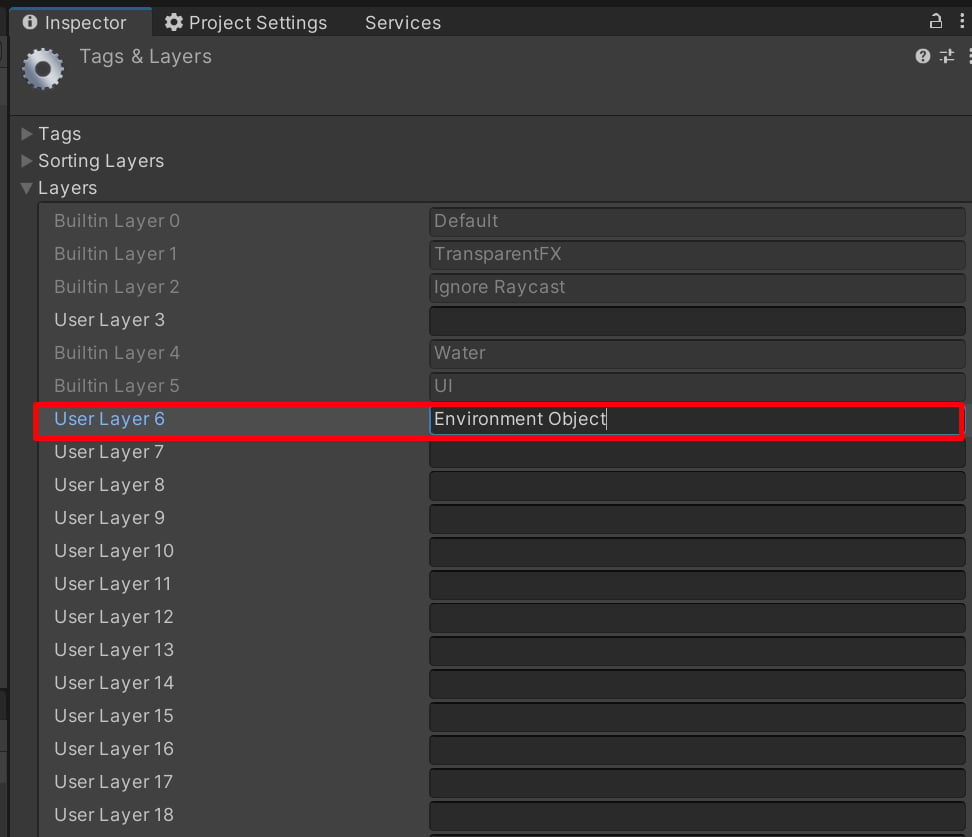
 For objects included in an Asset Bundle, to mark them as Environment Objects, users must assign Layer 6 (Environment) to those objects in Unity.
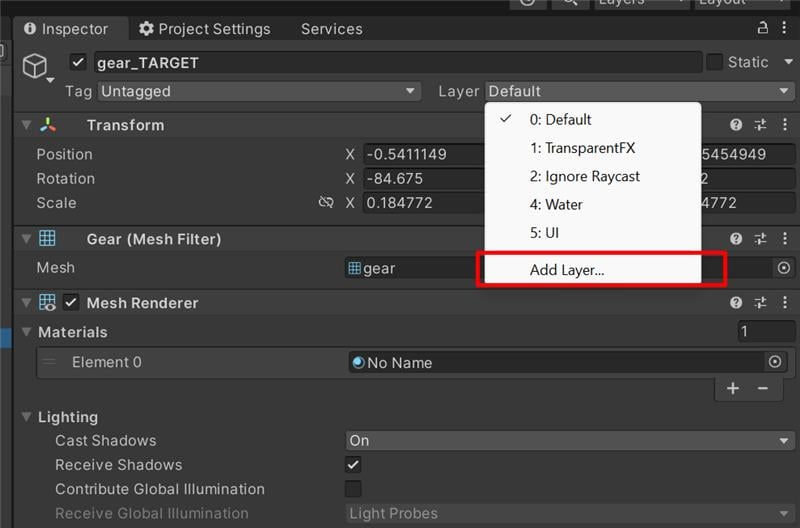
1. Select the object and click on Add layer.
For objects included in an Asset Bundle, to mark them as Environment Objects, users must assign Layer 6 (Environment) to those objects in Unity.
1. Select the object and click on Add layer.
 2. Provide the value as "Environment Object" against Layer 6.