> ## Documentation Index
> Fetch the complete documentation index at: https://docs.altoura.com/llms.txt
> Use this file to discover all available pages before exploring further.
# Audio Preview
> When the user selects a Voice Type in the Altoura Portal while creating, editing or copying an experience, the user can choose to preview the Audio before finalizing their choice.
This feature enhances user experience by allowing users to assess the voice selection, ensuring it aligns with their expectations and the intended tone of the experience.
### Audio Preview during Add New Experience
Click on the Add New button in the Experiences list page. The Add New Experience window is displayed as shown below.
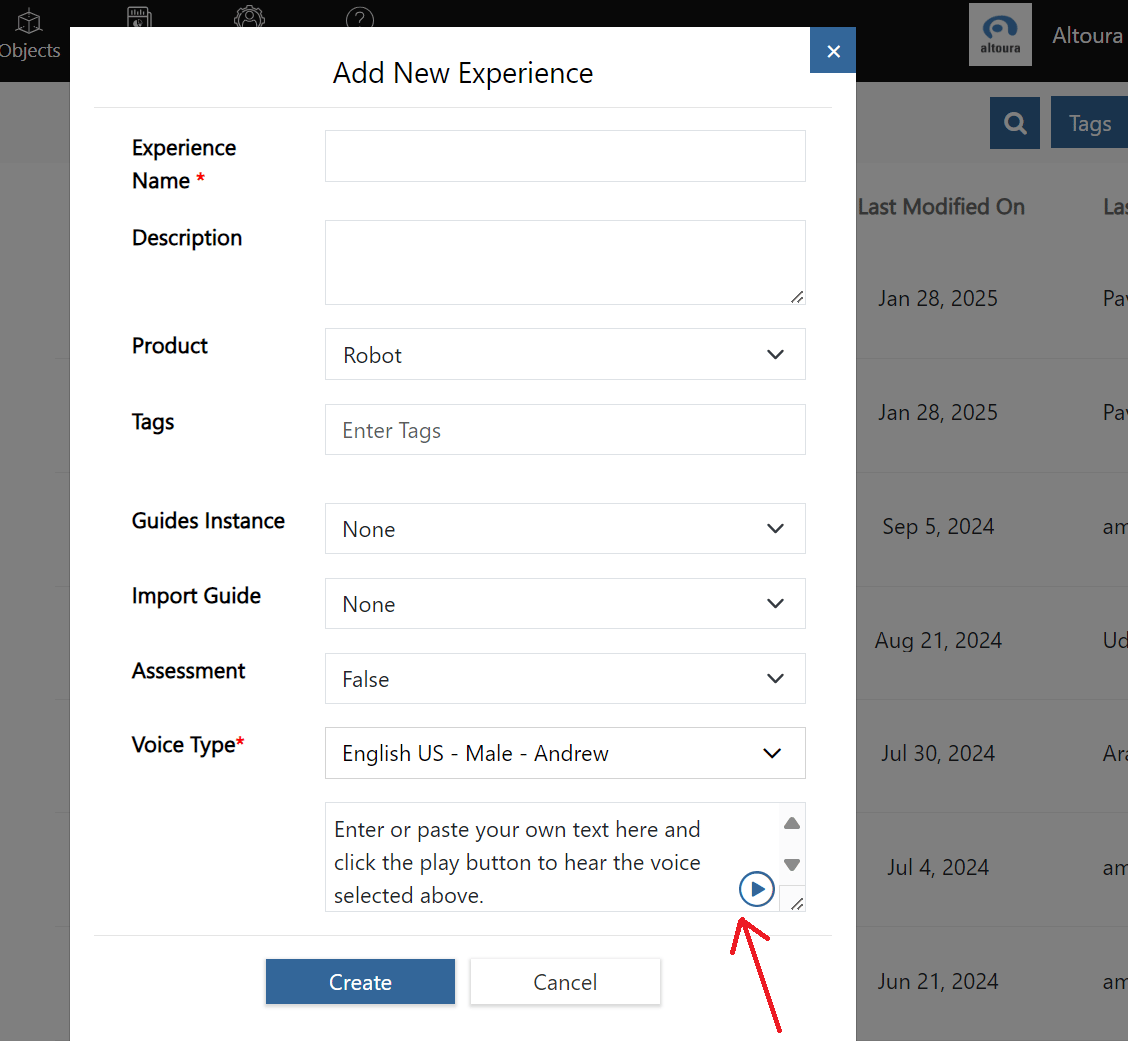 Here, enter the required details.
To preview a selected Voice Type:
1. **Choose a Voice Type:** Select your desired voice from the list.
2. **Input Text:** Enter or paste the text you wish to preview in the designated textbox.
3. **Play the Audio:** Click the "Play" button to hear the selected voice read your text aloud.
This feature will help creators assess how the voice will render their content before finalizing on their selection.
### Audio Preview during Copy Experience
Click on the Copy Experience in the Experiences list page, Copy Experience window is displayed as shown below.
Here, enter the required details.
To preview a selected Voice Type:
1. **Choose a Voice Type:** Select your desired voice from the list.
2. **Input Text:** Enter or paste the text you wish to preview in the designated textbox.
3. **Play the Audio:** Click the "Play" button to hear the selected voice read your text aloud.
This feature will help creators assess how the voice will render their content before finalizing on their selection.
### Audio Preview during Copy Experience
Click on the Copy Experience in the Experiences list page, Copy Experience window is displayed as shown below.
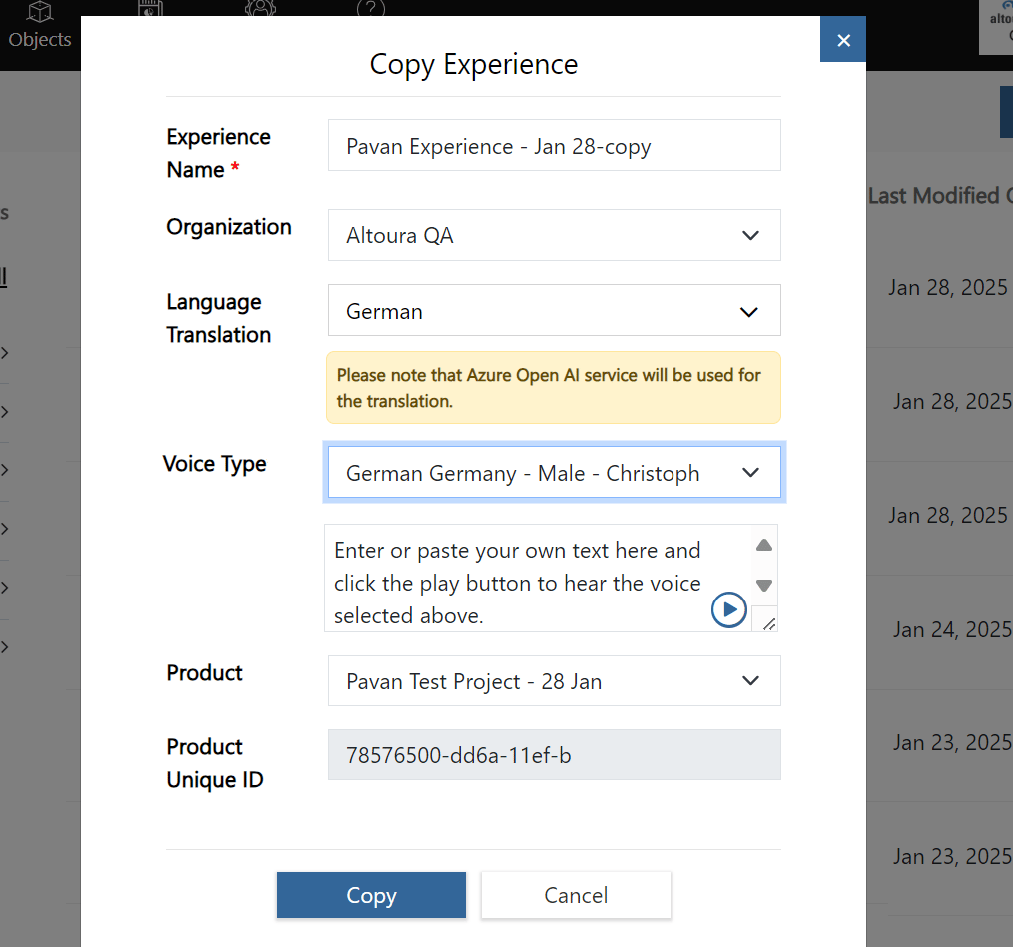 Here, select a language from the Language Translation list and select a voice from the Voice Type list. Input the required text and play the audio to hear the selected voice read the text content.
The same functionality is available while copying and translating experiences under the Copy Project feature.
Here, select a language from the Language Translation list and select a voice from the Voice Type list. Input the required text and play the audio to hear the selected voice read the text content.
The same functionality is available while copying and translating experiences under the Copy Project feature.