> ## Documentation Index
> Fetch the complete documentation index at: https://docs.altoura.com/llms.txt
> Use this file to discover all available pages before exploring further.
# Experience Copy with Translation
> Altoura Creators have the ability to copy existing experiences to new experiences either within the same Organization or across different Organizations.
During this copy process, Creators also have the option to **translate the experience into another language.**
### How Translation Works
Altoura uses Azure Open AI to automatically translate each panel's text into the selected language during the copy process.
### List of Available Languages:
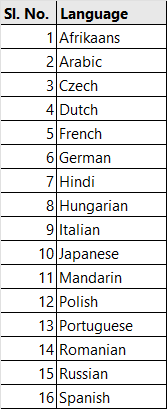 If the language required is not available in the above list, please contact Altoura Support.
***
# Steps to follow:
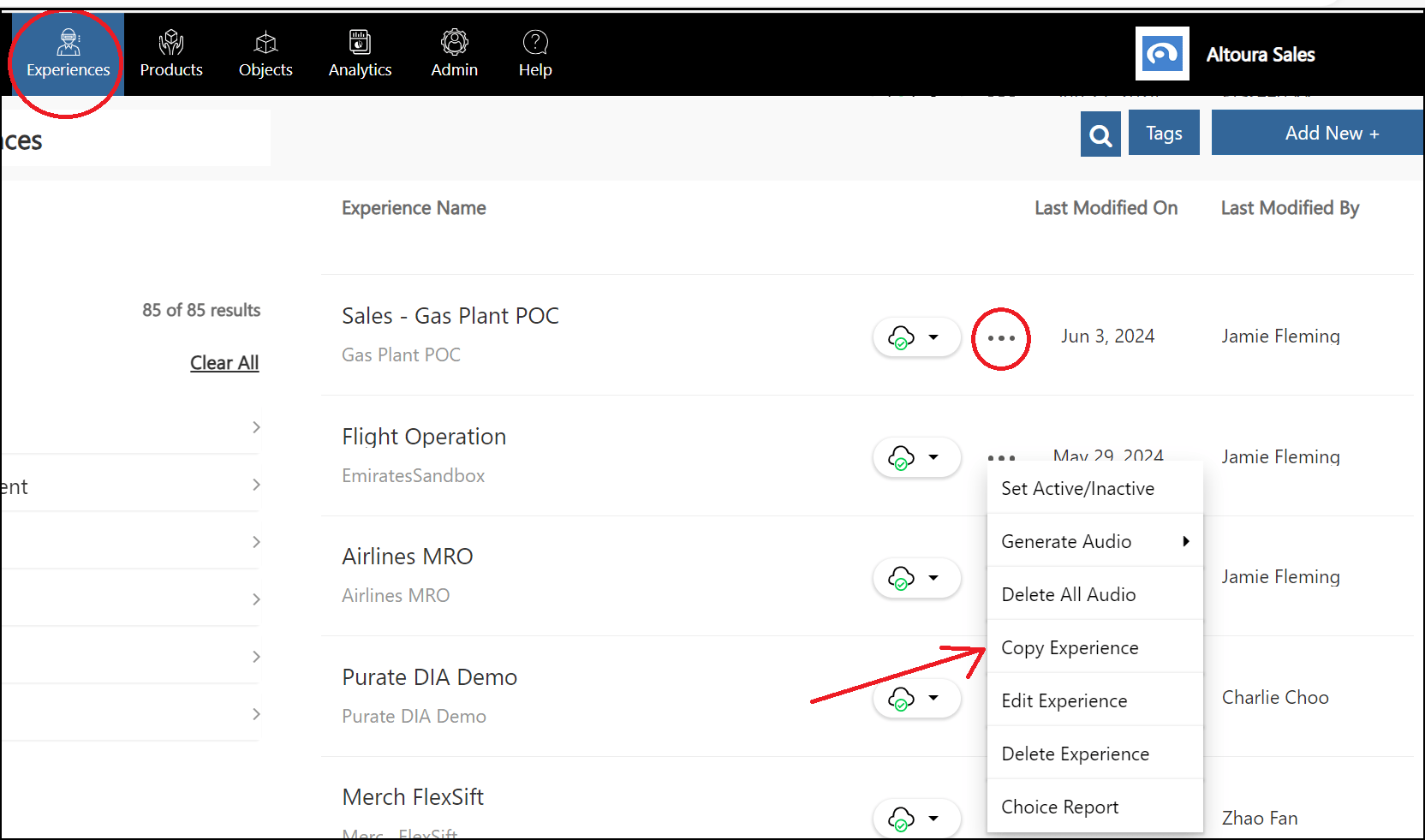
In the Altoura Portal, go to the Experiences tab. A list of experiences under the Organization are listed.
Click on the ellipsis against the experience that needs to be copied, and from the menu select the **Copy Experience** option.
If the language required is not available in the above list, please contact Altoura Support.
***
# Steps to follow:
In the Altoura Portal, go to the Experiences tab. A list of experiences under the Organization are listed.
Click on the ellipsis against the experience that needs to be copied, and from the menu select the **Copy Experience** option.
 The following window is displayed.
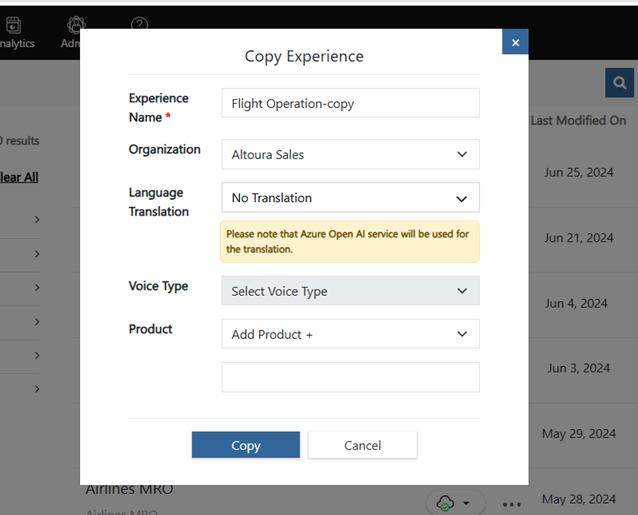 1. Here, select the Organization in which the experience has to be created. A list of Organizations that the user has access to will be displayed in this dropdown.
2. If regular copying is required, then select the No Translation option. If language translation is required, then select the language.
3.
1. Here, select the Organization in which the experience has to be created. A list of Organizations that the user has access to will be displayed in this dropdown.
2. If regular copying is required, then select the No Translation option. If language translation is required, then select the language.
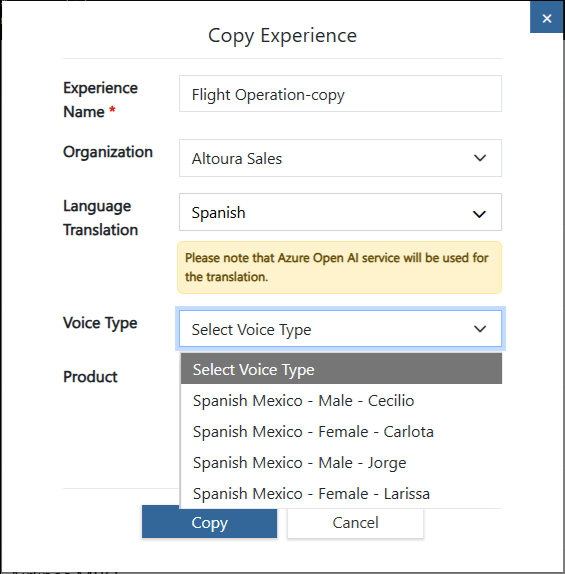
3. 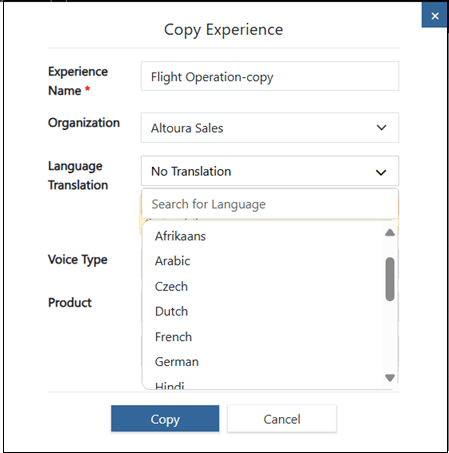 After the language is selected, the Voice Type dropdown is populated with all the voiceovers available for the selected language. Select the required option.
4.
After the language is selected, the Voice Type dropdown is populated with all the voiceovers available for the selected language. Select the required option.
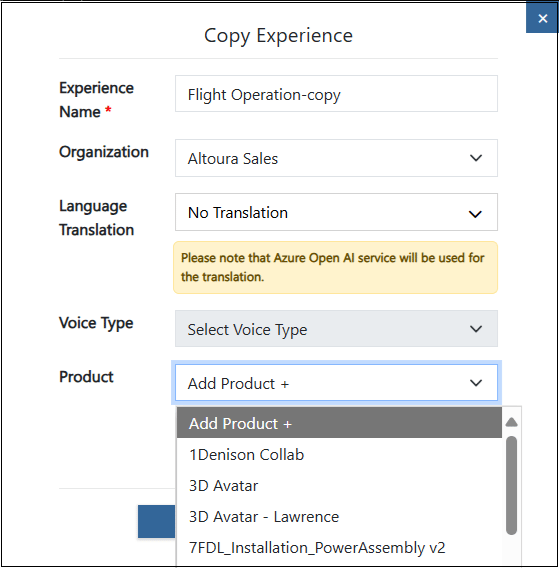
4.  Finally, select the Product from the Product dropdown **or** click on the **Add Product +** option available on top of the list. The user will be prompted to enter a Product name, enter the Product Name.
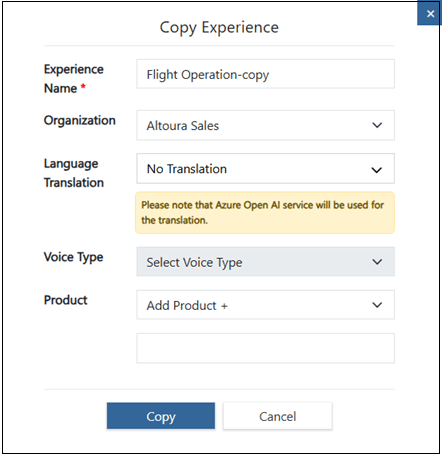 5. Click on the Copy button. The experience is translated to the selected language using Azure OpenAI service and copied to the selected Organization. If a Voice Type option is selected, then audio files are generated for all the nodes in the selected Voice Type.
6. The newly created experience will be displayed in the Experiences tab on top of the page.
7. The following field in all the nodes will be translated to the selected language:
1. Display Text
2. Title
3. UIControls - UIControlText, TitleText, BodyText (Text, Image, Video)
4. UIControls - UIControlText (Teleport, BrowserLink, Animation)
### Project Copy
Users can also make copies of the experiences using the Project Copy option. During the Project Copy action, all the experiences associated with the Project are listed. The same language translation option that is available for individual experience copy is available during the Project Copy action.
5. Click on the Copy button. The experience is translated to the selected language using Azure OpenAI service and copied to the selected Organization. If a Voice Type option is selected, then audio files are generated for all the nodes in the selected Voice Type.
6. The newly created experience will be displayed in the Experiences tab on top of the page.
7. The following field in all the nodes will be translated to the selected language:
1. Display Text
2. Title
3. UIControls - UIControlText, TitleText, BodyText (Text, Image, Video)
4. UIControls - UIControlText (Teleport, BrowserLink, Animation)
### Project Copy
Users can also make copies of the experiences using the Project Copy option. During the Project Copy action, all the experiences associated with the Project are listed. The same language translation option that is available for individual experience copy is available during the Project Copy action.