> ## Documentation Index
> Fetch the complete documentation index at: https://docs.altoura.com/llms.txt
> Use this file to discover all available pages before exploring further.
# Managing Users as an Admin User
> Log in to the Altoura Portal using the link
When a user that is assigned an "OrgAdmin" Role logs into the Altoura Portal, an Admin tab will be available to manage other users and their access control within Altoura.
### Admin Tab
 #### Click on the Admin tab and the following page is displayed:
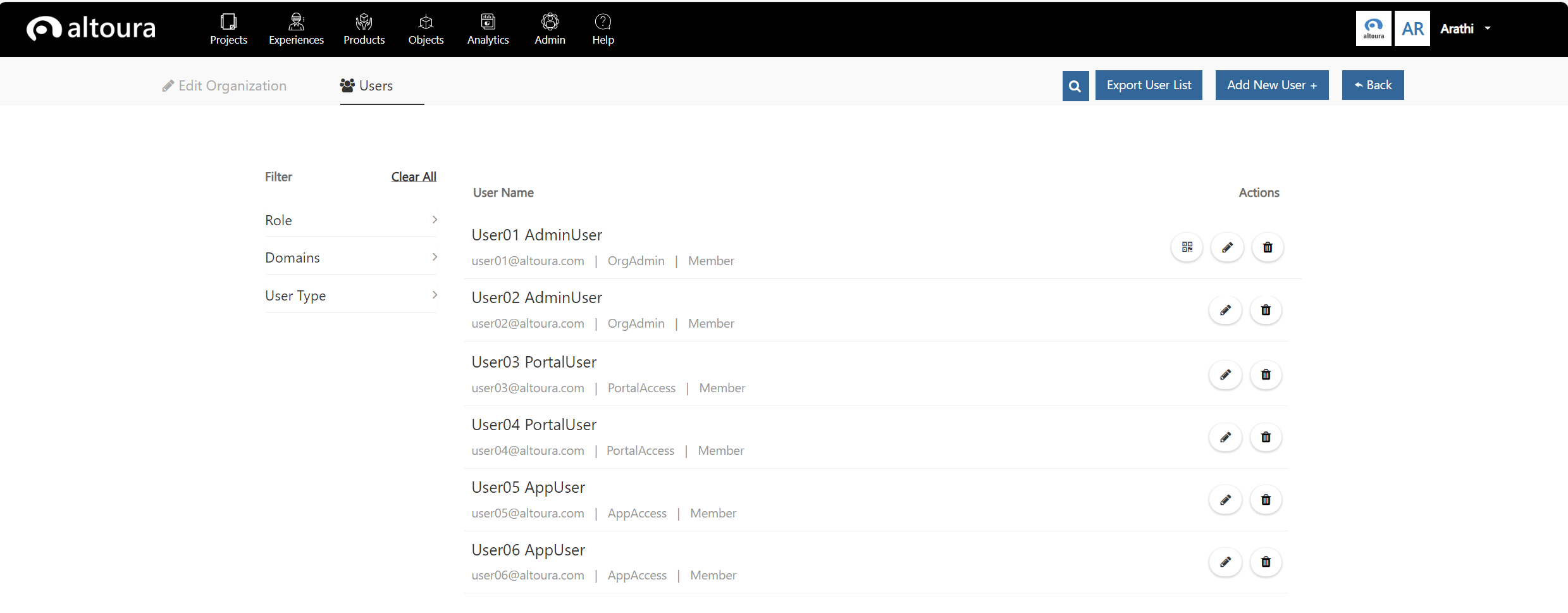 Here in the Users page, the Admin user can
1. add other users,
2. assign roles,
3. update users and roles and
4. delete other users from the Organization.
Click on the **Add New User** button, the Add New User page is displayed as shown below:
Here in the Users page, the Admin user can
1. add other users,
2. assign roles,
3. update users and roles and
4. delete other users from the Organization.
Click on the **Add New User** button, the Add New User page is displayed as shown below:
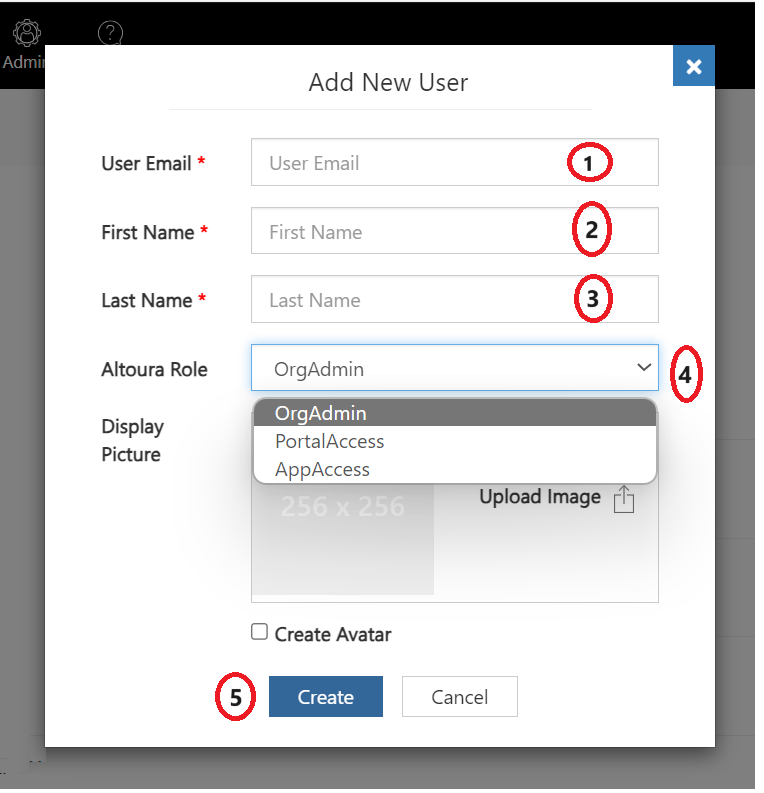 1. Enter the email of the user, this will be the Altoura login id for the user. Here a valid email address has to be provided to create the user.
2. Enter the First Name of the user. This will be displayed in the Altoura Portal and the Client and against the avatar of the user when he is in a meeting.
3. Enter the Last Name of the user.
4. Select the Altoura Role to be assigned to the user.
5. Click on the Create button, the user will be added to the Organization and will be displayed in the User List page.
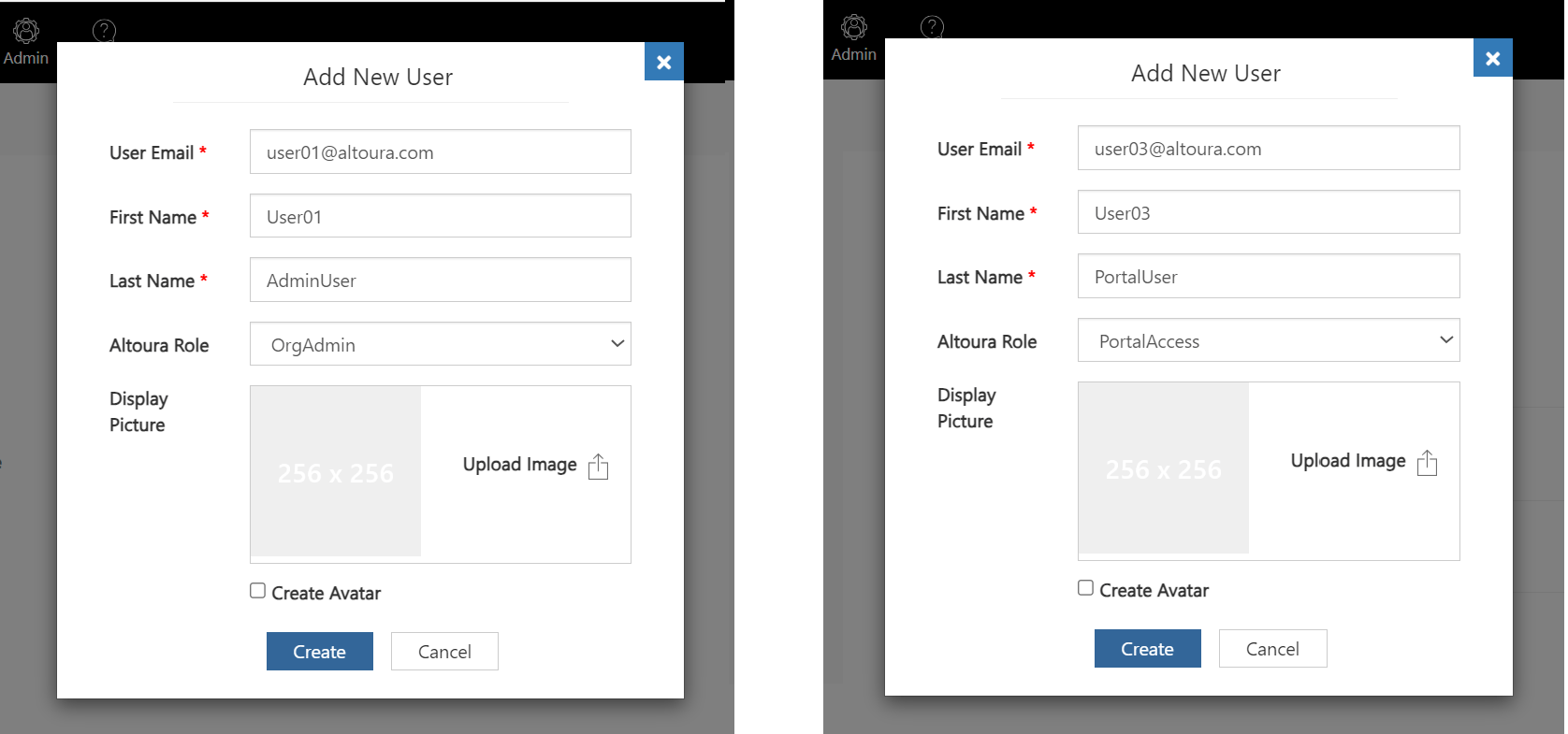
The images below show the creation of an OrgAdmin User and a Portal User.
1. Enter the email of the user, this will be the Altoura login id for the user. Here a valid email address has to be provided to create the user.
2. Enter the First Name of the user. This will be displayed in the Altoura Portal and the Client and against the avatar of the user when he is in a meeting.
3. Enter the Last Name of the user.
4. Select the Altoura Role to be assigned to the user.
5. Click on the Create button, the user will be added to the Organization and will be displayed in the User List page.
The images below show the creation of an OrgAdmin User and a Portal User.
 ## Edit and Delete Users
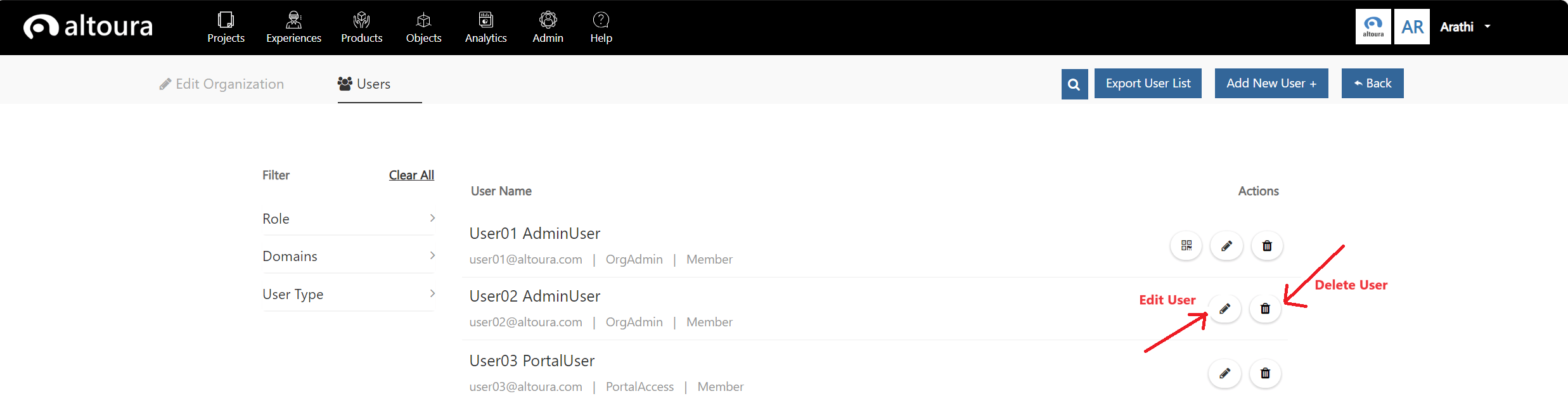 ### Edit User
Click on the Edit User icon, Edit User page is displayed as shown below:
### Edit User
Click on the Edit User icon, Edit User page is displayed as shown below:
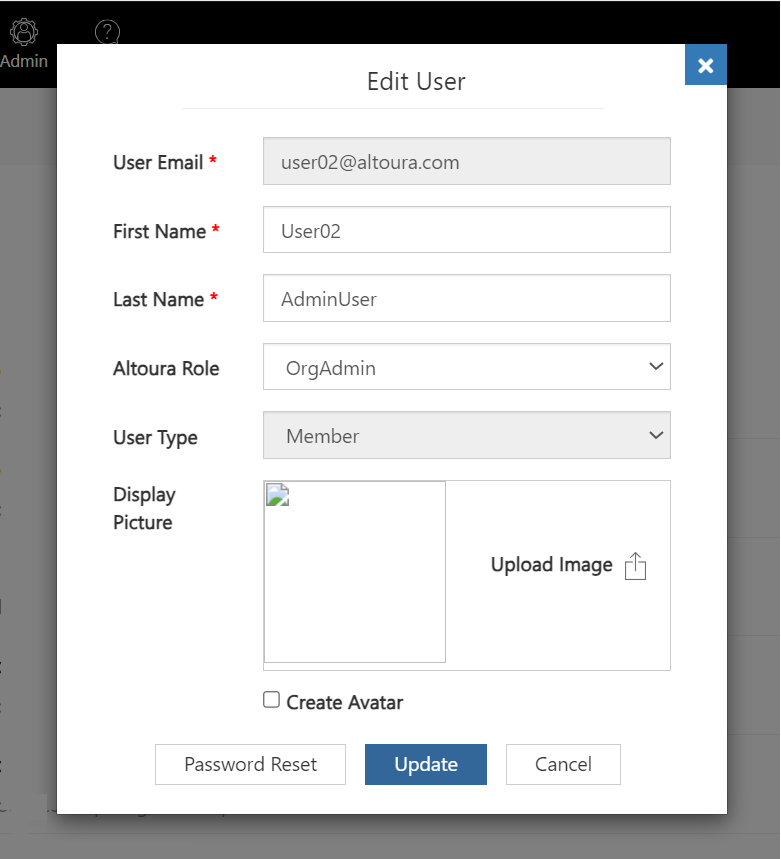 1. Here, the user's First Name, Last Name and the Altoura Role can be updated.
2. User email cannot be updated.
3. User Type is a display-only field. If the user email address is in the same domain as the Organization then the User Type will be "Member". If not the User Type will be "Guest".
4. The OrgAdmin user can initiate a password reset for any user clicking on the Password Reset button. An email will be sent to the user with instructions to reset his password.
### Delete User
Click on the Delete User icon in the User List page, a confirmation message will be displayed as shown.
1. Here, the user's First Name, Last Name and the Altoura Role can be updated.
2. User email cannot be updated.
3. User Type is a display-only field. If the user email address is in the same domain as the Organization then the User Type will be "Member". If not the User Type will be "Guest".
4. The OrgAdmin user can initiate a password reset for any user clicking on the Password Reset button. An email will be sent to the user with instructions to reset his password.
### Delete User
Click on the Delete User icon in the User List page, a confirmation message will be displayed as shown.
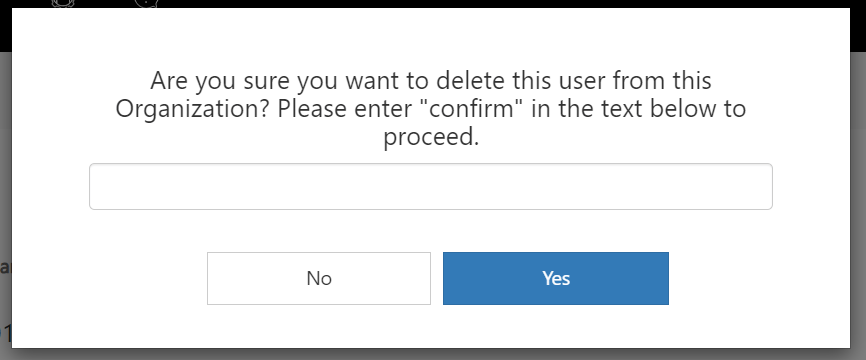 If the user enters "confirm" and clicks on the Yes button, the user will be deleted.
.
.
A user will not be able to delete himself from the user list.
## Export User List
Refer to the details [here](/docs/features/portal/organization-rbac/export-users)
## Filters
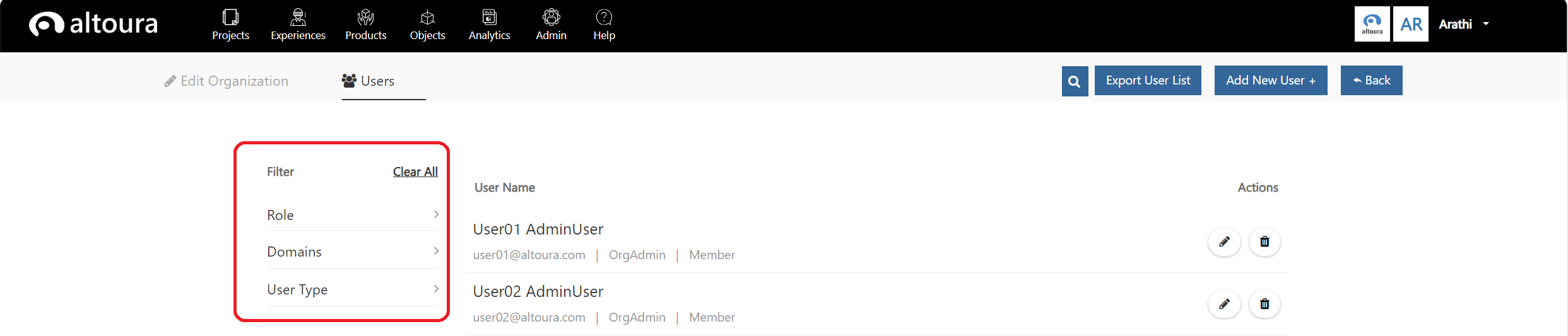
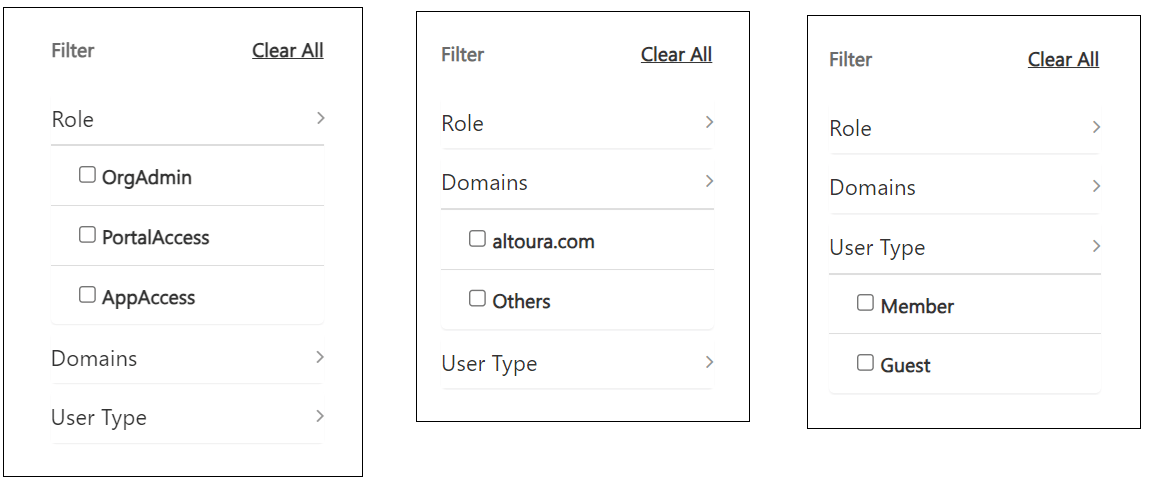
Filters available on the left pane of the User List page will help in filtering out the users based on Domain, User Type and roles assigned.
If the user enters "confirm" and clicks on the Yes button, the user will be deleted.
.
.
A user will not be able to delete himself from the user list.
## Export User List
Refer to the details [here](/docs/features/portal/organization-rbac/export-users)
## Filters
Filters available on the left pane of the User List page will help in filtering out the users based on Domain, User Type and roles assigned.
 ## Search
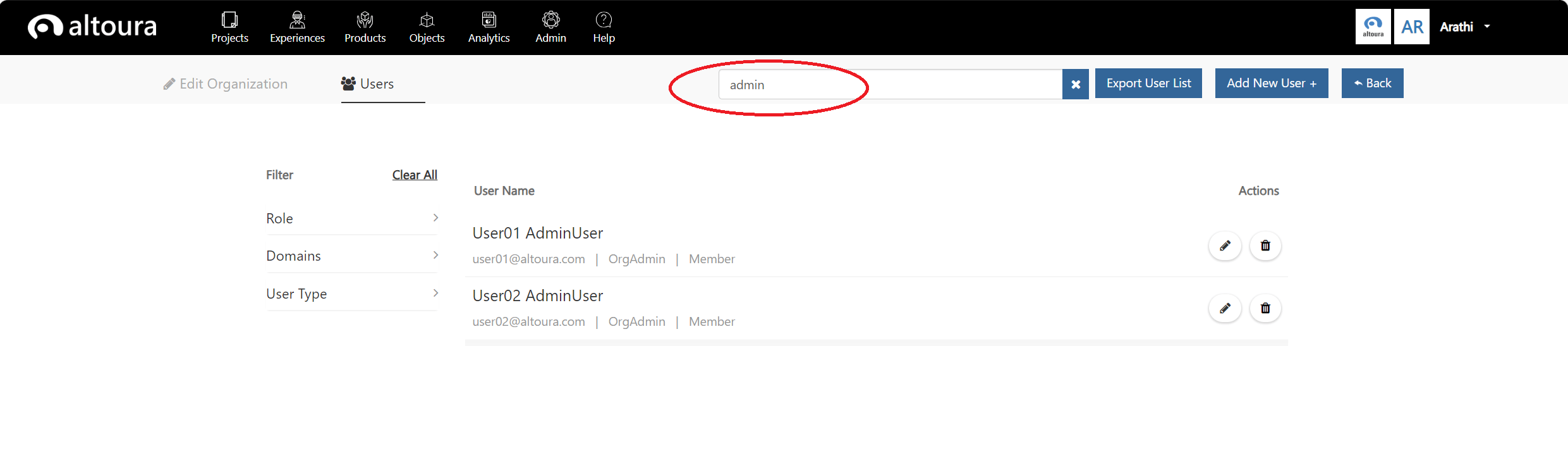
The User can also use the Seach icon to narrow down the user list based on a search string value.
## Search
The User can also use the Seach icon to narrow down the user list based on a search string value.
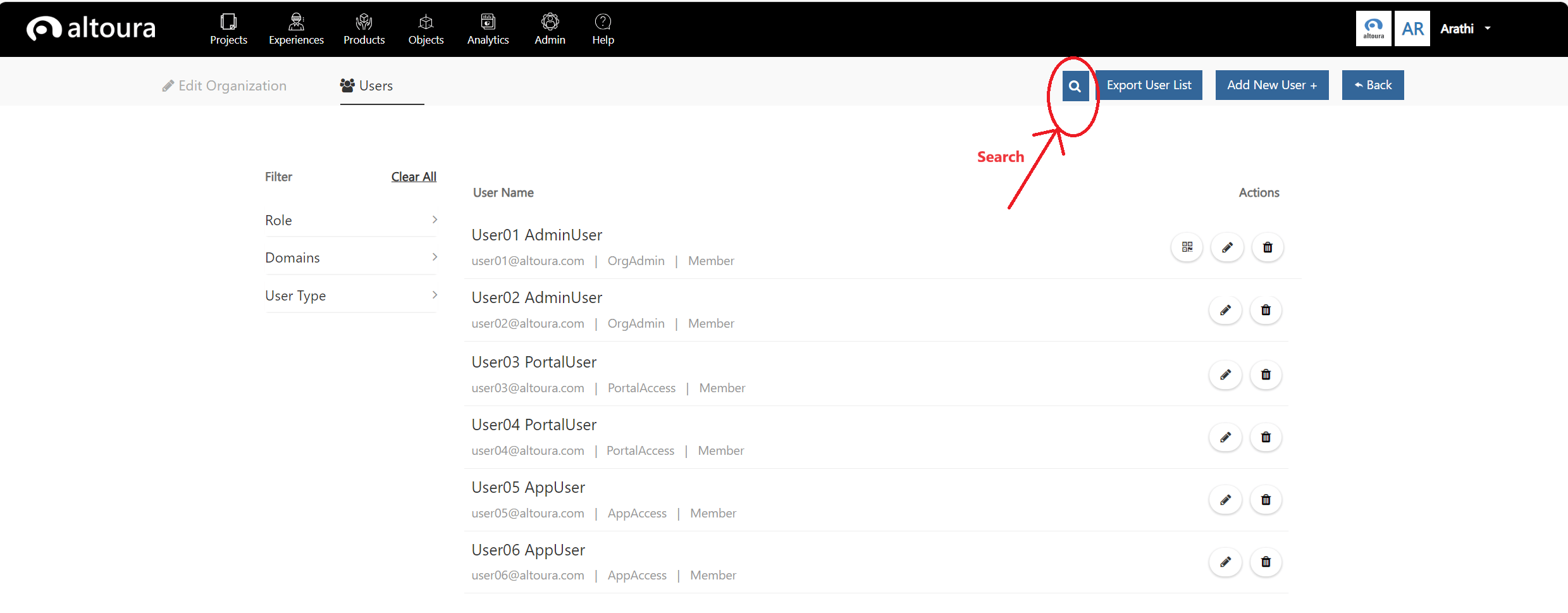 Click on the Search icon and enter a value in the Search string text, the user list will be narrowed down based on the search string.
 ## Edit Organization
Click on the Edit Organization tab and the following page is displayed.
## Edit Organization
Click on the Edit Organization tab and the following page is displayed.
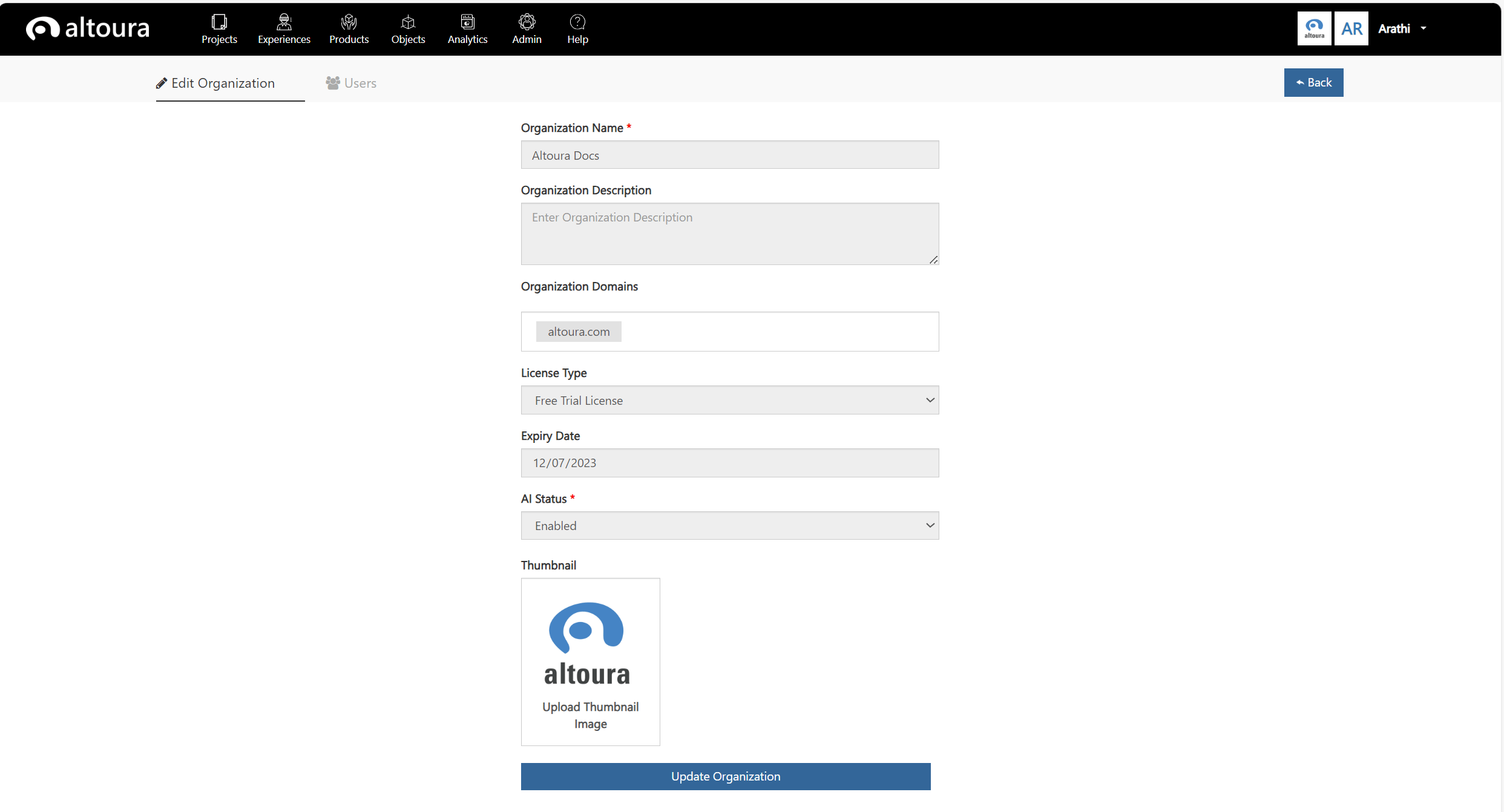 Here the details of the Organization will be displayed as read-only fields. The OrgAdmin user will only be able to change the thumbnail of the Organization.