> ## Documentation Index
> Fetch the complete documentation index at: https://docs.altoura.com/llms.txt
> Use this file to discover all available pages before exploring further.
# Step 6: View Project in a Desktop App
1. Download and install a "**Desktop App**": [Windows | Mac Installation](/docs/app-user/desktop/installation)
2. Launch the App once it is installed and select the Project Thumbnail you created.
3. By default, you will now be viewing the Dollhouse Content View that was generated from your "**Dollhouse Prefab**" within the "**Asset Bundle**". The 3D Content that exists within your Realscale Prefab is “**Scaled Down**” to fit within a “**Compass Ring**”.
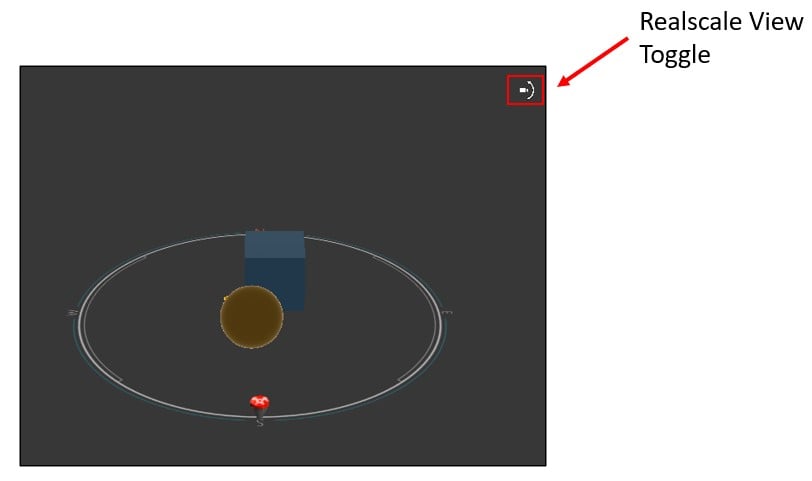
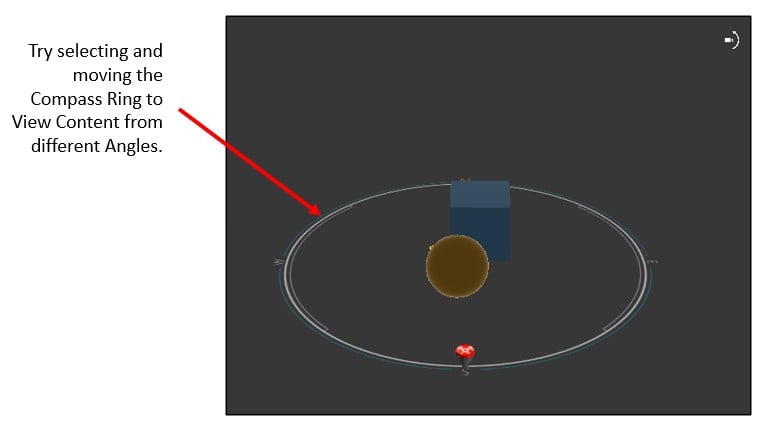 4. If you view the upper right corner of the Dollhouse View, you will see a "**Camera View Icon**" with Vertical Motion, which allows you to toggle to the "**Realscale View**". Go ahead and click it.
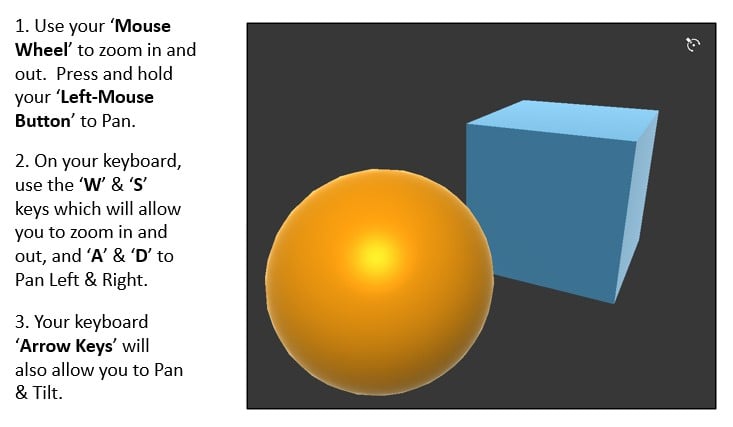
 5. You are now viewing Realscale Content which is generated from the Realscale Prefab. The 3D Content is displayed at the “Model Scale” in which it was created... i.e., which by best practice is typically modeled at a 1:1 Scale with the Real-World.
 * [Step 7: Add an Experience](/docs/tutorials/hello-world-unity/add-experience)