> ## Documentation Index
> Fetch the complete documentation index at: https://docs.altoura.com/llms.txt
> Use this file to discover all available pages before exploring further.

# Setting up Tenant Configuration

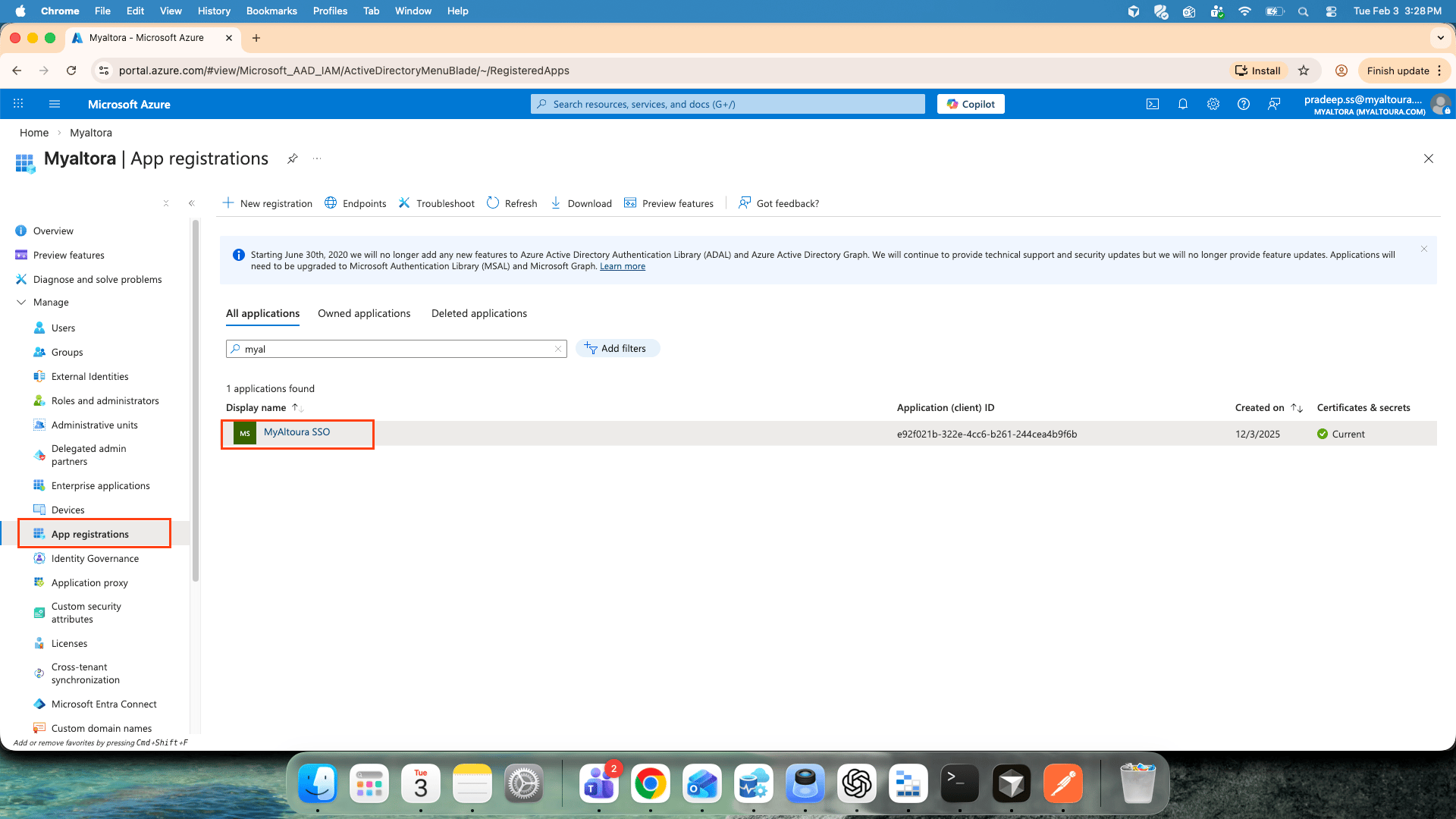
### 1.Go to Microsoft entraID and click on app registration and click on your app
<Frame>
  <img src="https://mintcdn.com/altoura-785c3552/HhZQY2b4kA6oBKtL/frontline/images/overview/administration/tenant-config-01-select-app-registration.png?fit=max&auto=format&n=HhZQY2b4kA6oBKtL&q=85&s=2cf2ffc4609a8ae9a38c7128d7dcb9d3" alt="Microsoft Entra ID App registrations page with your app selected" width="1920" height="1080" data-path="frontline/images/overview/administration/tenant-config-01-select-app-registration.png" />
</Frame>

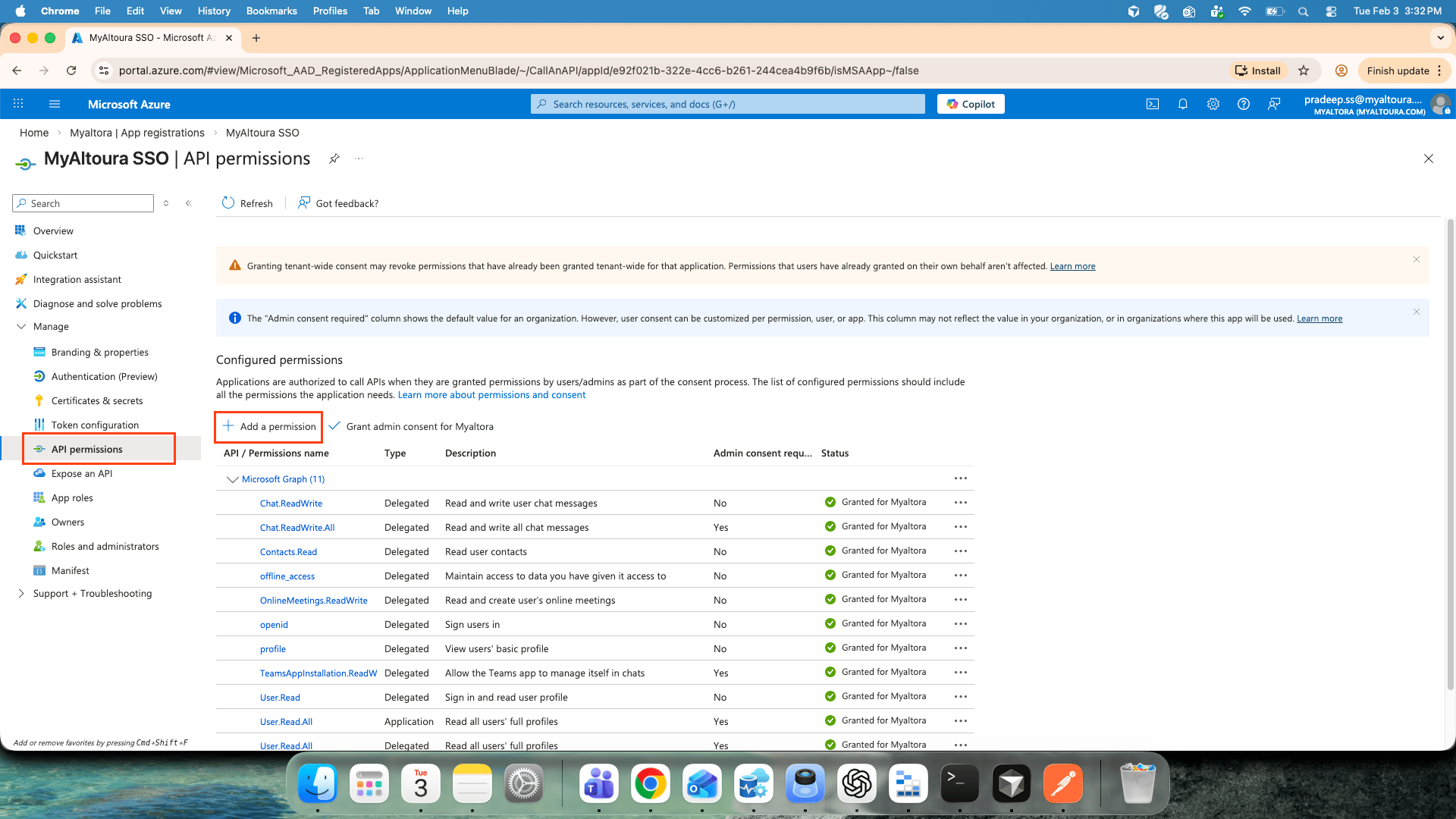
### 2.Click on API permission and click on add permission
<Frame>
  <img src="https://mintcdn.com/altoura-785c3552/HhZQY2b4kA6oBKtL/frontline/images/overview/administration/tenant-config-02-add-api-permission.png?fit=max&auto=format&n=HhZQY2b4kA6oBKtL&q=85&s=cf6d101f2314257ca15e728046db39f2" alt="API permissions page with the Add a permission button" width="1920" height="1080" data-path="frontline/images/overview/administration/tenant-config-02-add-api-permission.png" />
</Frame>

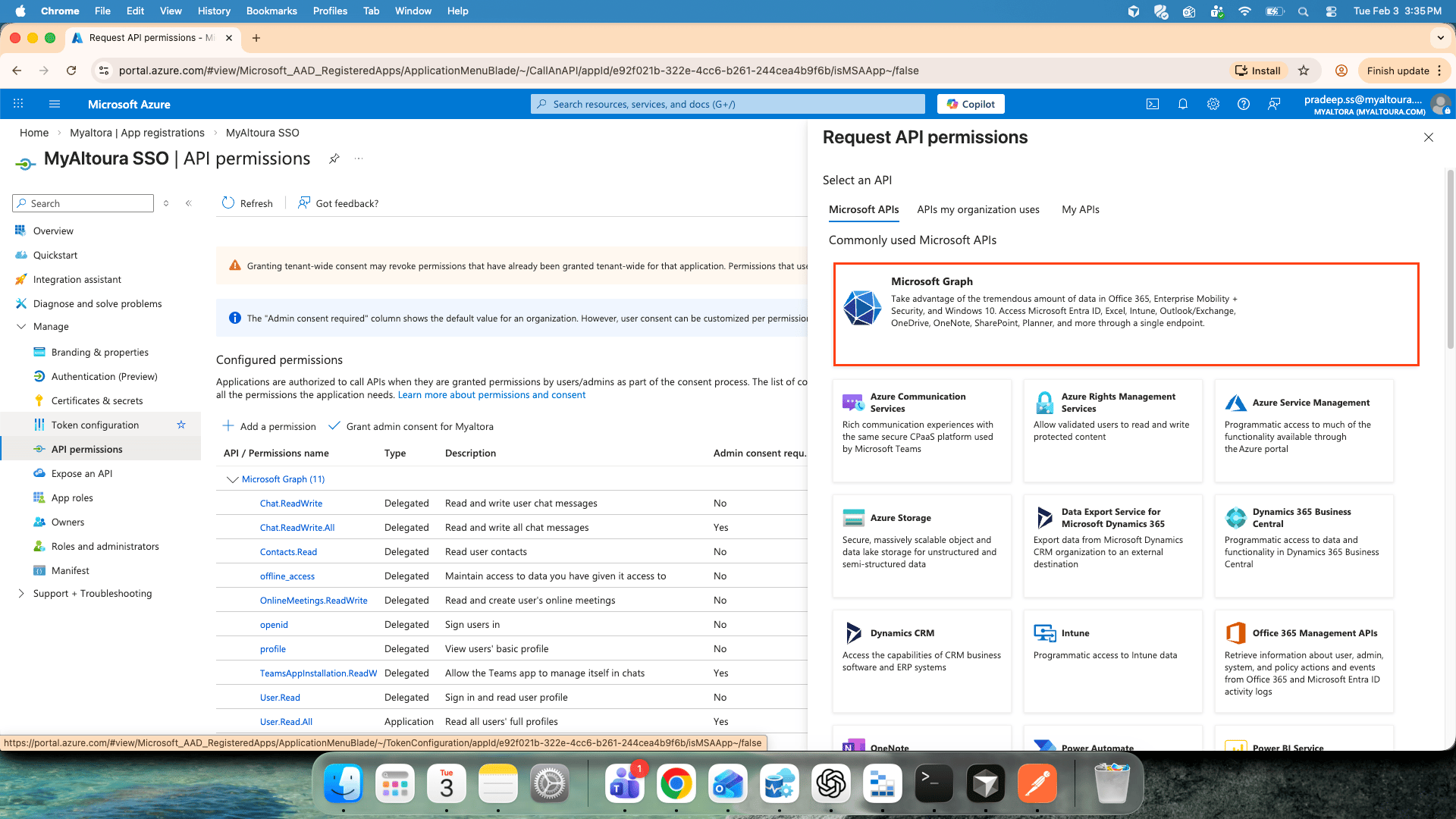
### 3.Click on Microsoft graph

<Frame>
  <img src="https://mintcdn.com/altoura-785c3552/HhZQY2b4kA6oBKtL/frontline/images/overview/administration/tenant-config-03-microsoft-graph.png?fit=max&auto=format&n=HhZQY2b4kA6oBKtL&q=85&s=eb8994672d1c7d4689b1e1c98421b75e" alt="Request API permissions pane with Microsoft Graph selected" width="1920" height="1080" data-path="frontline/images/overview/administration/tenant-config-03-microsoft-graph.png" />
</Frame>

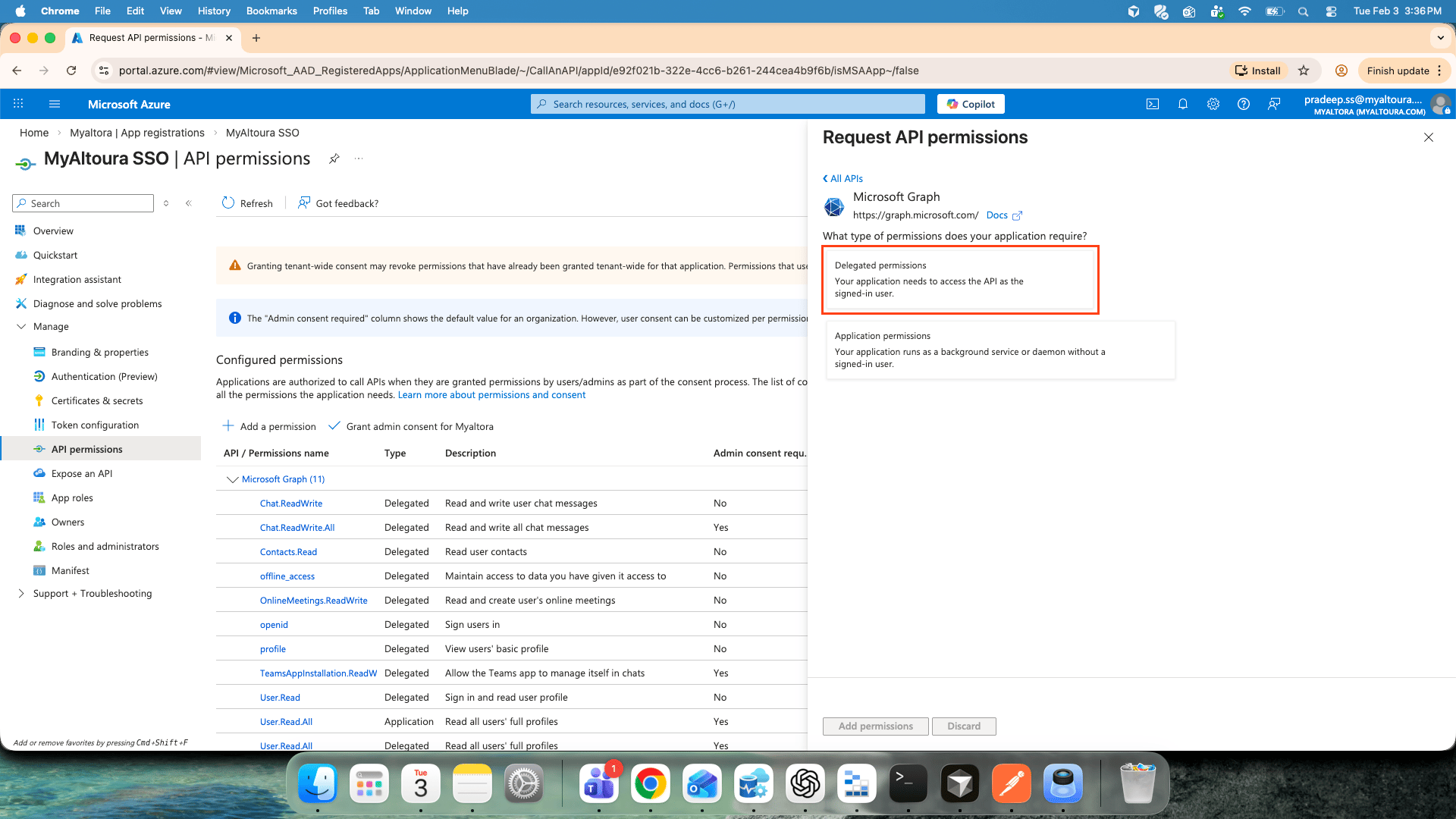
### 4.Click on delegated permissions , Search the required permission in the search box and select those permissions from the below list. required permissions are: Chat.ReadWrite\\

Chat.ReadWrite.All\
Contacts.Read\
offline\_access\
OnlineMeetings.ReadWrite\
openid,\
profile\
[TeamsAppInstallation.ReadWriteSelfForChat](http://User.Read)\
[ User.Read](http://User.Read)\
[User.Read.All](http://User.Read)
<Frame>
  <img src="https://mintcdn.com/altoura-785c3552/HhZQY2b4kA6oBKtL/frontline/images/overview/administration/tenant-config-04-delegated-permissions.png?fit=max&auto=format&n=HhZQY2b4kA6oBKtL&q=85&s=bcbbf3075b0dd8dd2d6e7ecdbe436f51" alt="Delegated permissions search with the required permissions selected" width="1920" height="1080" data-path="frontline/images/overview/administration/tenant-config-04-delegated-permissions.png" />
</Frame>

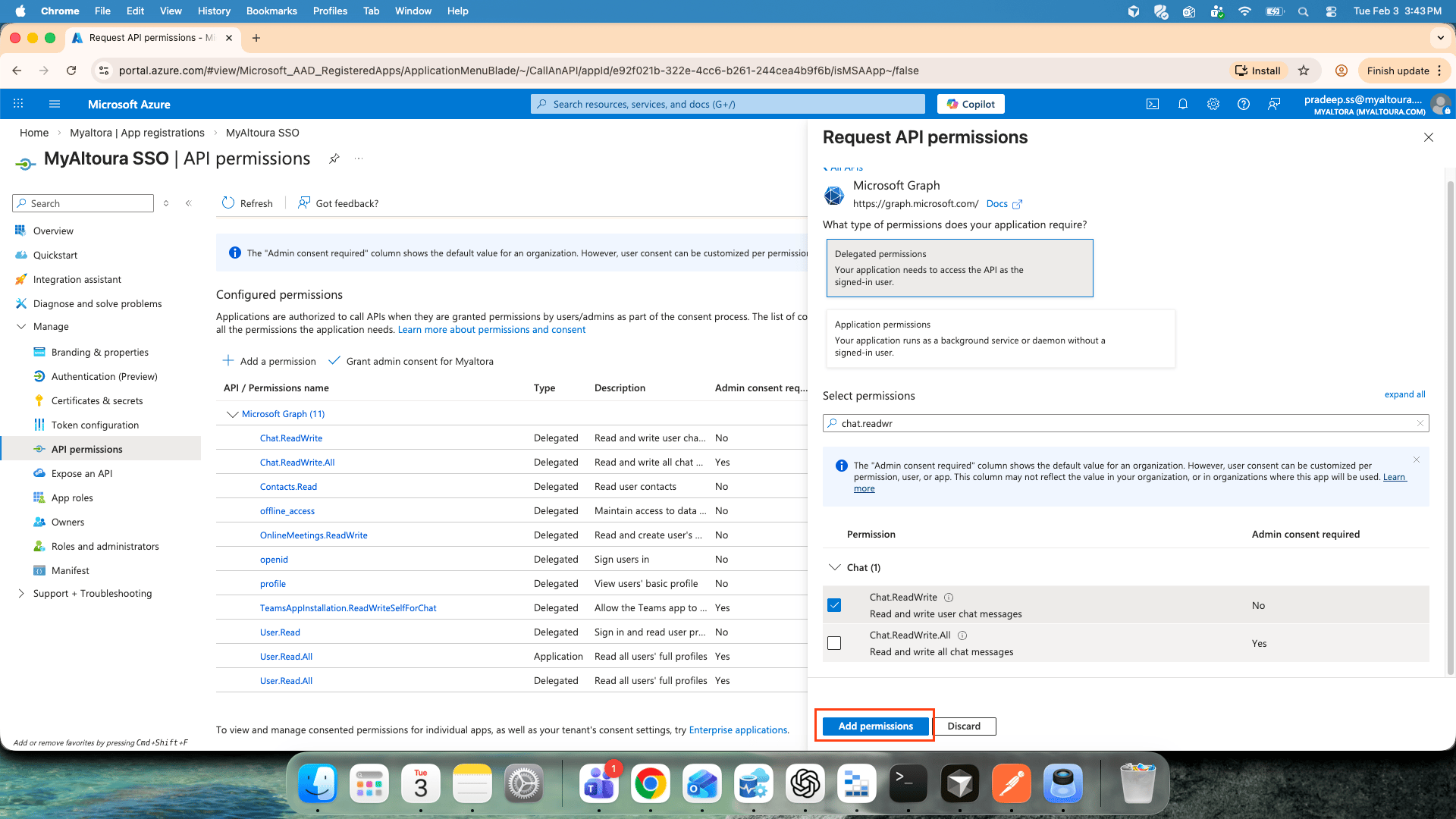
### 5.Click on Add permissions after selecting all the permissions
<Frame>
  <img src="https://mintcdn.com/altoura-785c3552/HhZQY2b4kA6oBKtL/frontline/images/overview/administration/tenant-config-05-add-permissions.png?fit=max&auto=format&n=HhZQY2b4kA6oBKtL&q=85&s=8d443b631c191d856ea9a916fc1ef3ef" alt="Add permissions button after selecting all required permissions" width="1920" height="1080" data-path="frontline/images/overview/administration/tenant-config-05-add-permissions.png" />
</Frame>

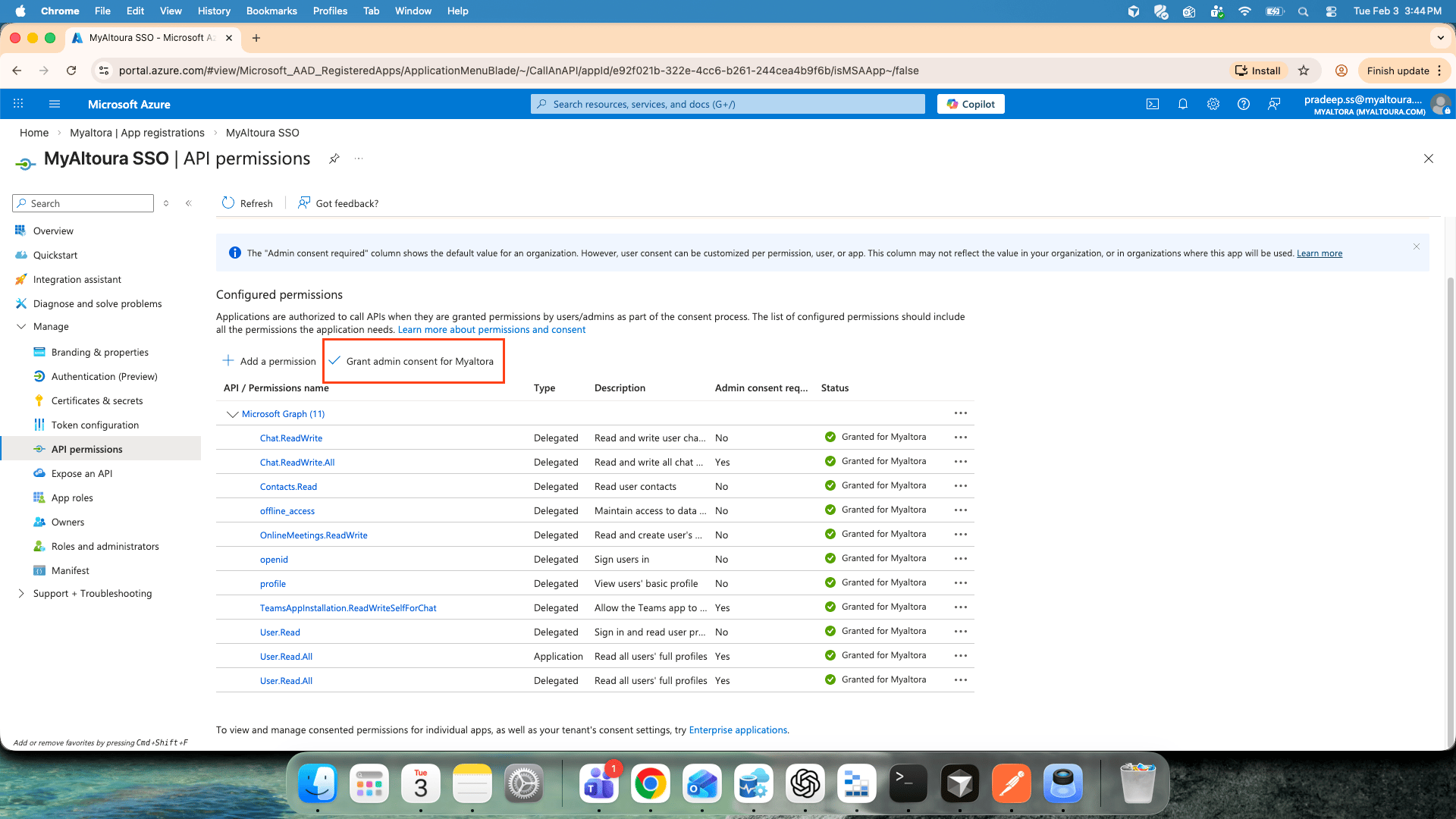
### 6.Click on Grant admin consent for \<Your app>

<Frame>
  <img src="https://mintcdn.com/altoura-785c3552/HhZQY2b4kA6oBKtL/frontline/images/overview/administration/tenant-config-06-grant-admin-consent.png?fit=max&auto=format&n=HhZQY2b4kA6oBKtL&q=85&s=e05331955d33774912cb82eb09c39237" alt="Grant admin consent button on the API permissions page" width="1920" height="1080" data-path="frontline/images/overview/administration/tenant-config-06-grant-admin-consent.png" />
</Frame>

<Frame />