> ## Documentation Index
> Fetch the complete documentation index at: https://docs.altoura.com/llms.txt
> Use this file to discover all available pages before exploring further.
# Add 3D Models and Media
> Attach 3D models to a step from the built-in catalogue, spawn and position them in the physical space, configure interactability and animation, and check the media attached to each step.
This page is for **procedure authors** on the HoloLens. By the end of it, you will be able to add 3D models to a step, place and edit them in the physical space, configure how operators can interact with them, and verify the media attached to each step.
## Check the Media Attached to a Step
Images and videos are attached to steps in the **Procedures Portal** — see [Assets & Media](/frontline/procedures-portal/assets-media) and [Authoring in the Procedures Portal](/frontline/procedures-portal/authoring). On the HoloLens, the **Media panel** (left side) shows you what operators will see on each step, so review it as you author.
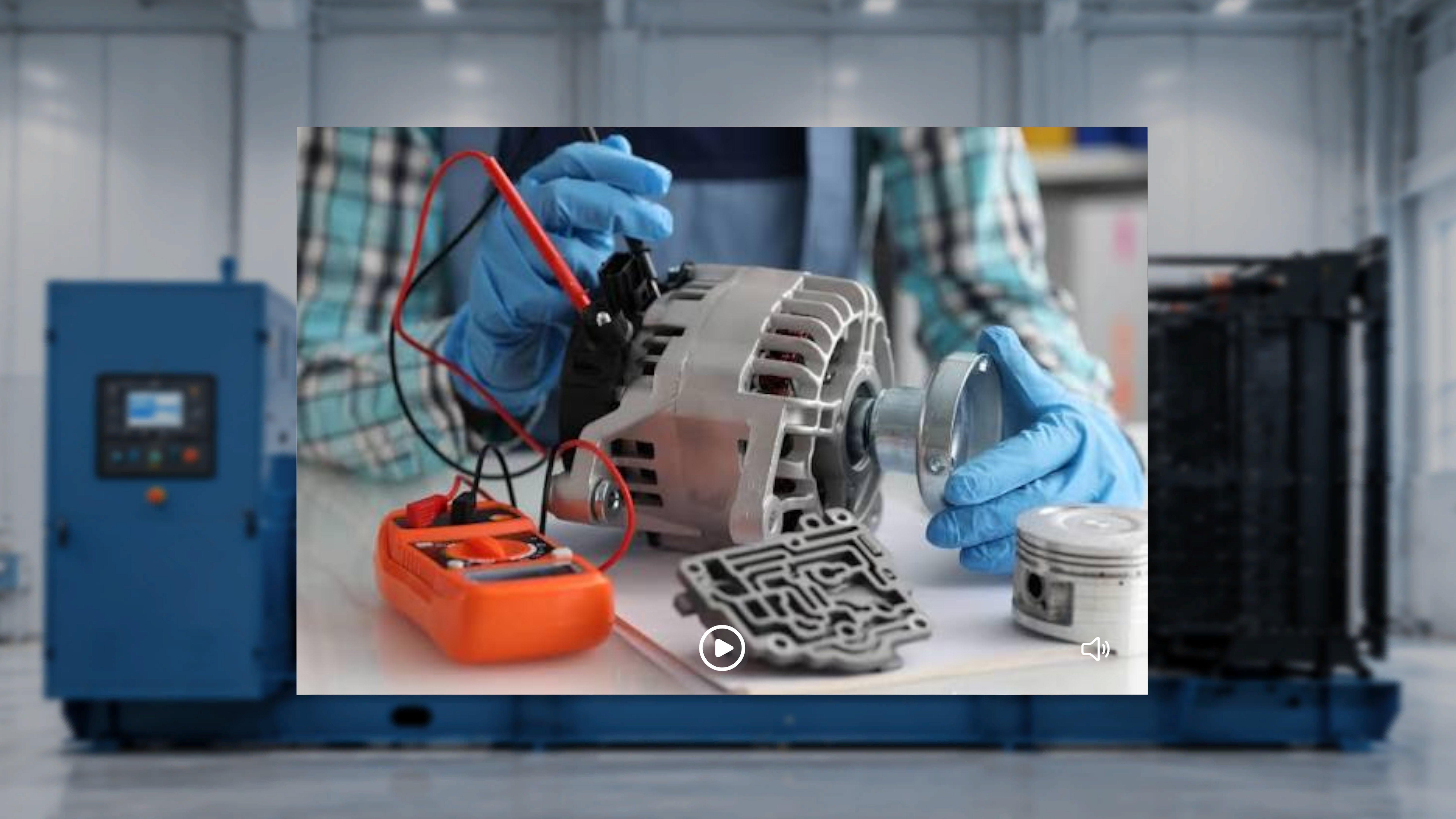 * **Image attached:** the image is displayed statically, with no playback controls.
* **Video attached:** a player appears with **Play / Pause** and **Mute / Unmute** controls. The video **auto-plays** when you enter the step and **loops** continuously; you can pause, resume, and toggle audio at any time.
* **No media attached:** the Media panel does not appear for that step.
The panel refreshes automatically as you move between steps. Full detail: [Media Panel in Author Mode](/frontline/procedures/author/media-panel).
## Add a Model from the Default Catalogue
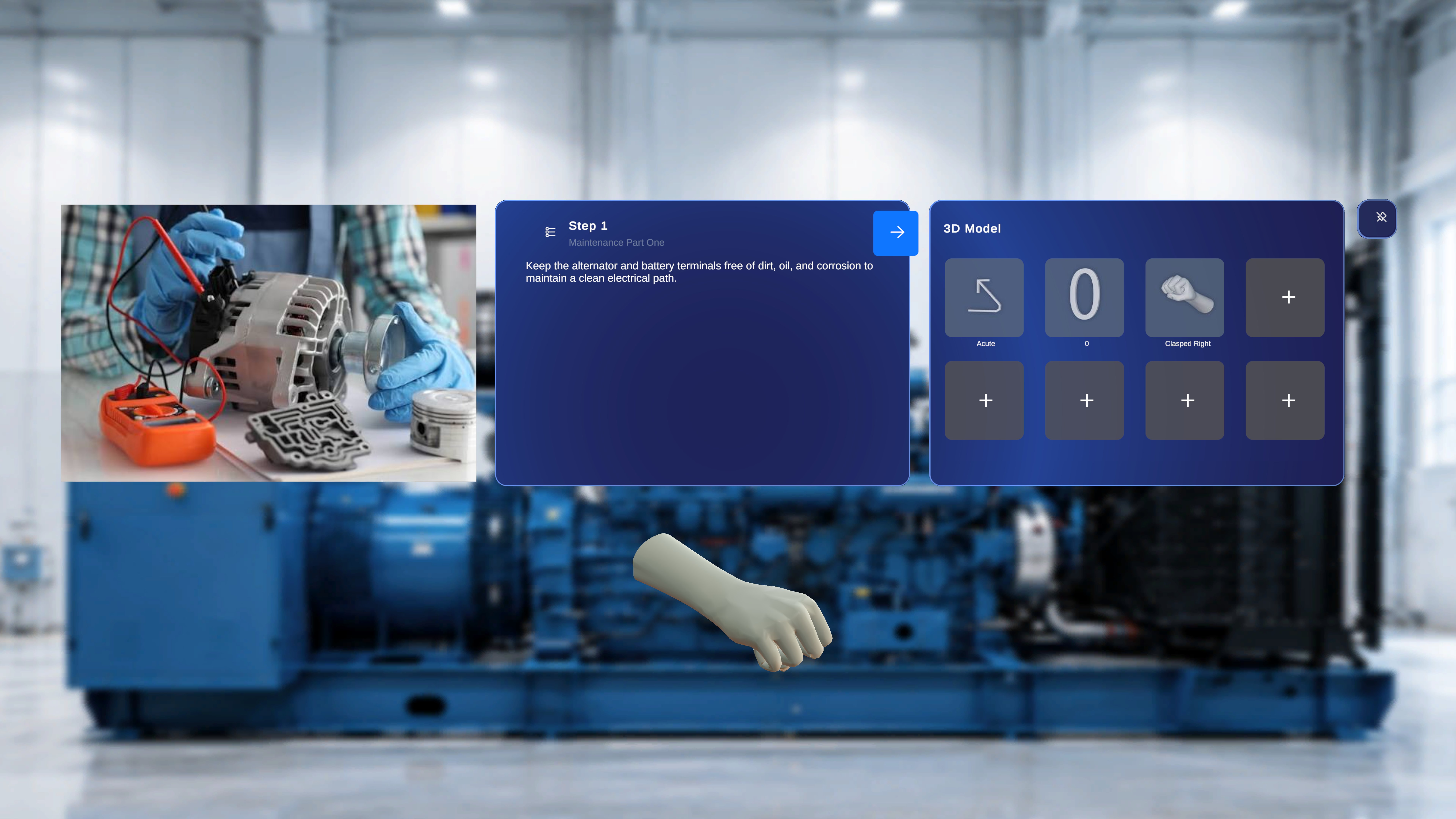
The **3D Model panel** (right side) holds the models attached to the current step. Models can be attached in the Portal — or added directly on the device from the built-in **default catalogue** of common assets (arrows, generic tools, hand poses), so you can build out a step without leaving Author mode.
When a step has no models attached, the panel shows a grid of empty slots marked with a **+** icon.
* **Image attached:** the image is displayed statically, with no playback controls.
* **Video attached:** a player appears with **Play / Pause** and **Mute / Unmute** controls. The video **auto-plays** when you enter the step and **loops** continuously; you can pause, resume, and toggle audio at any time.
* **No media attached:** the Media panel does not appear for that step.
The panel refreshes automatically as you move between steps. Full detail: [Media Panel in Author Mode](/frontline/procedures/author/media-panel).
## Add a Model from the Default Catalogue
The **3D Model panel** (right side) holds the models attached to the current step. Models can be attached in the Portal — or added directly on the device from the built-in **default catalogue** of common assets (arrows, generic tools, hand poses), so you can build out a step without leaving Author mode.
When a step has no models attached, the panel shows a grid of empty slots marked with a **+** icon.
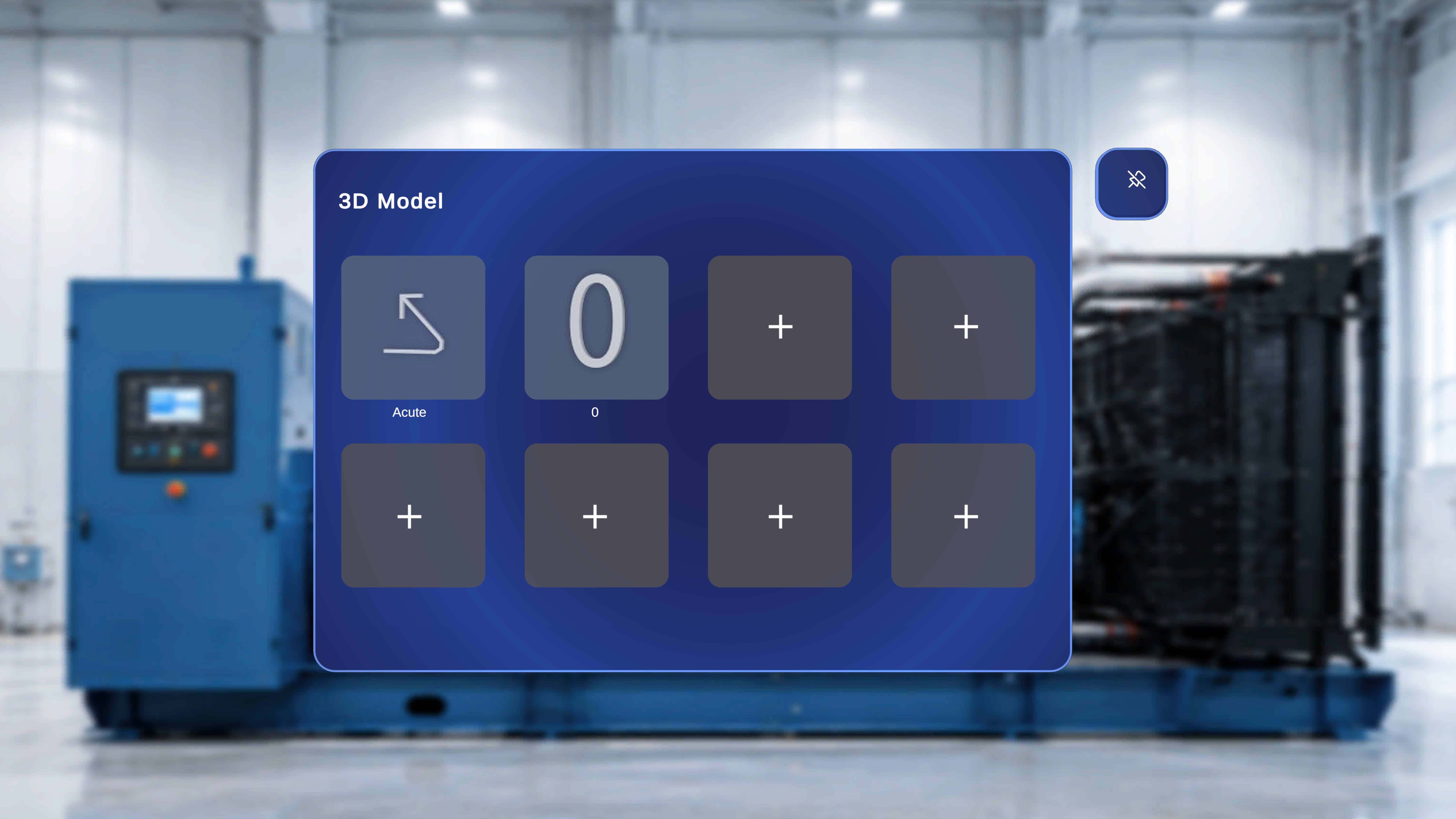 Focus an empty **+** slot and air-tap it, or say **"Select"** while gazing at it (see [Voice Commands](/frontline/hololens/reference/voice-commands)). The default catalogue opens in place of the grid.
Models are organised into collapsible **groups** — **Arrows**, **Generic Tools**, **Hands** — with the first group expanded by default. Use the **up/down chevrons** on the right to page through a group, and the **caret** next to a group name to collapse or expand it.
Focus an empty **+** slot and air-tap it, or say **"Select"** while gazing at it (see [Voice Commands](/frontline/hololens/reference/voice-commands)). The default catalogue opens in place of the grid.
Models are organised into collapsible **groups** — **Arrows**, **Generic Tools**, **Hands** — with the first group expanded by default. Use the **up/down chevrons** on the right to page through a group, and the **caret** next to a group name to collapse or expand it.
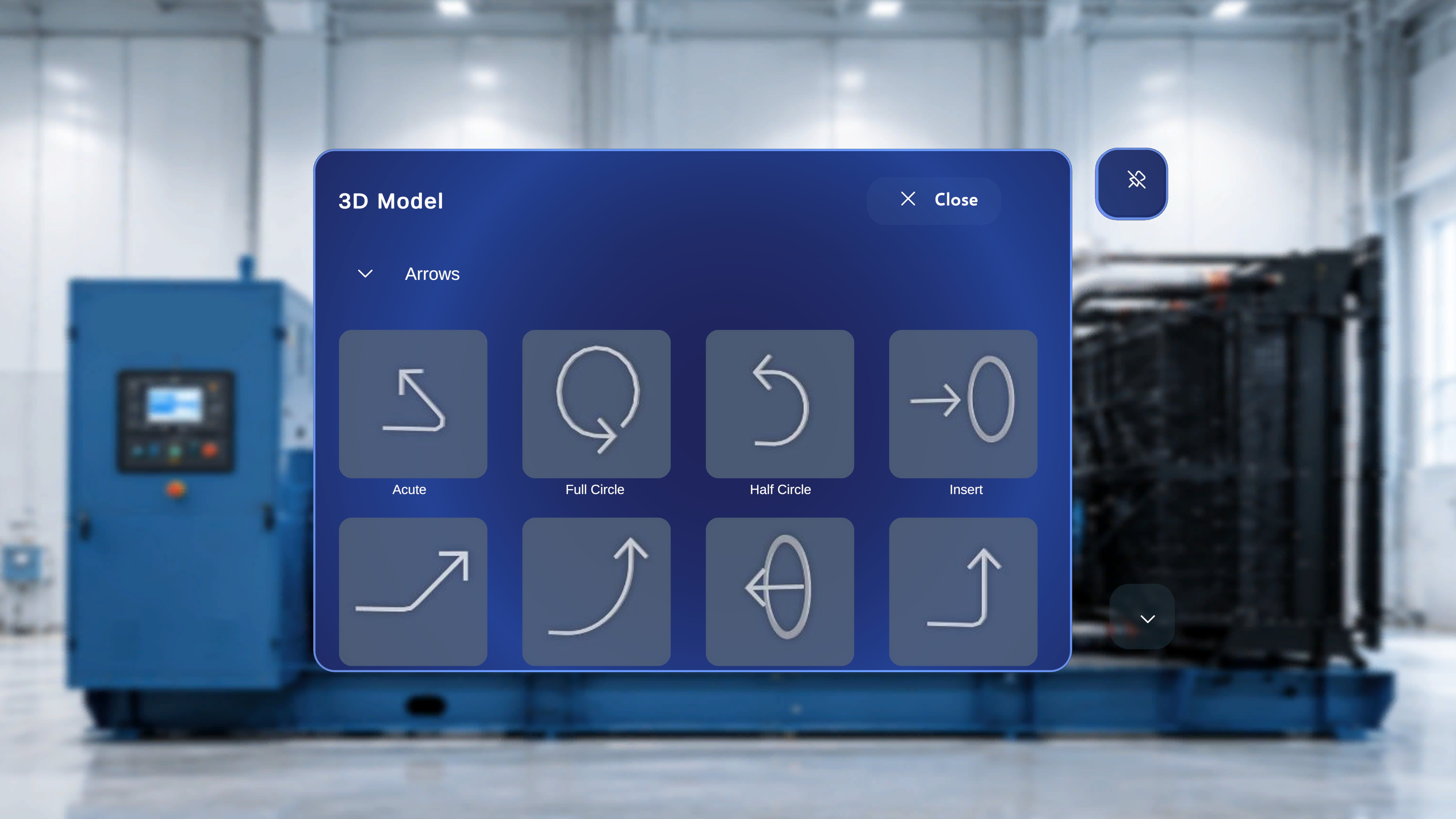 Focus a tile (for example, **Acute**) and air-tap it, or say **"Select"** when the voice hint appears. The catalogue closes and the model is added as a tile in the 3D Model panel for the current step — exactly like a model attached from the Portal.
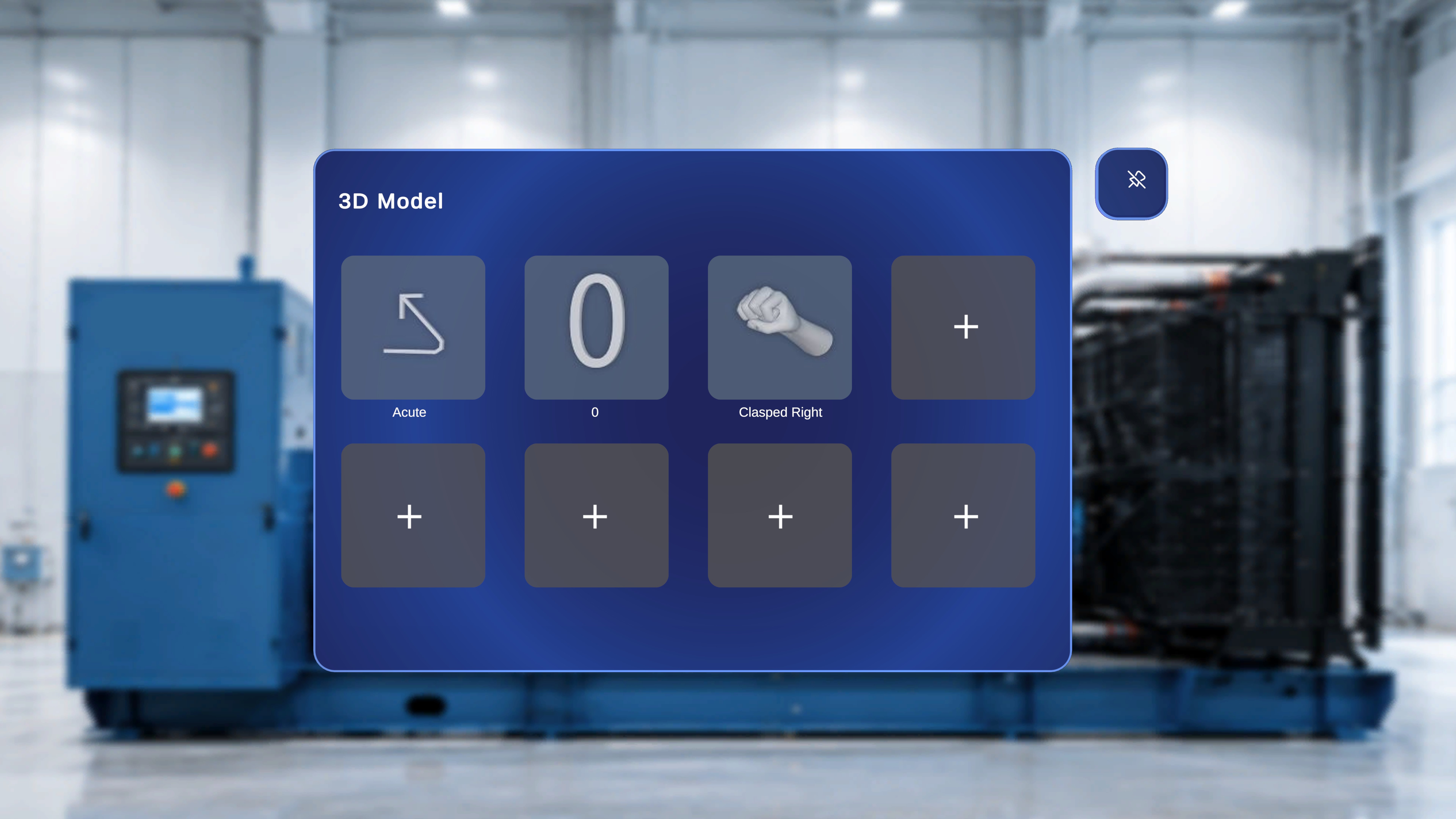 To dismiss the catalogue without adding anything, select the **X Close** button in its top-right corner.
The catalogue is a curated set of common models — custom `.glb` files still need to be uploaded via the **Procedures Portal**. Empty **+** slots are the only entry point to the catalogue; if the panel is full, remove a model first. Models added on the device sync to the same step in the Portal (and vice versa) — if sync looks stale, tap **Procedures** in the side menu on the device, or refresh the browser tab in the Portal.
## Spawn and Position a Model
Select the model's tile in the **3D Model** panel. The model spawns into the physical space in front of you, anchored relative to the QR position for the step. Select the same tile again — or a different tile — to spawn additional instances.
To dismiss the catalogue without adding anything, select the **X Close** button in its top-right corner.
The catalogue is a curated set of common models — custom `.glb` files still need to be uploaded via the **Procedures Portal**. Empty **+** slots are the only entry point to the catalogue; if the panel is full, remove a model first. Models added on the device sync to the same step in the Portal (and vice versa) — if sync looks stale, tap **Procedures** in the side menu on the device, or refresh the browser tab in the Portal.
## Spawn and Position a Model
Select the model's tile in the **3D Model** panel. The model spawns into the physical space in front of you, anchored relative to the QR position for the step. Select the same tile again — or a different tile — to spawn additional instances.
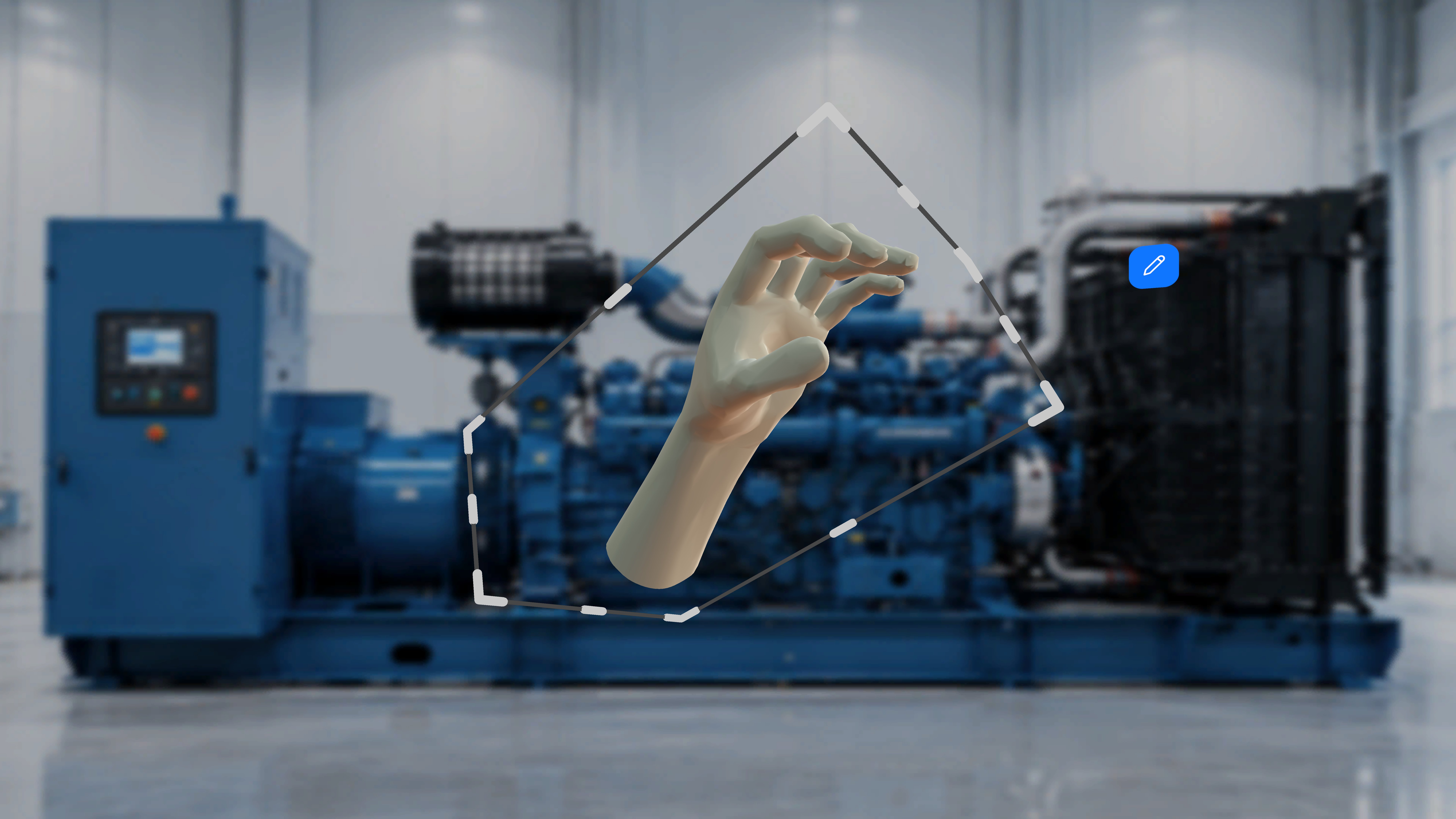
 Tap the spawned model. A **bounding box** appears around it, letting you **move, resize, and rotate** the model in space. Tap the model again to hide the bounding box.
 Model availability is **per step**: only models attached to the active step appear in the panel, and switching steps refreshes both the tiles and any placed instances to that step's saved configuration.
## Edit a Placed Model
Every placed model shows an **Edit** button (pencil icon) nearby. Selecting it opens the Edit panel for that model instance — all changes apply only to the selected model.
Model availability is **per step**: only models attached to the active step appear in the panel, and switching steps refreshes both the tiles and any placed instances to that step's saved configuration.
## Edit a Placed Model
Every placed model shows an **Edit** button (pencil icon) nearby. Selecting it opens the Edit panel for that model instance — all changes apply only to the selected model.
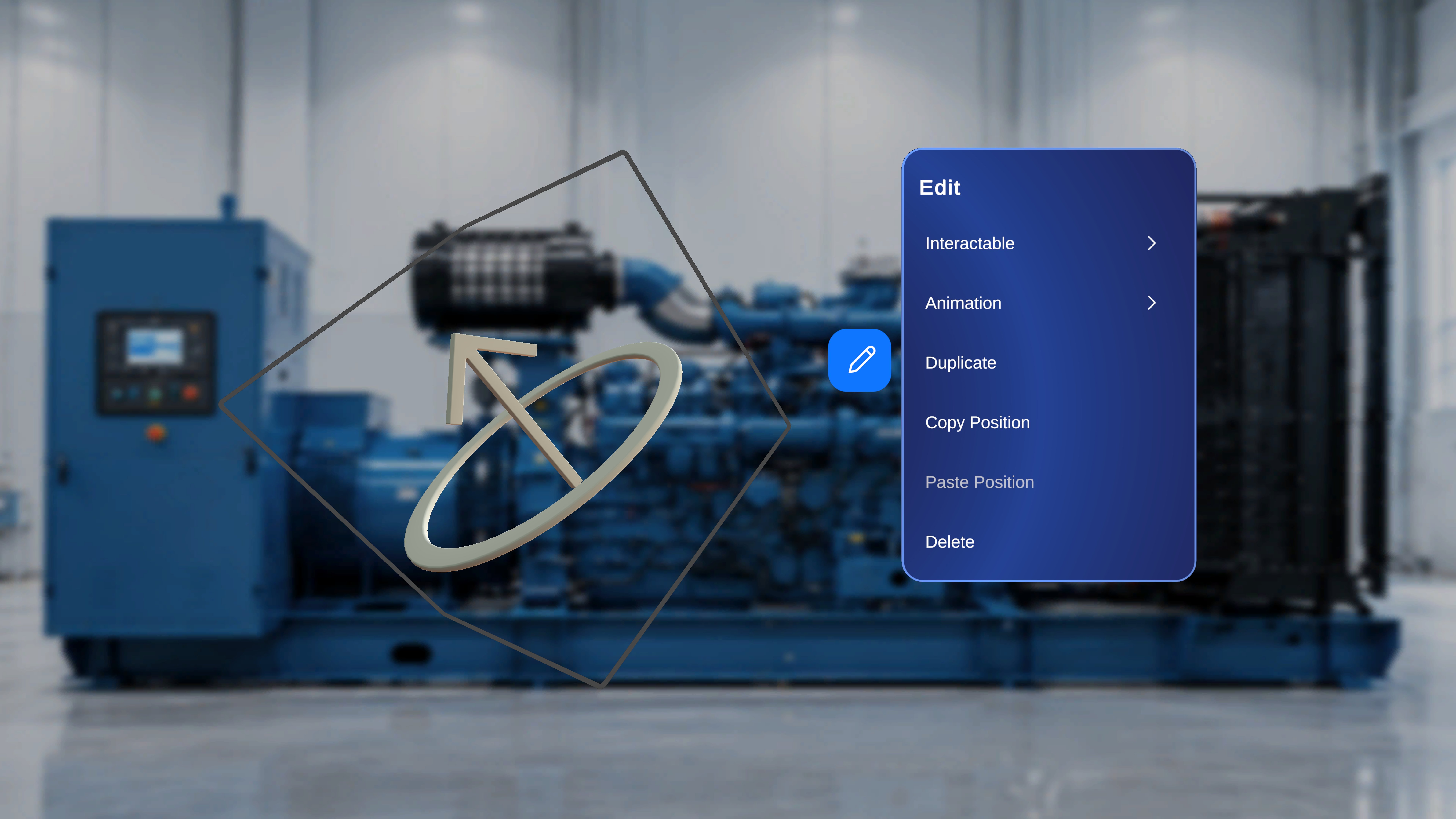 | Option | What it does |
| ------------------ | ------------------------------------------------------------------------------- |
| **Interactable** | Configure whether operators can move/interact with the model. |
| **Animation** | Configure animation playback (shown only if the model contains animation data). |
| **Duplicate** | Create a copy of the model in the scene. |
| **Copy Position** | Copy this model's position. |
| **Paste Position** | Move another model to the copied position. |
| **Delete** | Remove the model from the scene. |
### Configure Interactable Behavior
Select **Interactable** from the Edit menu. The panel has two toggles that control what operators can do with the model when they reach this step. (See [Author vs Operator](/frontline/overview/concepts/author-vs-operator) for how the two modes relate.)
| Option | What it does |
| ------------------ | ------------------------------------------------------------------------------- |
| **Interactable** | Configure whether operators can move/interact with the model. |
| **Animation** | Configure animation playback (shown only if the model contains animation data). |
| **Duplicate** | Create a copy of the model in the scene. |
| **Copy Position** | Copy this model's position. |
| **Paste Position** | Move another model to the copied position. |
| **Delete** | Remove the model from the scene. |
### Configure Interactable Behavior
Select **Interactable** from the Edit menu. The panel has two toggles that control what operators can do with the model when they reach this step. (See [Author vs Operator](/frontline/overview/concepts/author-vs-operator) for how the two modes relate.)
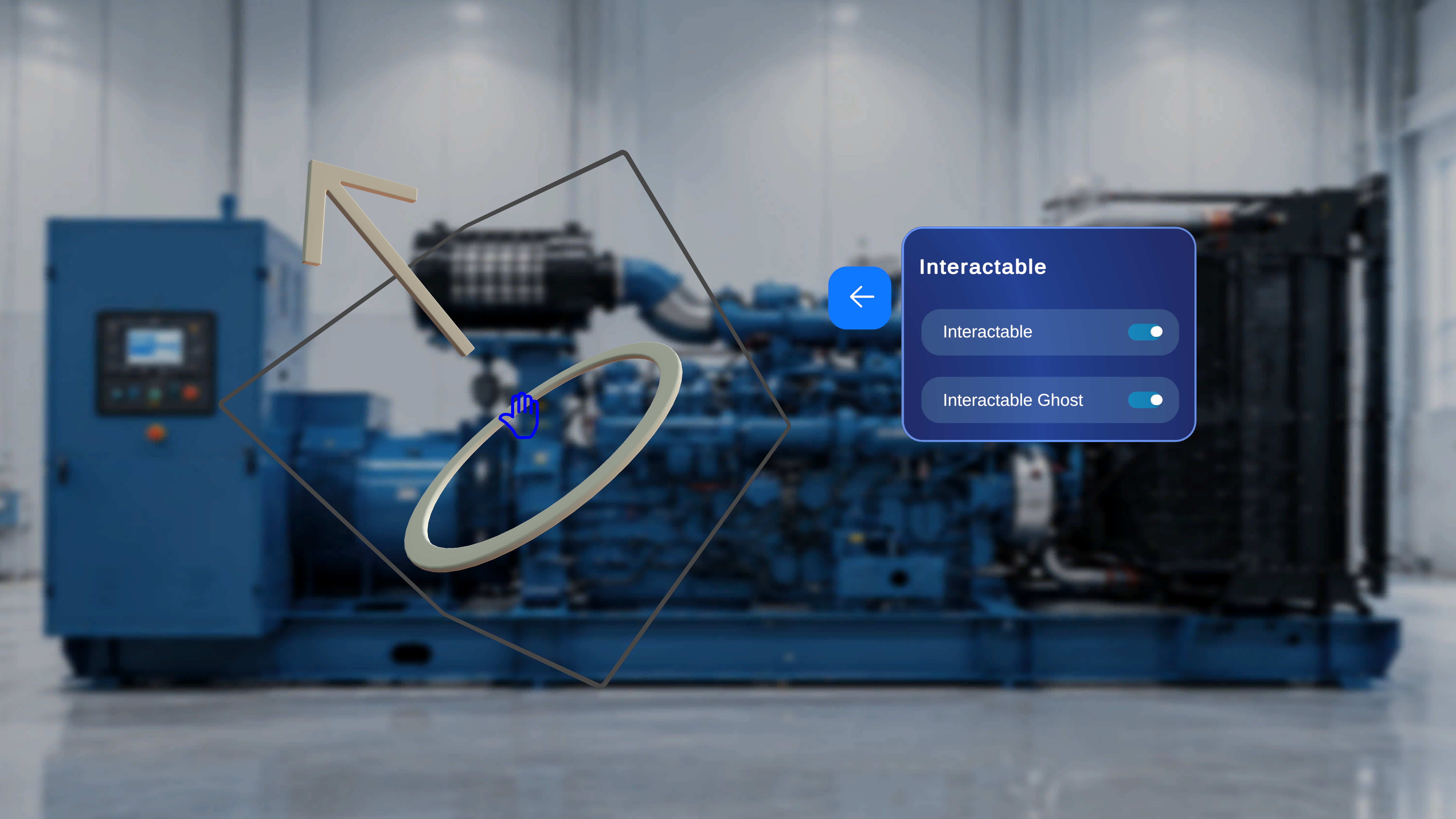 * **Interactable** — when ON, operators can move and interact with the model in Operator mode. When OFF, the model is view-only for operators, and the Ghost toggle is disabled.
* **Interactable Ghost** — requires Interactable to be ON. When ON, if an operator moves the model, a visual **ghost (shadow)** remains at its original position, showing where the author placed it.
### Configure Animation
If the model contains animation data, select **Animation** from the Edit menu.
* **Interactable** — when ON, operators can move and interact with the model in Operator mode. When OFF, the model is view-only for operators, and the Ghost toggle is disabled.
* **Interactable Ghost** — requires Interactable to be ON. When ON, if an operator moves the model, a visual **ghost (shadow)** remains at its original position, showing where the author placed it.
### Configure Animation
If the model contains animation data, select **Animation** from the Edit menu.
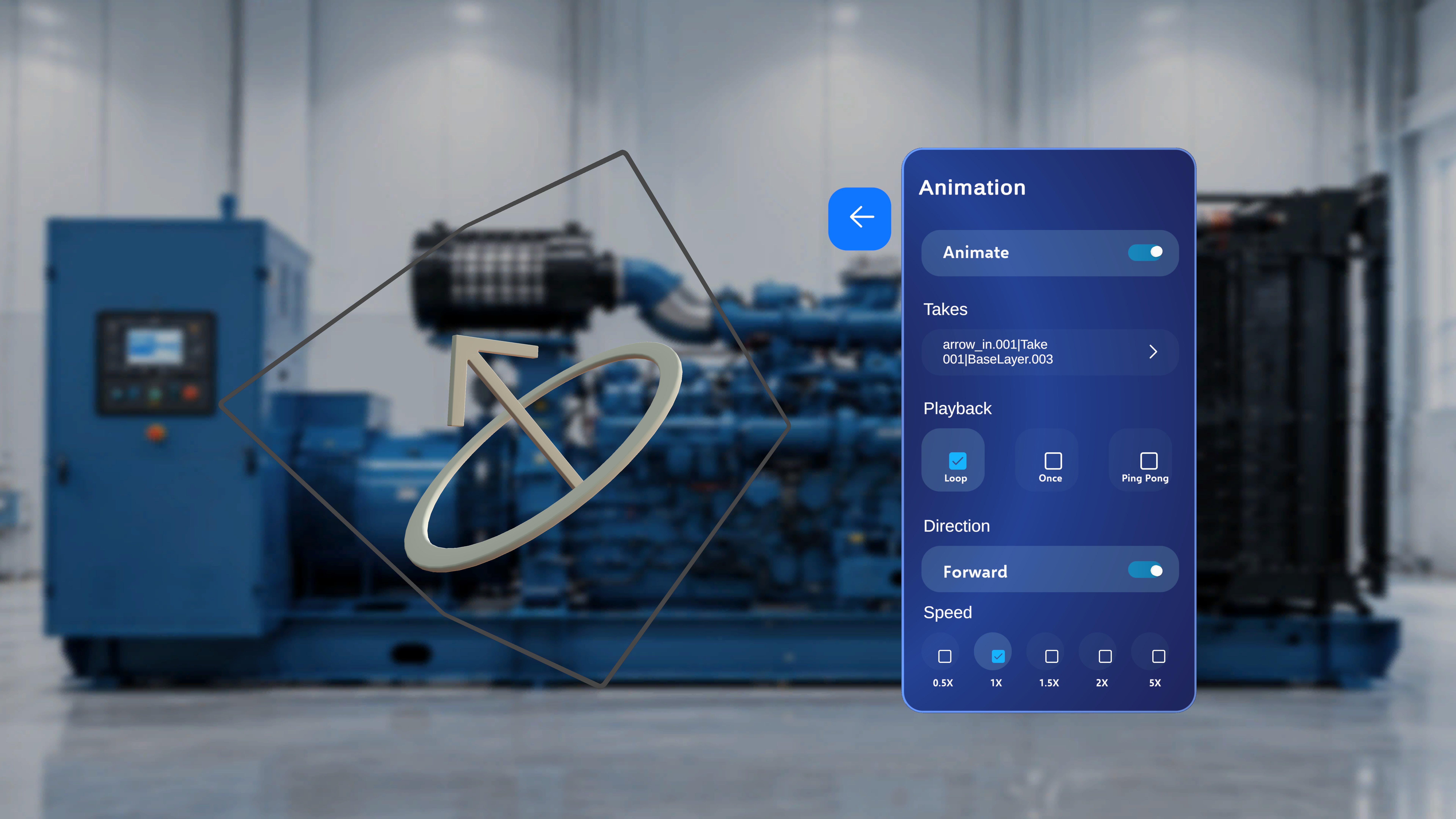 * **Takes** — choose from the animation takes included in the model (the section is unavailable if the model has none).
* **Animate** — toggle animation playback on or off.
* **Playback** — **Loop**, **Once**, or **Ping Pong**.
* **Direction** — **Forward**.
* **Speed** — **0.5x**, **1x**, **1.5x**, **2x**, or **5x**.
### Duplicate, Match Positions, and Delete
Open the **Edit** menu and select **Duplicate**. A copy of the model is created in the scene.
* **Takes** — choose from the animation takes included in the model (the section is unavailable if the model has none).
* **Animate** — toggle animation playback on or off.
* **Playback** — **Loop**, **Once**, or **Ping Pong**.
* **Direction** — **Forward**.
* **Speed** — **0.5x**, **1x**, **1.5x**, **2x**, or **5x**.
### Duplicate, Match Positions, and Delete
Open the **Edit** menu and select **Duplicate**. A copy of the model is created in the scene.
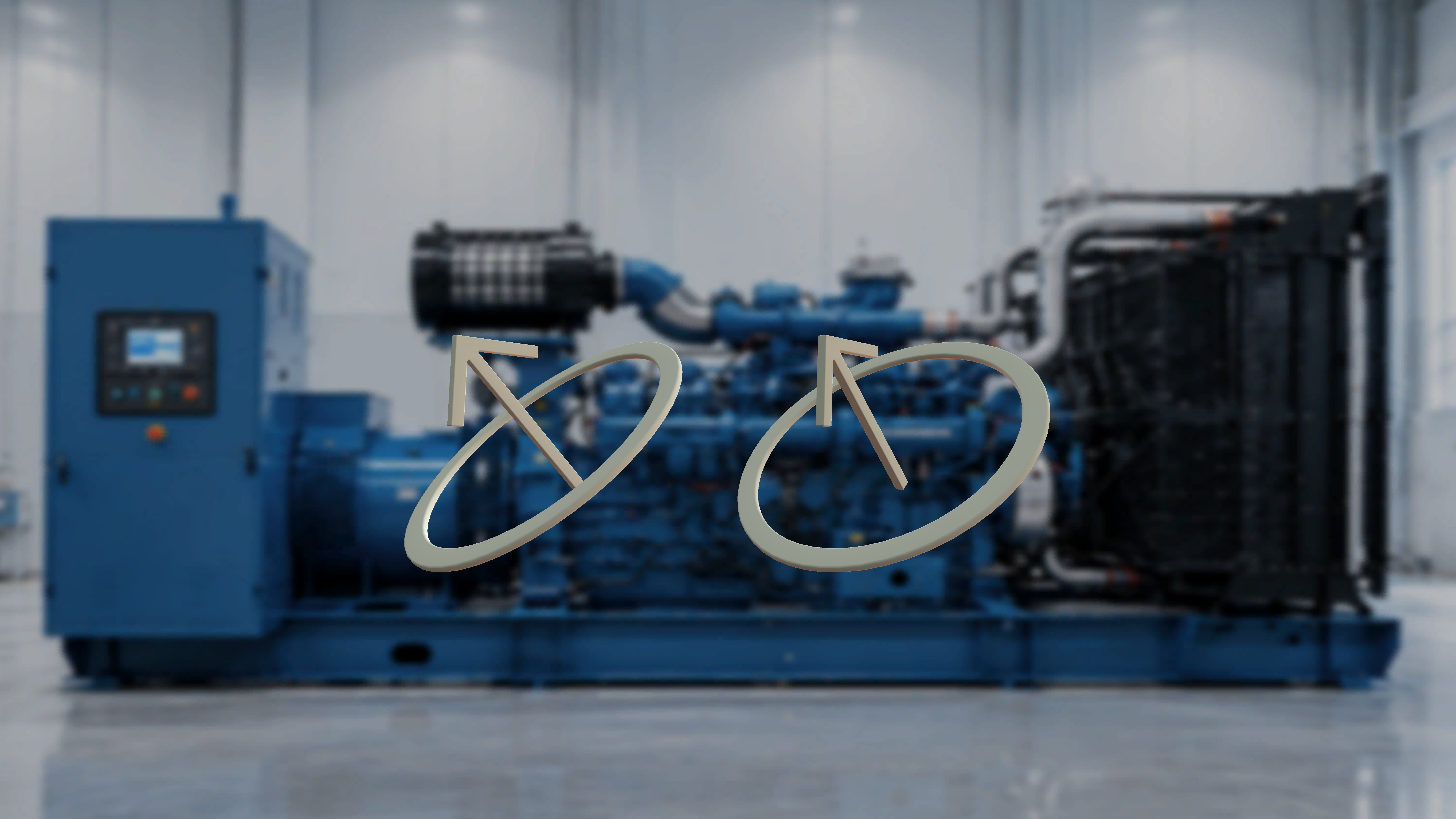 Open the source model's **Edit** menu and select **Copy Position**. Then select the target model, open its **Edit** menu, and select **Paste Position** — the second model moves to the copied position.
Open the **Edit** menu and select **Delete**. The selected model is removed from the scene.
Working across a large area? Turn on **Follow Me** (the pin button on the 3D Model panel, or say **"Follow me"**) so the model catalogue keeps up with you as you place and align models — see [Build Tasks and Steps](/frontline/hololens/author/build-tasks-and-steps).
For exhaustive detail, see the reference pages: [3D Model Panel](/frontline/procedures/author/3d-model-panel), [3D Model Authoring](/frontline/procedures/author/3d-model-authoring), [Default 3D Models](/frontline/procedures/author/default-3d-models), and [Media Panel](/frontline/procedures/author/media-panel).
***
**Next:** [Choice Steps and Completion Rules](/frontline/hololens/author/choice-steps-and-completion-rules)
Open the source model's **Edit** menu and select **Copy Position**. Then select the target model, open its **Edit** menu, and select **Paste Position** — the second model moves to the copied position.
Open the **Edit** menu and select **Delete**. The selected model is removed from the scene.
Working across a large area? Turn on **Follow Me** (the pin button on the 3D Model panel, or say **"Follow me"**) so the model catalogue keeps up with you as you place and align models — see [Build Tasks and Steps](/frontline/hololens/author/build-tasks-and-steps).
For exhaustive detail, see the reference pages: [3D Model Panel](/frontline/procedures/author/3d-model-panel), [3D Model Authoring](/frontline/procedures/author/3d-model-authoring), [Default 3D Models](/frontline/procedures/author/default-3d-models), and [Media Panel](/frontline/procedures/author/media-panel).
***
**Next:** [Choice Steps and Completion Rules](/frontline/hololens/author/choice-steps-and-completion-rules)