> ## Documentation Index
> Fetch the complete documentation index at: https://docs.altoura.com/llms.txt
> Use this file to discover all available pages before exploring further.
# Choice Steps and Completion Rules
> Author branching workflows with Choice Steps and make sure every path ends cleanly with a Completion Step — and see how both behave on the HoloLens.
This page is for **procedure authors**. By the end of it, you will know how Choice Steps and Completion Steps behave on the HoloLens, and how to structure branches so every path ends with a proper completion — the two are designed to work together.
Choice options (labels and destination steps) and manual Completion Steps are **configured in the web Procedures Portal** — see [Authoring in the Procedures Portal](/frontline/procedures-portal/authoring). On the HoloLens, you author the spatial content of these steps and verify the branching works as intended.
## How a Choice Step Behaves
A **Choice Step** presents one or more selectable options that determine the next step. Each option is configured in the Portal with a **choice label** and a **destination step**. Choice Steps are typical in troubleshooting flows, conditional inspections, and multi-path workflows.
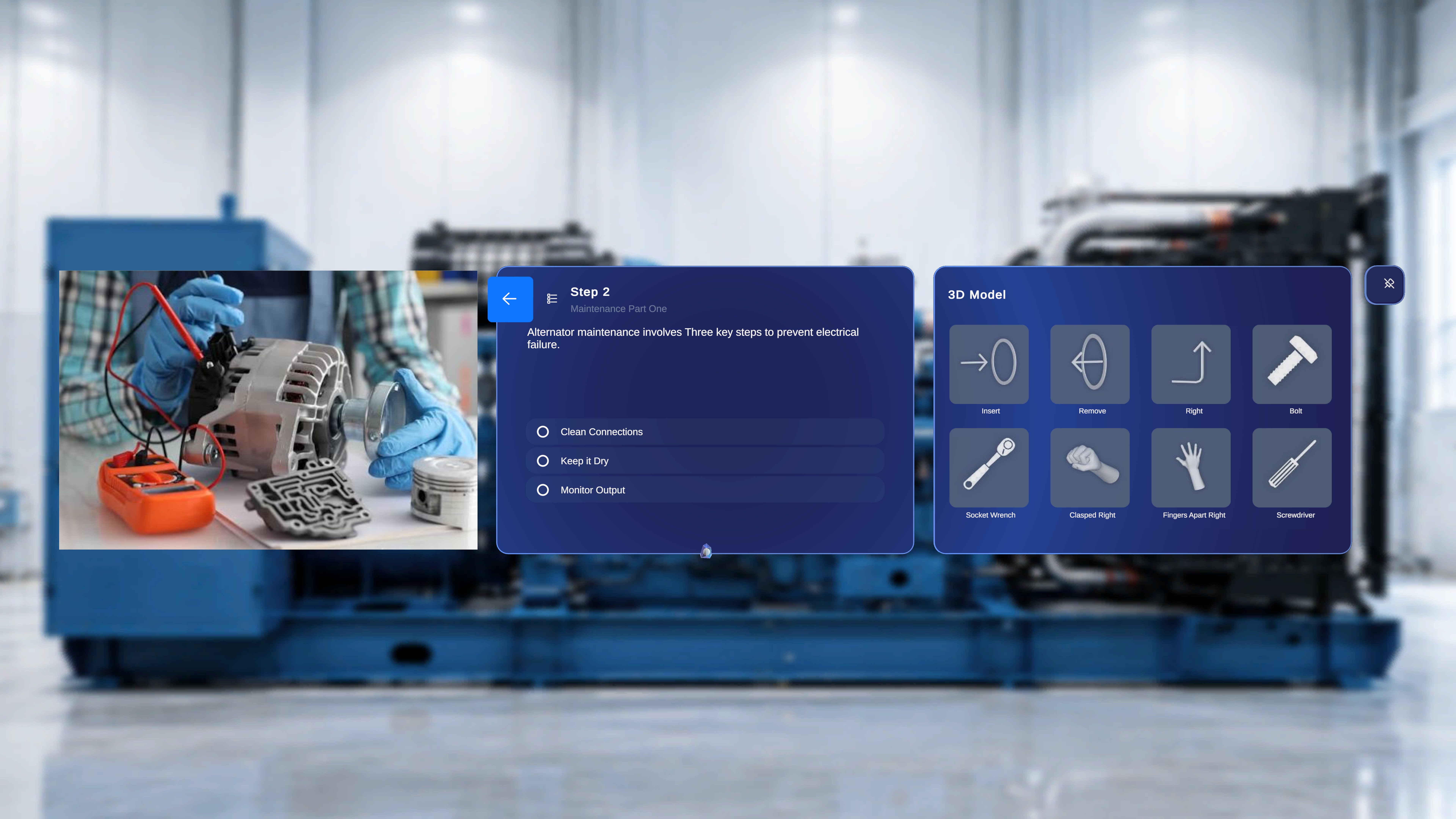 The panel shows the task title, step numbering, instruction text (for example, *Please select the Required option below*), and up to **3 selectable options**. Two things make it different from a normal step:
* There is **no forward navigation button** — you cannot proceed without making a selection. This is identical in Author and Operator mode.
* The back arrow (top-left) returns you to the previous step within the active branch.
Media and 3D models on a Choice Step behave exactly as on any other step: attached media appears in the Media panel, and in Author mode you can spawn and configure models from the 3D Model panel as usual — see [Add 3D Models and Media](/frontline/hololens/author/add-3d-models-and-media).
## Select a Choice (Verify Your Branching)
As you author, walk each branch to confirm the destinations are right.
The panel shows the task title, step numbering, instruction text (for example, *Please select the Required option below*), and up to **3 selectable options**. Two things make it different from a normal step:
* There is **no forward navigation button** — you cannot proceed without making a selection. This is identical in Author and Operator mode.
* The back arrow (top-left) returns you to the previous step within the active branch.
Media and 3D models on a Choice Step behave exactly as on any other step: attached media appears in the Media panel, and in Author mode you can spawn and configure models from the 3D Model panel as usual — see [Add 3D Models and Media](/frontline/hololens/author/add-3d-models-and-media).
## Select a Choice (Verify Your Branching)
As you author, walk each branch to confirm the destinations are right.
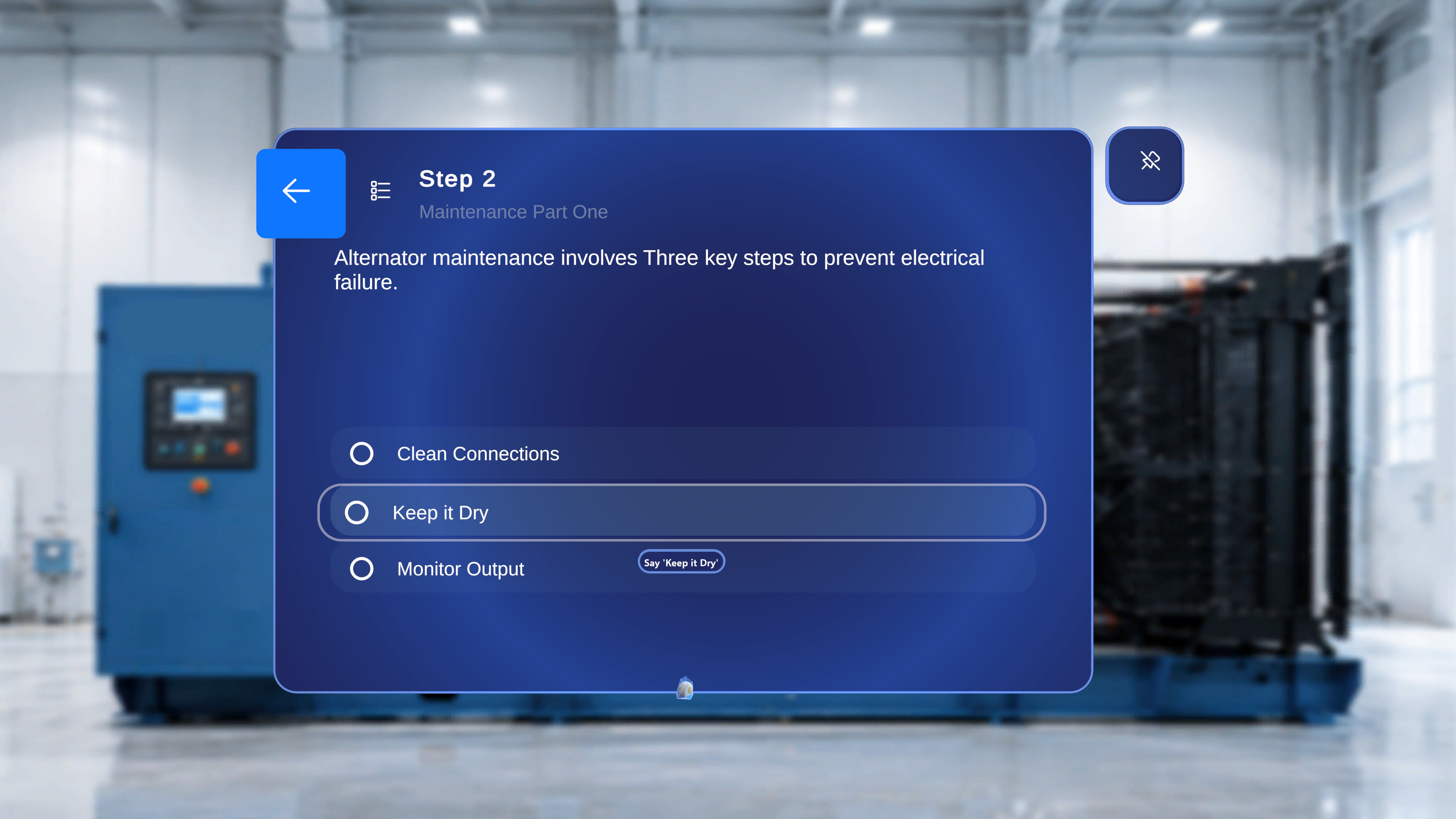 Read the available option labels on the panel.
Point the **ray** or **head-gaze cursor** at an option — a **loading indicator** starts filling around it.
Read the available option labels on the panel.
Point the **ray** or **head-gaze cursor** at an option — a **loading indicator** starts filling around it.
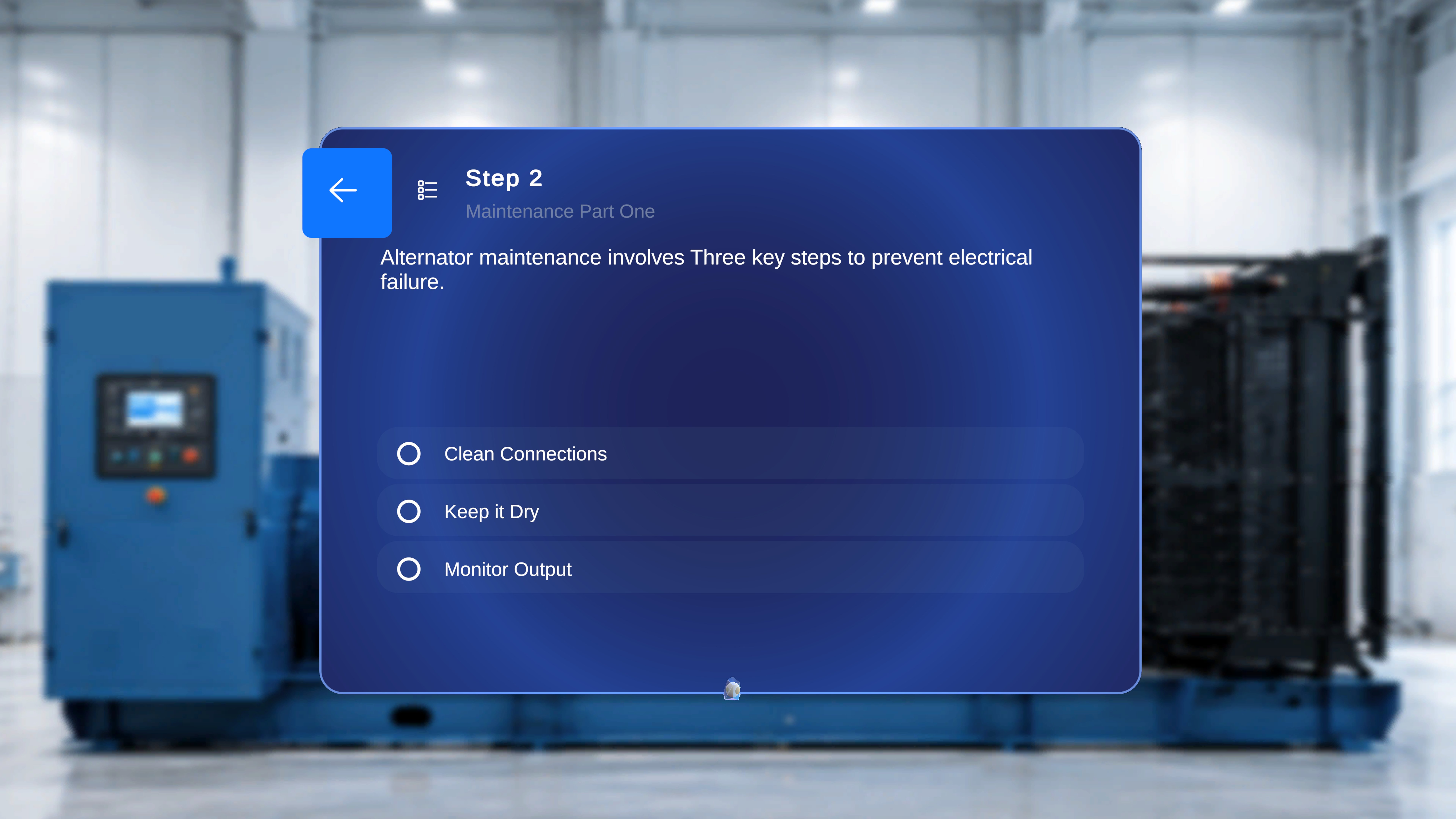 Hold your focus until the indicator completes — the option activates automatically. Alternatively, **air-tap** it to activate immediately, or say the option **label exactly as it appears** (for example, *"Start with the alternator"*) — each choice label is its own voice command, no hover or "Select" needed. See [Voice Commands](/frontline/hololens/reference/voice-commands).
The procedure immediately navigates to the destination step configured for that choice and continues along the selected branch until another Choice Step or a Completion Step is reached.
Choice labels are treated as **literal voice phrases**. Keep them short, distinct, and spoken-friendly when authoring — long or punctuation-heavy labels are harder for operators to say reliably.
## How Completion Steps Work
A **Completion Step** tells the user a procedure path is finished. A default Completion Task containing a Completion Step is **automatically created at the end of every new procedure**, so there is always a defined endpoint.
Hold your focus until the indicator completes — the option activates automatically. Alternatively, **air-tap** it to activate immediately, or say the option **label exactly as it appears** (for example, *"Start with the alternator"*) — each choice label is its own voice command, no hover or "Select" needed. See [Voice Commands](/frontline/hololens/reference/voice-commands).
The procedure immediately navigates to the destination step configured for that choice and continues along the selected branch until another Choice Step or a Completion Step is reached.
Choice labels are treated as **literal voice phrases**. Keep them short, distinct, and spoken-friendly when authoring — long or punctuation-heavy labels are harder for operators to say reliably.
## How Completion Steps Work
A **Completion Step** tells the user a procedure path is finished. A default Completion Task containing a Completion Step is **automatically created at the end of every new procedure**, so there is always a defined endpoint.
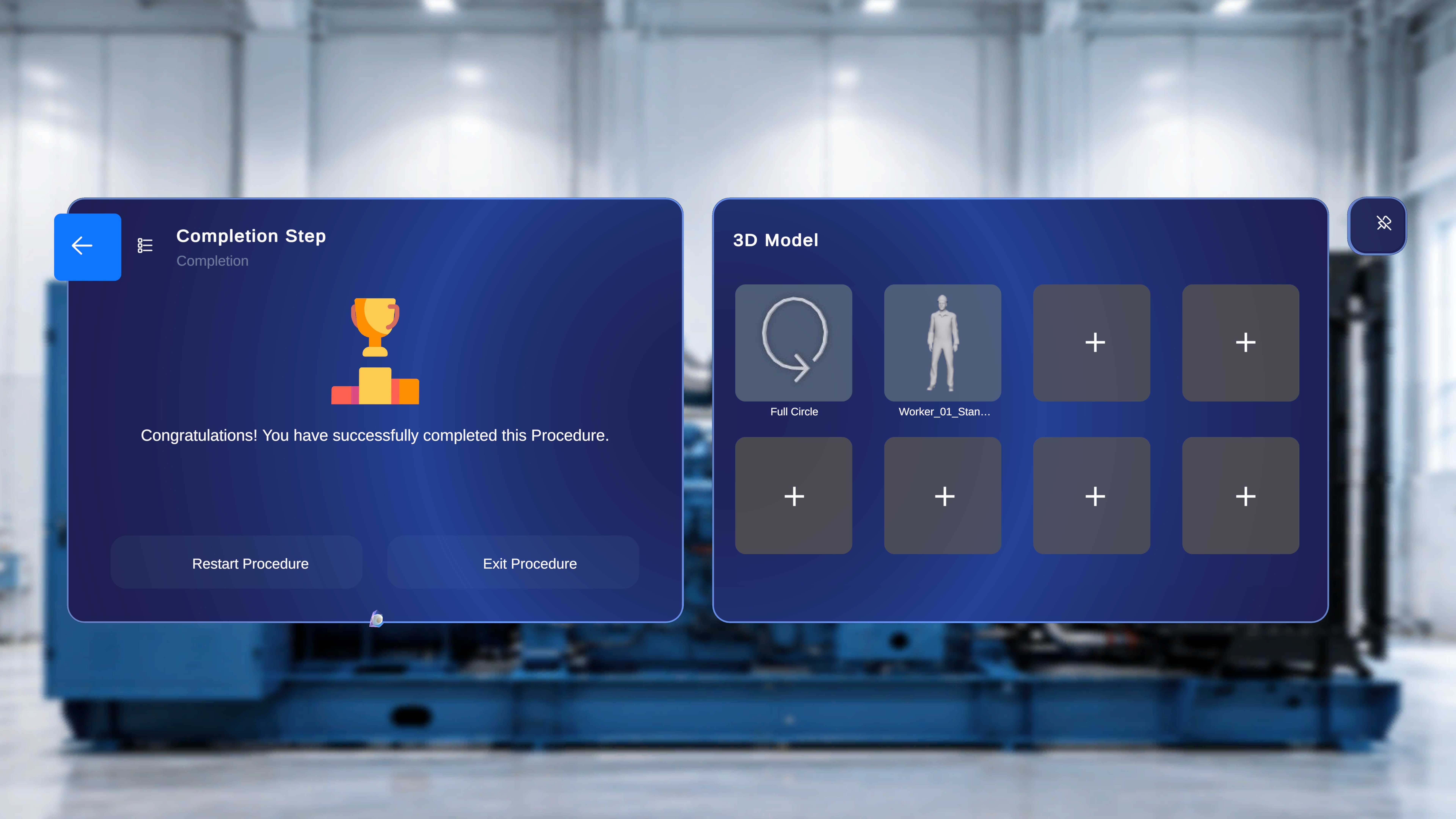 The Completion Step panel shows the title **Completion Step**, the task name, the message **"Congratulations! You have successfully completed this Procedure."**, and two actions:
* **Restart Procedure** — resets the procedure to the first step and clears any in-progress state.
* **Exit Procedure** — closes the procedure and returns you to the screen you came from.
A back arrow in the top-left returns to the previous step in the current path (in branching procedures, that depends on the choice path taken).
## The Rule: Every Branch Needs an Ending
In a linear procedure, users press **Next** until they reach the default Completion Step. But when a procedure includes Choice Steps:
* Each choice option can lead to a different destination.
* Each branch may be a complete, valid endpoint of its own.
* Not all branches return to the default completion task.
For those procedures, add a **manual Completion Step at the end of each branch** in the Portal. This ensures the user gets a clear confirmation that the selected path is complete, the procedure ends cleanly at the correct destination, and no one is forced through an unrelated default path. Without them, some paths may never reach a proper completion confirmation.
When authoring branching procedures, make sure:
* Every choice option has a valid destination step.
* Every branch either **rejoins the main flow** or **ends with its own Completion Step**.
Use the **Step List Panel** (list icon on the step panel) to audit your structure on-device: it lists every task, every step, every manually added Completion Step, and the default Completion Task — and lets you jump straight to any of them. See [Build Tasks and Steps](/frontline/hololens/author/build-tasks-and-steps).
For exhaustive detail, see the reference pages: [Choice Step in Author Mode](/frontline/procedures/author/choice-step) and [Completion Task & Step in Author Mode](/frontline/procedures/author/completion).
***
**Next:** [Preview and Publish](/frontline/hololens/author/preview-and-publish)
The Completion Step panel shows the title **Completion Step**, the task name, the message **"Congratulations! You have successfully completed this Procedure."**, and two actions:
* **Restart Procedure** — resets the procedure to the first step and clears any in-progress state.
* **Exit Procedure** — closes the procedure and returns you to the screen you came from.
A back arrow in the top-left returns to the previous step in the current path (in branching procedures, that depends on the choice path taken).
## The Rule: Every Branch Needs an Ending
In a linear procedure, users press **Next** until they reach the default Completion Step. But when a procedure includes Choice Steps:
* Each choice option can lead to a different destination.
* Each branch may be a complete, valid endpoint of its own.
* Not all branches return to the default completion task.
For those procedures, add a **manual Completion Step at the end of each branch** in the Portal. This ensures the user gets a clear confirmation that the selected path is complete, the procedure ends cleanly at the correct destination, and no one is forced through an unrelated default path. Without them, some paths may never reach a proper completion confirmation.
When authoring branching procedures, make sure:
* Every choice option has a valid destination step.
* Every branch either **rejoins the main flow** or **ends with its own Completion Step**.
Use the **Step List Panel** (list icon on the step panel) to audit your structure on-device: it lists every task, every step, every manually added Completion Step, and the default Completion Task — and lets you jump straight to any of them. See [Build Tasks and Steps](/frontline/hololens/author/build-tasks-and-steps).
For exhaustive detail, see the reference pages: [Choice Step in Author Mode](/frontline/procedures/author/choice-step) and [Completion Task & Step in Author Mode](/frontline/procedures/author/completion).
***
**Next:** [Preview and Publish](/frontline/hololens/author/preview-and-publish)