> ## Documentation Index
> Fetch the complete documentation index at: https://docs.altoura.com/llms.txt
> Use this file to discover all available pages before exploring further.
# Enter Author Mode
> Find your procedure on the HoloLens, open it, and choose Author mode from the mode-selection dialog so you can start placing content in the physical space.
This page is for **procedure authors** working on the HoloLens. By the end of it, you will have located your procedure, opened it, and entered **Author mode** — ready to anchor it to your workspace.
The web **Procedures Portal** is the primary authoring surface: that is where you create the procedure itself — its tasks, steps, instructions, media, and branching. See [Authoring in the Procedures Portal](/frontline/procedures-portal/authoring). On the HoloLens, Author mode is where you place and fine-tune that content in the **physical space** — 3D models, step anchors, and spatial alignment. If you are unsure how the two roles differ, see [Author vs Operator](/frontline/overview/concepts/author-vs-operator).
## Open the Procedures Page
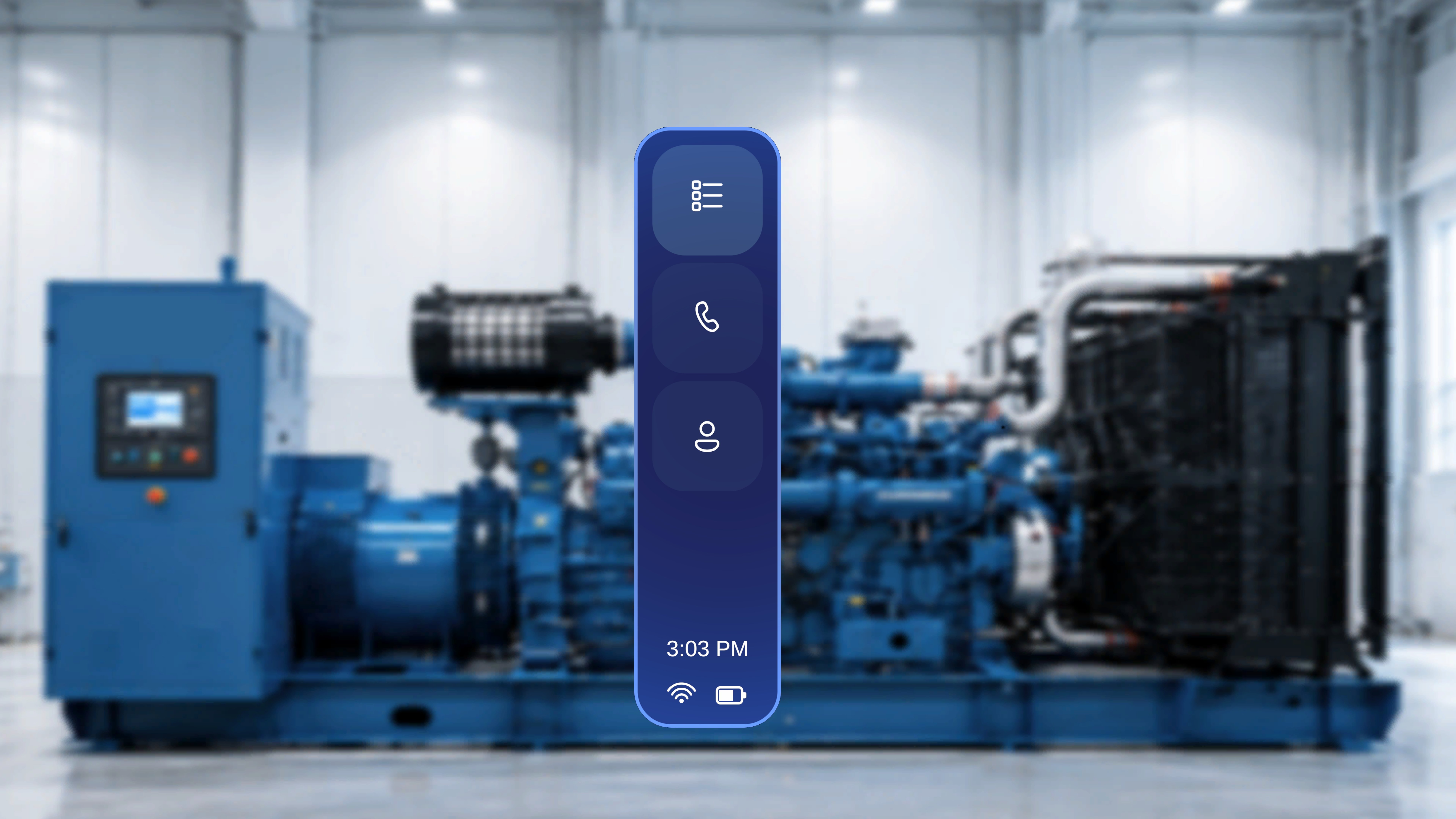 Select the **top icon** (list icon) in the left-side navigation menu. The **Procedures** page opens with the procedures available for your currently selected organization.
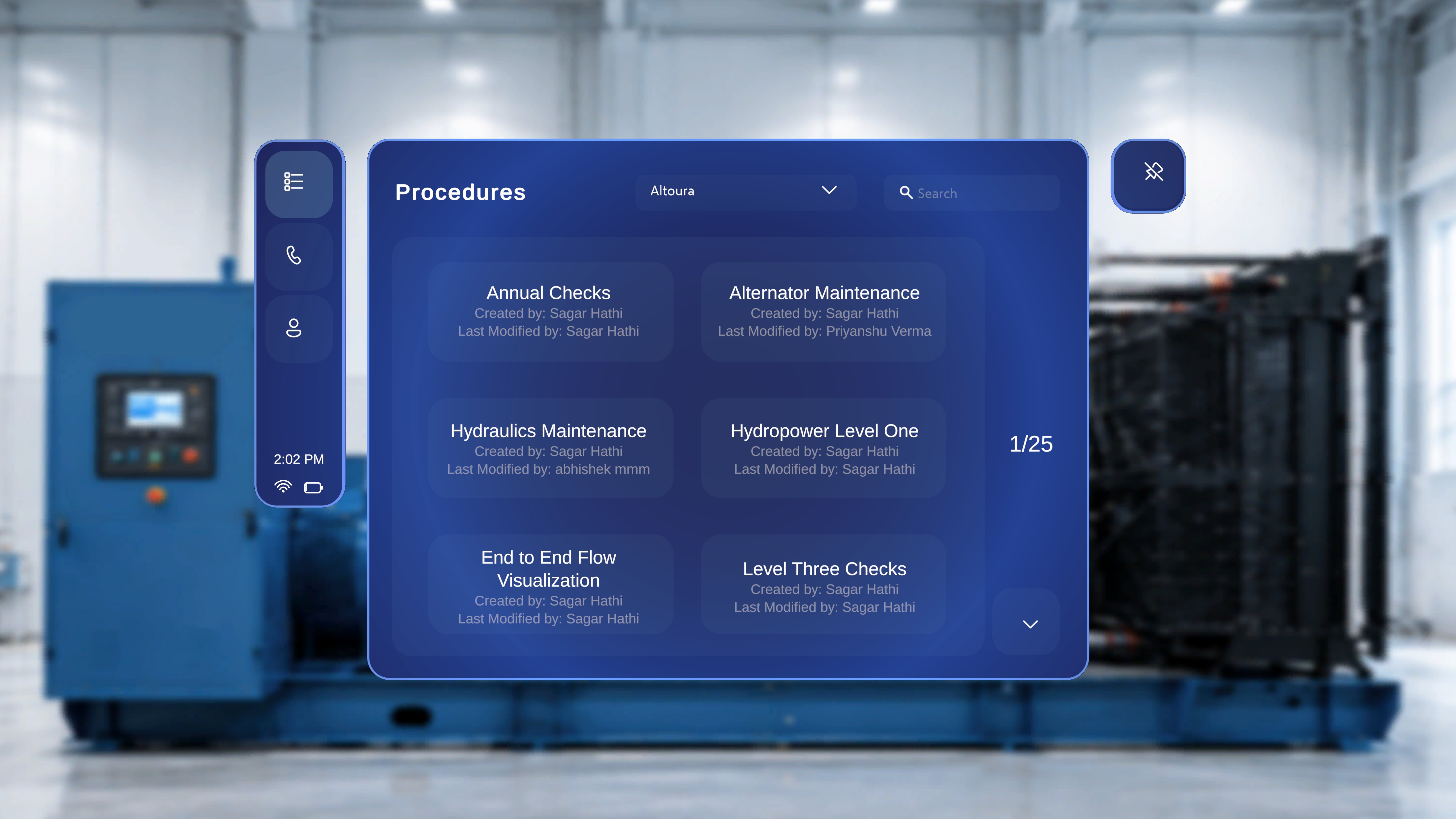 Each procedure appears as a card showing its **name** (for example, *Air Filter Replacement*), **Created by**, and **Last Modified by** details. A count indicator on the right (for example, **1/7**) shows how many procedures are displayed relative to the total available.
## Find the Procedure You Want to Author
If your account has access to more than one organization, switch to the right one first.
Each procedure appears as a card showing its **name** (for example, *Air Filter Replacement*), **Created by**, and **Last Modified by** details. A count indicator on the right (for example, **1/7**) shows how many procedures are displayed relative to the total available.
## Find the Procedure You Want to Author
If your account has access to more than one organization, switch to the right one first.
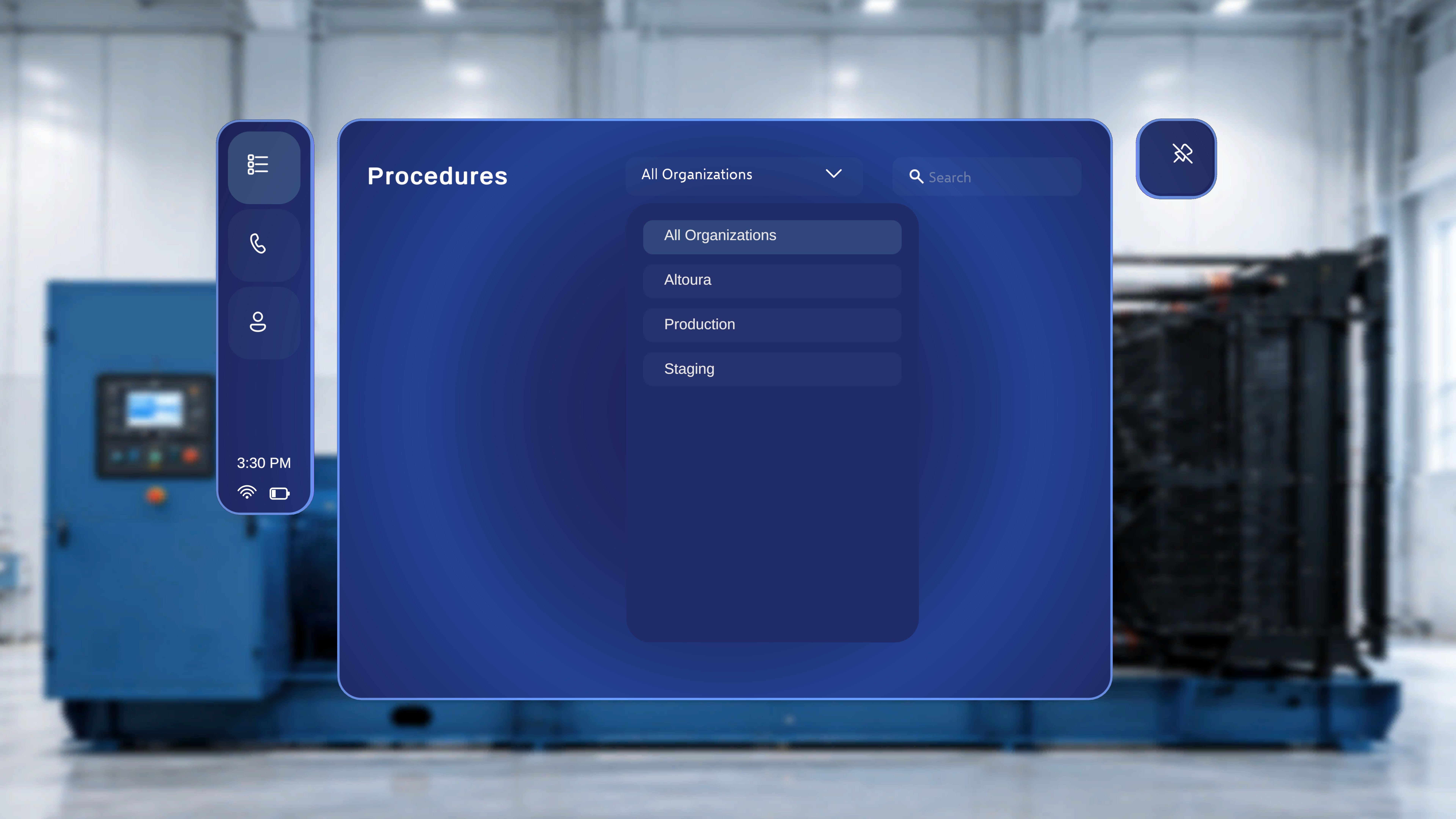 Select the organization dropdown at the top of the page and choose an option — for example **All Organizations** or a specific organization. The list refreshes to show only procedures belonging to your selection.
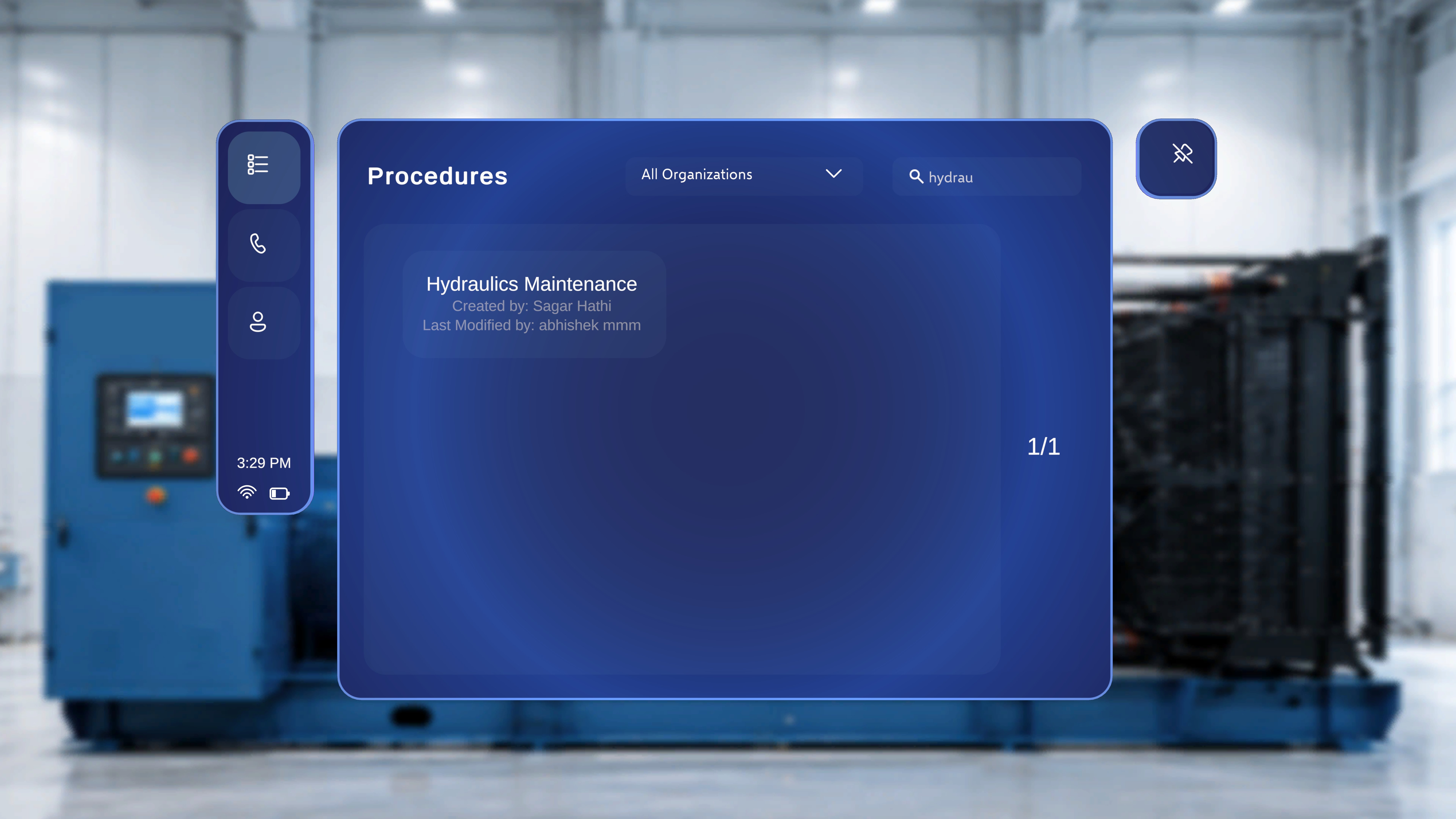
Select the **Search** field in the top-right area of the page and enter a procedure name or keyword. For example, entering **Air** shows only procedures with "Air" in the title, and the results count updates (for example, **1/1**).
Select the organization dropdown at the top of the page and choose an option — for example **All Organizations** or a specific organization. The list refreshes to show only procedures belonging to your selection.
Select the **Search** field in the top-right area of the page and enter a procedure name or keyword. For example, entering **Air** shows only procedures with "Air" in the title, and the results count updates (for example, **1/1**).
 ## Select the Procedure
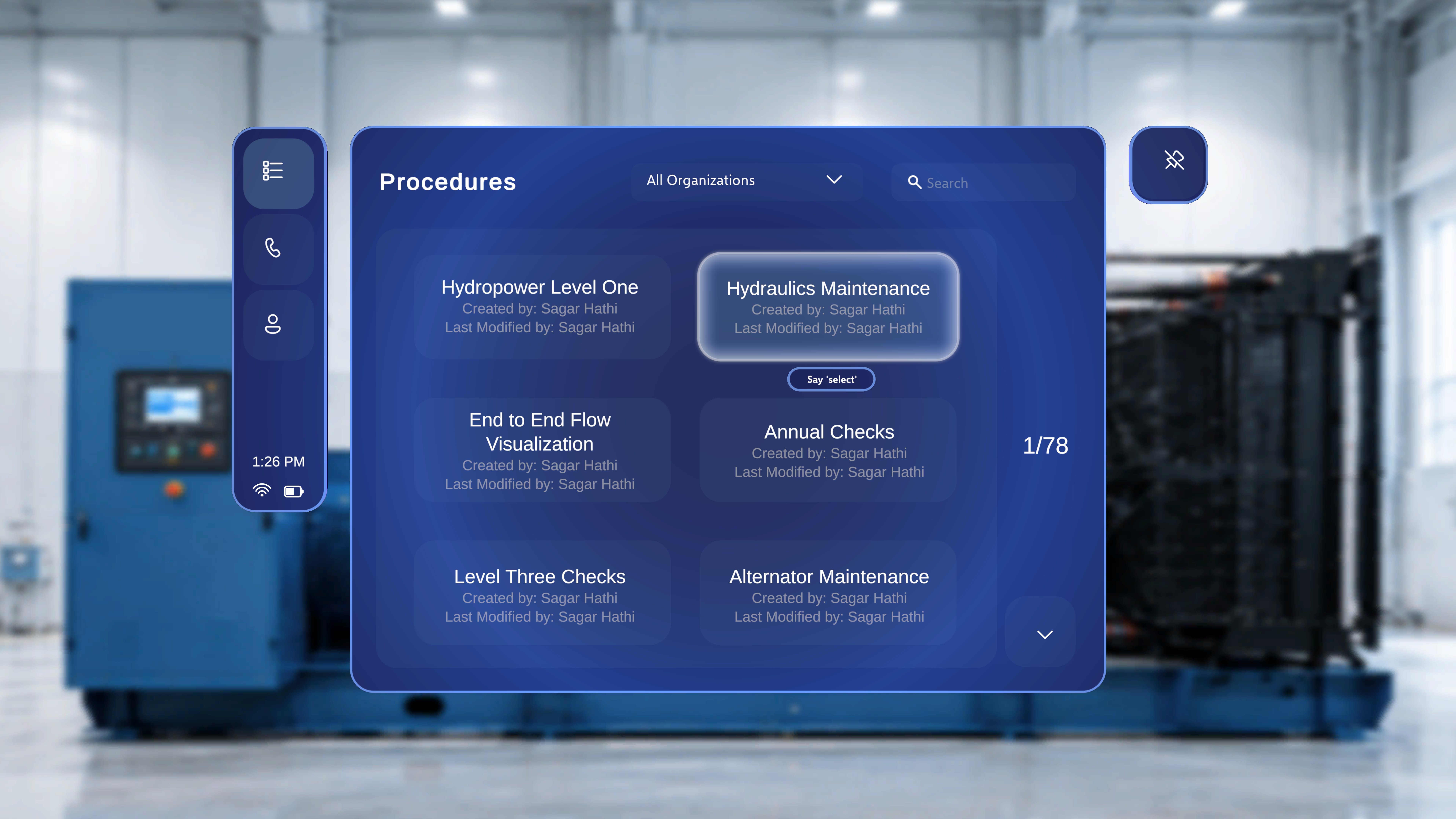 Point the ray or move your head-gaze cursor onto the card. A **"Say 'select'"** tooltip appears beneath it.
Air-tap the card — or say **"Select"** while it is focused. See [Voice Commands](/frontline/hololens/reference/voice-commands) for everything you can do hands-free.
## Choose Author Mode
Because your account has the **Author** role, a mode-selection dialog appears after you choose a procedure. (Users without the Author role go straight into Operator mode and never see this dialog.)
Point the ray or move your head-gaze cursor onto the card. A **"Say 'select'"** tooltip appears beneath it.
Air-tap the card — or say **"Select"** while it is focused. See [Voice Commands](/frontline/hololens/reference/voice-commands) for everything you can do hands-free.
## Choose Author Mode
Because your account has the **Author** role, a mode-selection dialog appears after you choose a procedure. (Users without the Author role go straight into Operator mode and never see this dialog.)
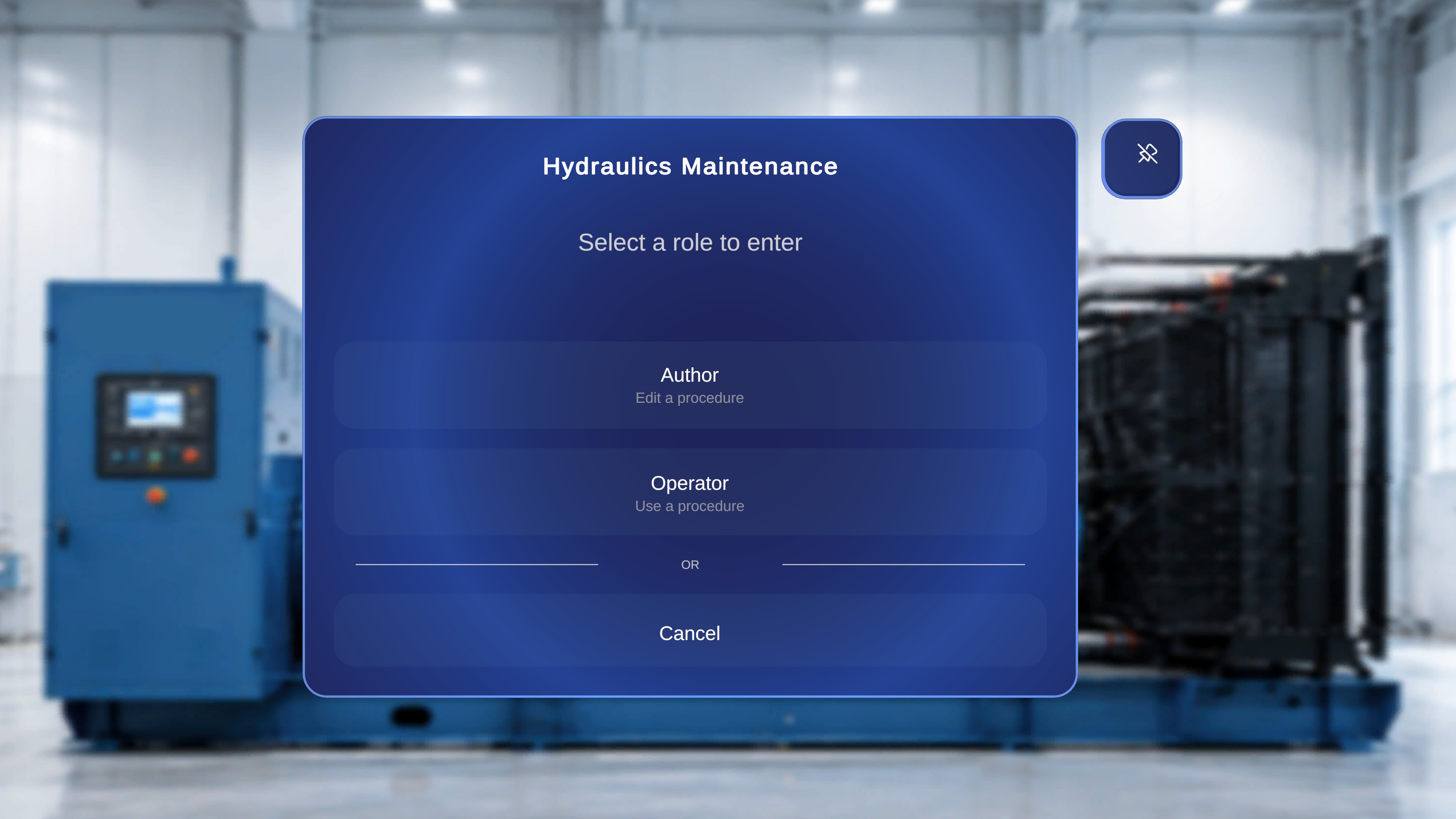 The dialog offers two ways to enter the procedure:
| Option | Label | What it means |
| ------------ | ---------------- | ----------------------------------------------------------------------------------------------------------------- |
| **Author** | Edit a procedure | Enter with full authoring controls — place and configure 3D models, set step anchors, and adjust spatial content. |
| **Operator** | Use a procedure | Run the procedure as a field worker would — the view your operators will see. |
A **Cancel** option closes the dialog and returns you to the Procedures page.
Focus **Author** and air-tap it, or say **"Select"**. Choose this whenever you need to modify or update the spatial content of an existing procedure.
After selecting **Author**, the system prompts you to scan a QR code to anchor the procedure to the physical space. Access to the procedure is granted only after the anchor is confirmed.
You will come back to this same dialog later and pick **Operator** to verify your work from the operator's point of view — see [Preview and Publish](/frontline/hololens/author/preview-and-publish).
For an exhaustive tour of the Procedures landing page and the mode dialog, see the reference pages: [Procedures Landing Page](/frontline/procedures/author/landing-page) and [Mode Selection](/frontline/procedures/author/mode-selection).
***
**Next:** [Anchor and Set Up the Space](/frontline/hololens/author/anchor-and-set-up-the-space)
The dialog offers two ways to enter the procedure:
| Option | Label | What it means |
| ------------ | ---------------- | ----------------------------------------------------------------------------------------------------------------- |
| **Author** | Edit a procedure | Enter with full authoring controls — place and configure 3D models, set step anchors, and adjust spatial content. |
| **Operator** | Use a procedure | Run the procedure as a field worker would — the view your operators will see. |
A **Cancel** option closes the dialog and returns you to the Procedures page.
Focus **Author** and air-tap it, or say **"Select"**. Choose this whenever you need to modify or update the spatial content of an existing procedure.
After selecting **Author**, the system prompts you to scan a QR code to anchor the procedure to the physical space. Access to the procedure is granted only after the anchor is confirmed.
You will come back to this same dialog later and pick **Operator** to verify your work from the operator's point of view — see [Preview and Publish](/frontline/hololens/author/preview-and-publish).
For an exhaustive tour of the Procedures landing page and the mode dialog, see the reference pages: [Procedures Landing Page](/frontline/procedures/author/landing-page) and [Mode Selection](/frontline/procedures/author/mode-selection).
***
**Next:** [Anchor and Set Up the Space](/frontline/hololens/author/anchor-and-set-up-the-space)