> ## Documentation Index
> Fetch the complete documentation index at: https://docs.altoura.com/llms.txt
> Use this file to discover all available pages before exploring further.
# Preview and Publish
> Verify your authored procedure by running it in Operator mode, exit cleanly via the in-procedure side menu, and publish from the Procedures Portal so operators can run it.
This page is for **procedure authors**. By the end of it, you will have checked your work from the operator's point of view, exited the procedure cleanly, and know where publishing happens so operators can run it.
There is no separate "save" button on the HoloLens: spatial content you author on the device is stored against the procedure and stays **in sync with the Procedures Portal** — models added on the HMD appear on the same step in the Portal, and changes on either side propagate to the other. If a session looks stale, tap **Procedures** in the side menu on the device, or refresh the browser tab in the Portal. See [How Content Flows](/frontline/overview/concepts/how-content-flows).
## Exit the Procedure via the Side Menu
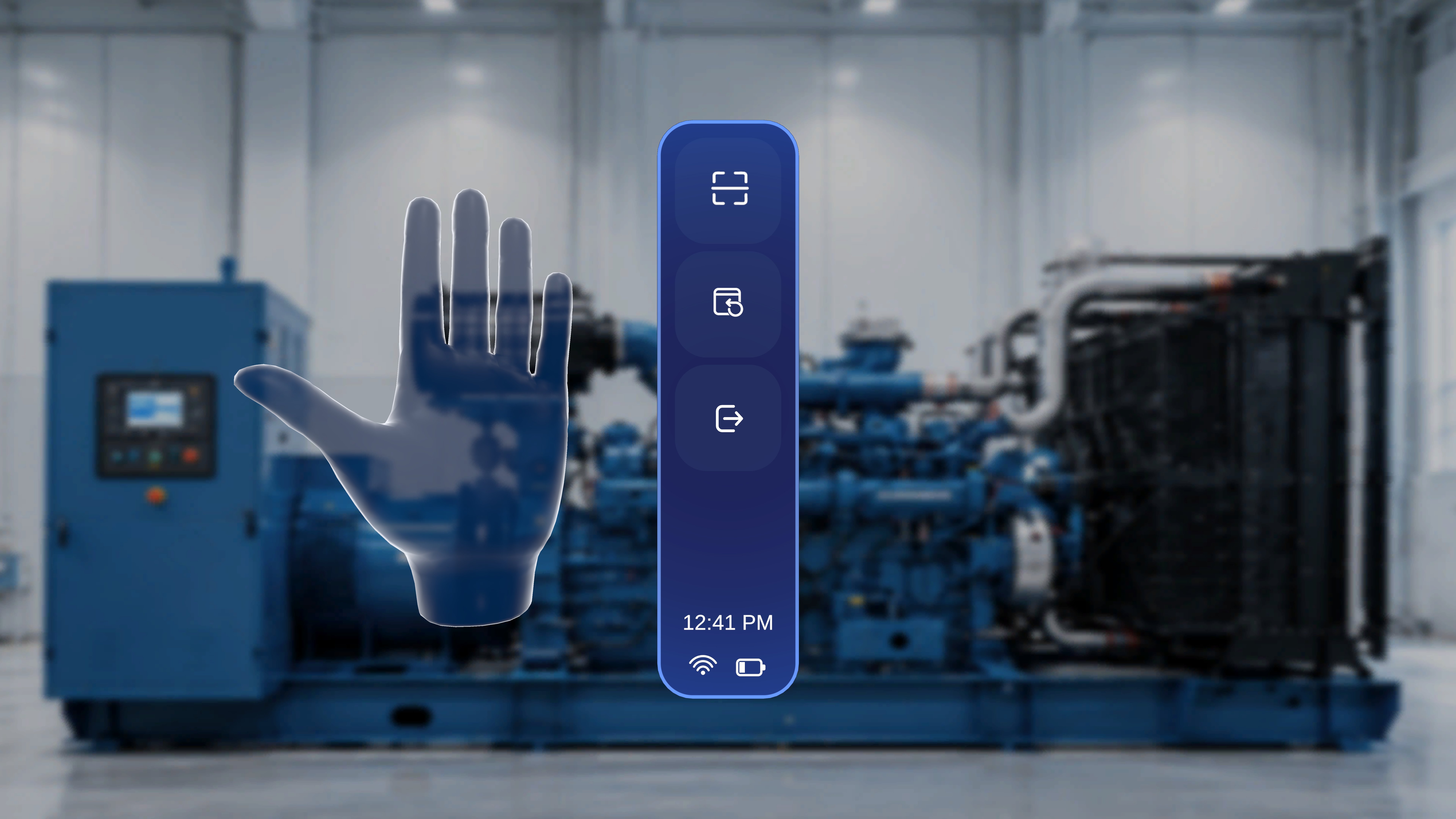
While inside a procedure, raise either hand with your **palm facing toward you** to open the contextual side menu. It has three buttons (with the current time and system status at the bottom):
 | Button | Use it to |
| ----------------------- | ------------------------------------------------------------------------------------------------------------------- |
| **Rescan** (top) | Re-run the QR scan if the anchor was positioned incorrectly — the procedure reloads relative to the updated anchor. |
| **Reposition** (middle) | Bring the step, Media, and 3D Model panels back directly in front of your current view. |
| **Exit** (bottom) | Leave the current procedure. |
Lift either hand and face your palm toward yourself.
Select the **Exit** button (bottom icon). A confirmation panel appears: *"You are about to exit this procedure"* with **Resume** and **Exit Procedure** options.
| Button | Use it to |
| ----------------------- | ------------------------------------------------------------------------------------------------------------------- |
| **Rescan** (top) | Re-run the QR scan if the anchor was positioned incorrectly — the procedure reloads relative to the updated anchor. |
| **Reposition** (middle) | Bring the step, Media, and 3D Model panels back directly in front of your current view. |
| **Exit** (bottom) | Leave the current procedure. |
Lift either hand and face your palm toward yourself.
Select the **Exit** button (bottom icon). A confirmation panel appears: *"You are about to exit this procedure"* with **Resume** and **Exit Procedure** options.
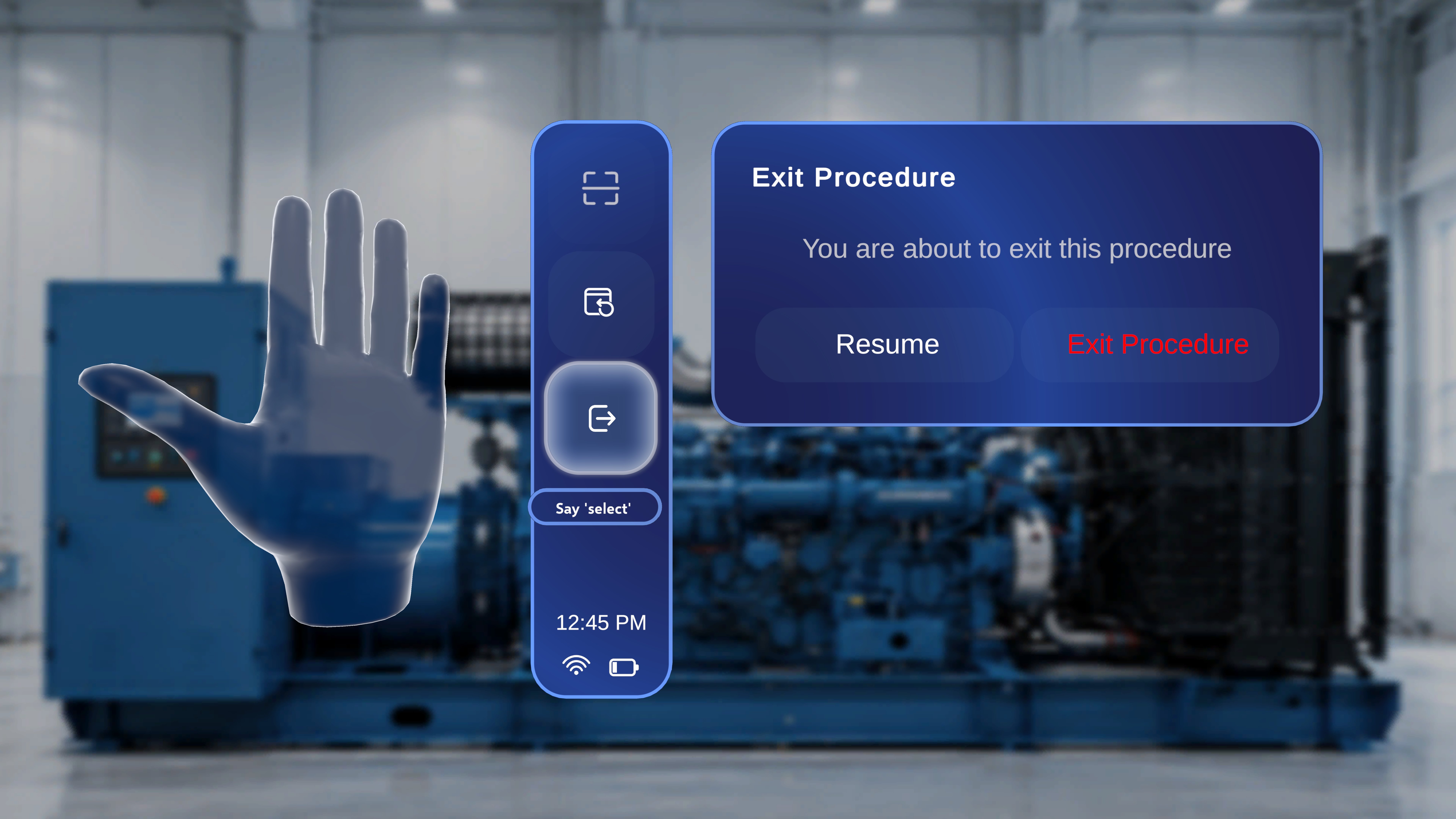 Select **Exit Procedure** to return to the Procedures page — or **Resume** to close the panel and continue from the current step.
If you finished by walking to the end of the procedure, the **Completion Step** also offers an **Exit Procedure** button — see [Choice Steps and Completion Rules](/frontline/hololens/author/choice-steps-and-completion-rules).
## Verify Your Work in Operator Mode
The most reliable preview is to run the procedure exactly as an operator will. From the Procedures page, open the same procedure again — and this time choose **Operator** (*Use a procedure*) in the mode-selection dialog (see [Enter Author Mode](/frontline/hololens/author/enter-author-mode)). Scan the same QR code at the same position.
As you walk through, check that:
* **Models appear where you placed them**, anchored correctly to the QR position.
* **Interactable settings behave as configured** — models with Interactable off cannot be moved; models with Interactable Ghost on leave a shadow at the original position when moved.
* **Gems and tethered lines** point operators to the right physical locations on the steps where you placed them.
* **Media plays** on the steps where it is attached.
* **Every choice branch** can be walked to a proper Completion Step.
Note that operators do **not** see the 3D Model panel — they see only the content you placed. If anything is off, exit, re-enter in **Author** mode, and adjust.
While reviewing, say **"Follow me"** to keep the supported panel in front of you, and use the **"Next"** / **"Previous"** voice commands to advance hands-free. See [Voice Commands](/frontline/hololens/reference/voice-commands).
## Publish So Operators Can Run It
Publishing is done from the **web Procedures Portal**, not on the device:
Manage and publish your procedure from the Procedures Portal.
Preview how the procedure runs, step by step, from the Portal.
Once published, operators who scan the **same QR code at the same physical location** will see your models, gems, and instructions exactly where you placed them.
For exhaustive detail on the in-procedure controls, see the reference pages: [Procedure Side Menu](/frontline/procedures/author/side-menu) and [Follow Me](/frontline/procedures/author/follow-me).
***
**Next:** Walk the full journey end to end in [Your First Procedure](/frontline/hololens/get-started/your-first-procedure), or see how operators experience your work in [Find and Open a Procedure](/frontline/hololens/operate/find-and-open-a-procedure).
Select **Exit Procedure** to return to the Procedures page — or **Resume** to close the panel and continue from the current step.
If you finished by walking to the end of the procedure, the **Completion Step** also offers an **Exit Procedure** button — see [Choice Steps and Completion Rules](/frontline/hololens/author/choice-steps-and-completion-rules).
## Verify Your Work in Operator Mode
The most reliable preview is to run the procedure exactly as an operator will. From the Procedures page, open the same procedure again — and this time choose **Operator** (*Use a procedure*) in the mode-selection dialog (see [Enter Author Mode](/frontline/hololens/author/enter-author-mode)). Scan the same QR code at the same position.
As you walk through, check that:
* **Models appear where you placed them**, anchored correctly to the QR position.
* **Interactable settings behave as configured** — models with Interactable off cannot be moved; models with Interactable Ghost on leave a shadow at the original position when moved.
* **Gems and tethered lines** point operators to the right physical locations on the steps where you placed them.
* **Media plays** on the steps where it is attached.
* **Every choice branch** can be walked to a proper Completion Step.
Note that operators do **not** see the 3D Model panel — they see only the content you placed. If anything is off, exit, re-enter in **Author** mode, and adjust.
While reviewing, say **"Follow me"** to keep the supported panel in front of you, and use the **"Next"** / **"Previous"** voice commands to advance hands-free. See [Voice Commands](/frontline/hololens/reference/voice-commands).
## Publish So Operators Can Run It
Publishing is done from the **web Procedures Portal**, not on the device:
Manage and publish your procedure from the Procedures Portal.
Preview how the procedure runs, step by step, from the Portal.
Once published, operators who scan the **same QR code at the same physical location** will see your models, gems, and instructions exactly where you placed them.
For exhaustive detail on the in-procedure controls, see the reference pages: [Procedure Side Menu](/frontline/procedures/author/side-menu) and [Follow Me](/frontline/procedures/author/follow-me).
***
**Next:** Walk the full journey end to end in [Your First Procedure](/frontline/hololens/get-started/your-first-procedure), or see how operators experience your work in [Find and Open a Procedure](/frontline/hololens/operate/find-and-open-a-procedure).