> ## Documentation Index
> Fetch the complete documentation index at: https://docs.altoura.com/llms.txt
> Use this file to discover all available pages before exploring further.
# First Launch & Navigation
> What you see after signing in to Altoura Frontline on HoloLens 2, the two main workflows, and how to navigate with the Global Side Menu.
**Who this is for:** anyone who has just signed in to Altoura Frontline on HoloLens 2 for the first time.
**What you'll accomplish:** you'll recognize the landing page, understand the two workflows the app offers, and know how to move between them using the side menu.
***
## What You See After Signing In
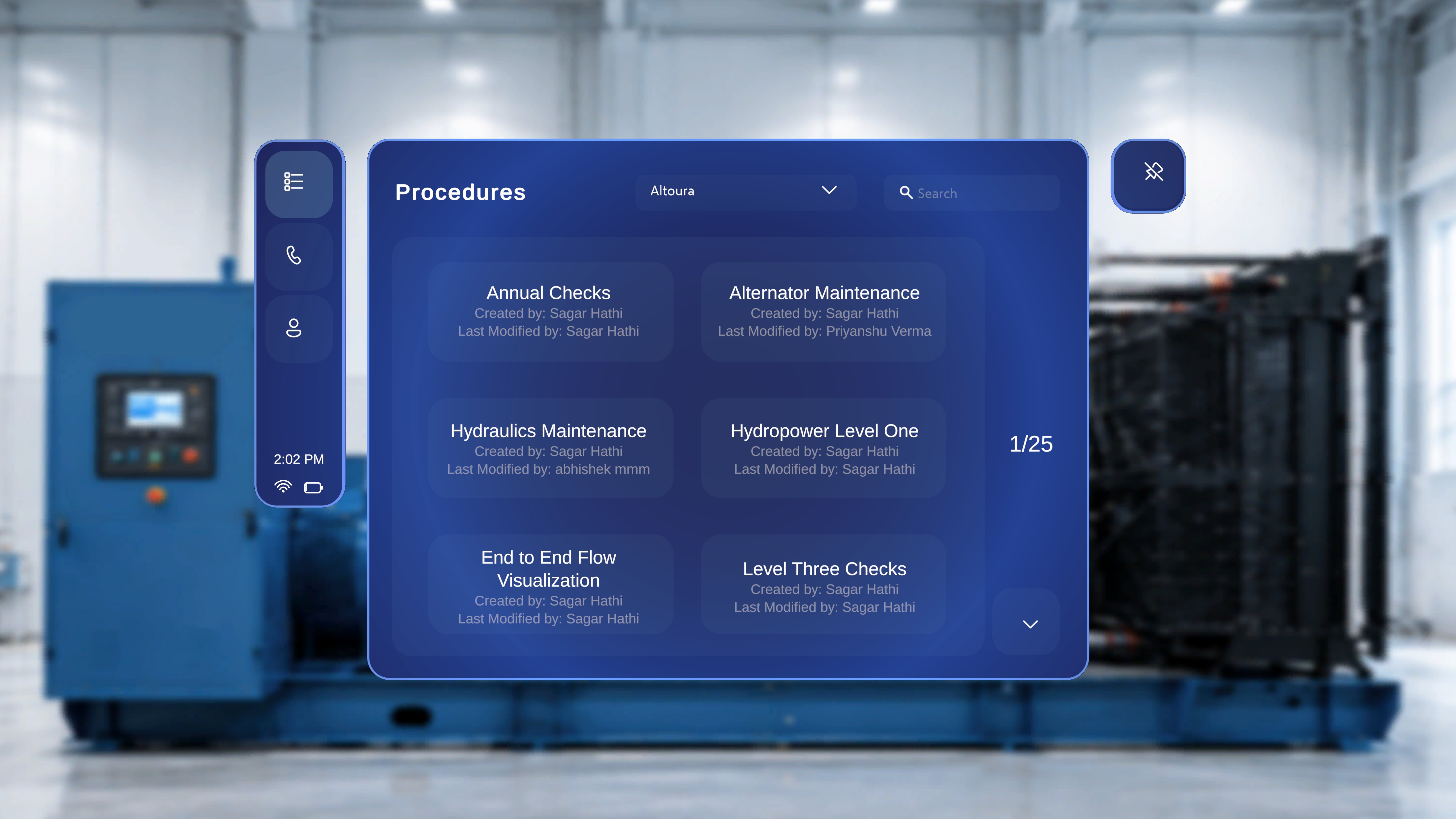
After authentication, the application opens to the **Procedures** landing page by default, with the **Global Side Menu** beside it.
 ***
## Choose Your Workflow
Altoura Frontline on HoloLens offers two main workflows:
Browse and execute step-by-step work instructions in augmented reality.
Connect with a remote specialist for live guidance and annotations.
New to procedures? See [Procedures, Tasks & Steps](/frontline/overview/concepts/procedures-tasks-steps) for how they are structured, and [How Content Flows](/frontline/overview/concepts/how-content-flows) for how procedures get onto your device.
***
## The Global Side Menu
The **Global Side Menu** is the vertical navigation panel beside the main workspace. It is visible only when you are **not inside a procedure** and **not in a Remote Expert session**.
***
## Choose Your Workflow
Altoura Frontline on HoloLens offers two main workflows:
Browse and execute step-by-step work instructions in augmented reality.
Connect with a remote specialist for live guidance and annotations.
New to procedures? See [Procedures, Tasks & Steps](/frontline/overview/concepts/procedures-tasks-steps) for how they are structured, and [How Content Flows](/frontline/overview/concepts/how-content-flows) for how procedures get onto your device.
***
## The Global Side Menu
The **Global Side Menu** is the vertical navigation panel beside the main workspace. It is visible only when you are **not inside a procedure** and **not in a Remote Expert session**.
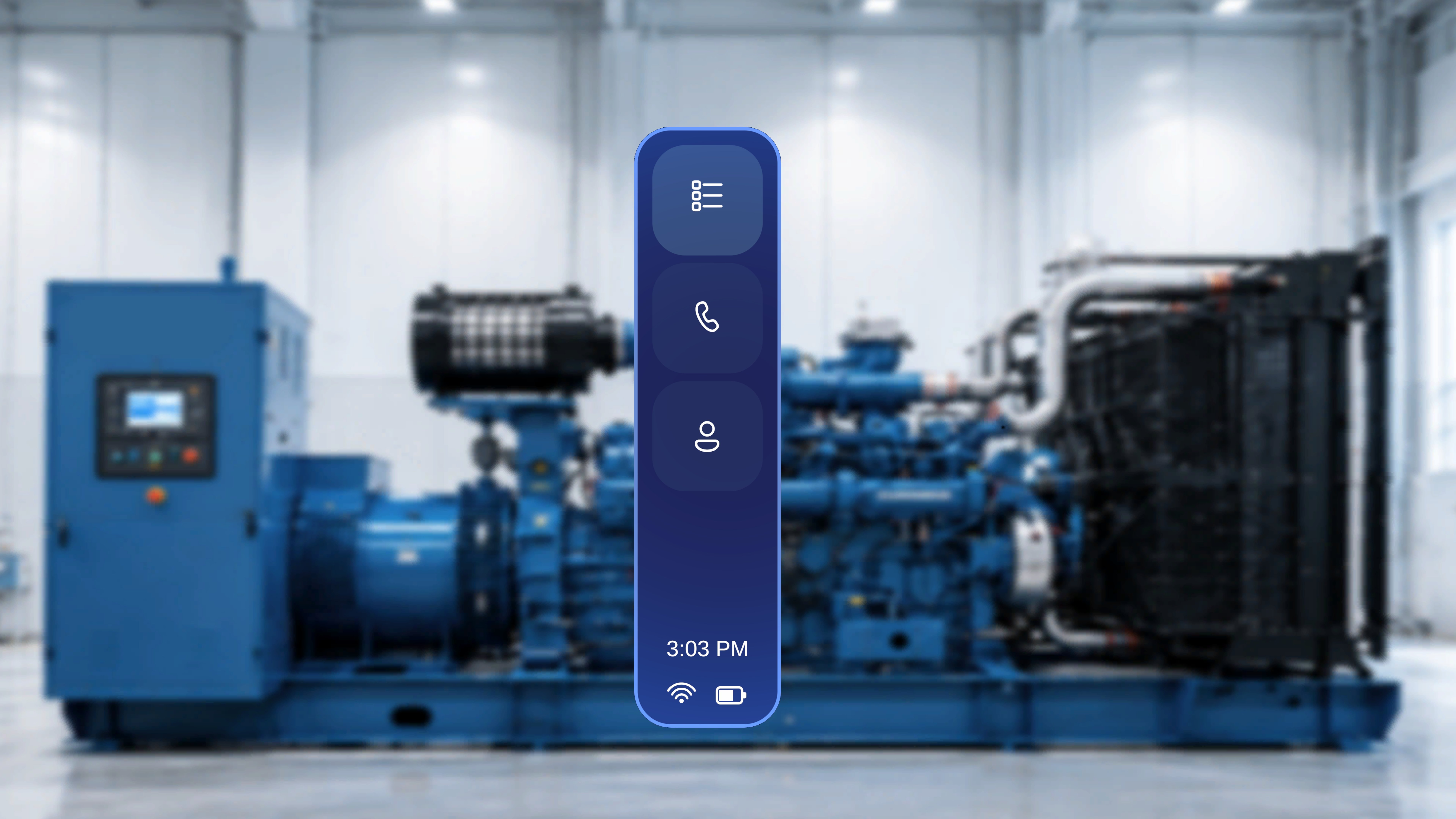 It contains three buttons:
| Button | What it opens |
| -------------------------------------- | ---------------------------------------------------------------------------- |
| **Procedures** (top, list icon) | The Procedures panel, where you browse and select a procedure to begin |
| **Remote Expert** (middle, phone icon) | The Remote Expert interface, to start or join a remote support session |
| **Profile** (bottom, person icon) | Your account details, the installed app version, and the **Sign Out** button |
### Floating Side Menu (Palm Access)
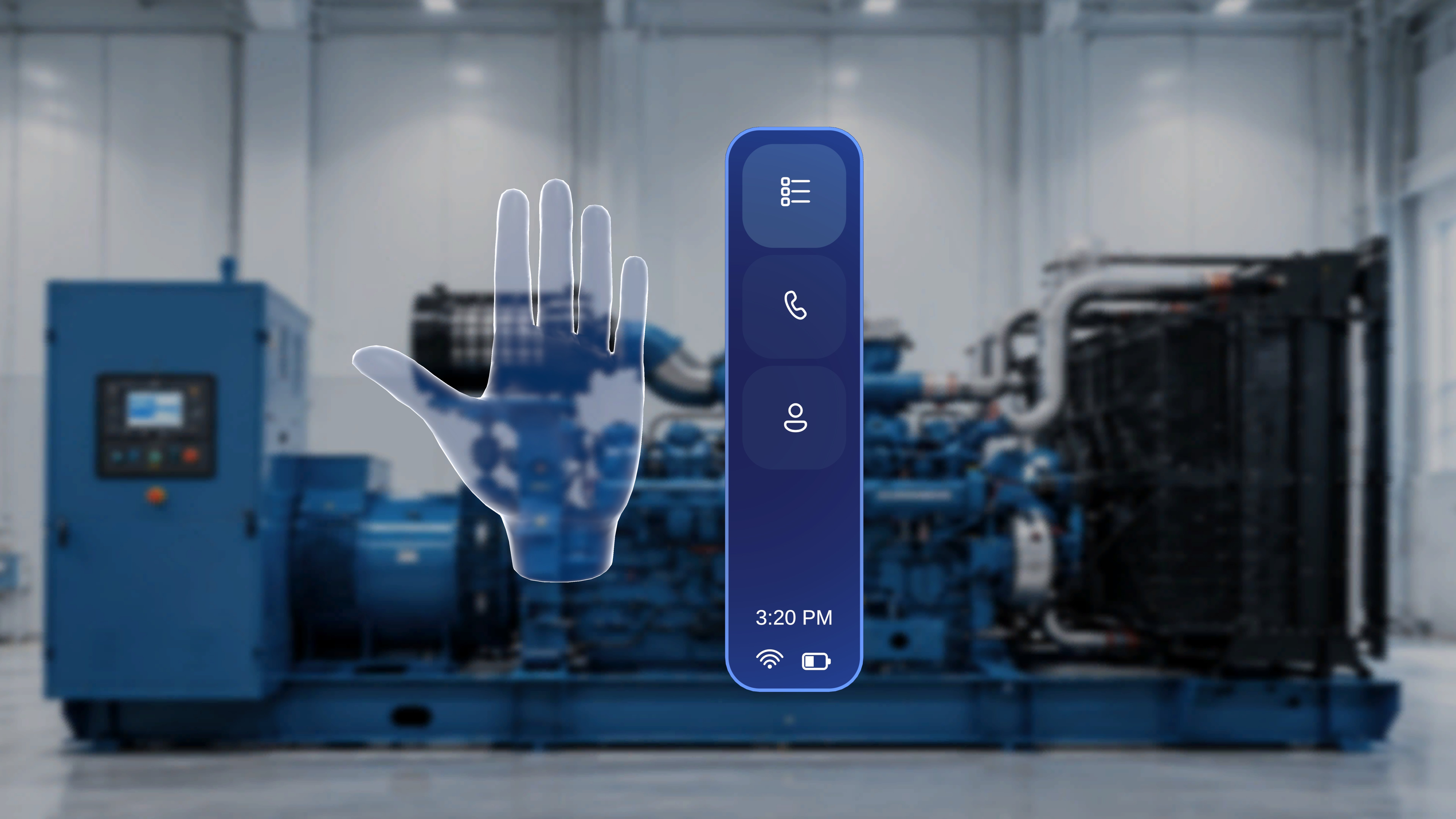
You can also open the same menu anywhere, without looking toward the fixed panel:
1. Raise either hand.
2. Ensure the palm is facing toward you.
When the gesture is detected, the side menu appears anchored to your palm, with the same **Procedures**, **Remote Expert**, and **Profile** options. All options behave identically to their static counterparts.
It contains three buttons:
| Button | What it opens |
| -------------------------------------- | ---------------------------------------------------------------------------- |
| **Procedures** (top, list icon) | The Procedures panel, where you browse and select a procedure to begin |
| **Remote Expert** (middle, phone icon) | The Remote Expert interface, to start or join a remote support session |
| **Profile** (bottom, person icon) | Your account details, the installed app version, and the **Sign Out** button |
### Floating Side Menu (Palm Access)
You can also open the same menu anywhere, without looking toward the fixed panel:
1. Raise either hand.
2. Ensure the palm is facing toward you.
When the gesture is detected, the side menu appears anchored to your palm, with the same **Procedures**, **Remote Expert**, and **Profile** options. All options behave identically to their static counterparts.
 This is just enough to get moving. For the full breakdown of every panel and menu state — including the menus you see inside a procedure or a Remote Expert session — see [Panels & Side Menu](/frontline/hololens/reference/panels-and-side-menu).
***
**Next:** put it all together with a guided 10-minute walkthrough in [Your First Procedure](/frontline/hololens/get-started/your-first-procedure).
This is just enough to get moving. For the full breakdown of every panel and menu state — including the menus you see inside a procedure or a Remote Expert session — see [Panels & Side Menu](/frontline/hololens/reference/panels-and-side-menu).
***
**Next:** put it all together with a guided 10-minute walkthrough in [Your First Procedure](/frontline/hololens/get-started/your-first-procedure).