> ## Documentation Index
> Fetch the complete documentation index at: https://docs.altoura.com/llms.txt
> Use this file to discover all available pages before exploring further.
# Install & Sign In
> Install Altoura Frontline on HoloLens 2 from the Microsoft Store, then sign in with email and password, SSO, or PIN pairing.
**Who this is for:** anyone setting up Altoura Frontline on a HoloLens 2 for the first time — field workers and authors alike.
**What you'll accomplish:** by the end of this page, the app is installed on your headset and you are signed in, looking at the **Procedures** landing page.
***
## Prerequisites
Before installing Altoura Frontline, ensure the following:
| Requirement | Details |
| ----------------------- | ------------------------------------------------------------------------------------- |
| **Device** | Microsoft HoloLens 2 with the latest OS update |
| **Microsoft Account** | A Microsoft account signed in on the device |
| **Network** | Active Wi-Fi connection with internet access |
| **Organization Access** | Your IT administrator has enabled access to the Altoura Frontline app for your tenant |
***
## Install from the Microsoft Store
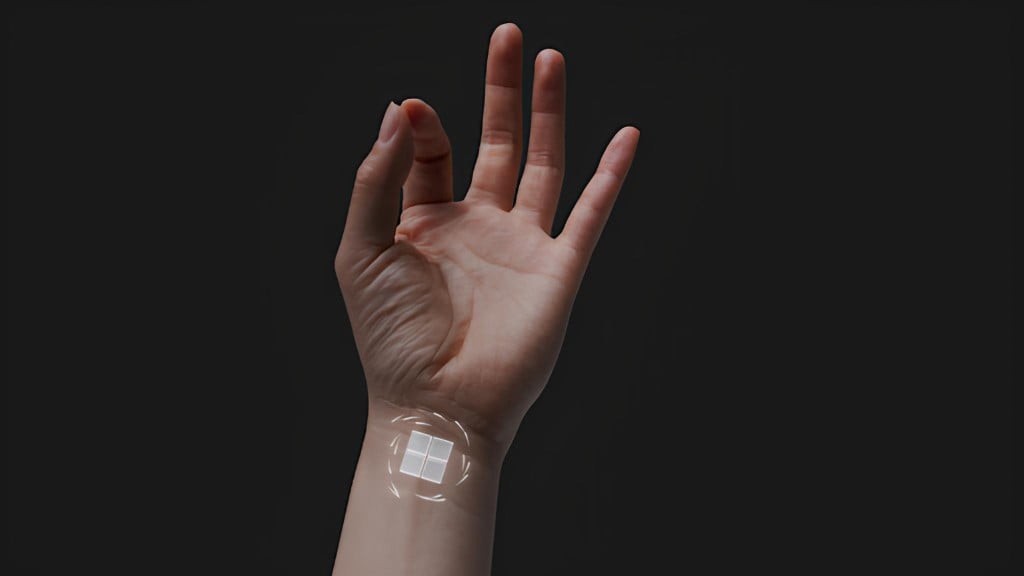
On your HoloLens 2, open the **Start menu** using the bloom gesture or by tapping the Start icon on your wrist.
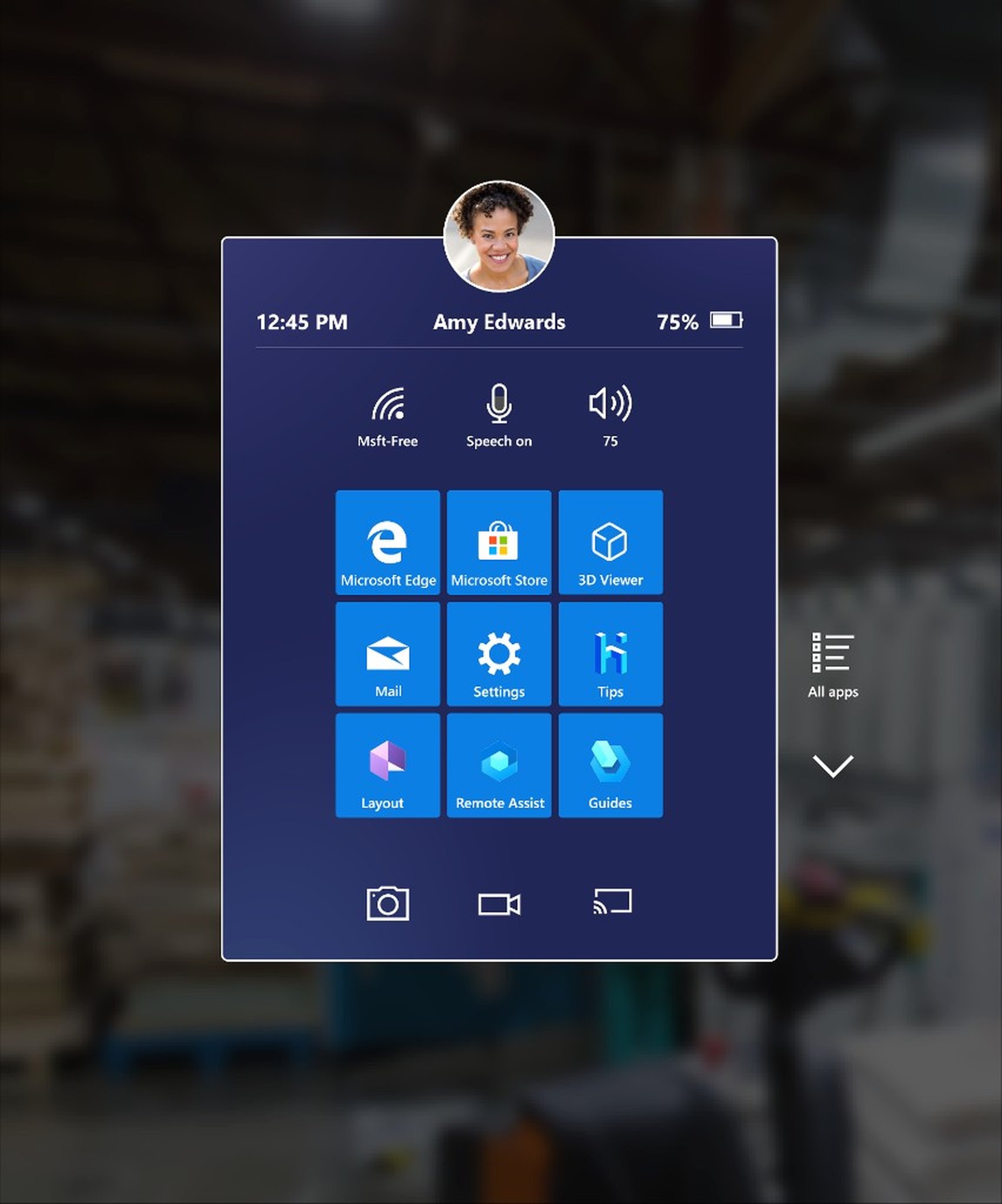
 Select the **Microsoft Store** app from the pinned apps or app list.
 In the Store, select the **Search** field, type **Altoura Frontline**, and confirm the search. Locate the **Altoura Frontline** app in the search results.
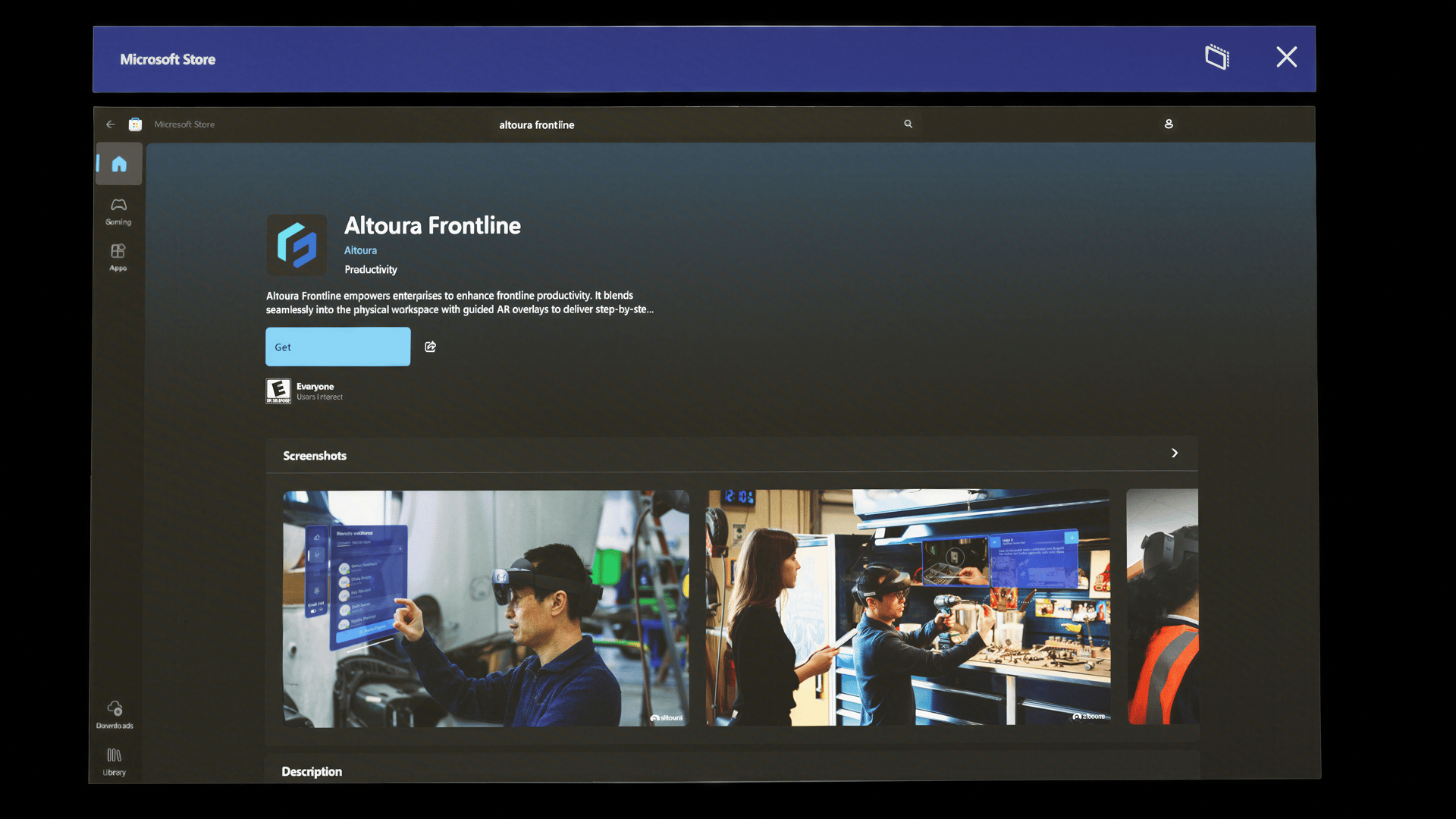 Select the **Altoura Frontline** app from the search results to open its Store listing, then select **Get** or **Install** to begin the download. Wait for the download and installation to complete — a progress indicator is displayed. Once installed, the app appears in your **All apps** list.
Open the **Start menu**, select **All apps**, then find and select **Altoura Frontline** to launch the application.
Select the **Altoura Frontline** app from the search results to open its Store listing, then select **Get** or **Install** to begin the download. Wait for the download and installation to complete — a progress indicator is displayed. Once installed, the app appears in your **All apps** list.
Open the **Start menu**, select **All apps**, then find and select **Altoura Frontline** to launch the application.
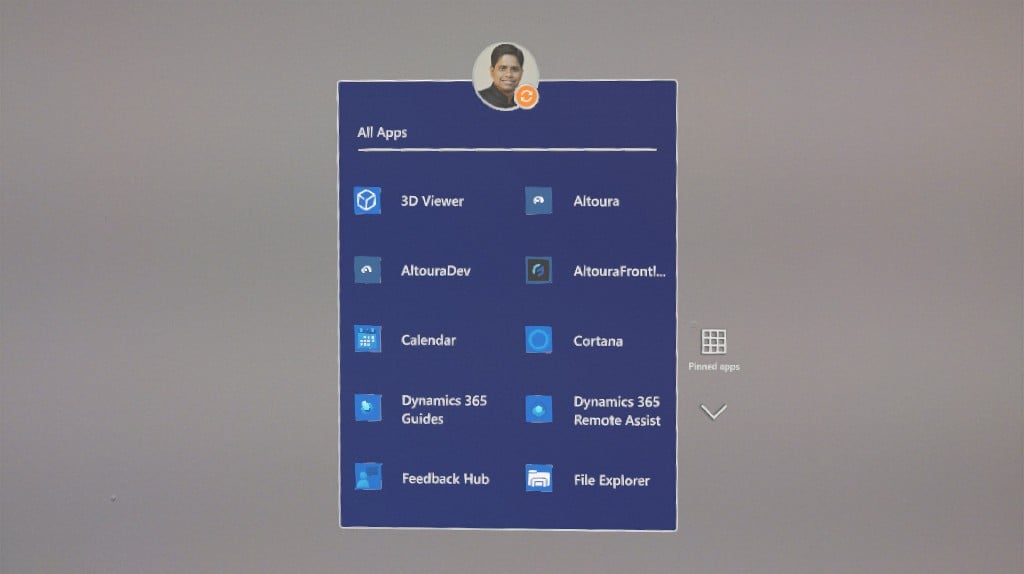 The app opens to the **Sign In** screen on first launch.
***
## Sign In
Altoura Frontline supports three methods to sign in: **Email & Password**, **Single Sign-On (SSO)**, and **PIN Pairing**. The method available to you depends on your organization's configuration.
The app opens to the **Sign In** screen on first launch.
***
## Sign In
Altoura Frontline supports three methods to sign in: **Email & Password**, **Single Sign-On (SSO)**, and **PIN Pairing**. The method available to you depends on your organization's configuration.
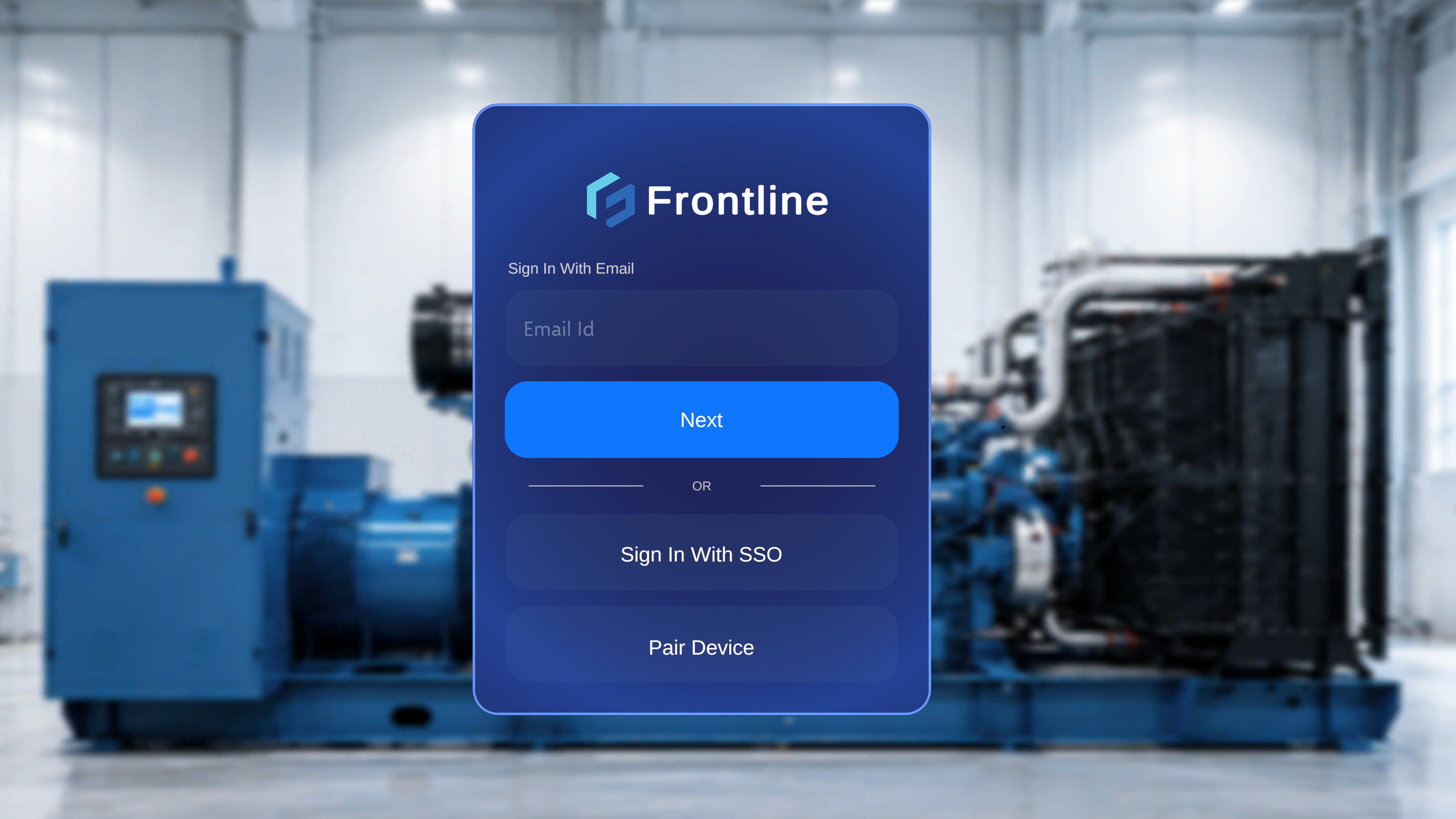 Whichever method you use, a successful sign-in ends in the same place: the **Procedures** landing page.
### Method 1: Email & Password
Use this method when your organization uses Altoura-managed credentials.
On the sign-in screen, enter your **email address** and select **Next**.
Whichever method you use, a successful sign-in ends in the same place: the **Procedures** landing page.
### Method 1: Email & Password
Use this method when your organization uses Altoura-managed credentials.
On the sign-in screen, enter your **email address** and select **Next**.
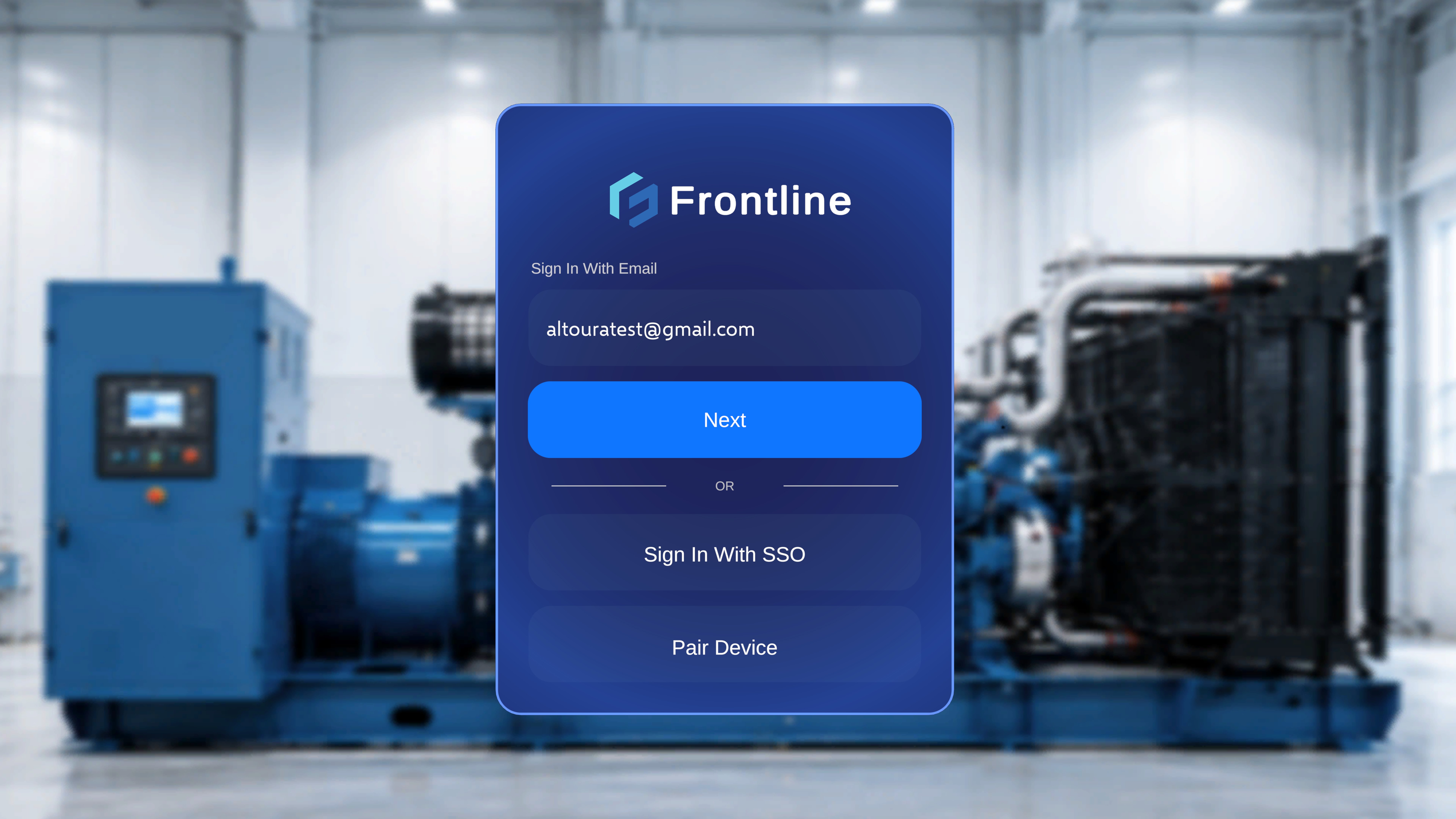 Enter your **password** and select **Sign In**.
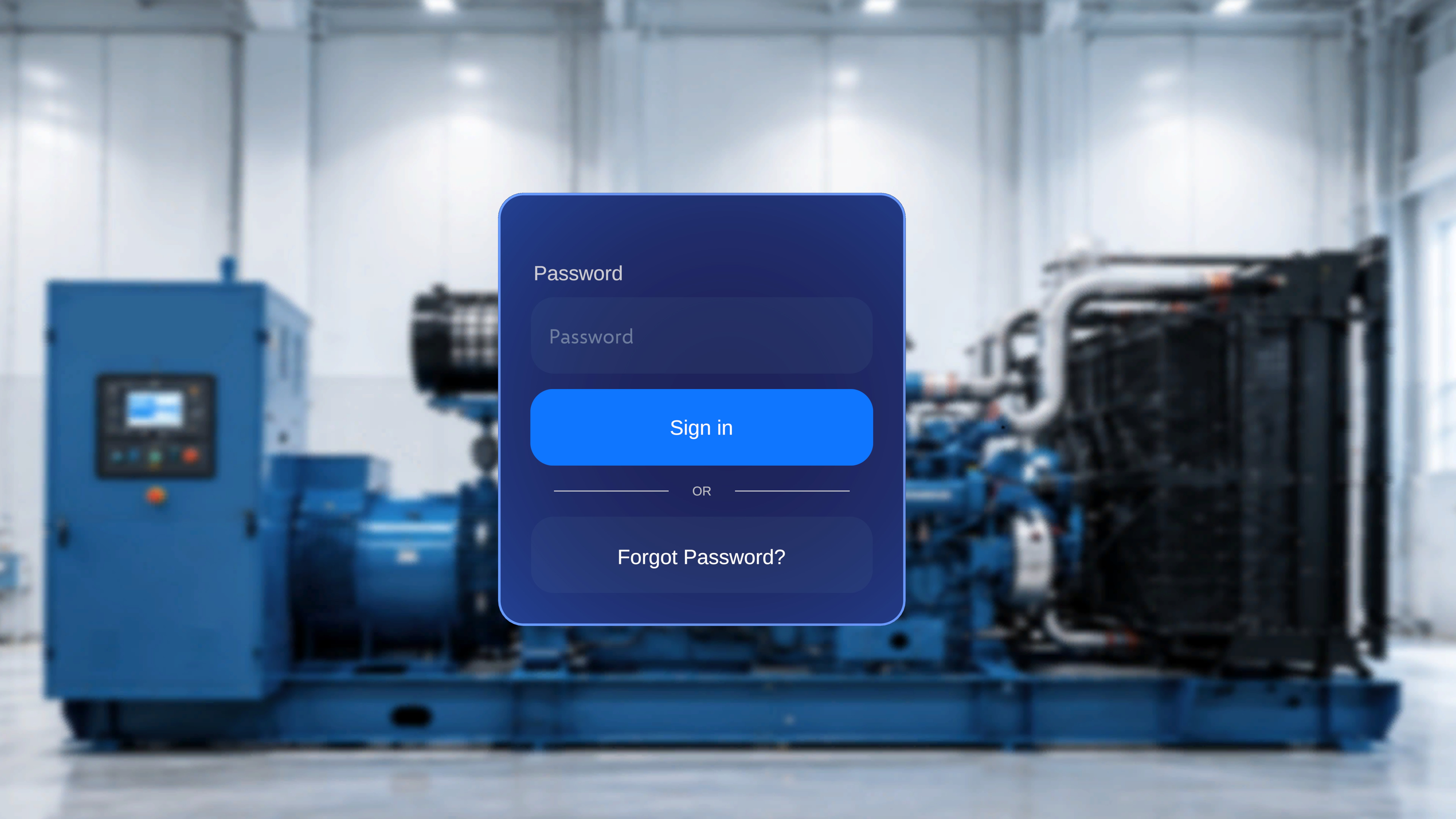 After successful authentication, the app opens to the **Procedures** landing page.
* **Invalid credentials:** verify that you are using the correct email and password associated with your Altoura account.
* **Account locked:** contact your IT administrator if your account has been locked due to repeated failed attempts.
### Method 2: Single Sign-On (SSO)
Use this method when your organization has configured a custom Identity Provider (IdP) for authentication.
On the sign-in screen, enter your **organizational email address** and select **Next**.
After successful authentication, the app opens to the **Procedures** landing page.
* **Invalid credentials:** verify that you are using the correct email and password associated with your Altoura account.
* **Account locked:** contact your IT administrator if your account has been locked due to repeated failed attempts.
### Method 2: Single Sign-On (SSO)
Use this method when your organization has configured a custom Identity Provider (IdP) for authentication.
On the sign-in screen, enter your **organizational email address** and select **Next**.
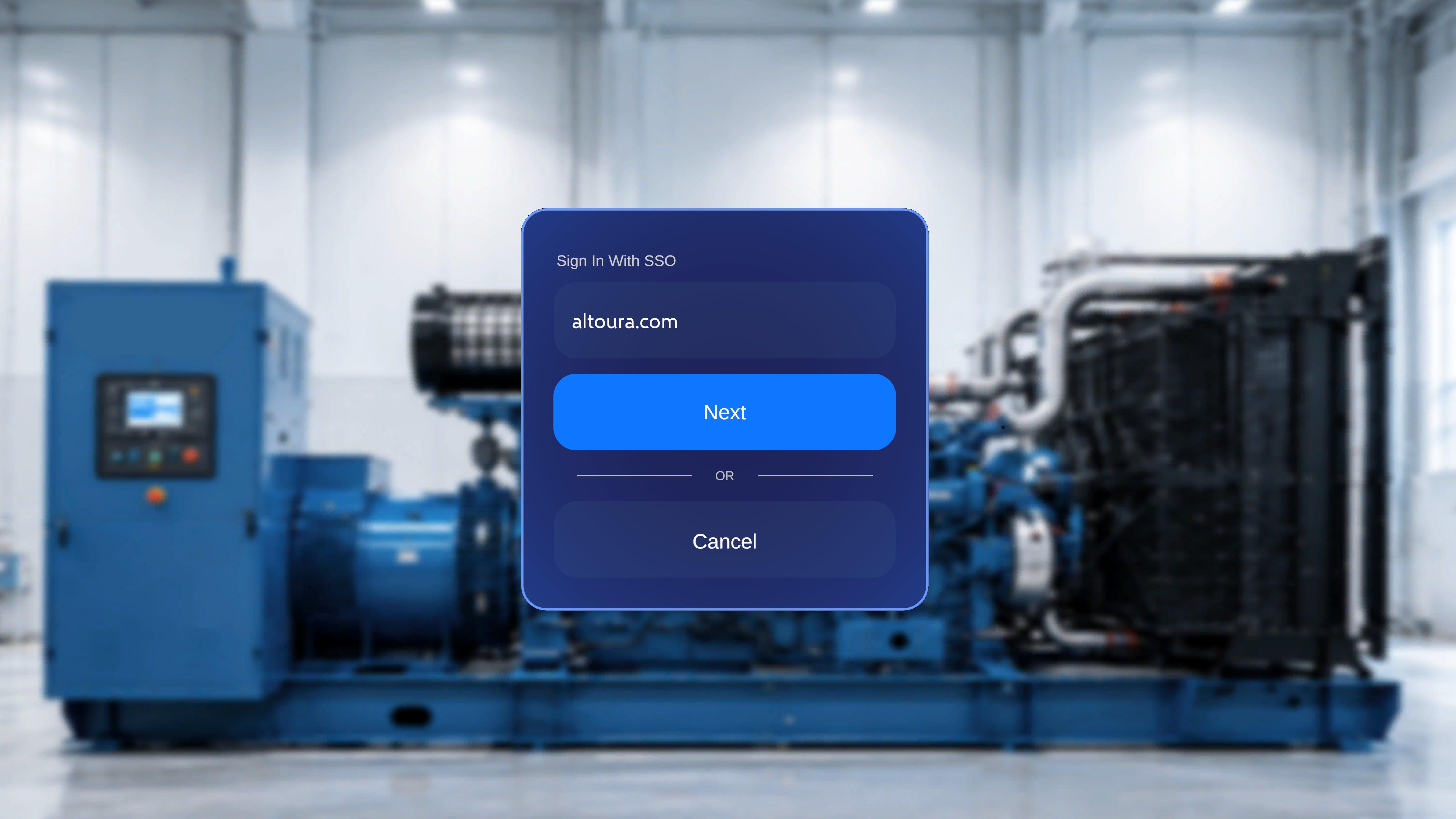 You are redirected to your **organization's Identity Provider (IdP)** login page. Sign in using your organization's credentials and complete any authentication steps required by your IdP (for example, multi-factor authentication).
After successful authentication, you are redirected back to Altoura Frontline and the app opens to the **Procedures** landing page.
* **Redirect not working:** ensure your HoloLens has internet access and can reach your organization's IdP.
* **IdP login fails:** verify your credentials with your organization's IT team. The issue may be on the IdP side, not Altoura.
* **MFA issues:** ensure your authenticator app or phone is accessible for multi-factor verification if required by your IdP.
### Method 3: PIN Pairing
Use this method when entering credentials directly on the HoloLens is impractical — for example, in shared device environments or when the HoloLens keyboard is difficult to use.
PIN pairing lets you generate a code on the HoloLens and enter it on the Altoura Portal from any browser, linking the device to your account without typing credentials on the headset:
1. The HoloLens app displays a **6-digit PIN code**.
2. On the Altoura Portal, you open the **Pair Device** dialog and enter that code.
3. Once the code is verified, the HoloLens is automatically signed in to your account.
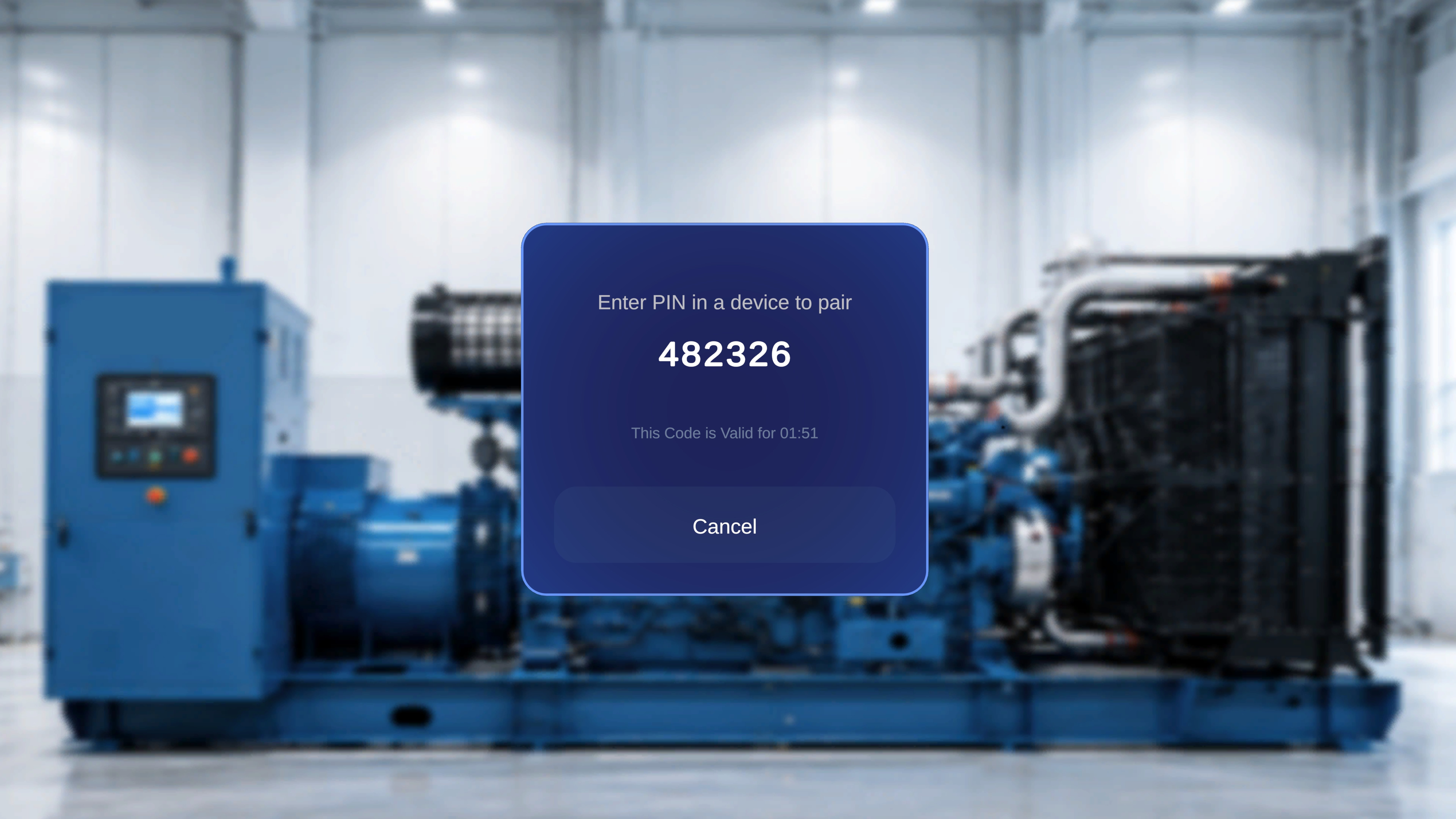
On the sign-in screen, select **PIN Pair**. A **6-digit code** is displayed on the HoloLens screen. Note this code and keep the screen open.
You are redirected to your **organization's Identity Provider (IdP)** login page. Sign in using your organization's credentials and complete any authentication steps required by your IdP (for example, multi-factor authentication).
After successful authentication, you are redirected back to Altoura Frontline and the app opens to the **Procedures** landing page.
* **Redirect not working:** ensure your HoloLens has internet access and can reach your organization's IdP.
* **IdP login fails:** verify your credentials with your organization's IT team. The issue may be on the IdP side, not Altoura.
* **MFA issues:** ensure your authenticator app or phone is accessible for multi-factor verification if required by your IdP.
### Method 3: PIN Pairing
Use this method when entering credentials directly on the HoloLens is impractical — for example, in shared device environments or when the HoloLens keyboard is difficult to use.
PIN pairing lets you generate a code on the HoloLens and enter it on the Altoura Portal from any browser, linking the device to your account without typing credentials on the headset:
1. The HoloLens app displays a **6-digit PIN code**.
2. On the Altoura Portal, you open the **Pair Device** dialog and enter that code.
3. Once the code is verified, the HoloLens is automatically signed in to your account.
On the sign-in screen, select **PIN Pair**. A **6-digit code** is displayed on the HoloLens screen. Note this code and keep the screen open.
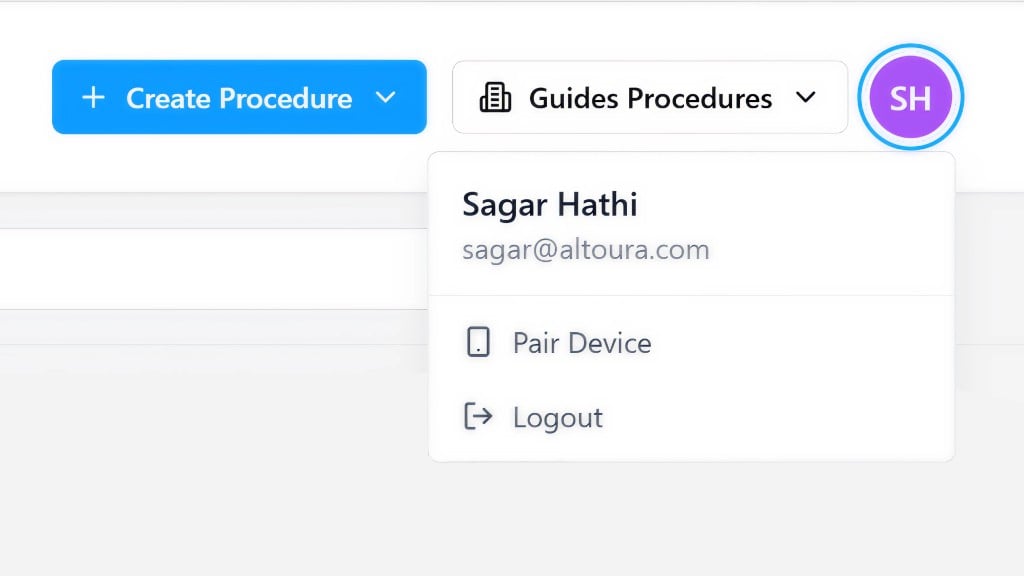
 On your phone, tablet, or PC, sign in to the Altoura Frontline portal at **[procedure.altoura.com](https://procedure.altoura.com)**. Click your **profile icon** in the top-right corner, then select **Pair Device** from the dropdown menu.
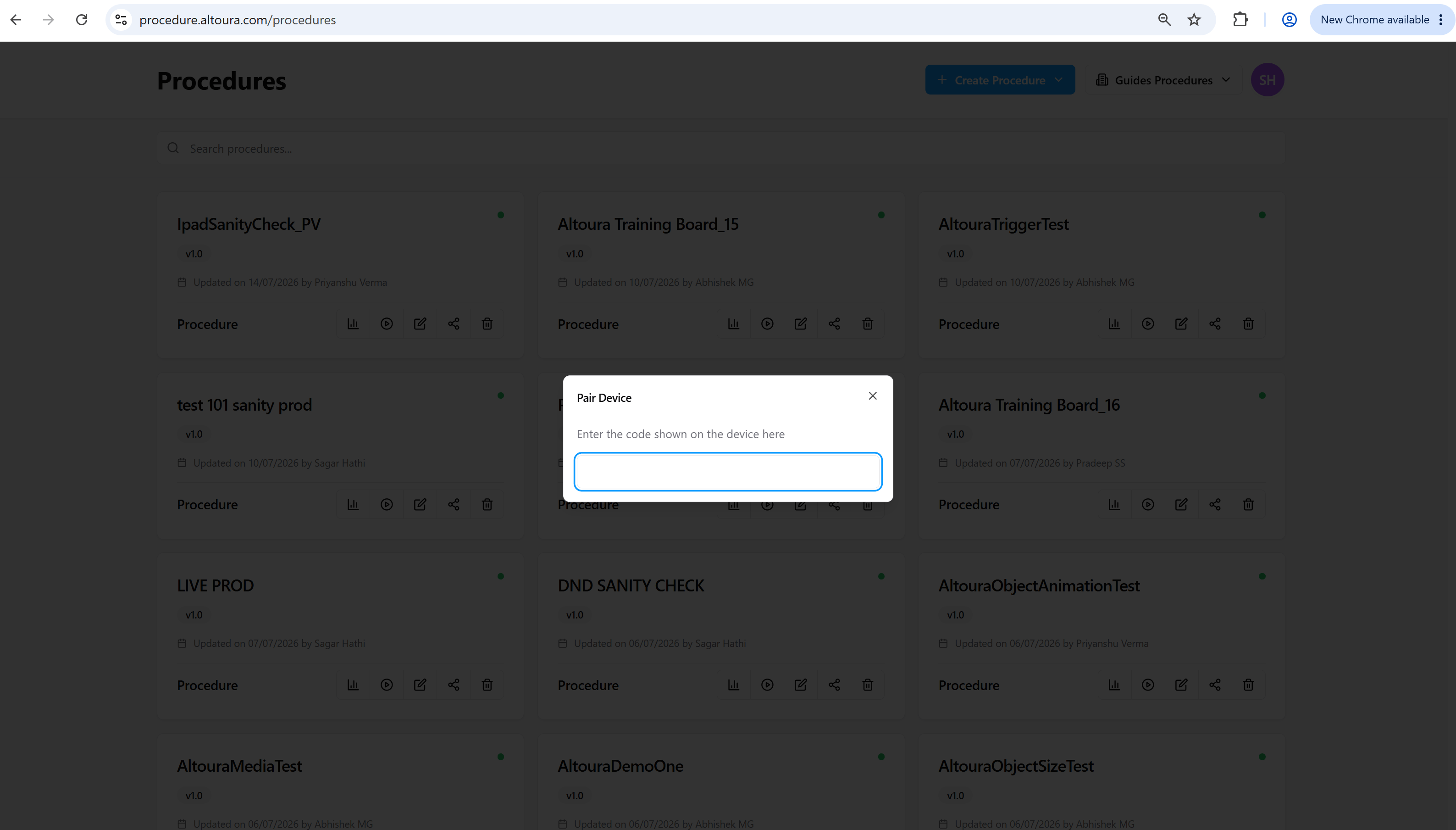
 A **Pair Device** dialog opens on the same page (no new tab or page is loaded), with a text field labeled **"Enter the code shown on the device here"**. Enter the **6-digit code** displayed on your HoloLens.
 Once the code is accepted, the HoloLens automatically completes the sign-in, links to your account, and opens the **Procedures** landing page.
* **PIN expired:** the code is time-limited (typically a couple of minutes). If it expires, go back on the HoloLens and generate a new code.
* **Pair Device dialog not opening:** ensure you are signed in to the Procedure Portal and have internet access, then reopen the profile dropdown and select **Pair Device** again.
* **Code not accepted:** verify that you entered the 6-digit code exactly as displayed on the HoloLens.
***
**Next:** you're signed in — learn what's on screen and how to move around in [First Launch & Navigation](/frontline/hololens/get-started/first-launch-and-navigation).
Once the code is accepted, the HoloLens automatically completes the sign-in, links to your account, and opens the **Procedures** landing page.
* **PIN expired:** the code is time-limited (typically a couple of minutes). If it expires, go back on the HoloLens and generate a new code.
* **Pair Device dialog not opening:** ensure you are signed in to the Procedure Portal and have internet access, then reopen the profile dropdown and select **Pair Device** again.
* **Code not accepted:** verify that you entered the 6-digit code exactly as displayed on the HoloLens.
***
**Next:** you're signed in — learn what's on screen and how to move around in [First Launch & Navigation](/frontline/hololens/get-started/first-launch-and-navigation).