> ## Documentation Index
> Fetch the complete documentation index at: https://docs.altoura.com/llms.txt
> Use this file to discover all available pages before exploring further.
# Your First Procedure
> A guided 10-minute walkthrough: open a procedure, anchor it with a QR code, follow a few steps, and complete it — in Operator mode.
**Who this is for:** everyone — field workers and authors alike. This walkthrough is run in **Operator mode** by everyone, because it's the fastest way to understand how a finished procedure behaves on the headset.
**What you'll accomplish:** in about 10 minutes, you'll open a procedure, anchor it to your physical workspace with a QR code, follow a few steps, and complete it end to end.
Before you start, make sure you have:
* A HoloLens 2 with Altoura Frontline installed and signed in ([Install & Sign In](/frontline/hololens/get-started/install-and-sign-in))
* A published procedure available in your organization
* The procedure's physical QR code available at your workspace (see [Anchoring & QR Codes](/frontline/overview/concepts/anchoring-and-qr-codes) for why this matters)
***
On the Global Side Menu, select **Procedures** (the top, list icon).
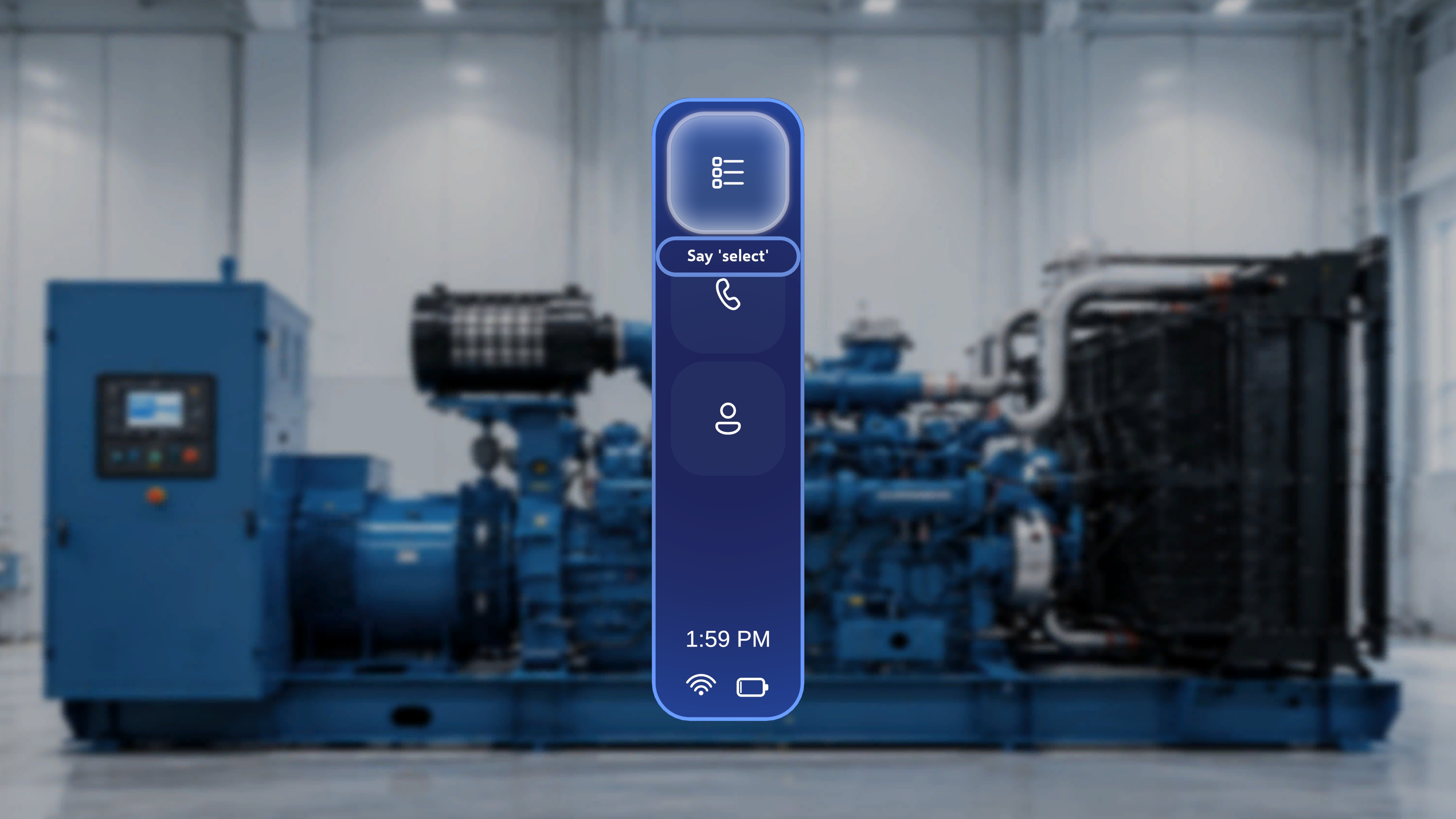 The **Procedures** page opens, listing the procedures available in your currently selected organization. Each procedure appears as a card with its name, **Created by**, and **Last Modified by** details.
If the list is long, use the **Search** field in the top-right area of the page to filter by name — for example, entering **Air** shows procedures that contain "Air" in the title. You can also use the organization dropdown at the top of the page to switch organizations.
The **Procedures** page opens, listing the procedures available in your currently selected organization. Each procedure appears as a card with its name, **Created by**, and **Last Modified by** details.
If the list is long, use the **Search** field in the top-right area of the page to filter by name — for example, entering **Air** shows procedures that contain "Air" in the title. You can also use the organization dropdown at the top of the page to switch organizations.
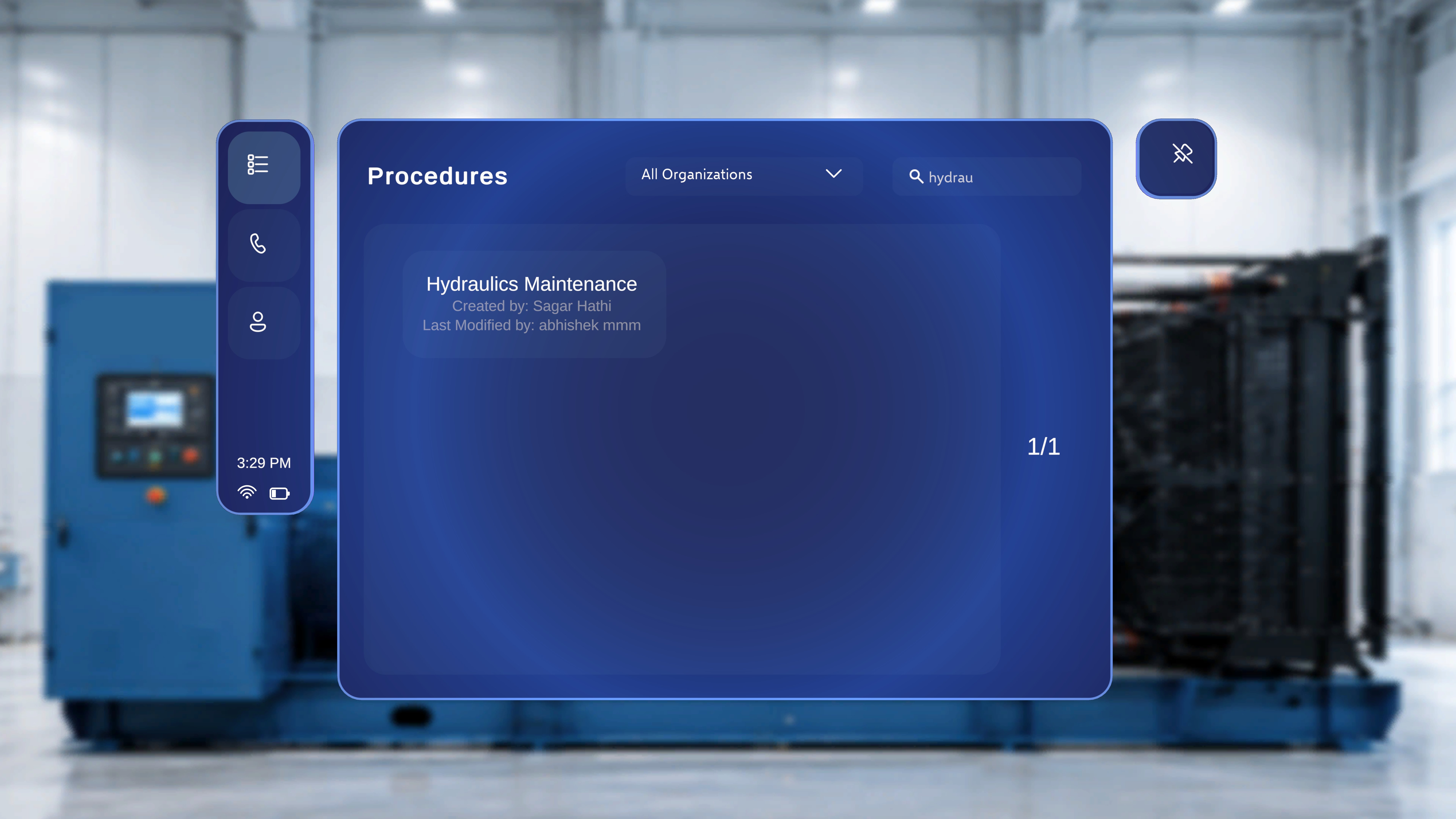 Select the procedure card you want to run.
If your account has the **Author** role, a mode-selection dialog may appear after you select the procedure. Choose **Operator (Use a procedure)** for this walkthrough — you'll explore authoring later.
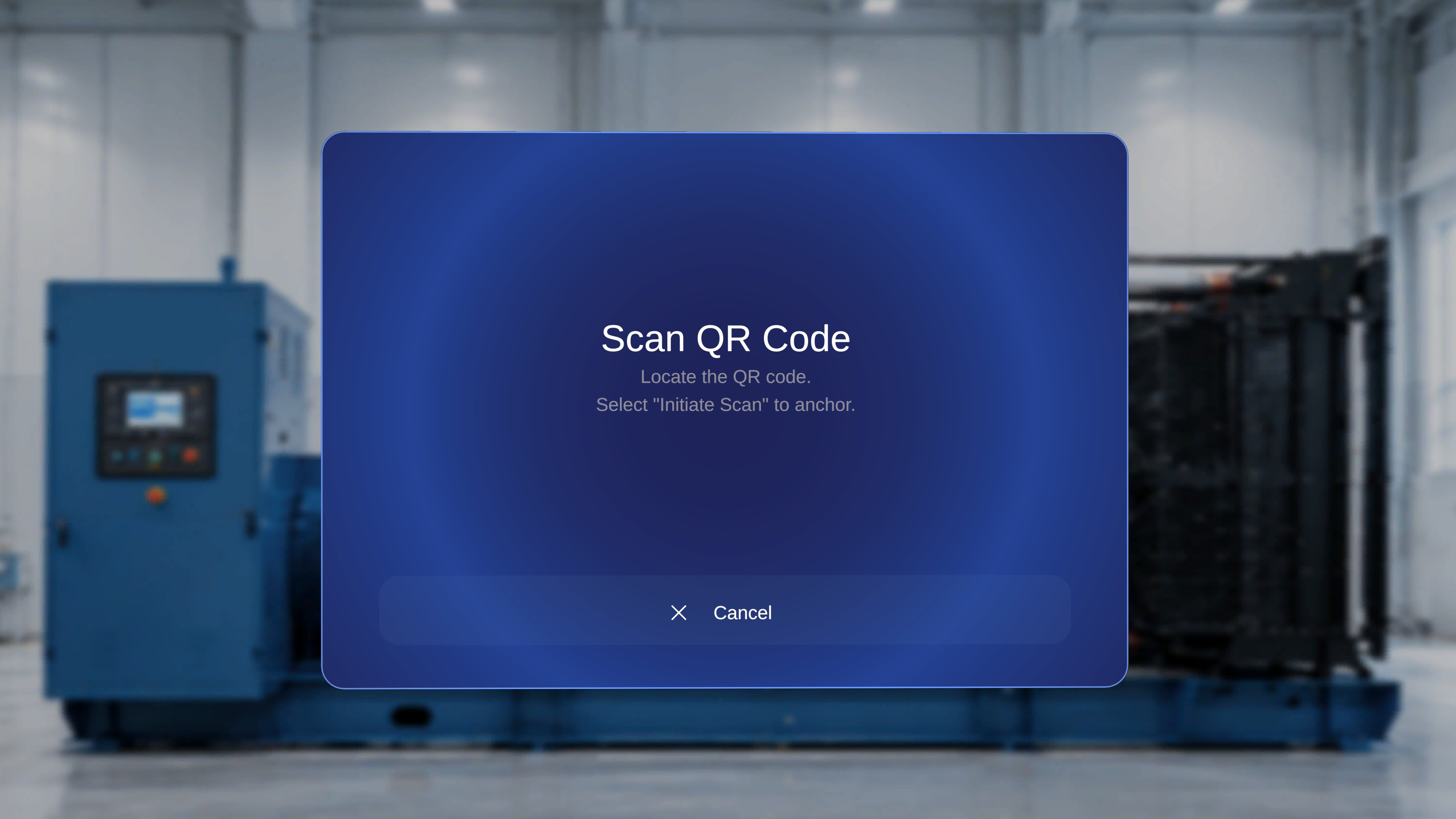
A **Scan QR Code** instruction panel appears, asking you to locate the QR code. A **Cancel** button appears at the bottom of the panel.
Select the procedure card you want to run.
If your account has the **Author** role, a mode-selection dialog may appear after you select the procedure. Choose **Operator (Use a procedure)** for this walkthrough — you'll explore authoring later.
A **Scan QR Code** instruction panel appears, asking you to locate the QR code. A **Cancel** button appears at the bottom of the panel.
 Locate the physical QR code at your workspace. A scanning frame appears on screen with the label **Scan the QR code**.
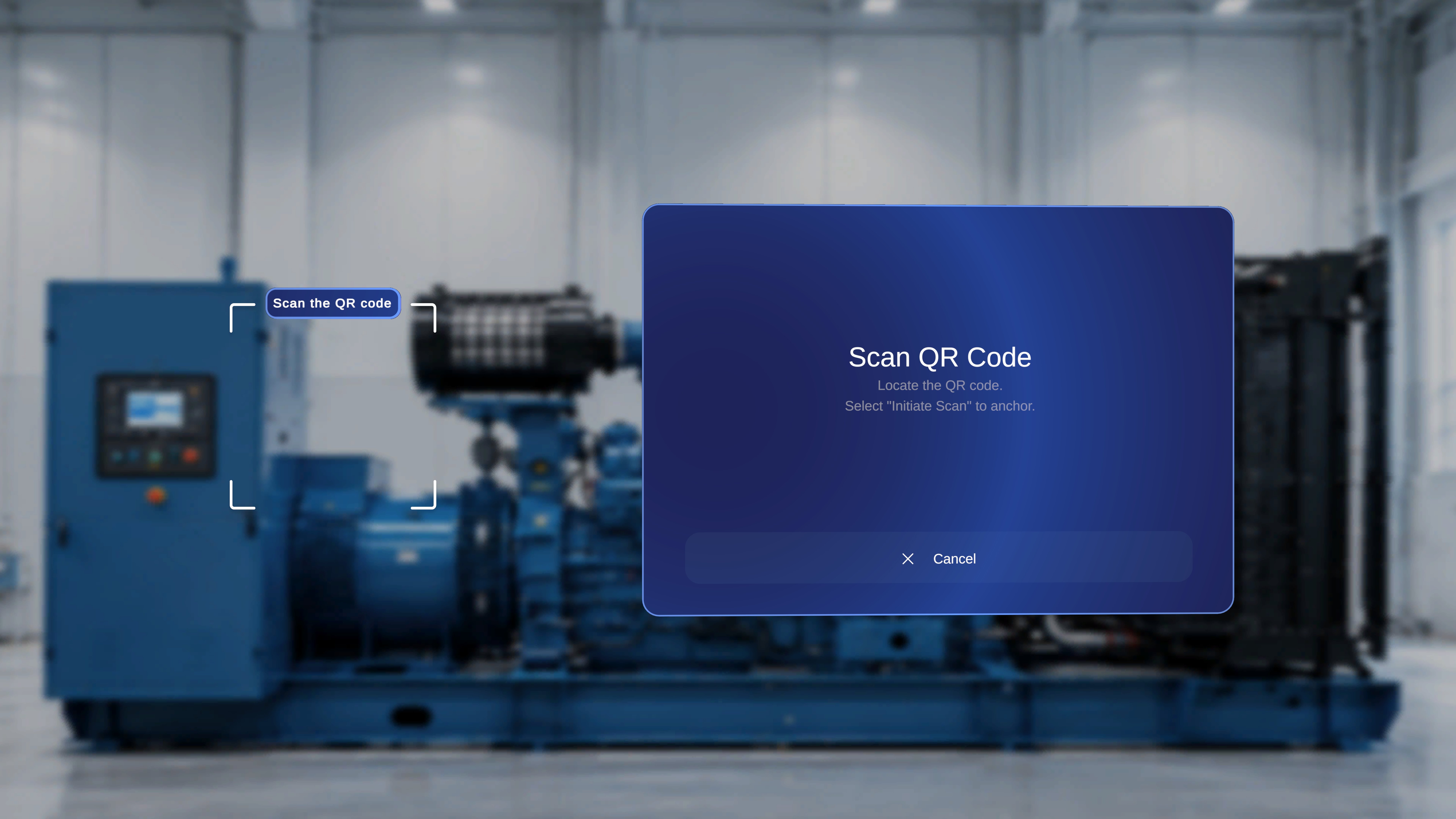 Hold your device so the QR code appears inside the scanning frame, align it within the bracketed area, and keep steady until the system detects the code. When it does, a confirmation panel appears titled **Anchor found**.
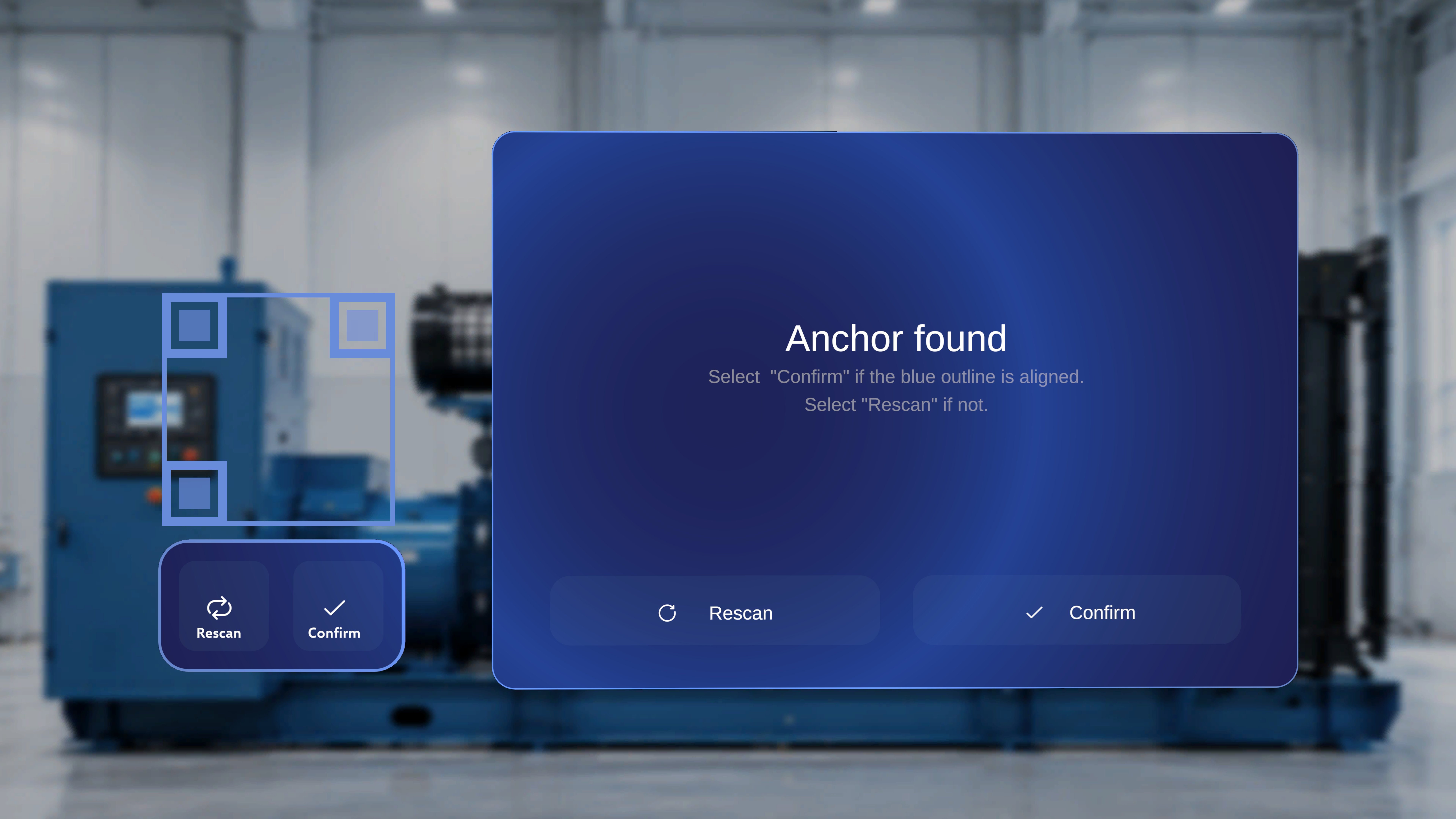 Check the blue outline:
* **Aligned?** Select **Confirm** — either in the **Anchor found** panel or below the QR frame.
* **Not aligned, or wrong QR code?** Select **Rescan**. The detection is cleared and you can realign the code within the frame.
After you confirm, the system anchors to the QR code and opens the procedure in Operator mode.
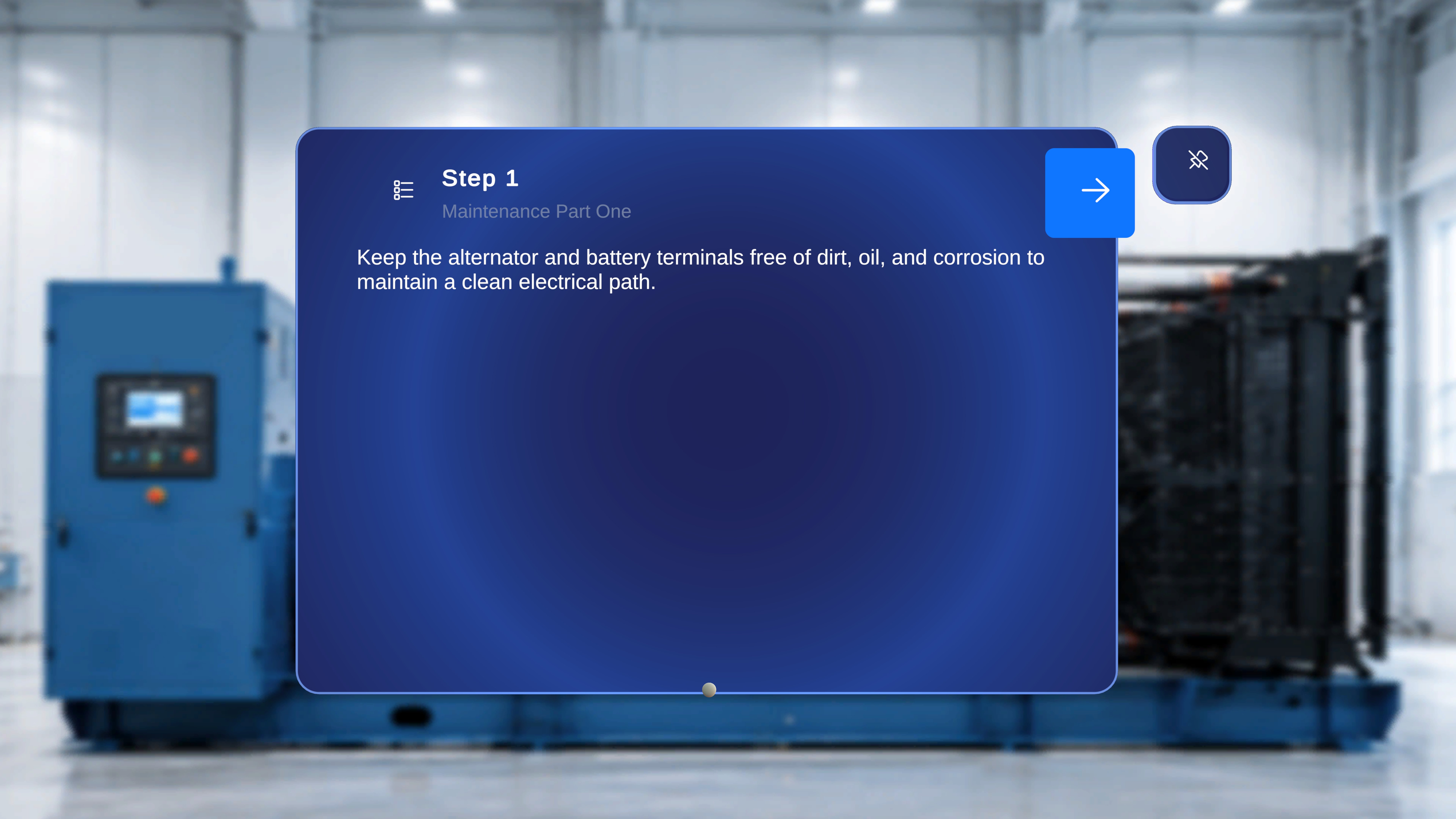
You're now inside the procedure. The **Step Main Panel** is always visible and shows the step number, task title, step description, **Back**/**Next** navigation arrows, and a **Step List** icon.
Check the blue outline:
* **Aligned?** Select **Confirm** — either in the **Anchor found** panel or below the QR frame.
* **Not aligned, or wrong QR code?** Select **Rescan**. The detection is cleared and you can realign the code within the frame.
After you confirm, the system anchors to the QR code and opens the procedure in Operator mode.
You're now inside the procedure. The **Step Main Panel** is always visible and shows the step number, task title, step description, **Back**/**Next** navigation arrows, and a **Step List** icon.
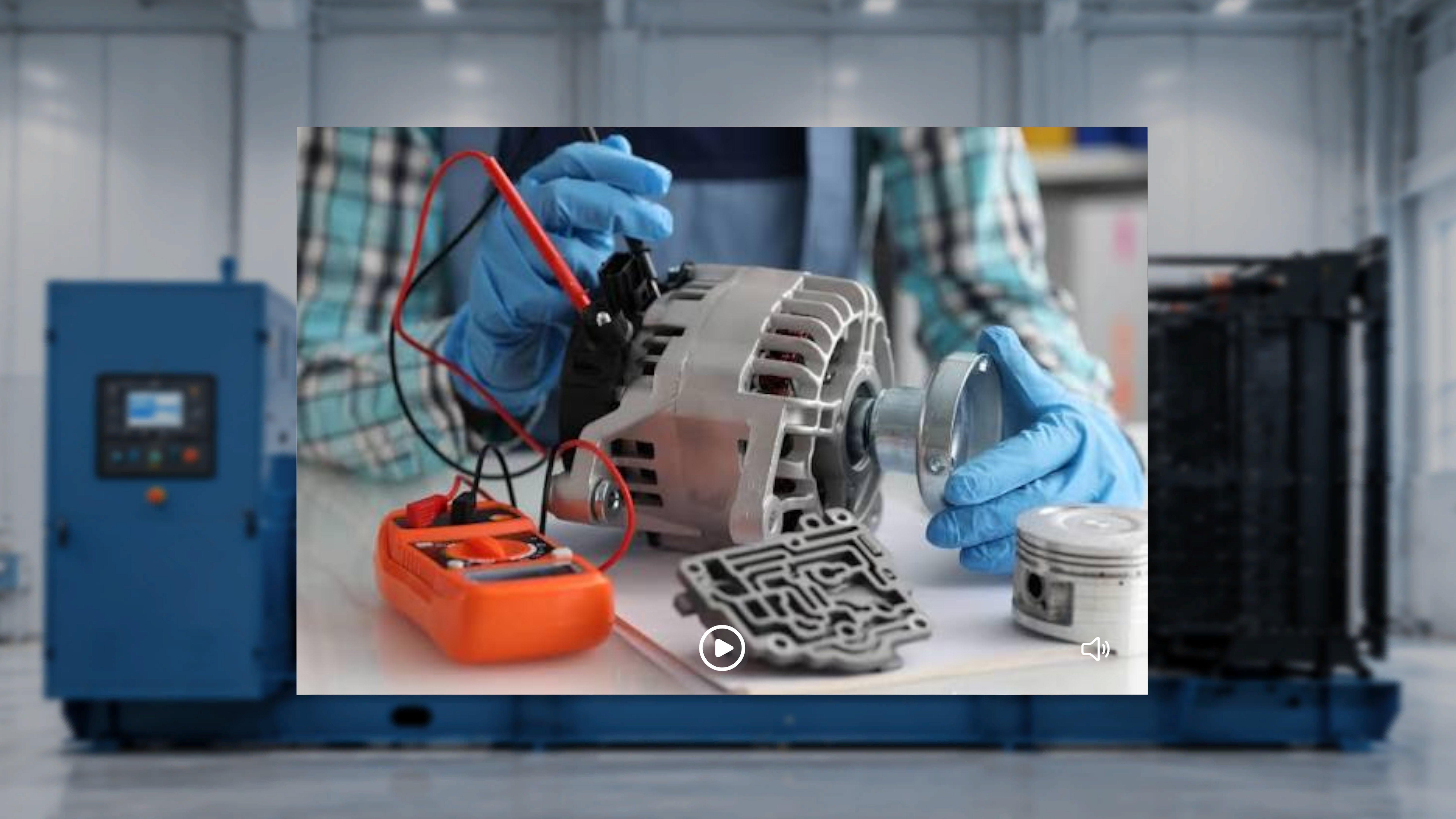
 If the author attached an image or video to the step, a **Media Panel** appears beside it — videos auto-play in a loop, and you can pause, resume, mute, or unmute playback. If no media is attached, the panel doesn't appear.
 Any 3D models placed during authoring appear in your space at their saved positions.
Select the **right arrow** to advance to the next step. The panel updates with the new step number and task title, and the media and 3D content refresh to show only what's attached to that step.
Select the **left arrow** to go back — the previous step and its content return.
Try moving forward through two or three steps to get a feel for the rhythm. (Curious how steps roll up into tasks and procedures? See [Procedures, Tasks & Steps](/frontline/overview/concepts/procedures-tasks-steps).)
Select the **List icon** at the top-left of the Step Panel (before the Back button). A panel opens showing the procedure name, all tasks, all steps under each task, and all completion steps.
Any 3D models placed during authoring appear in your space at their saved positions.
Select the **right arrow** to advance to the next step. The panel updates with the new step number and task title, and the media and 3D content refresh to show only what's attached to that step.
Select the **left arrow** to go back — the previous step and its content return.
Try moving forward through two or three steps to get a feel for the rhythm. (Curious how steps roll up into tasks and procedures? See [Procedures, Tasks & Steps](/frontline/overview/concepts/procedures-tasks-steps).)
Select the **List icon** at the top-left of the Step Panel (before the Back button). A panel opens showing the procedure name, all tasks, all steps under each task, and all completion steps.
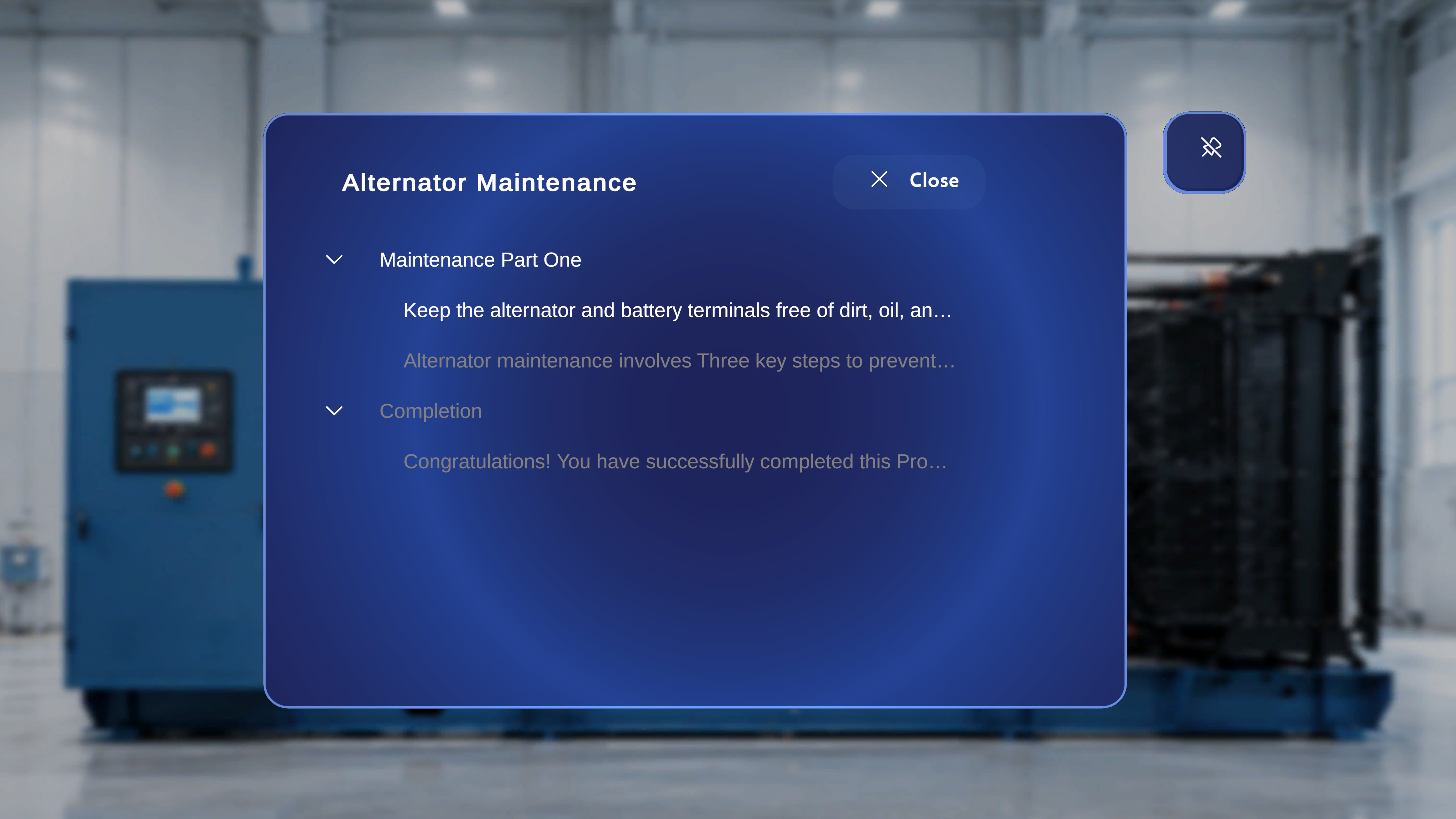 From here you can jump directly to any task or step without following the Next/Back sequence — the selected step becomes active immediately, with its media and 3D content loaded as authored. Select **Close (X)** to return to your current step.
Continue through the steps (or use the Step List to jump ahead) until you reach the **Completion Step**. It displays the message **"Congratulations! You have successfully completed this Procedure."** along with two buttons.
From here you can jump directly to any task or step without following the Next/Back sequence — the selected step becomes active immediately, with its media and 3D content loaded as authored. Select **Close (X)** to return to your current step.
Continue through the steps (or use the Step List to jump ahead) until you reach the **Completion Step**. It displays the message **"Congratulations! You have successfully completed this Procedure."** along with two buttons.
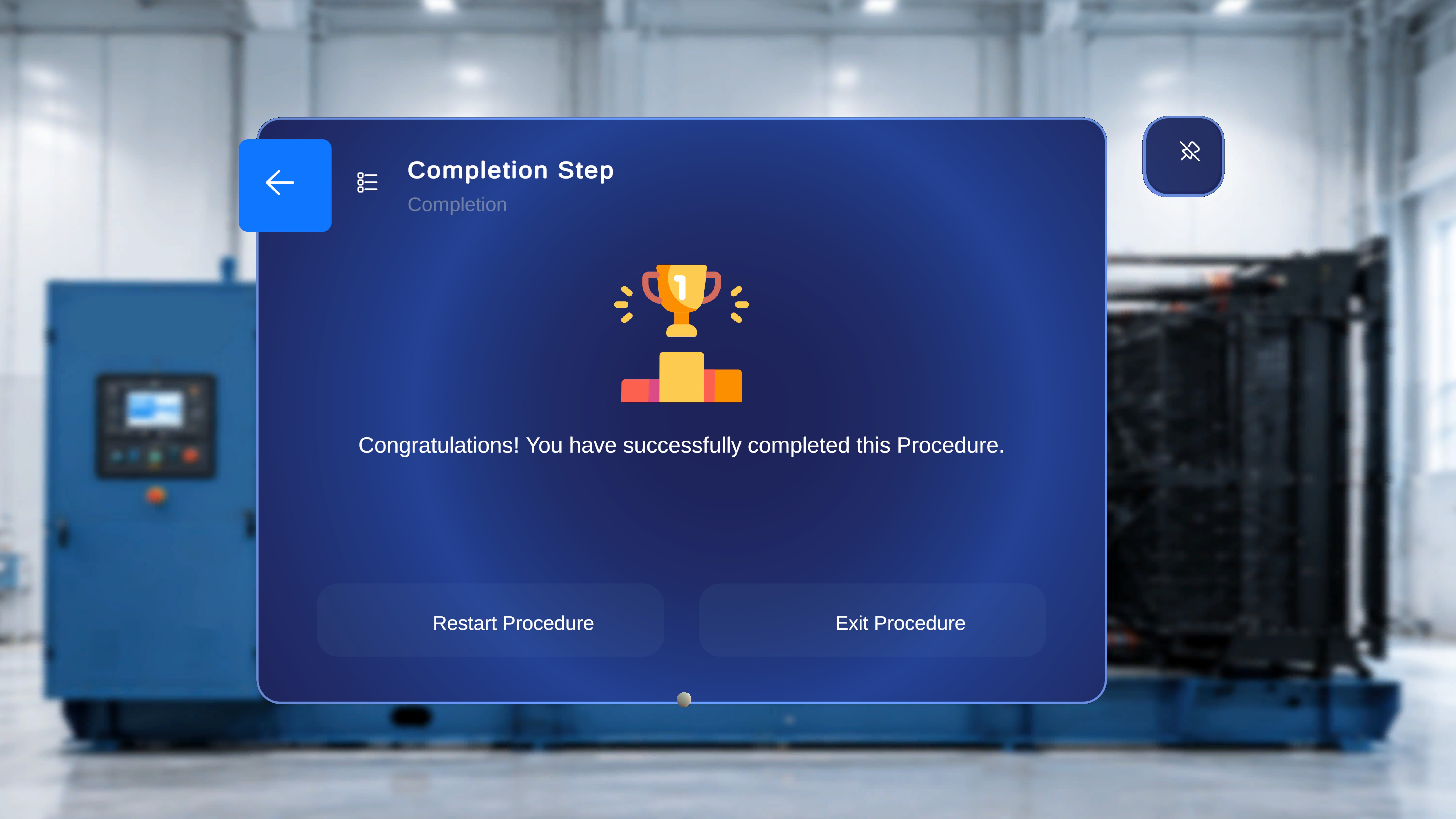 * **Restart Procedure** resets everything to the first step, clearing in-session progress.
* **Exit Procedure** closes the procedure and returns you to the Home environment.
Select **Exit Procedure** — you've completed your first procedure.
***
## Where to Go Next
You've now seen the full operator loop: find, anchor, follow, complete. Pick your path based on your role (not sure which you are? See [Author vs. Operator](/frontline/overview/concepts/author-vs-operator)):
Continue to the Operate section for the full details on finding, anchoring, and executing procedures day to day.
Learn how to enter Author mode and build or refine procedures directly on the headset.
* **Restart Procedure** resets everything to the first step, clearing in-session progress.
* **Exit Procedure** closes the procedure and returns you to the Home environment.
Select **Exit Procedure** — you've completed your first procedure.
***
## Where to Go Next
You've now seen the full operator loop: find, anchor, follow, complete. Pick your path based on your role (not sure which you are? See [Author vs. Operator](/frontline/overview/concepts/author-vs-operator)):
Continue to the Operate section for the full details on finding, anchoring, and executing procedures day to day.
Learn how to enter Author mode and build or refine procedures directly on the headset.