> ## Documentation Index
> Fetch the complete documentation index at: https://docs.altoura.com/llms.txt
> Use this file to discover all available pages before exploring further.
# Anchor with a QR Code
> Scan the printed QR code at your work site to anchor the procedure, confirm the alignment, and understand what the step anchor gem shows you.
This page is for **field workers** starting a procedure on the HoloLens. By the end of it, you will have anchored the procedure to your physical workspace so that every instruction, model, and marker appears exactly where it belongs.
Anchoring ties the procedure's digital content to a fixed point in the real world — the printed QR code — so everything lines up with the actual equipment. For the full concept, see [Anchoring & QR Codes](/frontline/overview/concepts/anchoring-and-qr-codes).
Scan the **same QR code, at the same physical position**, that was used when the procedure was set up for this location. Use the official printout from the [QR code download page](/frontline/procedures/qr-anchor/qr-code) — third-party or self-generated QR codes might not work reliably.
## Scan the QR Code
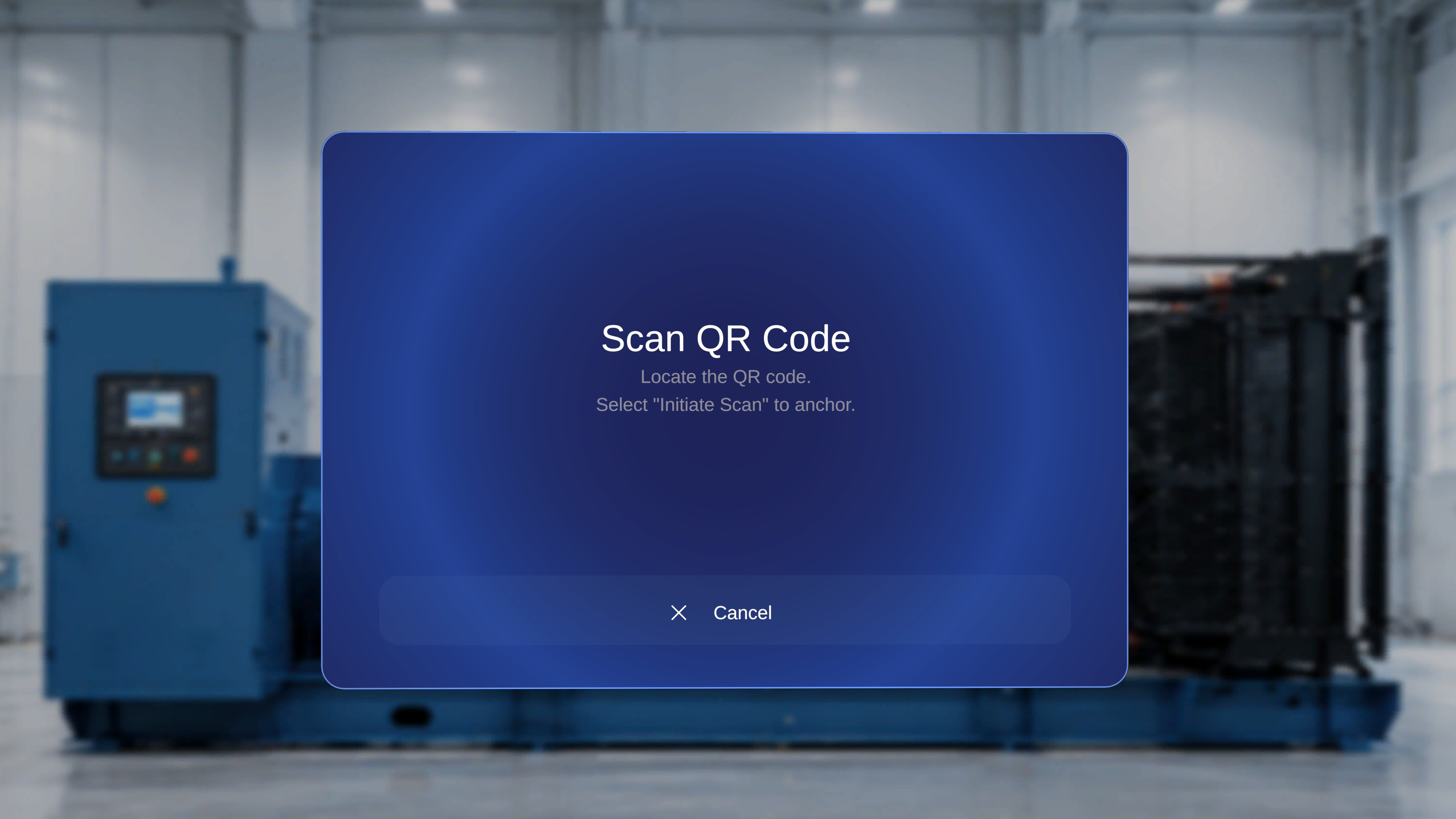
After you select a procedure, a **Scan QR Code** instruction panel appears, with a **Cancel** button at the bottom.
 Find the printed QR code fixed at your work site. A scanning frame appears on screen with the label **Scan the QR code**.
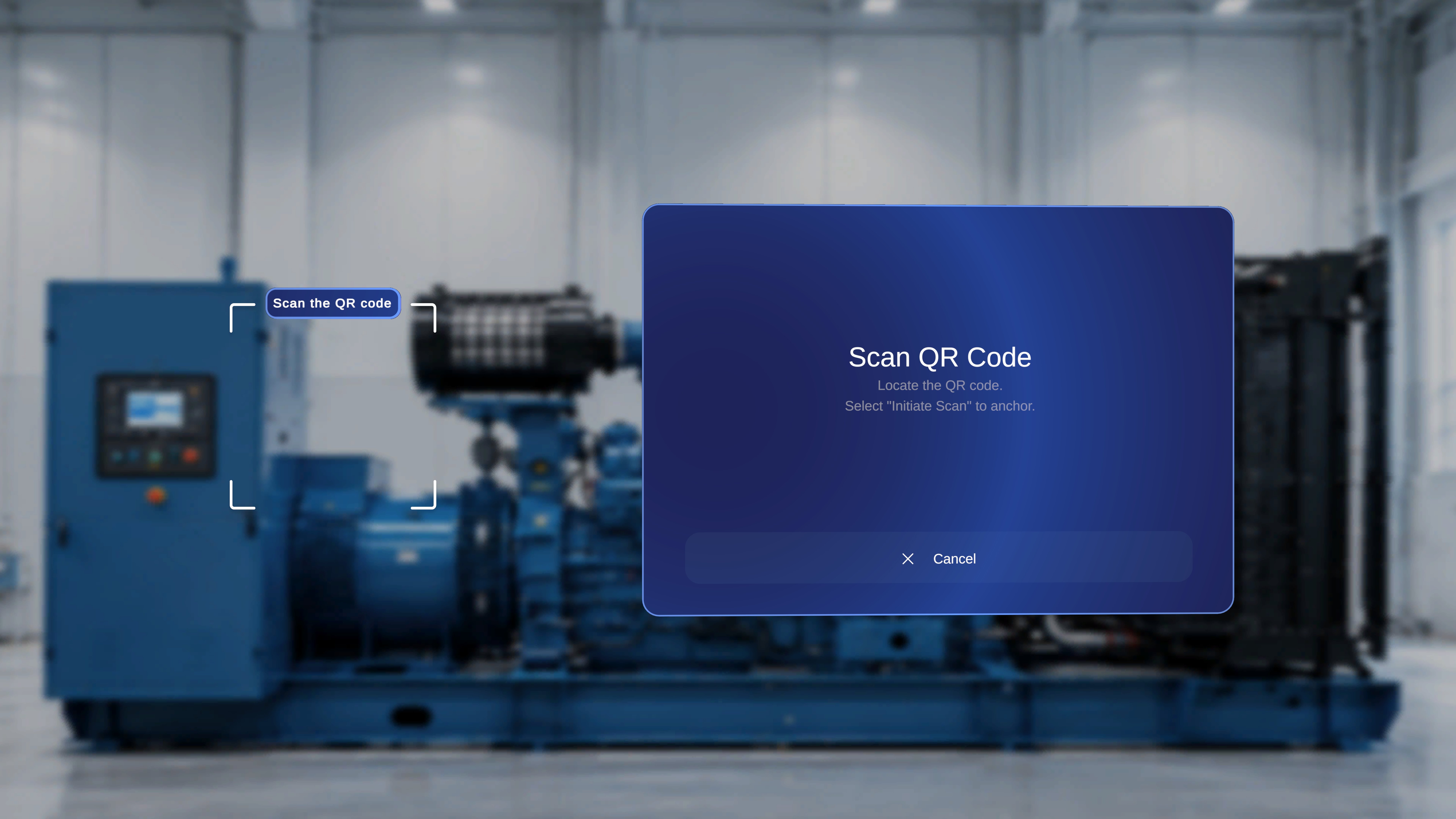 Hold your head steady and look directly at the QR code so it sits inside the bracketed scanning frame. A distance of roughly 30–60 cm gives the fastest lock. Keep steady until the system detects the code.
Once the code is detected, an **Anchor found** panel appears with the instruction: select **Confirm** if the blue outline is aligned, or **Rescan** if not.
Hold your head steady and look directly at the QR code so it sits inside the bracketed scanning frame. A distance of roughly 30–60 cm gives the fastest lock. Keep steady until the system detects the code.
Once the code is detected, an **Anchor found** panel appears with the instruction: select **Confirm** if the blue outline is aligned, or **Rescan** if not.
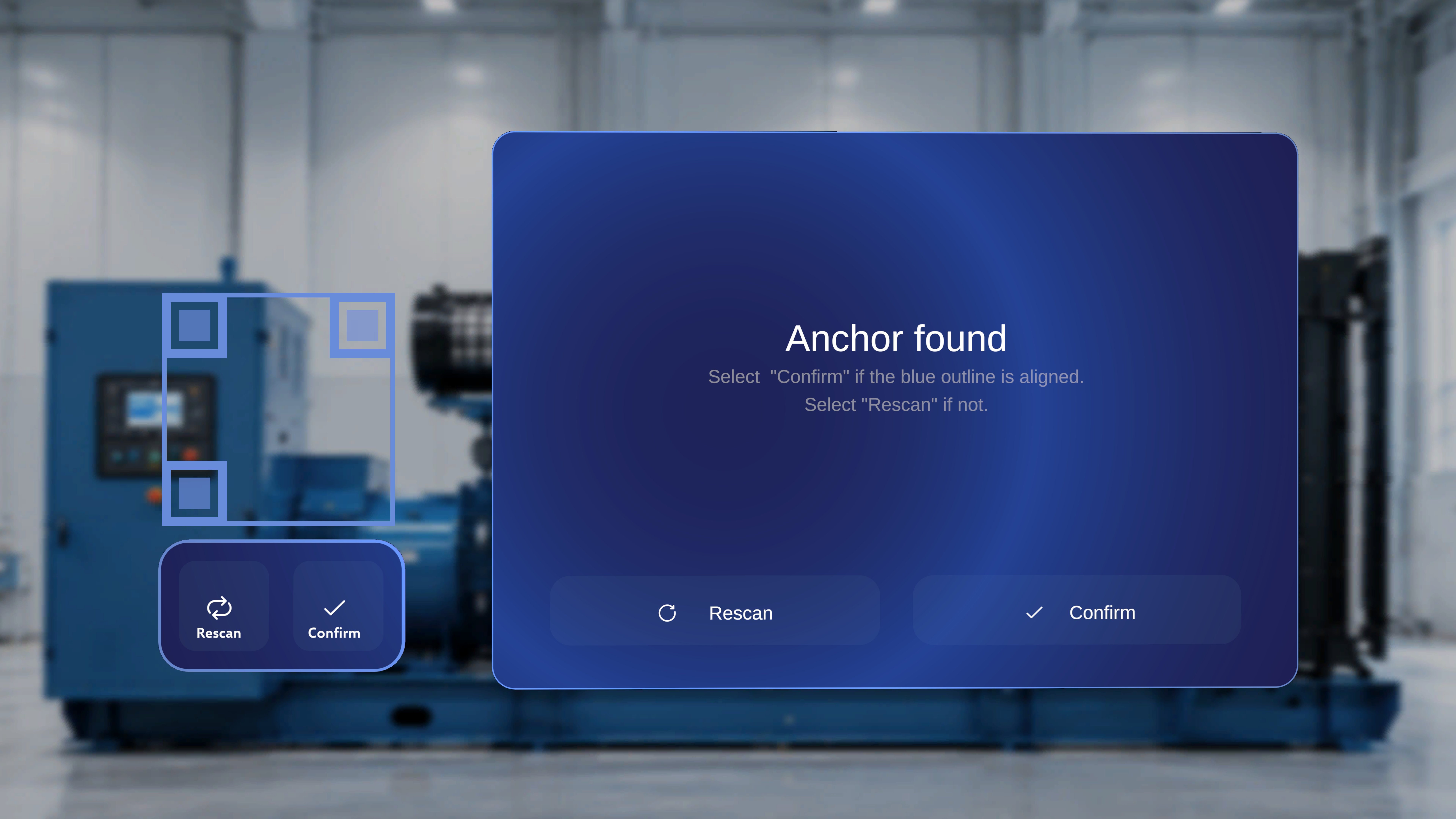 Verify the blue outline sits neatly on the QR code, then select **Confirm** — either in the **Anchor found** panel or on the button below the QR frame.
Every button in the scan flow also responds to hover + saying **"Select"**. See [Voice Commands](/frontline/hololens/reference/voice-commands).
## What Happens on Success
The system anchors to the QR code and opens the procedure. You are taken to the first step and can begin working through the procedure in your physical space — instructions, media, and 3D content appear in their saved positions relative to the QR code.
## If the Outline Isn't Aligned: Rescan
If the blue outline is off, or the wrong QR code was detected, select **Rescan** — in the **Anchor found** panel or below the QR frame. The current detection is cleared, active scanning resumes, and you can realign the QR code within the frame.
## If You Change Your Mind: Cancel
Select **Cancel** at the bottom of the instruction panel to leave the scan flow. You do not enter the procedure — access is granted only after a successful confirmation.
## The Step Anchor Gem
Once you are anchored and inside the procedure, some steps display a diamond-shaped **gem** in the physical environment, connected to the instruction panel by a tethered line that updates as you move.
Verify the blue outline sits neatly on the QR code, then select **Confirm** — either in the **Anchor found** panel or on the button below the QR frame.
Every button in the scan flow also responds to hover + saying **"Select"**. See [Voice Commands](/frontline/hololens/reference/voice-commands).
## What Happens on Success
The system anchors to the QR code and opens the procedure. You are taken to the first step and can begin working through the procedure in your physical space — instructions, media, and 3D content appear in their saved positions relative to the QR code.
## If the Outline Isn't Aligned: Rescan
If the blue outline is off, or the wrong QR code was detected, select **Rescan** — in the **Anchor found** panel or below the QR frame. The current detection is cleared, active scanning resumes, and you can realign the QR code within the frame.
## If You Change Your Mind: Cancel
Select **Cancel** at the bottom of the instruction panel to leave the scan flow. You do not enter the procedure — access is granted only after a successful confirmation.
## The Step Anchor Gem
Once you are anchored and inside the procedure, some steps display a diamond-shaped **gem** in the physical environment, connected to the instruction panel by a tethered line that updates as you move.
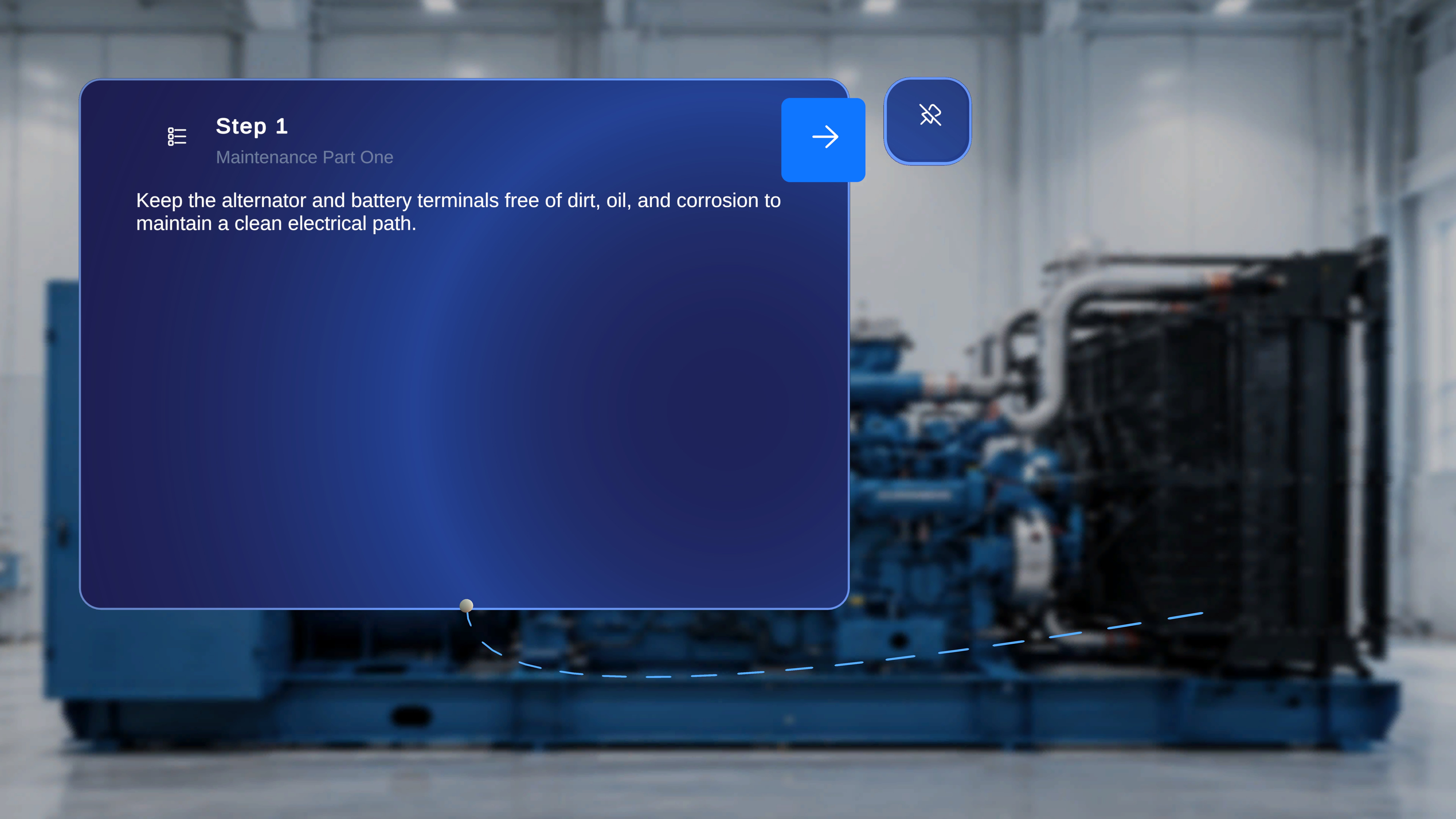 The gem shows you **where the step applies** — which physical location is relevant and where your attention or action is required. A few things to know:
* The gem appears only on steps that have one; other steps show no gem or tether. Whether a step has a gem depends on how the procedure was authored.
* The gem is fixed — you cannot select, move, or modify it.
* Gems are positioned relative to the QR anchor. If you rescan the QR code later (see [Follow the Steps](/frontline/hololens/operate/follow-steps) for the in-procedure side menu), the gems reposition accordingly and stay correctly aligned.
If placed content looks noticeably off-position while you work, the QR code may have moved or the anchor may have drifted — rescan the QR code to re-anchor the procedure.
***
**Next:** [Follow the Steps](/frontline/hololens/operate/follow-steps)
The gem shows you **where the step applies** — which physical location is relevant and where your attention or action is required. A few things to know:
* The gem appears only on steps that have one; other steps show no gem or tether. Whether a step has a gem depends on how the procedure was authored.
* The gem is fixed — you cannot select, move, or modify it.
* Gems are positioned relative to the QR anchor. If you rescan the QR code later (see [Follow the Steps](/frontline/hololens/operate/follow-steps) for the in-procedure side menu), the gems reposition accordingly and stay correctly aligned.
If placed content looks noticeably off-position while you work, the QR code may have moved or the anchor may have drifted — rescan the QR code to re-anchor the procedure.
***
**Next:** [Follow the Steps](/frontline/hololens/operate/follow-steps)