> ## Documentation Index
> Fetch the complete documentation index at: https://docs.altoura.com/llms.txt
> Use this file to discover all available pages before exploring further.
# Complete and Sign Off
> Reach the Completion Step, confirm you're done, and choose whether to restart the procedure or exit — plus how to leave a procedure early.
This page is for **field workers** finishing a procedure on the HoloLens. By the end of it, you will know what the Completion Step looks like, how to confirm you're done, and how to exit — whether you've finished or need to leave early.
## When the Completion Step Appears
The **Completion Step** confirms you have reached the end of a procedure path. You'll see it when you:
* Reach the final step of a linear procedure
* Reach the end of a branch you selected through a choice step — in branching procedures each path can end with its own completion step, and you see the one for the path you took
* Jump directly to a completion step from the step list
See [Procedures, Tasks & Steps](/frontline/overview/concepts/procedures-tasks-steps) for how completion steps fit into a procedure's structure.
## What You See
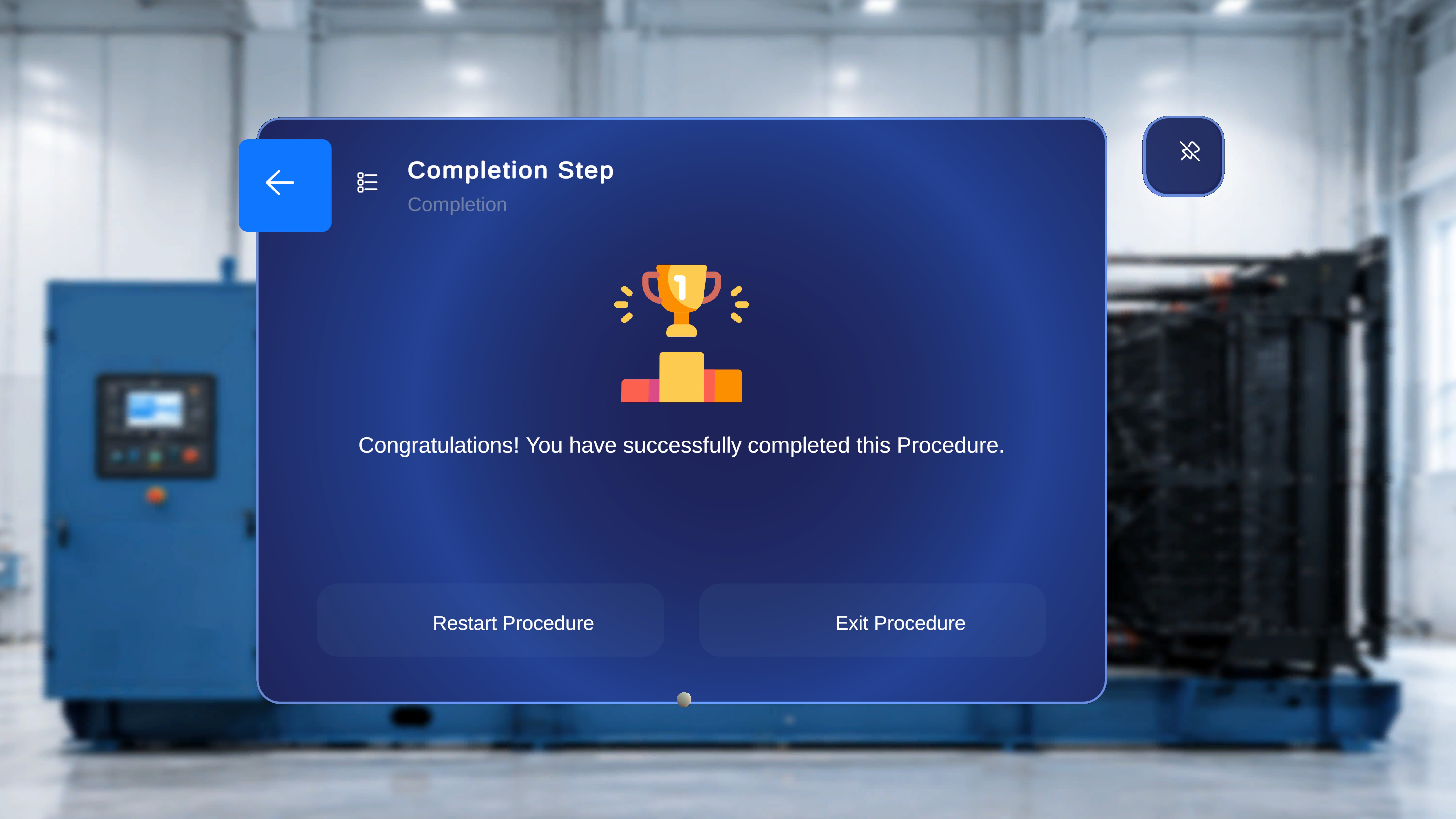 The Completion Step panel shows:
* The step title **Completion Step** and the task name
* The confirmation message: **"Congratulations! You have successfully completed this Procedure."**
* Two action buttons: **Restart Procedure** and **Exit Procedure**
* A back arrow in the top-left corner
## Choose What Happens Next
Select the **back arrow** to return to the previous step of the path you took — useful for a final visual check. You can navigate forward again when ready. You can also say the voice commands covered in [Voice Commands](/frontline/hololens/reference/voice-commands).
* Select **Restart Procedure** to begin again from the first step. Your in-session progress is cleared, and models and step states return to their original configuration.
* Select **Exit Procedure** to close the procedure. You return to the Home environment, ready to open the next procedure.
Every button here also responds to hover + saying **"Select"**.
## Leaving Before You're Done
You don't have to reach the Completion Step to exit. At any step, raise a hand with your palm facing you to open the side menu, then select the **Exit** button (bottom icon).
The Completion Step panel shows:
* The step title **Completion Step** and the task name
* The confirmation message: **"Congratulations! You have successfully completed this Procedure."**
* Two action buttons: **Restart Procedure** and **Exit Procedure**
* A back arrow in the top-left corner
## Choose What Happens Next
Select the **back arrow** to return to the previous step of the path you took — useful for a final visual check. You can navigate forward again when ready. You can also say the voice commands covered in [Voice Commands](/frontline/hololens/reference/voice-commands).
* Select **Restart Procedure** to begin again from the first step. Your in-session progress is cleared, and models and step states return to their original configuration.
* Select **Exit Procedure** to close the procedure. You return to the Home environment, ready to open the next procedure.
Every button here also responds to hover + saying **"Select"**.
## Leaving Before You're Done
You don't have to reach the Completion Step to exit. At any step, raise a hand with your palm facing you to open the side menu, then select the **Exit** button (bottom icon).
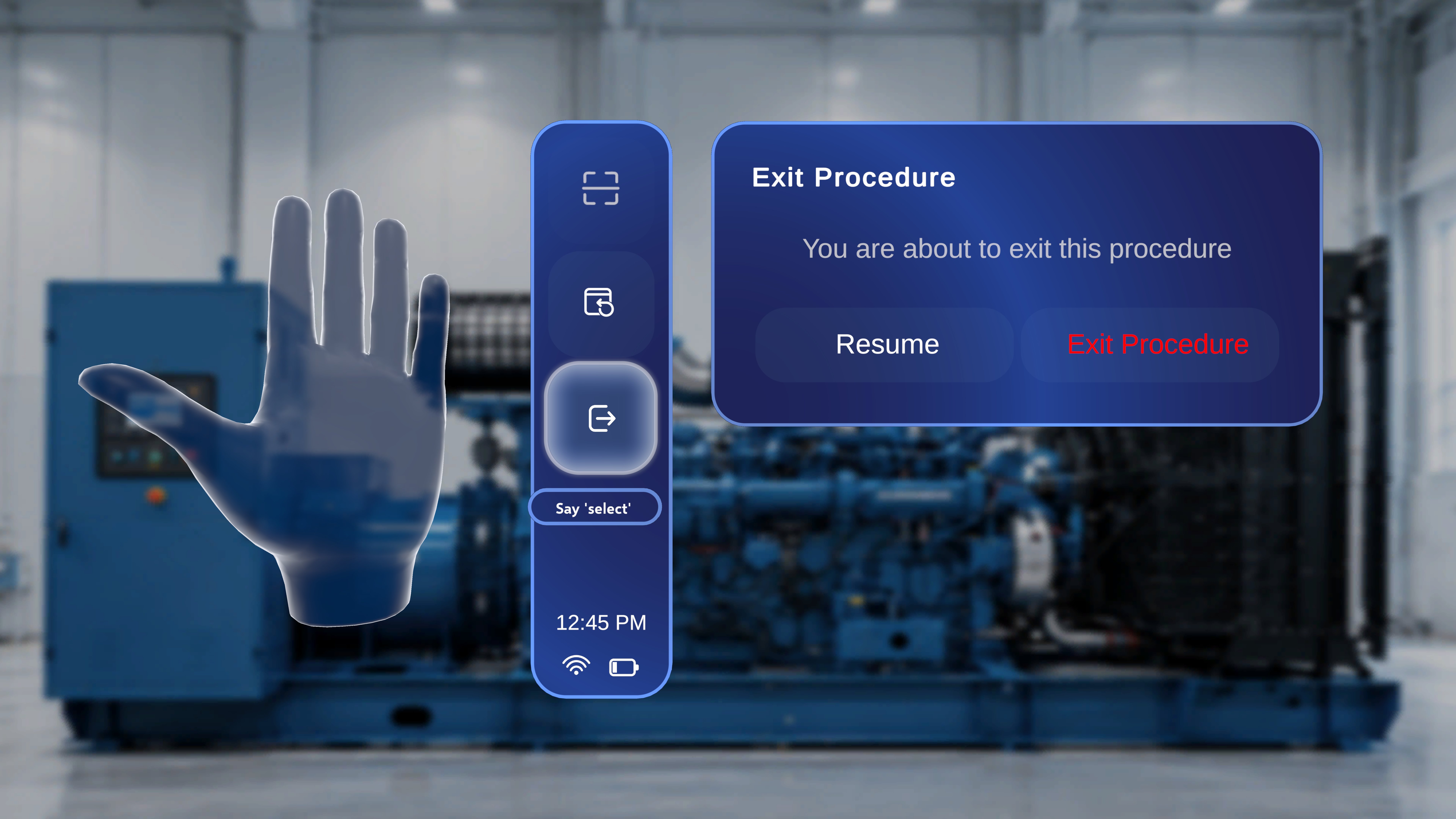 A confirmation panel appears — "You are about to exit this procedure" — with two options:
* **Resume** — closes the confirmation and continues from your current step.
* **Exit Procedure** — leaves the procedure and returns you to the Procedures page.
See [Follow the Steps](/frontline/hololens/operate/follow-steps) for everything else the side menu can do.
***
**Next:** Need help mid-procedure? [Call an expert with Remote Expert](/frontline/remote-expert/overview)
A confirmation panel appears — "You are about to exit this procedure" — with two options:
* **Resume** — closes the confirmation and continues from your current step.
* **Exit Procedure** — leaves the procedure and returns you to the Procedures page.
See [Follow the Steps](/frontline/hololens/operate/follow-steps) for everything else the side menu can do.
***
**Next:** Need help mid-procedure? [Call an expert with Remote Expert](/frontline/remote-expert/overview)