> ## Documentation Index
> Fetch the complete documentation index at: https://docs.altoura.com/llms.txt
> Use this file to discover all available pages before exploring further.
# Follow the Steps
> Work through a procedure step by step on the HoloLens — navigate forward and back, jump to any step, answer choice steps, keep instructions with you, and use the in-procedure side menu.
This page is for **field workers** executing a procedure on the HoloLens. By the end of it, you will know how to read the step panel, move through the procedure (by hand or by voice), handle branching choice steps, keep instructions in view while you work, and use the side menu to rescan, reposition, or exit.
New to how a procedure breaks down into tasks and steps? See [Procedures, Tasks & Steps](/frontline/overview/concepts/procedures-tasks-steps).
## Your View Inside a Procedure
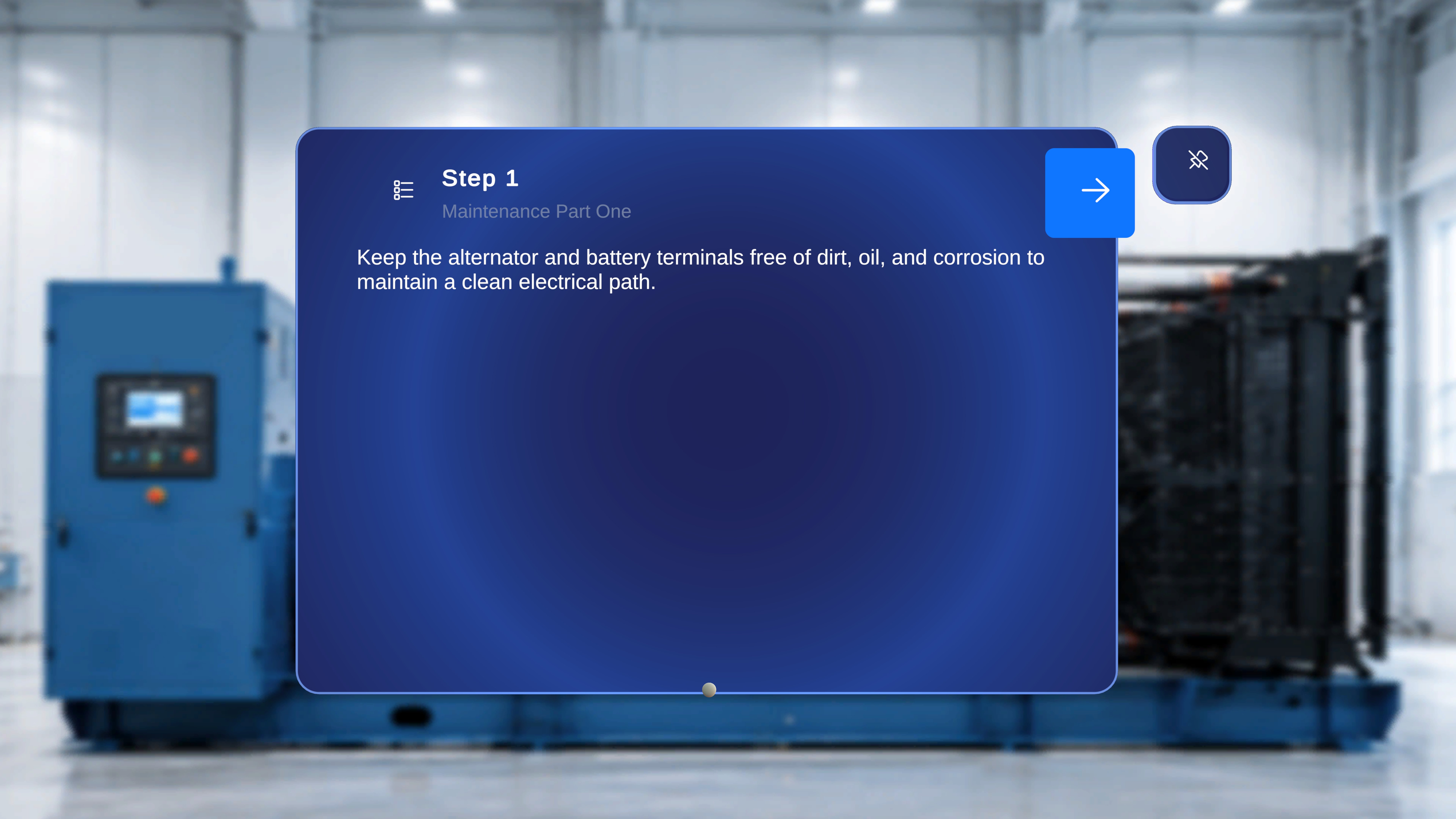 The **step main panel** is always visible and guides you through the work. It shows:
* The **step number** and **task title**
* The **step description** — what to do
* **Back / Next** arrows on either side
* A **list icon** (top-left, before the Back button) that opens the full task/step list
* A **tethered line to the step's gem**, when the step has one — see [Anchor with a QR Code](/frontline/hololens/operate/anchor-with-qr)
Each step loads only its own content: if the step has an image, video, or 3D models attached, they appear alongside the panel and update as you move between steps — see [Work with 3D Models and Media](/frontline/hololens/operate/work-with-3d-models-and-media).
## Move Forward and Back
Select the **right arrow** on the main panel — or just say **"Next"**. The panel updates with the new step number, title, and description, and any media or 3D content for that step loads.
Select the **left arrow** — or say **"Previous"**. The panel and step content return to the previous step.
The Next and Previous arrows are the one place where hover + "Select" does **not** work. Use the voice commands **"Next"** and **"Previous"**, or air-tap the arrows directly. See [Voice Commands](/frontline/hololens/reference/voice-commands) for the full list.
## Jump Directly to Any Step
You don't have to move sequentially. The **Step List Panel** is a complete navigator for the whole procedure.
The **step main panel** is always visible and guides you through the work. It shows:
* The **step number** and **task title**
* The **step description** — what to do
* **Back / Next** arrows on either side
* A **list icon** (top-left, before the Back button) that opens the full task/step list
* A **tethered line to the step's gem**, when the step has one — see [Anchor with a QR Code](/frontline/hololens/operate/anchor-with-qr)
Each step loads only its own content: if the step has an image, video, or 3D models attached, they appear alongside the panel and update as you move between steps — see [Work with 3D Models and Media](/frontline/hololens/operate/work-with-3d-models-and-media).
## Move Forward and Back
Select the **right arrow** on the main panel — or just say **"Next"**. The panel updates with the new step number, title, and description, and any media or 3D content for that step loads.
Select the **left arrow** — or say **"Previous"**. The panel and step content return to the previous step.
The Next and Previous arrows are the one place where hover + "Select" does **not** work. Use the voice commands **"Next"** and **"Previous"**, or air-tap the arrows directly. See [Voice Commands](/frontline/hololens/reference/voice-commands) for the full list.
## Jump Directly to Any Step
You don't have to move sequentially. The **Step List Panel** is a complete navigator for the whole procedure.
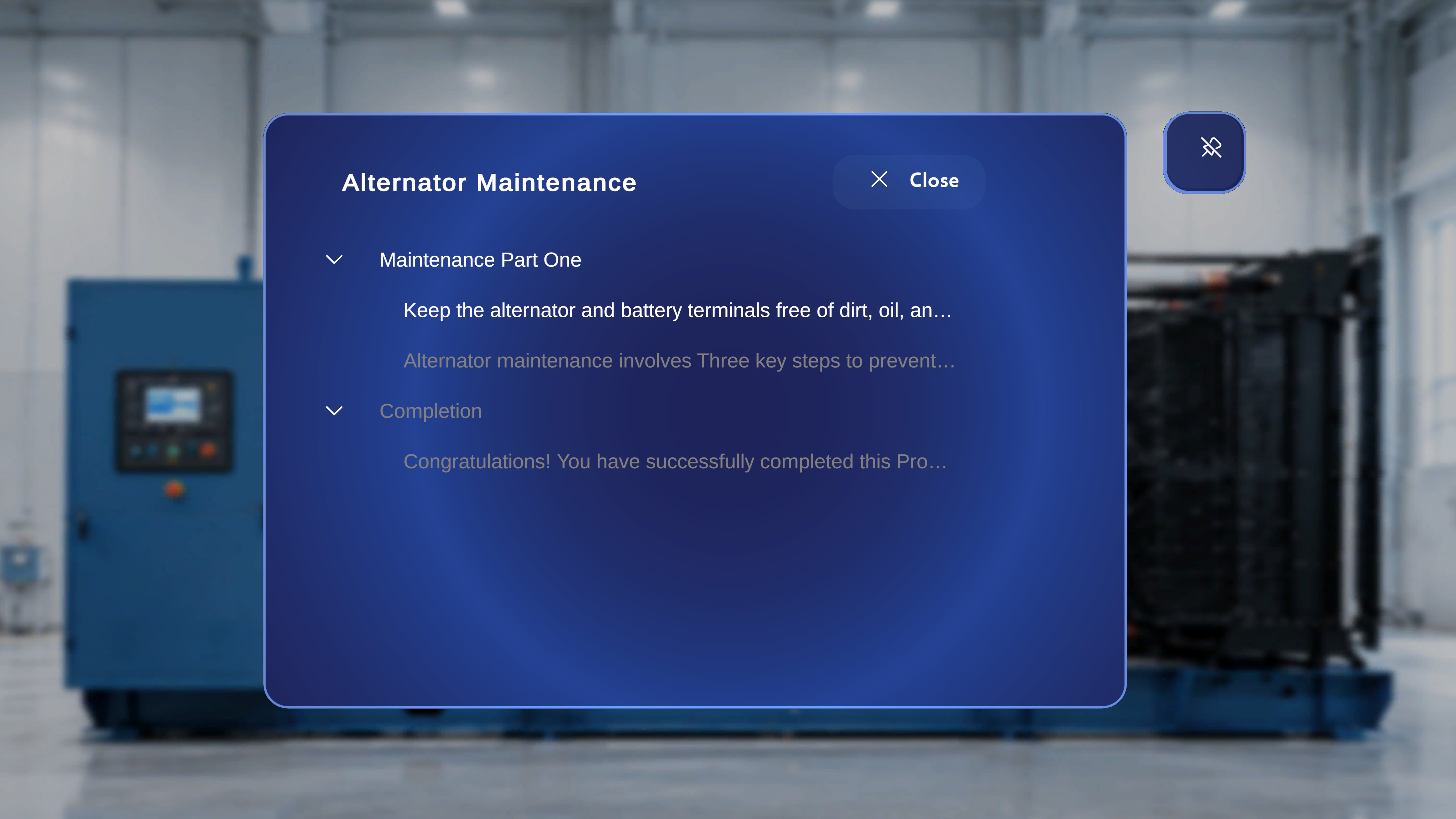 Select the **list icon** at the top-left of the step panel. A panel opens showing the procedure name, all tasks, all steps under each task, and all completion steps.
Focus an entry and air-tap it — or say **"Select"** while it's focused. The chosen step becomes active immediately, and its media and 3D content load exactly as if you had reached it sequentially.
Select the **Close (X)** button to return to the currently active step without changing anything.
If you jump straight to a choice step, it behaves exactly as described below — you still need to pick an option to continue.
## Answer a Choice Step (Branching)
Some procedures branch: a **Choice Step** presents up to three options, and the one you pick determines which step comes next. These are common in troubleshooting flows, conditional inspections, and multi-path work.
Select the **list icon** at the top-left of the step panel. A panel opens showing the procedure name, all tasks, all steps under each task, and all completion steps.
Focus an entry and air-tap it — or say **"Select"** while it's focused. The chosen step becomes active immediately, and its media and 3D content load exactly as if you had reached it sequentially.
Select the **Close (X)** button to return to the currently active step without changing anything.
If you jump straight to a choice step, it behaves exactly as described below — you still need to pick an option to continue.
## Answer a Choice Step (Branching)
Some procedures branch: a **Choice Step** presents up to three options, and the one you pick determines which step comes next. These are common in troubleshooting flows, conditional inspections, and multi-path work.
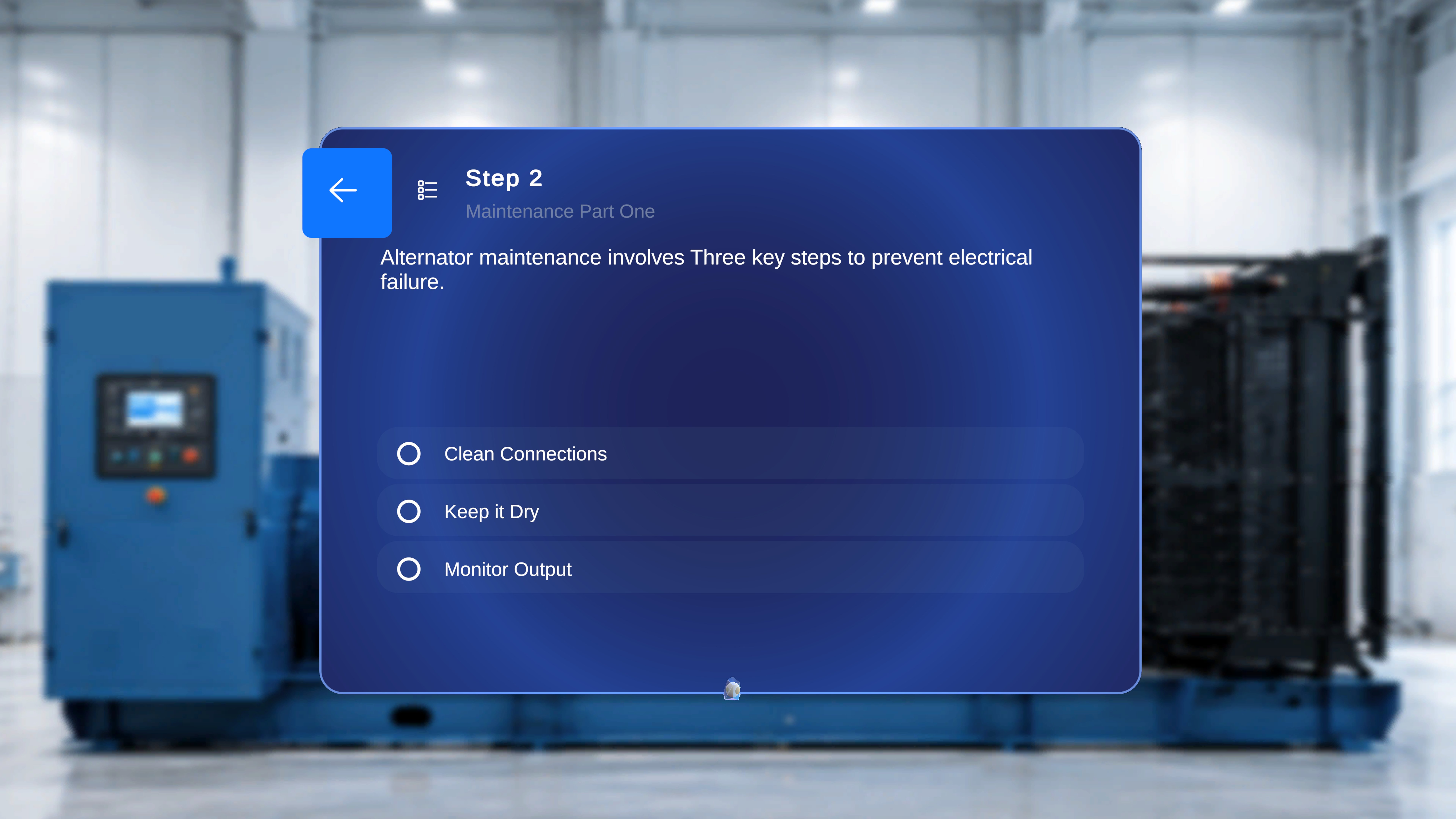 On a choice step there is **no forward arrow** — you must select an option to continue. The back arrow still returns you to the previous step in your current path.
Read each option label — each leads to a different part of the procedure.
Focus an option with the ray or head-gaze cursor and hold — a loading indicator fills around it and the option activates automatically when it completes.
On a choice step there is **no forward arrow** — you must select an option to continue. The back arrow still returns you to the previous step in your current path.
Read each option label — each leads to a different part of the procedure.
Focus an option with the ray or head-gaze cursor and hold — a loading indicator fills around it and the option activates automatically when it completes.
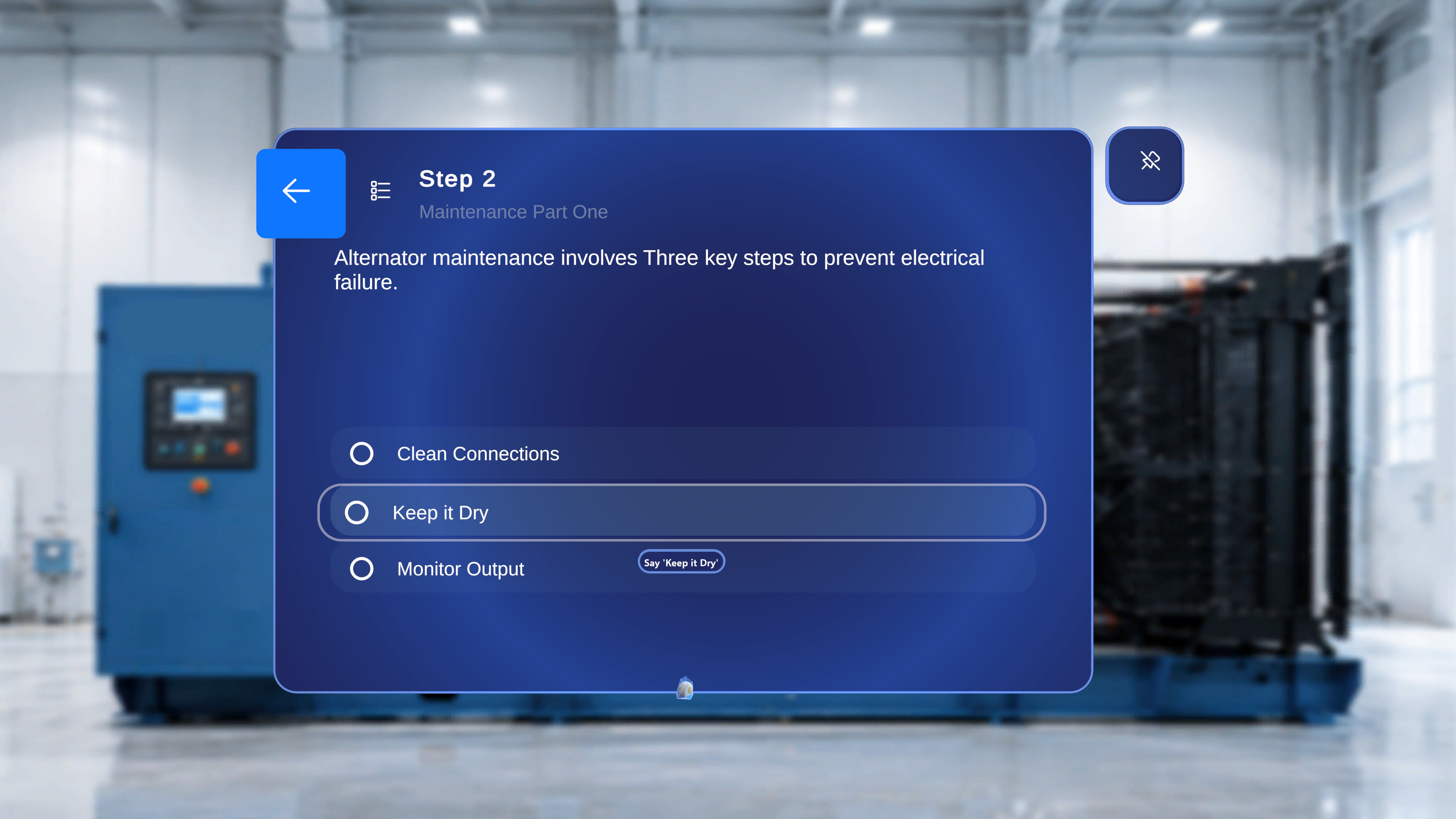 Faster ways to answer: **air-tap** the option to activate it immediately, or **say the option's label exactly as written** (for example, *"Start with the alternator"*) — no hover needed. If a label is awkward to speak, fall back to hover + "Select".
After you choose, the procedure continues along that branch until it reaches another choice step or a completion step — see [Complete and Sign Off](/frontline/hololens/operate/complete-and-sign-off).
## Keep Instructions with You: Follow Me
**Follow Me** keeps a panel floating in front of you as you walk or turn — ideal when both hands are on tools and you need the instructions to come along. It is off by default; panels stay where you leave them.
The toggle is the **pin icon** in the top-right corner of panels that support it, including the main step panel and the task/step list panel. A pin **with a slash** means off; a pin **without a slash** means on.
Faster ways to answer: **air-tap** the option to activate it immediately, or **say the option's label exactly as written** (for example, *"Start with the alternator"*) — no hover needed. If a label is awkward to speak, fall back to hover + "Select".
After you choose, the procedure continues along that branch until it reaches another choice step or a completion step — see [Complete and Sign Off](/frontline/hololens/operate/complete-and-sign-off).
## Keep Instructions with You: Follow Me
**Follow Me** keeps a panel floating in front of you as you walk or turn — ideal when both hands are on tools and you need the instructions to come along. It is off by default; panels stay where you leave them.
The toggle is the **pin icon** in the top-right corner of panels that support it, including the main step panel and the task/step list panel. A pin **with a slash** means off; a pin **without a slash** means on.
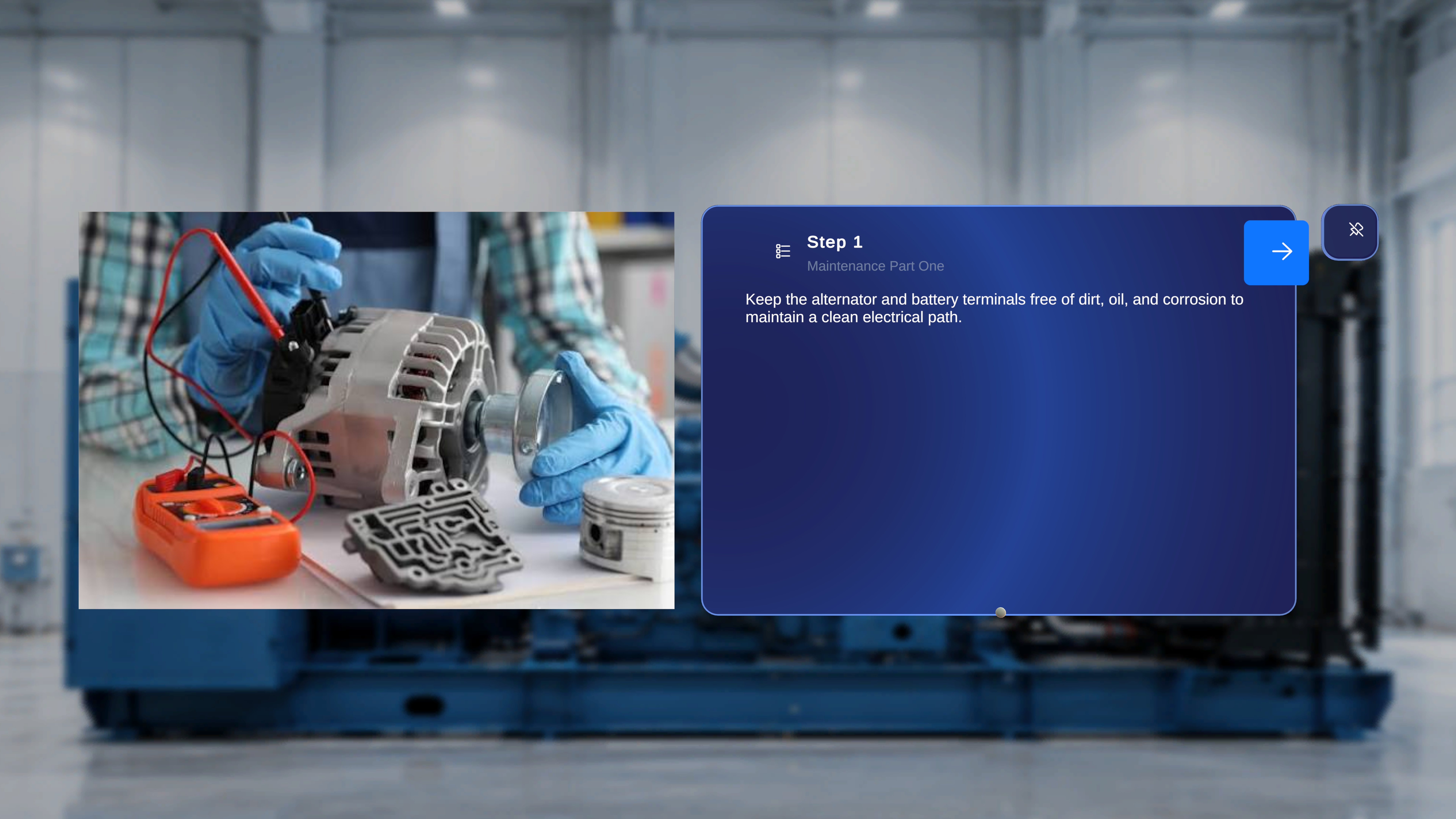 Air-tap the **pin button** on the panel — or, from anywhere, say **"Follow me"** (no need to look at the panel). The pin loses its slash and the panel starts following you as you move.
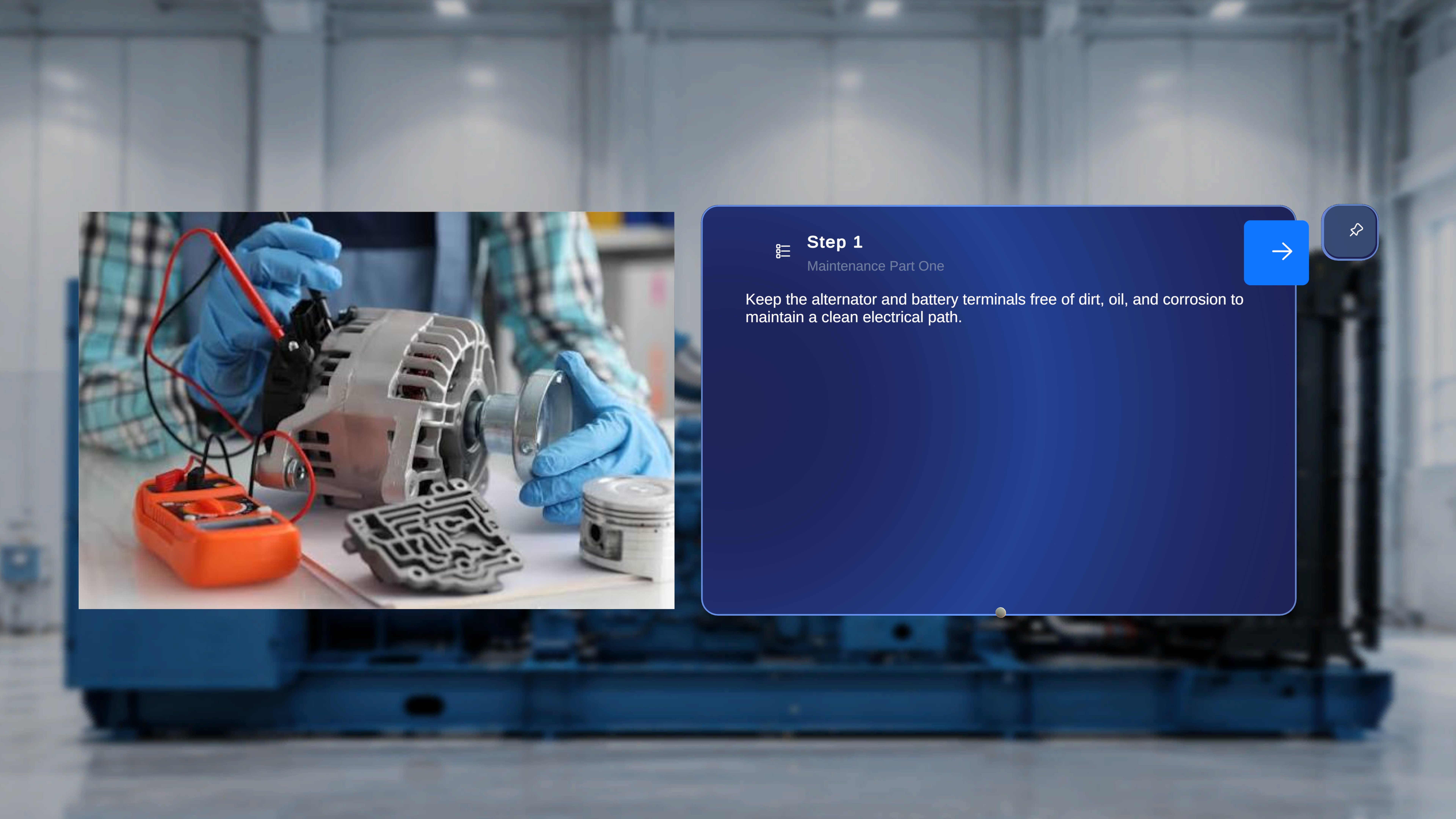 Air-tap the pin again, or say **"Unfollow me"**. You can also simply **grab and move the panel** — manually repositioning a panel switches Follow Me off for it, letting you "park" instructions next to the equipment you're working on.
Follow Me is remembered per panel and is not reset by changing steps — if the step panel is following you, it keeps following as you progress. Panels without the pin icon (dialogs, popups, the QR scan flow) don't support Follow Me by design.
Combine Follow Me with voice: turn it on for the step panel, then say **"Next"** / **"Previous"** as you work — instructions come to you and advance on command.
## The In-Procedure Side Menu
While inside a procedure, raise either hand with your **palm facing toward you**. A vertical menu appears with three buttons (plus the current time and system status at the bottom).
Air-tap the pin again, or say **"Unfollow me"**. You can also simply **grab and move the panel** — manually repositioning a panel switches Follow Me off for it, letting you "park" instructions next to the equipment you're working on.
Follow Me is remembered per panel and is not reset by changing steps — if the step panel is following you, it keeps following as you progress. Panels without the pin icon (dialogs, popups, the QR scan flow) don't support Follow Me by design.
Combine Follow Me with voice: turn it on for the step panel, then say **"Next"** / **"Previous"** as you work — instructions come to you and advance on command.
## The In-Procedure Side Menu
While inside a procedure, raise either hand with your **palm facing toward you**. A vertical menu appears with three buttons (plus the current time and system status at the bottom).
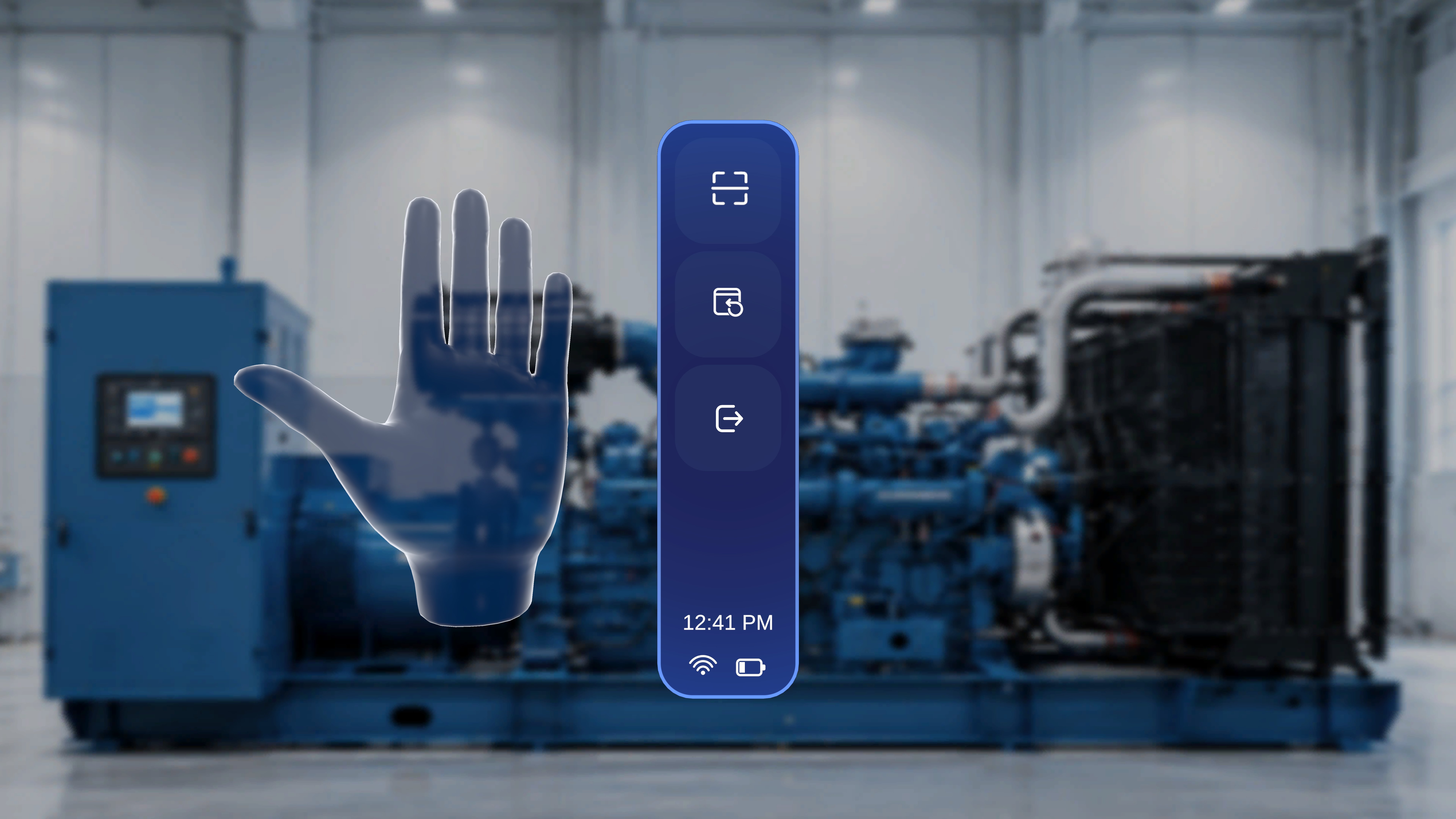 | Button | When to use it | What happens |
| ----------------------- | ---------------------------------------------------- | ----------------------------------------------------------------------------------------------------------------------------------- |
| **Rescan** (top) | Content looks misaligned or the anchor needs redoing | The QR scanning interface opens again; after you realign and confirm, the procedure reloads relative to the updated anchor position |
| **Reposition** (middle) | Panels have drifted out of reach | All active panels move directly in front of your current view |
| **Exit** (bottom) | You need to leave the procedure | A confirmation panel appears — see below |
Selecting **Exit** shows the message "You are about to exit this procedure" with two options:
| Button | When to use it | What happens |
| ----------------------- | ---------------------------------------------------- | ----------------------------------------------------------------------------------------------------------------------------------- |
| **Rescan** (top) | Content looks misaligned or the anchor needs redoing | The QR scanning interface opens again; after you realign and confirm, the procedure reloads relative to the updated anchor position |
| **Reposition** (middle) | Panels have drifted out of reach | All active panels move directly in front of your current view |
| **Exit** (bottom) | You need to leave the procedure | A confirmation panel appears — see below |
Selecting **Exit** shows the message "You are about to exit this procedure" with two options:
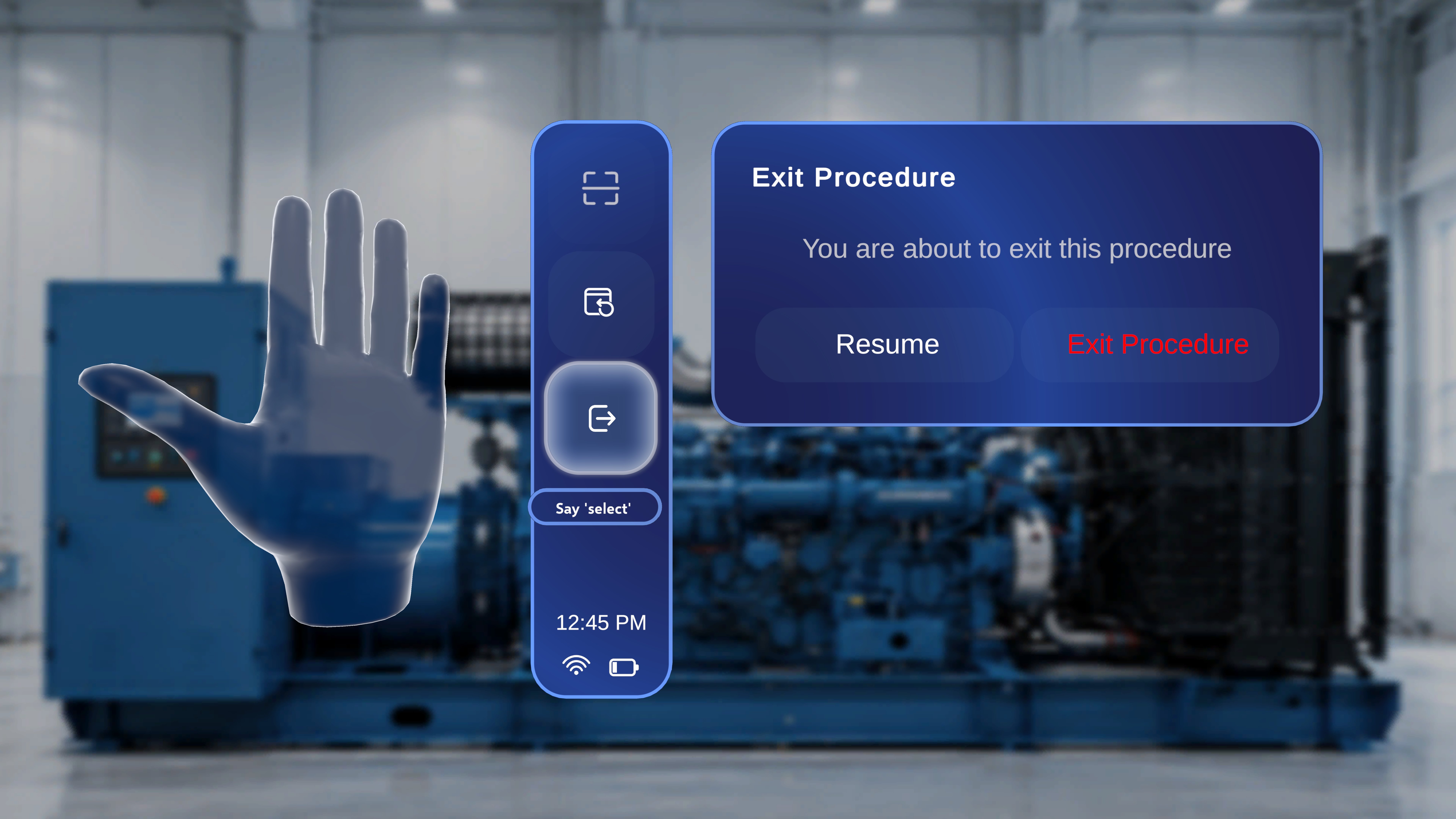 * **Resume** — closes the confirmation and continues from your current step.
* **Exit Procedure** — leaves the procedure and returns you to the Procedures page.
***
**Next:** [Work with 3D Models and Media](/frontline/hololens/operate/work-with-3d-models-and-media)
* **Resume** — closes the confirmation and continues from your current step.
* **Exit Procedure** — leaves the procedure and returns you to the Procedures page.
***
**Next:** [Work with 3D Models and Media](/frontline/hololens/operate/work-with-3d-models-and-media)