> ## Documentation Index
> Fetch the complete documentation index at: https://docs.altoura.com/llms.txt
> Use this file to discover all available pages before exploring further.
# Work with 3D Models and Media
> Use the images, videos, and 3D models attached to each step — control video playback, and understand when models can be viewed, moved, or show a ghost reference.
This page is for **field workers** executing a procedure on the HoloLens. By the end of it, you will know how to use the visual guidance attached to each step: the media panel for images and video, and the 3D models that appear in your physical workspace.
Both media and models are **step-specific** — as you move between steps, each step shows only its own content. What appears, and how you can interact with it, depends on how the procedure was authored.
## The Media Panel
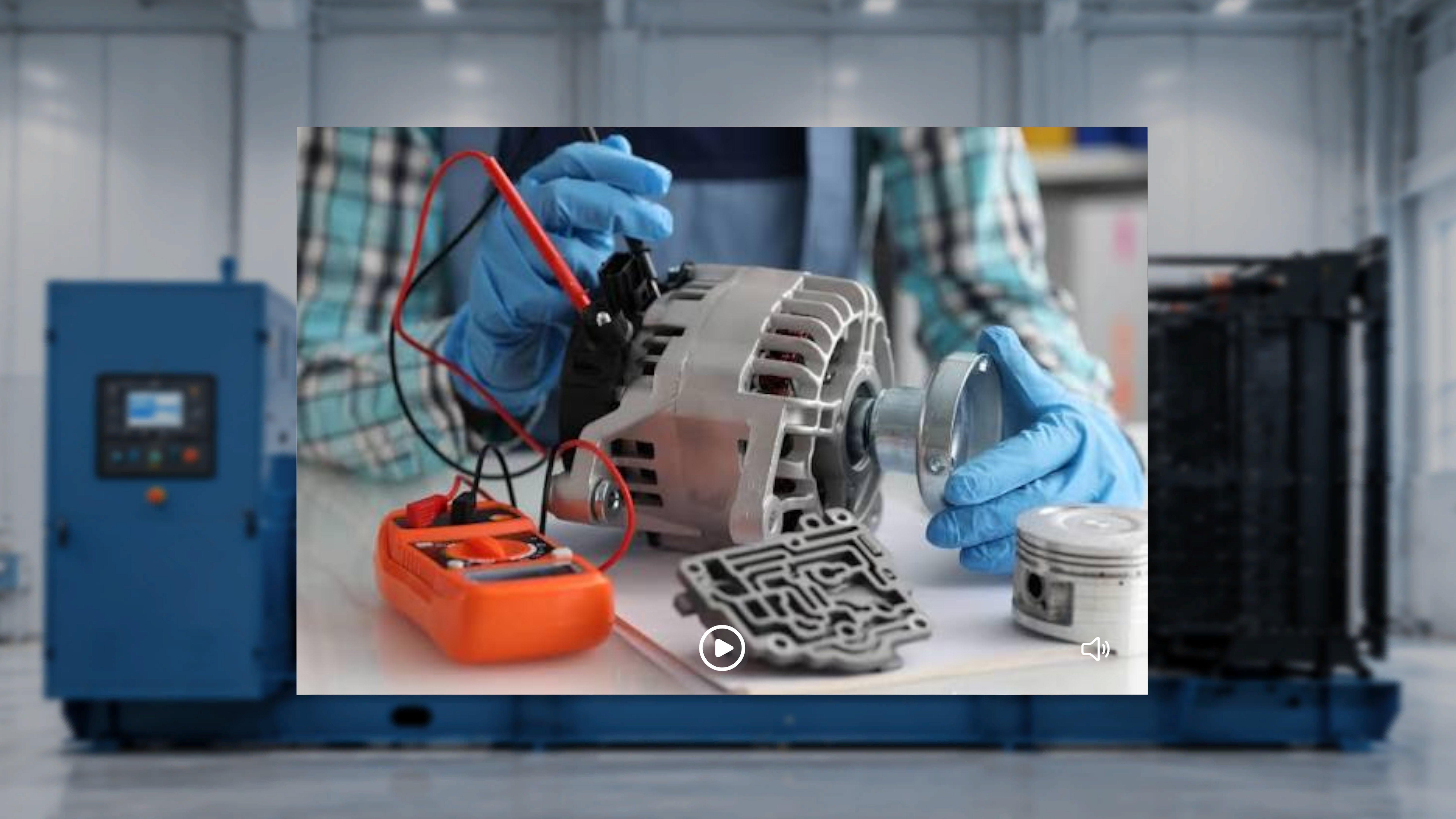 The **Media panel** appears next to the step panel only when the current step has an image or video attached. If a step has no media, the panel simply doesn't appear.
### When the Step Has an Image
The image is displayed in the panel and stays visible while you are on that step. There are no playback controls.
### When the Step Has a Video
The panel shows a video player with a **Play / Pause** control and a **Mute / Unmute** (speaker) control.
* The video **starts playing automatically** when you enter the step, and plays **in a continuous loop**.
* Select **Pause** to stop on the current frame; select **Play** to resume looping.
* Select the **speaker icon** to toggle audio on or off.
When you move to another step, the media panel refreshes: a new video auto-plays, a new image displays statically, and if the step has no media the panel disappears. This works the same on every step type, including choice steps.
## 3D Models in Your Workspace
The **Media panel** appears next to the step panel only when the current step has an image or video attached. If a step has no media, the panel simply doesn't appear.
### When the Step Has an Image
The image is displayed in the panel and stays visible while you are on that step. There are no playback controls.
### When the Step Has a Video
The panel shows a video player with a **Play / Pause** control and a **Mute / Unmute** (speaker) control.
* The video **starts playing automatically** when you enter the step, and plays **in a continuous loop**.
* Select **Pause** to stop on the current frame; select **Play** to resume looping.
* Select the **speaker icon** to toggle audio on or off.
When you move to another step, the media panel refreshes: a new video auto-plays, a new image displays statically, and if the step has no media the panel disappears. This works the same on every step type, including choice steps.
## 3D Models in Your Workspace
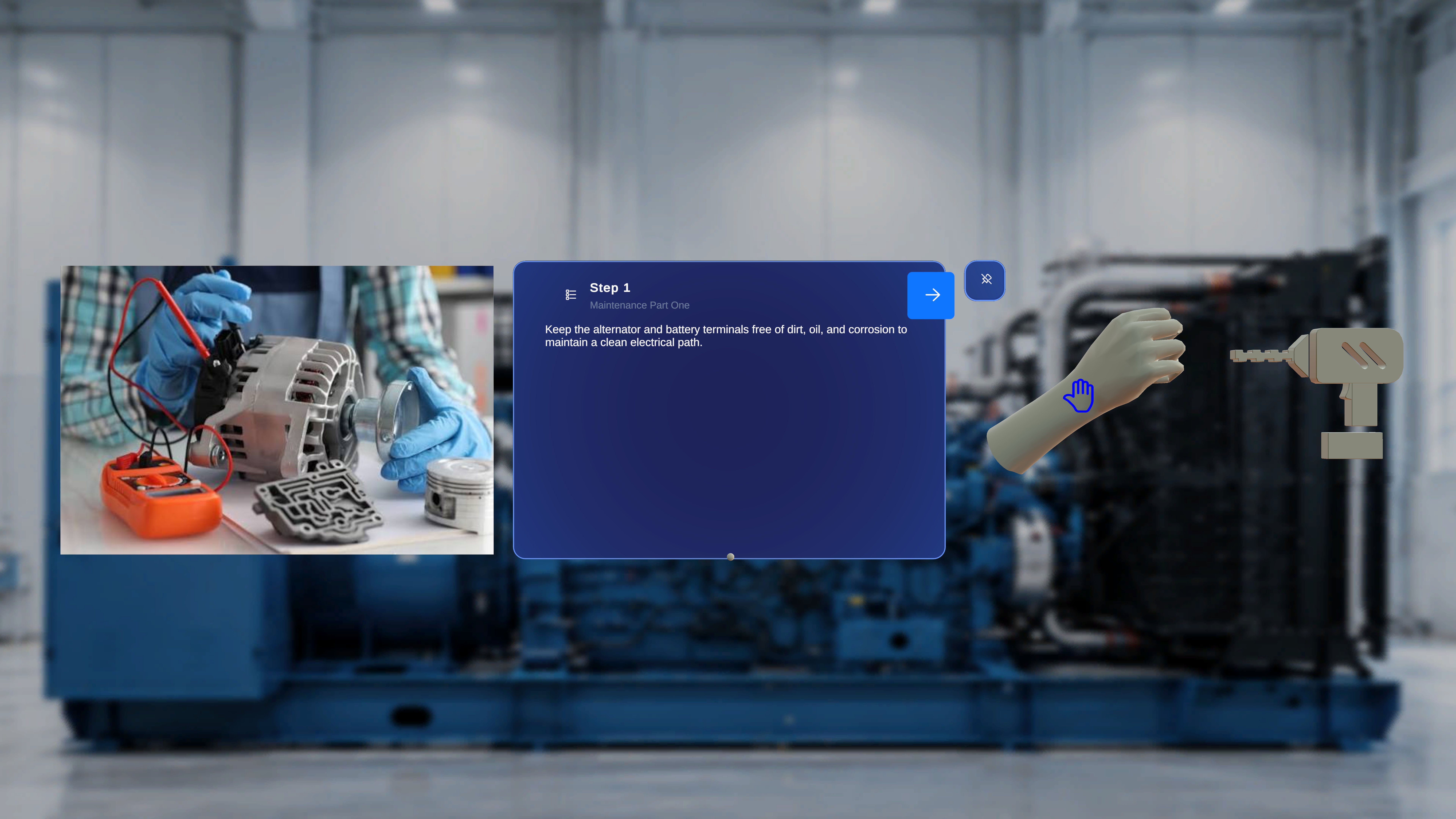 If the current step includes 3D models, they appear directly in the physical space at their saved positions, anchored relative to the QR code you confirmed — see [Anchoring & QR Codes](/frontline/overview/concepts/anchoring-and-qr-codes). If a step has no models, none appear.
You cannot add new models or change model settings. How much you can interact with each model depends on how it was configured:
### View-Only Models
Some models are fixed visual references. You can see the model at its position, but you cannot grab, move, or manipulate it.
### Movable (Interactable) Models
If the current step includes 3D models, they appear directly in the physical space at their saved positions, anchored relative to the QR code you confirmed — see [Anchoring & QR Codes](/frontline/overview/concepts/anchoring-and-qr-codes). If a step has no models, none appear.
You cannot add new models or change model settings. How much you can interact with each model depends on how it was configured:
### View-Only Models
Some models are fixed visual references. You can see the model at its position, but you cannot grab, move, or manipulate it.
### Movable (Interactable) Models
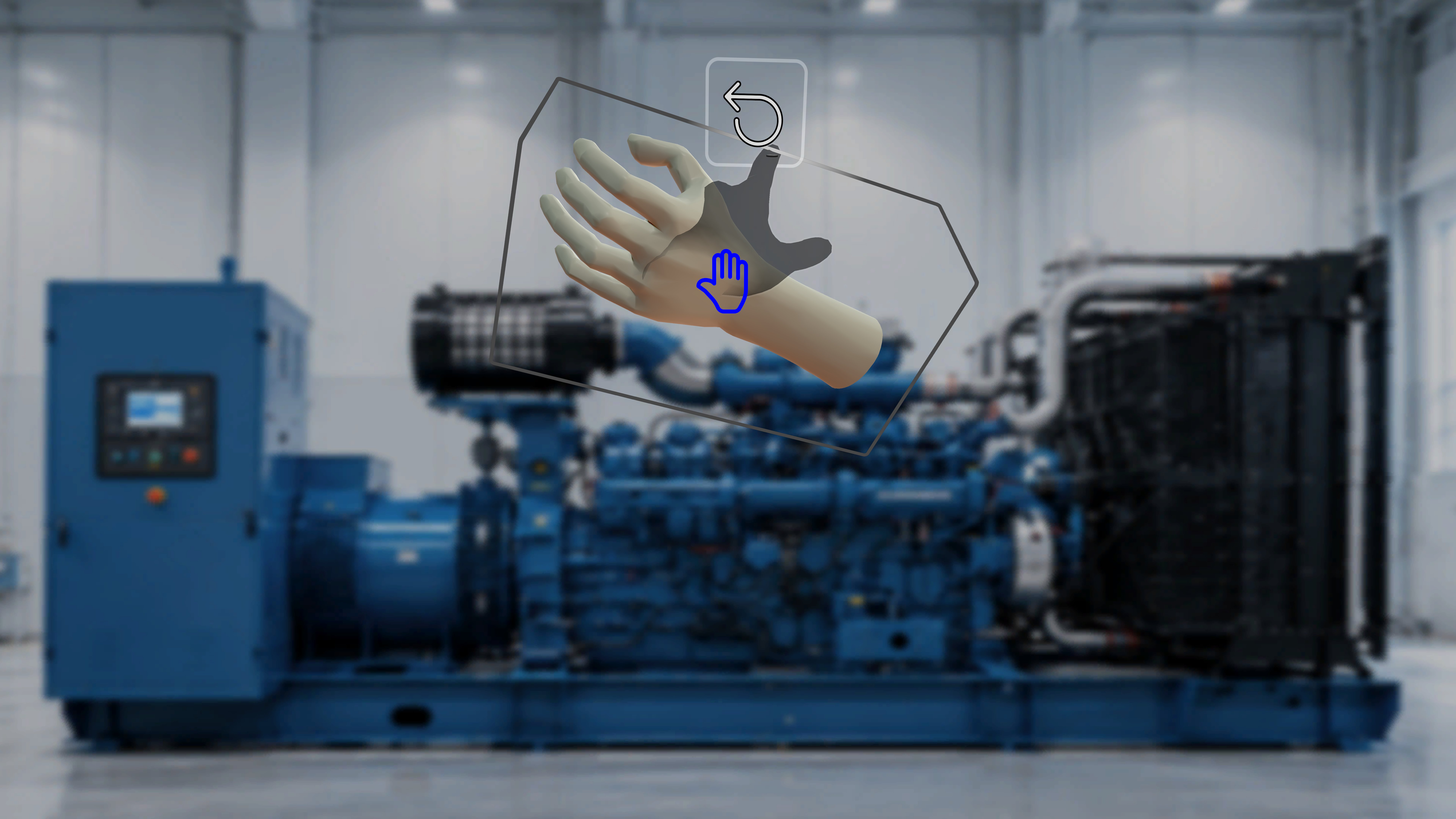 Other models can be **grabbed and moved** — useful for holding a reference part next to the real one. Moving a model affects only your current session; the procedure's saved configuration is unchanged. A **reset control** lets you return a moved model to its original position.
### Ghost Reference
Other models can be **grabbed and moved** — useful for holding a reference part next to the real one. Moving a model affects only your current session; the procedure's saved configuration is unchanged. A **reset control** lets you return a moved model to its original position.
### Ghost Reference
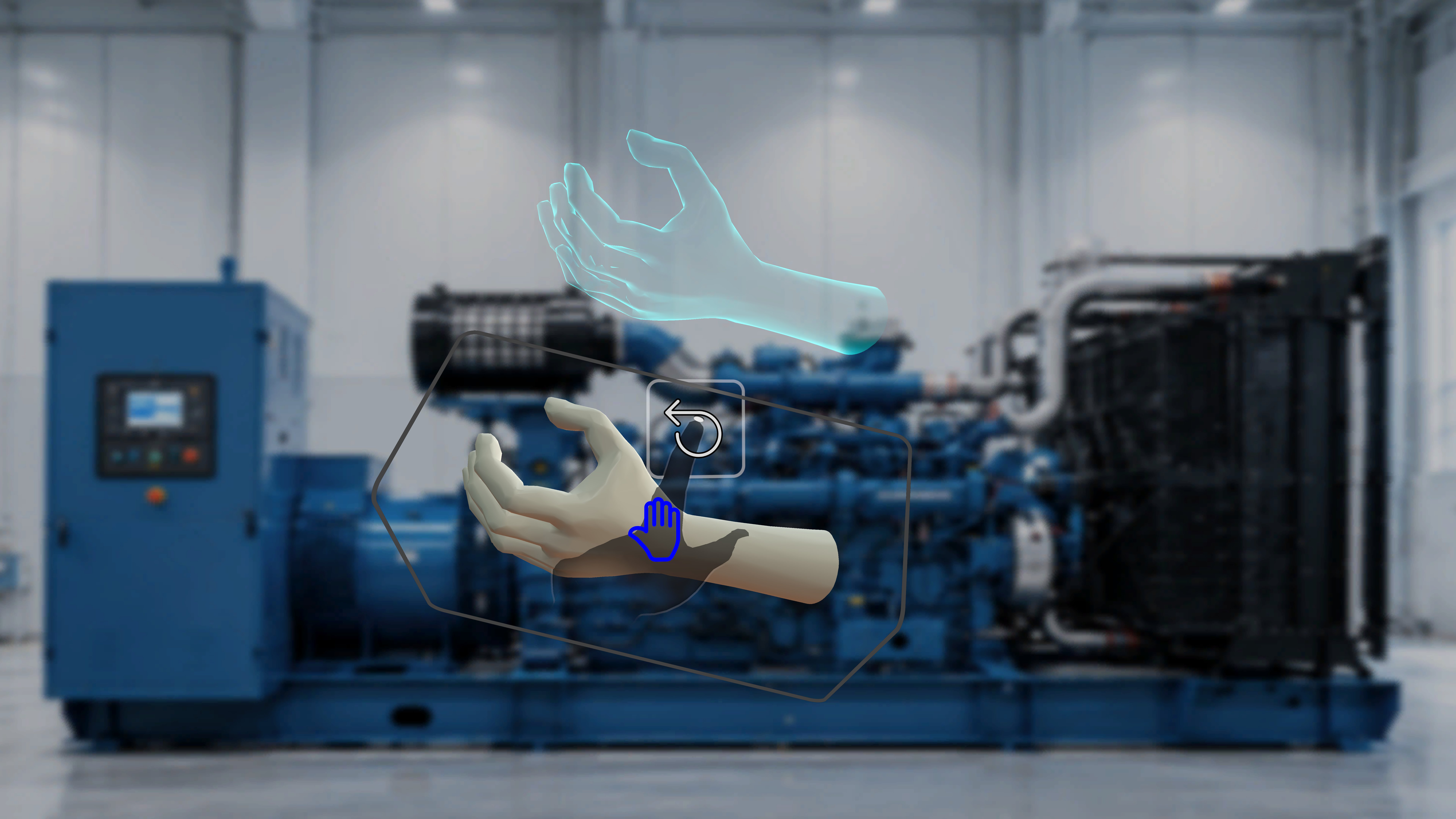 Some movable models leave a **ghost** — a shadow that stays at the original position when you move the model, showing you the intended placement. If no ghost appears when you move a model, that model wasn't set up with one; only the relocated model is visible.
### Animations
Animated models play automatically according to their saved settings — playback mode (loop, once, ping-pong), direction, and speed are fixed. You cannot change the animation, adjust its speed, or pause it. Models without animation stay static.
Moved a model and lost track of things, or panels out of reach? Open the palm side menu and use **Reposition** to bring panels back in front of you — see [Follow the Steps](/frontline/hololens/operate/follow-steps).
***
**Next:** [Complete and Sign Off](/frontline/hololens/operate/complete-and-sign-off)
Some movable models leave a **ghost** — a shadow that stays at the original position when you move the model, showing you the intended placement. If no ghost appears when you move a model, that model wasn't set up with one; only the relocated model is visible.
### Animations
Animated models play automatically according to their saved settings — playback mode (loop, once, ping-pong), direction, and speed are fixed. You cannot change the animation, adjust its speed, or pause it. Models without animation stay static.
Moved a model and lost track of things, or panels out of reach? Open the palm side menu and use **Reposition** to bring panels back in front of you — see [Follow the Steps](/frontline/hololens/operate/follow-steps).
***
**Next:** [Complete and Sign Off](/frontline/hololens/operate/complete-and-sign-off)